Last updated on August 23rd, 2026 at 03:08 am
I added axe-core to a Playwright suite for a fintech client two years ago because a sales engineer had promised a prospect “full WCAG compliance testing” during a demo, and someone had to make that sentence at least partially true. That’s usually how this starts. Not a mandate from above, a promise someone else made that lands on QA’s desk.
Playwright accessibility testing, done with the official @axe-core/playwright package, runs the axe-core rules engine against a page your Playwright script already controls, and reports which WCAG success criteria the page violates automatically. It catches a meaningful slice of accessibility issues, missing alt text, insufficient color contrast, missing form labels, but it does not catch everything a screen reader user would actually hit. Treat it as one layer of a testing strategy, not the whole strategy.
This article covers technical testing setup and is for informational purposes only. It isn’t legal advice, and nothing here should be read as a guarantee of ADA, WCAG, or other regulatory compliance. If compliance is a business requirement for you, involve legal counsel in that decision.
- What Playwright Accessibility Testing With axe-core Actually Does
- Setting Up Accessibility Testing With Playwright
- Suppressing Known Violations Without Hiding Problems
- axe-core vs axe DevTools vs Lighthouse vs Manual Testing
- Where Playwright Accessibility Testing Falls Short
- Should CI Block the Build or Just Track the Debt?
- Which Approach Fits Your Team
- Getting Started Checklist
- Conclusion
- Frequently Asked Questions (FAQs)
What Playwright Accessibility Testing With axe-core Actually Does
@axe-core/playwright is not a separate testing framework. It’s a small wrapper, maintained by Deque Labs, that injects the axe-core JavaScript engine into a page your Playwright test has already navigated to, then runs a rule set against the rendered DOM.
The wrapper exposes a chainable AxeBuilder class. You point it at a page object, optionally scope or exclude selectors, disable specific rules, and call .analyze(). It returns a JSON object with three buckets that matter: violations, incomplete, and passes.
Here’s the part people skip past: axe-core inspects the DOM after JavaScript has run, not the raw HTML. That means it catches accessibility regressions introduced by client-side rendering, a React component that drops an aria-label on re-render, for instance, in a way that a static HTML linter never will. That’s the actual reason to run this inside Playwright instead of as a one-off browser extension scan.
Setting Up Accessibility Testing With Playwright
If you already have Playwright installed and a working test suite (see my Playwright TypeScript tutorial if you don’t), adding axe-core takes about twenty minutes if you do it properly, ten if you skip the fixture.
Don’t have a staging site handy to practice playwright accessibility testing against? I built a small, self-contained practice page seeded with eight real, verifiable accessibility violations, matched exactly to the code examples below so you can follow along and check your own output against mine. It has zero external dependencies, so it works fully offline. Download the a11y-practice-page.html and save it anywhere in your project and point Playwright at it with:
import path from 'path';
await page.goto(`file://${path.resolve('a11y-practice-page.html')}`);
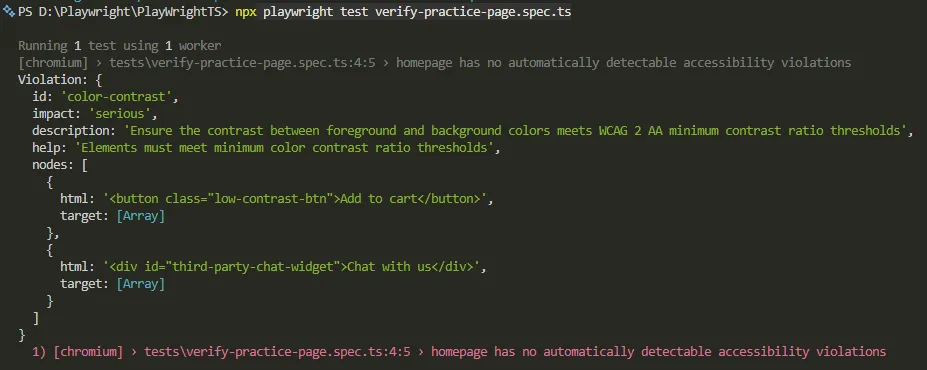
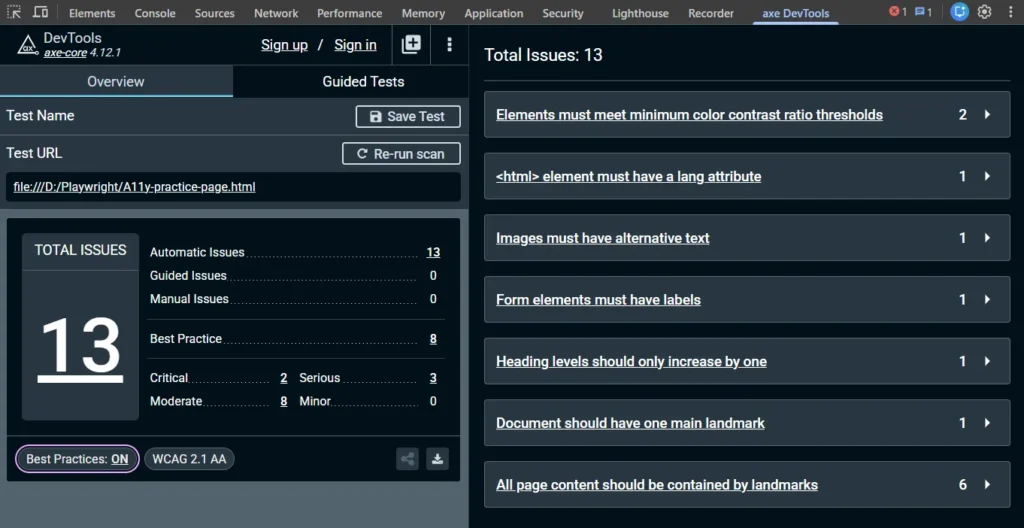
Here’s what to verify, so you know your setup is actually working and not just running silently: a basic scan (Step 2 below) against the practice page should return exactly seven violations, color-contrast, heading-order, html-has-lang, image-alt, label, landmark-one-main, and region. Then follow Step 3, click the page’s “Account” button first, scan again, and an eighth violation, link-name, should appear that wasn’t there before. That’s not a coincidence, it’s the whole point of Step 3: that markup genuinely doesn’t exist in the DOM until the click happens, so a pre-click scan can’t see it. If your numbers match those, you’ve confirmed your setup works, and you’ve watched the difference between a static scan and an interaction-aware one with your own terminal output instead of taking my word for it.
- Install the package.
- Run
npm install --save-dev @axe-core/playwright.
There’s nothing else to install, axe-core itself ships bundled inside this package, so you don’t manage two dependencies separately.
- Run
- Write a basic scan.
import { test, expect } from '@playwright/test';
import AxeBuilder from '@axe-core/playwright';

test('homepage has no automatically detectable accessibility violations', async ({ page }) => {
  await page.goto('https://your-staging-site.example.com');
  // Following along with the practice page instead? Swap the line above for:
  // await page.goto(`file://${path.resolve('a11y-practice-page.html')}`);

  const results = await new AxeBuilder({ page }).analyze();

  expect(results.violations).toEqual([]);
});
Running this against the practice page won’t pass, and it shouldn’t. You should see the assertion fail with exactly seven violations in the array, confirming the scan itself is working correctly before you point it at anything real.
- Scan content revealed by user interaction, not just the initial page load.
analyze()only scans the page in its current state at the moment you call it. If a menu, modal, or accordion only exists in the DOM after a click, scan after the click, and wait for the element to actually be there first:
await page.getByRole('button', { name: 'Account' }).click();
await page.locator('#account-menu-flyout').waitFor();

const results = await new AxeBuilder({ page })
  .include('#account-menu-flyout')
  .analyze();

expect(results.violations).toEqual([]);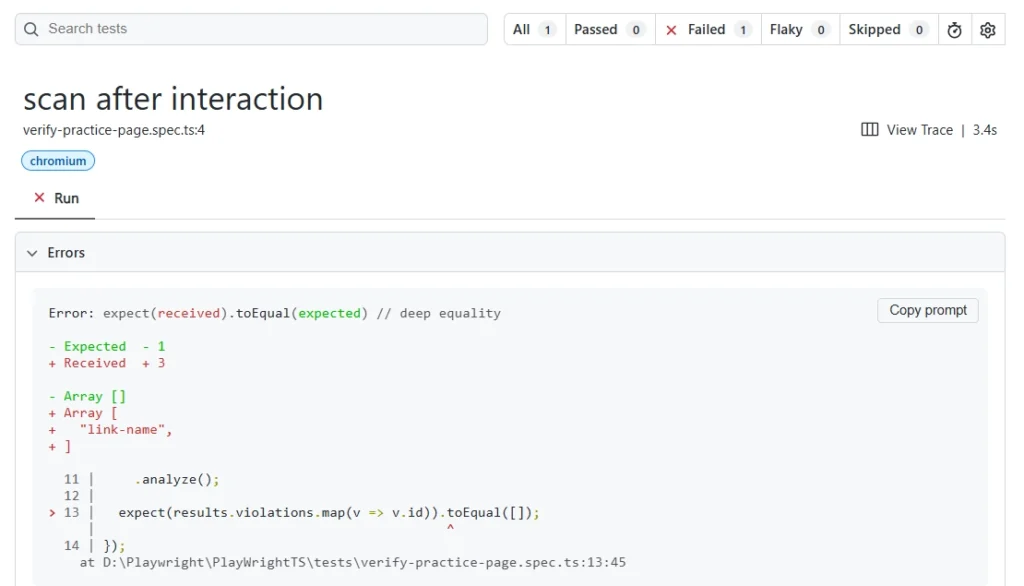
Skip the waitFor() and axe-core may scan the page before the flyout has rendered, which gives you a false “zero violations” result on the exact element you meant to test. On the downloadable practice page, this exact selector pair (#account-menu-button as the click target, #account-menu-flyout as the scan scope) is what reveals that eighth link-name violation mentioned above, so if you’re following along, this is the step where your two scan runs should actually start differing.
- Scope the scan when a full-page assertion is too noisy. On a real product page with a third-party ad iframe or chat widget you don’t control, exclude it rather than let it fail every run:
const results = await new AxeBuilder({ page })
  .exclude('[id^="google_ads_iframe_"]')
  .exclude('#third-party-chat-widget')
  .analyze();
The #third-party-chat-widget selector matches the downloadable practice page exactly, so that line is directly runnable against it if you’re following along, no adjustment needed.
- Target a specific WCAG level. By default AxeBuilder runs every rule it has, including some best-practice rules that go beyond WCAG entirely. To align a run with a conformance target, filter by tag:
const results = await new AxeBuilder({ page })
  .withTags(['wcag2a', 'wcag2aa', 'wcag21a', 'wcag21aa'])
  .analyze();
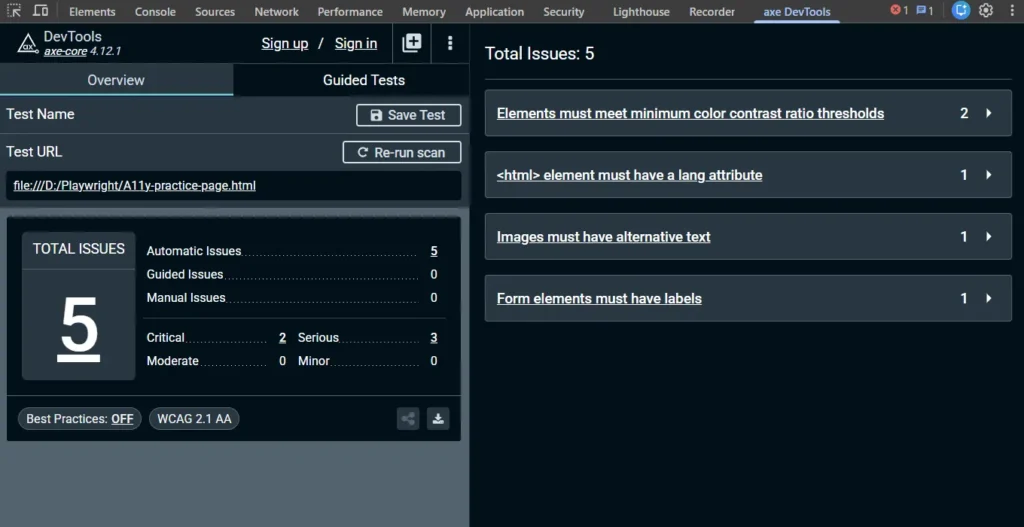
Run this against the practice page and the count drops from seven violations to four. heading-order, landmark-one-main, and region are axe-core “best practice” checks with no WCAG tag attached at all, so a strictly WCAG-scoped scan won’t see them. That’s not a bug in the filter, it’s the filter doing exactly what you asked, catching what WCAG requires, not everything axe-core is capable of checking.
The axe DevTools extension has the same distinction built in as a “Best Practices” toggle, switching it off reproduces this exact four-rule result independently of Playwright entirely.
- Make the configuration reusable with a Playwright fixture. Copying the same
withTags()andexclude()calls into every test file gets messy fast, and it means a rule change requires editing ten files instead of one. Extend the base test object once:
// axe-test.ts
import { test as base } from '@playwright/test';
import AxeBuilder from '@axe-core/playwright';

type AxeFixture = {
  makeAxeBuilder: () => AxeBuilder;
};

export const test = base.extend<AxeFixture>({
  makeAxeBuilder: async ({ page }, use) => {
    const makeAxeBuilder = () =>
      new AxeBuilder({ page })
        .withTags(['wcag2a', 'wcag2aa', 'wcag21a', 'wcag21aa'])
        .exclude('#third-party-chat-widget');

    await use(makeAxeBuilder);
  },
});

export { expect } from '@playwright/test';
Every test file that imports test from ./axe-test instead of @playwright/test now gets a consistently configured builder for free, and still supports per-test overrides via .include().
- Attach the full scan results to your test report, not just the violations. A bare
expect(violations).toEqual([])gives you nothing to debug when it fails except a wall of JSON. Attach the whole result object, includingincompleteandpasses, so a failing CI run tells a developer exactly what happened:
test('dashboard scan', async ({ page, makeAxeBuilder }, testInfo) => {
  await page.goto('/dashboard');
  const results = await makeAxeBuilder().analyze();

  await testInfo.attach('accessibility-scan-results', {
    body: JSON.stringify(results, null, 2),
    contentType: 'application/json',
  });

  expect(results.violations).toEqual([]);
});- Wire it into CI on Chromium only. Accessibility violations are DOM-level, not rendering-engine-level, so running the same scan across Chromium, Firefox, and WebKit mostly burns CI minutes without catching anything new. A dedicated
a11yproject inplaywright.config.ts, pinned to Chromium, keeps this check fast and separate from your cross-browser functional suite. My GitHub Actions setup guide covers wiring a dedicated job into a pipeline.
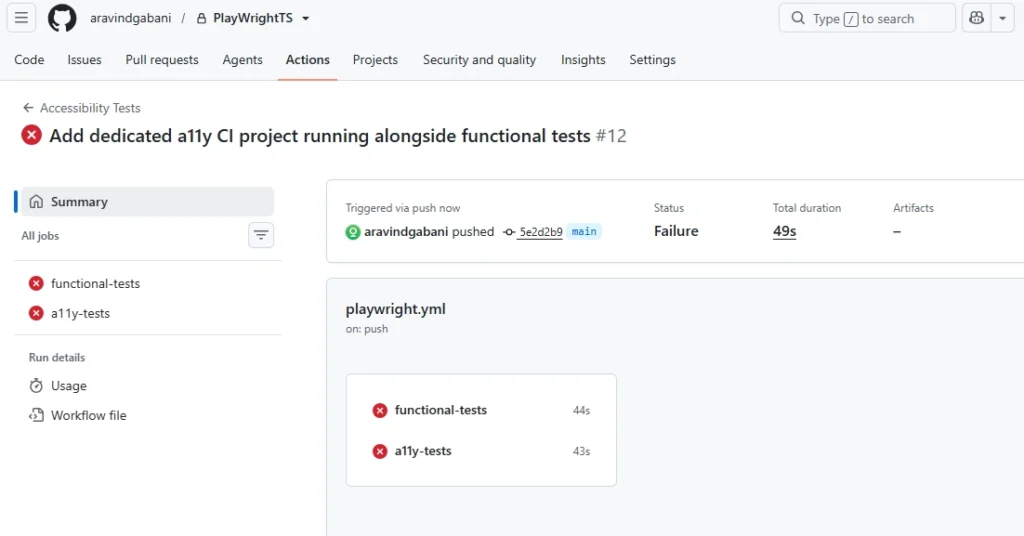
That CI job runs the same basic scan from Step 2 underneath. Here’s what a clean, real run of that scan actually looks like in Playwright’s own HTML report before it ever reaches CI.
Copy This and Run It Yourself
Every pattern above in one file. Save this next to the practice page as full-walkthrough.spec.ts and run npx playwright test full-walkthrough.spec.ts, the comments tell you exactly what to expect from each test so you can confirm your setup matches before you point any of it at a real page.
import { test, expect } from '@playwright/test';
import AxeBuilder from '@axe-core/playwright';
import path from 'path';

const practicePage = `file://${path.resolve('a11y-practice-page.html')}`;

test.describe('Playwright accessibility testing walkthrough', () => {

  test('Step 2: basic scan finds real violations', async ({ page }) => {
    await page.goto(practicePage);
    const results = await new AxeBuilder({ page }).analyze();
    console.log('Violation rule IDs:', results.violations.map(v => v.id));
    expect(results.violations.length).toBe(7);
  });

  test('Step 3: scan after interaction reveals a hidden violation', async ({ page }) => {
    await page.goto(practicePage);
    await page.getByRole('button', { name: 'Account' }).click();
    await page.locator('#account-menu-flyout').waitFor();
    const results = await new AxeBuilder({ page })
      .include('#account-menu-flyout')
      .analyze();
    expect(results.violations.map(v => v.id)).toContain('link-name');
  });

  test('Step 4: excluding an element reduces node count, not rule count', async ({ page }) => {
    await page.goto(practicePage);
    const full = await new AxeBuilder({ page }).analyze();
    const scoped = await new AxeBuilder({ page })
      .exclude('#third-party-chat-widget')
      .analyze();
    const fullContrast = full.violations.find(v => v.id === 'color-contrast');
    const scopedContrast = scoped.violations.find(v => v.id === 'color-contrast');
    expect(scopedContrast?.nodes.length).toBe(1);
    expect(scoped.violations.length).toBe(full.violations.length);
  });

  test('Step 5: filtering by WCAG tag drops best-practice-only rules', async ({ page }) => {
    await page.goto(practicePage);
    const results = await new AxeBuilder({ page })
      .withTags(['wcag2a', 'wcag2aa', 'wcag21a', 'wcag21aa'])
      .analyze();
    // heading-order, landmark-one-main, and region are axe-core
    // "best practice" checks with no WCAG tag, so they drop out here.
    expect(results.violations.length).toBe(4);
  });

  test('Step 7: attach full scan results for debugging', async ({ page }, testInfo) => {
    await page.goto(practicePage);
    const results = await new AxeBuilder({ page }).analyze();
    await testInfo.attach('accessibility-scan-results', {
      body: JSON.stringify(results, null, 2),
      contentType: 'application/json',
    });
    expect(results.violations.length).toBe(7);
  });

});
Here’s what a clean run should show, verified against a real execution of this exact file, so you can confirm your own output matches before trusting anything further:
| Test | What it checks | Expected result |
|---|---|---|
| Step 2: basic scan | Full-page scan, no scoping | 7 violations total |
| Step 3: scan after interaction | Scan scoped to the flyout, after clicking Account | link-name appears in the violations list |
| Step 4: exclude an element | color-contrast node count, with and without excluding the chat widget | Drops from 2 nodes to 1, total violation count stays at 7 |
| Step 5: filter by WCAG tag | Violations remaining after .withTags(['wcag2a', 'wcag2aa', 'wcag21a', 'wcag21aa']) | Drops from 7 to 4: color-contrast, html-has-lang, image-alt, label |
| Step 7: attach results | Full scan attached to the test report | 7 violations, same as Step 2, now visible in npx playwright show-report |
If any of your numbers come out different, don’t assume you did something wrong first, check whether you’re running the exact downloadable practice page unmodified, and whether your installed @axe-core/playwright version matches the one this article was verified against. Rule sets and tag mappings do change between versions, that’s the entire subject of the deprecated duplicate-id story earlier in this guide.
Step 6, the reusable fixture, is left out of this file on purpose. Fixtures are meant to live in their own file, that’s the entire point of the pattern, so copying it into a single-file demo would defeat the lesson. Use the axe-test.ts example from Step 6 directly.
Suppressing Known Violations Without Hiding Problems
Every real codebase has accessibility debt on day one. The question isn’t whether you’ll have known violations, it’s how you acknowledge them without quietly disabling the whole check.
You have three options, in order of how much they hide.
Exclude the element. .exclude('#legacy-banner') is the bluntest tool. It skips every rule for that element and all its children, which is fine for something small but dangerous for a component with many descendants. Use it for things you genuinely don’t control, like a third-party embed.
Disable the specific rule. If one rule fires across dozens of elements on a legacy page, disabling it is more honest than excluding the whole page. Leave a tracking comment so the suppression doesn’t become permanent by accident:
const results = await new AxeBuilder({ page })
  .withTags(['wcag2a', 'wcag2aa'])
  // TODO: fix landmark-one-main violations across legacy pages, JIRA-4521
  .disableRules(['landmark-one-main'])
  .analyze();
A word of caution here, learned the hard way while building the practice file for this article: rule IDs are not permanent. duplicate-id and duplicate-id-active were both deprecated and disabled by default in a recent axe-core release, after WCAG 2.2 formally removed the success criterion they were built to check. A disableRules(['duplicate-id']) call that was doing real work eighteen months ago is now disabling a rule that already wasn’t running. Run your suite against a real page occasionally and read the actual rule IDs coming back, don’t assume a disableRules() list written last year still matches what your axe-core version actually checks.
Track a baseline instead of a hard zero. For a legacy page with a real backlog of violations, asserting toEqual([]) on day one just fails every run and gets the check disabled out of frustration. Assert against a known count instead, and ratchet it down as you fix things:
// Baseline: 12 known violations as of 2026-08-01. Decrease, never increase.
expect(results.violations.length).toBeLessThanOrEqual(12);
Don’t snapshot the raw violations array itself. It contains rendered HTML snippets, which makes the snapshot break every time an unrelated styling change touches that component. If you want exact regression tracking rather than a count, build a small fingerprint of just the rule ID and target selectors and snapshot that instead.
Whatever you pick, review exclusions and disabled rules on a schedule. A “temporary” exclusion nobody revisits in six months is how accessibility debt compounds silently.
axe-core vs axe DevTools vs Lighthouse vs Manual Testing
Teams usually don’t pick one accessibility tool, they layer two or three, and get confused about which one is redundant. It isn’t redundant. Each one covers different ground.
| Tool | Best for | Real limitation | Pricing |
|---|---|---|---|
| @axe-core/playwright | Regression testing inside an existing E2E suite, CI gating | Only catches issues detectable in the DOM, misses logical reading order and screen reader phrasing | Free, open source |
| axe DevTools browser extension | Ad hoc manual spot-checks during development, exploring a single page | Doesn’t run in CI, one page at a time, easy to forget to run | Free tier, paid tier for extra rules |
| Lighthouse (accessibility audit) | Quick baseline score, non-testers checking a page before shipping | Shallower rule set than axe-core, the score itself gets treated as a compliance target when it shouldn’t be | Free, built into Chrome DevTools |
| Manual screen reader testing (NVDA, VoiceOver, JAWS) | Reading order, focus management, actual usability for a blind or low-vision user | Slow, requires training, doesn’t scale to every PR | Free (NVDA, VoiceOver) to licensed (JAWS) |
@axe-core/playwright and the axe DevTools extension share the same underlying rules engine, so a violation caught by one will get caught by the other. The difference is entirely about when and where the check runs. Extension scans happen when a developer remembers to run them. CI scans happen every time, whether anyone remembers or not.
Lighthouse is worth running too, but I’d stop treating its accessibility score as a target. I’ve watched a team chase a Lighthouse score from 87 to 100 over two sprints and ship a site that still failed a screen reader walkthrough on its checkout flow. The score measures rule coverage, not usability.
Where Playwright Accessibility Testing Falls Short
Here’s the unpopular opinion, said without hedging: if your accessibility testing plan stops at expect(violations).toEqual([]) in a Playwright suite, you have automated a fraction of the job and are at real risk of believing you’re done.
The honest number here, and it’s genuinely better than most people assume, comes from Deque systems. Deque’s own 2021 analysis of over 13,000 pages found that axe-core caught 57% of accessibility issues by volume, well above the older 20 to 30% figure that gets quoted, which measured coverage by WCAG success criteria count rather than actual issue frequency. That’s a real, methodologically documented number from the Deque Automated Testing Study, and it’s worth noting it comes from the company that sells the tool being measured, so treat it as an upper bound rather than gospel.
What that 57% figure can’t tell you is which issues make up the other 43%. In practice that’s tab order, whether alt text actually describes an image usefully, whether a screen reader announces a modal’s purpose when it opens, and whether custom keyboard interaction on a widget works at all. None of that shows up as a DOM attribute axe-core can check.
I’ve seen this play out with a five-person QA team at a mid-size SaaS company. They added @axe-core/playwright to their suite, got it green, and closed the accessibility ticket in their backlog. Three months later a customer using JAWS filed a support ticket because the app’s date picker was completely unusable with a keyboard. Zero axe-core rules cover custom keyboard interaction logic for a widget like that. The suite was green the entire time.
Should CI Block the Build or Just Track the Debt?
Teams that add automated accessibility testing genuinely disagree on this, and both sides have shipped it successfully, so it’s worth laying out honestly rather than pretending there’s one right answer.
Gate the build. Fail the PR the moment a critical or serious violation appears. This is the stricter path, and it works well for teams starting on a clean codebase or willing to do a focused sprint fixing existing violations before turning the gate on. The tradeoff: if you flip this on against an existing site with real accessibility debt, every PR starts failing on pre-existing problems the author didn’t cause, and teams often disable the check out of frustration within a month.
Track the debt separately. One real production team I’ve seen documented publicly runs the scan on every staging deploy but doesn’t fail the build. Instead, a GitHub Action files or updates a persistent issue listing current violations, and the repo owner triages and schedules fixes from there. The reasoning: when you’re just starting and the backlog is large, blocking every merge isn’t sustainable, and a persistent record is more honest than a check nobody trusts.
Neither approach is wrong. What’s wrong is picking the strict version, watching it choke on legacy debt, and quietly turning it off with no replacement, which is how most teams actually end up with zero accessibility testing despite having installed it once.
Which Approach Fits Your Team
If you’re a QA team retrofitting accessibility checks into an existing Playwright suite, start with @axe-core/playwright scoped to your highest-traffic pages, gate CI on critical and serious impact violations only, and use a fixture so the configuration lives in one place. Filter by impact directly in the assertion if you need a phased rollout:
const serious = results.violations.filter(
  (v) => v.impact === 'critical' || v.impact === 'serious'
);
expect(serious).toEqual([]);
If you’re a solo developer or small team without dedicated QA, the axe DevTools extension plus Lighthouse gets you a reasonable baseline without writing a single test, though you’ll want to graduate to the Playwright integration once you have a real regression suite worth protecting.
If you’re under any kind of compliance pressure, a demand letter, an upcoming audit, a client contract clause, automated tooling is necessary but not sufficient on its own. Budget time for a manual pass with an actual screen reader on your core user flows. That’s not a sales pitch for consultants, it’s the honest limit of what any automated tool can verify.
Getting Started Checklist
If you’re deciding whether this is worth adding to your suite right now, do three things:
- Run the axe DevTools extension manually against your three highest-traffic pages. This takes fifteen minutes and tells you whether the problem is small or large before you write a single test.
- Install @axe-core/playwright in a branch, wire it into one existing test file using a fixture, and scan one interactive component in addition to a static page. The downloadable practice page from earlier works fine for this if you don’t have a target ready.
- Decide upfront whether you’re gating the build or tracking a debt list, before you turn on CI. A noisy first run against undecided rules is how the check gets disabled out of frustration in week one.
Conclusion
Playwright accessibility testing with axe-core is genuinely useful, and genuinely partial. It belongs in your CI pipeline because it catches real regressions automatically, on Chromium alone, in a few hundred milliseconds per page, the same way any other assertion does. It does not replace a manual pass with a screen reader, and any team that treats a green axe-core run as proof of accessibility is going to find that out from a support ticket or a legal letter, not from their test suite. Add the check. Wire it into a fixture so it scales past one test file. Decide honestly whether you’re blocking merges or tracking debt. Just don’t stop at green.
Frequently Asked Questions (FAQs)
Does @axe-core/playwright test every WCAG success criterion?
No. It tests the subset of WCAG 2.2 success criteria that can be verified programmatically from the rendered DOM, things like contrast ratios, missing labels, and ARIA attribute misuse. Criteria involving meaning, context, or manual interaction still need human review.
Can I use AxeBuilder with Playwright in Python or Java, not just TypeScript?
Deque maintains @axe-core/playwright for the JavaScript and TypeScript ecosystem. For Python or Java Playwright suites, you’d typically call axe-core’s script injection more manually, or use a community-maintained wrapper, since the official package targets Node.js.
Will a green axe-core scan protect a business from an ADA lawsuit?
No automated scan, from axe-core or any other tool, can guarantee legal compliance or immunity from litigation. It reduces one category of risk by catching detectable technical violations early. Compliance decisions involve legal judgment specific to your situation and should involve counsel, not a test suite.
How is @axe-core/playwright different from axe-playwright, the community package?
@axe-core/playwright is the official package maintained by Deque Labs, the company behind axe-core, and is what I’d default to. axe-playwright is a separate, community-maintained package with a different API shape. Both wrap the same axe-core engine underneath.
Should accessibility tests run across Chromium, Firefox, and WebKit like my other Playwright tests?
Not usually. Axe-core checks the DOM, not rendering differences between browser engines, so a Chromium-only scan catches the same violations a three-browser run would while using a fraction of the CI time. Save the multi-browser matrix for your functional and visual tests.
Do I need my own website to follow this guide?
No. A downloadable practice page is linked in the setup section above, seeded with eight real accessibility violations that match the code examples in this article exactly. Point Playwright at it with a file:// path and every step of playwright accessibility testing in this guide, including the interaction-based scan, works without a staging environment.
Do I need a real screen reader to catch what axe-core misses?
For anything involving reading order, focus management, or custom widget interaction, yes. A short manual pass with NVDA (free, Windows) or VoiceOver (built into macOS) on your core flows will surface issues that no DOM-based scanner, including axe-core, is built to detect.