Last updated on August 5th, 2026 at 12:38 pm
If you are trying to configure Firefox for your automation tests but are encountering driver path failures, blank browser launches, or version initialization bugs, you are likely struggling with GeckoDriver.
GeckoDriver acts as the essential translation proxy between your Selenium scripts and the underlying Mozilla Gecko engine. Without a precisely matched driver setup, your test suites cannot communicate with or send commands to the Firefox browser.
This comprehensive, step-by-step tutorial will show you how to securely pull the latest stable GeckoDriver executable, configure GeckoDriver correctly on Windows, macOS, and Linux, and fix driver-breaking bugs. We will also look at the native automation methods used in 2026 to let Selenium manage this process completely in the background.
- Quick Answer: How to Download GeckoDriver
- Step 1: Execute a Stable Firefox Webdriver Download
- Step 2: Unpack and Organize the Driver Executable
- Step 3: Configure GeckoDriver in Your Selenium Code
- Step 4: Automate Setup Using External Dependency Packages (Optional)
- GeckoDriver vs. WebDriverManager vs. Playwright: Deciding Your Roadmap
- Troubleshooting Common GeckoDriver Errors in Selenium
- GeckoDriver for Selenium: Frequently Asked Questions
- Conclusion
Quick Answer: How to Download GeckoDriver
If your automated test scripts are throwing initialization errors on Firefox, use these fast recovery steps to execute a clean firefox driver download using the latest stable release available engine:
- Identify Architecture: Determine your host system platform (e.g., Windows 64-bit, Apple Mac Silicon, or Linux x64).
- Access the Releases:: Open the official Mozilla GeckoDriver GitHub Releases Page.
- Download the Package: Under the latest stable release block, scroll down to “Assets” and save the compressed archive matching your machine.
- Extract the Binary: Unzip the package to retrieve your GeckoDriver executable.
Step 1: Execute a Stable Firefox Webdriver Download
To download GeckoDriver securely, select the latest stable release from the official Mozilla GitHub Releases page that matches your operating system and CPU architecture. Using the correct package helps ensure reliable Selenium test execution.
Important: Mozilla no longer provides official 32-bit (x86) Linux builds of GeckoDriver. If you are running Selenium tests on a 32-bit Linux system, you will need to build GeckoDriver from source using Rust (cargo build) or, preferably, migrate your test environment to a 64-bit Linux installation, which is the recommended and officially supported platform.
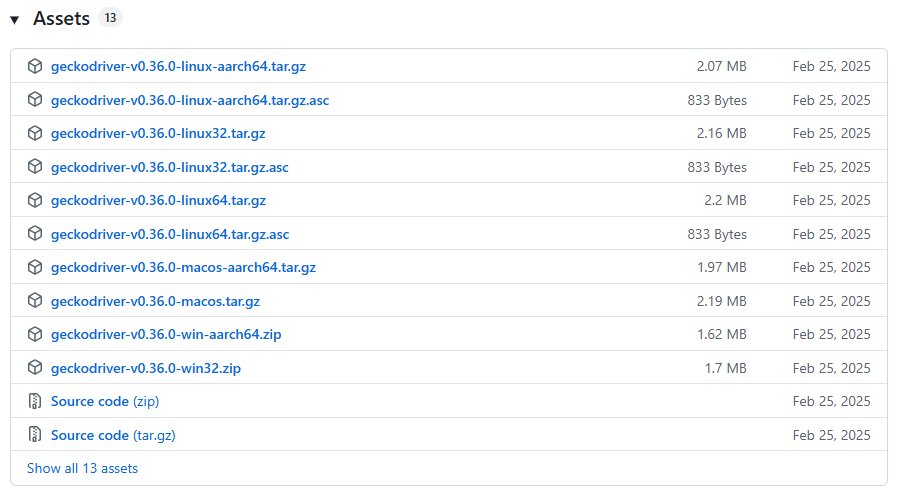
Look at the latest release block at the top of the repository page, scroll down to the Assets tab, and match your environment configuration using the target overview below.
⚠️ Version Maintenance Note: The links below reference the latest stable GeckoDriver release available when this guide was updated. If Mozilla publishes a newer release before this article is refreshed, download the latest version from the official Mozilla GitHub Releases page.
Direct Stable Binaries for Quick Access
| Host Operating System | Machine Architecture | Exact Asset Package Name |
| Windows | 64-bit Systems (Standard) | geckodriver-v0.37.1-win64.zip |
| Windows | 32-bit Legacies | geckodriver-v0.37.1-win32.zip |
| macOS | Universal Architecture (Intel & Apple Silicon) | geckodriver-v0.37.1-macos.tar.gz |
| Linux | 64-bit Standard Distributions | geckodriver-v0.37.1-linux64.tar.gz |
| Linux | ARM / AArch64 Cloud Instances | geckodriver-v0.37.1-linux-aarch64.tar.gz |
💡 Need Chrome Automation Setup? If you are expanding your test regression suites to run on Google Chrome as well, Firefox configurations won’t work. Check out our step-by-step tutorial on How to Download and Install ChromeDriver for Selenium to properly match your Chrome browser versions.
Step 2: Unpack and Organize the Driver Executable
Because GeckoDriver is shipped in compressed packages to preserve bandwidth (.zip for Windows, .tar.gz for macOS/Linux), you cannot link Selenium directly to the downloaded asset folder. You must unpack the standalone binary file first.
Extraction Framework by Platform
On Windows Systems:
- Locate your downloaded file (e.g.,
geckodriver-v0.37.1-win64.zip) inside your system downloads folder. - Right-click the folder and choose Extract All….
- Choose a clear, permanent path structure to house your testing infrastructure, such as
C:\SeleniumDrivers\. - Verify that the standalone, executable file named
geckodriver.exeis visible in that directory.
On macOS and Linux Systems:
Open your terminal application and execute the decompression command sequence directly to extract the tarball package:
# Decompress the downloaded tar file
tar -xvzf geckodriver-v0.37.1-macos.tar.gz

# Verify the standalone executable file exists
ls -l geckodriver
(Note: Replace macos with linux64 in the script if you are deploying inside an Ubuntu, Debian, or RedHat container ecosystem).
Organizing Your Project Blueprint
You do not need to execute a standard installation wizard. GeckoDriver runs completely as a decoupled, standalone server instance. For better project organization, create a local folder right inside your automated project directory:
my-test-suite/
│
├── src/
│   └── test/
├── drivers/
│   ├── geckodriver.exe  <-- (Your extracted binary asset)
└── pom.xml / requirements.txt
Step 3: Configure GeckoDriver in Your Selenium Code
Once you have your GeckoDriver executable ready, you need to link it to your Selenium code. You can use Selenium’s built-in automatic handling, declare the path manually in your test script, or save the path to your operating system.
Option 1: Let Selenium 4+ Handle It Automatically (Highly Recommended)
In modern automation setups running Selenium 4.6.0 or higher, you do not actually need to download GeckoDriver manually. Selenium 4.6.0 and later include Selenium Manager, which automatically downloads and configures a compatible GeckoDriver when needed.
Note: Selenium Manager automatically downloads GeckoDriver the first time it runs. An internet connection is required for the initial download. The downloaded driver is cached locally and reused for future test executions unless an update is needed.
If your testing dependencies are current, simply call the FirefoxDriver class directly. Selenium will check your system for Firefox, find the matching GeckoDriver release, download it, and launch Firefox automatically:
Modern Java Syntax:
import org.openqa.selenium.WebDriver;
import org.openqa.selenium.firefox.FirefoxDriver;

public class LaunchFirefox {
    public static void main(String[] args) {
        // No System.setProperty needed in modern Selenium 4!
        WebDriver driver = new FirefoxDriver();
        driver.get("https://example.com");
        System.out.println("Page Title: " + driver.getTitle());
        driver.quit();
    }
}
This approach is mainly intended for legacy projects or environments where Selenium Manager cannot be used.
Modern Python Syntax:
from selenium import webdriver

# No driver path variables needed! Selenium Manager handles everything.
driver = webdriver.Firefox()
driver.get("https://example.com")
print("Page Title:", driver.title)
driver.quit()Tip: If your organization blocks internet access or uses an internal package repository, Selenium Manager may not be able to download GeckoDriver automatically. In that case, manually downloading GeckoDriver or using an internal driver repository is still a valid approach.
Option 2: Pass the Driver Path Directly inside Code
If your testing environment is locked down or you need to test against a custom, manually downloaded GeckoDriver build, use the explicit Selenium 4 syntax blocks below.
Updated Java Configuration:
import org.openqa.selenium.WebDriver;
import org.openqa.selenium.firefox.FirefoxDriver;

public class ManualFirefoxSetup {
    public static void main(String[] args) {
        // Map the exact absolute path to your extracted geckodriver file
        System.setProperty("webdriver.gecko.driver", "C:\\SeleniumDrivers\\geckodriver.exe");

        WebDriver driver = new FirefoxDriver();
        driver.get("https://example.com");
        driver.quit();
    }
}
Updated Python Configuration (Fixing Deprecation Errors):
Passing file paths directly as string variables into webdriver.Firefox() will throw errors in modern configurations. You must encapsulate your file route inside an explicit Service class:
from selenium import webdriver
from selenium.webdriver.firefox.service import Service

# Correct object path handling for modern Selenium 4
firefox_service = Service(executable_path=r"C:\SeleniumDrivers\geckodriver.exe")
driver = webdriver.Firefox(service=firefox_service)

driver.get("https://example.com")
driver.quit()Note: On macOS and Linux, ensure the extracted geckodriver file has execute permission before using it with Selenium.
Option 3: Add GeckoDriver to System Environment Variables (PATH)
If you do not want to hardcode absolute local machine folder links inside your shared automation code repositories, save the driver directory location straight to your operating system’s PATH environment variable.
On Windows Environments:
- Press the Windows Key, type
environment variables, and click Edit the system environment variables. - Click on the Environment Variables… option at the base of the menu.
- Under the System variables panel, look for the row named Path and click Edit….
- Click New and paste the directory link to the folder containing your driver file (e.g.,
C:\SeleniumDrivers\). Do not includegeckodriver.exein the variable string. - Click OK on all prompt screens. Close and restart your IDE tool or command terminal to clear the environment cache.
On macOS and Linux (Including Kali Linux Environments):
If you are running test scripts inside advanced testing distributions like Kali Linux or Ubuntu, unpack your tarball package and relocate the file right into your universal operating system execution root via your terminal app:
sudo mv geckodriver /usr/local/bin/
sudo chmod +x /usr/local/bin/geckodriver
Step 4: Automate Setup Using External Dependency Packages (Optional)
If your team is maintaining a legacy Selenium framework setup that cannot rely on the native Selenium Manager tool, you can still avoid manual updates by using well-known open-source dependency libraries.
1. WebDriverManager for Java
For corporate automation pipelines configured with Apache Maven, you can delegate driver management to the webdrivermanager project by declaring it directly in your configuration file.
Maven Dependency Declaration:
<dependency>
    <groupId>io.github.bonigarcia</groupId>
    <artifactId>webdrivermanager</artifactId>
    <version>5.9.2</version>
    <scope>test</scope>
</dependency>
Use the latest stable version available on Maven Central.
Code Application:
import io.github.bonigarcia.wdm.WebDriverManager;
import org.openqa.selenium.WebDriver;
import org.openqa.selenium.firefox.FirefoxDriver;

public class AutomatedFirefoxSetup {
    public static void main(String[] args) {
        // Automatically checks, updates, and configures the latest GeckoDriver binary
        WebDriverManager.firefoxdriver().setup();

        WebDriver driver = new FirefoxDriver();
        driver.get("https://example.com");
        driver.quit();
    }
}
2. webdriver-manager for Python
If you are designing test scripts around Python ecosystems like pytest, you can install and configure the webdriver-manager utility wheel to manage your local Firefox instances cleanly.
Terminal Package Installation:
pip install webdriver-managerCode Application (Updated for Modern W3C Standards):
from selenium import webdriver
from selenium.webdriver.firefox.service import Service
from webdriver_manager.firefox import GeckoDriverManager

# Fetches matching driver binaries and configures them cleanly via a Service object
firefox_service = Service(GeckoDriverManager().install())
driver = webdriver.Firefox(service=firefox_service)

driver.get("https://example.com")
driver.quit()
GeckoDriver vs. WebDriverManager vs. Playwright: Deciding Your Roadmap
When architecting browser test suites, managing driver dependencies effectively determines your framework’s long-term stability and maintenance overhead.
- Manual GeckoDriver Management: Gives your engineering team maximum control over specific binary revisions on restricted offline networks, but requires constant maintenance overhead whenever Firefox auto-updates.
- Selenium Manager / WebDriverManager: Perfect for active, legacy enterprise Selenium regression models. It eliminates version mismatches automatically while preserving your team’s existing codebase investment.
- Playwright (Alternative): Best for new, greenfield testing initiatives. Playwright sidesteps standalone browser drivers like GeckoDriver completely. Instead, it relies on custom browser binaries included directly with the package installation, offering faster execution, lower flakiness, and zero driver management out of the box.
Troubleshooting Common GeckoDriver Errors in Selenium
Even with standard installations, local operating system permissions or mismatch flags can block automation executions. Here is how to resolve the most common GeckoDriver bugs instantly.
Issue 1: WebDriverException: Message: ‘geckodriver’ executable needs to be in PATH
- The Cause: Selenium cannot locate your driver binary because its folder directory isn’t added to your system environment variables, or your script uses an deprecated
executable_pathargument - The Fix:
- If you are using modern Selenium 4, make sure you are not passing the path string inside
webdriver.Firefox(executable_path=...). - Instead, wrap the file location inside the updated
Serviceclass. - Alternatively, move your driver file directly into your system’s global execution folder (e.g.,
/usr/local/bin/on macOS/Linux).
- If you are using modern Selenium 4, make sure you are not passing the path string inside
Issue 2: SessionNotCreatedException: Message: Expected browser binary location, but unable to find binary
- The Cause: GeckoDriver cannot launch Firefox because the browser is installed in a non-standard custom directory, or it isn’t installed on the testing host at all.
- The Fix: Ensure Firefox is fully installed on your host machine. If you are using a portable or custom enterprise browser version, explicitly point to its path inside your test code setup using the
FirefoxOptionsmodule:
from selenium import webdriver

options = webdriver.FirefoxOptions()
options.binary_location = r"C:\CustomPath\Firefox\firefox.exe"
driver = webdriver.Firefox(options=options)
Issue 3: InvalidStatusException: Message: Could not start a new session
- The Cause: This issue typically arises when your local version of Firefox is too new for an outdated version of GeckoDriver, causing a compatibility issue between Firefox and GeckoDriver.
- The Fix: Head back to the official Mozilla GitHub Repository and download the latest stable release tagged asset. If you are running Selenium 4.6.0+, remove any custom path variables entirely and let Selenium Manager automatically download the correct pair.
GeckoDriver for Selenium: Frequently Asked Questions
Do I need to manually download GeckoDriver if I use Playwright?
No. Playwright does not use external browser drivers like GeckoDriver. It downloads and uses built-in, optimized open-source Firefox binaries automatically during package installation.
How do I check which version of GeckoDriver I currently have?
Open your command terminal (macOS/Linux) or Command Prompt (Windows) and run the following check command:
geckodriver –version
This command displays the installed GeckoDriver version, build information, and commit details so you can verify which release is currently installed.
Why do I get an “unidentified developer” warning on macOS when launching Firefox?
This happens because macOS Gatekeeper blocks binaries that are downloaded manually via web browsers. To clear this flag, open your application terminal and remove the quarantine attribute by executing:
xattr -d com.apple.quarantine /path/to/your/geckodriver
Can I run a firefox driver download automatically without manually managing paths?
Yes. If you choose not to run a manual firefox driver download, make sure your project utilizes Selenium 4.6 or greater. Modern Selenium dependencies call a background automation system known as Selenium Manager, which tracks down your local browser environment, automatically detects your Firefox installation, downloads a compatible GeckoDriver when required, and configures it automatically.
Conclusion
Downloading and installing the correct GeckoDriver release is a critical step for running stable automated tests on the Mozilla Firefox browser ecosystem.
By applying the updated Selenium 4 configurations and clean absolute folder paths covered in this tutorial, you can eliminate structural errors and build resilient testing suites. For modern, long-term testing pipelines, upgrading your automation engine dependencies to leverage native solutions like Selenium Manager or migrating to Playwright will eliminate manual driver maintenance altogether.