Last updated on August 11th, 2026 at 08:21 am
What a Strict Mode Violation Actually Means
Your test worked yesterday. You changed nothing in your test file. Today it fails with:
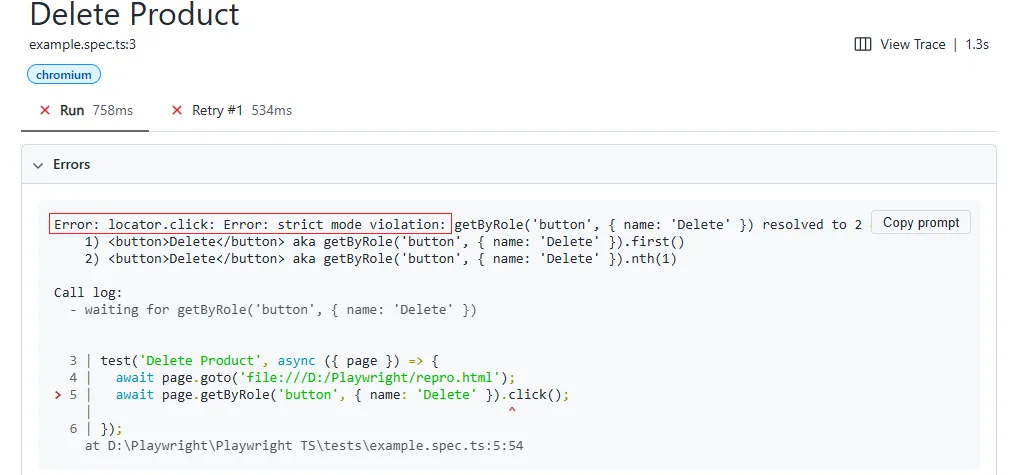
Error: strict mode violation: locator('button.submit') resolved to 2 elementsA playwright strict mode violation happens when a locator that’s supposed to point at exactly one element on the page matches more than one. Playwright refuses to guess which one you meant, so instead of clicking the wrong element silently, it throws. The fix is almost always to make the locator more specific, not to force Playwright to pick one for you.
That’s the short version. The long version depends on which of four things is actually happening on your page, and guessing wrong wastes real time. I’ve hit this error more times than I can count across real projects, and the cause is rarely the one people assume on the first read of the stack trace.
Locators in Playwright are strict by default. This has been true since strict mode became the default behavior, and it’s a deliberate design choice, not a bug you’re working around. Any operation on a locator that implies a single target element throws an exception if more than one element matches, and that’s exactly what you’re seeing.
The 4 Real Causes, Ranked by How Often I Actually See Them
Most articles on this error list causes in no particular order, which means you end up trying all of them before you find yours. I’ve ranked these by frequency in real projects, starting with the one that’s most likely yours.
| Cause | How to tell it’s this one | Fix |
|---|---|---|
| Locator matches genuinely repeated elements (list rows, cards) | Trace Viewer shows multiple identical nodes in the DOM snapshot | Scope the locator to a single row or filter by unique text |
| Duplicate markup for responsive breakpoints | Element count doubles between mobile and desktop viewport widths | Scope to the visible layout container, not the whole page |
| Locator not scoped inside a dynamic table or list | Error count matches the number of rows currently rendered | Chain the locator from the row, not from page directly |
| Transient double-render during a re-render or animation | Passes on retry, fails intermittently, no pattern by environment | Wait for the old node to detach before asserting on the new one |
Cause 1: Your Locator Matches Elements That Genuinely Repeat
This is the one I see most, by a wide margin. You wrote page.getByRole('button', { name: 'Delete' }), and it worked fine when you had one row in your test data. Then the page grew a second row with an identical delete button, and the locator started matching both.
The fix isn’t a workaround, it’s writing a locator that describes what makes your target unique, not just what it’s labeled.
- Find the closest unique ancestor, usually the row or card containing your target element.
- Scope the locator to that ancestor instead of the whole page.
- Chain your original locator off the scoped one.
// Broken: matches every "Delete" button on the page
await page.getByRole('button', { name: 'Delete' }).click();

// Fixed: scoped to the specific row
const row = page.getByRole('row', { name: 'Invoice #4471' });
await row.getByRole('button', { name: 'Delete' }).click();
I’d rather write two lines that are obviously correct than one clever line that breaks the next time someone adds a row.
Cause 2: Responsive Layouts Render the Same Element Twice
This one catches people migrating from Selenium especially hard, because Selenium’s find_element just grabs the first match and moves on. Playwright won’t. If your app renders a mobile nav and a desktop nav simultaneously and hides one with CSS, both are still in the DOM, and a text or role-based locator matches both.
// Broken: matches the nav link in both mobile and desktop markup
await page.getByRole('link', { name: 'Account Settings' }).click();

// Fixed: scope to the layout that's actually visible in this viewport
const desktopNav = page.getByTestId('desktop-nav');
await desktopNav.getByRole('link', { name: 'Account Settings' }).click();
If you don’t have test IDs on your layout containers yet, this is a good reason to add one. Trying to filter by visibility instead works, but it’s fragile the moment your CSS breakpoints change.
Cause 3: A Dynamic Table or List, Locator Not Scoped to a Row
This looks like Cause 1 in the error message but it’s a different mistake. Here the locator is written correctly for a static page, but the table renders N rows and your locator has no idea which row you actually want.
// Broken: works with 1 test row, breaks with 5
await page.locator('.status-badge').click();

// Fixed: filter to the row with the data you care about
await page
  .locator('tr')
  .filter({ hasText: 'user@example.com' })
  .locator('.status-badge')
  .click();
locator.filter() is doing the real work here. It narrows a multi-match locator down to the one row you actually meant, using text content or a nested locator as the filter condition, rather than guessing by position.
Cause 4: Transient Double-Render During a Re-Render or Animation
This is the rare one, and it’s the one that makes people lose an afternoon because it doesn’t reproduce reliably. A component unmounts and remounts (a modal closing and a new one opening, a list re-sorting with a key change), and for a few milliseconds both the old and new versions of an element exist in the DOM at once.
This looks identical to a timing issue in the error output. But if you open the Trace Viewer and step through the action, you’ll usually see the element resolves instantly, twice, back to back. The real problem isn’t waiting, it’s that two nodes briefly coexist.
// Broken: catches the old node mid-transition
await page.getByRole('dialog').getByText('Confirm').click();

// Fixed: wait for exactly one to remain before acting
await expect(page.getByRole('dialog')).toHaveCount(1);
await page.getByRole('dialog').getByText('Confirm').click();
toHaveCount(1) retries until the assertion holds, which gives the old node time to actually detach instead of racing it.
The Fix Everyone Reaches for First, and Why It’s a Trap
Most people’s first instinct when they see this error is to add { force: true } to the action, or to slap .first() on the end of the locator and move on. Stack Overflow will tell you this makes the error go away, and it will, immediately.
In most cases that’s not a fix, it’s you asking Playwright to stop protecting you from a real bug. .first() clicks whichever element happens to be first in DOM order today. If the page changes, the locator will point to a completely different element from the one you expected, and your test will keep passing while quietly testing the wrong thing.
I’ve inherited test suites where half the locators end in .first(). Every one of them was a strict mode violation that got silenced instead of diagnosed. They pass in CI. They don’t actually verify the behavior anyone thinks they verify.
There’s one legitimate exception. If you genuinely only care about “at least one matching element behaves correctly” and the elements are interchangeable by design, .first() is honest, not a workaround. That’s rare. Read the assertion you’re writing and ask whether it would still make sense to a teammate reading it cold.
How to Confirm This Is Actually Your Cause
Before you commit to one of the four fixes above, check these first. I’ve wasted real hours applying the wrong one because the error message alone doesn’t tell you which cause you’ve got.
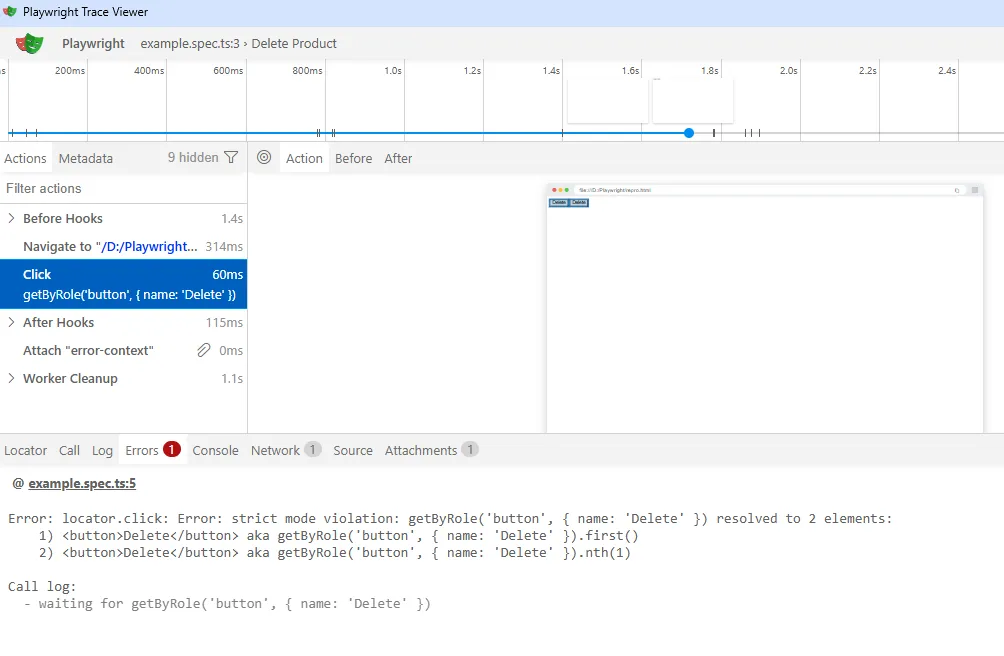
Open the failure in Trace Viewer with npx playwright show-trace and look at the DOM snapshot at the moment of failure. Count how many elements are actually highlighted. If it matches the number in the error text exactly, and stays consistent across runs, you’re looking at Cause 1, 2, or 3. If the count is inconsistent between runs on the same code, it’s Cause 4.
A false-positive fix looks like this: you add .first(), the test passes once, you move on, and three weeks later it’s flaky again because the DOM order changed. If your “fix” makes the test pass without you being able to explain in one sentence why the old locator was ambiguous, you haven’t fixed it.
Preventing This Going Forward
The habit that actually prevents this error is writing locators scoped to context from the start, row first, then element, rather than reaching for the broadest possible selector because it’s less typing. It’s a small habit change and it pays for itself the first time your test data grows past one row.
If you’re building out a page object or a larger framework, this is also a good moment to standardize on getByRole and getByTestId over CSS selectors, since role and test-ID based locators tend to stay unique even as markup gets refactored around them. The official Playwright locators documentation covers the full priority order for locator types, and it’s worth the ten minutes if you haven’t read it since strict mode became default behavior. You can also check the Locator API reference for the exact filtering options available on locator.filter() before writing your own workaround.
If you’re still getting comfortable with how Playwright locators work generally, our Playwright Locators guide covers the fundamentals this article assumes. And if role-based locators are new to you, the getByRole() Locator in Playwright article walks through the priority order in more depth than I have room for here.
Conclusion
If you take one thing from this article, make it this: a playwright strict mode violation is Playwright telling you the truth about your page, not getting in your way. The element count in the error message is a diagnostic clue, not noise to skip past. Read it, check the Trace Viewer, and scope your locator to match. It’s a five-minute fix once you know which of the four causes you’ve actually got, and it stays fixed instead of coming back flaky. If you’re chasing a related error where Playwright can’t find an element at all rather than finding too many, our Playwright Cannot Find Element Even When It Exists piece covers that specific failure mode.
Frequently Asked Questions (FAQs)
What does “strict mode violation” mean in Playwright?
It means a locator that’s expected to resolve to exactly one element matched more than one. Playwright throws immediately instead of guessing which element you meant, since interacting with the wrong one silently is worse than failing loudly.
Does this error happen in Python or Java too, not just TypeScript?
Yes. Strict mode is a core behavior of the Locator API itself, not a JavaScript-specific feature, so you’ll see the same error message and the same underlying causes in Python, Java, and .NET bindings.
Is .first() or { force: true } ever a real fix?
Occasionally, if the matched elements are genuinely interchangeable and you only care that one of them behaves correctly. In practice this is rare. Most of the time it silences a real ambiguity instead of resolving it, and the test stops verifying what it looks like it verifies.
Why does this only happen in CI, not on my machine locally?
Usually because your local test data has fewer rows than whatever seed data or fixture CI uses, or because CI runs at a different viewport width that triggers a responsive duplicate. Check your test data setup and your CI viewport config before assuming it’s an environment bug.
What if none of these four fixes work?
Isolate a minimal repro, a single test file with just the failing action and the smallest page markup that reproduces it. Check the Playwright GitHub issues for your exact error text and version number, and check the release notes changelog in case strict mode behavior around your specific locator type changed recently.