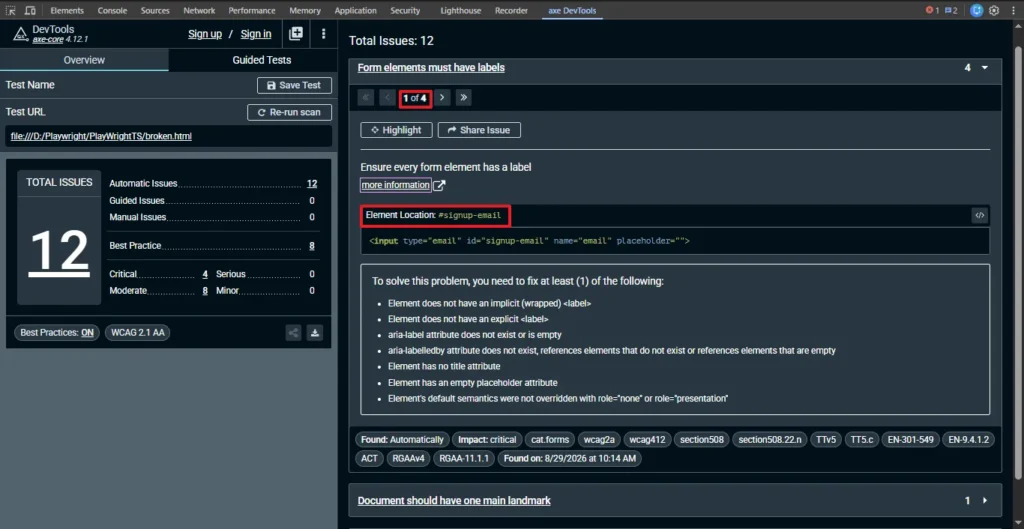
Your axe-core scan comes back with one line that ruins your afternoon:
label: Form elements must have labels (critical)
It’s usually not one input. It’s twelve, scattered across a checkout form, a search bar, and a filter panel some other team built eighteen months ago. You check the page. Every field looks labeled. There’s text right next to it. The scanner disagrees, and now your CI gate is red before a release window that was already tight.
This article covers what actually causes a missing form label accessibility violation in real projects, which cause is most likely yours, and the working fix for each one, verified against axe-core 4.13.0 and WCAG 2.2 AA.
- What a Missing Form Label Accessibility Violation Actually Means
- The Real Root Causes, Ranked
- Fixing Each Cause, With Working Code
- The Fix Everyone Reaches for First, and Why It's Often Wrong
- How to Confirm You've Actually Fixed It
- Preventing This From Coming Back
- Before You Apply Any Fix, Check This
- Wrapping Up
- Frequently Asked Questions (FAQs)
What a Missing Form Label Accessibility Violation Actually Means
The violation text says a form element has no label. What it actually means is narrower and more useful: the input has no accessible name that a screen reader or other assistive technology can read out programmatically.
That distinction matters. Visual proximity is not a label. Text sitting next to an input, a placeholder inside it, or a heading above the field all look fine to a sighted user scanning the page. None of them are wired into the accessibility tree the way a real label is. Screen readers don’t see layout. They read the accessible name, and if that name is empty, the field announces as “edit text, blank” with no indication of what to type.
This is a WCAG 4.1.2 Name, Role, Value failure at its core, and it usually overlaps with 1.3.1 Info and Relationships and 3.3.2 Labels or Instructions, since the label needs to be both present and programmatically tied to the control. The axe label rule checks specifically for that missing accessible name on inputs, selects, and textareas, and it’s one of the more common form accessibility error results teams see the first time they wire an axe scan into CI.
Direct answer: a missing form label accessibility violation happens when an input, select, or textarea has no accessible name attached through a <label for> association, a wrapping <label>, aria-label, or aria-labelledby. The fix is to add one of those four programmatic associations, matched to the specific reason the input is missing one, rather than defaulting to aria-label on every field without checking why it’s failing.
The Real Root Causes, Ranked
I’ve hit this violation on five different kinds of projects over the years, and the causes show up in roughly this order of frequency.
1. No label markup exists at all. This is the plain case: an input with no <label> anywhere near it, no aria-label, nothing. Common on quickly-built internal tools and admin panels where nobody was thinking about screen readers yet.
2. A placeholder is doing the label’s job. The input has a placeholder attribute with text that looks exactly like a label (“Email address”), but no actual label element. This is the one that trips people up most, because the field looks completely fine.
3. A <label> element exists but it’s empty. This one is easy to miss because it looks, on a quick DOM check, like the input has a label at all. It doesn’t have zero labels, it has a label with no text inside it. I’ve seen this most on WordPress and CMS-driven forms, where a form-builder plugin has a “hide label” toggle that blanks out the label’s text content instead of removing the association, or where an editor deleted the label copy in a page builder and left the empty tag behind.
4. A label exists but the for/id association is broken. The most common trigger I’ve actually seen for this in real projects is copy-paste drift, someone duplicates a label/input pair from an existing field, updates the visible label text and the input’s id, but forgets to update the label’s for to match. The label ends up pointing at an id that doesn’t exist anywhere on the page, sometimes a leftover placeholder value from whatever template the field was copied from. In component frameworks like React and Angular, the same failure shows up when an id is hardcoded and duplicated across multiple instances of the same form component on one page.
5. Custom or icon-only controls with no text content at all. Search icons, filter toggles, and custom-styled dropdowns built from <div>s instead of native <select> elements. There’s no visible text to even mistake for a label, and often no semantic form control underneath either.
| Cause | How to tell it’s this one | Fix |
|---|---|---|
| No label markup | axe JSON shows target on the input, no label-related node referenced anywhere nearby in the DOM | Add a real <label> element |
| Placeholder as label | Violation fires even though the field visually looks labeled; placeholder disappears once you inspect the accessibility tree | Move placeholder text into a real <label>, keep placeholder for formatting hints only |
| Empty label element | A <label> node exists and is correctly associated, but its text content is blank or whitespace-only | Add real text to the existing label, don’t add a second one |
| Broken for/id association | A <label> exists in the DOM but its for value doesn’t match any id on an input; some checkers report this specifically as an “orphaned” label | Fix the id/for pairing, or switch to wrapping the input |
| Icon-only or custom control | No visible text near the control, often a <div> or <span> acting as a form control | Add aria-label or aria-labelledby, or rebuild on a native element |
Fixing Each Cause, With Working Code
Cause 1: No Label at All
This is the most common version of a label missing form control violation, and it’s also the simplest to fix correctly.
Broken:
<input type="email" id="signup-email" name="email">Fixed:
<label for="signup-email">Email address</label>
<input type="email" id="signup-email" name="email">- Add a
<label>element with text describing what the field expects. - Set the label’s
forattribute to match the input’sidexactly, including case. - Confirm there’s only one input using that
idon the page. Duplicate IDs break the association even when bothforandidare spelled correctly.
An implicit label, where the input sits inside the label tag, works the same way without needing matching IDs at all:
<label>
  Email address
  <input type="email" name="email">
</label>
Treat that as a fallback, not the default. Not every screen reader and browser combination parses an implicit association as reliably as an explicit for/id pair, so I reach for the explicit version first and only use implicit labels when there’s a real reason id matching is awkward.
Cause 2: Placeholder Text Standing In for a Label
Broken:
<input type="text" id="search-city" placeholder="City or ZIP code">Fixed:
<label for="search-city">City or ZIP code</label>
<input type="text" id="search-city" placeholder="e.g. Austin, TX">
The fix here isn’t deleting the placeholder. It’s giving the field a real label and letting the placeholder go back to doing what it’s actually good for, a formatting example, not the only description of the field’s purpose. Placeholder text also disappears the moment a user starts typing, which is its own separate usability problem on top of the accessibility one.
Cause 3: A Label Element That’s Empty
Broken, label present and correctly associated, but with no text:
<label for="contact-message"></label>
<textarea id="contact-message" name="message"></textarea>
Fixed:
<label for="contact-message">Your message</label>
<textarea id="contact-message" name="message"></textarea>
This is the cause that a quick “does a label exist near this input” check will miss, since the label node is genuinely there. The giveaway is in the axe-core JSON: the violation still fires, but if you inspect the DOM, the label’s id/for pairing is already correct, there’s just nothing between the opening and closing <label> tags. If you’re using a form-builder plugin with a “hide label” or “hide field title” option, check whether that setting removes the label’s text content entirely rather than just hiding it visually, some do, and that’s the source of this exact violation.
Cause 4: Broken for/id Association
This is the one that burns React and Angular teams specifically, because component libraries often auto-generate IDs, and two instances of the same form component on one page can silently produce duplicate or mismatched IDs.
Broken (id hardcoded, breaks with multiple instances on one page):
function EmailField() {
  const id = "email-input";
  return (
    <>
      <label htmlFor="email-field">Email</label>
      <input id={id} type="email" />
    </>
  );
}
Fixed, using a stable generated ID tied correctly to both elements:
import { useId } from "react";

function EmailField() {
  const id = useId();
  return (
    <>
      <label htmlFor={id}>Email</label>
      <input id={id} type="email" />
    </>
  );
}
React’s useId exists partly for this exact problem. If you’re not on a React version with useId available, wrapping the input inside the label element sidesteps the ID-matching problem entirely, at the cost of a bit less layout flexibility.
Cause 5: Icon-Only and Custom Controls
Broken:
<div class="search-box">
  <span class="icon-search"></span>
  <input type="text" class="search-input">
</div>
Fixed:
<div class="search-box">
  <span class="icon-search" aria-hidden="true"></span>
  <label for="site-search" class="visually-hidden">Search the site</label>
  <input type="text" id="site-search">
</div>
aria-label is a legitimate fix here, unlike on causes 1 through 3, because there’s genuinely no visible text to attach a real <label> to, and adding one would break the intended visual design. It gives the field a name without changing how it looks. The .visually-hidden class approach above is often cleaner still, since it keeps a real <label> element in the DOM, which some older assistive technology combinations handle slightly more reliably than aria-label alone.
The .visually-hidden class itself needs real CSS, an empty or missing class definition will leave the label either fully visible or fully removed from the accessibility tree, neither of which is what you want:
.visually-hidden {
  position: absolute;
  left: -10000px;
  top: auto;
  width: 1px;
  height: 1px;
  overflow: hidden;
}
That clips the label out of the visible layout without using display: none or visibility: hidden, both of which would also hide it from screen readers, which defeats the entire point.
There’s a fourth option worth knowing for this cause specifically: aria-labelledby, which points the input at text that already exists somewhere else on the page instead of duplicating it. This is useful when a heading or section title already says exactly what the control is for:
<section aria-labelledby="newsletter-heading">
  <h3 id="newsletter-heading">Subscribe to updates</h3>
  <input type="email" aria-labelledby="newsletter-heading" placeholder="you@example.com">
</section>
Here the input has no visible label of its own, but its accessible name comes from the existing <h3>, so there’s nothing to keep in sync in two places if the heading copy changes later. Reach for aria-labelledby over aria-label specifically when text that would make a good label already exists on the page. Reach for aria-label when it doesn’t, and you’d otherwise be inventing a string that isn’t visible anywhere.
The Fix Everyone Reaches for First, and Why It’s Often Wrong
Here’s an unpopular opinion I’ll state plainly: slapping aria-label on every input that axe flags, regardless of which of the five causes actually applies, is not a fix. It’s a way to make the scanner stop talking.
For cause 1 and cause 2 specifically, adding aria-label="Email address" to an input that has no visible label at all technically satisfies the rule. The scan turns green. But now you have an input with an invisible name that only screen reader users can perceive, while sighted keyboard users, users with cognitive disabilities, and anyone relying on browser translation or zoom tools get no visible label either. You fixed the automated check and left the actual usability problem in place for a chunk of your real users.
I’d also push back on a different popular move: reaching for an accessibility overlay widget to bulk-suppress label violations site-wide. Overlays generally can’t inject real, correctly-associated <label> elements into arbitrary third-party markup, and several overlay products have themselves ended up named in ADA lawsuits over exactly this kind of surface-level remediation. If you’re dealing with dozens of instances of this violation across an old codebase, fixing the component templates is slower than an overlay, but it’s the version that survives a real accessibility audit.
How to Confirm You’ve Actually Fixed It
Passing the scan and being usable are not the same thing here, more than with most other violations, because the whole failure mode is “looks fine, isn’t.”
Check these three things before you close the ticket:
- Re-run the axe scan and read the JSON, not just the pass/fail. Confirm the specific node that was failing now has a
computedNamepopulated in the violation-free result, not just a green checkmark. - Tab to the field and listen with a real screen reader. NVDA or VoiceOver should announce the field’s purpose, not just “edit text.” If you added
aria-label, double check it actually reads what you think it says, a mistyped or leftoveraria-labelattribute from an earlier attempt will silently override a correct visible label. - Check the accessible name in your browser’s accessibility tree inspector, not just the DOM. Chrome DevTools’ Accessibility pane and Firefox’s Accessibility panel both show the computed accessible name directly, which is the actual source of truth axe-core is checking against.
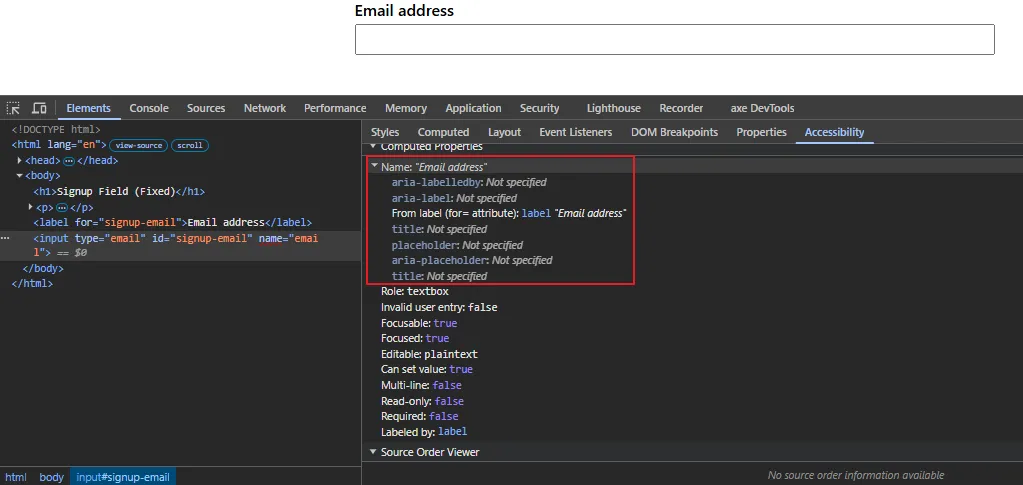
A fix that passes the scan but where a screen reader still announces “edit text, blank” means something in the association is still broken, usually a mismatched for/id pair that looks correct at a glance but has a trailing space or case mismatch.
Preventing This From Coming Back
Catching this in CI before it reaches a manual QA pass or a release gate is more reliable than relying on anyone remembering to check manually. If your team is already running Playwright, wiring this into your pipeline with @axe-core/playwright and AxeBuilder is a small addition:
import { test, expect } from "@playwright/test";
import AxeBuilder from "@axe-core/playwright";

test("signup form has no label violations", async ({ page }) => {
  await page.goto("/signup");

  const results = await new AxeBuilder({ page })
    .include("form")
    .withRules(["label"])
    .analyze();

  expect(results.violations).toEqual([]);
});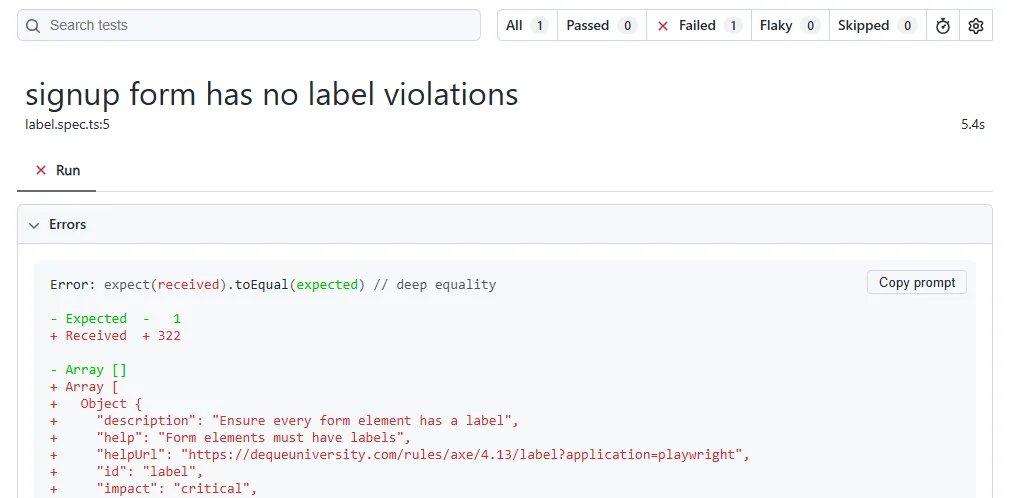
Scoping the scan to .include("form") and .withRules(["label"]) keeps this check fast and specific, so it fails loudly on exactly this violation instead of getting buried in a wall of unrelated results. I’d run a broader unscoped scan separately in a nightly job, and keep a fast, targeted check like this one in the PR-blocking pipeline, so a genuine regression on a critical flow like signup or checkout fails the build immediately.
If your team is earlier in setting up automated accessibility checks at all, it’s worth reading through getting axe-core running in your test suite before layering rule-specific checks like this one on top. For the wider testing strategy this fits into, our full accessibility testing guide for QA engineers covers where a check like this one sits alongside manual audits and other automated rules. The label rule is rarely the only thing an axe-core scan flags on a form-heavy page, if a contrast violation shows up in the same report, our breakdown of the six real causes behind axe-core’s color-contrast error walks through that one the same way, cause by cause, not as one generic fix.
Most of this comes down to knowing how to label form inputs accessibly by default rather than patching it in after a scan flags it. On the process side, the cheapest prevention is a component-library rule: no new form input component ships without a required label prop that the component itself renders and associates, so the correct markup is the default instead of something a consumer of the component has to remember.
Before You Apply Any Fix, Check This
Before touching any markup, confirm which of the five causes you’re actually looking at. Pull the raw axe-core violation JSON for the node and check whether a <label> element exists anywhere in the DOM referencing that input’s id. If one exists but the rule still fires, check its text content next. Empty means cause 3, add text to it. Correctly filled but the for value points at an id that doesn’t exist on the page means cause 4, a broken association, and adding a second label or an aria-label on top of it will just create a label-content mismatch instead of fixing anything.
Also check whether the field has a placeholder attribute before assuming it has no label attempt at all. A field with a placeholder and nothing else is cause 2, and the fix is different from cause 1 even though axe reports both identically.
One terminology note if you’re cross-checking with a different tool than axe-core: WAVE reports a for attribute with no matching id as its own “orphaned form label” error, separate from its generic missing-label error, even though it’s the same underlying problem as axe-core’s cause-4 case here.
Wrapping Up
The missing form label accessibility violation is one of the more mechanical fixes in the whole WCAG checklist, but it’s also one of the easiest to fake-fix in a way that satisfies the scanner while leaving real users stuck. Match the fix to the actual cause instead of defaulting to aria-label everywhere, and confirm the result with a screen reader, not just a green CI badge. That combination is what actually holds up under a manual accessibility audit, not just an automated one.
Frequently Asked Questions (FAQs)
Does the axe-core label rule apply the same way under WCAG 2.2?
Yes. WCAG 2.2 didn’t change 4.1.2, 1.3.1, or 3.3.2, the success criteria this rule maps to, so the same fixes apply whether your team is auditing against 2.1 AA or 2.2 AA.
aria-label vs label tag, which one should I actually use?
Default to a visible tag. It benefits sighted users, cognitive-disability users, and voice-control users, while aria-label only benefits screen reader users. Reach for aria-label only when there’s genuinely no room for visible text, not as a default.
Can a placeholder ever count as a valid label?
No, axe-core and every major screen reader treat placeholder text as a hint, not an accessible name. Some browsers do expose placeholder as a fallback accessible name when nothing else is present, but that behavior is inconsistent across browsers and isn’t something to rely on.
Does this apply the same way to mobile app testing with Appium?
The underlying principle is identical, every form control needs a programmatically determinable name, but the mechanism is platform-specific. On Android that’s contentDescription or a linked TextView, on iOS it’s the accessibilityLabel, and Appium-based accessibility scans check those instead of HTML for/id pairs.
Why does this violation sometimes appear only in CI and not when I test locally?
Usually because your local test data has clean, unique IDs while CI runs against seeded or generated test data that produces duplicate IDs across repeated form instances, which breaks for/id associations that looked fine on your machine.
Is an empty tag treated as the same violation as a missing one?
axe-core groups them under the same label rule, but the causes are different. A missing label has no node at all, while an empty label has one that’s correctly associated but contains no text, so the fix is adding text, not adding a whole new element.