Last updated on October 13th, 2026 at 12:57 am
A client emailed me two years ago with one line in the subject: “we got a demand letter.” Their checkout page had a color contrast issue a screen reader user couldn’t work around, and a firm had already flagged it before anyone on the QA side knew accessibility testing was even part of the job. That’s usually how it starts for most testers I talk to, not curiosity, but a wake up call.
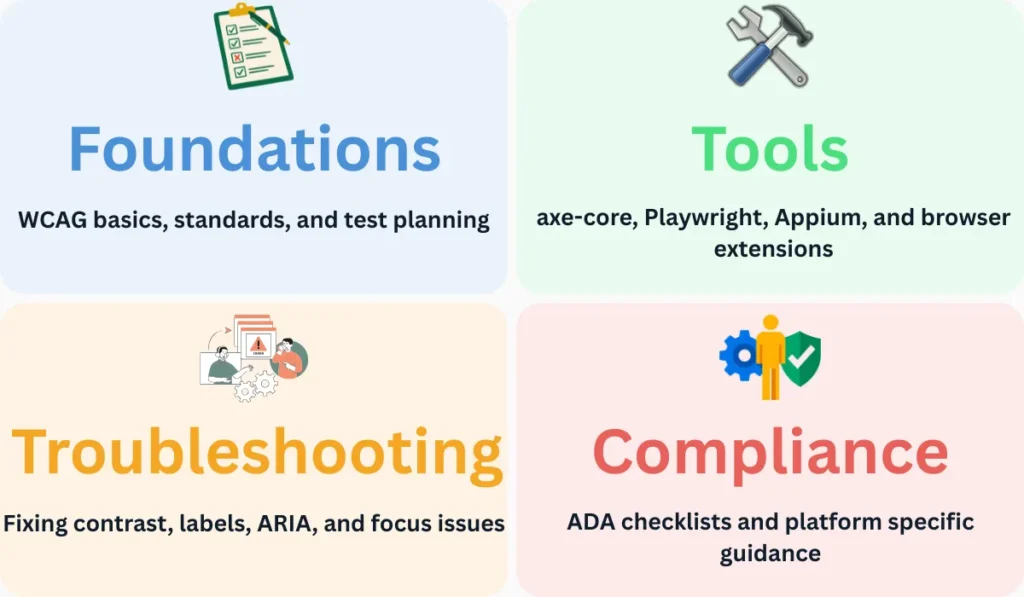
This page is the starting point for everything I write on accessibility testing. I’ve split the topic into four groups: foundations, tools, fixing common violations, and compliance. Read this one first, then jump into whichever spoke article matches what you actually need right now.
Accessibility testing is the process of checking that a website or app works for people using assistive technology, screen readers, keyboard-only navigation, voice control, and so on. In practice, it means running automated scans, doing manual keyboard and screen reader checks, and verifying against WCAG success criteria. It’s a mix of tooling and judgment, not a single test you run once and forget.
Foundations: Understanding Accessibility Testing
Most testers pick up accessibility testing backward, they start with a tool like axe-core, get a list of violations, and fix them without knowing why those rules exist. That works for a while, but it falls apart on anything nonstandard, a custom modal, a dynamic form, a component library nobody documented properly.
If you’re starting from zero, read What is Accessibility Testing? A QA Engineer’s Guide first. It covers the actual mechanics of assistive technology and why “it passed the scanner” doesn’t mean it’s usable. From there, my WCAG 2.2 checklist for testers breaks the guidelines down into something you can actually work from during a test cycle, and the guidelines themselves are published directly by the Web Accessibility Initiative if you want the source.
Two more pieces round out the foundation. Manual vs Automated Accessibility Testing gets into where each approach catches different problems, since scanners miss most of what actually matters to a screen reader user. And if you’re being asked which legal standard applies to your project, Section 508 vs WCAG vs ADA untangles that, since I get this question constantly and the three terms get used interchangeably when they shouldn’t be.
Once you understand what you’re testing for, How to Write an Accessibility Test Plan shows how to actually structure that work instead of scanning ad hoc every sprint.
Tools for Accessibility Testing
The tooling landscape for accessibility testing is smaller than people expect, and most of it revolves around one open source engine. I wrote Playwright Accessibility Testing: 8-Step Practical Guide because this is where most of my own automation work lives now, wiring accessibility checks directly into an existing Playwright suite instead of running them as a separate manual pass.
Under the hood, most of that automation runs on axe-core. Getting Started with axe-core covers the library itself before you plug it into anything, and Automating axe-core Scans in a CI Pipeline takes it further, catching regressions on every pull request instead of once a quarter.
Not every tool fits every job though. axe DevTools vs WAVE vs Lighthouse compares the browser-based options for spot checks during manual testing, and if your app has a mobile component, Accessibility Testing for Mobile Apps with Appium covers a completely different set of constraints than web testing does. For teams watching budget, Free vs Paid Accessibility Testing Tools lays out what you actually get for the money, since the free tier covers more than most teams assume.
Fixing Common Accessibility Violations
A handful of violations account for most of what shows up in any given scan, starting with color contrast, where I’ve broken down six real causes behind axe-core’s contrast errors, and missing form labels, which I walk through fixing here, two issues I see on nearly every audit I run.
Scanners aren’t always right either. I cover when to trust a flagged axe-core violation and when to override it with a documented reason. And some of the hardest bugs never show up in a scan at all, which is why Testing Focus Management in Modals and Dialogs and Common ARIA Mistakes That Break Accessibility Tests exist as their own articles, both require actually using a keyboard or screen reader to catch.
Dynamic content adds another layer of difficulty. How to Handle Dynamic Content in Accessibility Tests walks through testing content that loads or changes after the initial page render, single page apps especially. And if you’ve ever wondered why your Lighthouse score and your axe-core results don’t match, Lighthouse Accessibility Score vs axe-core explains the gap.
Accessibility Compliance for US Businesses
ADA related web accessibility lawsuits have been climbing for years, and most of the businesses getting sued had no idea their site was a target until the letter arrived. That’s the practical reason accessibility testing has moved from a nice to have to a standing line item in a lot of QA processes I’ve seen lately.
This guide is for educational purposes and reflects general QA and testing practices. It isn’t legal advice. For questions about ADA, WCAG, or Section 508 compliance obligations specific to your business, consult a qualified attorney or accessibility compliance professional.
My ADA compliance testing checklist for QA teams covers what a QA team specifically should be checking, distinct from what a legal team or a developer would look at. And if you work with clients on Shopify or WordPress, which covers a huge share of small business sites, Accessibility Testing for Shopify and WordPress Sites deals with the platform specific quirks that generic advice tends to skip.
Conclusion
If you’re new to accessibility testing, start with the foundations group, the rest of the site will make more sense once WCAG and the legal terms stop being interchangeable in your head. If you’re already mid project and something specific broke, skip straight to troubleshooting. And if a client or manager just asked “are we compliant,” start with the compliance group before you touch a scanner. Each path leads back here, so bookmark this page and use it as your index.
Frequently Asked Questions
Where do I start with accessibility testing if I’ve never done it before?
Start with the foundations articles, specifically what accessibility testing actually covers and the WCAG checklist. Trying to jump straight into a tool like axe-core without that context usually means fixing symptoms without understanding why they matter.
Is accessibility testing the same as WCAG compliance?
Not exactly. WCAG is the standard you’re testing against, while accessibility testing is the actual process, manual and automated, of checking whether your site meets it. You can run accessibility testing without ever formally certifying WCAG compliance.
Do I need a specialized tool, or can I test manually?
Both, realistically. Automated tools like axe-core catch a lot of structural issues fast, but manual keyboard and screen reader testing catches problems no scanner can, like whether a modal traps focus correctly.
How much of accessibility testing can be automated?
Estimates vary, but automated scans typically catch somewhere around a third of real accessibility issues. The rest needs a human actually using a keyboard or screen reader.
Does accessibility testing apply to mobile apps too?
Yes, and the testing approach is different from web. Mobile accessibility testing involves platform specific tools and screen readers like VoiceOver and TalkBack rather than browser based scanners.