Last updated on September 1st, 2026 at 02:55 am
The first accessibility bug on our team wasn’t caught by a scanner, it was found by a developer who got stuck behind a cookie banner he couldn’t tab past. He filed it as a UI glitch. It took two more sprints before anyone called it what it actually was, a specific WCAG failure with a name and a fix.
That’s usually how accessibility testing actually starts on a team, not with a training session, with someone hitting a wall nobody built on purpose. (If you searched “what is a11y testing,” a11y is just shorthand, the 11 stands for the letters between the a and the y in “accessibility.”)
Accessibility testing meaning, in plain terms: it’s the practice of verifying that a website or app can actually be used by people with disabilities, whether they navigate with a keyboard, a screen reader, voice control, or a switch device, checked against a defined standard (usually WCAG) rather than left to guesswork.
Accessibility testing in software testing isn’t a separate track bolted on at the end, it sits inside functional testing the same way security testing does. It’s not a separate department’s problem, and it’s not something a plugin fixes for you. That’s the accessibility testing definition worth actually remembering, not the dictionary version.
This article is part of my full Accessibility Testing for QA Engineers: The Complete Guide, which covers the full roadmap across foundations, tools, troubleshooting, and compliance, start there if you want the bigger picture.
What Accessibility Testing Actually Is
Skip the dictionary version for a second. When a new hire on my team asks what this actually means day to day, I tell them it’s three things stacked together: automated scanning, manual keyboard and screen reader checks, and a documented standard you’re testing against.
Most teams only do the first one. That’s the gap this whole article is written around.
The standard almost everyone tests against is WCAG, the Web Content Accessibility Guidelines, currently at version 2.2, published by the W3C in October 2023 with a minor editorial update in December 2024. WCAG 2.2 added nine new success criteria on top of 2.1, things like Focus Not Obscured and a 24×24 CSS pixel minimum target size for clickable elements.
Most legal frameworks, including the DOJ’s ADA Title II rule, still reference WCAG 2.1 AA directly, but because 2.2 is backward compatible with 2.1, testing against 2.2 covers both.
Every WCAG success criterion falls under one of four principles, known as POUR: Perceivable (can a user actually sense the content, through sight, sound, or a screen reader), Operable (can they navigate and interact with it, keyboard included), Understandable (is the behavior predictable and the language clear), and Robust (does it hold up across browsers, devices, and assistive technology).
When a test case doesn’t map to one of those four, it’s usually not an accessibility test case, it’s a general usability check that got mislabeled.
Each success criterion also carries a conformance level, and this is the part that determines what you actually have to fix versus what’s a stretch goal.
| WCAG Level | What It Means | Example Criterion |
|---|---|---|
| A | Minimum, removes major barriers to access | Meaningful images have alt text |
| AA | The level most laws, audits, and QA checklists actually target | Text contrast ratio of at least 4.5:1 against its background |
| AAA | Highest level, rarely required across an entire site | Sign language interpretation provided for video content |
Almost every US legal reference, including current DOJ guidance, targets AA. If a client or manager asks what level you’re testing against and you don’t have an answer, AA is the correct default.
Why Is Accessibility Testing Important Right Now?
Accessibility testing used to sit in the “nice to have” bucket next to localization and browser matrix expansion. It doesn’t anymore, and it’s not really about lawsuits, even though that’s usually what gets a QA lead’s attention first.
It’s about scope. The 2026 WebAIM Million report found that over 95% of the top one million home pages still have at least one detectable WCAG 2 A or AA failure. That’s not a niche problem a handful of sites have. That’s the default state of the web, and it means most of what you’re testing right now probably has issues nobody’s caught yet.
It’s also not a slowing trend in the US specifically. According to Seyfarth Shaw’s ADA Title III tracking, website-specific accessibility lawsuits filed in federal court jumped to 3,117 in 2025, up 27% from 2,452 in 2024, even as overall ADA Title III filings held roughly flat around 8,667. Website accessibility is the part of that docket that’s actually growing.
There’s also a practical QA reason, separate from compliance. Accessibility issues and usability issues overlap more than most testers assume. A missing focus indicator that fails WCAG 2.4.7 also just makes keyboard navigation confusing for a sighted power user who prefers not to touch a mouse. You’re not testing two separate things.
How Accessibility Testing Actually Works: The 4 Core Types
This is where most explanations get vague, so here’s the breakdown I actually use when scoping work for a sprint. The types of accessibility testing below aren’t interchangeable, each one catches problems the others miss.
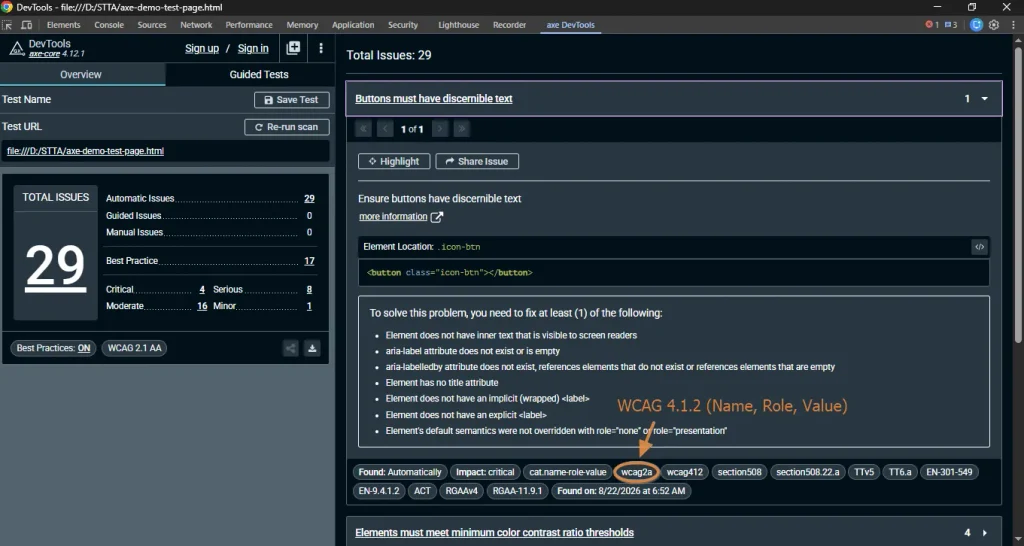
- Automated scanning. Tools like axe-core, WAVE, or Lighthouse crawl the DOM and flag violations against WCAG success criteria, things like missing alt text, insufficient color contrast, or unlabeled form fields. Fast, repeatable, and genuinely good at catching the mechanical stuff.
- Manual keyboard testing. Unplug the mouse. Tab through every interactive element on the page and confirm you can reach it, see where focus is, and operate it. This catches things no automated tool can, like a modal that traps focus or a dropdown that only opens on hover.
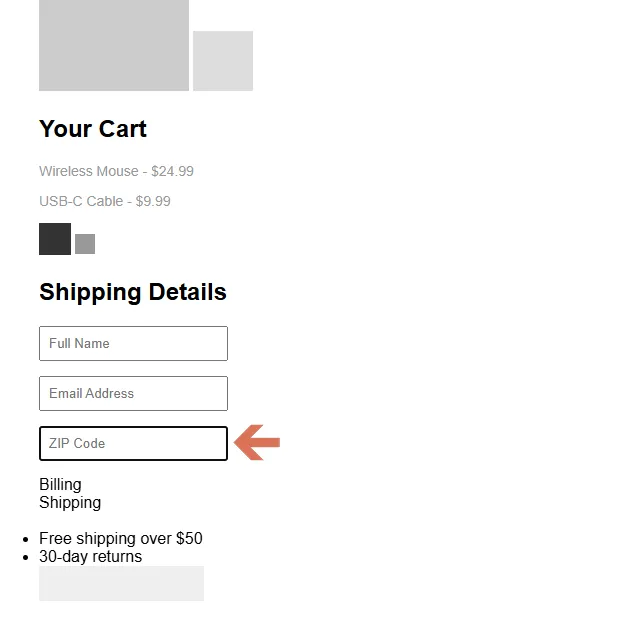
- Screen reader testing. Run the page through NVDA (Windows, free) or VoiceOver (Mac, built in) and listen to how it’s actually announced. A form field can pass every automated check and still be unusable if the screen reader announces it as “edit text” with no label context.
- Assistive technology and cognitive walkthroughs. Zoom to 200%, check for motion sensitivity issues, and confirm error messages are clear enough for someone with a cognitive or learning disability to act on. This one gets skipped constantly because it’s the hardest to templatize into a test case.
A sprint team retrofitting an existing product usually starts with type 1 to get a baseline, then layers in type 2 and 3 on the components that actually matter, checkout flows, forms, navigation, not the entire site at once.
The Common Misconception That Costs Teams Real Time
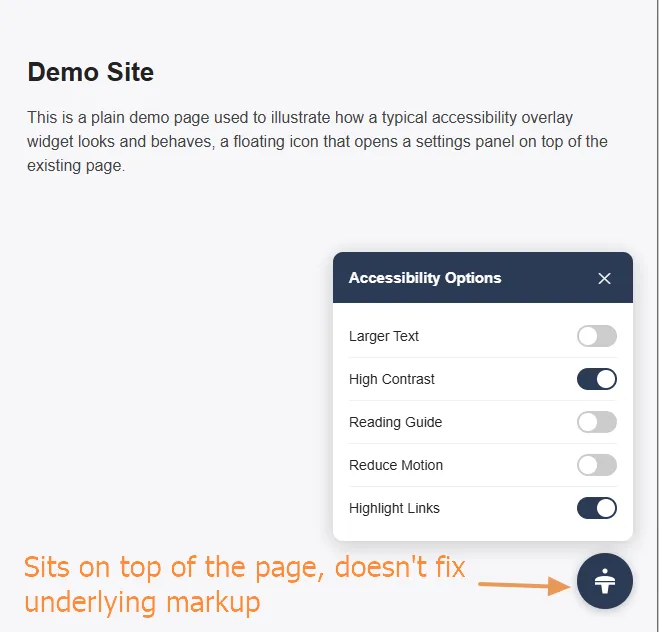
Here’s the one I push back on constantly: teams buy an accessibility overlay widget, the kind that adds a floating icon and a settings panel, and consider the box checked. It isn’t. Several overlay vendors have themselves been named in lawsuits over exactly that assumption, because an overlay sits on top of broken markup, it doesn’t fix it.
An automated scan passing isn’t the same thing either. axe-core, by Deque’s own documentation, catches roughly 30-40% of WCAG issues through automation. WAVE takes a different approach and flags a larger set of items for manual review rather than auto-passing or failing them, which is why the two tools often report different numbers on the same page. Neither one replaces a human running a keyboard through the flow.
If you take one unpopular opinion from this article, take this: a green automated scan result means less than most teams think it does. It’s a floor, not a finish line.
How to Actually Get Started
This doesn’t have to sit only with QA. On teams I’ve worked with, the actual fixes usually split across QA (finding and documenting the issue), front-end developers (semantic HTML and ARIA), and whoever owns the design system (contrast and focus states). You don’t need a dedicated accessibility hire to start, you need someone to own running the checks below. Here’s the sequence that’s worked for me on teams with zero prior accessibility coverage.
- Run an automated scan (axe DevTools or Lighthouse) against your three highest-traffic pages, not the whole site.
- Fix the automated findings first. They’re usually quick wins: alt text, contrast, form labels.
- Pick one critical user flow, like checkout or sign-up, and run it keyboard-only end to end.
- Install NVDA or turn on VoiceOver and run that same flow with your eyes closed, or your monitor off.
- Document what you find as real, reproducible test cases, the same way you’d document a functional bug, not a vague “improve accessibility” ticket.
That’s genuinely enough to move a team from zero to a working baseline in a single sprint. If you’re already running Playwright, Playwright Accessibility Testing: 8-Step Practical Guide walks through wiring axe-core directly into your existing test runs
The full accessibility testing roadmap covers where to go next once your baseline is solid.
How to Know If This Applies to You
If your product has a login form, a checkout flow, a search bar, or any content that isn’t purely decorative, accessibility testing applies to you. It’s not scoped to government sites or enterprise software.
Three quick checks: can you complete your main user flow with only a keyboard, does your color contrast hold up under a 4.5:1 ratio for normal text, and does every image that carries meaning have real alt text rather than a filename. If any of those are shaky, that’s your starting point, not a full audit.
Conclusion
Accessibility testing isn’t a separate discipline bolted onto QA, it’s functional testing that includes people who don’t use a mouse, a monitor, or full color vision. The teams that handle it well don’t wait for a lawsuit or an audit to start, they run an automated scan, add manual keyboard and screen reader checks on critical flows, and treat the findings like any other bug. Start with your three busiest pages this week. That’s a real baseline, not a someday project.
Frequently Asked Questions
Is accessibility testing the same as usability testing?
No, though they overlap. Usability testing checks whether a general user can complete a task easily. Accessibility testing checks whether users with disabilities can complete that same task at all, against a defined standard like WCAG rather than general feedback.
Can automated tools alone cover accessibility testing?
No. Automated tools like axe-core or Lighthouse catch a meaningful chunk of issues, roughly a third to half depending on the source, but things like logical reading order, meaningful alt text, and keyboard trap detection need a human running the check.
What’s the difference between WCAG 2.1 and 2.2 for testing purposes?
WCAG 2.2 adds nine success criteria on top of 2.1, six at Level A or AA. It’s backward compatible, so testing against 2.2 also satisfies 2.1. Most current legal references still cite 2.1 AA directly, but there’s no downside to targeting 2.2.
Do I need a specialist to start accessibility testing, or can existing QA do it?
Existing QA can absolutely start it. Automated scanning and basic keyboard testing don’t require specialized training, just a shift in what you’re checking for. Deeper screen reader and cognitive testing benefits from dedicated training over time, but it’s not a blocker to starting.
How long does a basic accessibility test pass take on an existing site?
For a focused pass on one critical flow, automated scan plus manual keyboard and screen reader check, budget half a day to a full day depending on flow complexity. A full-site baseline across every page takes considerably longer and is usually better scoped page by page.