You’ve got three browser tabs open, one running axe DevTools, one running WAVE and one showing a Lighthouse report, and each of them is claiming a different number of problems on the same page. That mismatch is the whole reason I wrote this. After 18+ years in testing, the question I hear most from teams starting accessibility work is which scanner to trust first, or put plainly, which one is the best accessibility testing tool.
Choosing between them has little to do with who reports the biggest issue count. It comes down to knowing what each tool is built to catch and where it goes quiet. Here is how the three differ, how to set each one up, and which I’d pick for your situation.
The best accessibility testing tool for most teams is axe DevTools. It runs the axe-core engine, keeps false positives low, and its free browser extension covers page-level scans. WAVE is the better second opinion when you want problems drawn on the page, and Lighthouse is a quick smoke test rather than an audit. If you can install two tools, pick axe DevTools and WAVE.
This comparison reflects WCAG 2.2, the current W3C Recommendation, with WCAG 3.0 still a working draft. Tool versions are axe DevTools (Chrome Web Store build from May 2026), WAVE extension 3.3.x and Lighthouse 13.x, checked in October 2026. Versions and pricing move, so confirm them on each vendor’s page before you spend money.
What Do axe DevTools, WAVE and Lighthouse Actually Do?
All three scan a rendered page for problems a machine can detect. They differ in what they look for, how they show it, and who they were designed for.
axe DevTools
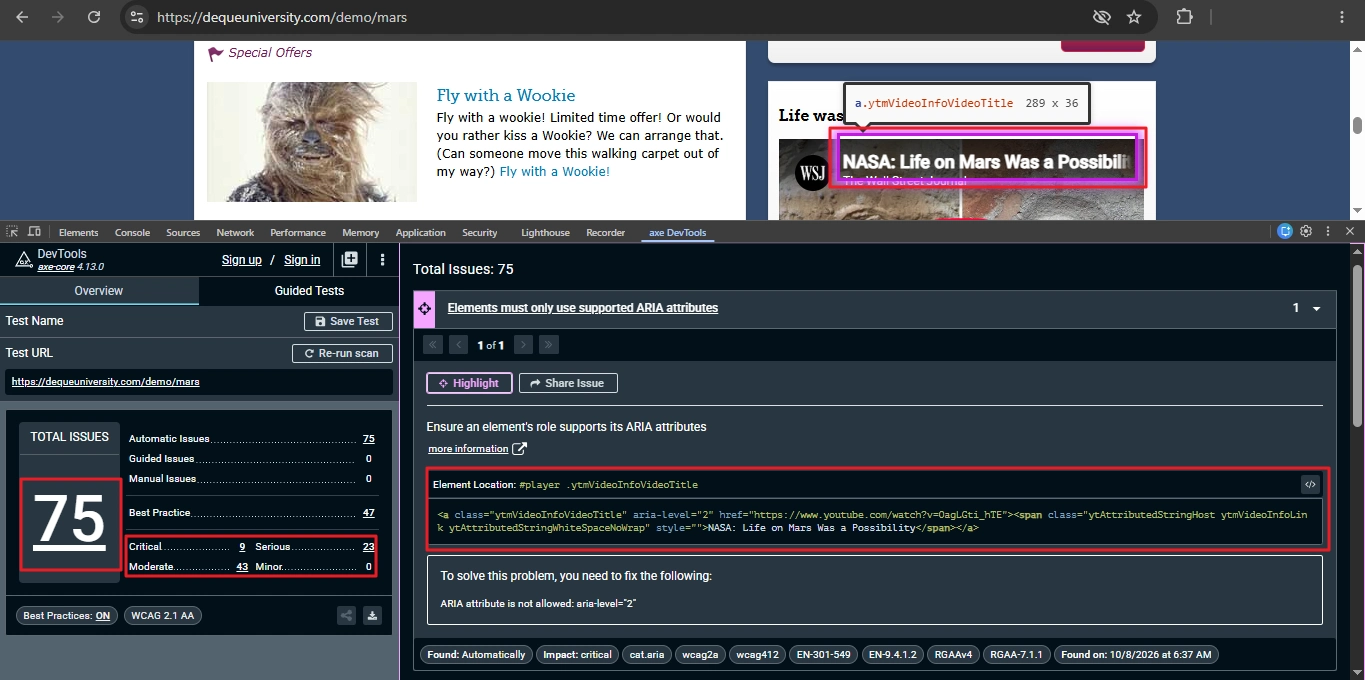
axe DevTools is Deque’s browser extension for Chrome, Edge and Firefox. It runs on axe-core, the open-source rules engine that also sits behind most automated accessibility checks in CI. You scan from a panel inside the browser’s developer tools, and each result comes with the failing element’s selector, a WCAG tag and fix guidance.
When the engine lacks enough information for a confident pass or fail, it can return a needs-review result instead of guessing. Deque introduced that category in axe 3.0 for cases like text over a background image. The overview in my scan showed only automatic, guided, manual and best-practice counts, so you may not see that bucket there.
Deque published a study of more than 13,000 pages showing its automated testing covered 57 percent of issues by volume, well above the older 20 to 30 percent assumption. That number comes from the vendor and counts issue volume, not WCAG criteria, so I read it as an upper bound.
The free extension scans one page at a time. The settings chips on my screen read WCAG 2.1 AA with Best Practices on, so the standard is one version behind WCAG 2.2 and some counted issues are advice rather than WCAG failures. Switch best practices off when you compare counts with Lighthouse. Pro adds guided manual tests, user-flow scans, Jira integration and AI-assisted features.
WAVE
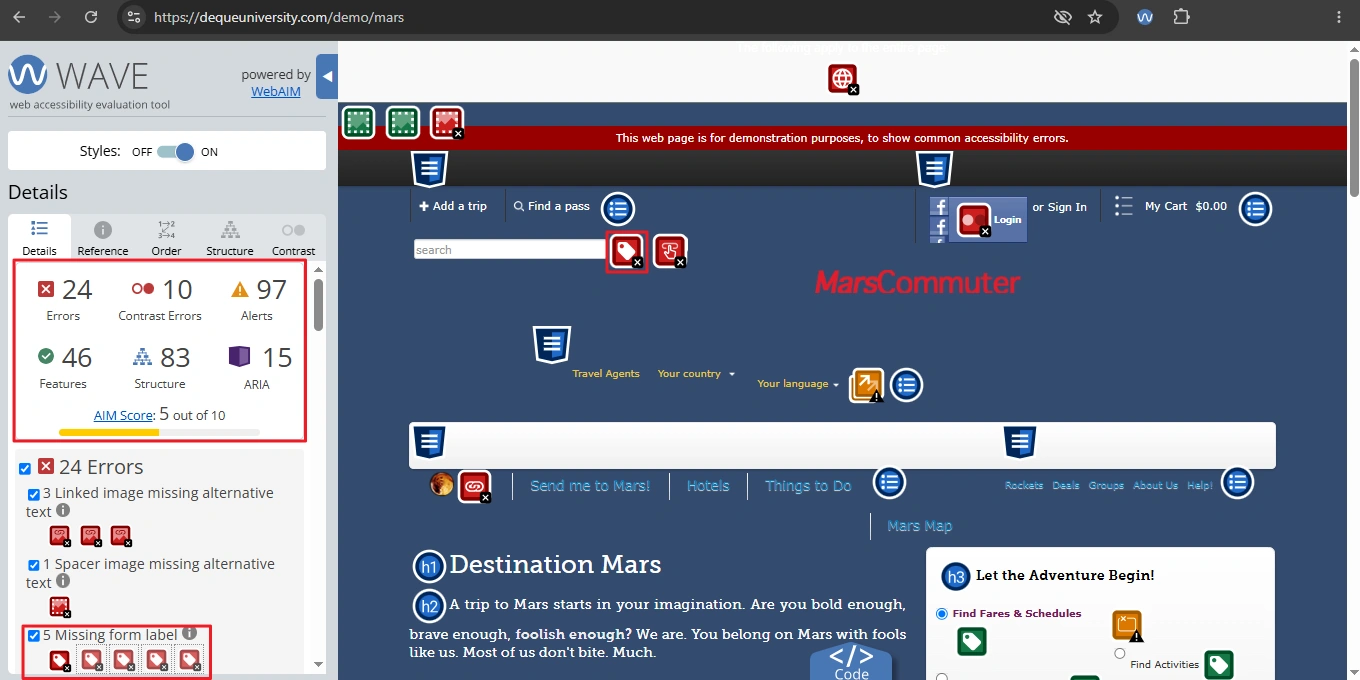
WAVE comes from WebAIM at Utah State University. Instead of giving you a results list first, it injects icons into the page, so a missing label or a low-contrast heading shows up exactly where it lives. Findings are grouped into errors, contrast errors, alerts, features, structural elements and ARIA.
The extension analyzes the page inside your own browser, so it handles intranet, localhost and logged-in pages that WAVE’s online evaluator can’t reach. WebAIM says openly that no automated tool can tell you a page is accessible. WAVE exists to support a human reviewer, which is why it flags things like empty headings and redundant alt text that pass WCAG on paper but still make navigation worse.
WAVE also shows an AIM score from 1 to 10, calibrated against WebAIM’s analysis of a million home pages, where 5 is roughly average. The demo page scored a 5. WebAIM’s AIM score page warns that a high score doesn’t mean a page meets accessibility guidelines, so I treat it as a rough gauge, not a verdict.
Lighthouse
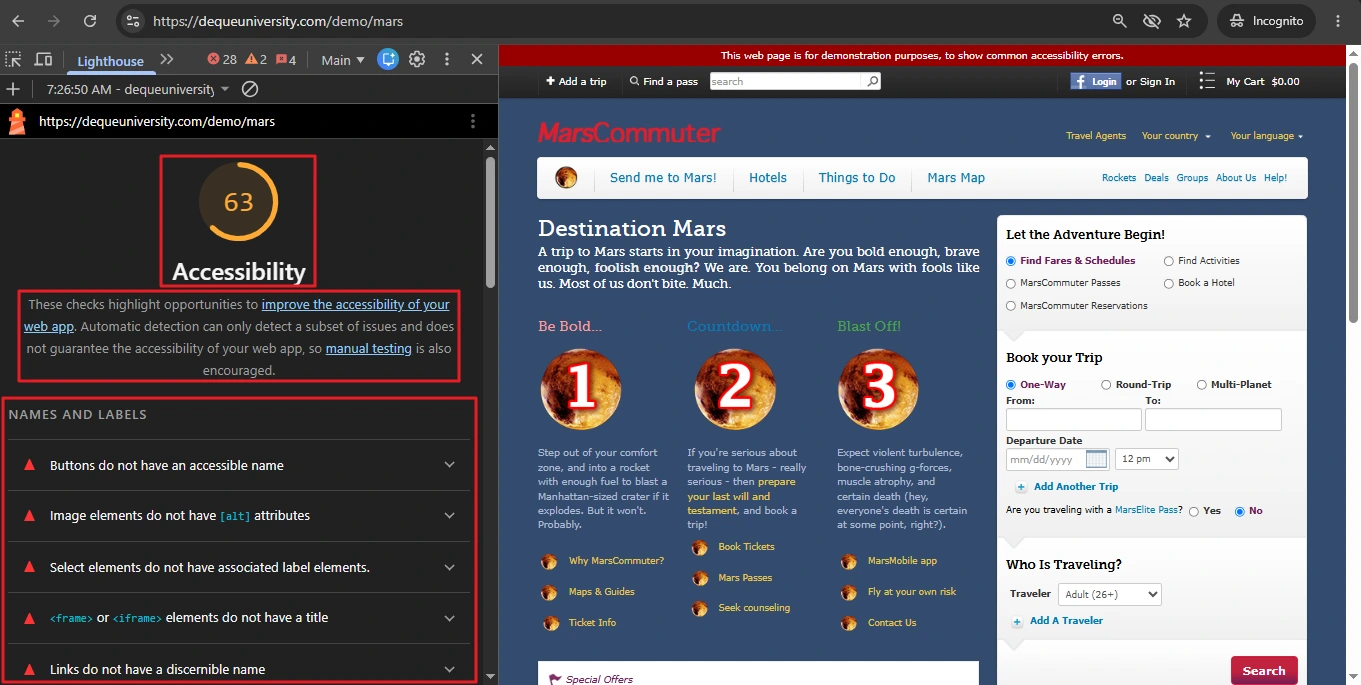
Lighthouse ships inside Chrome DevTools and also runs as an npm CLI, a browser extension and through PageSpeed Insights. A Lighthouse accessibility audit runs a subset of axe-core rules and turns the results into a score from 0 to 100. Each audit is pass or fail, so one unlabeled button among ten gives that audit a zero. Checks that need a human appear in a separate group, headed “Additional items to manually check”, and never touch the score.
Chrome’s documentation says the score is a weighted average based on axe’s user-impact ratings, so a score of 85 does not mean 85 percent of audits passed. The Lighthouse accessibility scoring page lists every weight, and the weights are worth skimming once.
How Do You Set Up Each Tool?
Each tool takes about five minutes to set up. Here is the shortest path for all three.
Setting up axe DevTools
- Install the axe DevTools extension from the Chrome Web Store, Edge Add-ons or Firefox Add-ons.
- Open the page you want to test and press F12 to open the browser’s developer tools.
- Select the axe DevTools panel.
- Run a full-page scan and read the results grouped by impact.
- Open each issue, check the highlighted element and the suggested fix, then re-scan after you change the code.
When you’re ready to move the same engine into test code, my axe-core tutorial walks through it step by step.
Setting up WAVE
- Install the WAVE Evaluation Tool extension from your browser’s extension store.
- Open the page and click the WAVE icon beside the address bar. A sidebar opens and icons appear on the page.
- Start with the error count in the summary, then work through contrast errors and alerts.
- Check the structure and contrast views for heading order and any text pairs the scan flagged.
- After each fix, click the WAVE icon beside the address bar to close the sidebar, then click it again to scan the page afresh.
WAVE’s release notes say that since version 3.3.0.0, resetting the extension no longer refreshes the page, which helps when you test dynamic content such as an open menu.
If you want WAVE in a script, its credit-based API accepts a URL and returns JSON. This request costs 2 credits:
curl "https://wave.webaim.org/api/request?key=YOUR_API_KEY&url=https://example.com&reporttype=2"Setting up Lighthouse
- Open Chrome DevTools and select the Lighthouse tab.
- Tick the Accessibility category and untick the rest to keep the run fast.
- Pick a mode and a device. Navigation is the default and reloads the page, Timespan covers a period of interaction, and Snapshot audits the page as it is now. Choose Desktop or Mobile to match what you’re testing.
- Run the audit and open each failing item to see the element list.
For a repeatable run, use the command line. Lighthouse 13 needs Node 22.19 or newer:
npm install -g lighthouse
lighthouse https://example.com --only-categories=accessibility --view
One quirk to know about: a Lighthouse GitHub issue (#15828) documents a page where a single axe-core check errored and Lighthouse produced no accessibility score at all. If your pipeline gates on that number, a blank score is a nasty surprise.
axe DevTools vs WAVE vs Lighthouse: How They Compare
This accessibility testing tool comparison sticks to what actually decides the choice: coverage, noise, setup effort, CI fit and cost.
| Tool | Best for | Real limitation | Pricing |
|---|---|---|---|
| axe DevTools | Developers and QA who want low-noise, WCAG-tagged results and a path into CI | Free tier scans one page at a time; guided manual tests, user flows and Jira need Pro | Free extension; Pro and Bundle are quote-based on Deque’s extension page |
| WAVE | Visual review, content editors, seeing issues in context on the page | Alerts need a human to interpret; the API is credit-based | Free extension; API credits from $0.025 each, 100 free credits on signup |
| Lighthouse | A quick smoke test, with performance and accessibility in one report | Subset of axe-core rules, one blended score, navigation mode drops page state | Free, built into Chrome DevTools |
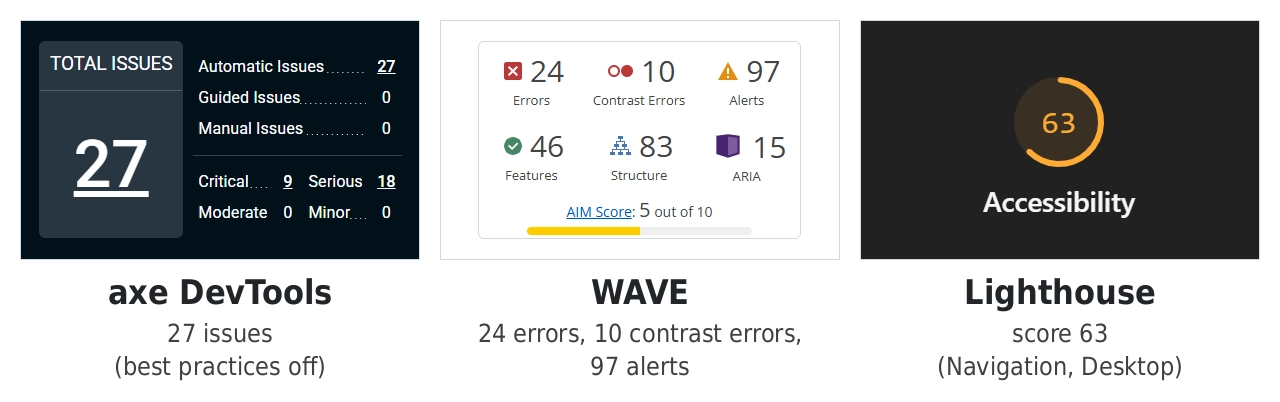
I ran all three on Deque’s deliberately broken Mars demo page, loaded fresh with nothing clicked. axe DevTools reported 27 issues with best practices switched off (75 with them on), WAVE showed 24 errors, 10 contrast errors and 97 alerts, and Lighthouse scored 63. Those numbers don’t contradict each other. They measure different things: axe counts rule violations, WAVE counts items it finds on the page, and Lighthouse turns pass or fail audits into one weighted score.
The wave vs axe question is easier once you see that they answer different questions. axe tells you what is broken. WAVE shows you what looks suspicious.
axe is conservative by design, and Deque stresses that its rules library avoids reporting false positives. WAVE leans the other way and over-flags, which is useful when a person reviews every alert and annoying when nobody does.
Both work as a browser extension accessibility checker, and the real difference is where the results appear: in a DevTools panel for axe, on the page for WAVE. Lighthouse draws on axe-core too, so its accessibility results come from the same engine. It just runs fewer rules and compresses them into one number.
For CI, I skip all three interfaces and run axe-core inside a Playwright test. My guide on automating axe-core scans in a CI pipeline covers that setup. The WAVE API works too, but credits add up. At the lowest rate of $0.025 per credit, which needs a 10,000-credit purchase, one basic scan of 1,000 pages uses about $25 of credits.
Where Do These Tools Fall Short?
Even the best accessibility testing tool has blind spots, and these three share them.
None of them catches a keyboard trap. WCAG 2.1.2 No Keyboard Trap is a Level A criterion, and no scanner can reliably tell that focus gets stuck in a modal. The tools also confirm that an alt attribute exists under 1.1.1, but they can’t tell whether it says anything useful. And text over a photo or gradient usually can’t be measured against the 4.5:1 contrast ratio from 1.4.3, so axe can’t give a confident pass or fail and leaves the call to a human.
Here is the mistake I see most. Take a sprint team that adds a Lighthouse accessibility gate at 90, fixes labels and contrast, hits 100 in two weeks and declares the product accessible. Then a keyboard user opens the checkout modal and can’t leave it. Lighthouse never looks for that.
Stop reporting the Lighthouse accessibility score to leadership. A single number rewards the easy fixes and hides the hard ones, and people start optimizing the number instead of the experience. Report open issues by severity from axe instead.
I’ll also say something unpopular about paying. Buying axe DevTools Pro before your team has a manual testing habit is premature. Its guided tests walk you through checks automation can’t do, but only if someone sits down and does them. WAVE is the tool I enjoy least in the first ten minutes and trust most after a month, because its alerts push you to look at the page like a person would.
Which Is the Best Accessibility Testing Tool for Your Situation?
No single tool fits every team, so match the tool to the job:
- Solo developer or a small QA team with no budget: Install the free axe DevTools extension first and add WAVE as a second opinion. For a four-person QA team with no tooling budget, that pair costs nothing and gives you two independent automated views of every page.
- A team that wants accessibility checks in CI: Run axe-core in your Playwright tests, and keep the extension for debugging failures.
- Content editors, designers and reviewers: Use WAVE, because the on-page icons make sense to people who don’t read code.
- A quick check before a release or client demo: Run Lighthouse as a smoke test and nothing more.
- A team ready for structured manual testing and Jira tracking: Move to axe DevTools Pro, once the free scan stops turning up new issues.
If you force me to name the best accessibility testing tool for everyone, it’s axe DevTools. It’s accurate, widely supported and connects to automation when you’re ready.
Getting Started Checklist
- Pick one real page, such as a sign-up form or checkout step rather than the homepage, and scan it with axe DevTools and then WAVE.
- Fix everything both tools agree on, and treat anything only one of them flags as a prompt for manual review.
- Tab through the page with no mouse, watch for focus traps, and add that check to your test plan beside the scans. My accessibility testing guide for QA engineers shows where it fits.
Conclusion
The best accessibility testing tool is the one you actually run on every release, and for most teams that starts with axe DevTools. Add WAVE when you want to see problems in context, and keep Lighthouse for quick sanity checks rather than sign-off. No automated scan replaces tabbing through the page yourself and listening to it with a screen reader.
The tool that finds the most issues matters less than the habit of running one every time a page changes, so pick one, schedule it and keep a manual pass beside it.
Frequently Asked Questions
Is axe or WAVE better for accessibility testing?
Neither wins outright. axe DevTools gives cleaner, lower-noise results with WCAG tags and a clear path into CI. WAVE gives you a visual overlay and flags borderline items for human review. I start with axe and use WAVE as a second opinion.
Does a Lighthouse accessibility score of 100 mean my site is accessible?
No. A 100 means the applicable automated audits passed. Lighthouse runs a subset of axe-core rules, manual checks aren’t scored, and problems like keyboard traps and weak alt text slip through. Treat it as a baseline, not proof of WCAG 2.2 AA conformance.
Are the free versions of these tools enough?
For finding issues on individual pages, yes. The axe DevTools extension, the WAVE extension and Lighthouse are all free. You only need to pay if you want guided manual tests and Jira in axe DevTools Pro, or if you want to run WAVE through its credit-based API.
Can these tools test a page behind a login or an open modal?
Extensions run in your own browser session, so axe DevTools and WAVE can scan a logged-in page or a modal you’ve opened by hand. Lighthouse’s navigation mode reloads the page and drops that state, so use snapshot mode instead. Another route is running axe-core in a Playwright test after your script reaches that state.