Last updated on October 4th, 2026 at 11:49 am
If you are dealing with windows search not working, you are likely not looking at an isolated glitch. For many users, the Windows key, the Start menu, the Wi-Fi flyout, and the windows search bar not working all happen at the exact same time, causing the entire taskbar to freeze. For others, the issue is narrower: the search icon has vanished from the taskbar, the search bar is not working for typed input, or it opens but never returns a single search result. Because each version has a different root cause, the same fix might work for one person and do nothing for the next.
Last verified: September 2026, against Windows 10 22H2 and Windows 11 24H2/25H2 (KB5124008).
I ran into this exact problem myself when my own search froze without warning. As a software testing engineer with 18+ years in manual and automation testing, I approached this bug systematically. Every fix in this guide was tested on Windows 10 22H2 and Windows 11 (24H2/25H2, including the September 2026 KB5124008 update). The menu paths and commands below reflect exactly what is on your screen today.
Every fix in this guide was tested on Windows 10 22H2 and Windows 11 (24H2/25H2, including the September 2026 KB5124008 update) before publishing, so the menu paths and commands below reflect what’s actually on your screen today, not an older Windows version. We’ll keep this updated as Microsoft changes these settings.
This guide starts by helping you identify exactly which failure you have, then works through fixes in the order that matches it, from the 30-second checks to the deeper repairs.

- Quick Answer: How to Fix Windows Search Not Working
- Windows Search Not Working? Quick Diagnosis
- Did the September 2026 Update Change How Search Looks?
- Fast fixes to try first
- Fix the "I can type but nothing happens" problem
- Fixing "Won't Open" and Blank Search Windows
- Fixing "No Results" and Incomplete Searches
- If SearchHost.exe (or SearchApp.exe) Has High CPU or Keeps Crashing
- If the Issue Started Right After a Windows Update
- Deeper Repairs for Stubborn Cases
- Special Environments and Unique Edge Cases
- Need to Find Your Files Right Now?
- How to Prevent Windows Search Failure in the Future
- Bottom line
- Frequently Asked Questions (FAQs)
- Why do my Start button, search bar, and Wi-Fi icon all freeze at the same time?
- Why did the search icon disappear from my taskbar completely?
- Why is my Windows 11 windows search bar not working after an update?
- Why is my Windows 10 search not working even after a system restart?
- How do I fix the search bar if I cannot type anything into it?
- Will rebuilding the Windows search index delete my personal files?
- Is there a quick way to find my files if the search bar is completely broken?
Quick Answer: How to Fix Windows Search Not Working
Most of the time, a windows search not working error comes down to a stuck system service or a hung background process.
- For a frozen search bar: Open Services (
services.msc), find Windows Search, and click Restart. Alternatively, end the search process in Task Manager and restart Windows Explorer. - If the icon disappeared: Check your Taskbar settings instead of touching any services.
- If search returns no results: Your index is likely corrupted. Fix it by going to Indexing Options > Advanced and clicking Rebuild.
Keep reading for the full diagnosis and 17 step-by-step fixes grouped by your exact symptom.
Windows Search Not Working? Quick Diagnosis
Before touching any advanced settings, you must confirm exactly what is broken. Use the diagnostic table below to find your specific symptom so you do not waste time working through fixes that will not help your case.
| What you’re seeing | Likely cause | Jump to |
|---|---|---|
| Start button, search, and Wi-Fi icon all unresponsive | Shell/UWP process hang | Fix 1, Fix 2 |
| Search icon or search box is missing entirely | Taskbar setting turned off | Fix 3 |
| Windows search bar not working (won’t open at all) | Explorer or shell issue | Fixes 1-2, 4 |
| Search bar opens but is completely blank | Search process crashed | Fixes 1-2, 9 |
| Search box opens, but you cannot type anything | Text input service (ctfmon) is down | Fixes 6-7 |
| You can type, but no search results ever return | Corrupted or incomplete search index | Fixes 10-12 |
| SearchHost.exe has high CPU usage or keeps crashing | Indexing overload, or a fake process | Fix 14 |
| Search broke immediately after a Windows update | Update-related bug | Fix 15 |
| Search is blocked or greyed out on a school/work PC | Group Policy or registry restriction | See the IT-managed PCs note |
Confirm Your Issue with Task Manager
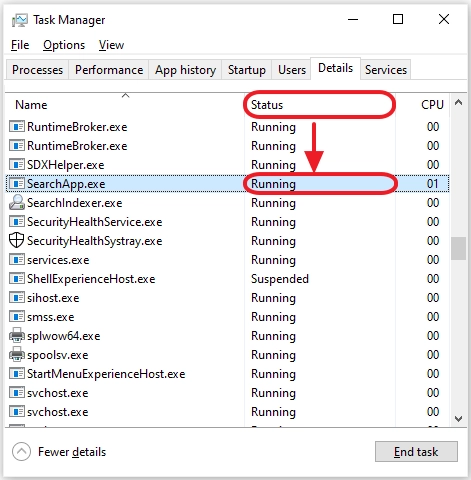
If you are unsure whether you are facing a search-only issue or a larger system shell freeze, you can verify it instantly using the Windows Task Manager:
- Press Ctrl + Shift + Esc to open the Task Manager.
- Click on the Details tab.
- Look for the active search process or
StartMenuExperienceHost.exe.
If either of these processes shows a status of Not Responding, you are dealing with a hung system shell. In this case, your primary starting points are Fix 1 and Fix 2.
Note on Process Names:
The primary search UI process shows up under a few different names depending on your exact Windows build. It appears as
SearchHost.exeon most Windows 11 installs,SearchApp.exeon specific Windows 11 builds updated via the Microsoft Store, andSearchUI.exeon Windows 10. Whichever one shows up in your Task Manager is the process you will target in the steps below.
You can also confirm a hard crash through the Windows Event Viewer. Press Win + R, type eventvwr, and navigate to Windows Logs > Application. Look for an Application Hang error timestamped exactly when your windows search bar not working issue occurred.
Did the September 2026 Update Change How Search Looks?
Before troubleshooting a windows search not working error, rule out an official Microsoft design change.
The Windows 11 September 2026 Patch Tuesday update (KB5124008) for versions 24H2 and 25H2 introduced a simplified home screen for Windows Search. It provides clearer labeling for search sources (apps, settings, files, web, or the Microsoft Store), a dedicated toggle to turn off web suggestions, and automated indexing for your most frequently used folders.
Additionally, if you are running a Qualcomm-powered Copilot+ PC on Windows 11 26H1, the separate KB5124012 update vastly improved how search handles typos and partial names.
If your search results suddenly look different rather than failing completely, navigate to Settings > Windows Update > Update history to see if these patches were recently installed. If it is a genuine case of your search bar failing, proceed to the step-by-step fixes below.
Fast fixes to try first
1. End the search process, then restart Explorer
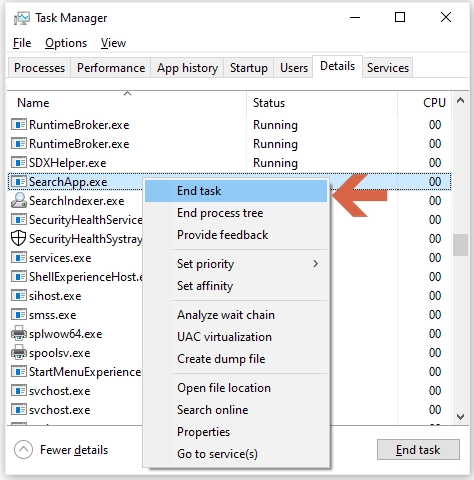
A simple restart of Windows Explorer does not always clear a fully hung search process. This two-step method is highly effective for a completely frozen search bar or Start menu.
- Press Ctrl + Shift + Esc to open the Task Manager.
- Click on the Details tab.
- Locate your active search process (
SearchHost.exe,SearchApp.exe, orSearchUI.exeon Windows 10). - Right-click the process and select End task. (Windows will automatically relaunch it the next time you try to search).
- While still in the Details (or Processes) tab, locate
explorer.exe, right-click it, and select Restart.
2. Restart the Windows Search service
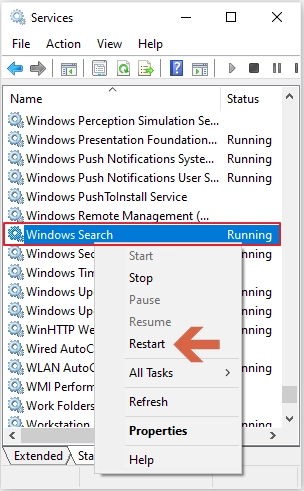
Windows 10 and 11 rely on a background service called WSearch. If this service stops running or is not configured to launch automatically, it will result in your windows search not working properly.
- Press Windows key + R, type
services.msc, and hit Enter. - Scroll down until you find Windows Search.
- Right-click Windows Search and choose Restart (or click Start if it is currently stopped).
- Right-click the service again, select Properties, and change the Startup type to Automatic.
New to the Services console? We cover how to navigate it and what the different startup types mean in our Windows Services Manager guide.
3. Bring back a missing search icon or search box
If the search bar or magnifying glass has vanished from your taskbar entirely, it is a display configuration issue rather than a broken system process.
- On Windows 11: Right-click an empty area of the taskbar, select Taskbar settings, find the Search entry, and set it to Search icon, Search box, or Search icon and label.
- On Windows 10: Right-click the taskbar, hover over Search, and ensure that Show search box or Show search icon is selected instead of Hidden.

4. Try the Win + R keyboard reset
This quick workaround resets the keyboard input pipeline and can instantly fix a frozen or unresponsive windows search bar not working.
- Press Win + R on your keyboard to open the Run dialog box.
- Press Esc or click Cancel to close it immediately without running any commands.
- Click back into your search bar to see if it responds.
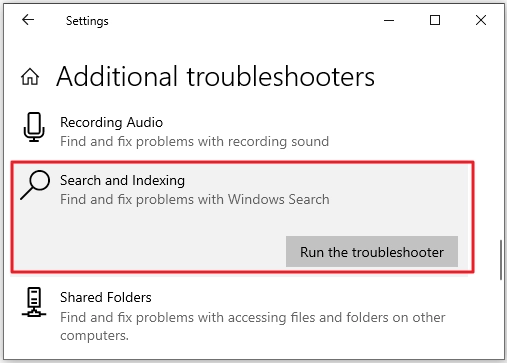
5. Run the Search and Indexing troubleshooter
Windows includes a built-in automated troubleshooting tool that scans for common search bugs.
- On Windows 11: Navigate to Settings > System > Troubleshoot > Other troubleshooters and run the Search and Indexing utility.
- On Windows 10: Navigate to Settings > Update & Security > Troubleshoot > Additional troubleshooters and select Search and Indexing.
💡 Tip: If the troubleshooter is missing from your Settings menu, press Win + R, type
msdt.exe -ep WindowsHelp id SearchDiagnostic, and press Enter to launch it via Command Prompt.
Fix the “I can type but nothing happens” problem
6. Restart ctfmon.exe
If your search box opens but completely ignores your keyboard layout or typed input, the background text input service (ctfmon.exe) has likely crashed.
- Press Windows key + R to open the Run box.
- Type
ctfmon.exeand press Enter. - Click back into your search bar and test typing again.
7. Make the ctfmon fix permanent
If ctfmon.exe stops working after every system reboot, you can force it to launch automatically:
- Press Win + R, type
shell:startup, and press Enter. - Right-click inside the folder and select New > Shortcut.
- Type
C:\Windows\System32\ctfmon.exeas the item location, click Next, name it ctfmon, and click Finish.
8. Check your keyboard and language settings
Confirm it is not an isolated keyboard layout bug. Open Notepad and try typing. If it fails there too, press Win + Spacebar to cycle through your installed keyboard languages and try typing again.
Fixing “Won’t Open” and Blank Search Windows
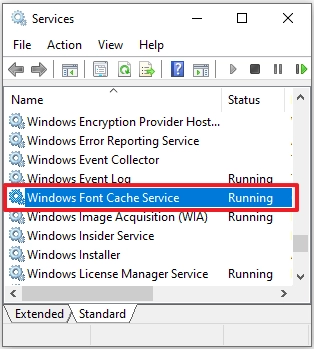
9. Restart the Windows Font Cache service
A corrupted system font cache can unexpectedly cause your search panel to open as a completely blank, unresponsive box.
- Press Win + R, type
services.msc, and press Enter. - Locate the Windows Font Cache Service.
- Right-click it and choose Stop. Wait roughly 10 seconds, then right-click it again and choose Start.
Fixing “No Results” and Incomplete Searches
10. Switch to Enhanced Search Mode
Windows 11 features two distinct indexing options. If you are stuck on Classic mode, Windows only indexes a limited set of default folders, often causing search to return no results for your custom files.
- Go to Settings > Privacy & Security > Searching Windows.
- Under the index options, select Enhanced (Find My Files) instead of Classic.
- Double-check that your primary workspace folders are not listed under the “Excluded folders” list.
11. Check the File Types Being Indexed
If Windows successfully finds apps but fails to surface specific documents, the index might not be reading the actual content inside those files.
- Open the Control Panel and click on Indexing Options, then click Advanced.
- Navigate to the File Types tab.
- Find your most-used file extensions (like
.docx,.xlsx,.pdf) and ensure they are set to Index Properties and File Contents.
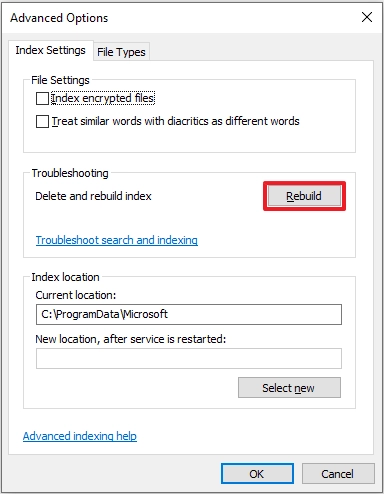
12. Rebuild the search index
Windows depends on a pre-built data index rather than scanning your entire hard drive in real-time. If that database becomes corrupted, your windows search bar not working issue will persist until it is completely rebuilt.
- Open Control Panel > Indexing Options and click the Advanced button.
- Under the Index Settings tab, click Rebuild.
⚠️ Note: A deep rebuild can take anywhere from a few minutes to several hours depending on the size of your storage drive, so it is best to let it run quietly in the background.
While it rebuilds, SearchIndexer.exe can keep your disk busy, and if that lasts, this SearchIndexer.exe high disk usage fix walks you through it.
13. Reset the Search Feature with DISM or PowerShell
If a standard index rebuild fails, you can go a level deeper by resetting the Windows Search architecture entirely rather than just resetting its database.
Method A: Using DISM
- Right-click the Start button and select Terminal (Admin) or Command Prompt (Admin).
- Type the following command to disable the search package and press Enter:
dism /Online /Disable-Feature /FeatureName:"SearchEngine-Client-Package"- Restart your PC when prompted.
- Once Windows boots back up, open the administrator terminal again and run:
dism /Online /Enable-Feature /FeatureName:"SearchEngine-Client-Package"

Use code with caution.- Restart your computer one final time to complete the factory reset of the search component.
Method B: Using PowerShell Appx Commands
- Open PowerShell (Admin)
- Execute the following command to reset the package:
Get-AppxPackage -AllUsers *Microsoft.Windows.Search* | Reset-AppxPackage

Use code with caution.
Note: If that command returns no results, your specific Windows build may use a broader package name. You can re-register all core built-in system applications by running:
Get-AppxPackage -AllUsers | Foreach {Add-AppxPackage -DisableDevelopmentMode -Register "$($_.InstallLocation)\AppXManifest.xml"}Restart afterward and test the search bar.
If SearchHost.exe (or SearchApp.exe) Has High CPU or Keeps Crashing
14. Diagnose a Runaway or Crashing Search Process
High resource usage requires a unique diagnostic checklist distinct from a simple windows search bar not working issue.
- Wait it out initially: If you just triggered an index rebuild, moved large quantities of files, or added a new storage drive, high CPU usage is temporary while the system maps files. You can check current progress under Settings > Privacy & Security > Searching Windows.
- Narrow down your indexed locations: Open Indexing Options from the Control Panel, click Modify, and uncheck massive directories you do not frequently need to search (such as large media backup drives).
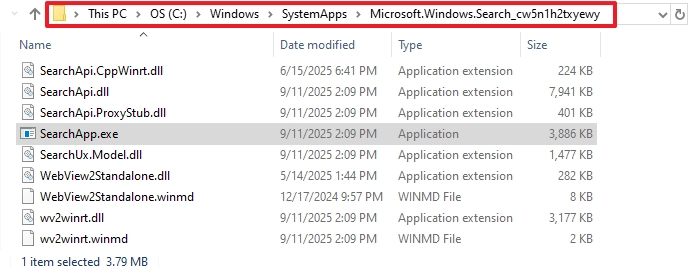
- Rule out hidden malware: Open Task Manager (
Ctrl + Shift + Esc), go to the Details tab, and locateSearchHost.exeorSearchApp.exe. Right-click it and select Open file location. The legitimate Windows system process must live insideC:\Windows\SystemApps. If it opens anywhere else, immediately run a full scan using Windows Security > Virus & Threat Protection.
- Disable the service as a temporary stopgap: If the process continues to crash your system, open
services.msc, locate Windows Search, set the Startup type to Disabled, and click Stop. Warning: This will severely slow down local file discovery in File Explorer, so use it only as a last resort.
If the Issue Started Right After a Windows Update
15. Roll Back Broken Updates or Install Pending Patches
An unexpected windows search not working error typically points to a recent, problematic patch or a system that is severely out of date.
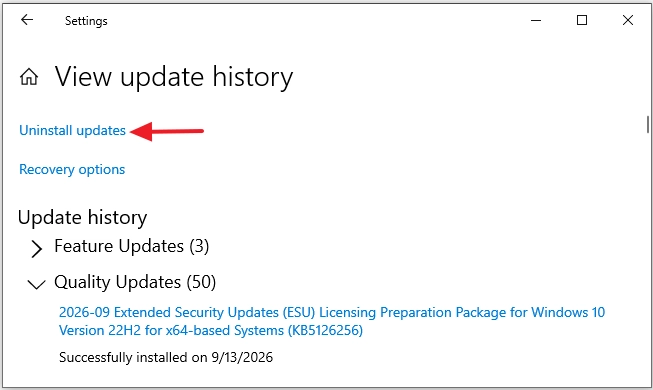
- To roll back a problematic update: Navigate to Settings > Windows Update > Update history. Scroll down, click Uninstall updates, locate the most recent patch causing the conflict, and select Uninstall.
- To install missing hotfixes: Navigate to Settings > Windows Update, click Check for updates, install any pending cumulative packages, and reboot your system.
16. Update Device Architecture Drivers
Outdated chipset, graphics, or input drivers can introduce UI-level system stability issues that disrupt core shell processes like your search bar.
- Right-click the Start menu and select Device Manager.
- Expand categories such as Display adapters and System devices.
- Right-click individual items, select Update driver, and opt to search automatically for drivers.
Deeper Repairs for Stubborn Cases
17. Run Deep System Scans (SFC and DISM)
If your search continues to fail, underlying core operating system files may be corrupted.
- Open Command Prompt as Administrator.
- Run the System File Checker command:
sfc /scannow - Once complete, run the deployment image deployment check:
DISM /Online /Cleanup-Image /RestoreHealth - Restart your machine and test the search utility.
Isolate the Problem with a New Local User Account
If the scans pass but search remains broken, create a temporary local Windows account to diagnose the scope:
- If search works on the new account: The system files are healthy, but your main user profile environment is corrupted. The fastest fix is migrating your personal files to the new profile.
- If search is broken on the new account: The corruption is system-wide.
🔍 Check for an Index Database Permission Lock: If the Windows Troubleshooter indicates an “incorrect permissions” error, Windows is locked out of reading its own search database—a known bug in recent Windows 11 updates. In these scenarios, running a non-destructive system refresh is usually faster than manually correcting deep security permissions.
Reset Windows as a True Last Resort
If nothing else has restored functionality, perform an in-place system refresh:
- Navigate to Settings > System > Recovery.
- Under the Reset this PC option, click Reset PC.
- Select Keep my files to reinstall the Windows core ecosystem without deleting your personal data or documents.
Special Environments and Unique Edge Cases
- Third-Party Taskbar Customizers: If you use tools like Start11 or StartAllBack, be aware that they intercept elements of the Windows shell. When an update drops, it can cause your windows search bar not working error. Temporarily disable these customizers to see if functionality returns.
- Screen Reader Compatibility: If you rely on software like NVDA or JAWS, some Windows updates cause conflicts with the search UI. If our fast fixes do not help, check for an immediate patch update within your assistive software.
- Virtual Machines & Remote Desktops: For environments like Azure Virtual Desktop or VDI, search failures are usually tied to the host machine. Restart the host environment and prioritize running Fix 1 and Fix 2.
- Work or School Managed PCs: Devices managed via Intune, MDM, or Group Policy often restrict search features. If you trace the bug to a corrupted registry value under
HKEY_CURRENT_USER\Software\Policies\Microsoft\Windows\Explorer, contact your IT administrator before attempting a manual override.
Need to Find Your Files Right Now?
If you are in the middle of a critical task and cannot wait to troubleshoot, use these temporary workarounds:
- File Explorer Search: The native search box in the top-right corner of File Explorer often runs independently of a frozen taskbar search bar.
- Third-Party Utilities: Download a free tool like Everything by Voidtools. It indexes and searches your entire hard drive by filename instantly without relying on the native Windows indexing pipeline.
How to Prevent Windows Search Failure in the Future
- Avoid Debloat Tools: Leave the Windows Search service configured to Automatic startup instead of disabling it through aggressive third-party system optimization scripts.
- Install Updates Promptly: Do not let cumulative updates stack up for months. Large version jumps are far more likely to disrupt delicate shell architecture components.
- Protect ctfmon.exe: Never disable
ctfmon.exeusing system tweak tools, as it handles essential text input across the entire OS ecosystem.
Bottom line
Most cases of windows search not working boil down to five specific root causes: a hung system shell process, a hidden taskbar display setting, a stopped background service, a corrupted index database, or a buggy system update.
Always utilize our diagnostic table to jump straight to your symptom, verify your active processes inside the Task Manager before altering settings, and save a full system operating recovery reset as an absolute last resort.
This guide is continually reviewed and re-tested whenever Microsoft deploys a Windows Search-related architecture change. Last verified: September 2026, against Windows 10 22H2 and Windows 11 24H2/25H2 (KB5124008).
Frequently Asked Questions (FAQs)
Why is Windows search not working at all?
A completely broken search utility is almost always caused by one of five common factors: a hung system shell process, a stopped Windows Search background service, a taskbar configuration hiding the icon, a corrupted search index database, or a recent buggy system update. Refer back to the diagnostic table at the top of this guide to match your exact symptom to its specific solution.
Why did the search icon disappear from my taskbar completely?
This is almost always an accidental display setting change rather than a system crash. It frequently occurs after a major cumulative update or when using taskbar customizers. Right-click your taskbar, select Taskbar settings (Fix 3), and toggle the Search option back to your preferred layout.
Why is my Windows 11 windows search bar not working after an update?
Microsoft’s cumulative updates can occasionally conflict with the text input processing framework (ctfmon.exe) or stall the main background indexing architecture. Restarting the core service (Fix 2) or rolling back the problematic patch via your update history (Fix 15) usually restores functionality immediately.
Why is my Windows 10 search not working even after a system restart?
If a standard reboot fails to fix the issue, the primary culprits are a stalled system indexing process or deep file database corruption. We recommend jumping directly to Fix 2 (restarting the service) followed by Fix 10 and Fix 12 to check and rebuild your index.
How do I fix the search bar if I cannot type anything into it?
When the search window opens but entirely ignores your keyboard input, the ctfmon.exe text input service has stopped running. You can manually restart it using the Run dialog box (Fix 6) and place a shortcut in your system startup directory (Fix 7) to keep it from happening again.
Is SearchHost.exe (or SearchApp.exe) a virus?
No. Both of these names represent the official, legitimate user interface component for Windows Search. However, you should always verify the process file path inside Task Manager. If it is running from any directory other than C:\Windows\SystemApps, or if it is consuming high CPU when no active indexing is occurring, run a comprehensive malware scan immediately (Fix 14).
Will rebuilding the Windows search index delete my personal files?
No, a search index rebuild will never delete your personal files or applications. The process simply clears the old, corrupted search database map and creates a fresh catalog of your files so they can be discovered quickly.
Is there a quick way to find my files if the search bar is completely broken?
Yes. The search field located inside the top-right corner of File Explorer operates independently of the main taskbar interface and may still function. Alternatively, you can download a free third-party application like Everything by Voidtools, which indexes and surfaces files by name instantly while you work on a permanent system fix.