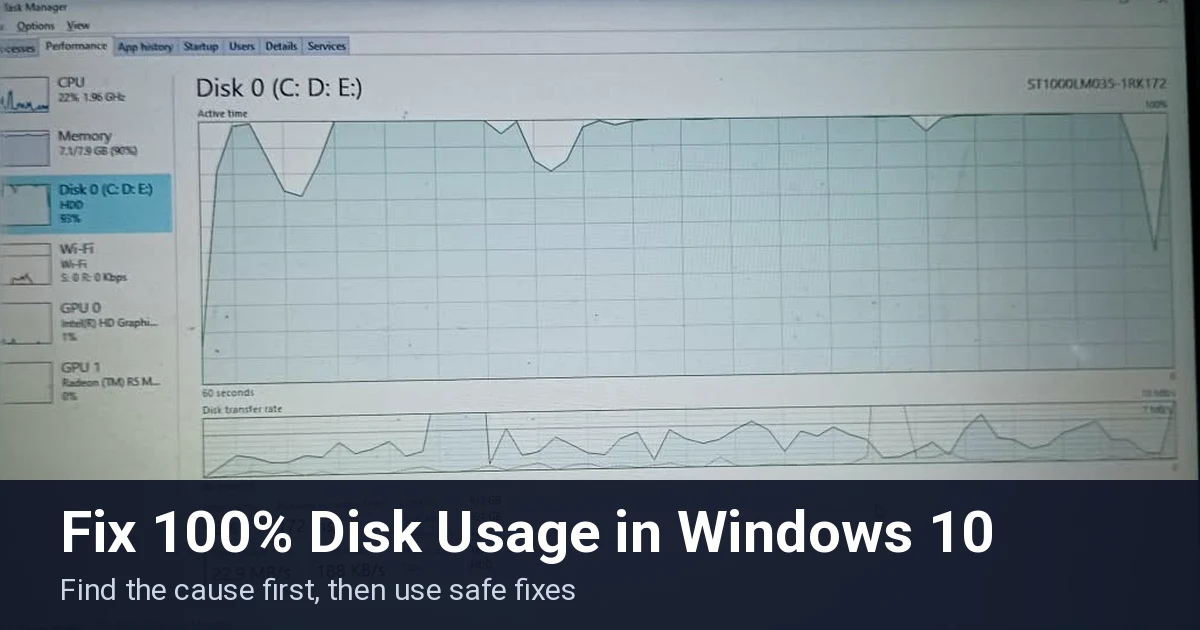
You open Task Manager and the Disk column sits at 100%. Maybe it happens for a few minutes after sign-in. Maybe it never lets go, and apps hang until you restart. Or the whole PC freezes at random. This guide shows how to fix 100% disk usage in Windows 10 by finding the process behind it first.
I’ve spent more than 18 years in software testing, manual and automation, with Selenium and Playwright, and I run a testing blog. A busy disk is an old enemy in that work.
Browser profiles, logs, and traces all land on the same drive. When that drive is stuck at 100%, a test run stalls and the failure looks like a flaky test. So I look at the machine before I blame the test.
I tested every menu path in this guide on Windows 10 version 22H2, on a laptop with a hard drive (HDD). I did not write Windows 11 steps, because I don’t have a Windows 11 machine to check them on.
Three items come from documentation and reader reports, not my own testing: Modern Setup Host (Fix 2), the StorAHCI registry change in Fix 9, and the clean boot in Fix 14. I flag each where it appears.
This guide covers a quick answer, a symptom table, how to read Task Manager, 15 fixes from fastest to most drastic, built-in diagnostic tools, and when the drive itself is the limit.
Quick answer: Restart Windows and give it a few minutes, because updates and indexing often finish by themselves (Fix 1). If the disk is still pinned, open Task Manager, click the Disk header, and read the top process. If it’s Microsoft Windows Search Indexer, go to Fix 4. If you expand a Service Host row and see SysMain, go to Fix 5. Keep reading for the full diagnosis and 15 fixes by symptom.
- Match your symptom to a fix
- Fast fixes for 100% disk usage in Windows 10
- Reduce the background load behind high disk usage in Windows 10
- Check the drive, driver, and paging file
- Rule out malware
- Repair Windows and rule out software conflicts
- Built-in tools for finding the culprit
- When software fixes are not enough
Match your symptom to a fix
| What you’re seeing | Likely cause | Jump to |
|---|---|---|
| Disk at 100% for a few minutes after sign-in, then it settles | Search indexing or an update catching up | Fix 1, Fix 4 |
| Disk stays at 100% with almost nothing open | A background service such as SysMain or Windows Search | Fix 4, Fix 5 |
| A process called Modern Setup Host is on top | A large Windows update installing | Fix 2 |
| Antimalware Service Executable is on top | A Windows Security scan in progress | Fix 3 |
| It started right after a Windows update | An update still finishing, or a new storage driver | Fix 2, Fix 9 |
| Disk is busy while you aren’t downloading anything | Delivery Optimization sharing update files | Fix 6 |
| Random freezes, and “Reset to device” warnings in Event Viewer | A storage driver or drive problem (Event ID 129) | Fix 9, Fix 8 |
| Disk at 100% on an SSD, with Event ID 129 from storahci | MSI mode with certain SSD firmware | Fix 9 |
| Freezes, clicking sounds, or errors reading files on a hard drive | File system errors or a failing drive | Fix 7, Fix 8 |
| Disk and memory are both nearly full on an older PC | Heavy paging file use and too little RAM | Fix 10 and the hardware section |
| Unfamiliar processes, pop-ups, or fan noise with nothing open | Malware | Fix 12 |
| Nothing obvious on top, and the slowdown began after an update or a crash | Damaged Windows system files | Fix 13 |
| Disk is busy only with certain third-party programs running | A startup program or service conflict | Fix 14 |
Confirm which process is behind the 100% reading
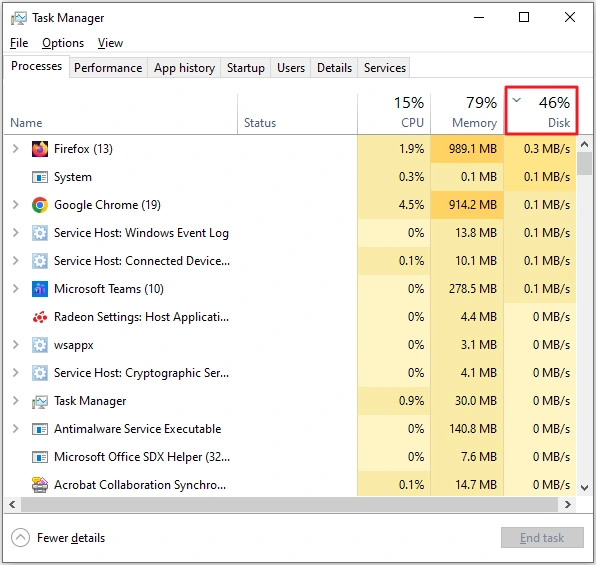
Searching for “disk usage 100 Windows 10” turns up dozens of fixes. They only help if they match the process on top of your list. Task Manager names it in about a minute, so do this before you change anything.
- Press Ctrl + Shift + Esc. If you see a small window, click More details.
- On the Processes tab, click the Disk header once. The heaviest disk user moves to the top.
- Click View > Expand all to open every Service Host group. Or click the arrow on a single row.
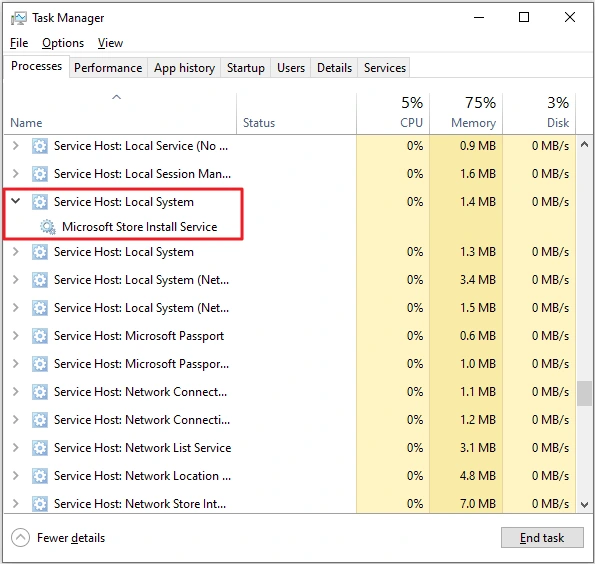
A Service Host row is only a shell. The service name sits underneath it. On the laptop I tested, Service Host: Local System held Microsoft Store Install Service.
| What’s on top | What it is | Jump to |
|---|---|---|
| System | Core Windows activity, such as drivers and the paging file | Fix 9, Fix 10 |
| Service Host | A shell that runs Windows services. Expand it to read the service name | Fix 4, Fix 5, Fix 6 |
| Antimalware Service Executable | Windows Security scanning files | Fix 3 |
| Microsoft Windows Search Indexer (SearchIndexer.exe) | Builds the index behind Start search | Fix 4 |
| Modern Setup Host | Installs large Windows updates | Fix 2 |
If the CPU column is also pinned, read this guide to lowering CPU usage on Windows 10 alongside the fixes below.
One more behavior is worth knowing. Microsoft’s debugging team explains that Event ID 129 is logged when a storage request goes unanswered and Windows resets the device. It lists an unresponsive device or a dropped request as the most common causes, in its explanation of Event ID 129.
That points at the drive, cable, or driver, not at a setting. Fix 9 shows you how to check.
Fast fixes for 100% disk usage in Windows 10
1. Restart Windows, then give it a few minutes
Disk use often peaks right after sign-in while indexing and updates catch up. A restart also clears stuck processes.
- Save your work, then select Start > Power > Restart.
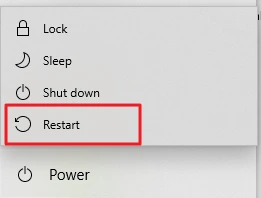
- Sign in and leave the PC alone for a few minutes.
- Open Task Manager and click the Disk header again.
A restart changes no settings, so there is nothing to undo.
2. Let Windows Update and Modern Setup Host finish
Large Windows updates keep the disk busy while they install. A process called Modern Setup Host often shows up during that work.
I couldn’t find a Microsoft page for it. This comes from reader reports and third-party guides, not my own testing.
- Select Start > Settings > Update & Security > Windows Update > Check for updates.
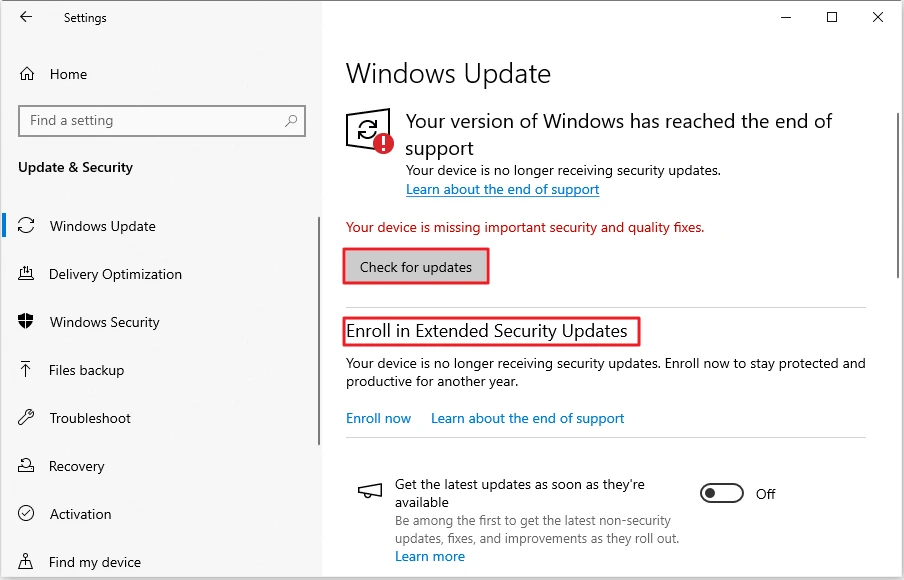
- Let any installation finish, then restart when Windows asks.
- Don’t end the task or disable Windows Update to make it stop. Ending it only pauses it, and disabling updates leaves the PC unpatched.
Windows 10 reached end of support on October 14, 2025, so this page may show an end-of-support notice. That’s normal.
If Modern Setup Host is still on top after the updates finish, move on to Fix 4.
3. Check whether an antivirus scan is running
Windows Security scans files in the background. Its process, Antimalware Service Executable, appears in Task Manager while it works.
- Look for Antimalware Service Executable near the top of the Disk column.
- If it’s there, let the scan finish. Windows says a full scan could take longer than one hour.
- Using another antivirus? Check that program’s scan settings instead.
Don’t turn protection off to test. Keep it on, and go to Fix 12 if the scan never seems to end.
Reduce the background load behind high disk usage in Windows 10
4. Fix SearchIndexer.exe high disk usage
SearchIndexer.exe builds the index that makes Start search fast. It gets busy after big file changes, and it can get stuck on huge folders.
Start with the least drastic step.
- Select Start, type Indexing Options, and open it.
- Click Modify, expand a drive with its arrow, clear the checkboxes for big folders you never search, and click OK.
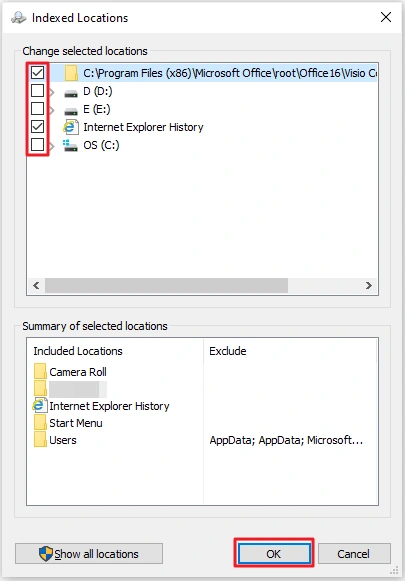
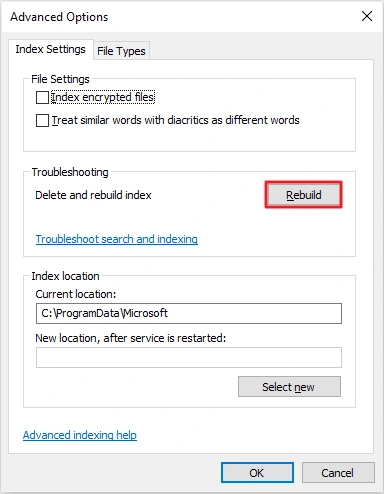
- Still busy? Click Advanced, then click Rebuild under Troubleshooting.
Before you rebuild:
- Rebuild deletes the index and builds a new one. Search results are incomplete until it finishes.
- Disk use goes up while it runs, so start it when you don’t need the PC.
- You can’t undo a rebuild, but Windows recreates the index by itself.
- For a gentler first step, try the Troubleshoot search and indexing link in the same dialog.
If Start search itself is broken, see these Windows Search not working fixes.
As a last resort, you can stop the Windows Search service:
- Open services.msc as described in Fix 5 and double-click Windows Search.
- Click Stop, and check the Disk column in Task Manager.
- To undo it, set Startup type back to Automatic (Delayed Start) and click Start. That was the original setting on my laptop.
Start search will be slow or empty while the service is off.
5. Stop SysMain (the usual SysMain 100 disk usage fix)
Windows describes SysMain as maintaining and improving system performance over time. It preloads apps you use often.
On a busy hard drive, that background reading can add load. It can also help, so treat stopping it as a test, not a verdict.
- Press Windows + R, type
services.msc, and press Enter. For other routes, see these ways to open services msc. - Double-click SysMain.
- Click Stop, then check the Disk column in Task Manager.
- If the disk calms down and you want to keep it off after a restart, set Startup type to Disabled and click Apply.
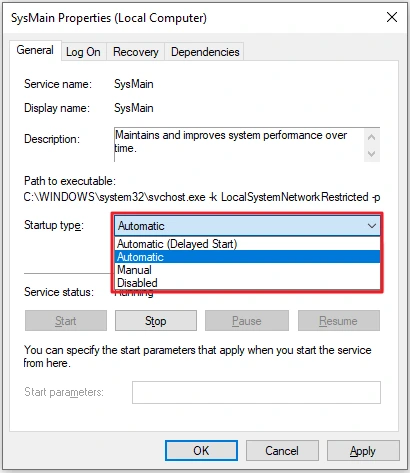
If the Disk column doesn’t change, set it back. To undo it, choose Automatic under Startup type and click Start. That was the original setting on my laptop.
Only change services you understand.
6. Turn off Delivery Optimization uploads
Delivery Optimization can share parts of downloaded updates with other PCs. If that’s on, your PC may read from the disk to serve them.
- Select Start > Settings > Update & Security > Delivery Optimization.
- Under Allow downloads from other PCs, switch the toggle to Off.
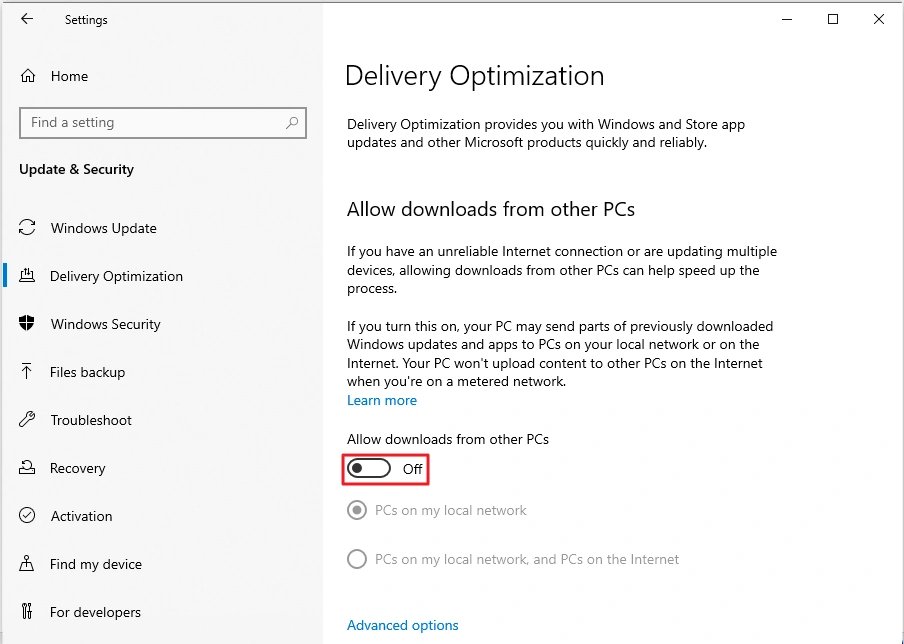
It was already off on my laptop, so skip this one if yours is too. Switch it back on to undo it.
Check the drive, driver, and paging file
7. Run chkdsk on the system drive
File system errors can keep Windows retrying reads and writes. Chkdsk checks and repairs them.
- Back up anything important first. On a laptop, plug in the charger.
- Click Start, type
cmd, right-click Command Prompt, and choose Run as administrator. - Type
chkdsk C: /fand press Enter. - Read the question that appears. Type Y to schedule the check for the next restart, or N to cancel.
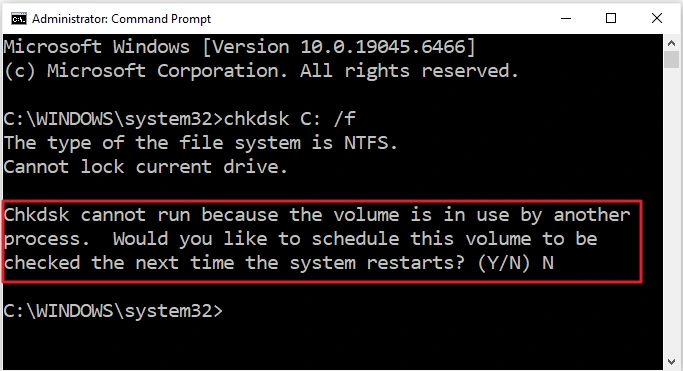
Windows can’t lock the drive it’s running from, which is why it offers to wait for a restart.
Per Microsoft’s chkdsk reference, /f fixes errors, and /r also locates bad sectors and includes /f. Add /r only if you suspect damage, because it takes much longer.
I answered N on my laptop, so I haven’t run the full check there. Answering N changes nothing. After you answer Y, let the check finish at startup.
8. Check your drive’s health
A failing drive can look exactly like a software problem. Windows can give you a quick health reading with no download.
- Click Start, type PowerShell, right-click Windows PowerShell, and choose Run as administrator.
- Run this command:
Get-PhysicalDisk | Select FriendlyName, MediaType, HealthStatus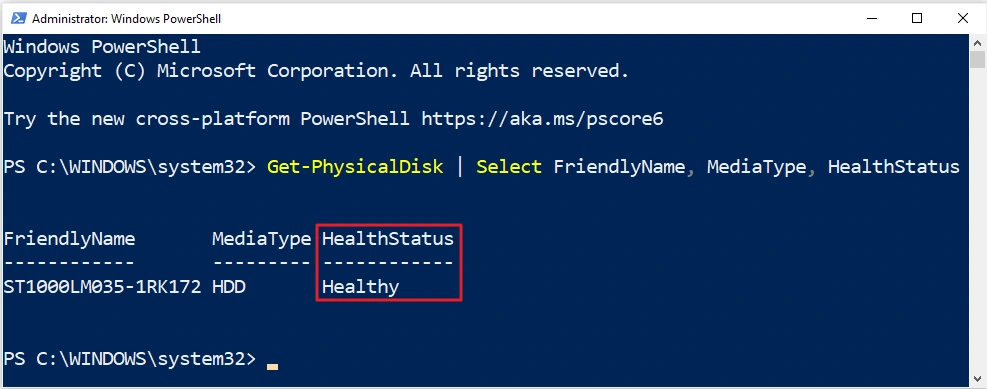
- Then run this one and look at ReadErrorsUncorrected:
Get-PhysicalDisk | Get-StorageReliabilityCounter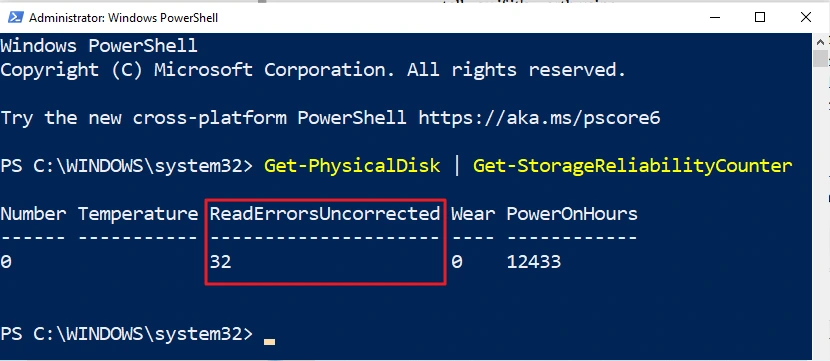
How to read the results:
- Microsoft documents four HealthStatus values: Healthy, Warning, Unhealthy, and Unknown. See the Get-PhysicalDisk reference.
- Healthy means no fault is reported right now. It isn’t a guarantee.
- On my laptop, HealthStatus said Healthy while ReadErrorsUncorrected was 32.
- A number above zero doesn’t prove the drive is failing. A number that keeps climbing is a reason to back up and replace it.
- Warning or Unhealthy means back up now.
Both commands only read data. The counters come from the Get-StorageReliabilityCounter cmdlet.
9. Read Event ID 129 and update the storage driver
Event ID 129 means Windows reset a storage device that stopped answering. Check whether your PC has logged it, and which driver reported it.
- Click Start, type Event Viewer, and open it. Go to Windows Logs > System.
- Click Filter Current Log in the right pane, type
129in the Event IDs box, and click OK.
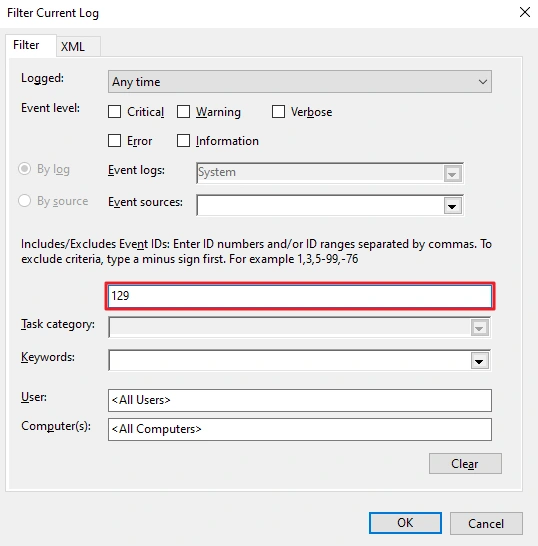
- Read the Source and Date and Time columns.
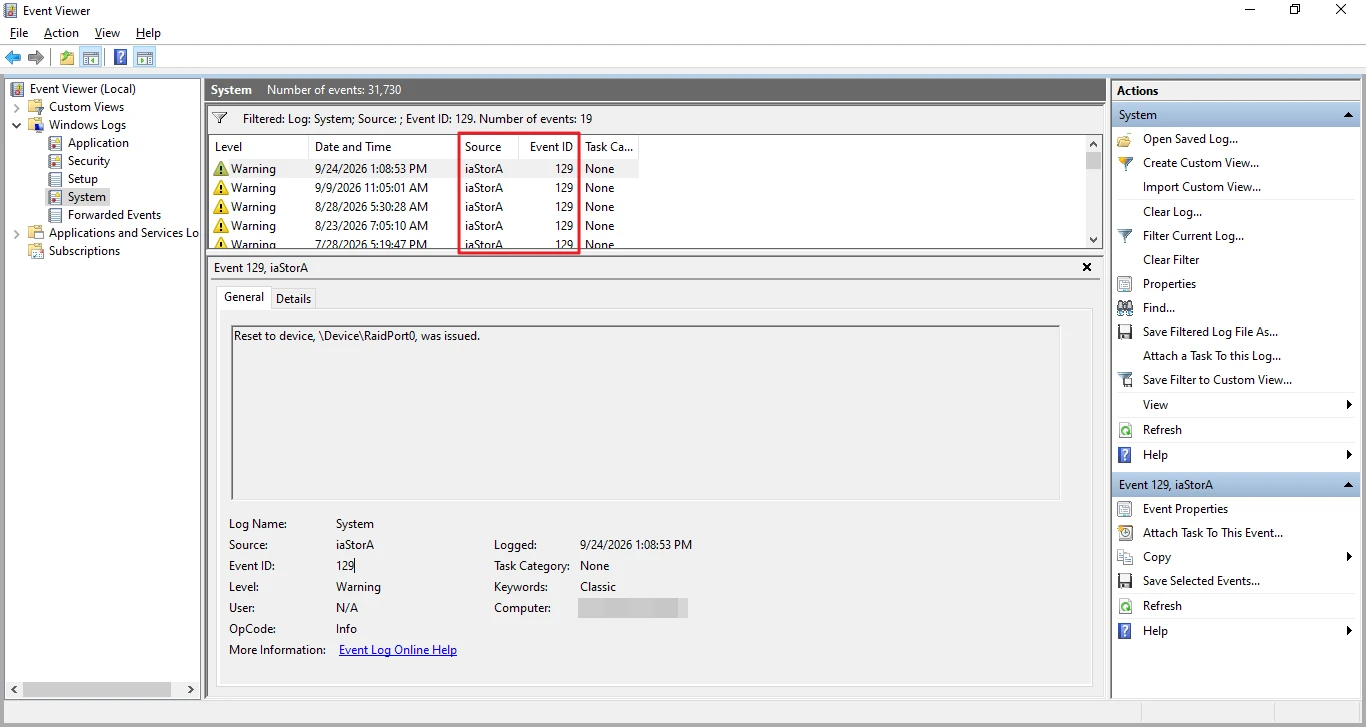
On my laptop the filter found 19 events from iaStorA, spread over about ten months. Here is how to read the Source:
| Source | What it means | What to do |
|---|---|---|
| iaStorA | The Intel storage driver logged it | Look for a newer storage driver on your PC maker’s support site, then run Fix 8 |
| storahci | Windows’ own storage driver logged it | Update drivers and run Fix 8. See the StorAHCI note below |
| Something else | Another controller or device logged it | Update that device’s driver |
To see which driver your PC uses:
- Right-click Start, open Device Manager, and expand IDE ATA/ATAPI controllers.
- Double-click the AHCI controller, open the Driver tab, and click Driver Details.
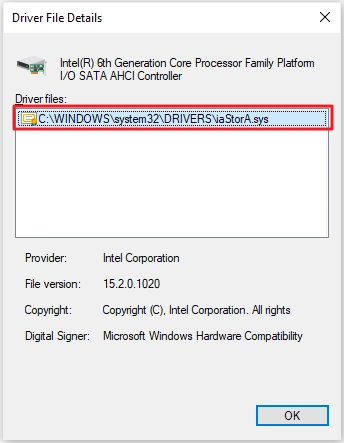
storahci.sys means the Windows driver. An Intel file such as iaStorA.sys means Intel’s driver.
If the Source is storahci and your drive is an SSD. Dell documents a known case: certain SSD and AHCI controller firmware combinations fail to finish requests when Message Signaled Interrupt (MSI) mode is on. Windows then resets the device over and over, and Task Manager shows 100% disk usage. Dell’s article describes it in Windows 10 Task Manager reports 100% disk utilization with MSI mode enabled.
I couldn’t test this one. My laptop uses the Intel driver and a hard drive, so it doesn’t apply. Microsoft’s original article for it no longer loads, so these steps come from Dell’s article. Skip this part unless the Source is storahci and the driver file is storahci.sys.
Before you start:
- Update your BIOS and the SSD firmware from your PC maker’s support site first.
- Create a restore point, and back up the registry key you are about to change.
- Editing the wrong value can stop Windows from starting. Change only the one value below.
Steps:
- In Device Manager, expand IDE ATA/ATAPI controllers, double-click Standard SATA AHCI Controller, and open the Details tab.
- Choose Device instance path in the Property list. Note the value, which starts with
PCI\VEN_. - Press Windows + R, type
regedit, and press Enter. - Go to
HKEY_LOCAL_MACHINE\System\CurrentControlSet\Enum\PCI\<your controller's instance path>\Device Parameters\Interrupt Management\MessageSignaledInterruptProperties. - Double-click MSISupported, change 1 to 0, click OK, and restart.
To undo it, set MSISupported back to 1 and restart. If you have more than one AHCI controller, Dell says to repeat the change for each one.
Dell also lists a fallback: set the paging file to a minimum equal to your installed RAM and a maximum of twice that. I’d only try that after the steps above, because it contradicts Fix 10.
10. Make sure the paging file is automatic
Windows uses a paging file on the drive when memory runs short. Some guides tell you to type in a custom size. Skip that.
- Select Start > Settings > System > About > Advanced system settings.
- Under Performance, click Settings, open the Advanced tab, and click Change.
- Make sure Automatically manage paging file size for all drives is checked.
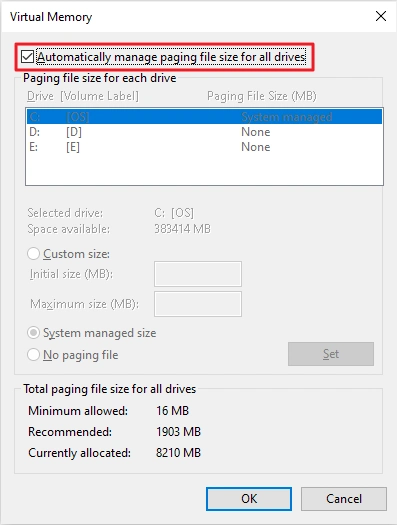
- If it was already checked, click Cancel. If not, check it, click OK, and restart.
On my laptop it was checked, and Windows had allocated 8210 MB against a recommended 1903 MB. A custom cap would have forced it lower.
If memory stays nearly full, more RAM is the real fix. See the hardware section.
11. Try the High Performance power plan (if your PC offers it)
Some guides call this a proven fix. I found no Microsoft source saying so, so treat it as a test.
- Select Start > Settings > System > Power & sleep > Additional power settings.
- Select High performance. If you see only one plan, click Show additional plans.
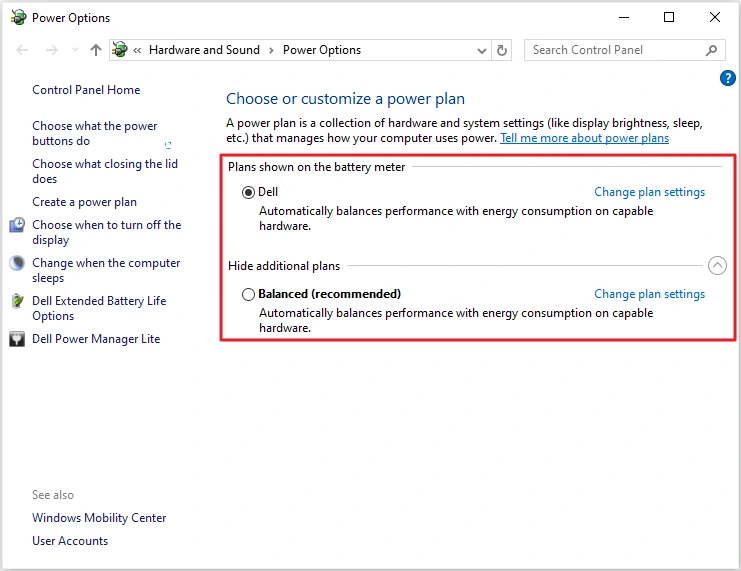
My laptop offered only a Dell plan and Balanced, so there was nothing to select. If yours is the same, leave it alone.
On a laptop, High performance drains the battery faster. Switch back to your original plan to undo it.
For more on this setting, see how to speed up Windows 10.
Rule out malware
12. Run a full scan and a Microsoft Defender Offline scan
Malware can keep a disk busy all day. A Quick scan only checks places threats are commonly found, so go deeper.
- Click Start, type Windows Security, and open it.
- Select Virus & threat protection, then the Scan options link.
- Choose Full scan and select Scan now. The scan itself uses the disk.
- Afterward, choose Microsoft Defender Offline scan and select Scan now. Windows says it takes about 15 minutes and restarts your PC.
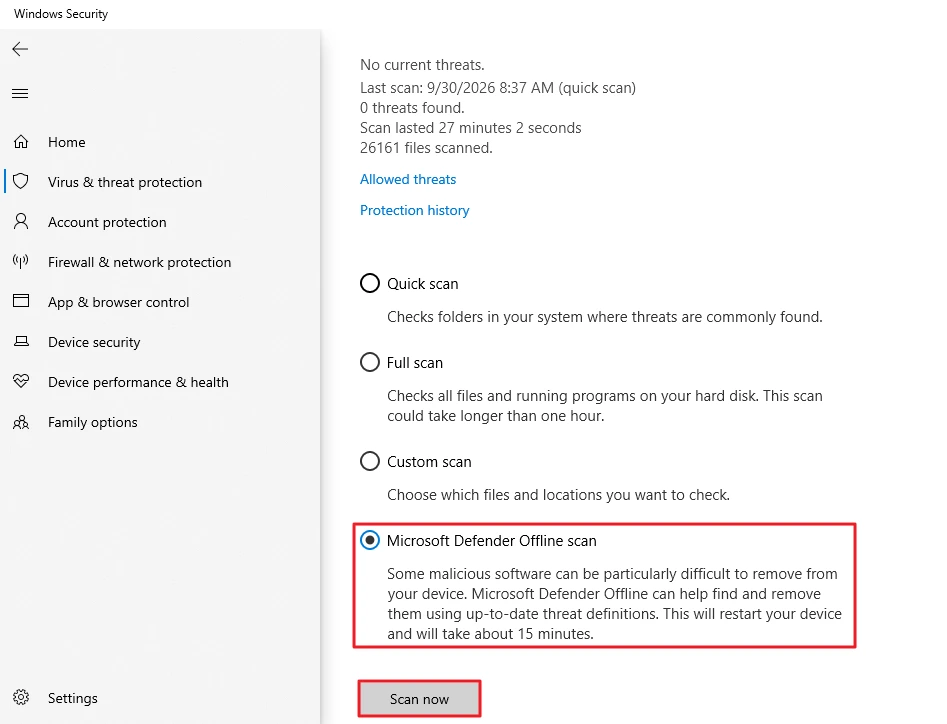
- Save your work first.
- Check Protection history to see what was found or removed.
- Using another antivirus? Use its scan instead.
Microsoft documents the offline scan on its Microsoft Defender Offline scan page.
Repair Windows and rule out software conflicts
13. Repair system files with DISM and System File Checker
Damaged system files can make Windows retry the same operations over and over. Two built-in tools repair them.
- Click Start, type
cmd, right-click Command Prompt, and choose Run as administrator. - Run this command first and wait for it to finish:
DISM /Online /Cleanup-Image /RestoreHealth- Then run this one:
sfc /scannowHow to read the results:
- Microsoft’s System File Checker guide covers
sfc /scannowand the CBS.log file that records what it found. - The DISM repair reference covers
/Cleanup-Image /RestoreHealth, which repairs the Windows image thatsfcdraws from. - Both can look stuck at 20% to 40% for several minutes. In Microsoft’s Q&A thread, an advisor says to let them finish.
- Neither tool deletes your files. Restart when both finish.
I haven’t run these two commands on my laptop for this guide. The steps come from Microsoft’s documentation.
14. Do a clean boot to find a conflicting program
A clean boot starts Windows with only Microsoft services and no startup programs. If the disk calms down, a program you installed is the cause.
I haven’t tested this on my laptop. The steps follow Microsoft’s clean boot guide and Dell’s matching article.
- Press Windows + R, type
msconfig, and press Enter. - Open the Services tab and check Hide all Microsoft services. Don’t skip this box.
- Click Disable all.
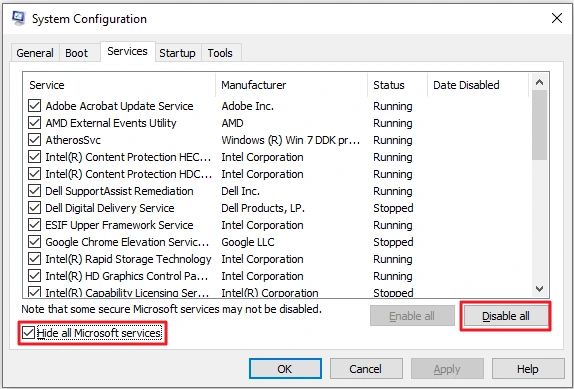
- Open the Startup tab. It says startup items are managed in Task Manager, so click Open Task Manager.
- In Task Manager’s Startup tab, select each program and click Disable.
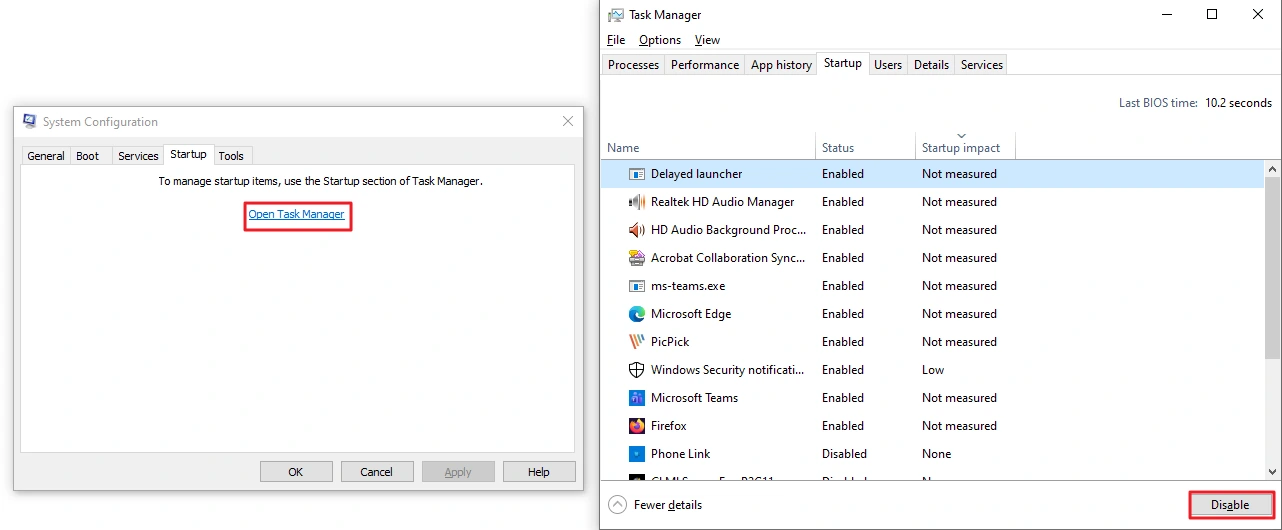
- Close Task Manager, click OK, and restart.
After the restart:
- Watch the Disk column for a few minutes. If it stays low, turn programs back on a few at a time until the problem returns.
- If it stays at 100%, the cause isn’t a startup program. Go back to the earlier fixes.
To undo it, open msconfig again, select Enable all on the Services tab, re-enable your startup items in Task Manager, and restart. Clean boot changes no files.
Built-in tools for finding the culprit
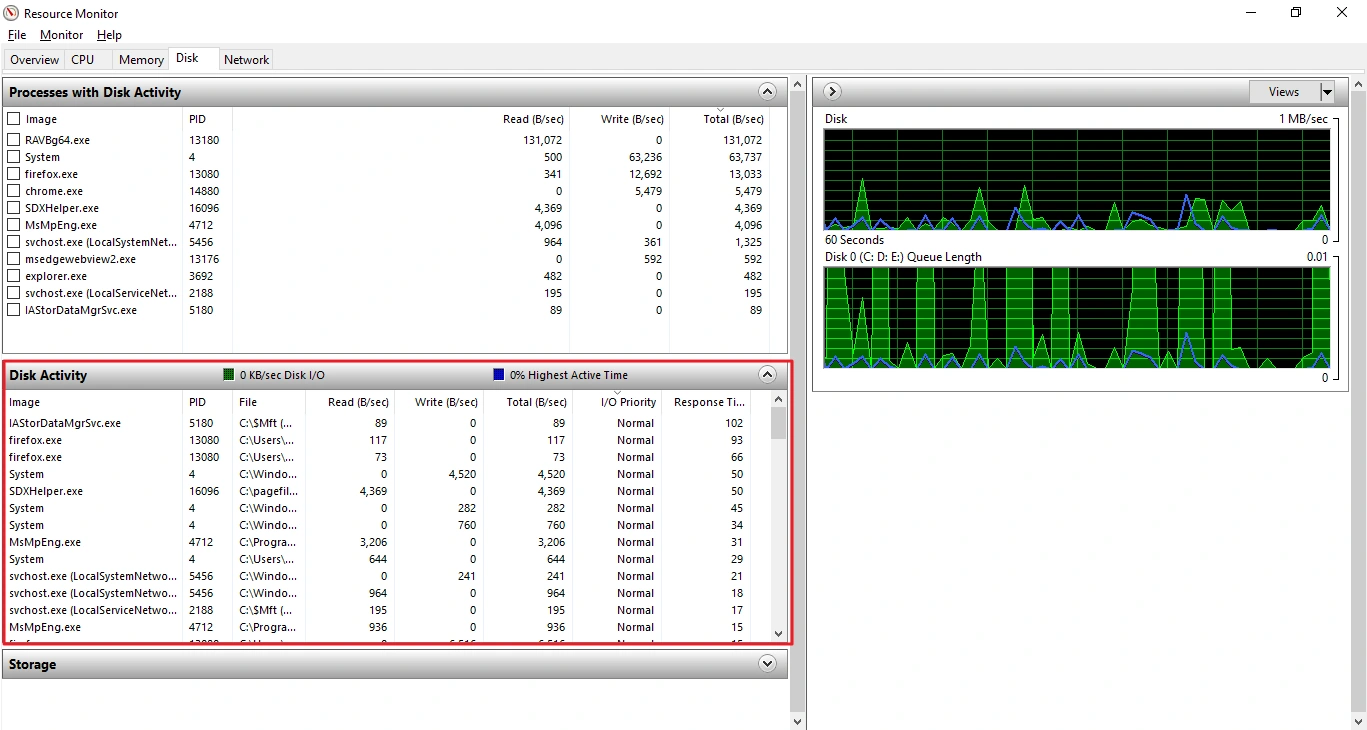
- Resource Monitor (search for it in Start). Its Disk tab lists which processes read and write, and the lower table adds the file each one touches and its response time. It names Service Host groups as svchost.exe, for example svchost.exe (LocalSystemNetworkRestricted).
- Reliability Monitor (search for View reliability history). It gives a timeline of crashes, installs, and updates, which helps when the slowdown started after an update.
- Performance Monitor (search for perfmon). It graphs counters over time, which helps when disk use spikes only now and then.
When software fixes are not enough
If you’ve worked through the fixes above and 100% disk usage in Windows 10 keeps coming back, treat it as a hardware question, not a settings one.
- A hard drive is the usual bottleneck. An SSD cuts the waiting, but it doesn’t guarantee a fix.
- Memory that’s nearly full pushes work onto the drive. On my laptop, memory sat between 75% and 86% in Task Manager, and Resource Monitor listed paging file activity. More RAM is the answer there.
- Repeating Event ID 129 entries, a rising ReadErrorsUncorrected number, or clicking sounds mean you should back up now and plan to replace the drive.
- Cables and firmware. In Microsoft’s Q&A thread on 100% disk usage, readers report fixing some cases with a new SATA cable or an SSD firmware update. Those are reader reports, not tests of mine.
Frequently Asked Questions
How do I fix 100% disk usage in Windows 10?
Find the process on top of Task Manager’s Disk column, then fix that cause. If nothing stands out on a hard drive, check the drive’s health (Fix 8) and Event ID 129 (Fix 9).
What does 100 percent disk usage in Windows 10 mean?
It means the drive is busy, not full. Task Manager’s Performance tab calls this Active time.
A few minutes at 100% after sign-in or an update is common. It becomes a problem when it stays there (Fix 1).
Why is my Service Host Local System using so much disk?
Service Host: Local System is a shell that runs several Windows services at once. Click its arrow in Task Manager to see which service is inside.
Then match that service to Fix 4, Fix 5, or Fix 6.
How to stop Modern Setup Host 100 disk usage?
Let it finish. Modern Setup Host appears while Windows installs large updates, and reader reports say it usually stops on its own. I couldn’t confirm that from Microsoft.
Check for updates, restart when asked, and don’t disable Windows Update (Fix 2).
Is Windows 10 high disk usage a sign my drive is failing?
Not necessarily. Run the health check in Fix 8 and look for Event ID 129 in Fix 9.
A Healthy status isn’t a guarantee. Rising uncorrected read errors or repeating resets mean back up and replace the drive.
Will an SSD upgrade always fix it?
No. An SSD removes much of the waiting that makes hard drives choke. A bad cable, driver, or firmware can still cause stalls.
Can I just turn off my antivirus to fix it?
I wouldn’t. Some guides say Windows Defender covers you meanwhile. Don’t count on it.
Windows 10 no longer gets security updates unless you enroll in extended updates, which Microsoft’s Windows 10 ESU page explains. Check whether a scan is running instead (Fix 3), and keep protection on.
Will these fixes delete my files?
Most don’t:
- Rebuilding the search index (Fix 4) deletes only the index, and Windows recreates it.
- Chkdsk (Fix 7) repairs file system errors, so back up first.
- Registry edit (Fix 9) changes one value, so back up first.
- Fixes 1 to 3, 5, 6, 8, 10 to 14 don’t remove your files.
Bottom Line
Fixing 100% disk usage in Windows 10 starts with finding the process on top of Task Manager’s Disk column. Each name points to a different fix, and a failing drive points to a different fix still.
If you only do three things:
- Restart Windows and give it a few minutes (Fix 1).
- Click the Disk header in Task Manager and read the top process.
- If nothing stands out on a hard drive, check its health and back up (Fix 8).
Tested on Windows 10 version 22H2 (build 19045.6466), on a laptop with a hard drive. Modern Setup Host, the StorAHCI registry change, and the clean boot are documentation-based. Last verified October 4, 2026.