Your PC used to be quick. Now it takes forever to reach the desktop, apps freeze when you switch between them, and even opening File Explorer feels delayed. This guide shows how to speed up Windows 10 without sketchy “optimizer” software.
If Windows 10 is running slow like that, some fixes take under a minute. Others only help if your drive or memory is the real limit, so first find out which one you have.
I’ve spent more than 18 years in software testing, both manual and automation, working with Selenium and Playwright, and I run a testing blog. A slow machine is something I notice fast in that work.
A browser test that passes on a healthy PC starts timing out on a bogged-down one. The failure looks like a flaky test when the culprit is the computer underneath it.
So I check the machine before I blame the test. Same habit here: measure first, then change one thing at a time.
Every menu path in this guide is written for Windows 10, and I tested them on Windows 10. I didn’t write Windows 11 steps because I don’t have a Windows 11 machine to check them on.
This guide covers a quick answer, a symptom table, how to read Task Manager, 14 fixes from fastest to most drastic, built-in diagnostic tools, and when hardware is the limit.
Quick answer: Restart with Restart (not Shut down), then open Task Manager (Ctrl + Shift + Esc) and disable high-impact startup apps you don’t need. Still slow? Free up disk space with Storage Sense. If Disk is pinned near 100% on a hard drive, or Memory is nearly full with few apps open, skip to the hardware section, because settings won’t fix that. Keep reading for the full diagnosis and 14 fixes by symptom.
- Match your symptom to Speed Up Windows
- How to speed up Windows 10: fast fixes to try first
- Windows 10 performance tweaks that cut visual and background load
- Fix update, driver, and storage-related slowdowns
- Rule out malware and deeper system issues
- Built-in tools for when Task Manager is not enough
- When software fixes are not enough
- Frequently Asked Questions
- Bottom line
Match your symptom to Speed Up Windows
| What you’re seeing | Likely cause | Jump to |
|---|---|---|
| Slow to boot, and the desktop takes a long time to become usable | Too many startup apps, or a slow hard drive | Fix 2, Fix 12 |
| Fine after a restart, sluggish again after a few days | Fast Startup carrying the old session forward after Shut down | Fix 1 |
| Apps stutter or freeze when several are open | Low RAM, so Windows leans on the drive | Fix 2, Fix 7, Fix 11 |
| Disk shows 100% in Task Manager and File Explorer lags | Nearly full drive, a hard drive bottleneck, or indexing | Fix 3, Fix 8, Fix 10 |
| Menus and windows fade or animate sluggishly | Visual effects on weaker graphics hardware | Fix 5, Fix 6 |
| Slow only on battery (laptop) | A power plan that limits performance | Fix 4 |
| It got slow right after an update | An update still finishing, a new driver, or leftover update files | Fix 9, Fix 10 |
| Fan runs hard with nothing open, or odd pop-ups appear | Malware or a runaway background process | Fix 13 |
| Slow no matter what you try, and the PC is old | Hardware limits | Fix 14 and the hardware section |
Confirm what is actually slow before you change anything
Guessing wastes time. If you want to know how to improve computer performance in a way you can actually verify, start with Task Manager, which tells you which resource is the bottleneck in about thirty seconds.
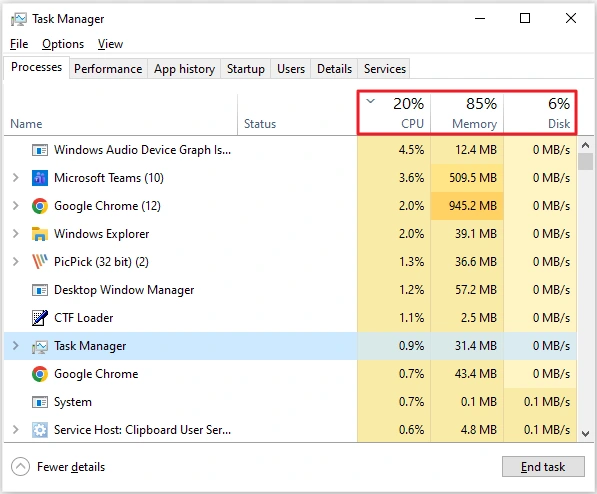
- Press Ctrl + Shift + Esc. If you see a small window, click More details.
- On the Processes tab, click the CPU, Memory, and Disk column headers to sort by each. Note which one sits near 100% while the PC feels slow.
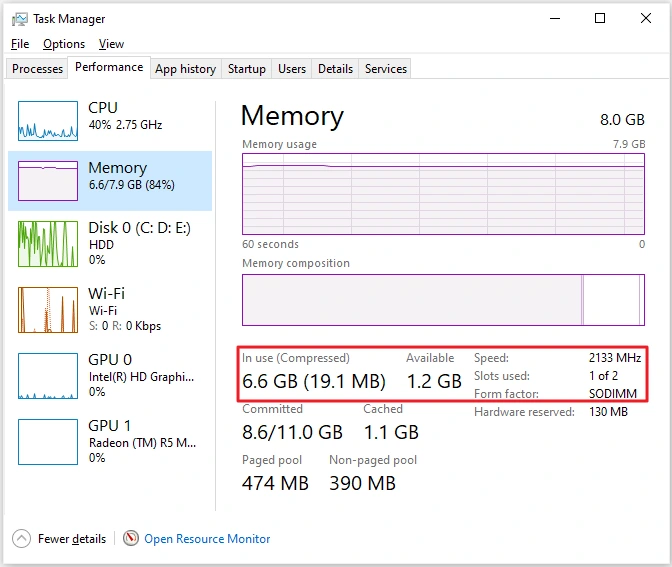
- Open the Performance tab and click Memory. You’ll see how much is in use, the speed, and how many memory slots are used.
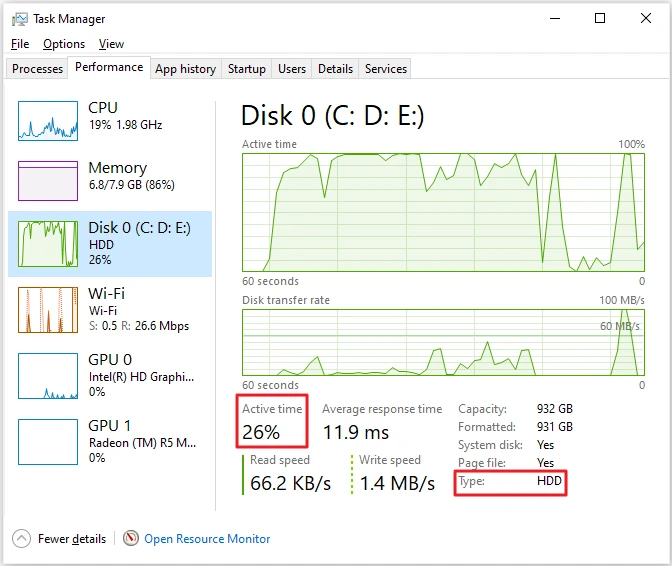
- Click Disk in the same tab. Check Active time and the Type line, which tells you whether it’s an HDD or an SSD.
For a baseline, Microsoft’s own Windows 10 system requirements list 1 GB of RAM for 32-bit Windows 10 and 2 GB for 64-bit, plus 32 GB of storage.
That’s the minimum to install and run, not the amount that feels good. A PC sitting at those numbers will crawl whatever you tweak.
Now read the result:
- CPU pinned: see this guide to lowering CPU usage on Windows 10 alongside the fixes below.
- Memory high: focus on Fixes 2, 7, and 11.
- Disk pegged on a hard drive: focus on Fixes 3, 8, 10, and 12.
How to speed up Windows 10: fast fixes to try first
1. Restart Windows (Shut down is not the same thing)
Start here, because it costs nothing. With Fast Startup on (the default in Windows 10), Shut down saves part of the Windows session to disk and restores it next time.
Restart does a full reload. So a PC you shut down every night can still carry yesterday’s problems into today.
- Save your work, then select Start > Power > Restart.
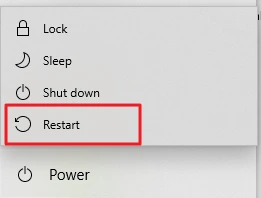
- For a true power-off, hold Shift while you click Shut down.
- To see how long the session has been alive, open Task Manager, go to Performance > CPU, and read Up time. A number in days means the session is old.
Nothing here changes a setting, so there’s nothing to undo.
2. Disable startup apps you don’t need
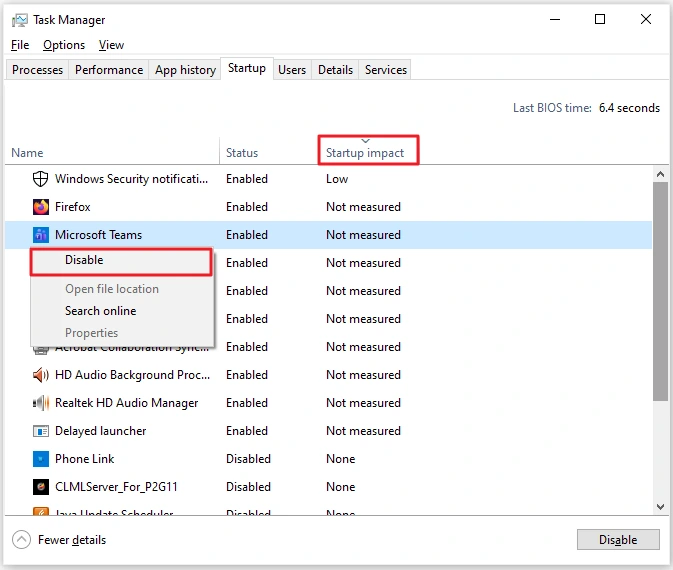
Every app that launches at sign-in competes for CPU, memory, and disk while Windows is still loading. Task Manager rates most of them, so you don’t have to guess.
- Press Ctrl + Shift + Esc and click More details if needed.
- Open the Startup tab and click the Startup impact column header to sort. If the High-impact apps aren’t at the top, click it again.
- Right-click an app you don’t need at sign-in (chat apps, game launchers, and updaters are common) and select Disable.
Good to know:
- Some apps show Not measured instead of High, Medium, or Low. Judge those by name and by whether you use them.
- This only stops auto-launch. The app stays installed.
- To undo it, right-click the app and select Enable.
- Changes take effect at your next sign-in.
- Leave security software alone, and look up any name you don’t recognize first.
3. Free up disk space with Storage Sense
Windows needs free room on the system drive for temporary files, updates, and virtual memory. Low disk space can slow a PC down.
- Select Start > Settings > System > Storage.
- Turn Storage Sense on, then select Configure Storage Sense or run it now.
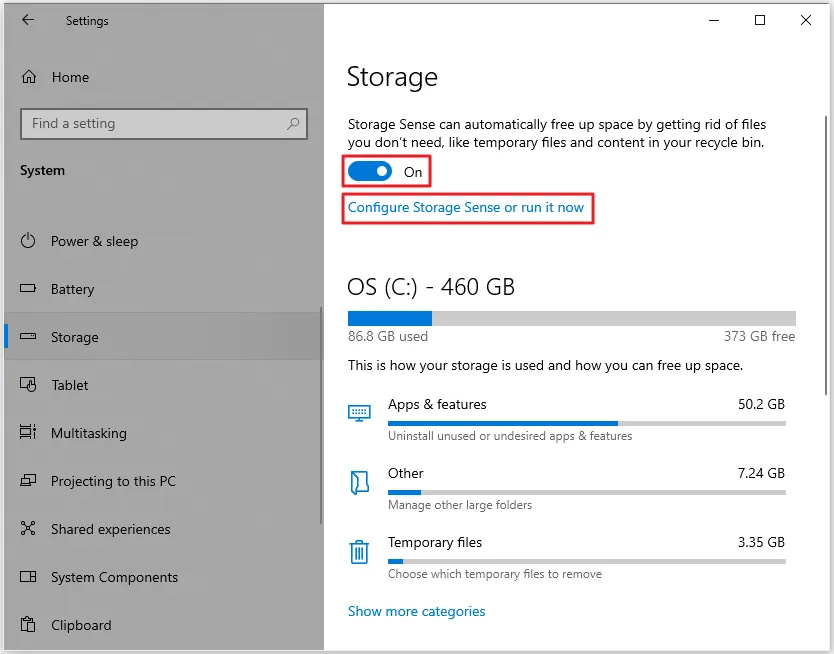
- Under Free up space now, select Clean now.
Files that Storage Sense deletes are gone. The toggle itself is reversible, but the cleanup isn’t. In the Storage Sense settings, leave Delete files in my Downloads folder on Never unless you’ve checked that folder first.
4. Switch to a better power plan
Windows can hold back your processor to save energy. On a desktop that’s rarely worth it.
- Select Start > Settings > System > Power & sleep, then select Additional power settings on the right.
- Look for High performance. If you only see one plan, click Show additional plans.
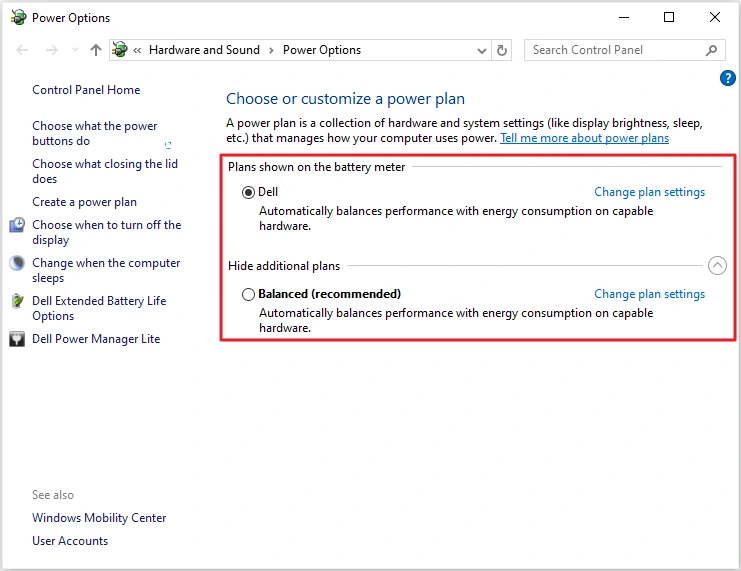
Not every PC offers it. Some laptops list only Balanced and a plan named by the PC maker, and that’s normal. If High performance isn’t there, leave the plan alone.
On a laptop, High performance drains the battery faster and runs warmer, so use it when you’re plugged in. To undo it, switch back to your original plan, which is usually Balanced.
Windows 10 performance tweaks that cut visual and background load
5. Turn off transparency effects in Windows 10
The blur on the taskbar, Start menu, and Settings costs graphics resources. On a PC with integrated graphics or an older GPU, turning it off can make menus feel snappier. On a modern machine you may not notice a difference.
- Select Start > Settings > Personalization > Colors.
- Find Transparency effects, just below the Choose your color dropdown, and switch it to Off.
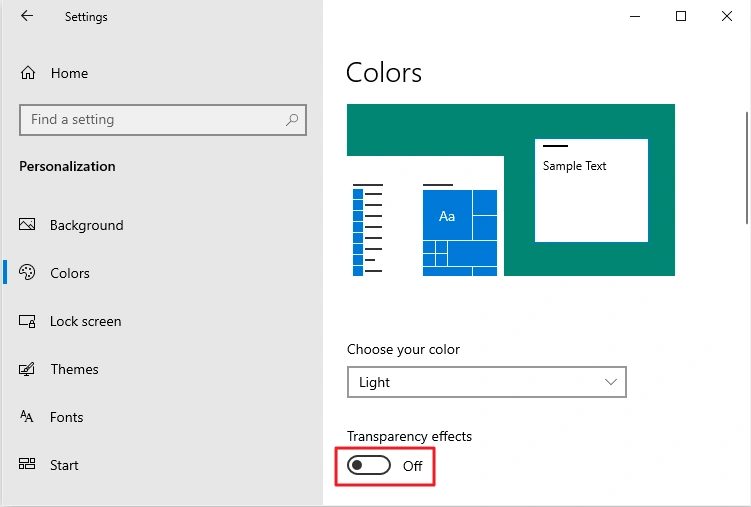
It’s fully reversible with the same switch, and there’s no risk.
6. Adjust for best performance in Windows 10
This turns off animations, shadows, and fades in one go. It’s the most aggressive way to make Windows 10 faster through settings alone, and the desktop looks plainer, which is the price.
- Select Start, type Adjust the appearance and performance of Windows, and open it.
- On the Visual Effects tab, select Adjust for best performance, then Apply.
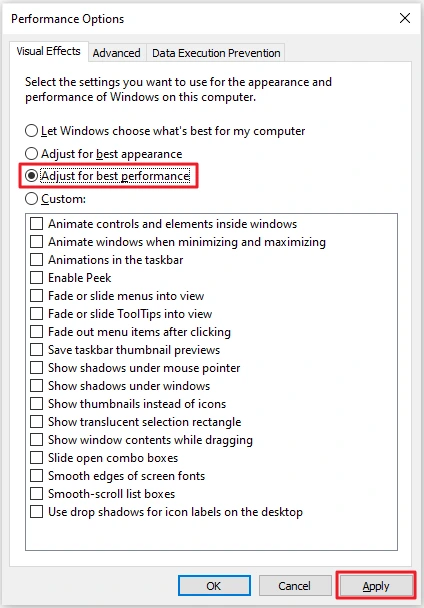
- If text looks rough afterward, choose Custom instead and check Smooth edges of screen fonts and Show thumbnails instead of icons, then Apply.
To undo it, go back and choose Let Windows choose what’s best for my computer.
7. Turn off background apps
Some apps keep running when you aren’t using them, which eats memory and CPU.
- Select Start > Settings > Privacy > Background apps.
- Switch off the apps you don’t need, or turn off Let apps run in the background entirely.
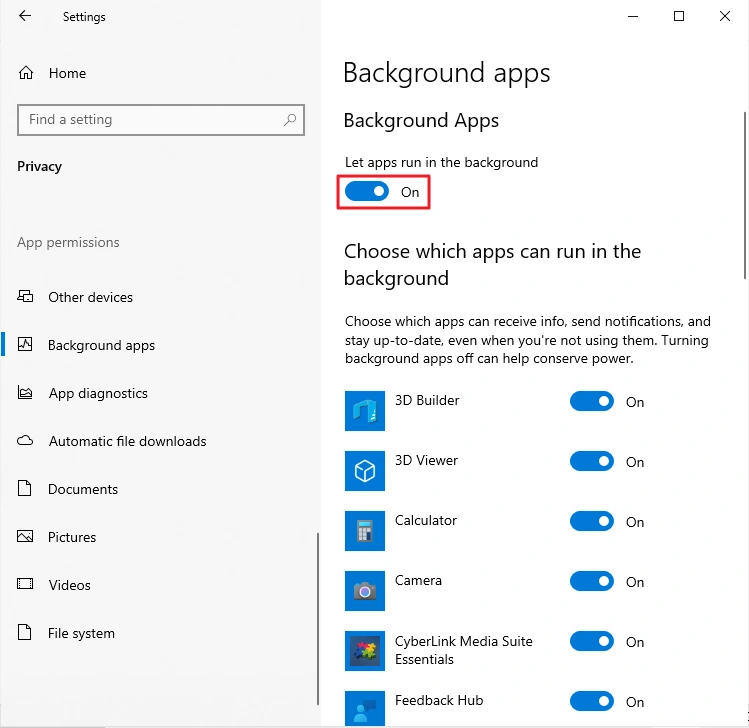
Mail, calendar, and messaging apps won’t sync or notify until you open them. Every toggle can be switched back on.
8. Trim what Windows indexes
Indexing keeps search fast by scanning your files in the background. It costs disk activity, which hurts most on a hard drive.
The worst offenders are huge folders you never search, like a game library or a project folder full of thousands of small files, such as node_modules.
- Select Start, type Indexing Options, and open it.
- Click Modify. Expand a drive with its arrow, clear the checkboxes for big folders you never search, and click OK.
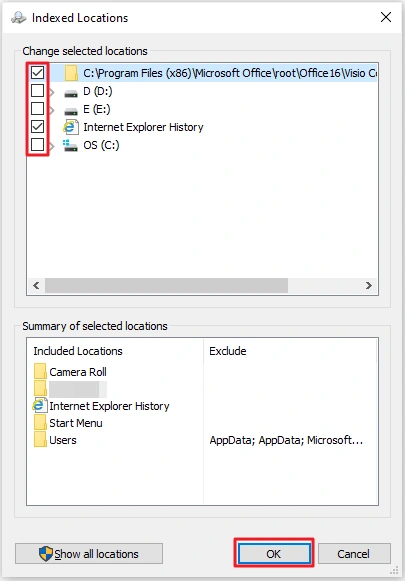
The gain is usually modest. To undo it, select the folders again. Files in the folders you cleared won’t show up instantly in Start search. If search is broken rather than just slow, these Windows Search not working fixes cover that separately.
Fix update, driver, and storage-related slowdowns
9. Install Windows updates and optional driver updates
Updates fix bugs, including performance ones. An optional driver update can also help when one specific device is misbehaving.
Here’s how to check:
- Select Start > Settings > Update & Security > Windows Update > Check for updates.
- If a View optional updates link appears, select it and open Driver updates. Not every PC shows it.
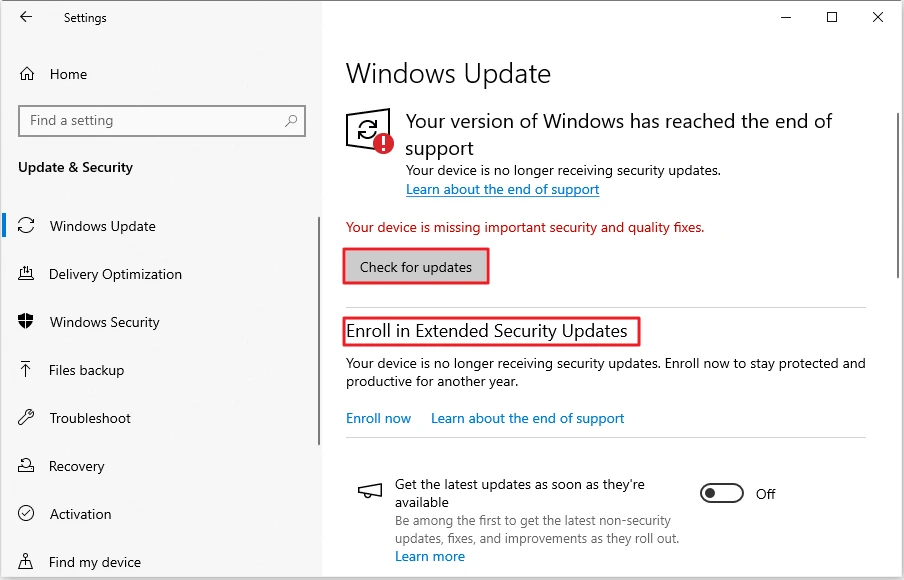
Windows 10 adds a wrinkle, though:
- Microsoft ended support on October 14, 2025.
- Without Extended Security Updates, your PC no longer gets new security patches.
- The consumer ESU program runs through October 12, 2027.
- If your PC is eligible, Windows Update shows an Enroll in Extended Security Updates section with an Enroll now link. Microsoft explains it on its Windows 10 ESU page.
Before you install anything:
- For a graphics driver, download it from the NVIDIA, AMD, or Intel website instead of a “driver updater” tool.
- Install drivers one at a time, restart, and test before the next one.
- If a new driver makes things worse, open Device Manager, right-click the device, choose Properties > Driver, and select Roll Back Driver. The button is grayed out if Windows has no earlier driver to go back to.
- Save your work first, because updates may restart the PC.
10. Clean up system files with Disk Cleanup
Disk Cleanup reaches files that Storage Sense leaves alone, such as upgrade log files and, on some PCs, leftover update files.
- Select Start, type Disk Cleanup, and open it. Choose your C: drive and click OK. The scan can take a few minutes.
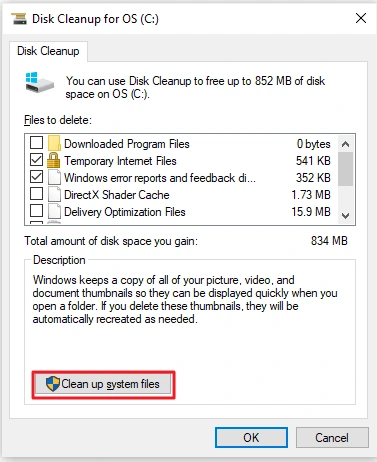
- Click Clean up system files. The shield icon means Windows may ask for administrator permission.
- Choose C: again, click OK, and wait for a second scan.
- Scroll the whole list. Check Temporary files and Delivery Optimization Files. If Windows Update Cleanup is listed, check it too.
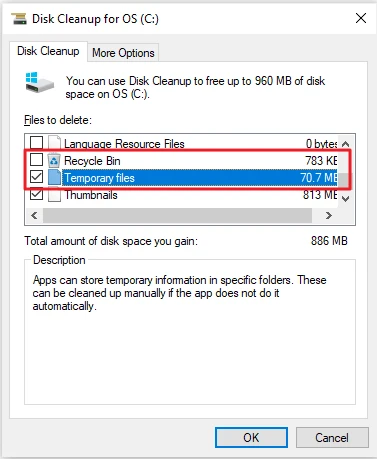
Deleted files can’t be restored, so read every line before you click OK:
- Recycle Bin empties it for good.
- Device driver packages removes older driver versions and keeps only the newest, so you may lose the option to use Roll Back Driver (Fix 9).
- If Previous Windows installation(s) is listed, it removes your ability to roll back to an older Windows version.
- If Downloads appears, leave it unchecked unless you’ve reviewed that folder.
11. Uninstall apps you no longer use
Unused apps take space, and some run background tasks. Pre-installed trial software from your PC maker is a common example.
- Select Start > Settings > Apps > Apps & features.
- Open the Sort by dropdown and choose Size.
- Select an app you no longer use and click Uninstall.
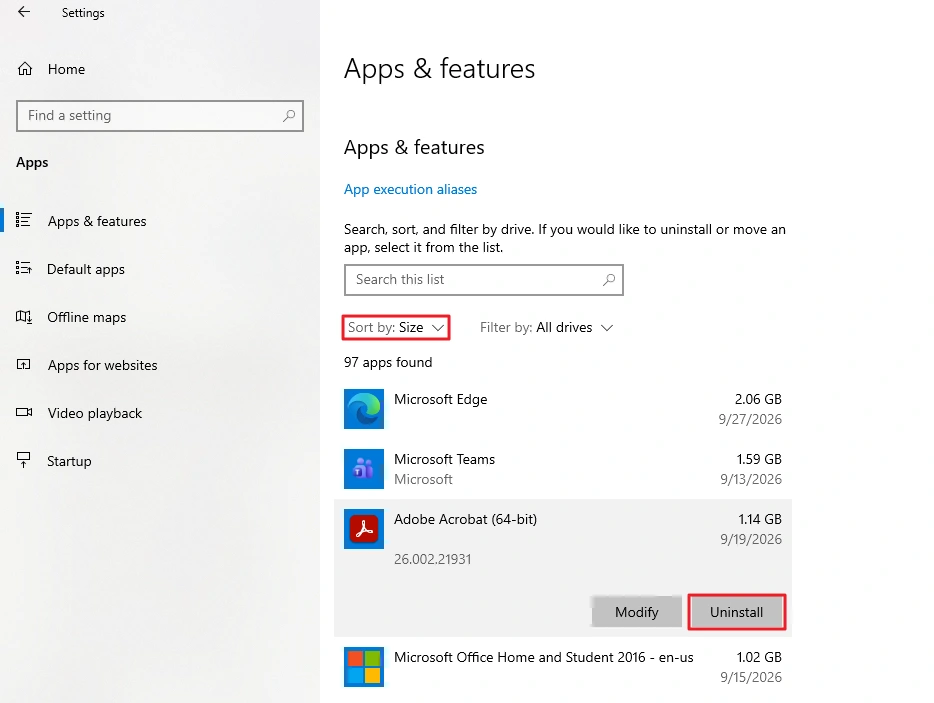
You can reinstall anything you remove by mistake, but drivers and runtime components are easy to misjudge. If a name looks like a driver, a “Redistributable,” or a component your PC maker installed, search for it before removing it.
12. Check your drive type and optimize it
Whether you have a hard drive or an SSD decides how much of this article applies to you. A hard drive is a common bottleneck on older PCs.
- Select Start, type Defragment and Optimize Drives, and open it.
- Read the Media type column. It says Hard disk drive or Solid state drive.
- On a hard drive, check Current status. If it shows fragmentation, select the drive and click Optimize. If it says OK (0% fragmented), there’s nothing to gain.
- On an SSD, Windows handles this itself, and there’s nothing more to do.
- Check Scheduled optimization at the bottom. If it says On, Windows already optimizes your drives on a schedule.
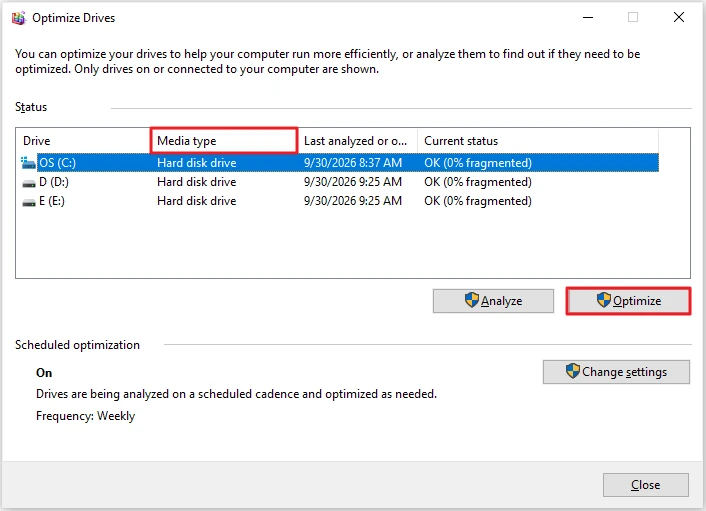
Optimizing rearranges how files are stored. It doesn’t delete anything. On a hard drive it can take a while, so plug in a laptop first. Skip third-party defragmenters on an SSD.
Rule out malware and deeper system issues
13. Run a full scan and a Microsoft Defender Offline scan
Malware can eat CPU and disk all day. A Quick scan only checks the places threats are commonly found, so go deeper.
- Select Start, type Windows Security, and open it. It opens a Security at a glance page.
- Select Virus & threat protection, then the Scan options link. Choose Full scan and select Scan now. Windows says it could take longer than an hour.
- When it finishes, return to Scan options, choose Microsoft Defender Offline scan, and select Scan now. Windows says it takes about 15 minutes.
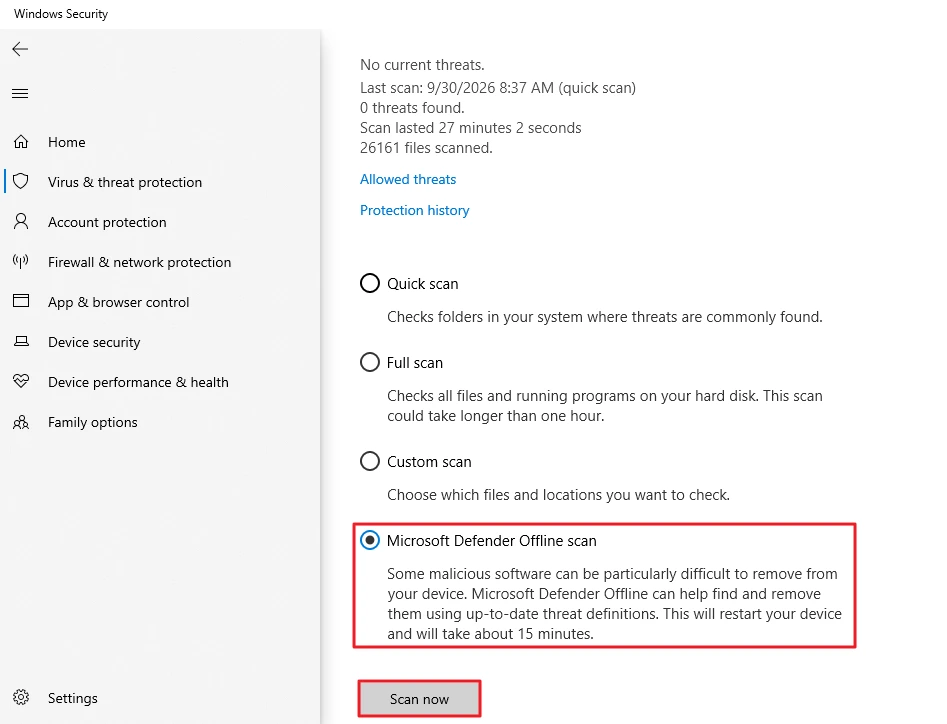
The offline scan restarts your PC and runs before Windows loads. That helps with threats that hide while Windows is running. Microsoft documents it on its Microsoft Defender Offline scan page.
- Save your work first.
- Afterward, check Protection history to see what was found or removed.
- If another antivirus is your main protection, use its scan instead.
14. Reset this PC (last resort)
If a clean scan and everything above changed nothing, the software may be damaged or cluttered beyond repair. A reset reinstalls Windows.
- Back up everything you care about first.
- Select Start > Settings > Update & Security > Recovery, then under Reset this PC, select Get started.
- Choose Keep my files or Remove everything.
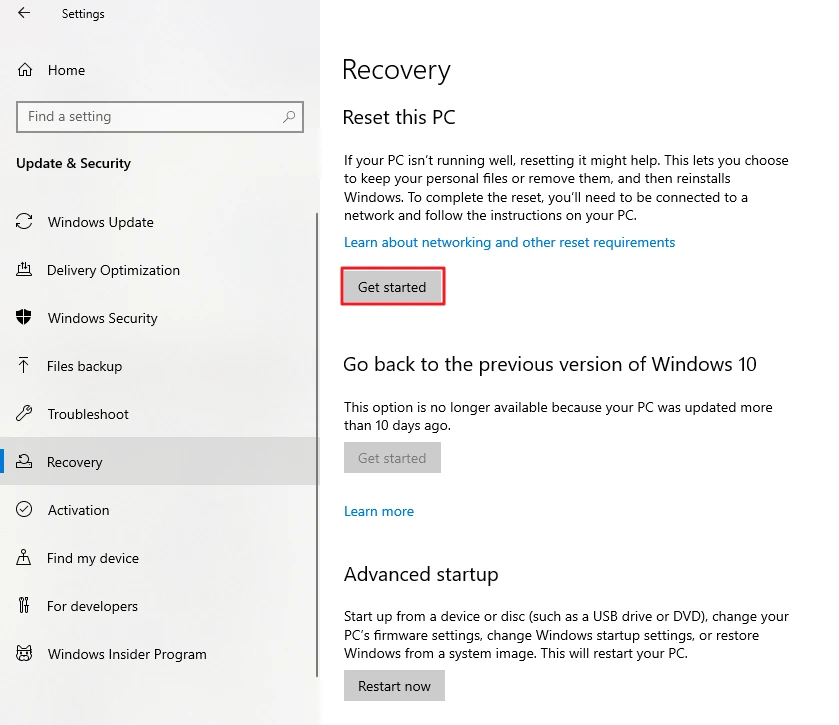
This is the one fix here that you can’t easily undo. Keep my files removes your apps and settings but keeps personal files. Remove everything wipes the drive. On a laptop, plug in first, and expect it to take a while. Windows says you need to be connected to a network to complete the reset.
Built-in tools for when Task Manager is not enough
- Resource Monitor (search for it in Start). Its Disk tab shows which processes are reading from and writing to the drive right now.
- Performance Monitor (search for perfmon). It graphs counters over time, which helps when a slowdown only shows up after hours of use.
- Reliability Monitor (search for View reliability history). It gives a timeline of crashes, installs, and updates, which is handy for the “it got slow after an update” case.
- Services (press Windows + R, type services.msc). It lists background services and their startup type. This guide doesn’t switch any services off, so use it to look, not to change things. For the steps, see our guide to opening services.msc.
When software fixes are not enough
Fixes only go so far. Knowing how to speed up Windows 10 also means knowing when hardware is the honest answer:
- Memory full during ordinary use: add RAM. Task Manager shows your memory speed and slots used, but look up your exact model first, because some laptops have memory soldered to the board.
- A hard drive: swapping in an SSD is usually the most noticeable upgrade. Check whether your PC takes a 2.5-inch drive or an M.2 drive.
- An old processor: it can’t be tuned into a fast one, so no tweak will speed up computer performance beyond what the hardware allows.
Windows 10 support has also ended, so weigh a newer PC against more upgrades, depending on your budget and whether your PC can run Windows 11.
Frequently Asked Questions
How to speed up Windows 10?
Find the bottleneck in Task Manager first. Then restart with Restart, disable high-impact startup apps, free up disk space, and check whether you have a hard drive or an SSD. Those four steps are the best place to start.
Can I speed up my PC free of charge?
Every fix in this guide is free and uses tools built into Windows 10. Nothing here needs a download or a purchase. The only paid items are hardware upgrades like RAM or an SSD, and you may not need either.
Why is Windows 10 running slow all of a sudden?
A sudden change usually has a trigger. Common ones: a recent update or driver (Fix 9), a nearly full drive (Fixes 3 and 10), a new startup app (Fix 2), or malware (Fix 13). Reliability Monitor shows what changed and when.
Do I need a PC cleaner, registry cleaner, or RAM booster?
No. Registry cleaners risk breaking something for a gain you’re unlikely to notice. RAM boosters fight Windows’ own memory management.
Microsoft’s PC Manager is a separate case. It’s made by Microsoft and runs on Windows 10 version 19042.0 or later. This guide skips it because it mostly wraps the same cleanup steps, which you can see on Microsoft’s tips to improve PC performance page.
Does Shut down clear memory like Restart does?
Not when Fast Startup is on. Shut down keeps part of the Windows session, while Restart does a full reload. That’s why Restart fixes problems that a nightly shutdown doesn’t (Fix 1).
Will these fixes delete my files?
Most won’t:
- Settings and scans: Fixes 1, 2, 4 through 9, 12, and 13 don’t remove your files.
- Deletes things: Fixes 3, 10, and 11. Read the lists before you confirm.
- Can wipe the drive: Fix 14. Back up first.
Does turning off transparency effects actually help?
It can help on older PCs or ones with integrated graphics, because it reduces the work your graphics hardware does. On a modern PC the difference is small. It’s harmless to try, since one switch reverses it (Fix 5).
How to improve PC performance on an older Windows 10 machine?
Set realistic expectations. Fixes 2, 5, 6, and 7 trim background and visual load, and Fix 12 shows whether a hard drive is the real problem. If Memory or Disk is still pinned during ordinary use, hardware is the answer (see the hardware section above).
Is it still worth tuning Windows 10 now that support has ended?
Yes, if you’re staying on it for now. The fixes above still work, and they’re a cheap way to get more life out of the PC. Just keep the security side in mind: without ESU enrollment, you’re not getting new security updates (Fix 9).
Bottom line
Learning how to speed up Windows 10 starts with finding what’s maxed out in Task Manager, since CPU, Memory, and Disk point to different fixes. Change one thing at a time, and treat a hard drive or low RAM as a hardware problem.
If you only do three things, do these:
- Restart with Restart, not Shut down (Fix 1).
- Disable high-impact startup apps in Task Manager (Fix 2).
- Check your free space and drive type (Fixes 3 and 12).
Tested on Windows 10, version 22H2. Last verified October 1, 2026.