Last updated on October 4th, 2026 at 11:52 am
Quick Answer: How to Open services.msc
Press Windows + R, type the following services.msc run command, and hit Enter:
services.mscCopy and paste the exact string above into the Windows Run box, Command Prompt, or PowerShell to launch the utility instantly. If you searched for services msc, this is the command you need: type it with the dot, exactly as shown.
What Is Windows Services Manager?
| Term | File / System Command | What It Actually Does |
| Windows Services Manager | services.msc | The visual window where you look at and toggle background processes. |
| Service Control Manager | SCM (Internal Engine) | The hidden background engine that boots up and runs these services. |
| Task Manager Services Tab | taskmgr.exe | A quick view to see live process IDs and active RAM usage. |
The Windows Services Manager (services.msc) is a built-in Windows tool that lets you view, start, stop, and configure background services. These services control critical functions like Windows Update, networking, printing, and system performance.
Whether you are troubleshooting an application, disabling unnecessary services, or trying to speed up your system, this tool helps you do it quickly. In this guide, you will learn 7 ways to open it, how to create a shortcut, and which services you can safely turn off.
What Is Service Control Manager (SCM)?
The Service Control Manager (SCM) is a built-in Windows component that starts, stops, and manages system services. When your PC boots up, SCM launches services in the background. Many of these services are managed through it. This makes SCM the engine behind what you see in the Services window.
What Is services.msc and Where Is It Located?
services.msc is the file that opens the Windows Services Manager. In File Explorer, Windows lists it as a Microsoft Common Console Document, a saved console file that tells the Microsoft Management Console which administrative tool to load. Many people type it as services msc, but the file name has a dot before the extension.
On Windows 10, the file is stored in the System32 folder:
C:\Windows\System32\services.msc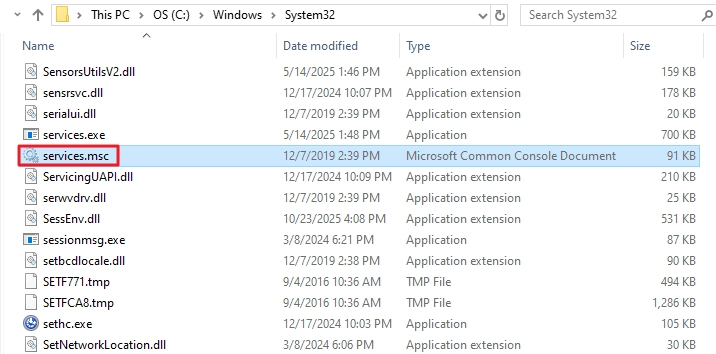
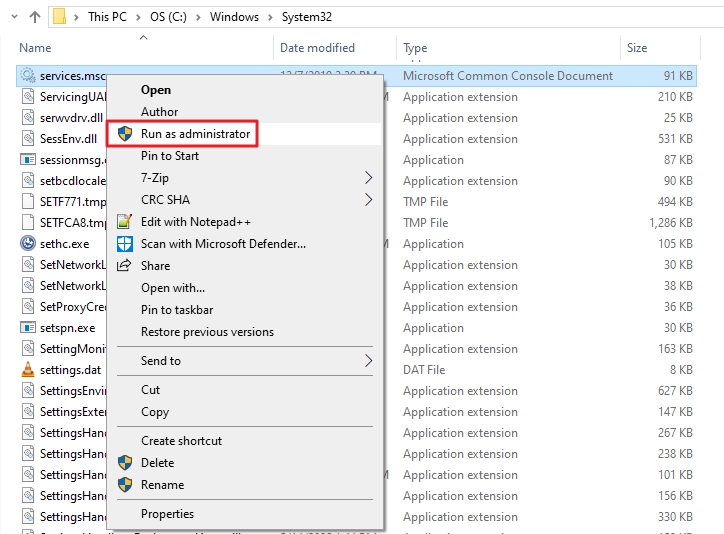
You can double-click it there to open the manager, or right-click it and choose Run as administrator. Microsoft explains how saved consoles work in its guide to .msc console files.
7 Ways to Open services.msc (Windows Services Manager)
Here are the most common and fastest methods to launch the Windows Services Manager. The first method is what most users need.
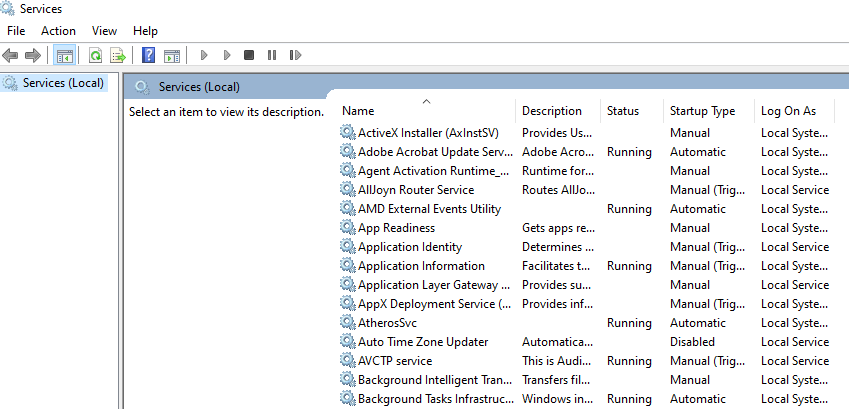
1. Open Services msc Using the Run Dialog Box (Fastest Method)
This is the quickest way to open services.msc on any Windows version.
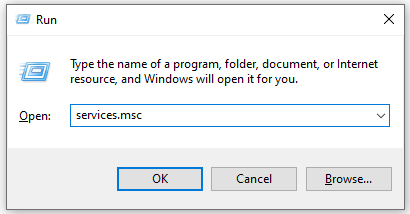
- Press Windows + R on your keyboard to open the Run dialog box.
- Type services.msc into the box.
- Press Enter to launch the Services Manager.
2. Use Windows Search
Best if you are already using the Start menu.
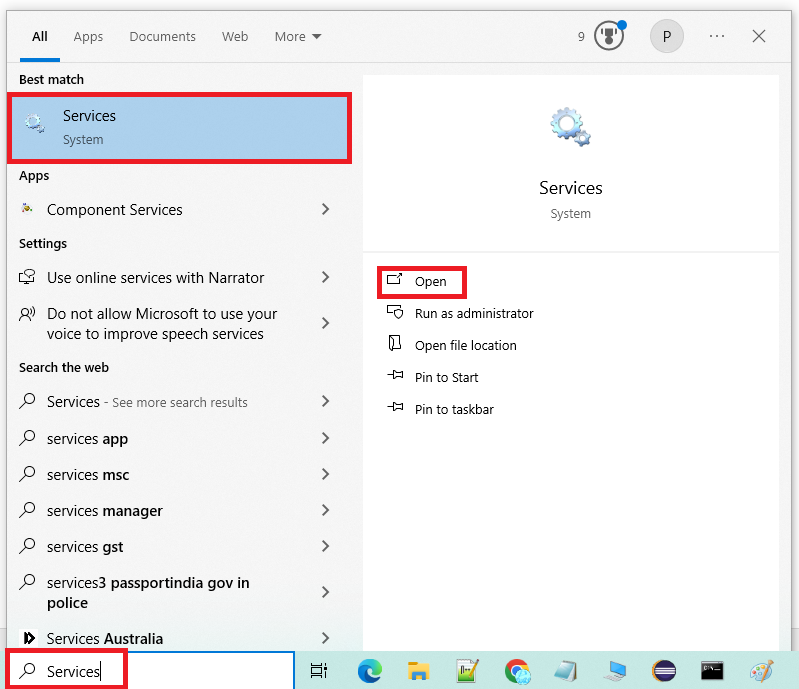
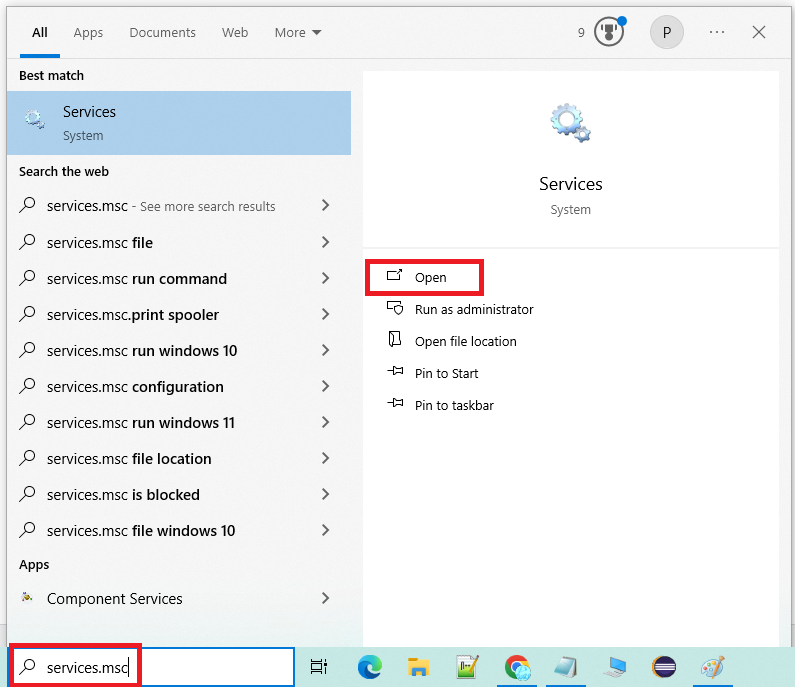
- Press the Windows key to open the Start menu.
- Type Services into the search bar.
- Click on the matching Services result (Desktop app).
3. How to Open Services from CMD or PowerShell
Ideal for IT pros, developers, and anyone comfortable with the command line.
- Open Command Prompt or PowerShell (search for “cmd” or “PowerShell” in Start).
- Type services.msc and press Enter.
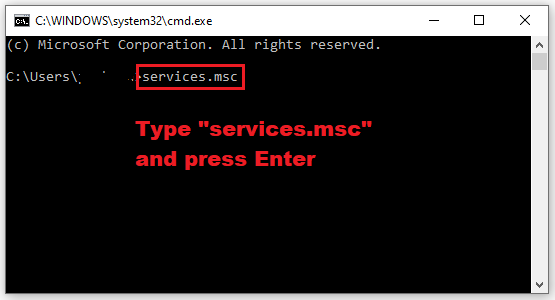
Pro Tip: Use sc query <service_name> in CMD to check a service’s status without opening the full manager.
4. Open Services from the Start Menu (Traditional Way)
This method works on Windows 10 and Windows 11, though it is slower than the Run dialog. On Windows 11, the folder is called Windows Tools.
- Click the Start button.
- Scroll down to Windows Administrative Tools (Windows Tools on Windows 11).
- Click Services from the list.
5. Use Control Panel (Less Common)
If you prefer traditional navigation, you can easily find services in the Control Panel:
- Open the classic Windows Control Panel using search.
- Click on System and Security.
- Click on Administrative Tools (labeled Windows Tools on Windows 11).
- Double-click the Services control panel shortcut to open the manager.
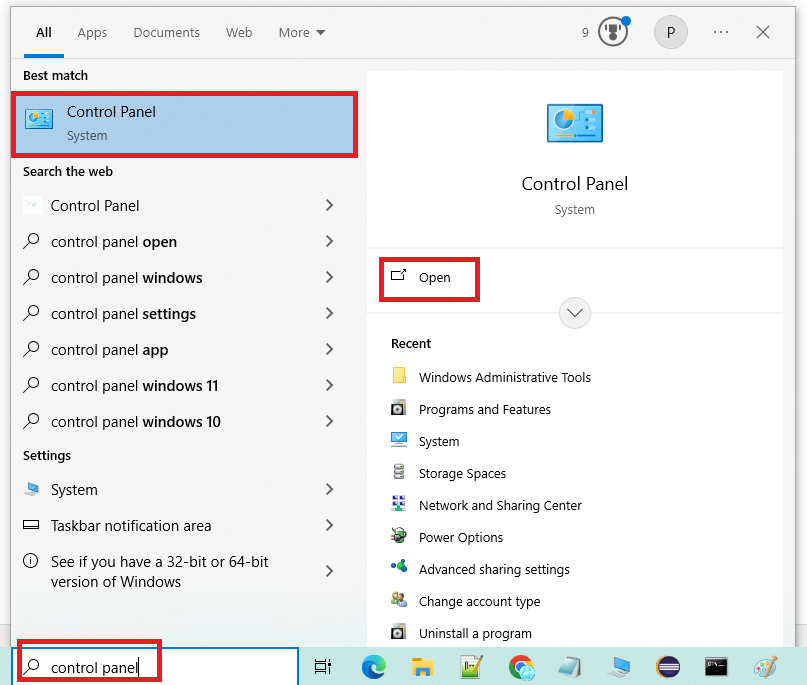
After opening Control Panel, you will see the main Control Panel window with various categories.
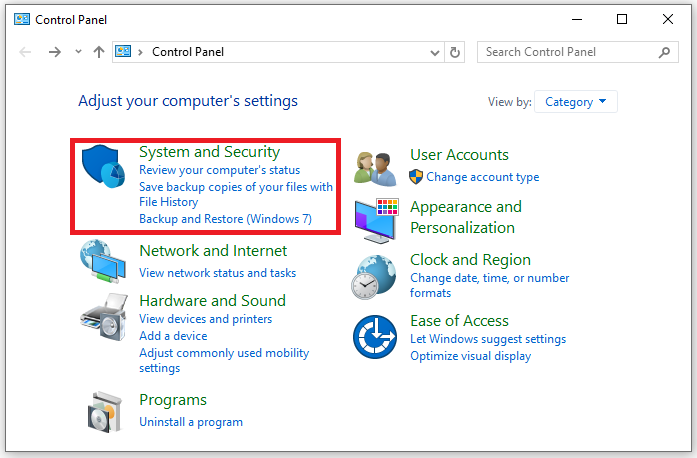
Click on System and Security to access system-related administrative settings.
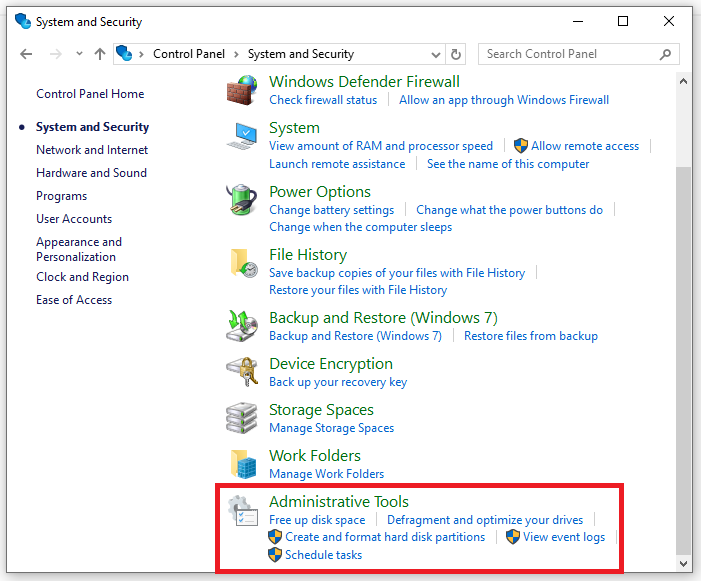
Within the System and Security section, scroll down and click on Administrative Tools.
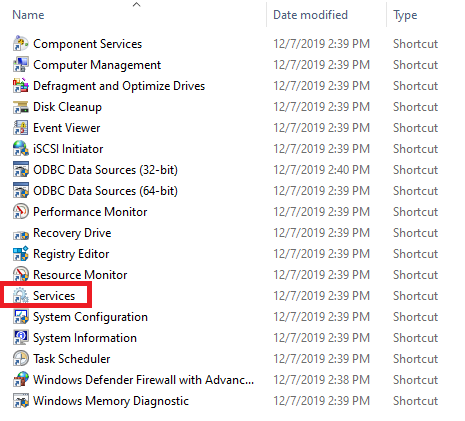
From the Administrative Tools window, double-click on Services to launch the Windows Services Manager.
6. Use Task Manager
This method is useful if you already have Task Manager open.
- Press Ctrl+Shift+Esc to open Task Manager.
- Click on the File menu at the top left.
- Select Run new task.
- Type services.msc and check the box that says “Create this task with administrative privileges.”
- Click OK to launch the Services Manager.
7. Create a Keyboard Shortcut (Advanced)
If you open services.msc frequently, you can assign a custom keyboard shortcut for instant access.
First, create a desktop shortcut:
- Right-click anywhere on your desktop to open the context menu.
- From the context menu, hover over “New” and then click on “Shortcut”.

Right-click on your desktop and select New, then Shortcut from the context menu.
- In the location field that appears, type services.msc to set it as the target for the shortcut.
- After entering the location, click Next, and when prompted, type “Services Manager” as the name of your new shortcut.
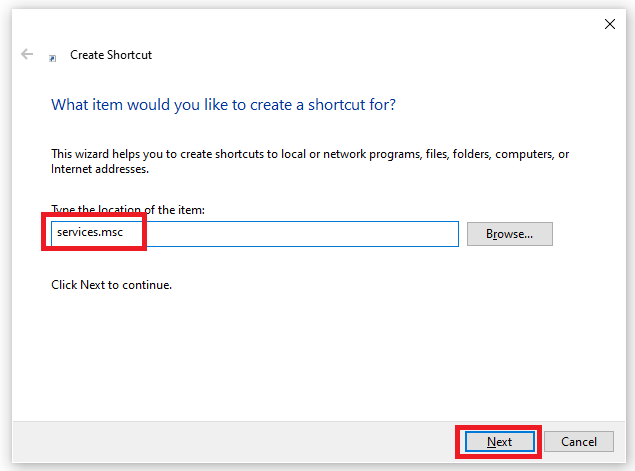
Enter services.msc as the shortcut location and name it Services Manager.
- Finally, click Finish to create the shortcut.
You now have a quick-access Windows Services Manager shortcut on your desktop.
Now assign a keyboard shortcut to it:
- Right-click the shortcut you just created and select Properties.
- Click on the Shortcut tab.
- In the Shortcut key field, press a key combination (for example, Ctrl+Alt+S).
- Click Apply and OK.
Now you can press your chosen key combination (like Ctrl+Alt+S) to open the Windows Services Manager instantly.
More Ways to Open services.msc, Including as Administrator
If the Run box is not convenient, or you need to run the tool with elevated rights, these three options help.
Open Services from Computer Management
Computer Management includes the same list of services, so this works well if you already have it open.
- Click Start, type Computer Management, and open it.
- In the left pane, expand Services and Applications.
- Click Services. The list of services appears in the center pane.
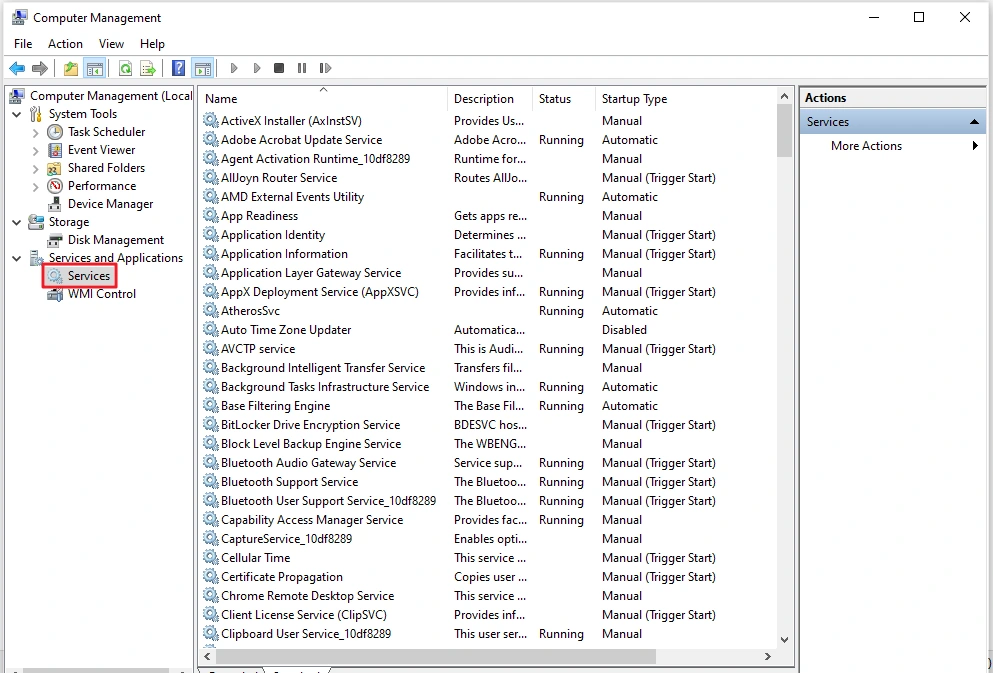
Open services.msc from File Explorer
Because services.msc is a file, you can open it straight from its folder.
- Press Windows + E to open File Explorer.
- Paste C:\Windows\System32 into the address bar and press Enter.
- Scroll down to services.msc and double-click it.
Run services.msc as Administrator
Opening the list does not need admin rights, but changing some services can. There are two ways to run it with elevated rights:
- File Explorer: go to C:\Windows\System32, right-click services.msc, and select Run as administrator.
- Run box: press Windows + R, type services.msc, and press Ctrl+Shift+Enter. Windows may show a User Account Control prompt, depending on your settings.
Which Windows Services Can You Safely Disable?
One of the most common reasons people open services.msc is to disable unnecessary background services and speed up their PC. Below is a list of services that are generally safe to disable, depending on how you use your computer.
Warning: Only disable services you fully understand. If you are unsure, research the service name first or leave it running.
Disabling services is only one way to get a faster PC. If speed is your goal, our guide on how to speed up Windows 10 covers fixes that don’t involve changing services, such as startup apps, storage cleanup, and visual effects.
Service Name: Print Spooler (spooler)
What It Does: Manages print jobs and printer communication
Safe to Disable: Yes, if you do not use a printer
Service Name: Windows Search (WSearch)
What It Does: Indexes files for faster search results
Safe to Disable: Yes, if you use a third-party search tool
Service Name: Connected User Experiences and Telemetry (DiagTrack)
What It Does: Sends usage data to Microsoft
Safe to Disable: Yes (improves privacy and performance)
Service Name: SysMain (SuperFetch)
What It Does: Preloads frequently used apps into RAM
Safe to Disable: Only if you have an SSD (not recommended for HDD)
Service Name: Xbox Game Services
What It Does: Supports Xbox gaming features
Safe to Disable: Yes, if you do not play PC games
Service Name: Windows Update (wuauserv)
What It Does: Downloads and installs Windows updates
Safe to Disable: No (keep this running for security)
To disable a service, open services.msc, right-click the service, select Properties, change the Startup type to Disabled, and click Apply.
If SysMain or Windows Search keeps your disk busy, see the SysMain 100 disk usage fix for how to test stopping it.
How to Restart a Service Using services.msc
If an application or Windows feature stops working, restarting its associated service often fixes the problem.
Steps to restart a service:
- Open services.msc using any method above.
- Find the service (for example, Windows Update or Print Spooler).
- Right-click the service and select Restart.
Alternative using Command Prompt:
net stop wuauserv
net start wuauserv
Replace wuauserv with the actual service name you want to restart.
services.msc Not Opening? Try These Fixes
If you type services.msc and nothing happens, or you see an error, try these solutions:
- Run as Administrator: Right-click Command Prompt or PowerShell and select Run as administrator, then type services.msc.
- Check System File Integrity: Open CMD as administrator and run sfc /scannow. This repairs corrupted system files.
- Restart Windows Explorer: Press Ctrl+Alt+Del, open Task Manager, find Windows Explorer, right-click it, and select Restart.
- Check for Malware: Some viruses block system tools. Run a full antivirus scan if you suspect infection.
If a service fails to start, you can check the event logs for more details. Microsoft provides an official guide on Basic Service Control Manager Operations that lists common errors and their solutions.
What You Can Do with Windows Services Manager
Here is what you can manage using the Windows Services Manager tool:
- Start or stop services
- Set services to Automatic, Manual, or Disabled
- View service dependencies
- Check service descriptions
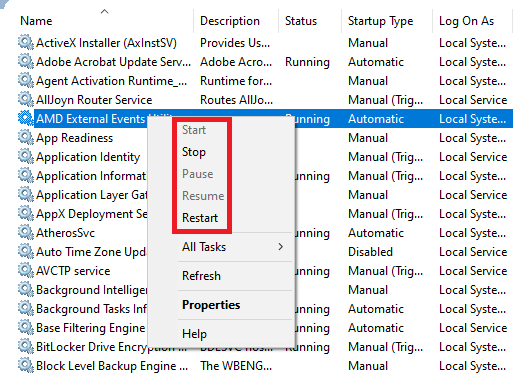
To start, stop, pause, or restart a service, simply right-click on the service name and select the desired action from the context menu.
Important Windows Services You Should Know
- Windows Update (wuauserv)
- Print Spooler (spooler)
- DHCP Client (dhcp)
- Windows Time (w32time)
Use the manager to monitor or restart these if needed.
When to Use Windows Services Manager
You should consider using the Services Manager when:
- An app fails to start
- System boot time is too slow
- You want to disable unnecessary background services
- You are troubleshooting network, printer, or update issues
In corporate setups, Windows Services Manager is often used during incident response, performance troubleshooting, and system monitoring tasks. Businesses that rely on enterprise IT infrastructure frequently integrate service management into their cybersecurity and system reliability practices.
Real-World Use Cases for Windows Services Manager
- Fixing print spooler issues when your printer does not work
- Restarting Windows Update services if updates fail
- Disabling unnecessary services to speed up system boot
- Checking if critical services like DHCP or DNS are running
Restarting the Windows Search service when your taskbar search bar freezes, won’t open, or stops returning results, see our full Windows search bar not working guide for the complete fix
These are everyday examples of how IT admins and users benefit from the tool.
The Windows Services Manager lets users start, stop, pause, or restart Windows services as needed.
Why This Tool Matters for IT Professionals
While Windows Services Manager may look simple, it plays a key role in real-world IT environments.
Professionals working in system administration, DevOps, and IT support frequently use it to:
- Diagnose system-level issues quickly
- Manage background services for applications and servers
- Improve system performance by controlling unnecessary services
- Ensure critical services are always running
Because of its practical importance, understanding this tool is considered a foundational skill for anyone working with Windows-based systems in a professional environment.
For a deeper understanding, you can read Microsoft’s official overview on Windows System Services Fundamentals. This guide explains the core architecture, including the Service Control Manager and service states.
Important Note for Beginners
Always be cautious when stopping or disabling services. Some are essential for Windows to function correctly. If you are unsure, look up the service name before making changes.
Are There Alternatives?
While Windows includes a native Services Manager, advanced users sometimes use tools like SrvMan or PowerShell scripts for automation. For most users, however, the built-in Windows Services Manager is more than sufficient.
Frequently Asked Questions (FAQs)
How do I run services.msc as an administrator?
Press Windows + R, type services.msc, and press Ctrl+Shift+Enter to ask Windows to run it as administrator. Depending on your User Account Control settings, Windows may show a prompt. You can also open File Explorer, go to C:\Windows\System32, right-click services.msc, and select Run as administrator.
What is the difference between services.msc and Task Manager?
Task Manager shows running applications and processes. services.msc shows Windows services that run in the background and allows you to change their startup behavior (Automatic, Manual, Disabled).
How do I open services.msc on Windows 11?
All the methods above work on Windows 11. The steps are the same, except the Start menu folder is called Windows Tools instead of Windows Administrative Tools. The fastest method is still Windows + R, type services.msc, press Enter.
Can I open services.msc from the Run dialog without admin rights?
Yes, you can open it, but some services may require administrator privileges to start or stop.
What to do if a service fails to start?
Check the service properties for dependencies. Open Event Viewer (eventvwr.msc) and look for error logs. You can also try restarting your PC or running CMD as administrator.
What is the Windows Services Manager used for?
Windows Services Manager helps you manage system services. You can start, stop, pause, or configure them from a central interface.
Is there a shortcut to open the Windows Services Manager?
Yes. You can create a desktop shortcut by entering services.msc as the shortcut path and naming it “Services Manager.”
Why do I get an error when typing runservices.msc?
The command runservices.msc is an outdated legacy command from very old versions of Windows and does not exist in Windows 10 or 11. If you try to run it, you will get a “Windows cannot find” error. You must type services.msc instead to open the services app.
Can I open the Services Manager from Command Prompt?
Yes, you can type services.msc in the Command Prompt and press Enter to open it.
What is services msc used for?
services msc, written services.msc, opens the Windows Services Manager. You use it to see every background service, start, stop, pause, or restart one, and change its startup type to Automatic, Manual, or Disabled. You can also check which services depend on each other.
Where is the services.msc file located?
On Windows 10, it is in C:\Windows\System32. Open File Explorer, paste that path into the address bar, press Enter, and double-click services.msc. Right-click it and select Run as administrator if you need elevated rights.
Is it services.msc, services msc, or the services.msc file?
They all refer to the same thing. ‘services.msc’ is the correct filename (with the dot), ‘services msc’ is just how people type it when searching, and ‘services.msc file’ refers to that same file that opens the Windows Services Manager.
Conclusion
The Windows Services Manager is an essential tool for managing what runs in the background on your PC. You can open it easily using the command line, Run box, or desktop shortcut. With great power comes responsibility. Be sure to stop or disable only what you understand.
For professionals involved in IT support, Windows server administration, or enterprise system maintenance, mastering Windows Services Manager can save significant troubleshooting time and operational costs.