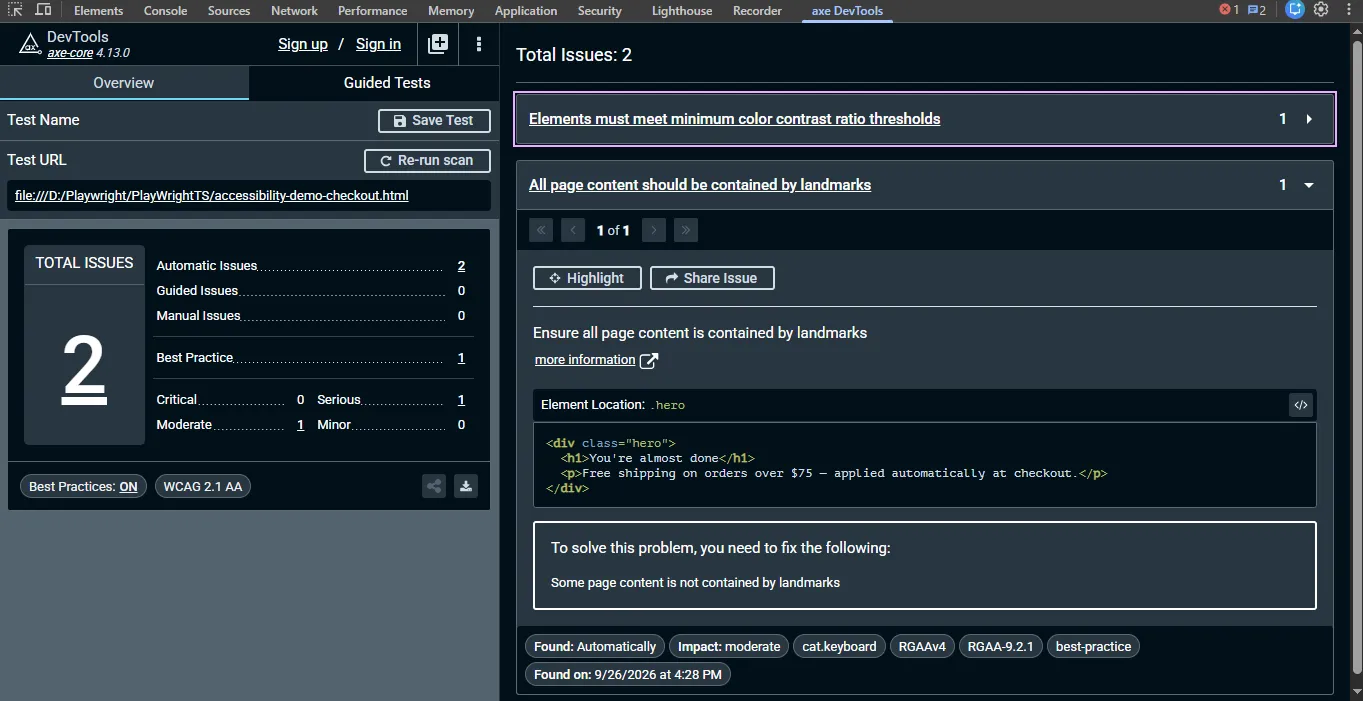
Last sprint, a client’s checkout page passed every automated scan we ran against it. Clean axe-core report, no errors, green pipeline. A week later a support ticket came in from a screen reader user who couldn’t tell which field the error message on the payment form was actually attached to. Nothing in the scan flagged it, because nothing about it was a rule violation. It was a judgment call, and judgment calls are exactly where manual vs automated accessibility testing stops being an academic distinction and starts being the reason your site fails a real person.
Automated accessibility testing runs software against a page and flags rule violations a machine can verify, like missing alt text or insufficient color contrast. Manual accessibility testing has a person navigate the same page with a keyboard, a screen reader, or both, and judge whether the experience actually makes sense. Automation is fast and consistent. Manual testing is the only way to catch the barriers that require a human to decide whether something works, not just whether it’s technically present.
This piece reflects the current WCAG 2.2 recommendation from the W3C and axe-core 4.11.x, the latest stable release line as of this writing. Tool versions and coverage numbers shift every few months, so treat the specifics here as current rather than permanent.
- What Manual vs Automated Accessibility Testing Actually Means
- Why This Split Matters Right Now
- How Automated and Manual Testing Actually Work Together in Practice
- The Common Misconception That Gets Teams in Trouble
- The Honest Limit of Manual Testing Itself
- When to Reach for Manual Testing vs Automated Testing
- How to Actually Start Testing Both Ways
- How to Know If This Applies to You
- Conclusion
- Frequently Asked Questions (FAQs)
What Manual vs Automated Accessibility Testing Actually Means
Think of it this way if you’re new to this responsibility. An automated scanner is a very fast, very literal-minded reviewer. It reads your HTML and checks it against a rule set, like “does every img tag have an alt attribute” or “is the contrast ratio between this text and its background at least 4.5:1 for WCAG 1.4.3.” It cannot tell you whether the alt text says anything useful. It just confirms the attribute exists.
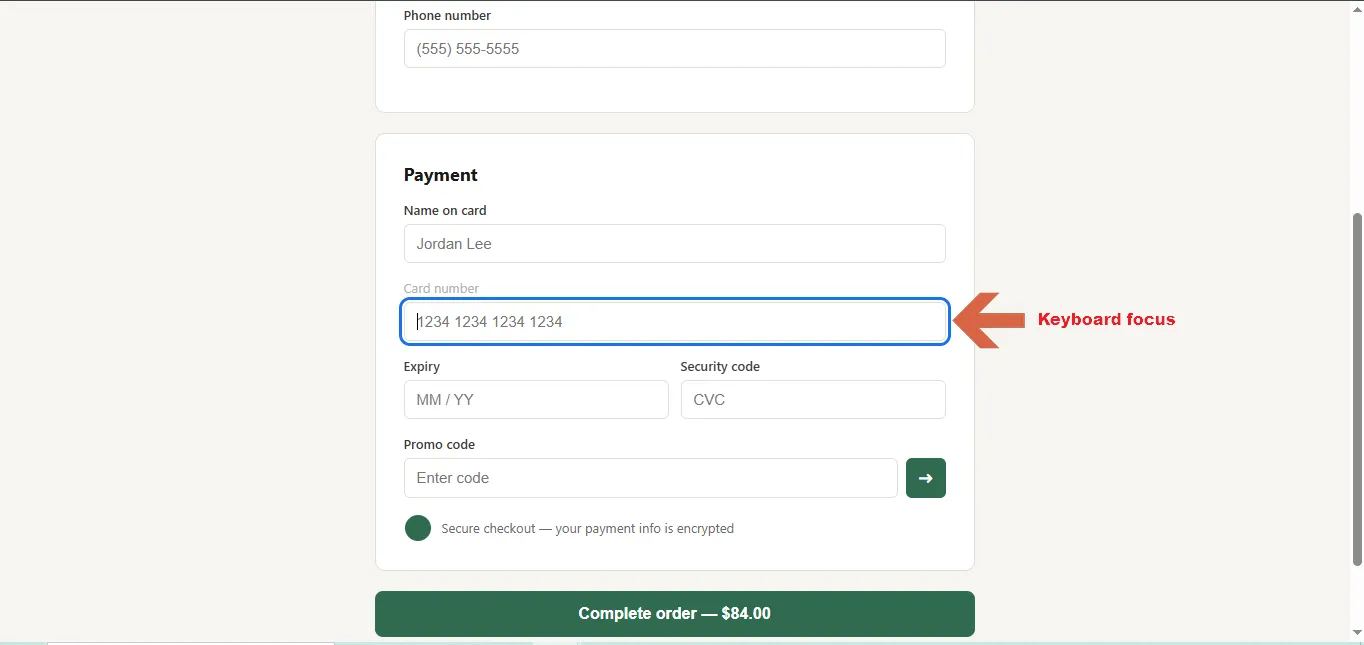
A manual tester does the opposite. They turn off the mouse, tab through your form, and ask whether the focus order in WCAG 2.4.3 actually follows a logical path. They fire up a screen reader and listen to whether a custom dropdown announces its state the way WCAG 4.1.2 (Name, Role, Value) requires. That’s not something you can regex your way into confirming.
Neither approach is optional if you’re serious about this. Automated tools give you scale, catching hundreds of instances of the same coded-in mistake across a large site in seconds. Manual testing gives you truth about whether a real person can get through a real task. You need both, and pretending one substitutes for the other is where most teams go wrong.
Why This Split Matters Right Now
Here’s a number that should bother you more than a vague percentage does. In the UK Government Digital Service’s tool audit, researchers deliberately built a page with 142 known accessibility barriers and ran it through 13 automated tools. The best performer caught 40% of them. The worst caught 13%. Even counting the barriers tools flagged as “needs a human to check,” the ceiling only moved to 50%. Automated tools have improved since that audit, and most current estimates put general coverage in the 30-40% range across a typical site, but the direction of the finding hasn’t changed: more than half of what’s actually broken needs a person to catch it.
That gap used to be a compliance footnote. It isn’t anymore, and it’s exactly why automated a11y tools aren’t enough on their own, no matter how good the tool is. Overlay widgets marketed as one-click compliance fixes have become common enough that several of the vendors selling them have themselves ended up named in accessibility lawsuits, precisely because a widget that patches the DOM at runtime doesn’t touch the underlying manual-testing gaps at all. Teams that bought the promise found out the hard way that a badge on their footer isn’t a defense.
And it’s not just legal exposure. A QA lead I talked to last year had spent two quarters proud of a 100% clean axe-core dashboard, right up until a usability study showed three of their five screen reader participants abandoned the signup flow entirely. The scan was accurate. It just wasn’t answering the question anyone actually cared about.
There’s a broader payoff to closing that gap too. Fixing focus order and writing real captions doesn’t just help screen reader and low-vision users, it helps a warehouse worker glancing at a tablet in bright sunlight, or a support rep with six tabs open who lost track of the cursor. Accessible defaults tend to make an interface better for everyone using it, not just the fraction of users assistive-technology metrics count.
How Automated and Manual Testing Actually Work Together in Practice
In a real workflow, these two methods aren’t competing, they’re sequenced. Automation runs first and constantly, because it’s cheap to run on every build. Manual testing runs less often but goes deeper, and it’s where the actual sign-off happens.
Worth saying plainly: automation isn’t just a weaker version of manual testing. A tool checks the same rule on page one thousand exactly as carefully as it checked page one. A tired human tester on hour six of a manual audit does not have that guarantee. That consistency is a real advantage, not a consolation prize.
Here’s roughly how I structure it on a project:
- Run automated scans in CI on every pull request using axe-core (or a Playwright/axe integration if that’s your stack), catching regressions like a missing label or a broken landmark before they ship.
- Do a keyboard-only pass on new or changed flows, tabbing through with no mouse and checking that focus order, visible focus indicators, and skip links all behave the way WCAG 2.4.7 expects.
- Run a screen reader pass with NVDA or VoiceOver on the same flows, listening for whether form errors, custom widgets, and dynamic content actually announce themselves.
- Log anything ambiguous for a full manual audit rather than guessing, especially anything involving custom components like modals, carousels, or date pickers.
- Re-run the automated suite after fixes to confirm nothing regressed, then close the loop with another spot manual check on the specific flow that was fixed.
Automated scans are genuinely excellent at flagging structural problems that repeat across a whole site. If your header component is missing a label, an automated tool will find it on every single page that uses it, instantly. That’s not a small thing. It’s the reason automation should never be skipped, even though it isn’t sufficient.
Manual testing is where the real limitations of automated accessibility testing show up. Here are seven things a scan will not catch that a keyboard and screen reader pass will:
- Alt text that’s present but useless. The attribute exists, but it reads “image1234.jpg” or “photo” instead of describing what the image actually communicates, exactly the judgment call WCAG 1.1.1 (Non-text Content) leaves to a human.
- Focus that never returns. A modal traps focus correctly while open, then drops it into the void, or back to the top of the page, once closed.
- Reading order that ignores visual order. A page can pass every structural check and still read top to bottom in the DOM while looking left to right on screen, which is disorienting for anyone using a screen reader.
- Live regions that stay silent. A cart total or validation message updates visibly but never gets announced, because the
aria-liveregion isn’t wired up the way the markup suggests. - Custom widgets that “pass” but don’t work. A date picker or accordion has all the right ARIA attributes and still confuses a screen reader user because the actual keyboard interaction doesn’t match the pattern those attributes promise.
- Multi-step workflows that break midway. A checkout can look clean page by page and still fail the moment someone has to recover from a validation error on step three.
- Error messages that exist but don’t help. The field gets marked invalid, but nothing tells the user in words why, or which specific requirement wasn’t met.
A “skip to content” link that exists in the code but lands the keyboard focus somewhere useless is a good example of why this list exists. It passes a presence check and fails a person.
| Method | Catches | Real Limitation | Best Used For |
|---|---|---|---|
| Automated (axe-core, WAVE) | Missing alt attributes, contrast ratios, duplicate IDs, missing labels | Cannot judge quality, intent, or task success | CI regression checks, full-site sweeps |
| Manual keyboard testing | Focus order, trap states, visible focus, skip links | Time-intensive, needs a trained tester | New/changed interactive flows |
| Manual screen reader testing | Announcement accuracy, dynamic content, custom widget behavior | Slowest, requires assistive tech familiarity | High-stakes flows: checkout, signup, forms |
The Common Misconception That Gets Teams in Trouble
The misconception I run into constantly: a green automated scan means the page is accessible. It doesn’t. It means the page passed the subset of checks a machine can verify, which the GDS audit above shows is well under half of what’s actually broken.
I’ll say the unpopular part plainly. A team that runs zero automated scans but does one honest manual pass with a screen reader every release is in better shape than a team running a hundred green axe-core builds with nobody ever touching a keyboard. Automation without any manual verification isn’t a smaller version of accessibility testing. It’s a different, narrower thing that happens to share a dashboard with the real work. And some of what gets flagged in a manual pass isn’t even a coding problem: confusing button copy or a vague error message is a content issue no scanner rule could ever cover.
This is also where screen reader testing manual verification earns its keep. axe-core can tell you an ARIA attribute is present and valid. It cannot tell you that a screen reader user actually understood what a custom accordion did when they activated it. That distinction is the whole reason manual testing exists as a separate discipline, not a slower version of the same one.
The Honest Limit of Manual Testing Itself
There’s a layer above what most teams call manual testing that’s worth naming honestly. A QA engineer running NVDA for an afternoon is testing skill, not lived experience. They can catch structural problems, announcement gaps, and broken focus order. They cannot tell you with full confidence whether a blind screen reader user who relies on that software daily would actually find your checkout flow intuitive.
For your highest-stakes flows, checkout, account creation, anything tied to revenue or legal risk, the strongest evidence comes from usability testing with actual assistive technology users, not a QA pass simulating one. Keyboard and screen reader testing by a trained QA engineer is still the right baseline for everything else. It just isn’t the ceiling.
When to Reach for Manual Testing vs Automated Testing
Neither method is inherently better, they solve different problems. Use this as a gut check rather than a rulebook.
Lean on automated testing when you need to:
- Catch regressions in CI on every pull request without slowing anyone down
- Sweep a large or fast-changing site for the same coded-in mistake across hundreds of pages
- Enforce a baseline before code ever reaches a human reviewer
Lean on manual testing when you need to:
- Verify a custom component, like a carousel or multi-select, actually behaves the way its ARIA attributes claim
- Confirm a multi-step flow, like checkout or account signup, can be completed start to finish with a keyboard or screen reader
- Judge whether content, like alt text or error copy, is actually useful rather than merely present
- Sign off on anything where “we ran a scan” won’t hold up as evidence that real users can use the product
- Get a remediation explanation your team can actually act on, not just a rule ID and a line number, since knowing why a fix works is what stops the same mistake from shipping again
- Bring in an actual assistive-technology user rather than a QA pass simulating one, for the flows where getting it wrong is expensive
How to Actually Start Testing Both Ways
If you’re setting this up from nothing, don’t try to build a perfect program on day one. Start narrow and build outward. Think of the five steps below as a manual accessibility testing checklist you can actually run this week, not a program you have to design first.
- Add axe-core to your existing test suite. If you’re already writing Playwright tests, the
@axe-core/playwrightpackage plugs in with a few lines and gives you automated coverage on every run without a separate tool. Microsoft’s Accessibility Insights for Web and HTML_CodeSniffer are solid alternatives if axe-core doesn’t fit your stack. - Pick your three highest-traffic or highest-risk flows (checkout, account creation, authentication, search, or support forms are the usual candidates) and commit to a manual keyboard and screen reader pass on those specifically, not the whole site.
- Learn one screen reader properly before trying to cover all of them. NVDA on Windows is free and widely used, VoiceOver ships built into macOS and iOS, and Orca covers Linux if that’s your environment.
- Document what you find in testable terms, not vague notes. “Focus does not return to the trigger button after closing the modal” is actionable. “Modal has issues” is not.
- Repeat the manual pass after any change to those flows, the same way you’d rerun automated tests after a code change.
You don’t need a dedicated accessibility team to start this. You need one person willing to unplug their mouse for twenty minutes a week and actually pay attention to what happens.
If you want a deeper walkthrough of setting up axe-core itself, including config options and CI integration, that’s covered separately in the axe-core tutorial on this blog. And if your organization is working toward a specific legal standard rather than general good practice, the ADA website compliance testing checklist breaks that down step by step.
How to Know If This Applies to You
If your site has forms, custom interactive components, or any flow a user has to complete rather than just read, this applies to you regardless of company size. Static content sites lean more heavily toward automated coverage being sufficient for baseline issues. Anything transactional needs manual verification before you can honestly call it tested.
A quick gut check: if nobody on your team has navigated your own signup flow with a screen reader in the last quarter, you don’t actually know whether it works. The scan passing isn’t evidence either way. This is also the foundational piece of the broader accessibility testing guide for QA engineers if you’re building this out as a full practice rather than a one-off check.
Conclusion
Automated and manual accessibility testing aren’t two versions of the same task, they’re two different jobs that happen to overlap. Automation gives you speed and consistency across a whole site. Manual testing gives you the only real evidence that a person using a keyboard or screen reader can actually get through what you built. Skip either one and you’re not doing a smaller version of accessibility testing, you’re doing a different, incomplete thing and calling it done.
Frequently Asked Questions (FAQs)
Can automated tools alone make my site WCAG compliant?
No. Automated tools verify a subset of success criteria that can be checked programmatically, roughly a third of what WCAG actually covers. The rest, including anything involving judgment about usability or intent, requires manual verification with a keyboard and screen reader.
Do I need a dedicated accessibility specialist to do manual testing?
Not to start. A tester who learns keyboard navigation and one screen reader well can catch most of the high-impact issues. Specialist review becomes more valuable for legal sign-off or complex custom components, but it isn’t a prerequisite for beginning.
How often should manual accessibility testing happen versus automated scans?
Automated scans should run on every build, since they’re cheap and catch regressions instantly. Manual testing is more realistic on a per-release or per-flow basis, focused on new or changed interactive components rather than the entire site every time.
Does automated testing ever produce false positives?
Yes, regularly. A scanner can flag a contrast ratio as failing when the text is decorative, or flag a missing label on an element that’s intentionally hidden from assistive tech. Manual review is how you separate real issues from noise, which is part of why a raw error count from a scan isn’t a reliable health metric on its own.
Is a small site with no forms exempt from needing manual testing?
Mostly, but not entirely. Static, read-only content leans much more heavily toward automated coverage being adequate. Even then, a basic keyboard pass to confirm skip links and heading structure work as expected is worth the twenty minutes it takes.