Your login test types a six digit code, hits submit, and lands on the dashboard. Every time, on your machine. Then it runs in the pipeline and fails on the same step, sometimes on the first run, sometimes only on the third.
That gap between “works on my laptop” and “fails in CI” is the whole story of automating a playwright totp 2fa login. The code itself isn’t wrong. Something around it is.
I’ve built this flow for three different client projects now, and the failure never lives where people first look.
A working playwright totp 2fa login setup means generating the TOTP code with a library like otpauth from the same base32 secret your authenticator app used, typing it into a field that Playwright has confirmed is actually interactive, and then saving the authenticated session with storageState so you never repeat the login flow on every test. Most failures trace back to one of four things: a malformed secret, clock drift on the runner, a race between typing and the field becoming ready, or skipping session reuse entirely and hammering the login form on every single test.
The code examples below are shown against a generic login flow with a standard TOTP step, the kind of thing you’ll find on most apps that support authenticator-based 2FA. Swap in your own app’s URL and field selectors, the underlying logic doesn’t change: generate the code, wait for the field to be ready, fill it, verify.
- The Real Root Causes, Ranked by How Often They Actually Bite
- Generating the Code Correctly
- Filling the Code Without Racing the Page
- Everyone Tells You to Add a Sleep. Don't.
- Reuse the Session Instead of Repeating the TOTP Flow
- How to Confirm Your Playwright TOTP 2FA Login Fix Actually Worked
- The One Thing to Remember
- Frequently Asked Questions (FAQs)
The Real Root Causes, Ranked by How Often They Actually Bite
I’m ordering these by frequency, not by how interesting they are. The first one accounts for more broken TOTP setups than the other three combined.
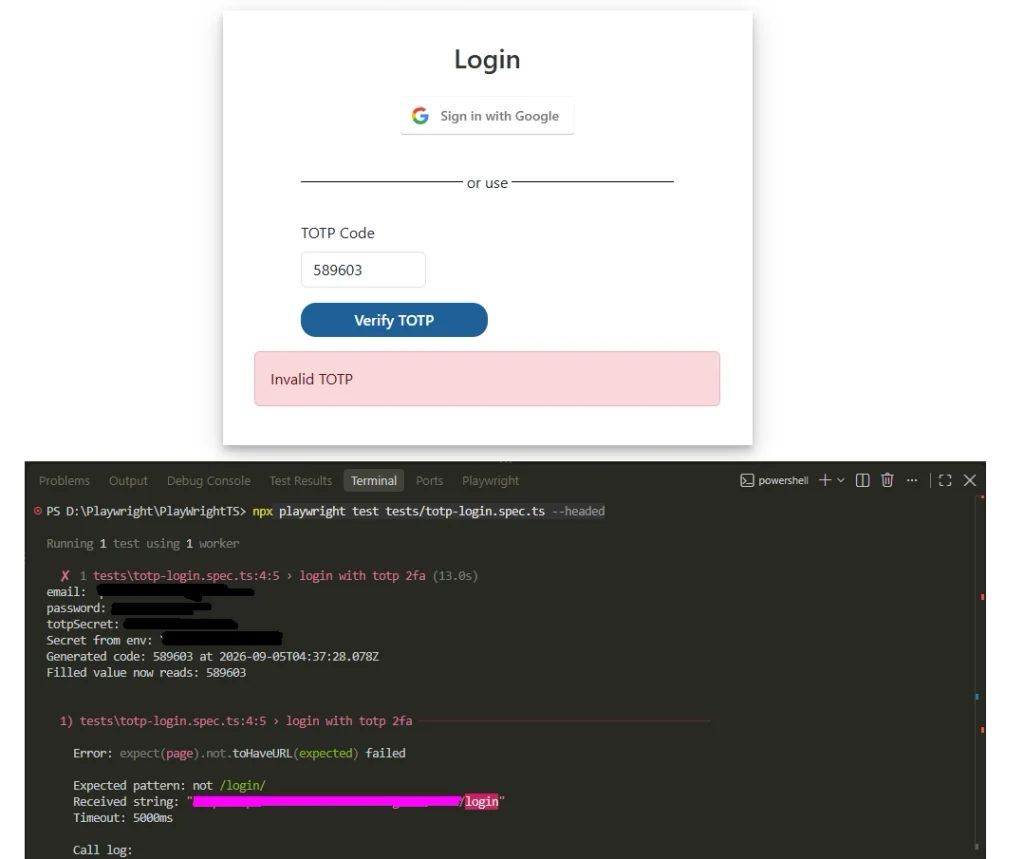
1. A malformed or wrongly formatted secret. When you scan a QR code with an authenticator app, the underlying value is a base32 string, something like QYKM7O9PL2LFZM8B. People copy this from a “can’t scan the code” fallback link, and it often comes with spaces, gets accidentally lowercased, or picks up a trailing = from padding. Any of those breaks the HMAC calculation silently. You don’t get an error. You get a code that’s simply wrong, and the login form rejects it with no useful message.
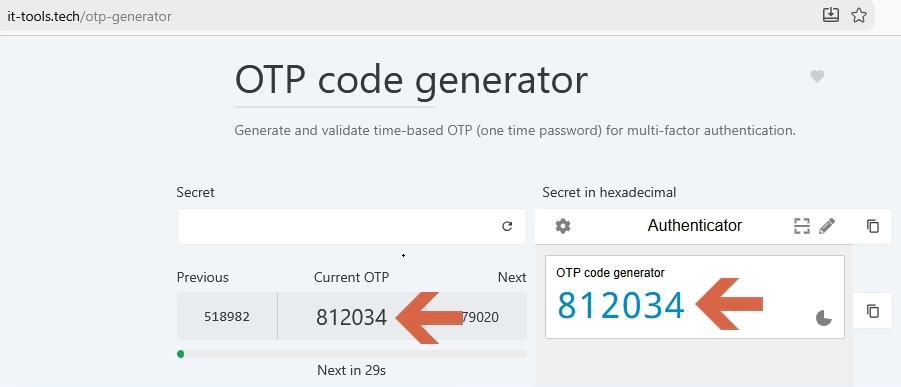
Before you write a single line of test code, paste the raw secret into a manual TOTP generator like it-tools.tech/otp-generator and confirm it produces the same six digit code as your authenticator app, right now, at this moment. If the two don’t match, the problem is the secret itself, not your automation, and no amount of debugging Playwright will fix it.
2. Clock drift between the test runner and the server. TOTP codes are valid for a 30 second window by default. Your laptop’s clock is almost always in sync via NTP. A Docker container, especially one spun up fresh on a self-hosted runner, sometimes isn’t. If the container’s clock is even 20 to 30 seconds off, you’ll generate a code for the wrong time window and it’ll be rejected as invalid, not as expired, which makes it look like a secret problem when it isn’t.
3. Typing the code before the field is actually ready to receive it. This one looks like a timing bug and gets treated like one. Someone adds a waitForTimeout(2000) before the fill, it passes for a while, then it’s flaky again three CI runs later. The real issue is usually that the 2FA input renders before its event listeners attach, so Playwright’s actionability checks say the element is visible and enabled while the app itself isn’t listening yet.
4. Never reusing the authenticated session. If your test suite drives the full TOTP flow through the UI on every single test, you’re generating a new code and submitting a new form dozens or hundreds of times a run. Every one of those is a chance for the first three problems to surface, and you’re paying the time cost of a real login on every test for no reason.
| Cause | How to tell it’s this one | Fix |
|---|---|---|
| Malformed secret | Manual generator and your test produce different codes | Re-copy the base32 secret, strip whitespace, uppercase it |
| Clock drift | Code fails only in CI or only on specific runners, never locally | Sync NTP on the runner or add a time-window buffer |
| Field not ready | Fails intermittently, passes on retry, waitForTimeout “fixes” it temporarily | Wait on a real signal, not a fixed delay |
| No session reuse | Suite is slow, TOTP-related flakiness shows up across many unrelated tests | Save storageState once, load it everywhere else |
Generating the Code Correctly
Skip any library that isn’t actively maintained. otpauth is a solid, dependency-light choice for TypeScript projects and handles the base32 decoding for you, which removes an entire class of hand-rolled bugs.
// src/utils/totp.ts
import * as OTPAuth from "otpauth";

export function generateTotpCode(secret: string): string {
  const totp = new OTPAuth.TOTP({
    secret: secret.trim().toUpperCase(),
    digits: 6,
    algorithm: "SHA1",
    period: 30,
  });
  return totp.generate();
}
That trim().toUpperCase() on the secret is not decoration. It’s the fix for cause number one, and I add it as a habit now after losing an afternoon to a secret with one stray lowercase character in it. If your target system uses different digit, algorithm, or period settings, adjust those three fields to match, they’re not universal defaults, they’re just the most common ones.
Filling the Code Without Racing the Page
This is where most people reach for a longer timeout instead of a real wait. Don’t. Wait on something that actually tells you the field can receive input.
- Wait for the TOTP input to be visible using a stable locator, not a generic CSS selector that might match a hidden duplicate.
- Confirm the field is enabled before filling, since some apps render it disabled until an earlier async step completes.
- Use
locator.fill()rather thantype()for the code itself, sincefill()sets the value directly and doesn’t depend on keystroke timing the way character by character typing does. - Submit and wait for a navigation or a specific post login element, not a fixed delay.
The test below reads its credentials from a .env file at your project root, loaded through dotenv, rather than hardcoding anything:
TEST_EMAIL=your-test-account@example.com
TEST_PASSWORD=your-test-password
TOTP_SECRET=YOURBASE32SECRETHERE
Add import "dotenv/config"; as the first line of your playwright.config.ts, and add .env to .gitignore before you do anything else, since that file holds a real, long-lived secret once you fill it in.
// tests/totp-login.spec.ts
import { generateTotpCode } from "./utils/totp";
import { test, expect } from "@playwright/test";

test("login with totp 2fa", async ({ page }) => {
  const email = process.env.TEST_EMAIL!;
  const password = process.env.TEST_PASSWORD!;
  const totpSecret = process.env.TOTP_SECRET!;

  await page.goto("https://your-app.example.com/auth/login");
  await page.locator('[data-test="email"]').fill(email);
  await page.locator('[data-test="password"]').fill(password);
  await page.locator('[data-test="login-submit"]').click();

  const codeInput = page.locator('[data-test="totp-code"]');
  await codeInput.waitFor({ state: "visible" });
  await expect(codeInput).toBeEnabled();

  await codeInput.fill(generateTotpCode(totpSecret));
  await page.locator('[data-test="verify-totp"]').click();

  await expect(page).not.toHaveURL(/login/);
});
Notice there’s no waitForTimeout anywhere in that block. waitFor({ state: "visible" }) plus the enabled check does the actual job a sleep only pretends to do. One more thing worth flagging: plenty of real apps don’t attach proper <label> elements to inputs like this, so data-test (or similar) attributes end up being the stable locator, not a fallback choice. If your own app does expose proper labels, getByLabel() is the better pick, since it doubles as an accessibility check for free.
Everyone Tells You to Add a Sleep. Don’t.
The most common piece of advice for this exact problem is to pad the flow with waitForTimeout before typing the code. It works, right up until it doesn’t.
A fixed delay assumes the slowest case you’ve personally observed is the slowest case that will ever happen. It isn’t. A sharded suite running eight workers on a shared CI runner behaves nothing like your laptop with one browser open, and the delay that covered every local run will eventually be too short under real production load.
I’ve watched this exact pattern block a release. A team’s suite passed locally, passed in a light CI run, then started failing intermittently once they added parallel workers to speed things up, because the fixed delay was tuned for single-worker timing. If you’re on @playwright/test and hitting TimeoutError waiting for the same locator, that’s a separate diagnosis worth its own read, and it usually comes down to the same root cause: something is being waited on with a clock instead of a signal.
Reuse the Session Instead of Repeating the TOTP Flow
Once you can log in reliably, stop doing it on every test. Run the full TOTP flow once in a setup project, save the authenticated state, and load it everywhere else.
// tests/auth.setup.ts
import { generateTotpCode } from "./utils/totp";
import { test as setup, expect } from "@playwright/test";

const authFile = "playwright/.auth/user.json";

setup("authenticate", async ({ page }) => {
  await page.goto("https://your-app.example.com/auth/login");
  await page.locator('[data-test="email"]').fill(process.env.TEST_EMAIL!);
  await page.locator('[data-test="password"]').fill(process.env.TEST_PASSWORD!);
  await page.locator('[data-test="login-submit"]').click();

  const codeInput = page.locator('[data-test="totp-code"]');
  await codeInput.waitFor({ state: "visible" });
  await codeInput.fill(generateTotpCode(process.env.TOTP_SECRET!));
  await page.locator('[data-test="verify-totp"]').click();
  await expect(page).not.toHaveURL(/login/);

  await page.context().storageState({ path: authFile });
});
Point your other projects at authFile through storageState in playwright.config.ts, and none of them touch the TOTP flow again. That wiring looks like this:
export default defineConfig({
  projects: [
    { name: "setup", testMatch: /auth\.setup\.ts/ },
    {
      name: "chromium",
      use: { storageState: "playwright/.auth/user.json" },
      dependencies: ["setup"],
    },
  ],
});
The dependencies: ["setup"] line is what forces the setup project to run first and produce user.json before the chromium project starts, so you never end up racing an empty or stale auth file. The official Playwright docs on authentication cover the project dependency setup in more depth than I have room for here, and it’s worth reading once rather than reconstructing it from blog posts.
One caveat worth knowing: storageState captures cookies and localStorage, but not sessionStorage. If your app keeps a critical token in sessionStorage, the saved state won’t include it. A feature request to add this was closed as not planned on the Playwright GitHub repository, so this isn’t a bug waiting on a fix, it’s a permanent limitation of the API. If your app relies on sessionStorage for auth, you’ll need to re-populate it manually with page.evaluate() after loading the saved state, not wait for storageState to grow support for it.
If you’re building out coverage beyond just this one login flow, our guide on Playwright auth and security testing covers more patterns for handling sessions and credentials safely across a suite.
How to Confirm Your Playwright TOTP 2FA Login Fix Actually Worked
Before you call this done, check three things instead of trusting a single green run.
Run the suite three times in a row, not once. A fix that only silences flakiness will pass once and fail on run two or three, especially under parallel workers.
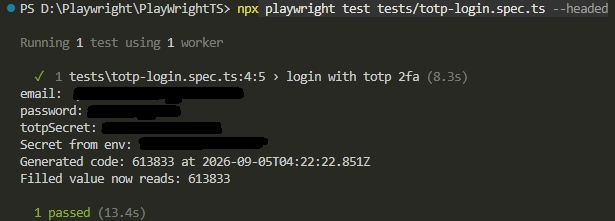
Open Trace Viewer on any failure with npx playwright show-trace and look at the exact moment the code was filled. If the field shows as enabled in the trace but the fill still failed, that’s your field-readiness diagnosis confirmed, not guessed at.
Run it once on the actual CI runner, not just locally. Clock drift and container timing issues by definition don’t show up on your machine. If you’re still getting comfortable with reading failures like these, our guide on debugging a test in Playwright covers the HTML report and Trace Viewer in more depth than there’s room for here.
The One Thing to Remember
Every fix in this article replaces a guess with a real signal: a correctly decoded secret verified against a second generator, a synced clock instead of an assumed one, an enabled check instead of a sleep. If your playwright totp 2fa login flow is still flaky after applying all four, the bug is almost certainly clock drift on that specific runner, since it’s the one cause you can’t observe locally. If you’re setting up CI for the first time, our guide on fixing common Playwright CI pipeline issues is a reasonable next stop.
Frequently Asked Questions (FAQs)
Does this work for Google Authenticator and Authy the same way?
Yes. Both apps implement the same RFC 6238 TOTP standard, so the same base32 secret and the same otpauth code shown here works regardless of which authenticator app a human would normally use.
Can I automate 2FA that uses push notifications instead of a code?
Not directly. Push-based 2FA needs an approval tap on a real device, so the usual workaround is switching the test account to code-based TOTP in its security settings before automating it, which most platforms allow even if the default is push.
What if my secret is only shown as a QR code image, not text?
Most 2FA setup screens have a “can’t scan this code” or “enter manually” link that reveals the base32 secret as text. If yours truly doesn’t offer that, you’ll need to decode the QR image once during setup to extract the secret, since Playwright can’t read a QR code off the screen at test time.
Does this still apply on the latest Playwright version?
Yes, this was tested directly on @playwright/test 1.62.1. The sessionStorage gap in storageState isn’t going to close either, since the feature request for it was closed as not planned, so treat that as a permanent limitation rather than something to wait out.
What if none of these four fixes solve it?
Isolate a minimal repro outside your full suite, just the login and TOTP fill in a single test file with nothing else running. If it still fails there, check your app’s own rate limiting on failed 2FA attempts, since a few earlier failed runs can lock the test account temporarily and produce a rejection that looks identical to a bad code.