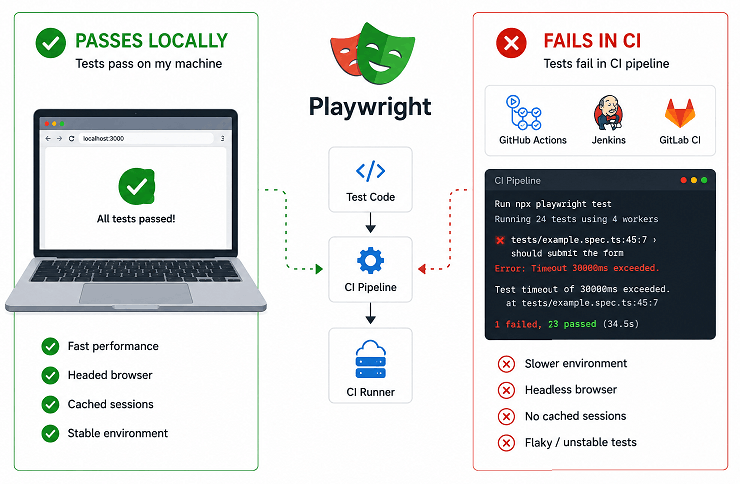
Playwright tests fail in CI for many reasons, including environment differences, unstable waits, weak locators, missing browser dependencies, and slower pipeline execution. CI runners like GitHub Actions, Jenkins, GitLab CI, and Azure DevOps often execute tests in headless Linux environments with lower CPU and memory resources, which exposes flaky test behavior hidden on local machines. The good news is that most CI failures can be fixed by improving synchronization, using stable locators, installing browsers correctly, and collecting proper debugging artifacts like traces and screenshots.
In this guide, you will learn how to debug and fix flaky Playwright tests in CI pipelines using practical techniques that work in real-world automation projects. We will cover unstable waits, headless browser issues, Docker and Linux environment differences, browser installation problems, timeout handling, parallel execution conflicts, debugging with traces, and CI stability best practices used in modern Playwright frameworks.
If you are new to Playwright automation and want to learn from scratch, this detailed Playwright tutorial will guide you step by step.
One important thing many teams discover late is that CI environments are far less forgiving than local machines. A test that feels stable on a fast developer laptop can become flaky inside headless Linux runners with limited CPU, memory, and shared resources.
- Quick Fixes for Playwright Tests That Pass Locally but Fail in CI
- Why Do Playwright Tests Pass Locally but Fail in CI?
- Common Playwright CI Errors and What They Mean
- How to Fix Flaky Playwright Tests in CI Pipelines
- How to Fix Browser and Dependency Issues in Playwright CI
- How to Debug Playwright Tests That Fail in CI
- What Are the Best Practices for Stable Playwright CI Pipelines?
- Common Playwright CI Mistakes That Cause Hidden Failures
- CI Stability Checklist for Playwright Tests
- Conclusion
- FAQs
Quick Fixes for Playwright Tests That Pass Locally but Fail in CI
Most Playwright CI failures are caused by unstable waits, weak locators, missing browser dependencies, shared test state, or slower headless environments. The fastest way to stabilize tests is improving synchronization, using resilient locators, reproducing CI conditions locally, and enabling proper debugging artifacts such as traces and screenshots.
The current best practice is to make Playwright tests fully environment independent. Tests should not rely on execution speed, local machine performance, browser cache, or manual delays.
Start with these high-impact fixes first:
- Use Playwright auto waiting instead of hard waits
- Install browsers using
npx playwright install --with-deps - Run tests in headless mode locally before pushing code
- Avoid relying on fixed timing assumptions
- Increase timeout values only where necessary
- Use stable locators such as
getByRole()andgetByTestId() - Capture traces, screenshots, and videos for failed tests
- Disable unnecessary parallel execution for unstable tests
The following Playwright CI configuration is commonly used in stable pipelines:
import { defineConfig } from '@playwright/test';

export default defineConfig({
  retries: 2,
  timeout: 60000,
  use: {
    headless: true,
    trace: 'on-first-retry',
    screenshot: 'only-on-failure',
    video: 'retain-on-failure'
  }
});
This configuration improves debugging and helps identify why Playwright tests fail inside CI pipelines but pass locally.
Why Do Playwright Tests Pass Locally but Fail in CI?
Playwright tests usually fail in CI because the execution environment is very different from a developer machine. CI runners often have lower CPU power, limited memory, slower network speed, and stricter browser sandboxing. These differences expose unstable test logic that may not fail locally.
Understanding the difference between local execution and CI environments is critical for fixing flaky Playwright tests. The following diagram shows why tests that appear stable locally can fail inside pipelines.
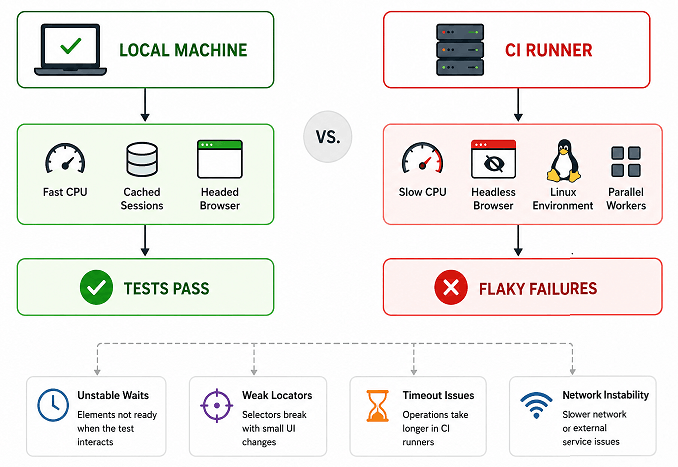
According to official Playwright documentation, tests should rely on Playwright’s built in auto waiting and resilient locators instead of manual delays or unstable selectors. The official Playwright auto-waiting guide explains how Playwright automatically waits for elements to become actionable before interacting with them.
Common Reasons Playwright Tests Fail in CI
Here are the most common causes behind Playwright CI failures:
| Problem | What Happens | Typical Fix |
|---|---|---|
| Slow CI environment | Elements load later than expected | Use proper waits and assertions |
| Hard waits | Tests become flaky randomly | Replace waitForTimeout() |
| Missing browsers | Browser launch failures | Run playwright install |
| Parallel execution | Tests interfere with each other | Isolate test data and sessions |
| Headless differences | UI behaves differently in CI | Test in headless mode locally |
| Weak locators | Elements not found consistently | Use stable semantic locators |
| Network instability | API dependent tests fail | Mock or stabilize API responses |
Here is where many beginners make mistakes: they assume passing locally means the test is stable. In reality, local execution often hides synchronization problems because developer machines are faster and already warmed up.
Why Playwright Tests Behave Differently in CI Environments
CI systems like GitHub Actions, GitLab CI, Jenkins, and Azure DevOps typically run Playwright tests inside Linux containers or shared virtual machines. These environments may have:
- Reduced hardware resources
- No GPU acceleration
- Headless browser execution
- Fresh browser profiles for every run
- Limited network throughput
- Different operating systems than local development machines
Even small rendering delays can break tests that rely on fixed timing assumptions.
Can Headless Mode Cause Playwright CI Failures?
Yes. Some applications behave differently in headless browsers because of rendering behavior, lazy loading, animations, or viewport differences. Running Playwright tests locally in headless mode helps reproduce many CI-only failures earlier during development.
Common Playwright CI Errors and What They Mean
Many Playwright CI failures become easier to debug once you understand the actual error message.
“`text
Timeout 30000ms exceeded
Usually caused by slow loading, missing waits, unstable assertions, or delayed API responses.
Element is not attached to the DOM
Common in React, Angular, and Vue applications where components re-render dynamically.
Element is not stable
Often caused by animations, layout shifts, overlays, or unfinished rendering.
Browser closed unexpectedly
Usually related to missing Linux dependencies, memory exhaustion, or browser crashes inside containers.
net::ERR_CONNECTION_REFUSED
Typically indicates the application server is unavailable or failed to start before test execution.
Target page, context or browser has been closed
Can happen when CI workers terminate unexpectedly or browser instances crash during parallel execution.
How to Fix Flaky Playwright Tests in CI Pipelines
You can fix flaky Playwright tests in CI by removing unstable waits, improving locator reliability, isolating test data, and making tests independent from machine speed. Stable Playwright tests should behave the same on local systems, Docker containers, and cloud CI runners.
Most flaky tests are not caused by Playwright itself. They are usually caused by timing assumptions, dynamic UI behavior, shared state, or unreliable selectors.
Replace Hard Waits With Playwright Auto Waiting
Using waitForTimeout() is one of the most common reasons Playwright tests fail randomly in CI. Hard waits slow down tests and still fail when applications respond slower than expected.
One of the biggest causes of flaky Playwright tests is relying on fixed delays instead of real application state. The comparison below shows why Playwright auto waiting creates more stable CI pipelines.
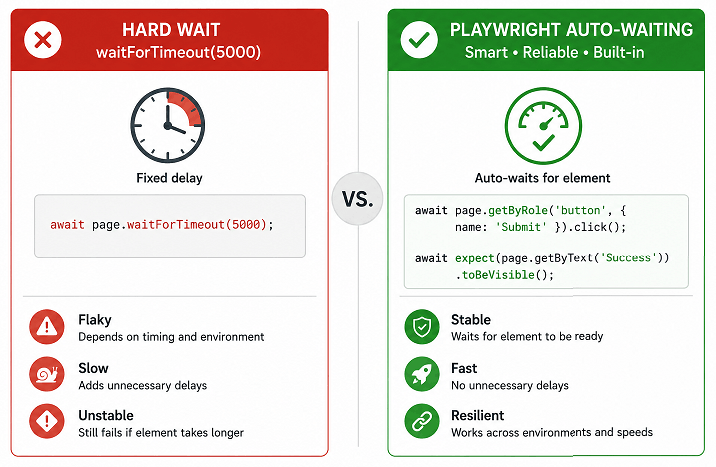
This is the latest recommended approach in Playwright automation testing:
// Avoid this
await page.waitForTimeout(5000);

// Prefer this
await page.getByRole('button', { name: 'Login' }).click();

await expect(
  page.getByText('Dashboard')
).toBeVisible();
If you want to understand Playwright synchronization in more depth, this detailed guide on Playwright waits explains auto waiting, explicit waits, waitForResponse(), and modern synchronization best practices.
Use Stable Locators Instead of Fragile CSS Selectors
Weak locators are another major source of CI failures. Dynamic CSS classes, deeply nested selectors, and generated IDs often change between executions.
The current best practice is to prefer semantic locators:
getByRole()getByLabel()getByPlaceholder()getByTestId()
Here is a stable Playwright locator example:
await page.getByRole('button', {
  name: 'Submit'
}).click();
Compare that with unstable selectors:
await page.locator('.btn-primary-45').click();Semantic locators survive UI changes much better and improve long-term test maintenance.
If you want to understand locator strategies in more depth, this detailed guide on Playwright locators explains how to build stable selectors for dynamic applications and modern UI frameworks.
Avoid Using nth-child and Index-Based Locators in CI
Index-based locators are another hidden cause of flaky Playwright tests in CI pipelines. Tests may pass locally but fail in CI when DOM structure changes slightly because of rendering speed, feature flags, advertisements, dynamic content, or responsive layouts.
Unstable examples include:
await page.locator('.product-card').nth(2).click();or:
await page.locator('div > ul > li:nth-child(3)').click();These selectors often break when UI structure changes.
A more stable approach is targeting meaningful user-facing attributes:
await page.getByRole('button', {
  name: 'Add to Cart'
}).click();
or:
await page.getByTestId('checkout-button').click();Semantic locators make Playwright tests significantly more reliable across CI environments because they depend less on fragile DOM hierarchy.
Reduce Animation and Transition Related Failures
Animations can delay element visibility and cause intermittent timing problems in headless browsers.
A practical solution many teams use is disabling animations during test execution:
await page.addStyleTag({
  content: `
    *,
    *::before,
    *::after {
      transition: none !important;
      animation: none !important;
    }
  `
});
This small optimization can dramatically improve Playwright CI stability for animation-heavy applications.
Can Parallel Execution Make Playwright Tests Unstable?
Yes. Parallel execution improves speed but can expose hidden dependencies between tests. Shared authentication sessions, reused files, and common database records often create flaky behavior.
If tests are unstable, temporarily reduce workers while debugging:
export default defineConfig({
  workers: 1
});
Once tests become stable, parallel execution can be gradually increased again.
Important Note Before You Proceed
Many developers try increasing timeout values first. While larger timeouts may temporarily hide failures, they rarely solve the root problem. Reliable synchronization and stable locators are far more important than long delays.
How to Fix Browser and Dependency Issues in Playwright CI
Browser installation problems are one of the most overlooked causes of Playwright CI failures. Tests may pass locally because browsers already exist on the developer machine, while CI runners start with a completely fresh environment every time.
In many pipelines, Playwright fails simply because required browser binaries or Linux dependencies are missing.
Install Playwright Browsers Correctly in CI
The recommended approach is to install browsers during the pipeline setup step instead of relying on cached local installations.
This is the most reliable Playwright installation command for CI environments:
npx playwright install --with-depsThis command installs:
- Chromium
- Firefox
- WebKit
- Required Linux system dependencies
Without these dependencies, browser launch failures are very common in Docker containers and Linux runners.
Example GitHub Actions Setup for Playwright
Here is a commonly used GitHub Actions workflow for stable Playwright execution:
name: Playwright Tests

on:
  push:
    branches:
      - main

jobs:
  test:
    runs-on: ubuntu-latest

    steps:
      - uses: actions/checkout@v4

      - uses: actions/setup-node@v4
        with:
          node-version: 20

      - run: npm ci

      - run: npx playwright install --with-deps

      - run: npx playwright test
This setup avoids many browser startup and dependency related CI issues.
The same Playwright stability principles also apply to Jenkins, GitLab CI, Azure DevOps, CircleCI, and Bitbucket Pipelines. While pipeline syntax differs across platforms, most CI failures are still caused by synchronization issues, missing dependencies, unstable locators, or shared test state.
Should You Cache Playwright Browsers in CI?
Caching Playwright browser binaries can speed up CI pipelines significantly, especially in large projects where pipelines run frequently.
However, incorrect caching configuration can also create version mismatch problems between Playwright and installed browsers.
A safer approach is caching the Playwright browser directory together with dependency lock files so cache invalidation happens automatically when versions change.
Example GitHub Actions cache setup:
- uses: actions/cache@v4
  with:
    path: ~/.cache/ms-playwright
    key: ${{ runner.os }}-playwright-${{ hashFiles('package-lock.json') }}
This can reduce pipeline setup time while still keeping browser versions aligned with project dependencies.
If you notice unexpected browser behavior after upgrades, clearing the CI cache is often one of the first things worth trying.
Why Playwright Tests Fail Only in Linux CI Runners
Many developers write and test automation on Windows or macOS, but CI pipelines commonly run on Linux. Small differences in fonts, rendering, file paths, permissions, and browser behavior can create failures that never appear locally.
Here are some real-world examples:
- Case sensitive file paths break imports
- Missing fonts affect visual tests
- Different timezone settings change date validation
- Linux permissions block file uploads
- Environment variables behave differently
Testing locally inside Docker can help reproduce these CI-only issues earlier.
Use Official Playwright Docker Images for Better Stability
Playwright provides official Docker images with browsers and dependencies already configured. This reduces setup complexity and improves consistency across environments.
Example Docker image:
mcr.microsoft.com/playwright:v1.54.0-jammyUsing official images helps eliminate many environment mismatch problems between local development and CI pipelines.
Can Missing Environment Variables Break Playwright Tests?
Yes. Missing environment variables are a very common reason tests pass locally but fail in CI.
Examples include:
- API URLs
- Authentication credentials
- Database connection strings
- Feature flags
- Test environment configurations
Always verify that CI secrets and environment variables are correctly configured before debugging Playwright itself.
Debug CI Environment Differences Early
One practical technique used by experienced automation engineers is printing environment details during pipeline execution.
Example:
node -v
npm -v
npx playwright --version
This quickly reveals version mismatches that may affect Playwright test execution.
Does Browser Version Mismatch Cause Playwright Failures?
Yes. Browser version mismatches can create inconsistent behavior between local machines and CI runners.
Playwright is designed to work with bundled browser versions. Avoid manually installing separate browser builds unless there is a specific requirement.
Keeping Playwright and browser binaries aligned improves test reliability significantly.
How to Debug Playwright Tests That Fail in CI
You can debug Playwright CI failures by collecting traces, screenshots, videos, logs, and HTML reports during pipeline execution. These debugging artifacts help identify whether failures are caused by timing issues, missing elements, environment problems, or unexpected application behavior.
Without proper debugging data, CI failures often become difficult to reproduce locally.
Enable Playwright Trace Viewer for Failed Tests
Playwright Trace Viewer is one of the most powerful debugging tools available for automation testing. It records browser actions, network activity, screenshots, console logs, and DOM snapshots during test execution.
This is the current best practice configuration for CI debugging:
export default defineConfig({
  use: {
    trace: 'on-first-retry'
  }
});
After test execution, open traces using:
npx playwright show-trace trace.zipTrace Viewer makes it much easier to understand why a Playwright test failed in CI but passed locally.
Capture Screenshots for Failed Tests
Screenshots provide quick visual proof of the application state during failure. They are especially useful for layout problems, hidden elements, and authentication issues.
Enable automatic screenshots in Playwright config:
export default defineConfig({
  use: {
    screenshot: 'only-on-failure'
  }
});
This helps detect UI differences between local and CI environments.
Record Videos to Reproduce Flaky Behavior
Videos are useful when failures happen intermittently or involve animations, page transitions, or dynamic loading behavior.
Example configuration:
export default defineConfig({
  use: {
    video: 'retain-on-failure'
  }
});
Watching failed test recordings often reveals hidden timing problems that logs alone cannot show.
Generate HTML Reports for Better Failure Analysis
Playwright HTML reports provide a structured overview of passed and failed tests, execution time, retries, screenshots, and traces.
Generate the report:
npx playwright show-reportThis report becomes extremely useful when debugging large Playwright test suites in CI pipelines.
Use Console Logs During CI Debugging
Sometimes the fastest way to identify failures is simply printing diagnostic information during execution.
Example:
console.log(await page.title());

console.log(
  await page.locator('h1').textContent()
);
Simple logs can quickly reveal navigation failures, missing elements, or incorrect page states.
Capture Browser Console Errors During CI Failures
Sometimes Playwright tests fail because the application itself throws JavaScript errors in the browser during execution. These frontend errors are easy to miss if you only look at test assertions.
You can capture browser console messages directly inside Playwright:
page.on('console', message => {
  console.log(
    `Browser Console: ${message.text()}`
  );
});
This helps identify problems such as:
- Failed API requests
- JavaScript runtime exceptions
- React hydration issues
- CORS errors
- Missing environment variables
- Frontend rendering failures
Many CI-only failures become much easier to diagnose after enabling browser console logging.
For even deeper debugging, some teams also capture failed network requests and browser page errors during test execution.
How to Run Playwright Tests Locally Like CI
One of the best debugging strategies is reproducing the CI environment locally as closely as possible.
Try running tests with these conditions:
- Headless mode enabled
- Reduced CPU resources
- Docker containers
- Fresh browser profiles
- Network throttling
- Parallel execution enabled
This often exposes flaky behavior before code reaches the pipeline.
How to Reproduce CI Failures Locally Using Docker
One of the most effective ways to debug Playwright CI failures is reproducing the same environment locally using Docker. This helps identify Linux-specific issues, missing dependencies, browser differences, and resource limitations before pushing code to the pipeline.
Example:
docker run -it --rm
mcr.microsoft.com/playwright:v1.54.0-jammy
/bin/bash
Then run:
npx playwright testRunning Playwright inside the same Docker image used in CI helps eliminate environment mismatch problems between local machines and pipeline runners.
Use Playwright Debug Logs to Find CI Failures Faster
When Playwright tests fail only in CI, debug logs can reveal issues that screenshots and traces sometimes miss. This is especially useful for browser launch problems, navigation failures, network issues, and hidden timing delays.
Run Playwright with debug logs enabled:
DEBUG=pw:api npx playwright testThis prints detailed execution logs for:
- Browser actions
- Locator resolution
- Navigation events
- Network activity
- Waiting behavior
- Timeout failures
If you want even deeper browser-level debugging, use:
DEBUG=pw:browser* npx playwright testMany experienced automation engineers use these logs to identify exactly where CI execution becomes slower or unstable.
For example, debug logs can quickly reveal:
- Elements resolving later than expected
- Unexpected redirects
- Slow API responses
- Browser startup delays
- Authentication problems
- Hidden retry loops
Advanced Playwright CI Debugging Techniques
Large automation frameworks often require deeper debugging beyond screenshots and traces.
Advanced CI debugging techniques include:
- Capturing HAR network files
- Uploading Playwright traces as CI artifacts
- Recording browser console errors
- Capturing failed API responses
- Using PWDEBUG for local reproduction
- Saving videos only for failed retries
- Analyzing network waterfalls during slow execution
These techniques help diagnose failures that are difficult to reproduce consistently across CI environments.
Debugging Tip Most Tutorials Miss
A common debugging mistake is focusing only on the line where the test failed. Experienced automation engineers debug the entire execution flow around the failure.
For example, an element click failure may actually be caused by:
- A previous navigation issue
- An API response delay
- An authentication redirect
- A hidden loading overlay
- A failed setup step
Looking at the complete execution timeline usually leads to much faster root cause analysis.
Can Retries Hide Real Problems in Playwright?
Yes. Retries improve pipeline stability temporarily, but excessive retries can hide flaky test architecture.
A small retry count such as retries: 1 or retries: 2 is acceptable for CI resilience. However, tests that frequently require retries should still be investigated properly.
Important Note About CI Timeouts
Global timeout increases are not always the best solution. Large timeout values can slow pipelines dramatically and hide inefficient test design.
The better approach is identifying exactly which action or assertion becomes unstable in CI.
What Are the Best Practices for Stable Playwright CI Pipelines?
The best way to keep Playwright tests stable in CI is to build tests that are predictable, isolated, environment independent, and easy to debug. Reliable automation frameworks focus more on consistency than raw execution speed.
Many flaky test suites become stable after improving a few core engineering practices.
Keep Tests Independent From Each Other
Every Playwright test should be able to run alone without depending on previous tests. Shared sessions, reused accounts, and execution order dependencies often create random CI failures.
Good Playwright test isolation usually includes:
- Fresh authentication state
- Independent test data
- Separate browser contexts
- No dependency on execution order
- Clean environment setup
This becomes critical when tests run in parallel workers.
Use API Setup Instead of Repeating UI Steps
One advanced optimization many blogs miss is reducing unnecessary UI actions in test setup.
For example, instead of logging in through the UI before every test, many teams use Playwright API requests or saved authentication state.
Example:
await request.post('/api/login', {
  data: {
    username: 'testuser',
    password: 'password'
  }
});
This approach improves speed and reduces flaky UI dependencies.
Store Authentication State Properly
Playwright supports reusable authentication state using storage files. This is a common approach in large CI pipelines.
Example:
export default defineConfig({
  use: {
    storageState: 'auth.json'
  }
});
However, avoid sharing the same authentication state across unrelated parallel tests unless carefully controlled.
Control Test Data Carefully in CI
Shared test accounts, reused sessions, and conflicting database records are common causes of flaky Playwright behavior in parallel CI pipelines.
CI pipelines often execute tests simultaneously across multiple workers and environments. Uncontrolled test data quickly becomes a major stability problem.
Current best practices include:
- Generate unique test users dynamically
- Use isolated database records
- Reset environments regularly
- Avoid depending on production-like unstable data
- Mock external systems when possible
Stable data management dramatically improves Playwright reliability.
Should You Mock APIs in Playwright Tests?
Yes, in many cases API mocking improves CI stability by removing dependency on unstable external services.
Playwright supports network mocking using route interception:
await page.route('**/api/users', async route => {
  await route.fulfill({
    status: 200,
    body: JSON.stringify({
      name: 'John Doe'
    })
  });
});
Mocking is especially useful for:
- Third-party APIs
- Slow backend systems
- Rate limited services
- Unstable staging environments
Reduce Resource Usage in Large CI Suites
Large Playwright suites can overload CI runners if browser instances, workers, and videos consume excessive resources.
Some practical optimizations include:
- Limit parallel workers
- Disable videos for stable tests
- Use traces only on retries
- Close unused browser contexts
- Split suites into smaller jobs
Efficient resource management keeps pipelines faster and more reliable.
Can Low Memory Crash Playwright Browsers in CI?
Shared CI runners may not have enough memory for large Playwright suites running multiple browsers and parallel workers simultaneously. Common symptoms include browser crashes, worker termination, and unstable execution.
Why Monitoring Flaky Tests Matters Long Term
Even stable Playwright frameworks can slowly become flaky over time as applications evolve.
Experienced QA teams often track:
- Most failed tests
- Retry frequency
- Slowest test files
- Failure trends
- Environment specific failures
This proactive monitoring helps prevent pipeline instability from growing silently.
Current Best Practices Used in Stable Playwright CI Pipelines
The most reliable Playwright CI pipelines focus on deterministic execution instead of timing assumptions. Stable automation frameworks avoid hard waits, isolate test data, use resilient locators, and generate debugging artifacts automatically during failures.
In practice, stable Playwright tests wait for meaningful application states such as visible UI elements, successful API responses, completed navigation, or stable DOM conditions. This approach keeps tests reliable across local machines, Docker containers, and cloud CI runners.
Common Playwright CI Mistakes That Cause Hidden Failures
Many Playwright CI failures come from small implementation mistakes that are easy to miss during local development. These problems may not appear consistently, which makes them difficult to diagnose.
Here are some real-world issues that frequently cause unstable Playwright pipelines.
Avoid Using waitForTimeout() as a Synchronization Strategy
Fixed delays often create unpredictable automation behavior across different CI environments. They make tests slower while still failing unpredictably under different system loads.
Instead of this:
await page.waitForTimeout(3000);Prefer state based waiting:
await expect(
  page.getByText('Order Confirmed')
).toBeVisible();
This approach adapts naturally to slow CI environments.
Do Not Ignore Hidden Loading States
Modern frontend applications often render elements before they become fully interactive. Tests may try clicking too early while overlays, loaders, or API requests are still active.
A common debugging clue is when Playwright reports:
- Element is not attached
- Element is obscured
- Element is not stable
- Timeout exceeded while clicking
In these cases, the locator itself may be correct. The page state is usually the real problem.
Why Fixed Viewport Sizes Matter in CI
Responsive layouts can behave differently across environments. Buttons may move into hidden menus or mobile layouts when viewport dimensions change.
Using a consistent viewport improves test predictability:
export default defineConfig({
  use: {
    viewport: {
      width: 1440,
      height: 900
    }
  }
});
This helps eliminate layout-related CI inconsistencies.
Be Careful With Dynamic Test Data
Some applications generate dynamic values such as timestamps, random IDs, temporary notifications, or changing text content. Tests that depend on exact values often become unstable.
Instead of asserting entire dynamic strings, validate stable portions:
await expect(
  page.getByText('Payment Successful')
).toBeVisible();
This makes assertions more resilient across environments.
Can Slow Network Requests Break Playwright Tests?
Yes. Network delays are a major cause of CI instability, especially in shared runners.
Current best practice is waiting for meaningful application states instead of assuming API requests finish quickly.
Example:
await page.waitForResponse(
  response =>
    response.url().includes('/orders') &&
    response.status() === 200
);
This strategy adapts far better to slower CI environments and inconsistent network conditions.
Why Element Stability Matters More Than Visibility in CI
One common misunderstanding in Playwright automation is assuming that a visible element is always ready for interaction. In CI environments, elements may appear in the DOM before animations finish, overlays disappear, or layout shifts complete.
This is why some tests fail randomly with errors like:
- Element is not stable
- Element receives pointer events from another element
- Timeout exceeded during click
- Element is detached from DOM
In many cases, the real issue is not the locator itself. The page is still transitioning internally.
Instead of forcing interactions, wait for stable UI behavior and meaningful application states.
For example:
await expect(
  page.getByRole('button', {
    name: 'Submit'
  })
).toBeEnabled();

await page.getByRole('button', {
  name: 'Submit'
}).click();
This approach is usually far more reliable than adding arbitrary delays or using force clicks.
Do Not Overuse Force Clicks
Some teams attempt to bypass flaky click failures using force: true. While this may temporarily bypass failures, it often hides real UI problems.
Example:
await page.click('#submit', {
  force: true
});
Force clicks should only be used when absolutely necessary and fully understood.
Should You Use Retries for Every Test?
No. Retries should improve resilience, not compensate for unstable architecture.
A useful approach is:
- Keep retries low
- Track frequently retried tests
- Investigate recurring failures
- Fix root causes instead of masking them
Healthy Playwright suites should rarely depend on retries for normal execution.
Why Stable Playwright CI Pipelines Matter
Stable CI pipelines reduce false failures, improve deployment confidence, and help teams identify real regressions faster.
Reliable automation also reduces debugging time and improves trust in test results.
This is tighter and more SEO focused.
CI Stability Checklist for Playwright Tests
Before pushing Playwright tests to CI pipelines, verify the following:
- Avoid waitForTimeout() wherever possible
- Use semantic locators like getByRole()
- Run tests locally in headless mode
- Install browsers with –with-deps
- Capture traces on retries
- Isolate test data between workers
- Avoid shared authentication state
- Validate environment variables in CI
- Reduce unnecessary parallel execution
- Monitor frequently retried tests
This checklist helps identify many common causes of flaky Playwright CI failures before they affect deployments.
Conclusion
Playwright tests that pass locally but fail in CI are usually caused by unstable synchronization, environment differences, weak locators, missing dependencies, or resource limitations inside pipeline runners. The good news is that most of these problems can be fixed with reliable waits, proper browser setup, stable test data, and better debugging practices.
In this guide, you learned how to stabilize Playwright tests in CI environments using current best practices such as semantic locators, trace debugging, isolated test execution, headless validation, and proper pipeline configuration. These techniques are widely used in real-world automation frameworks to reduce flaky failures and improve release confidence.
Reliable Playwright automation comes from predictable synchronization, stable locators, isolated test data, and environment-independent execution rather than simply increasing timeout values.
If you want to strengthen your Playwright fundamentals further, continue exploring advanced topics like locators, network mocking, retries, Docker execution, and parallel testing. A strong understanding of these areas helps build faster and more reliable CI pipelines.
FAQs
What is the main reason Playwright tests fail in CI but pass locally?
The most common reason is environment differences. CI pipelines usually run in slower headless Linux environments with limited CPU, memory, and network speed, which exposes unstable waits, weak locators, and flaky timing assumptions.
How do I make Playwright tests stable in CI?
Use Playwright auto waiting, stable locators like getByRole(), isolated test data, proper browser installation, and debugging tools such as traces and screenshots. Avoid hard waits like waitForTimeout().
Should I use waitForTimeout() in Playwright CI tests?
No. waitForTimeout() is generally considered an unreliable synchronization strategy because application speed can vary across CI environments. Instead of fixed delays, use Playwright auto waiting, assertions, network waits, or UI state validation to make tests more stable and predictable.
Why are Playwright tests flaky in CI but stable locally?
Playwright tests often become flaky in CI because pipelines run in slower headless Linux environments with limited CPU, shared resources, and fresh browser sessions. These conditions expose unstable waits, weak locators, timing assumptions, and shared test state issues that may remain hidden on local machines.
Why does Playwright fail in headless mode only?
Some applications behave differently in headless browsers because of rendering differences, animations, lazy loading, or viewport changes. Running tests locally in headless mode helps reproduce CI issues earlier.
Why are Playwright tests flaky only in GitHub Actions?
Playwright tests may become flaky in GitHub Actions because runners use shared cloud infrastructure with limited CPU, memory, and network performance. Tests that rely on fixed delays, unstable locators, or shared state often fail more frequently in GitHub Actions than on local development machines.
How do I install Playwright browsers in CI pipelines?
Use the following command during pipeline setup:
npx playwright install –with-deps
This installs required browsers and Linux dependencies for CI environments.
Can parallel execution cause Playwright test failures?
Yes. Parallel execution can expose shared state problems, reused sessions, and conflicting test data. Isolating tests and controlling shared resources improves stability.
How do I debug Playwright tests in CI?
The most effective way to debug Playwright CI failures is enabling traces, screenshots, videos, console logs, and HTML reports during pipeline execution. Playwright Trace Viewer is especially useful because it shows browser actions, network activity, DOM snapshots, and execution timing step by step.
Should I use retries in Playwright CI pipelines?
Small retry counts are acceptable for resilience, but frequent retries usually indicate unstable test design that should be investigated properly.
What is the best locator strategy for Playwright CI stability?
The recommended approach is using semantic locators such as getByRole(), getByLabel(), and getByTestId() because they are more stable across UI changes.
Can Docker improve Playwright CI consistency?
Yes. Docker helps create consistent environments between local development and CI pipelines, reducing environment-specific failures.
How do I reproduce CI failures locally in Playwright?
Run tests locally in headless mode, inside Docker containers, with reduced resources and parallel execution enabled. This helps simulate CI conditions more accurately.