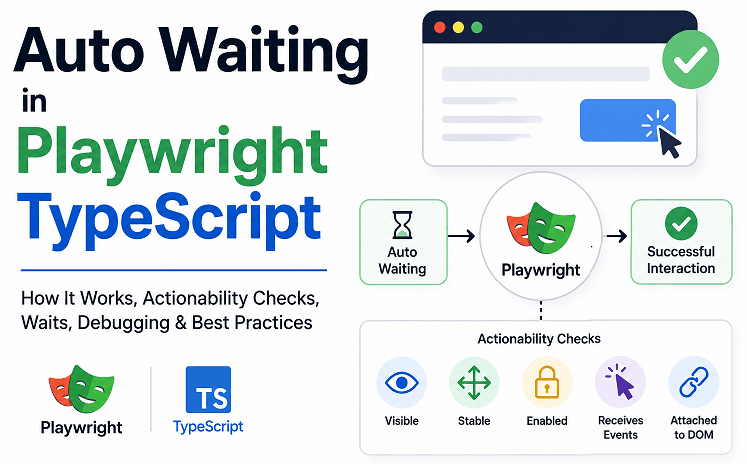
Auto Waiting in Playwright TypeScript automatically waits for elements, page states, and user actions before interacting with the application. This built in synchronization mechanism helps reduce flaky tests, removes unnecessary hard waits, and makes Playwright automation more stable for modern web applications.
Timing issues are one of the biggest reasons automation tests fail randomly. A button may appear on screen but still not be clickable yet. Sometimes the page loads visually while API calls continue running in the background. Playwright handles many of these situations automatically through its built in waiting mechanism.
In this guide, you will learn how Playwright auto waiting works internally, when explicit waits are still needed, common mistakes that create flaky tests, and practical debugging techniques used in real automation projects. If you are starting with Playwright, this complete Playwright TypeScript guide will help you understand the full testing workflow step by step.
- How Does Auto Waiting in Playwright TypeScript Work?
- What Is Auto Waiting in Playwright?
- What Does Playwright Wait for Internally?
- When Should You Use Explicit Waits in Playwright?
- What Auto Waiting Does Not Handle in Playwright
- Real World Examples of Auto Waiting in Playwright TypeScript
- Common Mistakes Beginners Make with Auto Waiting
- Best Practices for Auto Waiting in Playwright TypeScript
- Auto Waiting vs Explicit Wait in Playwright
- Why Playwright Auto Waiting Reduces Flaky Tests
- Advanced Auto Waiting Concepts in Playwright TypeScript
- Playwright Auto Waiting Best Practices Checklist
- Conclusion
- FAQs
How Does Auto Waiting in Playwright TypeScript Work?
Playwright automatically waits for elements and page conditions before performing actions like click(), fill(), hover(), and press(). In most situations, you do not need to manually pause the test because Playwright keeps checking whether the element is actually ready for interaction.
For example, a login button may already exist in the DOM but still be hidden behind an animation or temporarily disabled while data loads from the backend. Instead of failing immediately, Playwright retries the action until the element becomes usable or the timeout limit is reached.
await page.locator('#loginButton').click();Before executing the click, Playwright internally performs several actionability checks.
- Checks whether the element is visible
- Ensures the element is stable and not moving
- Verifies the element is enabled
- Confirms the element can receive user events
- Validates the element is attached to the DOM
This automatic synchronization is one of the main reasons Playwright tests are usually more stable than older automation approaches that rely heavily on explicit waits and sleep statements.
Quick Tip: If you frequently use waitForTimeout() in tests, there is usually a better synchronization approach available.
What Is Auto Waiting in Playwright?
Auto Waiting is Playwright’s built in synchronization system that helps tests interact with web elements only when they are ready. Instead of forcing developers to add manual delays, Playwright continuously checks the state of the element before performing actions.
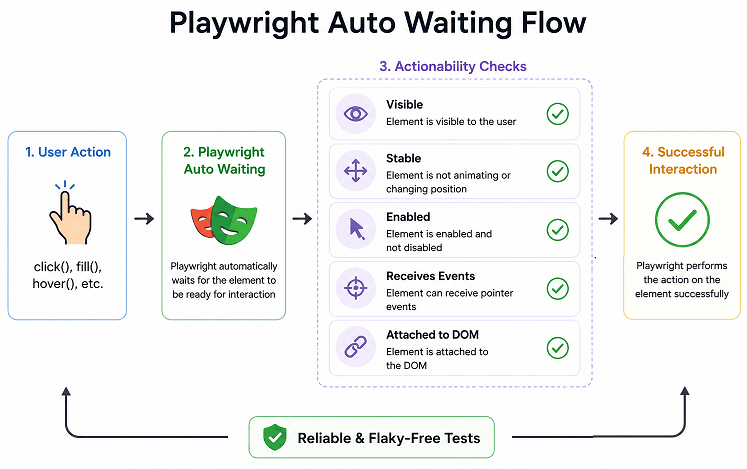
According to the official Playwright actionability documentation, Playwright automatically performs multiple actionability checks before executing interactions like click(), fill(), and hover(). This behavior is part of the current best practice recommended for building stable end to end tests.
Modern applications built with React, Angular, and Vue often load content asynchronously. Elements may render after API responses, frontend state updates, or animations complete. Because of this, timing related failures are very common in UI automation.
Here is a simple real-world example. A login button may already be visible on the page, but it might stay disabled until form validation or backend processing finishes. Playwright waits for the button to become actionable before interacting with it.
At a high level, auto waiting helps Playwright behave more like a real user instead of executing commands blindly at machine speed.
Why Is Auto Waiting Important in Playwright TypeScript?
Auto Waiting improves test stability, reduces flaky failures, and removes unnecessary hard waits from automation scripts.
Without proper waiting, automation scripts often fail randomly because the application is not fully ready. This problem becomes more common in CI/CD pipelines where network speed and system performance vary.
- Reduces flaky tests
- Improves execution reliability
- Removes unnecessary sleep statements
- Makes tests cleaner and easier to maintain
- Works well with dynamic web applications
- Improves execution speed compared to static waits
In practical terms, Auto Waiting allows Playwright to behave more like a real user who naturally waits for the application to become usable before interacting with it.
Which Playwright Actions Support Auto Waiting?
Most commonly used Playwright actions include built in auto waiting support.
Here are some commonly used Playwright methods that automatically wait for elements and conditions:
| Playwright Action | Auto Waiting Supported | Purpose |
|---|---|---|
| click() | Yes | Clicks an element after actionability checks |
| fill() | Yes | Waits before entering text |
| check() | Yes | Waits before selecting checkbox |
| hover() | Yes | Waits before mouse hover action |
| press() | Yes | Waits before keyboard interaction |
| dblclick() | Yes | Waits before double click action |
One important thing to remember: Auto Waiting does not replace every type of synchronization. Some scenarios still require explicit waits, especially when validating API responses, custom loaders, or complex asynchronous workflows.
What Does Playwright Wait for Internally?
Before performing actions like clicking, typing, or hovering, Playwright runs several internal checks to confirm the element is actually ready for interaction. This process is called actionability checking.
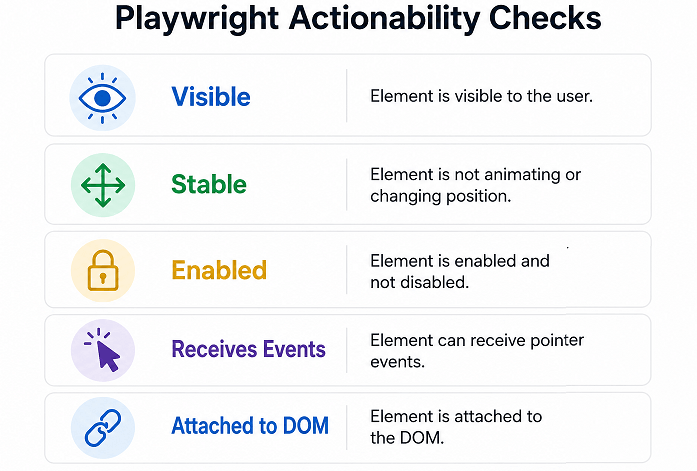
Many beginners assume that if an element exists in the HTML, it is immediately safe to interact with. In real applications, that is often not true. Elements may still be animating, hidden behind overlays, disabled temporarily, or re-rendering after frontend updates.
Here is a simple example:
await page.locator('#submitButton').click();Before clicking the button, Playwright automatically verifies multiple conditions behind the scenes.
| Check | What Playwright Verifies | Why It Matters |
|---|---|---|
| Visible | The element is displayed on screen | Hidden elements cannot be interacted with by real users |
| Stable | The element is not moving or animating | Prevents failed clicks during transitions |
| Enabled | The element is not disabled | Disabled controls should not receive interaction |
| Receives Events | No overlay or popup blocks the element | Avoids intercepted click issues |
| Attached | The element still exists in the DOM | Prevents stale element style failures |
In short, Playwright tries to interact with the application the same way a real user would, instead of blindly executing commands as fast as possible.
Can Playwright Automatically Wait for Animations?
Yes. Playwright waits for elements to become stable before interacting with them. This is especially useful in modern frontend applications where menus, dialogs, and buttons often animate before becoming clickable.
One common beginner mistake is adding unnecessary hard waits even though Playwright is already handling synchronization internally.
// Unnecessary approach
await page.waitForTimeout(5000);
await page.locator('#menu').click();

// Better approach
await page.locator('#menu').click();
The second approach is cleaner, faster, and usually much more reliable in CI/CD pipelines.
Do Playwright Locators Support Auto Waiting?
Yes. Locators are designed specifically for retryability and automatic waiting behavior. They continuously re-evaluate elements during execution, which makes them more stable for dynamic applications.
const loginButton = page.locator('#login');

await loginButton.click();
This is one reason the Playwright team recommends locator based interactions over older page methods in modern test automation projects.
When Should You Use Explicit Waits in Playwright?
Auto Waiting handles most synchronization problems automatically. However some situations still require explicit waits to make tests more reliable and predictable.
A common misunderstanding among beginners is assuming that built in waiting solves every timing issue. In reality, Playwright mainly waits for element actionability and retryable conditions. It does not automatically understand every backend process or business workflow happening inside the application.
For example, a dashboard page may appear visually ready while important API requests are still processing in the background. Clicking too early in these situations can still create flaky behavior.
Which Situations Still Need Explicit Waits?
Explicit waits are useful when synchronization depends on custom application behavior rather than basic UI interaction readiness.
- Waiting for API responses
- Waiting for loaders or spinners to disappear
- Waiting for dynamic text updates
- Waiting for file downloads
- Waiting for URL changes
- Waiting for backend processing completion
- Waiting for custom JavaScript rendering
How to Wait for an Element in Playwright TypeScript?
Locator based waitFor() is useful when you need additional synchronization beyond Playwright’s built in actionability checks.
const successMessage = page.locator('.success-message');

await successMessage.waitFor({ state: 'visible' });
This example waits until the success message becomes visible before the test continues.
How to Wait for Page Load in Playwright?
Playwright supports multiple page load states for handling navigation related synchronization. The waitForLoadState() method is commonly used after heavy page updates or redirects.
await page.goto('https://example.com');

await page.waitForLoadState('networkidle');| Load State | Purpose | Common Usage |
|---|---|---|
| load | Waits for the full page load event | Traditional page navigation |
| domcontentloaded | Waits for initial HTML parsing | Faster readiness validation |
| networkidle | Waits until network activity becomes minimal | Dynamic and SPA applications |
Important: The Playwright team generally recommends avoiding excessive dependence on networkidle because some applications continuously make background requests.
Why Is waitForTimeout() Not Recommended?
The waitForTimeout() method pauses execution for a fixed duration even if the application becomes ready earlier. This usually slows down execution and increases flaky behavior.
// Avoid this in production tests
await page.waitForTimeout(5000);
Hard waits may appear stable on a local machine but often fail unpredictably in CI/CD pipelines where performance and network speed vary.
Condition based synchronization is usually a much safer approach.
await page.locator('#dashboard')
  .waitFor({ state: 'visible' });
Can Auto Waiting Replace waitForSelector()?
In many cases, yes. Modern locator methods already include automatic waiting and retry logic internally.
// Older approach
await page.waitForSelector('#login');
await page.click('#login');

// Recommended modern approach
await page.locator('#login').click();
The locator based approach is cleaner, easier to maintain, and better aligned with the current Playwright architecture.
Does Playwright Automatically Wait for API Calls?
No. Playwright does not automatically wait for unrelated backend API completion unless the response directly affects element actionability.
If the test depends on backend processing, explicitly waiting for the API response is usually the safest approach.
await Promise.all([
  page.waitForResponse(response =>
    response.url().includes('/api/orders') &&
    response.status() === 200
  ),
  page.locator('#loadOrders').click()
]);
Quick Tip: Waiting for actual business events is usually far more reliable than waiting for arbitrary durations.
What Auto Waiting Does Not Handle in Playwright
Playwright Auto Waiting solves many synchronization problems automatically, but it is not designed to handle every type of asynchronous application behavior.
This is where many beginners get confused. Some developers expect Playwright to understand all backend processing, custom business logic, and frontend rendering automatically. In reality, Auto Waiting mainly focuses on element actionability and retryable conditions.
Auto Waiting Does Not Automatically Wait for Business Logic
Playwright can wait for buttons, inputs, and UI elements to become actionable. However it does not automatically know when backend business operations are fully completed.
For example:
- Payment processing APIs
- Database updates
- Background report generation
- Email processing workflows
- Delayed notification systems
In these situations, explicit waits or API validations are usually still required.
Playwright Cannot Fix Unstable Frontend Behavior
Auto Waiting improves synchronization, but it cannot fully compensate for poorly implemented frontend applications.
Some real-world UI problems include:
- Infinite loading spinners
- Continuously re-rendering components
- Unstable animations
- Overlapping overlays
- Dynamic IDs that change constantly
If the application itself behaves unpredictably, automation stability will still suffer regardless of the framework.
Auto Waiting Does Not Replace Good Locator Strategy
Even the best synchronization mechanism cannot help if the locator itself is unstable.
For example, fragile CSS selectors generated dynamically by frontend frameworks may still fail frequently during DOM updates.
Current Playwright best practice recommends using:
- getByRole()
- getByLabel()
- getByTestId()
- Accessible locators
- Stable semantic selectors
Common Misconception About Auto Waiting
A common misconception is that Playwright completely removes the need for explicit waits. In reality, reliable enterprise automation usually combines:
- Auto Waiting
- Locator retryability
- Retryable assertions
- Business condition validation
- Stable synchronization logic
Important Note: Auto Waiting should be treated as a strong synchronization foundation, not a replacement for proper test design.
Real World Examples of Auto Waiting in Playwright TypeScript
Auto Waiting becomes much more valuable in real applications where elements load dynamically, frontend rendering changes frequently, and backend responses affect the UI state. These practical examples show how Playwright handles synchronization during actual automation workflows.
Most beginner tutorials only demonstrate simple click actions. Real projects are different. You often deal with delayed rendering, API driven components, loading overlays, and asynchronous updates happening at unpredictable times.
TypeScript Example: Clicking a Login Button
The following example shows a typical login flow using Playwright locators. Even if the button appears slightly later because of rendering or validation delay, Playwright keeps retrying internally until interaction becomes possible.
import { test, expect } from '@playwright/test';

test('login button click with auto waiting', async ({ page }) => {

  await page.goto('https://example.com/login');

  await page.locator('#username').fill('admin');

  await page.locator('#password').fill('admin123');

  await page.locator('#loginButton').click();

  await expect(page).toHaveURL(/dashboard/);

});
No manual wait statements are required here. Playwright automatically handles synchronization before performing fill() and click() actions.
Example: Waiting for Dynamic Product Data
Modern applications frequently render content only after API requests complete. In this scenario, Playwright retries the assertion until the product card becomes visible.
import { test, expect } from '@playwright/test';

test('wait for dynamic product data', async ({ page }) => {

  await page.goto('https://example.com/products');

  const firstProduct = page.locator('.product-card').first();

  await expect(firstProduct).toBeVisible();

});
The built in retry behavior inside Playwright assertions is one of the major reasons tests remain stable even when UI rendering is delayed.
Handling Loading Spinners Correctly
Some applications display overlays or loading spinners while backend operations are still running. In these situations, explicitly waiting for the spinner to disappear is usually safer than relying only on actionability checks.
const loader = page.locator('.loading-spinner');

await loader.waitFor({ state: 'hidden' });

await page.locator('#checkoutButton').click();
This pattern helps prevent flaky failures caused by invisible overlays intercepting user interactions.
In real enterprise applications, loaders sometimes disappear visually before the page is fully interactive. Waiting for the actual business condition instead of only the spinner state usually produces more reliable automation.
Can Playwright Handle Delayed Buttons Automatically?
Yes. If a button becomes enabled after validation or API completion, Playwright retries the interaction automatically until the button becomes actionable.
await page.locator('#submitOrder').click();This behavior is especially useful in React and Angular applications where buttons often remain disabled until form validation finishes.
Important Real Project Scenario Many Blogs Miss
Auto Waiting improves reliability significantly, but it cannot fully compensate for unstable frontend behavior.
In larger enterprise applications, failures are often caused by:
- Continuous DOM re-rendering
- Animations that never fully stabilize
- Invisible overlays blocking interaction
- Background API polling updating the UI repeatedly
- Virtual scrolling delaying element rendering
In these situations, combining stable locators, explicit synchronization, proper assertions, and predictable frontend behavior produces much more reliable automation.
Examples in Other Languages
Although this guide focuses on Playwright TypeScript, Auto Waiting behaves similarly across all officially supported Playwright languages.
JavaScript Example: Auto Waiting Click
await page.locator('#loginButton').click();Java Example: Locator Interaction
page.locator("#loginButton").click();Python Example: Waiting Before Interaction
page.locator("#loginButton").click()Mini Summary: In most modern automation frameworks, Playwright Auto Waiting removes a large amount of synchronization code that older testing tools required manually.
Common Mistakes Beginners Make with Auto Waiting
Even though Playwright includes built in Auto Waiting, unstable tests can still happen when synchronization is misunderstood or implemented incorrectly. Most flaky failures are caused by poor waiting strategy, weak locators, or unnecessary hard waits.
Understanding these common mistakes early can save a huge amount of debugging time later, especially in CI/CD environments where timing issues become more visible.
Why Adding waitForTimeout() Everywhere Creates Problems
One of the most common mistakes is adding fixed delays after every action. Developers coming from older Selenium frameworks often continue this habit even though Playwright already performs automatic synchronization internally.
// Not recommended
await page.click('#login');
await page.waitForTimeout(5000);

// Better approach
await page.locator('#dashboard')
  .waitFor({ state: 'visible' });
The second approach waits for an actual application condition instead of wasting unnecessary execution time.
Assuming Auto Waiting Solves Every Timing Issue
Auto Waiting mainly handles actionability checks and retryable operations. It does not automatically understand backend workflows, database processing, or business logic completion.
For example, a payment request may still be processing even though the button click already succeeded visually. In these situations, explicit waits for API responses or success messages are still important.
Using Weak or Dynamic Locators
Even the best synchronization strategy cannot fully help if the locator itself is unstable.
Dynamic CSS classes generated by frontend frameworks often create fragile tests that fail after minor UI updates.
// Fragile locator
await page.locator('.btn-primary-458').click();

// Better locator
await page.getByRole('button', { name: 'Login' }).click();
Current Playwright best practices recommend using semantic and accessible locators whenever possible.
- getByRole()
- getByLabel()
- getByTestId()
- getByPlaceholder()
- Accessible selectors
In many frontend applications, dynamically generated CSS classes change frequently between deployments. Tests that depend heavily on styling based selectors often become unstable over time.
Ignoring Overlays and Hidden Elements
Sometimes Playwright waits correctly, but another UI element still blocks the interaction.
Common examples include cookie banners, chat widgets, loading overlays, sticky headers, and promotional popups. These issues are especially common in large production applications.
If Playwright reports that an element cannot receive events, inspect the page carefully for overlapping components.
Using ElementHandle Instead of Locators
Older Playwright examples often rely heavily on ElementHandle APIs. However locator based interactions are now the recommended approach because locators automatically retry and re-evaluate elements during DOM updates.
// Older approach
const element = await page.$('#submit');
await element?.click();

// Recommended approach
await page.locator('#submit').click();
This makes locator based automation much more reliable for dynamic frontend applications.
Adding Unnecessary Waits Before Assertions
Playwright assertions already include built in retry behavior. Adding extra waits before assertions usually creates slower and more complicated tests.
await expect(page.locator('.success-message'))
  .toBeVisible();
The assertion above automatically retries until the condition passes or the timeout limit is reached.
Can Auto Waiting Slow Down Tests?
No. In most situations, Auto Waiting actually improves efficiency because Playwright continues immediately once conditions become valid.
| Approach | Behavior | Recommended |
|---|---|---|
| waitForTimeout() | Always waits fixed duration | No |
| Auto Waiting | Waits only when required | Yes |
| Locator Assertions | Retries until condition passes | Yes |
Important Observation from Production Projects
In larger automation suites, flaky behavior is often caused more by unstable frontend implementation than by the automation tool itself.
Teams frequently spend time adding more waits when the actual problem is poor locator design, unstable rendering, or inconsistent application state handling.
Quick Tip: If you regularly depend on waitForTimeout(), there is usually a synchronization or locator issue somewhere in the test flow.
Best Practices for Auto Waiting in Playwright TypeScript
Using Auto Waiting correctly can dramatically improve test stability and reduce flaky failures in large automation suites. Most reliable Playwright frameworks follow a few consistent synchronization principles instead of depending on excessive manual waits.
These practices become even more important in CI/CD pipelines where execution speed, browser performance, and network conditions constantly change.
Prefer Locator Based Interactions
Modern Playwright projects should primarily use locator APIs because locators automatically retry and re-evaluate elements during execution.
// Recommended
await page.locator('#search').fill('Playwright');

// Older style
await page.fill('#search', 'Playwright');
Locator chaining also makes larger automation frameworks easier to maintain and debug.
Choose Stable and Accessible Locators
Selectors tied to frontend styling often become unstable after UI changes. Semantic locators usually survive refactoring much better because they reflect actual user interaction patterns.
await page.getByRole('button', { name: 'Sign in' }).click();The following locator strategies are generally more reliable:
- getByRole()
- getByLabel()
- getByPlaceholder()
- getByText()
- getByTestId()
Wait for Meaningful Application States
Good synchronization is usually based on business conditions rather than arbitrary delays. Waiting for a visible success message is far more reliable than pausing the test for a fixed number of seconds.
await expect(page.locator('.order-success'))
  .toBeVisible();
This also improves execution speed because Playwright proceeds immediately once the condition becomes true.
Use Retryable Assertions Properly
Playwright assertions already include built in retry logic. In many situations, extra waits before assertions only make tests slower and harder to maintain.
await expect(page.locator('#welcomeMessage'))
  .toContainText('Welcome');
The assertion keeps retrying automatically until the expected condition passes or the timeout limit is reached.
Be Careful with Large Timeouts
Increasing timeouts everywhere may temporarily hide synchronization problems, but it usually makes failures harder to diagnose later.
test.setTimeout(60000);If a test suddenly needs much longer timeouts, investigate the actual synchronization issue first instead of masking it globally.
Use Playwright Debugging Tools Early
Playwright includes powerful debugging utilities that make synchronization issues much easier to understand.
- Playwright Inspector
- Trace Viewer
- UI Mode
- Screenshots
- Video recording
- Console logs
Trace Viewer is especially useful because it shows retry attempts, DOM snapshots, network activity, and action execution timelines in a visual format.
Should You Disable Auto Waiting?
In most cases, no. Disabling safety checks usually creates unstable automation behavior and hides actual application issues.
await page.locator('#submit')
  .click({ force: true });
Force actions bypass important actionability checks, so they should only be used in special cases such as hidden drag-and-drop implementations or intentionally covered elements.
One important thing to understand is this. If a real user cannot interact with the element normally, force clicking may simply hide a genuine frontend problem.
Performance Considerations Many Tutorials Ignore
Synchronization strategy affects not only stability but also execution performance. This becomes extremely important when thousands of tests run in parallel.
Common performance issues include:
- Excessive hard waits increasing pipeline time
- Heavy DOM queries slowing execution
- Poor locator strategy causing repeated retries
- Unnecessary network waiting reducing scalability
Well designed synchronization logic often has a bigger long term impact than simply adding more automation coverage.
Current Best Practice Summary
- Use locators instead of ElementHandle
- Avoid waitForTimeout() in production tests
- Prefer semantic and accessible locators
- Use retryable assertions
- Wait for business conditions instead of fixed delays
- Use debugging tools for flaky tests
- Keep synchronization logic simple and predictable
Mini Summary: Auto Waiting works best when combined with stable locators, proper assertions, and meaningful synchronization strategy.
Auto Waiting vs Explicit Wait in Playwright
Auto Waiting and explicit waits solve different synchronization problems in Playwright. Understanding where each approach fits is important for building stable and maintainable automation tests.
Some developers depend completely on built in waiting, while others add manual waits almost everywhere. In practice, the most reliable Playwright tests usually combine both approaches carefully.
What Is the Difference Between Auto Waiting and Explicit Wait?
Auto Waiting is built directly into Playwright actions and assertions. Explicit waits are manually added when tests need to synchronize with custom application behavior.
Built in waiting mainly focuses on element readiness, visibility, stability, and retryable assertions. Explicit waits are more useful when the application depends on backend processing, loaders, API completion, or navigation events.
| Feature | Auto Waiting | Explicit Wait |
|---|---|---|
| Handled Automatically | Yes | No |
| Requires Manual Code | No | Yes |
| Works for Element Actions | Yes | Sometimes |
| Supports Business Logic Synchronization | Limited | Yes |
| Can Slow Down Tests | Rarely | Yes if overused |
In simple terms, Auto Waiting handles most frontend interaction timing automatically, while explicit waits help manage advanced application workflows.
When Is Auto Waiting Usually Enough?
For standard UI interactions like clicking buttons, filling forms, selecting checkboxes, and validating visible elements, built in waiting is usually sufficient.
await page.locator('#loginButton').click();In this example, Playwright automatically waits until the button becomes actionable before clicking it.
When Should You Add Explicit Waits?
Explicit waits become useful when synchronization depends on asynchronous operations not directly tied to element actionability.
Common examples include:
- Waiting for API responses
- Waiting for loaders to disappear
- Waiting for backend processing
- Waiting for URL changes
- Waiting for custom animations
- Waiting for dynamic text updates
Here is a practical example:
await Promise.all([
  page.waitForResponse(response =>
    response.url().includes('/api/payment') &&
    response.status() === 200
  ),
  page.locator('#payNow').click()
]);
This approach ensures the payment API completes successfully before the test continues.
Can You Combine Auto Waiting and Explicit Waits?
Yes. Most enterprise Playwright frameworks combine both approaches depending on the application workflow.
Auto Waiting handles interaction safety, while explicit waits help synchronize application specific behavior.
await page.locator('#generateReport').click();

await page.locator('.loading-spinner')
  .waitFor({ state: 'hidden' });

await expect(page.locator('.report-success'))
  .toBeVisible();
This combination usually produces much more stable automation in dynamic frontend applications.
Which Approach Works Better for Modern Frontend Applications?
Frameworks like React, Angular, and Vue already benefit heavily from Playwright’s built in retryability and actionability checks. In many cases, Auto Waiting handles most synchronization automatically.
However highly dynamic enterprise applications still benefit from selective explicit waiting strategies.
The current best practice is simple:
- Rely on Auto Waiting by default
- Add explicit waits only when necessary
- Avoid unnecessary hard waits
- Wait for meaningful business conditions
How Is Playwright Different from Selenium Waiting?
One major difference between Playwright and Selenium is how synchronization works internally.
Traditional Selenium frameworks often depend heavily on explicit waits, implicit waits, polling utilities, and custom synchronization logic.
| Feature | Playwright | Selenium |
|---|---|---|
| Built In Auto Waiting | Yes | Limited |
| Automatic Actionability Checks | Yes | No |
| Retryable Assertions | Yes | Depends on framework |
| Hard Wait Dependency | Lower | Often higher |
This built in synchronization model is one reason many automation teams are moving toward Playwright for modern frontend testing.
Does Auto Waiting Completely Eliminate Flaky Tests?
No. Auto Waiting reduces flaky behavior significantly, but unstable applications, poor locators, unreliable test environments, and weak synchronization logic can still create failures.
Stable automation usually depends on a combination of:
- Good locator strategy
- Reliable test data
- Predictable application behavior
- Proper synchronization
- Stable environments
Quick Tip: Auto Waiting is a strong foundation for reliable automation, but it should not be treated as a complete replacement for thoughtful synchronization design.
Why Playwright Auto Waiting Reduces Flaky Tests
Playwright reduces flaky tests by automatically waiting for elements to become actionable before interacting with them. Instead of executing commands immediately, Playwright verifies that elements are visible, stable, enabled, and ready to receive user actions.
This built in synchronization behavior is one of the biggest differences between Playwright and many traditional automation frameworks.
Why Timing Issues Cause Flaky Automation Tests
Modern web applications load content asynchronously. Elements may appear visually before they are fully interactive, API responses may still be processing, or frontend frameworks may continue re-rendering components in the background.
Without proper synchronization, automation scripts may:
- Click elements too early
- Type before inputs become enabled
- Validate incomplete UI states
- Fail randomly in CI/CD pipelines
These inconsistent failures are commonly called flaky tests.
How Playwright Handles Synchronization Better
Playwright automatically performs actionability checks before interactions. This removes a large amount of manual synchronization logic that older frameworks often require.
| Playwright Capability | How It Helps Stability |
|---|---|
| Auto Waiting | Waits for elements before interaction |
| Retryable Assertions | Retries validations automatically |
| Locator Re-Evaluation | Handles dynamic DOM updates better |
| Built In Actionability Checks | Prevents invalid interactions |
Why Selenium Frameworks Often Need More Wait Logic
Traditional Selenium automation frameworks usually depend more heavily on explicit waits, custom polling utilities, and manual synchronization handling.
Playwright simplifies much of this by handling synchronization internally for common user interactions.
That does not mean Playwright eliminates every flaky test automatically. Stable locators, proper test data, predictable environments, and good synchronization strategy are still important.
Quick Summary: Playwright reduces flaky tests mainly through automatic waiting, retryable assertions, and smarter interaction safety checks.
Advanced Auto Waiting Concepts in Playwright TypeScript
Once you understand the basics of Auto Waiting, it becomes easier to troubleshoot complex synchronization problems in larger automation projects. These advanced concepts are especially important in highly dynamic frontend applications where UI updates happen continuously.
Many flaky tests are not caused by missing waits alone. In many cases, the real issue is unstable rendering behavior, aggressive DOM updates, or incorrect assumptions about when the application is actually ready.
How Retryability Works in Playwright
One of Playwright’s biggest strengths is automatic retry behavior. Instead of failing immediately, Playwright keeps retrying actions and assertions until the condition becomes valid or the timeout limit is reached.
await expect(page.locator('.status'))
  .toHaveText('Completed');
In this example, Playwright repeatedly checks the text value until it becomes “Completed”. This retry mechanism helps reduce timing related failures in asynchronous applications.
Do Playwright Locators Re Query Elements Automatically?
Yes. Locators automatically re-evaluate elements during retries and interactions. This behavior is extremely useful in modern frontend frameworks where components frequently re-render after state changes.
const checkoutButton = page.locator('#checkout');

await checkoutButton.click();
Even if the DOM updates internally, the locator continues resolving the latest matching element during execution.
This helps avoid stale element style problems commonly seen in older automation frameworks.
How Playwright Handles Single Page Applications
Single Page Applications often update UI components dynamically without performing full page reloads. Playwright works particularly well with SPA frameworks like React, Angular, and Vue because of its retryability and actionability model.
For example, clicking a menu item in an SPA may trigger:
- API requests
- DOM updates
- Frontend state changes
- Component re-rendering
- Animations and transitions
Playwright automatically handles many of these frontend timing situations internally. However applications with continuous background polling or unstable rendering may still require custom synchronization logic.
What Happens During Action Retries?
If an action initially fails actionability checks, Playwright retries automatically within the configured timeout period.
For example, if a loading overlay temporarily blocks a button, Playwright waits and retries the interaction instead of failing immediately.
During retries, Playwright typically:
- Re-evaluates the locator
- Checks visibility
- Verifies element stability
- Ensures the element can receive events
- Attempts the interaction again
Most developers never notice these retries because the framework handles them silently in the background.
How Timeouts Affect Auto Waiting
Timeout configuration controls how long Playwright retries actions, assertions, and navigation events before failing.
| Timeout Type | Purpose | Example |
|---|---|---|
| Test Timeout | Total test execution duration | test.setTimeout() |
| Action Timeout | Maximum retry duration for actions | click(), fill() |
| Navigation Timeout | Page navigation waiting limit | goto() |
| Assertion Timeout | Retry duration for expectations | expect() |
Here is an example of configuring a custom timeout for a specific action:
await page.locator('#submit')
  .click({ timeout: 10000 });
This allows the click action to retry for up to 10 seconds before timing out.
Can Auto Waiting Cause Unexpected Delays?
Yes, sometimes. If an element never becomes actionable, Playwright continues retrying until the timeout expires.
In many situations, slow execution is actually a symptom of a synchronization problem rather than a performance problem.
Common causes include:
- Incorrect locators
- Hidden iframe content
- Disabled elements
- Infinite loaders
- Broken frontend rendering
Simply increasing timeout values rarely solves the root problem permanently.
Important Observation from Enterprise Projects
In large scale automation frameworks, synchronization failures are often caused more by unstable frontend implementation than by the automation tool itself.
Applications that continuously refresh components, modify the DOM aggressively, or use unpredictable rendering patterns are naturally harder to automate reliably.
Experienced automation teams usually focus heavily on:
- Stable test IDs
- Predictable application states
- Reliable test environments
- Clear synchronization points
- Consistent frontend behavior
Can Playwright Interact with Invisible Elements Automatically?
No. Most Playwright interactions require the element to become visible and actionable before execution.
await page.locator('#hiddenButton').click();If the button remains hidden permanently, Playwright eventually throws a timeout error because the required actionability checks never pass.
Mini Summary: Advanced Auto Waiting behavior combines retryability, locator re-evaluation, actionability checks, and timeout management to create more reliable automation execution.
Playwright Auto Waiting Best Practices Checklist
Here is a quick checklist you can follow while building reliable Playwright TypeScript automation tests.
- Use locator based interactions instead of older page methods
- Prefer getByRole(), getByLabel(), and getByTestId() locators
- Avoid unnecessary waitForTimeout() usage in production tests
- Use retryable assertions with expect()
- Wait for business conditions instead of fixed delays
- Use waitForResponse() for important API synchronization
- Keep locators stable and readable
- Debug flaky tests using Trace Viewer and Playwright Inspector
- Avoid increasing timeouts without identifying the root cause
- Handle loaders and overlays explicitly when required
- Use semantic selectors instead of fragile CSS chains
- Keep synchronization logic simple and predictable
Quick Summary: The most stable Playwright tests usually rely on smart locator strategy, meaningful synchronization conditions, and minimal manual waiting.
Conclusion
Auto Waiting is one of the biggest reasons Playwright tests feel more stable compared to many older automation approaches. Instead of depending heavily on manual delays, Playwright waits intelligently for elements to become ready before interacting with them.
Once you understand how actionability checks, retryable assertions, locators, and explicit waits work together, writing reliable tests becomes much easier. In many projects, removing unnecessary hard waits alone can noticeably improve both execution speed and long term maintainability.
The important thing is knowing where Auto Waiting helps and where additional synchronization is still required. Modern applications built with React, Angular, and Vue often involve asynchronous rendering, API driven updates, and complex frontend behavior. Combining stable locators with meaningful synchronization conditions usually produces the best results.
If you are building a scalable Playwright TypeScript framework, learning synchronization properly early on will save a significant amount of debugging time later.
FAQs
What is Auto Waiting in Playwright TypeScript?
Auto Waiting in Playwright TypeScript is a built in synchronization feature that automatically waits for elements to become ready before performing actions like click(), fill(), and hover().
Does Playwright automatically wait for elements?
Yes. Playwright automatically waits for elements to become visible, stable, enabled, and ready for interaction before executing actions.
Does Playwright Auto Waiting replace explicit waits?
No. Auto Waiting handles most UI interaction timing, but explicit waits are still useful for API responses, loaders, navigation changes, and business workflows.
Why are Playwright tests less flaky than Selenium tests?
Playwright includes built in auto waiting, retryable assertions, and actionability checks, which reduce timing related failures common in Selenium automation.
What is the difference between Auto Waiting and waitForTimeout() in Playwright?
Auto Waiting waits only when required based on element conditions, while waitForTimeout() pauses execution for a fixed duration regardless of application readiness.
Should I use waitForTimeout() in Playwright?
In most cases, no. Current Playwright best practices recommend avoiding hard waits because they slow down execution and increase flaky behavior.
Does Playwright wait for API calls automatically?
No. Playwright does not automatically wait for unrelated backend API completion. Use waitForResponse() when API synchronization is required.
Which Playwright methods support Auto Waiting?
Methods like click(), fill(), check(), hover(), press(), and locator assertions support automatic waiting internally.
Can Playwright Auto Waiting handle animations?
Yes. Playwright waits for elements to become stable before interacting with them, which helps handle frontend animations and transitions.
Why does Playwright still throw timeout errors?
Timeout errors usually happen when elements never become actionable, locators are incorrect, overlays block interactions, or the application itself is unstable.
Are Playwright locators better for Auto Waiting?
Yes. Playwright locators support retryability and automatic re-evaluation, making them more reliable for dynamic applications.
What is the current best practice for waiting in Playwright?
The current best practice is to rely on Auto Waiting by default, use locator based interactions, avoid hard waits, and add explicit waits only when necessary.