Playwright timeout errors happen when a test waits for an element, action, or condition that does not complete within the allowed time. You can fix this by using stable locators, relying on Playwright’s auto-waiting, avoiding hard waits like waitForTimeout(), and waiting for the correct condition instead of a fixed delay.
The good part is that most Playwright timeout issues are easy to fix once you identify the root cause. Whether it is a slow-loading element, incorrect locator, or missing wait condition, you can resolve these problems using the right waiting strategy and debugging approach used in real-world automation projects.
In this guide, you will learn how to fix Playwright timeout error using practical examples, debugging techniques, and current best practices used in real projects.
If you are just getting started or want to strengthen your basics, follow this complete Playwright TypeScript tutorial. It covers setup, core concepts, and best practices you need before fixing advanced issues like timeout errors.
- How to Fix Playwright Timeout Error Quickly?
- What is Playwright Timeout Error?
- Why Do Playwright Tests Fail Due to Timeout Errors?
- How to Fix Playwright Timeout Error Step by Step?
- What Are the Different Types of Timeouts in Playwright?
- Common Mistakes That Cause Playwright Timeout Errors
- Advanced Debugging Tips to Fix Playwright Timeout Errors Faster
- Examples in Other Languages for Handling Timeout Errors
- People Also Ask About Playwright Timeout Errors
- Related Playwright Tutorials
- Best Practices to Avoid Playwright Timeout Errors
- Conclusion
- FAQs
Now let’s look at a quick solution that helps you fix most timeout errors immediately.
How to Fix Playwright Timeout Error Quickly?
You can fix Playwright timeout errors quickly by following these steps:
- Use stable locators like
getByRole()orgetByTestId() - Rely on Playwright’s built-in auto waiting
- Avoid
waitForTimeout()(hard waits) - Wait for specific conditions instead of fixed time
- Increase timeout only for slow and valid scenarios
The following flow shows the fastest way to identify and fix Playwright timeout errors in real-world automation scenarios.
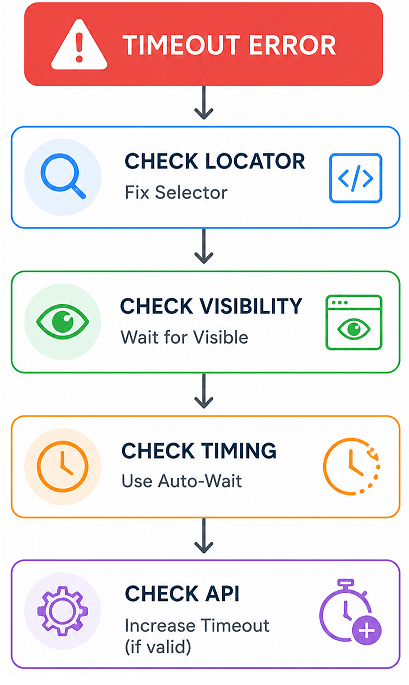
In most cases, replacing hard waits with locator-based actions fixes timeout errors immediately.
Summary: Playwright timeout errors are usually caused by incorrect locators, missing wait conditions, or slow application responses. The most effective fix is to use auto-waiting, stable locators, and wait for specific conditions instead of fixed delays.
What is Playwright Timeout Error?
A Playwright timeout error happens when an action, locator, or assertion does not complete within the defined time limit. In simple terms, the test waits for a condition, but it either takes too long or never becomes true.
In real-world testing, this means the test expected something to happen on the page, but it either did not happen or took longer than expected. For example, an element might not appear, remain hidden, or stay disabled due to slow API responses or UI delays.
As per Playwright official documentation on actionability, every action such as click, fill, navigation, and assertion includes built in waiting. If the expected condition is not met within the configured timeout, Playwright throws a timeout error to prevent the test from hanging indefinitely.
What Causes Timeout Errors in Playwright?
Timeout errors usually occur due to issues in test design or application behavior rather than Playwright itself.
- Element is not present in the DOM
- Element exists but is not visible or interactable
- Incorrect or unstable locator
- Slow API or delayed UI rendering
- Using fixed delays like waitForTimeout
- Network or environment related delays
In most real projects, unstable selectors and improper waiting strategies are the primary reasons behind timeout failures.
Example of a Timeout Error
This is a typical Playwright timeout error when an element is not found within the default timeout.
Error: Timeout 30000ms exceeded.
waiting for locator('#loginButton')
This indicates that Playwright waited for the element but it never became available or ready for interaction.
In short, a timeout error is not the root problem. It is a signal that your test is not properly aligned with how the application behaves.
Why Do Playwright Tests Fail Due to Timeout Errors?
Playwright tests fail due to timeout errors when the expected condition does not happen within the allowed time. This usually means the test is waiting for something that is either delayed, not visible, or never becomes ready.
In most cases, timeout failures are caused by one of these issues:
- Element is not visible or not interactable
- Incorrect or unstable locator
- Slow API or page load
- Missing or incorrect wait condition
- Test runs faster than the UI updates
To fix this, your test should wait for the correct condition instead of relying on fixed delays or assumptions.
If you want to understand different waiting approaches in detail, this waitForSelector vs locator.waitFor guide explains which method to use in different scenarios.
Let’s break down the most common reasons with practical insights.
Is the Element Not Ready When the Test Runs?
Yes, this is one of the most frequent causes. Even though Playwright has auto waiting, it can still fail if the element never becomes visible or enabled.
- Element exists but is hidden behind a loader
- Button is disabled until API response completes
- Animation delays interaction readiness
Quick tip: Always validate if the element is actually visible and interactable in the browser before blaming Playwright.
Are You Using Incorrect or Unstable Locators?
Unstable locators are a silent cause of timeout errors. If your selector changes frequently or matches multiple elements, Playwright may wait indefinitely.
Timeout errors are often not about time itself but about locator reliability. If Playwright cannot consistently find the correct element, it keeps waiting until the timeout is reached.
- Using dynamic class names
- Relying on nth-child selectors
- Targeting elements without unique identifiers
Better approach: Use role based locators or data-testid attributes for stability.
// Recommended stable locator
await page.getByRole('button', { name: 'Login' }).click();
If you are unsure how to write stable selectors, this Playwright TypeScript locators guide explains how to create reliable locators that prevent timeout issues.
Is the Page or API Too Slow?
Sometimes the issue is not your test but the application itself. Slow APIs, heavy UI rendering, or third-party integrations can delay element availability.
- Delayed API responses
- Heavy frontend frameworks rendering late
- Network latency in CI environments
In such cases, increasing timeout selectively or waiting for specific conditions is more effective than adding fixed delays.
Are You Using Hard Waits Instead of Smart Waiting?
Using waitForTimeout() is one of the biggest reasons for flaky tests. It introduces unnecessary delays and does not guarantee element readiness.
- Test becomes slower than needed
- Still fails if element takes longer than expected
- Creates inconsistent results across environments
This is where most beginners make mistakes. Always prefer Playwright’s built in auto waiting instead of manual delays.
Is There a Navigation or Timing Issue?
Timeout errors often occur during page navigation when the test proceeds before the page is fully loaded.
// Better approach for navigation
await page.goto('https://example.com', { waitUntil: 'load' });
Ensuring proper navigation handling prevents many timeout related failures.
In short, timeout errors are usually a sign that your test needs better synchronization with the application. Fixing the root cause makes your tests faster and more reliable.
If your tests fail during page transitions, this Playwright navigation methods guide explains how to handle navigation timing correctly.
How to Fix Playwright Timeout Error Step by Step?
You can fix Playwright timeout errors by improving locators, using built in auto waiting, handling navigation correctly, and adjusting timeouts only when required. The goal is to make your test wait for the right condition instead of waiting blindly.
Here is a practical step-by-step approach to fix Playwright timeout issues, reduce flaky tests, and improve test stability in real projects.
Step 1: Use Stable and Reliable Locators
Always start by fixing your locator. Most timeout errors come from selectors that are either incorrect or unstable.
- Prefer
getByRole()for buttons and inputs - Use
getByTestId()when available - Avoid dynamic class names and long CSS chains
// Good locator
await page.getByRole('button', { name: 'Submit' }).click();
Real insight: If your locator fails even once locally, it will definitely fail in CI.
Step 2: Rely on Playwright Auto Waiting
Playwright automatically waits for elements to be visible, stable, enabled, and receive events before performing actions. This built-in auto-waiting mechanism is one of the main reasons Playwright tests are more reliable compared to traditional automation tools. You should trust this behavior instead of adding manual delays.
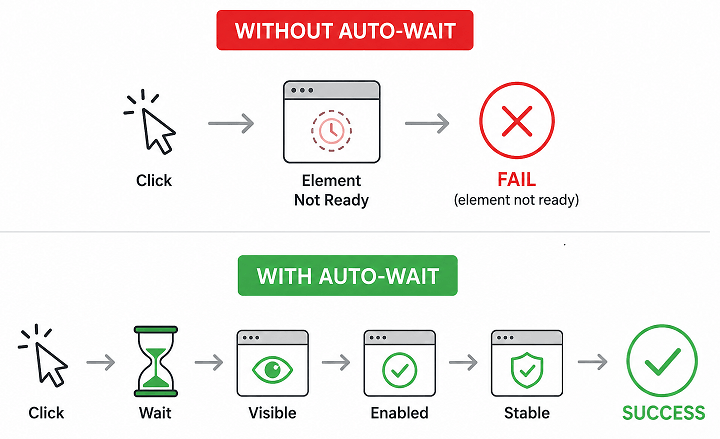
Playwright automatically waits for elements to be visible, stable, and interactable, which eliminates the need for hard waits and significantly reduces flaky test failures.
// Correct usage
await page.locator('#username').fill('testuser');

// Avoid this
await page.waitForTimeout(3000);
await page.fill('#username', 'testuser');
To understand how Playwright handles clicks, typing, and other interactions internally, check this Playwright actions guide in TypeScript.
Using auto waiting keeps tests fast and reduces flakiness.
Step 3: Wait for Specific Conditions Instead of Time
Instead of waiting for a fixed number of milliseconds, wait for a condition such as visibility or text presence.
// Wait for element to be visible
await page.locator('#dashboard').waitFor({ state: 'visible' });
This ensures your test moves forward only when the application is actually ready.
Step 4: Increase Timeout Only When Necessary
If your application genuinely takes more time, increase timeout selectively instead of globally.
// Increase timeout for a specific action
await page.locator('#report').click({ timeout: 60000 });
- Do not increase timeout blindly for all tests
- Apply it only where delays are expected
Important note: Increasing timeout does not fix the root cause. It only gives more time for the condition to happen.
Step 5: Handle Navigation Properly
Timeout errors often happen when the test tries to interact before navigation completes.
// Ensure page is loaded
await page.goto('https://example.com', { waitUntil: 'domcontentloaded' });
This is especially important for pages with heavy scripts or delayed rendering.
Step 6: Debug the Failing Step
If the issue still exists, debugging is the fastest way to find the exact cause.
- Run test in headed mode
- Use
--debugflag - Check Playwright trace viewer
// Run in debug mode
npx playwright test --debug
Debugging shows exactly where the test is waiting and why it fails.
| Problem | Fix |
|---|---|
| Element not found | Use stable locator like getByRole() |
| Element not visible | Wait for state: 'visible' |
| Slow page load | Increase navigation timeout |
| Using hard waits | Replace with auto-waiting |
| Flaky test behavior | Fix synchronization instead of increasing timeout |
In short, fixing timeout errors is about better synchronization, not longer waiting. Once you align your test with actual application behavior, most timeout issues disappear.
What Are the Different Types of Timeouts in Playwright?
Playwright provides different timeout settings to control how long tests wait for actions, navigation, and assertions. Understanding these timeout types helps you fix specific timeout problems instead of increasing wait time globally.
Each timeout serves a different purpose, and using the right one is part of the current best practice for stable automation.
Timeout Types in Playwright Explained
Here is a quick comparison of the main timeout types used in Playwright.
| Timeout Type | Purpose | Default Value |
|---|---|---|
| Test Timeout | Total time allowed for a test to complete | 30 seconds |
| Action Timeout | Time for actions like click, fill | 30 seconds |
| Navigation Timeout | Time for page navigation | 30 seconds |
| Expect Timeout | Time for assertions to pass | 5 seconds |
Knowing which timeout is failing helps you debug faster instead of guessing.
How to Set Test Timeout?
You can control the overall test execution time using test timeout configuration.
import { test } from '@playwright/test';

// Set timeout for a single test
test('example test', async ({ page }) => {
  test.setTimeout(60000);
});
This is useful for long workflows such as end to end scenarios.
How to Configure Action Timeout?
Action timeout controls how long Playwright waits for actions like click or fill.
// Set default action timeout
page.setDefaultTimeout(45000);
This applies to all actions performed on the page.
How to Handle Navigation Timeout?
Navigation timeout is useful when pages take longer to load due to heavy content or APIs.
// Set navigation timeout
page.setDefaultNavigationTimeout(60000);
Use this when you face timeout errors during page load.
How to Adjust Expect Timeout for Assertions?
Expect timeout controls how long Playwright waits for assertions to pass.
// Example assertion with timeout
await expect(page.locator('#status')).toHaveText('Success', { timeout: 10000 });
This is helpful when UI updates take time after an action.
Which Timeout Should You Change?
You should always change the most specific timeout instead of increasing everything.
- Failing click → adjust action timeout
- Slow page load → adjust navigation timeout
- Assertion failure → adjust expect timeout
- Entire test slow → adjust test timeout
Practical insight: Increasing all timeouts globally makes tests slower and hides real issues. Always target the exact failing step.
In short, choosing the correct timeout type is the fastest way to fix Playwright timeout errors without affecting overall test performance.
How to Identify Exactly Where Timeout Happens in Playwright?
Before fixing a timeout error, you need to identify exactly which step is causing the delay. Many developers try to fix the issue without knowing where the test is actually failing, which leads to unnecessary changes.
You can quickly identify the failing step using these methods:
- Check error message to see which locator or action failed
- Use Playwright trace viewer to inspect step-by-step execution
- Run test in debug mode to observe where it gets stuck
- Add logs before critical steps to track execution flow
Once you know the exact step causing the timeout, fixing the issue becomes much faster and more accurate.
Common Mistakes That Cause Playwright Timeout Errors
Most Playwright timeout errors are caused by common mistakes in test design, such as poor synchronization, unstable locators, or incorrect waiting strategies. Fixing these issues not only resolves timeout failures but also reduces flaky test behavior and improves overall automation reliability.
This section covers real mistakes seen in projects and how to avoid them.
Using waitForTimeout Instead of Smart Waiting
Using fixed delays is one of the biggest mistakes. It makes tests slow and unreliable because it does not guarantee the element is ready.
// Bad practice
await page.waitForTimeout(5000);

// Auto-wait ensures element is ready before click
await page.locator('#submit').click();
Quick tip: If you are using waitForTimeout frequently, your test likely has synchronization issues.
Relying on Weak or Dynamic Selectors
Selectors based on dynamic classes or DOM structure often break and lead to timeout errors.
- Avoid long CSS paths
- Avoid nth-child selectors
- Do not depend on styling classes
Instead, use stable attributes like role or test id.
Ignoring Element State Before Action
Trying to click or type before the element is ready leads to timeouts.
- Element is hidden
- Element is disabled
- Element is covered by another layer
Playwright auto waits, but only if the locator is correct and the condition eventually becomes true.
Increasing Timeout Without Fixing Root Cause
Many beginners increase timeout to fix errors, but this only delays failure.
- Test becomes slower
- Issue remains unresolved
- CI execution time increases
This is where many teams struggle. Always investigate why the condition is not met.
Not Handling Navigation Properly
Interacting with the page before navigation completes is a common mistake.
// Risky approach
await page.click('#login');

// Better approach
await page.click('#login');
await page.waitForURL('**/dashboard');
This ensures the test waits for navigation triggered by the action.
Skipping Debugging Tools
Many developers try to guess the issue instead of using built in tools.
- Playwright trace viewer
- Debug mode
- Screenshots on failure
Using these tools saves hours of debugging time.
In short, avoiding these mistakes is the fastest way to reduce Playwright timeout errors and build stable automation tests.
Advanced Debugging Tips to Fix Playwright Timeout Errors Faster
You can debug Playwright timeout issues faster by using built-in tools like trace viewer, debug mode, and logs. These tools help you identify why a test is waiting, which condition is failing, and what is causing delays in real time.
In real projects, debugging is often the difference between guessing and fixing the issue in minutes.
Use Playwright Trace Viewer for Deep Analysis
Trace viewer is one of the most powerful tools provided by Playwright. It records every action, network request, and DOM snapshot during test execution.
import { defineConfig } from '@playwright/test';

export default defineConfig({
  use: {
    trace: 'on-first-retry',
  },
});
After a failure, you can open the trace and inspect:
- Which step failed
- Element state at that moment
- Network activity
- Timing of each action
Real insight: Many timeout issues are caused by elements not being visible due to overlays or delayed rendering, which is clearly visible in trace viewer.
Run Tests in Debug Mode
Debug mode pauses execution and lets you step through each action interactively.
npx playwright test --debug
- Observe element behavior in real time
- Identify where the test gets stuck
- Check if locator is matching correctly
This is especially useful for intermittent timeout failures.
Capture Screenshots on Failure
Screenshots help you understand what the UI looked like when the test failed.
import { defineConfig } from '@playwright/test';

export default defineConfig({
  use: {
    screenshot: 'only-on-failure',
  },
});
This gives a quick visual clue without running the test again.
Enable Detailed Logging
Logs can show what Playwright is doing internally and where it is waiting.
DEBUG=pw:api npx playwright test
This prints detailed logs for each action and helps identify delays.
Check Network and API Responses
Sometimes the issue is not UI but backend delays. If API responses are slow, elements depending on them will not load in time.
- Monitor network requests in trace viewer
- Validate API response times
- Mock APIs if needed for stability
Important note: Timeout errors caused by backend delays should not be fixed by increasing timeout blindly. Fix the dependency instead.
Validate Locator in Browser DevTools
Before running the test, verify your locator directly in the browser console.
await page.getByRole('button', { name: 'Login' }).isVisible();If it returns null, your test will definitely fail with timeout.
In short, using the right debugging tools gives you clarity instead of guesswork. Once you see what Playwright is waiting for, fixing timeout errors becomes straightforward.
Examples in Other Languages for Handling Timeout Errors
Playwright handles timeout behavior consistently across all supported languages. The core concepts remain the same, only syntax changes. These examples show how to manage timeouts in different languages.
JavaScript Example: Handling Timeout in Actions
This JavaScript example demonstrates setting a custom timeout for a click action when an element may take longer to appear.
await page.locator('#submit').click({ timeout: 60000 });Java Implementation: Setting Default Timeout
This Java example shows how to configure a default timeout for all actions on the page.
page.setDefaultTimeout(45000);Python Example: Waiting for Element Visibility
In Python, you can explicitly wait for an element to be visible before interacting with it.
page.locator("#dashboard").wait_for(state="visible")In short, regardless of language, the solution to timeout errors always comes down to better waiting strategies and stable locators.
People Also Ask About Playwright Timeout Errors
Can Playwright handle timeouts automatically?
Yes, Playwright automatically handles waiting using its built-in auto-waiting mechanism. It waits for elements to be visible, enabled, and stable before performing actions, which reduces the need for manual waits.
What is the default timeout in Playwright?
The default timeout for most Playwright actions is 30 seconds, while assertions typically have a shorter timeout of 5 seconds.
Can I disable timeout in Playwright?
No. You cannot completely disable timeouts, but you can increase them significantly. However, removing time limits is not recommended because it can cause tests to hang indefinitely.
Why does Playwright timeout even when element exists?
Playwright can timeout even if an element exists because it may not be visible, enabled, stable, or ready for interaction. The element might also be covered by another layer or still loading due to slow API responses.
Is increasing timeout a good solution?
Increasing timeout is a temporary solution. The best practice is to fix the root cause such as incorrect locator or missing wait condition.
Related Playwright Tutorials
- Install Playwright with TypeScript and run your first test
- Launch a browser in Playwright TypeScript
- Playwright TypeScript assertions guide
Exploring these related topics helps build a strong understanding of Playwright and reduces common issues like timeout errors.
Best Practices to Avoid Playwright Timeout Errors
The best way to deal with timeout errors is to prevent them. Following a few best practices can make your tests stable and reduce failures significantly.
- Always use stable locators like
getByRole()orgetByTestId() - Avoid using
waitForTimeout()for synchronization - Wait for specific conditions instead of fixed delays
- Handle navigation and API-dependent UI properly
- Use debugging tools early instead of guessing
- Keep tests independent and avoid shared state issues
Following these practices not only prevents timeout errors but also improves overall test reliability and execution speed.
In most real-world scenarios, Playwright timeout issues are not caused by the tool itself but by how tests are written and synchronized with the application.
Conclusion
Playwright timeout errors are not random failures. They usually indicate that your test is not properly synchronized with the application. By using stable locators, relying on built in auto waiting, and targeting the correct timeout type, you can fix most issues quickly.
The key is to avoid shortcuts like hard waits and instead focus on understanding what the test is actually waiting for. Tools like trace viewer and debug mode make this process much easier and more reliable.
If you consistently face timeout errors, focus on fixing your test design instead of increasing wait times. Once your tests rely on stable locators and proper waiting strategies, timeout issues become rare and predictable rather than frustrating and random.
FAQs
What is Playwright timeout error?
A Playwright timeout error occurs when an action, locator, or assertion does not complete within the specified time limit.
How do I fix Playwright timeout error quickly?
Use stable locators, rely on auto waiting, and wait for specific conditions instead of using fixed delays like waitForTimeout.
What is the default timeout in Playwright?
The default timeout for most actions is 30 seconds, while assertions usually have a default timeout of 5 seconds.
Should I increase timeout to fix errors?
Increasing timeout can help temporarily, but the best approach is to fix the root cause such as incorrect locator or missing wait condition.
Why do Playwright tests fail even when elements exist?
Tests fail because the element may not be visible, enabled, stable, or ready for interaction within the allowed time.
Is waitForTimeout a good practice?
No. Using waitForTimeout is not recommended because it makes tests slow and unreliable. Always prefer Playwright auto waiting.
Can Playwright handle dynamic elements?
Yes. Playwright can handle dynamic elements using locator strategies and built in auto waiting.