If you want to install Playwright with TypeScript, the fastest method is running npm init playwright@latest. This single command creates a fully configured project with TypeScript support, test structure, and required browsers.
This guide shows you the exact steps to install Playwright with TypeScript, verify the setup, and run your first test. If you plan to learn Playwright in depth, including real project setup and advanced topics, check this Playwright TypeScript tutorial.
- How to Install Playwright with TypeScript?
- Prerequisites to Install Playwright with TypeScript
- How to Set Up Playwright with TypeScript Step by Step?
- Step 1: Create a New Project Folder
- Step 2: Run the Playwright Initialization Command
- Step 3: Choose the Right Setup Options
- Step 4: What Files Does Playwright Create?
- Step 5: Verify Installation by Running a Test
- Recommended Playwright Config for Beginners
- Common Installation Issues and Quick Fixes
- Quick Tip from Real Projects
- How to Write Your First Playwright Test in TypeScript?
- How to Run Playwright Tests in Headed Mode and Debug Failures?
- What Are the Best Practices for Playwright Installation and Setup?
- Use the Latest LTS Version of Node.js
- Keep Playwright and Dependencies Updated
- Start with Default Configuration
- Organize Your Tests from Day One
- Avoid Hardcoding Test Data
- Rely on Playwright Auto Waiting
- Use Parallel Execution for Faster Runs
- Keep Your Environment Consistent
- Important Note Before You Move Ahead
- Important Commands Summary
- Related Playwright Tutorials
- Conclusion
- Playwright Installation FAQs
- How do I install Playwright with TypeScript?
- Do I need to install TypeScript separately for Playwright?
- What Node.js version is required for Playwright?
- How do I verify Playwright installation?
- Can I use Playwright without TypeScript?
- Does Playwright install browsers automatically?
- How do I run Playwright tests in visible browser mode?
- Is Playwright better than Selenium for beginners?
- What is the fastest way to start with Playwright?
- How do I run Playwright tests in a visible browser?
How to Install Playwright with TypeScript?
You can install Playwright with TypeScript by running npm init playwright@latest, selecting TypeScript during setup, installing browsers, and then running npx playwright test to verify the installation.
- Run npm init playwright@latest
- Select TypeScript when prompted
- Install Playwright browsers
- Run npx playwright test
Quick Steps to Install Playwright with TypeScript
- Create a project folder:
mkdir playwright-typescript-project - Navigate to the folder:
cd playwright-typescript-project - Initialize Playwright:
npm init playwright@latest - Choose TypeScript during setup
- Install browsers when prompted
- Verify installation:
npx playwright test
Before you run the setup command, make sure your system is ready. A quick check now can save you from common installation errors later.
Prerequisites to Install Playwright with TypeScript
To install Playwright with TypeScript, you need a few essential tools like Node.js and a code editor. Without these, the installation command may fail or browsers may not download correctly.
In real-world setups, most installation issues happen because Node.js is outdated or not installed properly. So it is important to verify your environment before running Playwright commands.
What Do You Need Before Installing Playwright?
Make sure the following tools are installed on your system:
- Node.js version 16 or higher (latest LTS recommended as per Playwright documentation)
- If you do not have Node.js installed, download the latest LTS version before proceeding.
- npm which comes bundled with Node.js
- A code editor like VS Code
- You can download and install Visual Studio Code for Windows, macOS, or Linux.
- Stable internet connection for downloading browsers
How to Check If Node.js Is Installed
Run the following command in your terminal to check the installed Node.js version:
node -vIf Node.js is installed, this command returns the version number. If the version is lower than 16 or not installed, download the latest LTS version and install it before proceeding.
Important Tip Before You Proceed
Many beginners run into issues because of outdated Node.js versions. This can cause Playwright installation to fail or lead to unexpected errors when downloading browser binaries.
Using the latest LTS version ensures better compatibility, smoother installation, and fewer debugging issues later.
When Should You Use Playwright with TypeScript?
Playwright with TypeScript is best suited for scalable test automation where type safety, maintainability, and modern tooling are required.
- When you want type safety and better code maintainability
- When building scalable automation frameworks
- When working on modern web applications
- When you need reliable cross-browser testing
Once your environment is ready, you can set up Playwright with TypeScript in just a few steps.
How to Set Up Playwright with TypeScript Step by Step?
You can set up Playwright with TypeScript by initializing a new project using the official Playwright command and selecting TypeScript during setup. This process installs dependencies, configures the project, and prepares a ready-to-run testing environment.
This is the current best practice recommended in Playwright documentation because it avoids manual configuration and ensures everything works correctly from the start.
Step 1: Create a New Project Folder
Create a dedicated folder for your Playwright project. Keeping a separate project folder helps avoid dependency conflicts and keeps your automation code organized.
mkdir playwright-typescript-project
cd playwright-typescript-project
In real projects, using a clean folder structure makes it easier to scale your test suite and manage dependencies later.
Step 2: Run the Playwright Initialization Command
Run the official Playwright setup command. This command installs Playwright, TypeScript, and required browser binaries automatically.
npm init playwright@latestDuring execution, Playwright will ask a few setup questions. Your selections here define how your project is configured.
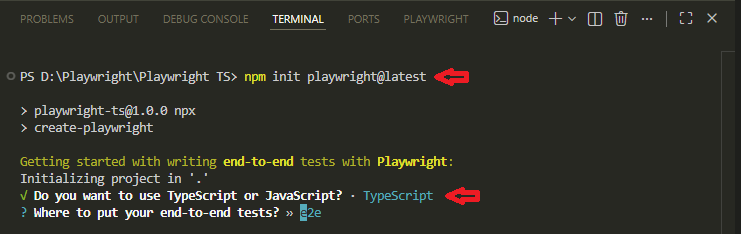
During setup, you will be asked to select options like language and test folder. Choosing TypeScript ensures better code quality and maintainability.
You can also review setup details in the Playwright documentation.
Step 3: Choose the Right Setup Options
When prompted, select the following options to create a standard and beginner-friendly setup:
- Select TypeScript as the language for better type safety and maintainability
- Use the default tests folder unless you have a custom structure
- Choose to install Playwright browsers to enable cross-browser testing
- Enable Playwright Test runner for built-in test execution and reporting
Choosing these options ensures your project follows the structure used in most real-world Playwright automation frameworks.
Step 4: What Files Does Playwright Create?
After installation, Playwright creates a structured project with all required files and folders.
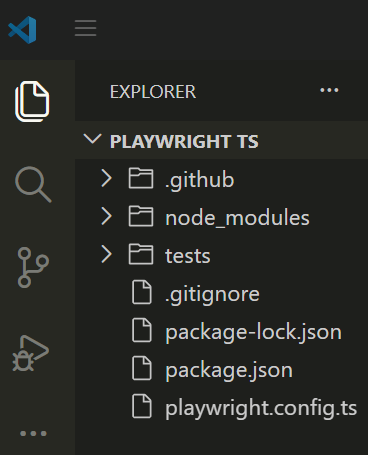
Understanding this structure helps you navigate your project and manage tests efficiently as your automation grows.
- tests/ contains your test files and sample test cases
- playwright.config.ts controls browser settings, timeouts, and execution behavior
- package.json manages project dependencies and scripts
- node_modules/ stores installed packages
Simply put, Playwright gives you a ready-made framework so you can focus on writing tests instead of configuring tools.
Step 5: Verify Installation by Running a Test
Run the default Playwright test to confirm that your setup is working correctly:
npx playwright testIf everything is set up correctly, Playwright will launch browsers and execute the sample test. You will see a success message in the terminal.
If tests fail at this stage, it usually indicates missing dependencies or incomplete browser installation.
Recommended Playwright Config for Beginners
After installation, Playwright creates a default configuration file. You can update it slightly to avoid common issues and make your tests more stable from the beginning.
import { defineConfig, devices } from '@playwright/test';

export default defineConfig({
  testDir: './tests',

  timeout: 30 * 1000,

  expect: {
    timeout: 5000,
  },

  retries: 1,

  reporter: 'html',

  use: {
    headless: true,
    viewport: { width: 1280, height: 720 },
    actionTimeout: 0,
    baseURL: 'https://example.com',

    trace: 'on-first-retry',
    screenshot: 'only-on-failure',
    video: 'retain-on-failure',
  },

  projects: [
    {
      name: 'chromium',
      use: { ...devices['Desktop Chrome'] },
    },
    {
      name: 'firefox',
      use: { ...devices['Desktop Firefox'] },
    },
    {
      name: 'webkit',
      use: { ...devices['Desktop Safari'] },
    },
  ],
});
This configuration is enough for most beginner and real-world projects. It keeps your tests fast while still capturing useful debugging information when something fails.
Common Installation Issues and Quick Fixes
- Node.js version too old → Install latest LTS
- Browsers not installed → Run npx playwright install
- Permission errors → Run terminal as administrator
- Network issues → Check firewall or proxy settings
Quick Tip from Real Projects
Do not skip running the default test. Many beginners jump directly to writing their own tests and later struggle with setup issues.
Running the sample test immediately helps you confirm that your environment, browsers, and configuration are all working correctly before moving forward.
Now that your setup is complete, the next step is to run a simple test and confirm everything works as expected.
How to Write Your First Playwright Test in TypeScript?
You can write your first Playwright test in TypeScript by creating a test file inside the tests folder and using the built-in test and expect functions provided by Playwright Test. This allows you to automate browser actions and validate results easily.
This is usually the moment where everything starts to make sense. You move from installation to actually interacting with a real web page using automation.
Step 1: Create Your First Test File
Go to the tests folder created during setup and add a new test file. A common naming pattern is:
example.spec.tsUsing the .spec.ts naming convention helps Playwright automatically detect and run your test files.
Step 2: Add a Basic Playwright Test
The following example opens a website and verifies the page title. This is one of the most common beginner-level test scenarios.
import { test, expect } from '@playwright/test';

test('verify page title', async ({ page }) => {
  await page.goto('https://example.com');

  await expect(page).toHaveTitle(/Example/);
});
This test launches a browser, navigates to the given URL, and checks whether the page title contains the word “Example”.
Step 3: Run Your First Test
After creating the test file, execute the following command in your terminal:
npx playwright testPlaywright will run the test across configured browsers and display results in the terminal.
What Happens When This Test Runs?
Here is a simple breakdown of what Playwright does behind the scenes:
- Launches a browser instance automatically
- Opens the specified URL in a new page
- Waits for the page to load using built-in auto waiting
- Validates the page title using an assertion
- Closes the browser after execution
In short, Playwright handles most of the heavy lifting so you can focus on writing test logic.
Important Note Before You Proceed
Playwright automatically waits for elements and page states before performing actions. You do not need to add manual waits in most cases.
This built-in auto waiting reduces flaky tests and is one of the biggest advantages compared to older tools like Selenium.
How to Run Playwright Tests in Headed Mode and Debug Failures?
You can run Playwright tests in headed mode by using the –headed flag. This opens a visible browser window so you can watch test execution and identify issues more easily.
Debugging becomes much easier when you can actually see what the test is doing. This is especially useful when tests fail without clear error messages or behave differently than expected.
Run Tests in Headed Mode
By default, Playwright runs tests in headless mode. To see browser actions in real time, use the following command:
npx playwright test --headedThis launches the browser UI and shows each step as the test executes, making it easier to spot issues like incorrect locators or navigation failures.
Use Built-In Debug Mode
Playwright provides a powerful debug mode that pauses execution and lets you inspect each step interactively.
npx playwright test --debug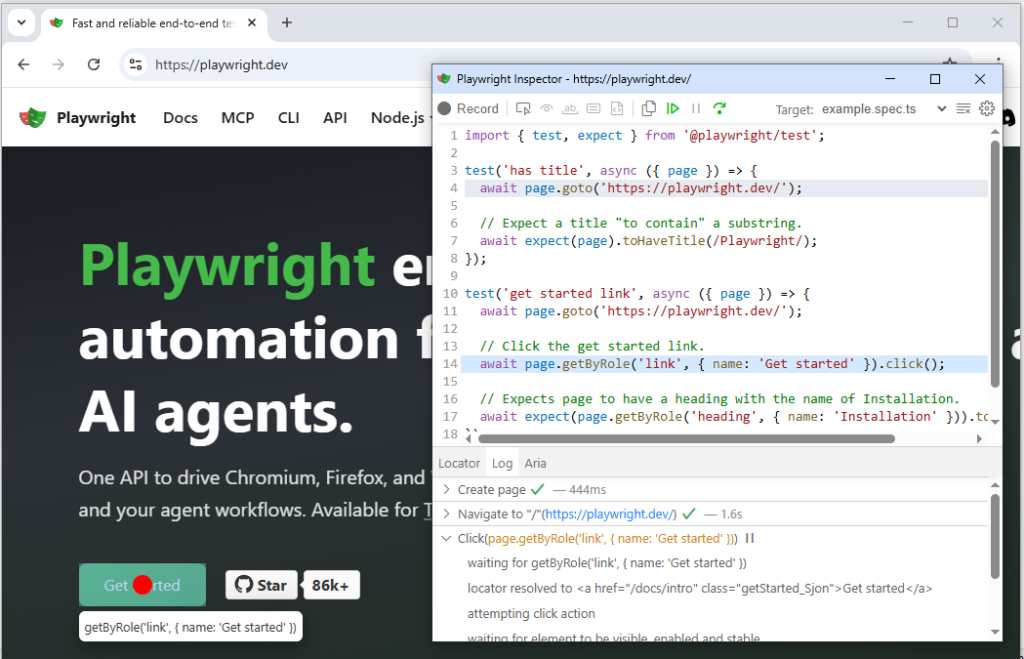
This opens the Playwright Inspector, where you can:
- Pause and resume test execution
- Inspect elements directly in the browser
- View and test locators
- Step through each action one by one
Pause Execution Using page.pause()
You can pause execution at any specific step in your test using the following method:
await page.pause();This is useful when you want to stop at a particular point and inspect the page state or debug a failing step.
Analyze Failures with Trace Viewer
Playwright includes a built-in Trace Viewer that records every action during test execution. This is one of the most powerful debugging tools available.
npx playwright show-trace trace.zipWith Trace Viewer, you can:
- See a step-by-step execution timeline
- View screenshots captured during each step
- Inspect network requests and responses
- Replay the test flow visually
Common Debugging Mistakes to Avoid
Many beginners face issues during debugging because of simple mistakes. Avoid these to save time:
- Running tests only in headless mode without seeing actual browser behavior
- Adding unnecessary manual waits instead of relying on auto waiting
- Ignoring error messages in terminal output
- Not using built-in tools like Inspector or Trace Viewer
What Are the Best Practices for Playwright Installation and Setup?
Following the right practices during Playwright installation helps you avoid common setup issues, improve test stability, and build a scalable automation framework from the beginning.
In real-world projects, a clean setup makes a big difference. Small mistakes during installation often lead to flaky tests, debugging issues, or performance problems later.
Use the Latest LTS Version of Node.js
Always install the latest LTS version of Node.js before setting up Playwright. This ensures compatibility with the latest Playwright features and avoids dependency issues.
- Reduces installation errors
- Prevents version conflicts
- Ensures long-term stability
Keep Playwright and Dependencies Updated
Playwright is actively maintained and frequently updated. Keeping your dependencies updated ensures you benefit from bug fixes and performance improvements.
npm updateFor major updates, review release notes before upgrading to avoid unexpected changes in behavior.
Start with Default Configuration
When you are just starting, avoid modifying the default playwright.config.ts file too much. The default configuration is designed to work well for most use cases.
Once you understand the basics, you can gradually customize settings like timeouts, retries, and parallel execution.
Organize Your Tests from Day One
Maintaining a clean folder structure makes your project easier to scale and maintain over time.
- Keep all tests inside the tests folder
- Use meaningful file names such as login.spec.ts
- Group related tests logically
Avoid Hardcoding Test Data
Instead of hardcoding values inside test scripts, use variables or external data sources. This makes your tests reusable and easier to maintain.
This becomes especially important when your test scenarios grow or when test data changes frequently.
Rely on Playwright Auto Waiting
Playwright automatically waits for elements to be ready before performing actions. You do not need to add manual waits in most situations.
Using methods like waitForTimeout unnecessarily can slow down your tests and introduce flakiness.
Use Parallel Execution for Faster Runs
Playwright supports parallel test execution by default, which can significantly reduce test run time.
You can configure the number of workers in the configuration file based on your system capacity.
Keep Your Environment Consistent
Use the same Node.js version and dependency setup across local machines and CI environments. This reduces unexpected failures and ensures consistent test results.
Tools like version managers can help maintain consistency across different environments.
Important Note Before You Move Ahead
Do not try to optimize everything at the beginning. Focus first on writing stable and readable tests using the default setup.
As your project grows, gradually introduce advanced practices and optimizations based on your needs.
Here is a quick summary of the most important commands you will use regularly.
Important Commands Summary
- npm init playwright@latest → Setup Playwright project
- npx playwright test → Run tests
- npx playwright test –headed → Run tests in browser
- npx playwright test –debug → Debug tests
- npx playwright show-trace trace.zip → View test trace
Related Playwright Tutorials
If you are learning Playwright step by step, these tutorials will help you build a strong foundation and improve your automation skills.
Start with the basics, then gradually move to advanced topics as you gain confidence.
- Playwright JavaScript tutorial for beginners
- Playwright Java tutorial step by step
- Playwright Python tutorial for automation testing
- Playwright vs Selenium comparison for 2026
These guides are part of a complete Playwright tutorial series designed to help you move from beginner to advanced level with practical examples.
Conclusion
Installing Playwright with TypeScript is the fastest way to start modern test automation. By running a single command npm init playwright@latest, you get a fully configured project with TypeScript support, browser setup, and a ready test structure.
In this guide, you learned how to install Playwright, verify the setup, write your first test, and debug failures using built in tools.
The key takeaway is simple. Start with the default setup, run the sample test, and then gradually build your automation framework. This approach helps you avoid setup issues and keeps your tests stable from the beginning.
Playwright Installation FAQs
How do I install Playwright with TypeScript?
Run npm init playwright@latest, choose TypeScript, and complete the prompts. This installs Playwright, sets up the project, and downloads browsers.
Do I need to install TypeScript separately for Playwright?
No. TypeScript is installed and configured automatically when you select it during setup.
What Node.js version is required for Playwright?
Node.js version 16 or higher is required. Use the latest LTS version for best results.
How do I verify Playwright installation?
Run npx playwright test. If the sample test runs successfully, your installation is complete.
Can I use Playwright without TypeScript?
Yes. Playwright supports JavaScript, Python, Java, and .NET. TypeScript is preferred for better code quality.
Does Playwright install browsers automatically?
Yes. Playwright installs Chromium, Firefox, and WebKit during setup if you enable browser installation.
How do I run Playwright tests in visible browser mode?
Use the command npx playwright test –headed to run tests in a visible browser window.
Is Playwright better than Selenium for beginners?
Playwright is easier to start because it has built in auto waiting, simple setup, and a modern API.
What is the fastest way to start with Playwright?
Run npm init playwright@latest, select TypeScript, and then run npx playwright test to verify everything works.
How do I run Playwright tests in a visible browser?
Run npx playwright test –headed to execute tests in a visible browser window.