If waitForSelector in Playwright is not working, it usually means your test is waiting for the wrong condition, using an unstable selector, or relying on manual waits instead of Playwright’s built-in auto-waiting. In most cases, the element either exists but is not visible, or your test is checking at the wrong time.
This is a very common issue, especially when dealing with dynamic UI, API-based rendering, or elements inside iframes. The good part is that once you understand how Playwright actually waits under the hood, fixing these problems becomes straightforward.
In this guide, you will learn how to fix waitForSelector issues using real examples, practical debugging techniques, and current best practices. If you want to learn from scratch, this detailed Playwright tutorial will guide you step by step.
This guide also covers how to reduce flaky Playwright tests, improve test stability, and optimize end-to-end automation for real-world production environments.
- How to Fix waitForSelector Timeout Issues in Playwright (Step-by-Step Guide)
- What is waitForSelector in Playwright and How Does It Work?
- Why waitForSelector Fails in Playwright (Common Causes of Flaky Tests)
- Exact waitForSelector Errors and What They Mean
- How to Fix waitForSelector Issues in Playwright Step by Step?
- Real Examples: Fixing waitForSelector Not Working in Playwright
- Why waitForSelector Fails in React, Angular, or Vue Apps?
- Common Mistakes That Break waitForSelector in Playwright
- Does waitForSelector Affect Test Performance?
- Playwright locator vs waitForSelector: Which is Better for Test Stability?
- How to Reduce Flaky Tests in Playwright (Best Practices)
- Should You Use Assertions Instead of waitForSelector?
- Advanced Debugging Tips for waitForSelector Failures
- Quick Debug Checklist
- Conclusion
- FAQs
Let’s start with a quick fix so you can resolve your issue immediately.
How to Fix waitForSelector Timeout Issues in Playwright (Step-by-Step Guide)
Below are the most effective fixes used in real-world Playwright projects.
- Verify that your selector matches the correct element
- Use the correct state such as visible or attached
- Avoid using waitForSelector before actions like click
- Prefer locator methods which handle waiting automatically
If you want to fully understand how locator-based waiting works, read this Playwright TypeScript locators complete guide to learn how to write stable and reliable selectors.
Here is the recommended modern approach:
// Best practice: locator handles waiting automatically
await page.locator('#loginButton').click();
This approach removes manual waiting and significantly reduces flaky test failures.
What is waitForSelector in Playwright and How Does It Work?
waitForSelector in Playwright is a method used to wait for an element to match a specific selector and reach a defined state such as attached, visible, or hidden. It continuously checks the DOM until the condition is satisfied or the timeout is reached, making it useful for handling dynamic web elements.
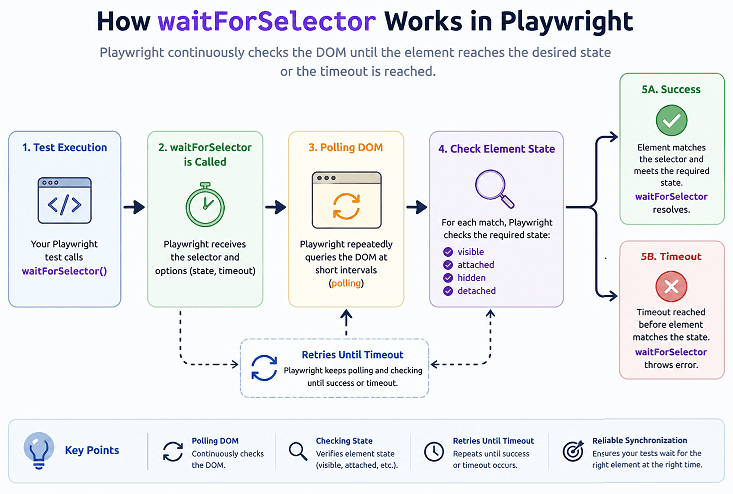
According to the official Playwright documentation on waitForSelector, it continuously checks the DOM until the condition is satisfied or the timeout is reached. If the condition is not met within the given time, the test fails with a timeout error.
In simple terms, here is what happens internally:
- Playwright repeatedly queries the DOM for the selector
- It checks whether the element meets the required state
- If found, execution continues immediately
- If not, it retries until timeout is reached
Now here is something many beginners miss. Playwright already includes auto-waiting for most actions like click, fill, and type. This means in many cases, you do not need waitForSelector at all.
Real-world insight: waitForSelector is useful for specific state checks, but overusing it often leads to slower and flaky tests. Modern Playwright code relies more on locators than manual waiting.
In short, waitForSelector is a powerful method, but understanding when NOT to use it is equally important.
Why waitForSelector Fails in Playwright (Common Causes of Flaky Tests)
waitForSelector usually fails when the selector does not match the element correctly, the wrong state is used, or the test checks too early before the UI is ready. In many cases, the issue comes from timing assumptions rather than actual bugs in Playwright.
Below are the most common reasons you will run into in real-world projects.
Is Your Selector Incorrect or Too Generic?
If your selector is unstable or too broad, Playwright may not find the element consistently. This often happens with dynamic class names or deeply nested CSS paths.
- Dynamic class names that change on reload
- Long CSS selectors tied to page structure
- Elements that exist only briefly in the DOM
Quick tip: Use stable selectors like data-testid, roles, or unique IDs whenever possible.
Are You Waiting for the Wrong State?
waitForSelector depends heavily on the state you choose. If the state does not match how the element behaves, the wait will fail even when the element exists.
For example, an element can be present in the DOM but still hidden due to CSS.
// This may fail if element is hidden
await page.waitForSelector('#modal', { state: 'visible' });

// Use this if you only need it in DOM
await page.waitForSelector('#modal', { state: 'attached' });
Is the Element Inside an iframe?
Playwright does not search inside iframes by default. If your element is inside an iframe, waitForSelector will never find it unless you switch to the correct frame context.
This is very common when testing payment gateways or embedded widgets.
Are You Adding waitForSelector Where It Is Not Needed?
This is one of the most common mistakes. Playwright already waits automatically before actions like click or fill. Adding waitForSelector manually often makes tests slower and harder to maintain.
// Unnecessary extra wait
await page.waitForSelector('#submit');
await page.click('#submit');
Instead, use:
await page.locator('#submit').click();This single line already handles waiting internally.
Is the Timeout Too Short for Your Application?
If your page depends on API responses or heavy rendering, the default timeout might not be enough. The element may appear eventually, but not within the expected time.
await page.waitForSelector('#dashboard', { timeout: 10000 });Use longer timeouts only where needed instead of increasing them globally.
Does the Element Appear and Disappear Quickly?
Some UI elements like loaders or toast messages appear only for a short time. If your test checks at the wrong moment, it may miss them entirely.
This is a common cause of flaky tests that pass sometimes and fail other times.
Important: Most waitForSelector issues come from timing assumptions, incorrect selectors, or misunderstanding how Playwright waits internally.
Exact waitForSelector Errors and What They Mean
This section targets real-world Playwright error searches so you can quickly identify and fix issues based on the exact error message.
Error: Timeout 30000ms exceeded while waiting for selector
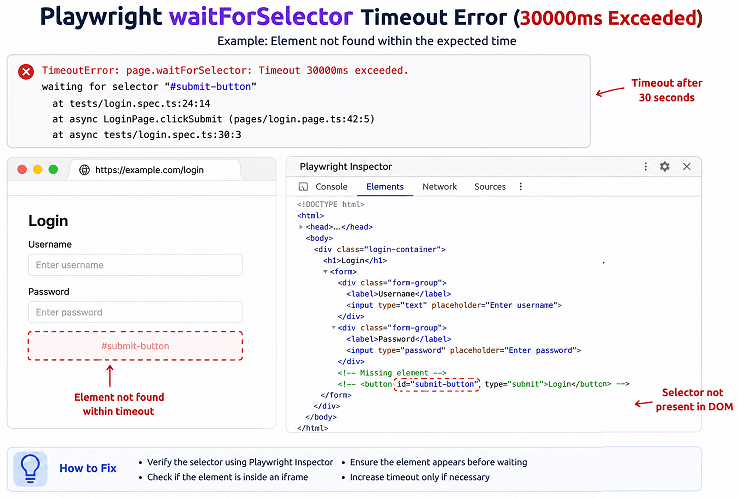
This type of timeout error usually indicates incorrect selectors, wrong waiting state, or timing issues caused by dynamic content loading.
Meaning: Playwright could not find the element within the timeout.
Fix:
- Verify selector is correct
- Check if element is inside an iframe
- Ensure correct state (visible vs attached)
Error: strict mode violation
Meaning: Multiple elements match the selector.
Fix:
- Use more specific selectors
- Use
.first()or.nth()
Error: element is not visible
Meaning: Element exists but is hidden or not interactable.
Fix:
- Use
state: 'attached'if visibility is not required - Wait for UI to stabilize before interaction
How to Fix waitForSelector Issues in Playwright Step by Step?
Follow this practical step-by-step method to debug and fix waitForSelector issues.
Here is a step-by-step method that works in real projects.
Step 1: Validate the Selector Using Playwright Inspector
Always confirm that your selector actually matches the element. The fastest way is to use Playwright Inspector or browser DevTools.
- Run your test in debug mode
- Pause execution and inspect the element
- Verify if the selector returns exactly one element
Common mistake: Selector works in DevTools but fails in test due to dynamic rendering timing.
Step 2: Use Locator Instead of waitForSelector
The latest Playwright best practice is to use locator methods instead of waitForSelector. Locators automatically wait for elements to be ready before performing actions.
// Recommended approach
await page.locator('#loginButton').click();
This reduces flakiness and makes tests more readable.
To explore all interaction methods in detail, check out this Playwright actions in TypeScript guide covering click, type, fill, and more.
Here is something many beginners miss: adding more waits does not fix the problem. In fact, it often makes tests slower and more unstable.
Step 3: Choose the Correct Waiting State
If you still need waitForSelector, ensure you use the correct state based on your use case.
- attached – element exists in DOM
- visible – element is visible to the user
- hidden – element is not visible
- detached – element is removed from DOM
await page.waitForSelector('#loader', { state: 'hidden' });This is useful for waiting until loading spinners disappear.
Step 4: Increase Timeout for Slow Pages
If your application depends on API responses, rendering might take longer than expected. Increase the timeout when needed.
await page.waitForSelector('#profile', { timeout: 15000 });However, avoid setting very large timeouts globally as it slows down test execution.
Step 5: Handle iframe Elements Properly
If the target element is inside an iframe, you must switch to the frame context before waiting.
const frame = page.frame({ name: 'frameName' });
await frame.waitForSelector('#element');
This ensures Playwright searches within the correct DOM context.
Step 6: Debug Using Logs and Screenshots
When things still fail, debugging helps identify the exact issue.
- Capture screenshots before failure
- Use console logs to track execution
- Run tests in headed mode to observe behavior
Real-world insight: Many waitForSelector issues are discovered quickly when you visually observe the test execution.
Step 7: Avoid Mixing Multiple Waiting Strategies
Using waitForSelector along with manual delays like waitForTimeout can create unpredictable timing issues.
// Avoid this combination
await page.waitForTimeout(2000);
await page.waitForSelector('#button');
Stick to one consistent waiting strategy for stable tests.
In short: The most reliable fix is to prefer locators, use correct states, and validate selectors instead of blindly adding waits.
Real Examples: Fixing waitForSelector Not Working in Playwright
You can fix most waitForSelector issues by adjusting the selector, choosing the correct state, or replacing it with locator-based actions. These real-world examples show common failures and their correct solutions.
Here are common real-world failure patterns and how to fix them quickly.
Fix Example: Element Exists but Not Visible
This example demonstrates a case where the element is present in the DOM but hidden due to CSS.
// Problem: This may fail if element is hidden
await page.waitForSelector('#menu', { state: 'visible' });
Here is the correct approach depending on your need:
// If you only need presence in DOM
await page.waitForSelector('#menu', { state: 'attached' });

// If you need it visible before interaction
await page.locator('#menu').click();
Key insight: Choose state based on requirement, not assumption.
Scenario: Dynamic Content Loading After API Call
This example shows how elements load after an API response, which often causes timing issues.
// Problem: Element not yet rendered
await page.waitForSelector('.product-item');
Better solution:
// Wait for network and UI update
await page.waitForLoadState('networkidle');
await page.locator('.product-item').first().click();
This ensures data is loaded before interacting with elements.
If your tests depend on page loads and navigation timing, this Playwright navigation methods guide explains how to handle page transitions and loading states correctly.
Case: Element Inside iframe
This example covers one of the most overlooked issues in automation testing.
// Problem: Selector never matches
await page.waitForSelector('#submit');
Correct approach:
const frame = page.frame({ url: /example/ });
await frame.waitForSelector('#submit');
Important note: Playwright does not automatically search inside iframes.
Situation: Element Appears and Disappears Quickly
Transient elements like loaders or toast messages can cause flaky failures.
// Problem: May miss the element timing
await page.waitForSelector('.toast-message');
Better approach:
await page.locator('.toast-message').waitFor();Locators handle timing more reliably in such cases.
Real-world observation: Removing unnecessary waits often makes tests faster and more stable.
Bottom line: Most waitForSelector issues can be solved by using locators, handling dynamic content properly, and understanding how Playwright waits internally.
Why waitForSelector Fails in React, Angular, or Vue Apps?
waitForSelector may fail in modern frameworks like React, Angular, or Vue because UI updates are asynchronous and elements may render, update, or re-render multiple times before becoming stable.
This creates timing issues where the element exists briefly but is not yet ready for interaction.
- React re-renders components after state updates
- Angular updates DOM after change detection cycles
- Vue may update elements asynchronously
Because of this, waitForSelector may detect the element too early or too late.
Better approach: Use locator actions or assertions that automatically wait for the element to become stable.
await page.locator('#submit').click();Important note: Modern UI frameworks require smarter waiting strategies, not more waiting.
In short: Framework-driven UI updates are a common reason for flaky waitForSelector behavior.
Common Mistakes That Break waitForSelector in Playwright
Even when the root cause is known, many developers introduce avoidable mistakes that make tests flaky or slow. Here are the most common ones.
Warning: Adding random waits without understanding the root cause is one of the fastest ways to make your tests flaky.
Here are the most common mistakes developers make in real projects.
Using Hard Waits Instead of Smart Waiting
Using fixed delays like waitForTimeout instead of proper waiting methods leads to unreliable tests.
// Bad practice
await page.waitForTimeout(3000);
await page.waitForSelector('#submit');
Better approach: Use locator or proper wait conditions instead of guessing timing.
Relying on Unstable Selectors
Selectors based on dynamic classes or auto-generated IDs often change between runs.
- Avoid class names like .btn-123 or .item-xyz
- Prefer stable attributes like data-testid
- Use role-based selectors when possible
Quick tip: Stable selectors are the foundation of reliable automation.
Misunderstanding Visibility vs Presence
Many developers assume that if an element exists, it is visible. This is not always true.
- Element can be present but hidden using CSS
- Element can be off-screen or covered by another element
This often leads to incorrect use of state: ‘visible’.
Ignoring Playwright Auto-Waiting
Playwright automatically waits before performing actions like click or fill. Adding waitForSelector manually in such cases creates unnecessary complexity.
This is one of the biggest differences between Playwright and older tools like Selenium.
Not Handling iframe Context
Elements inside iframes require switching context. Without this, waitForSelector will never find the element.
Real-world scenario: Payment gateways and embedded widgets often use iframes.
Using Global Timeouts Incorrectly
Setting very high global timeouts can hide real issues and slow down test execution.
- Prefer targeted timeouts for specific waits
- Avoid increasing timeout blindly
Skipping Debugging Steps
Many developers try random fixes without understanding the root cause.
- Use screenshots and logs
- Run tests in headed mode
- Use Playwright Inspector for step-by-step debugging
Important: Most problems come from misunderstanding how Playwright waits, not from the tool itself.
Does Playwright require waitForSelector for every action?
No. Playwright automatically waits for elements before actions like click or fill, so manual waitForSelector is usually not required.
Can wrong selectors cause waitForSelector failure?
Yes. If the selector does not match any element or matches unstable elements, waitForSelector will timeout or behave inconsistently.
Is waitForSelector outdated in Playwright?
Not completely, but it is less recommended compared to locator-based methods which are more reliable and modern.
Does waitForSelector Affect Test Performance?
Yes, excessive use of waitForSelector can slow down your Playwright tests because it introduces unnecessary waiting even when elements are already ready for interaction. This increases total execution time and reduces test efficiency.
In real-world test suites, this impact becomes significant when multiple unnecessary waits are used across hundreds of tests.
- Each wait adds extra delay even if not required
- Redundant waits increase total execution time
- Mixing waits with auto-waiting creates inefficiency
Better approach: Use locator methods, which wait only when needed and proceed immediately when the element is ready.
In short: Removing unnecessary waitForSelector calls makes your tests faster and more scalable.
Business impact: Slow or flaky Playwright tests can delay CI/CD pipelines, increase debugging time, and reduce developer productivity. Optimizing your waiting strategy directly improves release speed and engineering efficiency.
Playwright locator vs waitForSelector: Which is Better for Test Stability?
Locator methods are the recommended approach in Playwright because they include built-in auto-waiting, improve code readability, and reduce flaky tests. waitForSelector should only be used for specific state-based conditions such as waiting for elements to appear or disappear from the DOM.
This comparison will help you understand when to use each method.
| Feature | waitForSelector | Locator |
|---|---|---|
| Auto-waiting | Manual | Built-in |
| Code readability | Lower | Higher |
| Flakiness risk | Higher | Lower |
| Recommended by Playwright | Less preferred | Recommended |
| Ease of use | Requires understanding states | Simpler for beginners |
When Should You Still Use waitForSelector?
waitForSelector is useful when you specifically need to wait for a certain state that is not directly tied to an action.
- Waiting for loaders to disappear
- Checking if an element is removed from DOM
- Handling conditional UI changes
await page.waitForSelector('#loader', { state: 'hidden' });Why Locator is the Current Best Practice
Locators automatically wait for elements to be ready before performing actions. This removes the need for manual synchronization in most cases.
await page.locator('#submit').click();Real-world insight: In large test suites, switching from waitForSelector to locators significantly reduces flaky failures.
Can Locator Fully Replace waitForSelector?
Yes in most cases. Locator methods cover almost all interaction scenarios with built-in waiting. However, waitForSelector is still useful for specific state-based waiting like hidden or detached.
Bottom line: Use locators as your default approach and use waitForSelector only when you need explicit control over element state.
How to Reduce Flaky Tests in Playwright (Best Practices)
Flaky tests are one of the biggest challenges in modern end-to-end testing. In Playwright, most flaky tests are caused by incorrect waiting strategies, unstable selectors, and timing issues.
To improve test stability and reduce failures, follow these proven Playwright best practices:
- Use locator-based actions instead of waitForSelector wherever possible
- Avoid hard waits like
waitForTimeout - Use stable selectors such as
data-testid - Leverage Playwright assertions like
expect()for automatic waiting - Handle network delays using
waitForLoadState('networkidle')
Why this matters: Improving test stability reduces CI/CD failures, speeds up deployments, and improves overall automation reliability.
Key takeaway: Reducing flaky Playwright tests is not about adding more waits, but using smarter waiting strategies and modern Playwright features.
Should You Use Assertions Instead of waitForSelector?
Yes, using assertions is often a better approach than waitForSelector because Playwright assertions automatically wait for conditions to be met. This makes tests more readable and reliable.
Playwright provides built-in assertions that handle waiting internally, reducing the need for manual synchronization.
Here is a better modern approach:
await expect(page.locator('#loginButton')).toBeVisible();This waits until the element becomes visible without requiring explicit waitForSelector.
- Cleaner and more readable test code
- Automatic waiting built into assertions
- Reduced flakiness compared to manual waits
Real-world insight: In modern Playwright projects, assertions are often used instead of waitForSelector for validation steps.
Bottom line: Prefer assertions for validation and locators for actions instead of relying on waitForSelector.
If your issue is still not resolved after applying the fixes above, the next step is to debug the test properly instead of guessing.
Advanced Debugging Tips for waitForSelector Failures
You can debug waitForSelector failures in Playwright by inspecting selectors, observing execution in real time, and capturing logs or screenshots. These techniques help identify timing issues, incorrect selectors, and unexpected UI behavior.
If your test still fails after basic fixes, these advanced debugging methods will help you find the exact root cause.
Use Playwright Inspector to Validate Selectors
Playwright Inspector allows you to pause execution and interact with the page. This is one of the fastest ways to verify whether your selector actually works.
- Run your test with debug mode
- Pause before the failing step
- Try the selector directly in the inspector
Quick tip: If the selector fails in Inspector, it will definitely fail in your test.
Run Tests in Headed Mode
Headed mode shows the browser UI while tests run. This helps you visually understand what is happening on the page.
// Run in headed mode
npx playwright test --headed
You can observe whether the element appears, disappears, or never loads.
Capture Screenshots Before Failure
Screenshots provide a snapshot of the page state when the test fails. This is extremely useful for debugging CI failures.
await page.screenshot({ path: 'debug.png' });This helps confirm whether the element was present at the time of failure.
Log Execution Steps for Better Visibility
Adding logs helps track which step is failing and when.
console.log('Waiting for login button');
await page.waitForSelector('#login');
This gives you better visibility into test flow.
Check for Network Delays and API Dependencies
If your UI depends on API responses, delays in network calls can cause waitForSelector to fail.
await page.waitForLoadState('networkidle');This ensures all network requests are completed before proceeding.
Use Trace Viewer for Deep Debugging
Playwright Trace Viewer provides a detailed timeline of your test execution including DOM snapshots, network activity, and actions.
- Enable tracing in your test configuration
- Open trace after test execution
- Analyze each step visually
Real-world insight: Trace Viewer often reveals hidden issues like element overlap or delayed rendering that are hard to detect otherwise.
Important Note Before You Proceed
Debugging is not about adding more waits. It is about understanding why the element is not ready when expected.
In short: Use Inspector, screenshots, and tracing to identify the exact issue instead of guessing fixes.
Quick Debug Checklist
- Selector matches exactly one element
- Element is not inside iframe
- Correct state (visible vs attached)
- No unnecessary waitForTimeout
- Locator used instead of waitForSelector where possible
Conclusion
Most waitForSelector issues in Playwright are not actual bugs. They usually come from how the method is used in real test scenarios. Things like incorrect selectors, wrong states, or unnecessary waits are the real cause behind most failures.
The most reliable and modern approach is to use locator methods instead of manually waiting for elements. Locators automatically handle timing, reduce flakiness, and make your test code cleaner and easier to maintain.
If you still need waitForSelector, use it carefully with the correct state and targeted scenarios. With the debugging techniques and best practices covered in this guide, you should be able to fix most issues quickly and write stable automation tests.
Next step: Try replacing waitForSelector with locators in your existing tests and observe how much more stable your test suite becomes.
FAQs
Why is waitForSelector timing out in Playwright?
waitForSelector usually times out because the selector is incorrect, the element never appears, or the wrong state such as visible is used. It can also fail due to slow page loading or network delays.
Is waitForSelector required in Playwright?
No. Playwright provides built-in auto-waiting for actions like click and fill, so waitForSelector is not required in most cases. Using locator methods is the recommended approach.
What is the difference between visible and attached in waitForSelector?
The attached state means the element exists in the DOM, while visible means the element is displayed on the page and can be seen by the user.
How do I fix flaky tests caused by waitForSelector?
You can fix flaky tests by using stable selectors, switching to locator methods, avoiding hard waits, and ensuring proper handling of dynamic content and iframes.
Can waitForSelector work inside iframes?
Yes, but you must switch to the iframe context using page.frame() before calling waitForSelector. Otherwise, Playwright will not find the element.
What is the best alternative to waitForSelector?
The best alternative is Playwright locator methods such as page.locator().click() which automatically wait for the element to be ready before performing actions.
Why is waitForSelector slow in Playwright?
It becomes slow when used unnecessarily, as it waits even when the element is already ready.
Should I use waitForSelector or expect() in Playwright?
Use expect() for validation and locator methods for actions. waitForSelector should be used only for specific state-based conditions.