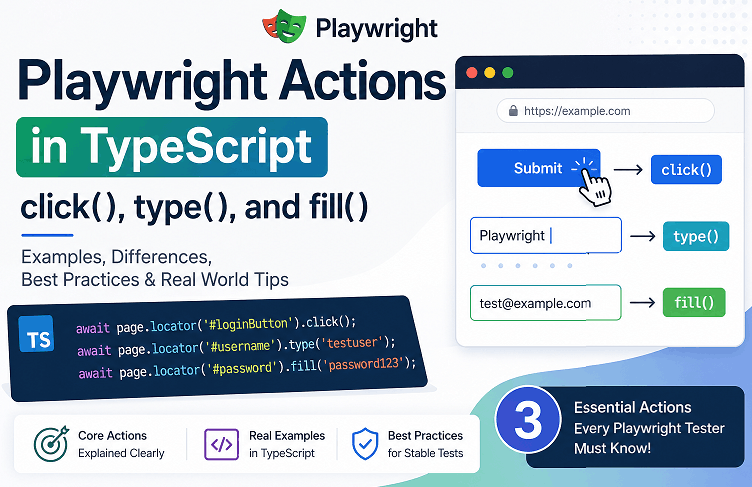
Playwright actions in TypeScript using click(), type(), and fill() help you interact with web elements just like a real user. You can click buttons using click(), type text with type(), and quickly fill input fields using fill(). These three Playwright actions are the core of almost every Playwright test.
If you are learning Playwright or already writing tests, understanding when to use click, type, and fill correctly will save you from flaky tests and debugging headaches. Many beginners struggle here, not because the methods are complex, but because the difference between click(), type(), and fill() is often misunderstood.
In this guide, you will learn how each action works, when to use it in real projects, and what mistakes to avoid. Every example is written in TypeScript and designed so you can directly use it in your automation tests without modification. You can also explore this beginner friendly Playwright TypeScript tutorial to build a strong base before diving deeper.
- How to Perform Click, Type, and Fill Actions in Playwright?
- What are Playwright Actions in TypeScript (click(), type(), fill())?
- How to Click an Element in Playwright TypeScript?
- How to Type Text in Playwright TypeScript?
- How to Fill Input Fields in Playwright TypeScript?
- What is the Difference Between click(), type(), and fill() in Playwright?
- type() vs fill() in Playwright: Which One Should You Use?
- Common Mistakes While Using Playwright Actions
- Why Playwright click() Is Not Working?
- Best Practices for Playwright Actions in TypeScript
- Best Locator Strategy for Click, Type, and Fill Actions
- Examples in Other Languages
- Related Playwright Tutorials
- Advanced Tips for Real World Playwright Actions
- When Should You Avoid Using click(), type(), and fill()?
- Conclusion
- FAQs
How to Perform Click, Type, and Fill Actions in Playwright?
You can perform click, type, and fill actions in Playwright TypeScript by using locator() with methods like click(), type(), and fill(). These methods automatically wait for elements to be ready and simulate real user interactions.
Before performing actions, you should understand how Playwright handles page navigation and loading states. This detailed guide on Playwright navigation methods in TypeScript explains how navigation works in real automation scenarios.
Here is a quick example that shows all three actions in one flow:
import { test } from '@playwright/test';

test('basic actions example', async ({ page }) => {
  await page.goto('https://example.com');

  // Click action
  await page.locator('#loginButton').click();

  // Type action
  await page.locator('#username').type('testuser');

  // Fill action
  await page.locator('#password').fill('password123');
});
This example shows how these Playwright actions work together in a real test. In the next sections, we will break down each action with detailed examples, best practices, and real world insights.
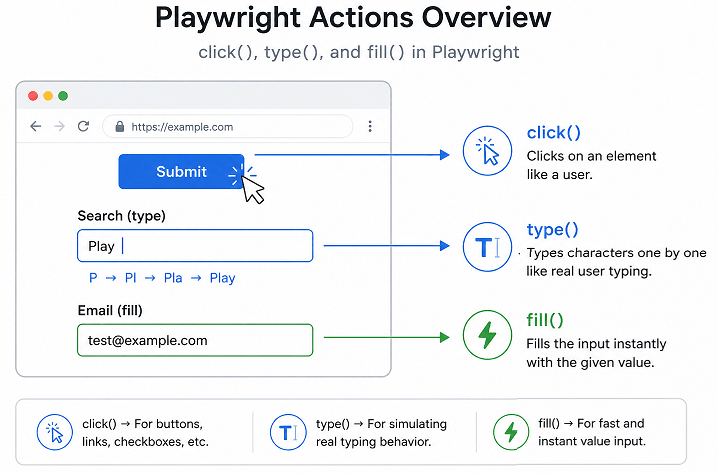
As shown above, click() interacts with buttons, type() simulates real typing, and fill() sets values instantly. This difference is important when choosing the right action in automation tests.
What are Playwright Actions in TypeScript (click(), type(), fill())?
In real projects, testers often search for practical solutions like how to use click(), type(), and fill() in Playwright TypeScript how to fill input fields quickly, or why a click action is not working. Understanding these core interactions helps you solve most UI automation problems without relying on workarounds.
According to Playwright documentation, actions are built on top of auto waiting and element stability checks. This means Playwright automatically waits for elements to be visible, enabled, and ready before performing any action. As a result, tests become more stable and reliable without adding manual waits.
In real projects, these actions are used in almost every test case. For example:
- Clicking a login button to submit a form
- Typing a username and password
- Filling forms during checkout flows
- Updating input values in profile pages
Almost every Playwright test interacts with the UI. so you will use these actions very frequently.
Quick tip: Prefer locator() based actions instead of older selector methods. In practice, this makes your tests more stable and easier to maintain.
Now that you understand the basics, let’s look at how each action works in detail, starting with the most commonly used one.
How to Click an Element in Playwright TypeScript?
You can click an element in Playwright TypeScript using the click() method on a locator. This method waits for the element to be visible and actionable before performing the click.
This is the most commonly used Playwright action and is used for buttons, links, checkboxes, and many UI interactions.
Here is a simple example of clicking a button:
import { test } from '@playwright/test';

test('click example', async ({ page }) => {
  await page.goto('https://example.com');

  await page.locator('#loginButton').click();
});
This example clicks a button with id loginButton. Playwright automatically ensures that the element is ready before clicking.
Steps to Perform Click Action
- Navigate to the page using
page.goto() - Locate the element using
page.locator() - Call the
click()method
This is all you need to perform a basic click() action in Playwright.
Common Click Variations in Playwright
In real testing scenarios, you may need more control over click behavior. Playwright provides multiple options for this.
- Double click:
await page.locator('#btn').dblclick(); - Right click:
await page.locator('#btn').click({ button: 'right' }); - Click with delay:
await page.locator('#btn').click({ delay: 100 }); - Force click:
await page.locator('#btn').click({ force: true });
Important note before you proceed: Avoid using force click unless absolutely required. It can hide real UI issues and make tests unreliable.
Real World Insight
This is where most beginners make mistakes. They try to add manual waits before clicking elements. In Playwright, this is usually not needed because of auto waiting.
If a click fails, it often means:
- The locator is incorrect
- The element is not visible due to UI conditions
- There is a timing issue caused by navigation or animations
Instead of adding waits, fix the locator or wait for the correct UI state. This approach works much better in real test scenarios.
Click actions are simple, but input handling requires a bit more understanding.
How to Type Text in Playwright TypeScript?
To type text in Playwright TypeScript, use page.locator(‘selector’).type(‘text’). This method enters text character by character and triggers keyboard events like a real user.
The type() method is useful when you want to simulate realistic typing behavior such as triggering keyboard events or testing input validations that depend on typing speed.
Here is a simple example:
import { test } from '@playwright/test';

test('type example', async ({ page }) => {
  await page.goto('https://example.com');

  await page.locator('#username').type('testuser');
});
This example types the value testuser into the username field.
Steps to Perform Type Action
- Navigate to the required page
- Locate the input field using
locator() - Call the
type()method with the text value
This is how typing is typically handled in real Playwright tests.
Typing with Delay for Realistic Input
Sometimes you may want to slow down typing to mimic real user behavior. This can help in debugging or testing UI reactions.
await page.locator('#username').type('testuser', { delay: 100 });
This adds a small delay between each keystroke.
Important Difference: type() vs fill()
The type() method enters text character by character, while fill() sets the entire value at once.
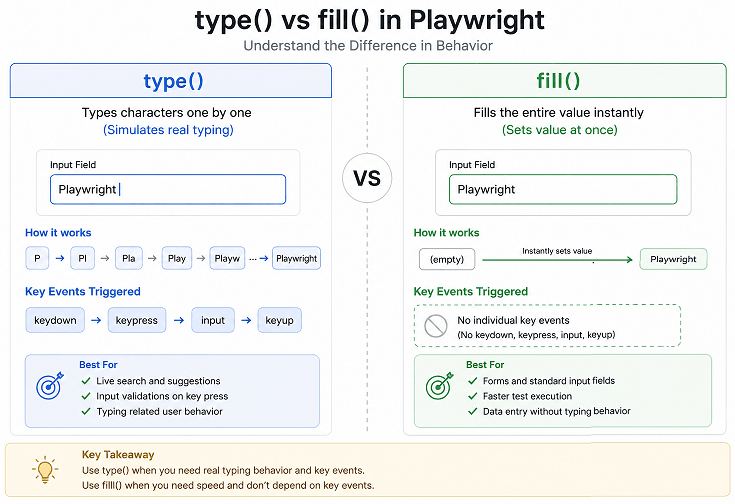
This difference matters in scenarios like:
- Triggering key events such as keydown or keyup
- Validating live input behavior
- Testing autocomplete or search suggestions
If your test depends on keyboard behavior, always use type().
Real World Tip
In most automation tests, fill() is faster and preferred. Use type() only when you specifically need real typing simulation.
While typing simulates real user input, there is a faster way to handle most input fields.
How to Fill Input Fields in Playwright TypeScript?
To fill an input field in Playwright TypeScript, use page.locator(‘selector’).fill(‘value’). This method clears existing text and sets the new value instantly.
The fill() method is the fastest and most commonly used approach for entering text in automation tests. It is ideal for forms, login fields, and data driven testing scenarios.
Here is a simple example:
import { test } from '@playwright/test';

test('fill example', async ({ page }) => {
  await page.goto('https://example.com');

  await page.locator('#email').fill('user@example.com');
});
This example clears the existing value and fills the email field with a new value.
Steps to Perform Fill Action
- Open the page using
page.goto() - Locate the input field using
locator() - Use the
fill()method with the required value
This is how most teams handle input fields in Playwright projects.
Why fill() is Preferred in Most Tests
In real world automation, speed and stability matter. The fill() method provides both.
- Faster execution compared to typing
- Automatically clears existing text
- Less flaky compared to keyboard simulation
- Works well in data driven test scenarios
Because of these benefits, most teams use fill() as their default input method in Playwright.
Important Behavior of fill()
There is one key behavior you should know. The fill() method does not trigger individual keyboard events like keydown or keyup.
This means it may not work correctly in cases like:
- Live search suggestions
- Input validation triggered on key press
- Custom JavaScript listeners on typing events
In such cases, switch to type() instead.
Quick Tip
If your test only needs to set a value and move forward, always use fill(). It is the current best practice for most Playwright actions.
What is the Difference Between click(), type(), and fill() in Playwright?
The difference between click(), type(), and fill() in Playwright TypeScript is simple. click() is used for mouse interactions, type() simulates real typing with keyboard events, and fill() sets the input value instantly without triggering individual key events.
Choosing the wrong method can lead to flaky tests.
Understanding the difference helps you avoid these issues early.
Quick Comparison Table
| Method | Purpose | Behavior | Best Use Case |
|---|---|---|---|
| click() | Click on elements | Simulates mouse click with auto waiting | Buttons, links, checkboxes |
| type() | Enter text character by character | Triggers keyboard events | Live search, validations, key events |
| fill() | Set full input value instantly | Clears and replaces value | Forms, login fields, fast input |
Simply put, use click() for interactions, fill() for fast input, and type() when you need real typing behavior.
When Should You Use Each Method?
Here is a quick decision guide you can follow in real projects:
- Use click() when interacting with UI elements like buttons or links
- Use fill() when you want speed and do not need keyboard events
- Use type() when testing user typing behavior or event driven logic
Real World Scenario
Consider a login form:
- Use
fill()for username and password fields - Use
click()for the login button
Now consider a search bar with auto suggestions:
- Use
type()so that suggestions load as you type
This is how testers decide which Playwright action fits the situation.
Common Beginner Mistake
Many beginners use type() everywhere. This slows down tests and adds unnecessary complexity.
Instead, start with fill() and switch to type() only when required. This small change can significantly improve test performance.
type() vs fill() in Playwright: Which One Should You Use?
In Playwright, you should use fill() for most input fields because it is faster and more stable. Use type() only when you need to simulate real typing behavior or trigger keyboard events.
- Use fill() for login forms, signup forms, and standard input fields
- Use type() for search bars, autocomplete, and validation scenarios
In real projects, most teams default to fill() and switch to type() only when required. This keeps tests fast and reduces flakiness.
Common Mistakes While Using Playwright Actions
Common mistakes in Playwright actions include using type() everywhere, adding unnecessary waits, using weak locators, and forcing actions without understanding the root cause.
Here are the mistakes that beginners often make while working with click, type, and fill actions.
Using type() Everywhere Instead of fill()
Many beginners use type() for all input fields. This slows down tests and is not required in most cases.
- Use
fill()for standard input fields - Use
type()only when keyboard events are needed
In short, prefer speed unless behavior testing requires typing.
Adding Unnecessary Waits Before Actions
Playwright already includes auto waiting. Adding manual waits like waitForTimeout() before every action is not a good practice.
- It increases test execution time
- It hides real timing issues
- It makes tests flaky
Current best practice: rely on Playwright auto waiting instead of hard waits.
Using Weak or Unstable Locators
If your locator is not stable, even the correct action will fail. This is one of the biggest reasons for flaky tests.
- Avoid dynamic CSS selectors
- Prefer text based or role based locators
- Use
getByRole()orgetByLabel()where possible
Stable locators are one of the biggest reasons Playwright tests remain reliable over time. Learn how to build better selectors in this complete guide on Playwright TypeScript locators.
Good locators are one of the biggest reasons tests stay stable over time.
Forcing Click Without Understanding the Issue
Using { force: true } may bypass checks, but it often hides real UI problems.
- Element may not be visible
- Element could be overlapped
- UI state might not be ready
Better approach: fix the root cause instead of forcing the action.
Ignoring UI State Before Actions
Sometimes elements exist but are not ready for interaction due to loading states or animations.
Even though Playwright waits automatically, you may still need to wait for specific UI conditions in complex apps.
- Wait for loaders to disappear
- Wait for elements to become enabled
- Validate visibility before performing actions
This is especially important in modern JavaScript frameworks like React or Angular.
Quick Debugging Tip
If an action fails, do not guess. Use Playwright debugging tools:
- Run tests in headed mode
- Use
page.pause()to inspect the UI - Check screenshots and traces
These tools make it much easier to see what is actually happening during test execution.
Why Playwright click() Is Not Working?
If your click() action is not working in Playwright, the issue is usually related to element visibility, incorrect locators, or UI state, not the method itself.
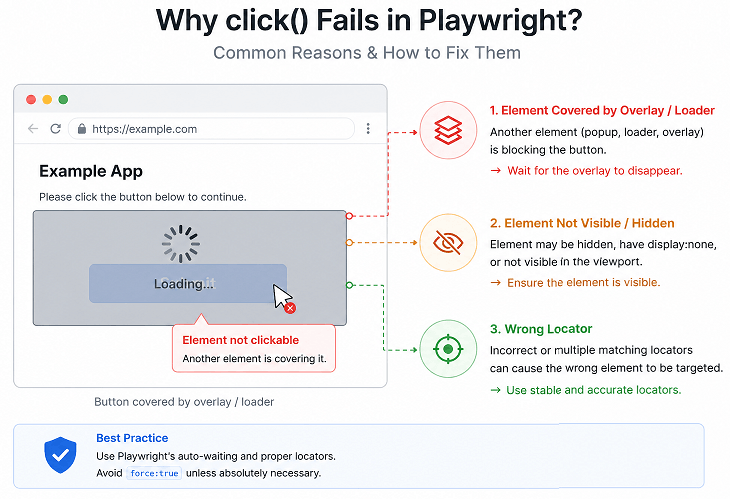
Here are the most common reasons and how to fix them:
- Element not visible: Make sure the element is actually visible on the screen before clicking
- Wrong locator: Double check your selector or use
getByRole()for better stability - Element covered by another element: Check if any popup, loader, or overlay is blocking the click
- Page not fully loaded: Wait for the correct UI state instead of adding hard waits
- Inside iframe: Make sure you are switching to the correct frame
Quick fix: Run your test in headed mode or use page.pause() to visually inspect what is happening before the click.
Best Practices for Playwright Actions in TypeScript
Following best practices for Playwright actions helps you write stable, fast, and maintainable tests. These practices are based on real project usage and align with the latest Playwright recommendations.
Here are the most important practices you should follow.
Always Use Locator Based Actions
Use page.locator() instead of older selector methods. Locators provide auto waiting, retry logic, and better reliability.
- Preferred:
page.locator('#login').click() - Avoid: direct element handles or outdated selectors
This is what most teams follow today to keep tests reliable.
Prefer fill() for Input Fields
Use fill() as your default method for entering text. It is faster and more stable.
- Use
fill()for forms and standard inputs - Switch to
type()only when testing keyboard behavior
This small change can noticeably improve your test speed.
Avoid Hard Waits
Do not use waitForTimeout() unless absolutely necessary. It slows down tests and makes them unreliable.
- Rely on Playwright auto waiting
- Wait for specific UI conditions instead of fixed delays
This keeps your tests faster and easier to manage.
A well structured Playwright project also helps keep actions clean, reusable, and maintainable. This guide on Playwright project structure in TypeScript explains how real automation frameworks are organized.
Use Meaningful and Stable Locators
Locator quality directly affects test stability.
- Prefer role based locators like
getByRole() - Use labels or text where possible
- Avoid deeply nested CSS selectors
Better locators reduce maintenance effort.
Validate After Actions
After performing an action, always verify the expected result. This ensures your test actually checks behavior instead of just executing steps.
- Check navigation after click
- Validate input values after fill
- Assert UI changes after actions
This ensures your tests validate real behavior, not just execute steps.
Keep Actions Clean and Focused
Each test step should perform a single clear action. Avoid combining too many operations in one step.
When tests are simple and readable, debugging becomes much easier.
Real World Insight
In large automation frameworks, most flaky tests are caused by poor locator strategy and unnecessary waits, not by Playwright itself.
If you follow these practices, your tests will stay stable even as the application grows more complex.
These practices are based on real-world automation challenges where stability and speed matter more than just making tests pass.
Best Locator Strategy for Click, Type, and Fill Actions
Your actions are only as reliable as your locators. Even if you use click(), type(), or fill() correctly, weak locators can still cause test failures.
Here are the most reliable locator strategies in Playwright:
- getByRole() for buttons, links, and interactive elements
- getByLabel() for input fields
- getByText() for visible text elements
- data-testid attributes for stable automation
Avoid using long and complex CSS selectors. Instead, prefer user-facing attributes that are less likely to change.
If you want to go deeper, check this detailed guide on Playwright locators to understand how to build stable automation tests.
Examples in Other Languages
Playwright actions work similarly across all supported languages such as JavaScript, Java, and Python. The core concepts of click, type, and fill remain the same, with only syntax differences.
Here are simple examples to help you understand cross language usage.
JavaScript Example for Playwright Actions
This example shows how to perform click and fill actions using Playwright in JavaScript.
const { test } = require('@playwright/test');

test('actions example', async ({ page }) => {
  await page.goto('https://example.com');

  await page.locator('#username').fill('testuser');
  await page.locator('#password').fill('password123');
  await page.locator('#loginButton').click();
});
Java Example Using Playwright
This example demonstrates similar actions in Playwright Java using the same logic.
page.navigate("https://example.com");

page.locator("#username").fill("testuser");
page.locator("#password").fill("password123");
page.locator("#loginButton").click();
Python Example for Click and Fill
Here is how you can perform Playwright actions in Python.
page.goto("https://example.com")

page.locator("#username").fill("testuser")
page.locator("#password").fill("password123")
page.locator("#loginButton").click()
As you can see, the structure remains consistent across languages. This makes Playwright easy to learn if you switch between languages.
Key Takeaway
Once you understand Playwright actions in TypeScript, you can quickly apply the same knowledge in JavaScript, Java, or Python with minimal changes.
Related Playwright Tutorials
If you are learning Playwright actions, it is important to understand the complete flow of automation testing. These related tutorials will help you build strong fundamentals and improve your overall Playwright skills.
- How to Launch Browser in Playwright TypeScript
- How to Navigate to URL in Playwright TypeScript
- How to Locate Elements in Playwright TypeScript
- How to Handle Forms in Playwright
Advanced Tips for Real World Playwright Actions
Once you are comfortable with basic Playwright actions like click(), type(), and fill(), a few advanced tips can help you handle real world applications more effectively.
Handle Dynamic Elements with Confidence
Modern web apps often load elements dynamically. Playwright handles most cases automatically, but you should still verify UI readiness.
- Wait for elements to be visible before action
- Use
toBeVisible()assertions when needed - Avoid interacting with hidden elements
Use Assertions Along with Actions
Actions alone are not enough. Always validate the result after performing an action.
- After click, verify navigation or UI change
- After fill, verify the value is updated
- After type, validate dynamic behavior
Leverage Playwright Debugging Tools
Debugging is an important part of automation. Playwright provides powerful tools to inspect failures.
- Use
page.pause()for interactive debugging - Enable trace viewer for detailed analysis
- Capture screenshots on failure
Performance Consideration for Large Test Suites
In large projects, inefficient actions can slow down execution significantly.
- Prefer
fill()overtype()for speed - Avoid unnecessary retries or loops
- Keep actions minimal and precise
In short, efficient Playwright actions can reduce test execution time and improve overall framework performance.
Little Known Insight Most Blogs Miss
One important detail many tutorials skip is that Playwright actions are tightly integrated with browser engines like Chromium, WebKit, and Firefox.
This means your actions behave closer to real user interactions compared to traditional tools. As a result, tests are more reliable across different browsers without extra configuration.
This is one of the reasons why Playwright is widely adopted in modern test automation.
When Should You Avoid Using click(), type(), and fill()?
Although click(), type(), and fill() are core Playwright actions, there are situations where you should avoid using them directly.
- When interacting with hidden elements
- When UI is not stable or still loading
- When backend APIs can validate functionality faster
- When repeated UI actions slow down test execution
In such cases, consider improving test design instead of forcing UI interactions. This approach makes your automation faster and more reliable.
Conclusion
Playwright actions in TypeScript such as click(), type(), and fill() are the core building blocks of UI automation. By using methods like click(), type(), and fill(), you can simulate real user interactions in a simple and reliable way.
In this guide, you learned when to use each method, how they behave, and which approach works best in real world scenarios. Choosing the right action at the right time can make your tests faster, more stable, and easier to maintain.
If you are just starting, focus on using fill() for most inputs, click() for interactions, and type() only when needed. As you gain experience, these small decisions will significantly improve your automation quality.
Once you start applying these actions in real test cases, you will quickly understand which method fits each situation. The key is not just knowing the methods, but choosing the right one based on how the application behaves.
FAQs
How do I perform click action in Playwright TypeScript?
You can perform a click action in Playwright using page.locator('selector').click(). Playwright automatically waits for the element to be visible, enabled, and ready before clicking.
What is the difference between type() and fill() in Playwright?
The difference between type() and fill() in Playwright is that type() enters text character by character and triggers keyboard events, while fill() sets the full value instantly without triggering individual key events.
Which method should I use for input fields in Playwright?
You should use fill() for most input fields because it is faster and more stable. Use type() only when you need to simulate real typing behavior.
Does Playwright automatically wait before performing actions?
Yes, Playwright automatically waits for elements to be visible, enabled, and stable before performing actions like click(), type(), and fill().
Why is my click() action failing in Playwright?
Click action can fail due to incorrect locator, element not visible, overlapping elements, or UI not ready. Instead of adding waits, fix the locator or wait for proper UI state.
Can I use Playwright actions without locators?
While it is technically possible, you should use locator() based actions in Playwright. Locators provide auto waiting, retry logic, and make your tests more stable.
Is fill() faster than type() in Playwright?
Yes, fill() is faster because it sets the value instantly, while type() simulates typing character by character.
When should I use type() instead of fill()?
You should use type() when testing features like live search, autocomplete, or input validation that depend on keyboard events.
Do Playwright actions work the same across browsers?
Yes, Playwright actions work consistently across Chromium, WebKit, and Firefox because they are designed to simulate real user interactions.
What is the best practice for using Playwright actions?
Use locator based actions, prefer fill() for inputs, avoid hard waits, and always validate results after performing actions.