Playwright navigation methods in TypeScript are used to open pages, move between them, refresh content, and control browser history during automation testing. In simple terms, these methods let your test behave like a real user who visits a website, clicks links, reloads pages, or navigates back and forward.
If you are using Playwright with TypeScript, navigation is one of the first things you need to get right. It directly affects test stability, execution speed, and overall reliability. Many beginners run into issues like pages not loading fully, wrong URLs, or tests failing due to timing problems.
If you are new to Playwright, you can start with our Playwright TypeScript tutorial to understand the complete setup, concepts, and real-world automation workflow.
In this guide, you will learn how to use Playwright navigation methods in TypeScript such as page.goto(), page.goBack(), page.goForward(), page.reload(), and page.waitForURL() with practical examples. You will also see real-world tips and current best practices to avoid flaky tests.
- How to Use Playwright Navigation Methods in TypeScript?
- What are Playwright Navigation Methods in TypeScript?
- How to Use page.goto() in Playwright TypeScript?
- How to Use page.goBack() and page.goForward() in Playwright TypeScript?
- How to Use page.reload() in Playwright TypeScript?
- How to Use page.waitForURL() in Playwright TypeScript?
- Common Playwright Navigation Mistakes and How to Fix Them
- Playwright Navigation Best Practices in TypeScript
- Related Playwright Tutorials
- Conclusion
- FAQs
How to Use Playwright Navigation Methods in TypeScript?
Playwright navigation methods in TypeScript include page.goto(), page.goBack(), page.goForward(), page.reload(), and page.waitForURL(). These methods control browser navigation, handle page transitions, and ensure reliable automation test execution.
You can use these navigation methods on the Playwright Page object to open URLs, move between pages, refresh content, and handle navigation flows efficiently in your tests.
Here is a quick TypeScript example that shows the most commonly used navigation methods:
// Navigate to a URL
await page.goto('https://example.com');

// Go back to previous page
await page.goBack();

// Go forward
await page.goForward();

// Reload current page
await page.reload();

// Wait for a specific URL
await page.waitForURL('**/dashboard');
This is a simple and reliable way to handle navigation in Playwright TypeScript. In the next sections, you will learn each method in detail with real examples and best practices.
What are Playwright Navigation Methods in TypeScript?
Playwright navigation methods in TypeScript are built-in APIs that control how a browser loads pages, moves between them, and handles URL changes during automation testing. These methods are part of the Playwright Page object and are designed to simulate real user navigation in a reliable and predictable way.
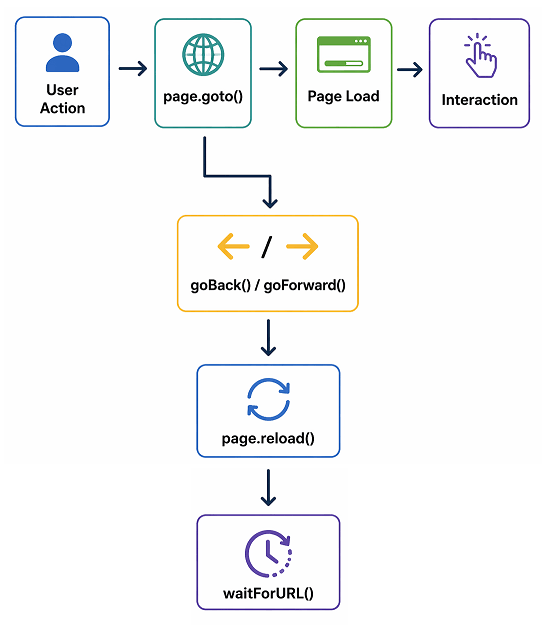
The following diagram shows how different Playwright navigation methods work together during a typical test flow.
According to the Playwright official documentation, navigation methods like page.goto() automatically wait for specific browser lifecycle events to ensure a page is ready before proceeding.
In Playwright, navigation is not just about opening a URL. It also includes handling redirects, waiting for page load states, tracking browser history, and ensuring that the page is ready before the test continues. This is why navigation plays a critical role in test stability.
Here are the most commonly used Playwright navigation methods in TypeScript:
page.goto(url)opens a specific URL and starts navigationpage.goBack()moves to the previous page in browser historypage.goForward()navigates to the next page in historypage.reload()refreshes the current pagepage.waitForURL()waits until the page reaches a specific URL
All these methods work consistently across browsers such as Chromium, Firefox, and WebKit. According to Playwright documentation, navigation methods include built-in waiting mechanisms, which means they automatically wait for the page to reach a stable state based on the selected load condition.
In short, Playwright navigation methods in TypeScript give you precise control over how your tests move through an application. When used correctly, they help you avoid flaky tests and ensure your automation behaves like a real user journey.
How to Use page.goto() in Playwright TypeScript?
The page.goto() method in Playwright TypeScript is used to navigate to a specific URL. It opens the target page and waits until the defined load state is reached, so your test continues only when the page is ready.
This is usually the first step in almost every Playwright test because it loads the application under test.
Before using navigation methods, make sure your environment is ready. Follow this step-by-step guide to install Playwright with TypeScript and run your first test.
Here is a simple TypeScript example:
// Navigate to a website
await page.goto('https://example.com');
By default, Playwright waits for the page load event. However, modern applications often load content dynamically, so relying only on default behavior is not always enough.
Using page.goto() with Navigation Options
You can pass options to control how Playwright waits during navigation.
await page.goto('https://example.com', {
  waitUntil: 'load',   // options: load, domcontentloaded, networkidle
  timeout: 30000
});
Common waitUntil values:
- load waits for the full page load event
- domcontentloaded waits until HTML parsing is complete
- networkidle waits until no network connections for at least 500 ms
This flexibility helps when working with single-page applications or pages that load data asynchronously.

Real World Example in TypeScript
In real projects, navigation is often followed by user actions such as login or form submission.
// Navigate to login page
await page.goto('https://example.com/login');

// Perform login steps
await page.fill('#username', 'user');
await page.fill('#password', 'pass');
await page.locator('#login').click();
Here is where many beginners get stuck. They assume the page is fully ready after page.goto(), but in real applications, UI elements may still be loading in the background.
Quick Tip for Stable Tests
Avoid relying only on navigation completion. Instead, wait for a specific element that confirms the page is ready for interaction.
await page.goto('https://example.com/dashboard');
await expect(page.locator('#welcome')).toBeVisible();
How to Use page.goBack() and page.goForward() in Playwright TypeScript?
The page.goBack() and page.goForward() methods in Playwright TypeScript are used to navigate through browser history. These methods simulate real user actions such as clicking the browser back and forward buttons.
You typically use these methods when validating navigation flows, such as moving between pages in multi-step forms, product browsing, or returning to a previous screen after an action.
Here is a simple TypeScript example:
// Navigate to first page
await page.goto('https://example.com/page1');

// Navigate to second page
await page.goto('https://example.com/page2');

// Go back to previous page
await page.goBack();

// Go forward again
await page.goForward();
Both methods automatically wait for navigation to complete based on Playwright’s default behavior, so you usually do not need to add extra waits.
Using Navigation Options with goBack and goForward
Similar to page.goto(), you can pass options to control how Playwright waits during navigation.
await page.goBack({
  waitUntil: 'load',
  timeout: 30000
});

await page.goForward({
  waitUntil: 'domcontentloaded'
});
This is useful when working with pages that load content dynamically or have delayed rendering.
Real World Use Case
Consider an e-commerce scenario where a user opens a product and then returns to the listing page.
// Open product listing
await page.goto('https://example.com/products');

// Click on a product
await page.click('.product-item');

// Go back to product listing
await page.goBack();
This pattern is very common when validating navigation flows and ensuring the previous page state is preserved correctly.
Important Behavior to Know
If there is no previous or next page in browser history, these methods may return null. This can happen if the test starts directly on a page without prior navigation.
In real projects, it is a good practice to design your navigation flow clearly so that back and forward actions behave predictably.
Quick Tip
Use page.goBack() only when your test flow depends on browser history. For direct navigation, prefer page.goto() because it is more predictable and easier to maintain.
How to Use page.reload() in Playwright TypeScript?
The page.reload() method in Playwright TypeScript is used to refresh the current page. It behaves like the browser refresh button and reloads the page while preserving the current URL.
This method is useful when you need to verify updated data, re-trigger page logic, or validate changes after an action such as form submission or API updates.
Here is a simple TypeScript example:
// Reload the current page
await page.reload();
By default, Playwright waits for the page reload to complete before moving to the next step. This ensures your test continues only after the page is stable.
Using page.reload() with Options
You can customize how Playwright waits after reloading the page using navigation options.
await page.reload({
  waitUntil: 'load',
  timeout: 30000
});- load waits for the full page load event
- domcontentloaded waits until the DOM is ready
- networkidle waits until network activity is minimal
Choosing the right option depends on how your application loads content.
Real World Scenario
In real applications, reload is often used when data changes are not immediately reflected on the UI or when the page needs to fetch fresh data from the server.
// Submit a form
await page.click('#submit');

// Reload to verify updated data
await page.reload();

// Validate updated content
const status = await page.locator('#status').textContent();
console.log(status);
This approach helps confirm that the latest state of the application is displayed correctly after backend updates.
Quick Tip for Stability
Avoid using page.reload() as a workaround for timing issues. If your test depends on frequent reloads, it usually indicates missing waits or incorrect synchronization logic.
How to Use page.waitForURL() in Playwright TypeScript?
The page.waitForURL() method in Playwright TypeScript is used to wait until the page URL matches a specific value or pattern. It is one of the most reliable ways to handle navigation timing issues in modern web applications.
This method is especially useful when navigation happens after a user action such as clicking a button, submitting a form, or being redirected after login.
Here is a simple TypeScript example:
// Click action that triggers navigation
await page.click('#login');

// Wait for URL to change
await page.waitForURL('**/dashboard');
This ensures your test continues only after the expected page is loaded and the URL is updated.
Using Patterns with waitForURL
You can use wildcard patterns or regular expressions to handle dynamic URLs.
// Using wildcard
await page.waitForURL('**/products/*');

// Using regex
await page.waitForURL(/.*dashboard/);
This approach is helpful when URLs include dynamic IDs, query parameters, or session values.
Real World Scenario
In real applications, navigation often includes redirects. For example, after login, the application may redirect to a dashboard page.
// Perform login
await page.fill('#username', 'user');
await page.fill('#password', 'pass');
await page.click('#login');

// Wait for dashboard page
await page.waitForURL('**/dashboard');

// Validate dashboard element
await expect(page.locator('#welcome')).toBeVisible();
This pattern is a current best practice because it waits for actual navigation instead of relying on fixed delays.
Why page.waitForURL() is Important
Many beginners use hard waits like waitForTimeout(), which makes tests slow and unreliable. In contrast, page.waitForURL() waits for real navigation events, making your tests faster and more stable.
Can Playwright handle navigation without waiting?
Yes, Playwright can trigger navigation without explicit waits, but it is not recommended. Always use methods like page.waitForURL() or element waits to ensure stability.
Does Playwright automatically wait for navigation?
Playwright automatically waits for navigation triggered by its own actions. However, for dynamic applications, additional waits such as URL or element-based checks are recommended.
Which navigation method is most reliable in Playwright?
page.waitForURL() combined with element-based validation is the most reliable approach for handling navigation in modern web applications.
Quick Tip
Always prefer page.waitForURL() or element-based waits over static delays. This is the current best practice for writing stable Playwright TypeScript tests.
Common Playwright Navigation Mistakes and How to Fix Them
Most navigation issues in Playwright TypeScript are not caused by the tool itself, but by how navigation is handled in test code. Small mistakes in waiting strategy or assumptions about page load can quickly lead to flaky tests.
Here are the most common mistakes along with the correct approach used in real projects.
Using waitForTimeout Instead of Real Conditions
Using waitForTimeout() might look simple, but it introduces unnecessary delays and does not guarantee that the page is ready.
// Avoid this
await page.waitForTimeout(5000);

// Prefer this
await page.waitForURL('**/dashboard');
In real-world automation, condition-based waits always perform better because they respond to actual application behavior.
Assuming page.goto() Means Everything is Loaded
It is a common misconception that page.goto() guarantees a fully ready page. Modern applications often load content after the initial page load event.
// Better approach
await page.goto('https://example.com');
await page.locator('#dashboard').waitFor();
Waiting for a key element ensures that the specific part of the page your test depends on is actually ready.
Overusing networkidle for Every Navigation
The networkidle option is often misunderstood. It waits for network activity to become minimal, but many applications continuously send background requests.
Using it everywhere can slow down tests or even cause them to hang. Use it only when you clearly understand your application’s behavior.
Missing Navigation Handling After Click Actions
When navigation is triggered by a user action, tests may fail if the navigation is not handled at the right time.
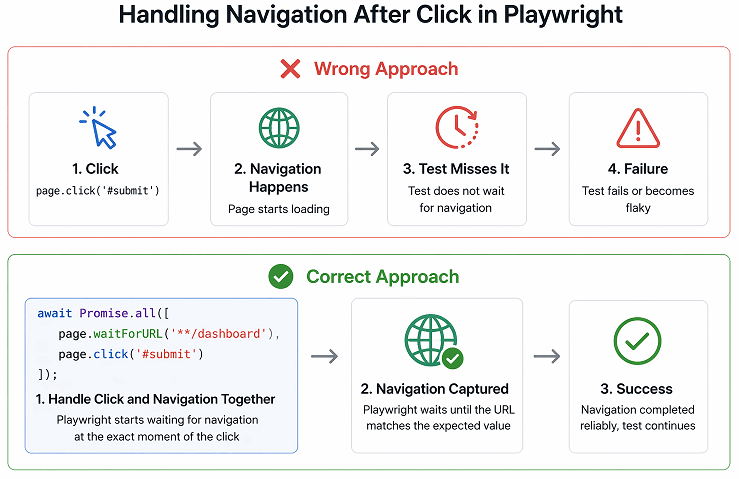
// Recommended pattern
await Promise.all([
  page.waitForURL('**/next-page'),
  page.click('#navigate')
]);
This pattern ensures Playwright starts waiting for navigation at the exact moment the action is triggered.
Not Handling Redirects Explicitly
Applications often redirect users after login or form submission. If your test does not wait for the final URL, it may fail intermittently.
// Handle redirect properly
await page.click('#login');
await page.waitForURL('**/dashboard');
Quick Summary
- Avoid hard waits like
waitForTimeout() - Always wait for real conditions like URL or elements
- Use
Promise.all()for action-based navigation - Do not rely blindly on
networkidle - Handle redirects explicitly in your tests
Simply put, most navigation failures come from incorrect waiting strategies, not from Playwright itself.
Playwright Navigation Best Practices in TypeScript
Using the right navigation practices in Playwright TypeScript makes your tests faster, more stable, and easier to maintain. These are not just theoretical tips but practical approaches used in real automation projects.
Use Condition Based Waiting Instead of Fixed Delays
Always rely on real conditions such as URL changes or element visibility instead of fixed delays. This ensures your test reacts to actual application behavior.
- Use
page.waitForURL()for navigation validation - Use
locator.waitFor()for element readiness - Avoid
waitForTimeout()in production tests
Validate Page Readiness Using Key Elements
After navigation, do not depend only on the URL. Always verify a key UI element that confirms the page is ready for interaction.
await page.goto('https://example.com/dashboard');
await expect(page.locator('#welcome')).toBeVisible();
This approach works better for modern applications where content loads asynchronously.
Navigation methods work on the Page object, which is created after launching a browser. If you are not familiar with this step, check how to launch a browser in Playwright TypeScript before proceeding.
Combine Actions and Navigation Handling
When navigation is triggered by an action, always combine the action and wait to avoid timing issues.
await Promise.all([
  page.waitForURL('**/next-page'),
  page.click('#submit')
]);
This ensures Playwright does not miss the navigation event.
Use Flexible URL Matching for Dynamic Routes
Modern applications often use dynamic URLs. Avoid exact matches and use patterns instead.
await page.waitForURL('**/orders/*');This makes your tests more resilient to changes in IDs or query parameters.
Keep Navigation Logic Reusable
Navigation steps are often repeated across multiple tests. Extract them into reusable helper functions to keep your test code clean.
async function goToDashboard(page) {
  await page.goto('https://example.com/dashboard');
  await expect(page.locator('#welcome')).toBeVisible();
}
Performance Insight for Faster Tests
Navigation strategy directly impacts test execution time. Overusing full page loads or networkidle can slow down tests significantly. Instead, waiting for specific elements or partial page readiness improves both speed and reliability.
Quick Summary
- Always use condition-based waits
- Validate navigation with elements, not just URLs
- Handle navigation together with user actions
- Use patterns for dynamic URLs
- Keep navigation logic reusable and clean
In short, following these practices will help you write reliable and maintainable Playwright TypeScript tests without flaky behavior.
Related Playwright Tutorials
If you are learning Playwright TypeScript, navigation is just one part of the complete automation workflow. To build strong fundamentals, you should also understand other core concepts.
Here are some important tutorials that connect directly with navigation and will help you build end to end test scenarios:
- Get Element Text, Attribute, and State in Playwright
- Complete Playwright Automation Tutorial for Beginners
- How to Launch Browser in Playwright TypeScript
- How to Locate Elements in Playwright
These tutorials will help you understand how navigation works together with locators, actions, and validations in real automation scenarios.
In short, mastering navigation along with these topics will help you build complete and production ready Playwright TypeScript frameworks.
Conclusion
Playwright navigation methods in TypeScript help you control how your tests move across pages, handle redirects, and verify user flows with confidence. Methods like page.goto(), page.goBack(), page.goForward(), page.reload(), and page.waitForURL() form the foundation of reliable browser automation.
In real projects, stability comes from how you handle navigation, not just how you write test steps. Using condition-based waits, combining actions with navigation, and validating elements instead of relying only on page load makes a noticeable difference in test reliability.
If you are working with Playwright TypeScript, mastering navigation is a key step toward building scalable and production-ready automation frameworks. As you move forward, combine these navigation techniques with strong locator strategies and assertions to create complete end-to-end test scenarios.
FAQs
What is the difference between page.goto() and page.waitForURL()?
page.goto() is used to navigate to a new page, while page.waitForURL() is used to wait until the page URL matches a specific value after navigation. In simple terms, goto starts navigation and waitForURL confirms that navigation is complete.
Does page.reload() wait for the page to load in Playwright?
Yes, page.reload() waits for the page to reload based on the configured waitUntil option. By default, it waits for the load event before continuing the test execution.