You can launch a browser in Playwright with TypeScript by using methods like chromium.launch(), firefox.launch(), or webkit.launch(). These methods start a real browser instance that your script can control to perform actions like navigation, clicking, and validation. This is the first and required step before performing any automation in Playwright.
Most beginners think launching a browser in Playwright is just one line of code. In reality, small mistakes in this step can lead to slow tests, flaky results, or debugging issues later.
If you are just getting started with Playwright, launching a browser might seem simple, but there are a few important details that can affect performance, debugging, and test stability.
In this guide, you will learn the correct and latest approach to launching a browser in Playwright using TypeScript, along with practical examples, including Chromium, Chrome, and commonly used configuration options from real automation projects.
We will also cover headless vs headed mode, common mistakes beginners make, and how to configure the browser properly for different testing scenarios.
Author Note: This guide is based on real-world Playwright usage in automation projects, including debugging flaky tests, optimizing execution speed, and handling cross-browser scenarios.
- What do you need before launching a browser in Playwright?
- How to Launch Browser in Playwright with TypeScript?
- What is Browser Launch in Playwright?
- How to Launch Different Browsers in Playwright?
- How to Launch Browser in Headless and Headed Mode?
- What are the Most Important Browser Launch Options in Playwright?
- What are Common Mistakes When Launching Browser in Playwright?
- What are Real-World Use Cases of Launching Browser in Playwright?
- What are Advanced Tips for Launching Browser in Playwright?
- How does Playwright Test launch the browser automatically?
- How to improve browser launch performance in Playwright?
- How to debug browser launch issues in Playwright?
- What are common errors when launching browser in Playwright?
- Related Playwright Tutorials
- Pro Tips for Playwright Browser Launch
- Conclusion
- FAQs
What do you need before launching a browser in Playwright?
Before launching a browser in Playwright, make sure Playwright is installed and browser binaries are downloaded.
- Install Playwright using npm or yarn
- Run
npx playwright installto download browsers - Ensure TypeScript is configured properly
Without these steps, the browser may fail to launch or throw runtime errors.
How to Launch Browser in Playwright with TypeScript?
You can launch a browser in Playwright TypeScript using methods like chromium.launch(), which creates a new browser instance for automation and testing.
- Import Playwright
- Launch browser using
chromium.launch() - Create a new page
- Navigate to a URL
- Close the browser
If you haven’t installed Playwright yet, follow this guide: Playwright Installation in TypeScript
Here is a simple working example:
import { chromium } from '@playwright/test';

(async () => {
  const browser = await chromium.launch();
  const context = await browser.newContext();
  const page = await context.newPage();

  await page.goto('https://example.com');

  console.log(await page.title());

  await browser.close();
})();
This is the most common and recommended way to launch a browser in Playwright using TypeScript.
What is Browser Launch in Playwright?
In Playwright, launching a browser means starting a controlled browser process such as Chromium, Firefox, or WebKit using Playwright APIs. This process allows your script to interact with web pages in a consistent and isolated environment.
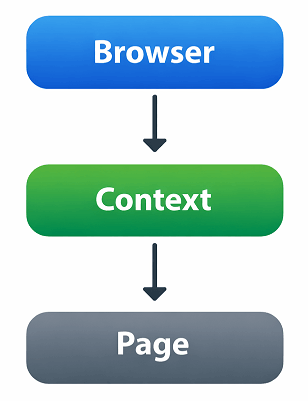
Unlike traditional automation tools, Playwright uses browser-specific protocols (like CDP for Chromium) under the hood to control browsers efficiently. This makes browser launch faster, more reliable, and consistent across different environments.
When you call methods like chromium.launch(), Playwright internally starts a fresh browser process. You can then create multiple pages or contexts inside that browser depending on your testing needs.
How does browser launch work internally in Playwright?
When you launch a browser in Playwright, it does more than just open a window. It sets up a controlled automation session that allows scripts to interact with the browser in a stable way.
- Playwright starts a browser process in the background
- It establishes a communication channel with the browser
- Creates isolated browser contexts for testing
- Allows multiple pages (tabs) within a single browser
This design is one of the key reasons Playwright is often faster due to its architecture and modern browser control approach.
Why is launching the browser the first step in automation?
You must launch the browser before performing any automation because all interactions happen inside that browser instance. Without launching it, there is no environment to run your test steps.
In real projects, this step is usually handled in test setup files or frameworks like Playwright Test, but understanding it manually helps you debug issues faster.
Launching the browser is the foundation of every Playwright script. Everything else like navigation, element interaction, and assertions depends on it.
Now that you understand what browser launch means, let’s look at how to run your tests across different browsers in Playwright.
How to Launch Different Browsers in Playwright?
You can launch different browsers in Playwright by using specific browser objects such as chromium, firefox, and webkit. Each of these provides a launch() method to start that particular browser engine.
This flexibility allows you to run the same automation script across multiple browsers, which is important for cross-browser testing.
Chromium Browser Example in TypeScript
Here’s how you can launch a Chromium browser in Playwright. This is the default choice in most projects because it is fast and closely matches real Chrome behavior.
import { chromium } from '@playwright/test';

(async () => {
  const browser = await chromium.launch();
  const page = await browser.newPage();

  await page.goto('https://example.com');

  await browser.close();
})();
Firefox Browser Launch Example
Here is how you can launch the Firefox browser using Playwright. The API is exactly the same, only the browser object changes.
import { firefox } from 'playwright';

(async () => {
  const browser = await firefox.launch();
  const page = await browser.newPage();

  await page.goto('https://example.com');

  await browser.close();
})();
WebKit Browser Example (Safari Engine)
If you need to test Safari-like behavior, you can launch WebKit. This is especially useful for validating UI issues on Apple devices.
import { webkit } from 'playwright';

(async () => {
  const browser = await webkit.launch();
  const page = await browser.newPage();

  await page.goto('https://example.com');

  await browser.close();
})();
Quick Comparison of Supported Browsers
Playwright supports multiple browser engines out of the box. Here is a quick comparison to help you understand when to use each one.
| Browser | Engine | Best Use Case |
|---|---|---|
| Chromium | Blink | Most common testing, Chrome-like behavior |
| Firefox | Gecko | Cross-browser compatibility testing |
| WebKit | WebKit | Safari testing and iOS-like environments |
In real-world projects, teams usually start with Chromium for speed and stability, then run tests on Firefox and WebKit to ensure full compatibility.
Which Browser Should You Use?
| Use Case | Best Browser |
|---|---|
| Fast automation & CI | Chromium |
| Cross-browser validation | Firefox |
| Safari/iOS testing | WebKit |
Can Playwright launch a browser without opening UI?
Yes. Playwright runs in headless mode by default, which means the browser runs in the background without opening a visible window.
Once you know how to launch browsers, the next step is choosing how they should run. This directly affects speed, debugging, and test reliability.
How to Launch Chrome Browser in Playwright
In addition to Chromium, you can launch the real Google Chrome browser in Playwright using the channel option,
const browser = await chromium.launch({
  channel: 'chrome'
});
This approach is useful when you want to test in a real user environment instead of bundled Chromium.
How to Launch Browser in Headless and Headed Mode?
You can launch a browser in headless or headed mode in Playwright by passing the headless option inside the launch() method. Headless mode runs the browser without a visible UI, while headed mode opens the browser window for debugging and visual validation.
Choosing the right mode is important because it directly impacts execution speed, debugging experience, and test reliability.
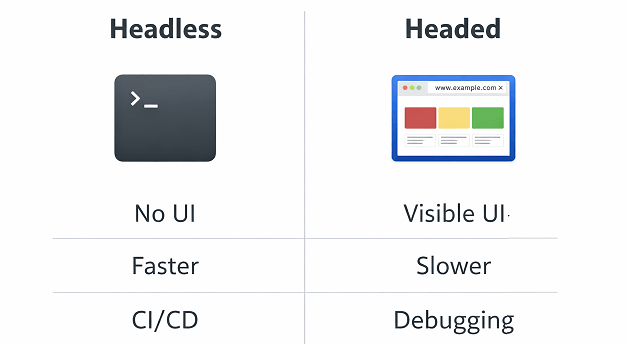
Here’s the catch: using the wrong mode can make your tests slow or very hard to debug.
Headless Mode Example (Faster Execution)
This example shows how to launch the browser in headless mode. This is the default behavior in Playwright and is commonly used in CI pipelines.
import { chromium } from '@playwright/test';

(async () => {
  const browser = await chromium.launch({ headless: true });
  const page = await browser.newPage();

  await page.goto('https://example.com');

  await browser.close();
})();
Headless mode is commonly used in automation pipelines, while headed mode is preferred when debugging Playwright browser launch issues.
Quick tip: Headless mode is faster because it skips rendering the UI, making it ideal for automation and large test suites.
Headed Mode Example (Visible Browser)
If you want to see your test running step by step, launch the browser in headed mode. This helps you quickly spot issues during execution.
import { chromium } from '@playwright/test';

(async () => {
  const browser = await chromium.launch({ headless: false });
  const page = await browser.newPage();

  await page.goto('https://example.com');

  await browser.close();
})();
This is where most beginners benefit: Running tests in headed mode helps you quickly identify issues like wrong selectors, timing problems, or unexpected page behavior.
Headless vs Headed Mode Comparison
Both modes serve different purposes. Choosing the right one depends on your testing scenario.
| Mode | Performance | Use Case |
|---|---|---|
| Headless | Faster | CI/CD pipelines, automation at scale |
| Headed | Slower | Debugging, development, visual validation |
Can you switch modes dynamically?
Yes. You can control the headless setting using environment variables or configuration files, especially when using Playwright Test.
For example, many teams run tests in headed mode locally and switch to headless mode in CI environments.
To summarize, use headed mode while developing and debugging, and switch to headless mode for faster execution in production pipelines.
What are the Most Important Browser Launch Options in Playwright?
You can control browser behavior in Playwright by passing options to the launch() method. These options help you customize how the browser starts, including visibility, performance, debugging, and environment settings.
Using the right launch options is critical. It improves test stability, debugging, and overall performance.
If you want to explore all available launch options in detail, check the official Playwright BrowserType API documentation, which explains how each option works in real scenarios.
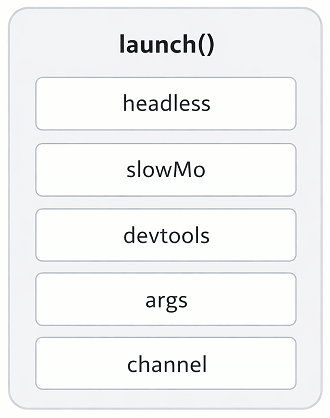
Most beginners ignore these options at first. But once your tests grow, these settings become essential.
Commonly Used Launch Options in Playwright
Here are the most important options you will use in real projects. These are not just theoretical. You will use them almost daily once you start building test suites.
- headless: Runs browser without UI (true or false)
- slowMo: Adds delay between actions for debugging
- devtools: Opens browser DevTools automatically
- args: Pass custom Chromium flags
- timeout: Set launch timeout duration
- channel: Use specific browser like Chrome or Edge
These browser launch options in Playwright help simulate real-world environments and improve test reliability.
TypeScript Example with Multiple Launch Options
This example shows how to launch a browser with multiple options configured. This is closer to how real automation scripts are written in production.
import { chromium } from '@playwright/test';

(async () => {
  const browser = await chromium.launch({
    headless: false,
    slowMo: 100,
    devtools: true,
    args: ['--start-maximized']
  });

  const page = await browser.newPage();
  await page.goto('https://example.com');

  await browser.close();
})();
This setup is extremely useful when debugging tests because you can visually see each step and inspect elements using DevTools.
When should you use these options?
Use launch options based on your specific goal. There is no one-size-fits-all configuration.
- Use slowMo when debugging flaky tests
- Use devtools when inspecting selectors or network issues
- Use args when simulating real browser behavior
- Use channel when testing in actual Chrome or Edge
Here is where most beginners make mistakes: They run tests with default settings and struggle to debug issues. Proper use of launch options can save hours of troubleshooting.
Does Playwright support launching real Chrome browser?
Yes. Playwright can launch Chrome or Edge using the channel option.
const browser = await chromium.launch({
  channel: 'chrome'
});
This is useful when you want to match real user environments instead of bundled Chromium.
In short, mastering launch options gives you better control, faster debugging, and more reliable automation scripts.
Which browser does Playwright use by default?
Playwright uses Chromium by default, which is a fast and reliable browser engine similar to Google Chrome.
What are Common Mistakes When Launching Browser in Playwright?
Many beginners face issues when launching a browser in Playwright due to small but critical mistakes. Avoiding these mistakes early can save a lot of debugging time and make your automation scripts more stable.
These are real issues developers run into while working on actual projects, not just theoretical problems.
Most Common Mistakes Beginners Make
Here are the most frequent mistakes you should watch out for when launching a browser in Playwright.
- Forgetting to close the browser – This leads to memory leaks and multiple hanging processes
- Using headed mode in CI – Slows down execution and may fail in headless environments
- Not handling async properly – Missing
awaitcauses unpredictable behavior - Launching browser multiple times unnecessarily – Increases execution time significantly
- Ignoring launch options – Makes debugging much harder than it needs to be
Example of a Common Mistake
This example shows a typical issue where the browser is not closed properly. It may work locally but causes problems in larger test suites.
import { chromium } from '@playwright/test';

(async () => {
  const browser = await chromium.launch();
  const page = await browser.newPage();

  await page.goto('https://example.com');

  // Missing browser.close()
})();
Why this is a problem: Over time, multiple browser instances remain open in the background, which can slow down your system or crash your test runs.
Correct Approach (Best Practice)
This version ensures the browser is always closed properly, even if something fails during execution.
import { chromium } from '@playwright/test';

(async () => {
  const browser = await chromium.launch();

  try {
    const page = await browser.newPage();
    await page.goto('https://example.com');
  } finally {
    await browser.close();
  }
})();
This pattern is widely used in real-world automation frameworks to ensure clean execution.
Why avoiding these mistakes matters
Small mistakes in browser launch can cause flaky tests, slow execution, and hard-to-debug issues. Fixing them early improves reliability and performance significantly.
Treating browser launch as a critical setup step leads to more stable and production-ready Playwright scripts.
What are Real-World Use Cases of Launching Browser in Playwright?
Launching a browser in Playwright is not just a setup step. It is used in almost every real-world automation scenario including testing, scraping, and monitoring web applications.
Understanding where and how browser launch is used helps you design better automation scripts and avoid unnecessary complexity.
Common Real-World Use Cases
Here are some practical scenarios where launching a browser is essential in Playwright projects.
- End-to-End Testing – Launch browser to simulate real user journeys like login, checkout, and form submission
- Cross-Browser Testing – Run the same test across Chromium, Firefox, and WebKit
- Web Scraping – Extract dynamic content from modern JavaScript-heavy websites
- UI Validation – Verify page titles, elements, and layouts visually or programmatically
- Performance Monitoring – Analyze page load times and network activity
Example: Launch Browser for Login Test
This example demonstrates a simple real-world use case where the browser is launched to automate a login flow.
import { chromium } from '@playwright/test';

(async () => {
  const browser = await chromium.launch({ headless: false });
  const page = await browser.newPage();

  await page.goto('https://example.com/login');
  await page.getByLabel('Username').fill('testuser');
  await page.getByLabel('Password').fill('password123');
  await page.getByRole('button', { name: 'Login' }).click();

  console.log(await page.title());

  await browser.close();
})();
This is exactly how real automation tests are written. You simulate user actions like logging in, submitting forms, and verifying results step by step.
Where beginners often overcomplicate things
Many beginners try to launch a new browser for every test step, which is not efficient. In real projects, a single browser instance is reused with multiple contexts and pages.
Important note: Use browser contexts to isolate tests instead of launching multiple browsers unnecessarily.
How teams use browser launch in production
In production-grade frameworks, browser launch is usually handled in setup files or configuration layers. Tools like Playwright Test manage this automatically based on config.
However, knowing how it works manually gives you full control when debugging or building custom frameworks.
Simply put, browser launch is the entry point to every automation workflow and plays a key role in building scalable Playwright test suites.
What are Advanced Tips for Launching Browser in Playwright?
You can improve performance and stability in Playwright by using advanced browser launch techniques such as reusing browser instances, using contexts correctly, and configuring environments properly. These practices are commonly used in large-scale automation projects.
According to Playwright official documentation, using browser contexts instead of launching multiple browsers is the recommended approach for better performance and isolation.
These are the kinds of details most tutorials skip, but they make a big difference when your test suite grows.
Reuse Browser Instead of Launching Multiple Times
Instead of launching a new browser for every test, launch it once and reuse it with multiple contexts. This reduces execution time and resource usage.
- Launch browser once in setup
- Create new context for each test
- Close context instead of browser
Why this matters: Launching a browser is expensive. Reusing it improves speed significantly.
Understanding the difference between a browser instance and browser context is critical for writing scalable Playwright automation.
Use Browser Contexts for Isolation
Browser contexts act like separate sessions within the same browser. Each context has its own cookies, storage, and cache.
const browser = await chromium.launch();

const context1 = await browser.newContext();
const context2 = await browser.newContext();

const page1 = await context1.newPage();
const page2 = await context2.newPage();
This approach is a current best practice recommended in Playwright documentation.
Control Browser Launch via Environment
In real projects, you should not hardcode launch options. Instead, use environment variables to switch between headless and headed modes.
const isHeadless = process.env.HEADLESS === 'true';

const browser = await chromium.launch({
  headless: isHeadless
});
This makes your automation flexible across local, staging, and CI environments.
Debugging Tip: Use slowMo + headed mode together
When debugging complex flows, combine slowMo with headed mode. This allows you to visually track each step without rushing.
This is the fastest way to debug flaky tests without adding unnecessary logs.
Does launching browser affect test performance?
Yes. Browser launch time directly impacts test execution speed. Reusing browser instances and minimizing launches improves performance significantly.
Advanced browser launch strategies help you build faster, scalable, and production-ready Playwright frameworks.
How does Playwright Test launch the browser automatically?
When using Playwright Test, you usually do not need to manually call chromium.launch(). The test runner automatically launches the browser based on your configuration.
This is the current best practice for writing scalable test suites.
// playwright.config.ts
import { defineConfig } from '@playwright/test';

export default defineConfig({
  use: {
    browserName: 'chromium',
    headless: true
  }
});
Playwright Test handles browser lifecycle automatically, including launch and cleanup.
Simply put, manual launch is useful for learning, but real projects rely on Playwright Test configuration.
How to improve browser launch performance in Playwright?
You can improve browser launch performance in Playwright by reducing unnecessary launches and using optimized configurations.
- Run tests in headless mode for faster execution
- Reuse browser instances instead of launching repeatedly
- Avoid launching a browser inside loops
- Use browser contexts instead of new browser instances
These practices are commonly used in large-scale automation projects to reduce execution time.
How to debug browser launch issues in Playwright?
You can debug browser launch issues in Playwright by enabling headed mode, using slow motion, and checking logs.
- Set
headless: falseto see browser actions - Use
slowMoto slow down execution - Check terminal errors and logs
- Verify Playwright installation and browser binaries
These steps help identify issues like missing dependencies, incorrect selectors, or timing problems.
What are common errors when launching browser in Playwright?
Common errors while launching a browser in Playwright usually occur due to missing dependencies, incorrect setup, or environment issues.
- Playwright not installed correctly
- Browser binaries not downloaded
- Missing
awaitin async code - Running headed mode in CI environment
Fixing these issues usually resolves most browser launch problems quickly.
Related Playwright Tutorials
If you are learning Playwright step by step, these tutorials will help you build a strong foundation.
- Playwright TypeScript Tutorial
- How to Navigate to URL in Playwright
- How to Get Page Title in Playwright
- How to Locate Elements in Playwright
Following this series will help you understand Playwright from basics to advanced level in a structured way.
Pro Tips for Playwright Browser Launch
- Always reuse browser instances for faster execution
- Use browser contexts instead of launching multiple browsers
- Run headed mode only for debugging
- Use slowMo for visual debugging
- Avoid launching browser inside loops
In modern automation frameworks, launching the browser efficiently is critical for fast test execution and reliable results. Whether you are running tests in CI/CD pipelines, debugging locally, or performing cross-browser testing, understanding how Playwright starts and manages browser instances gives you a strong advantage.
Conclusion
Launching a browser in Playwright with TypeScript is the first and most important step in any automation workflow. By using methods like chromium.launch(), you can quickly start a browser instance and begin interacting with web pages for testing or automation tasks.
As you have seen, it is not just about starting a browser. Choosing the right mode, using proper launch options, and avoiding common mistakes can significantly improve your test stability and performance. These small improvements make a big difference in real-world projects.
If you are serious about learning Playwright, focus on building a strong foundation with concepts like browser launch, contexts, and page handling. Once these basics are clear, advanced topics become much easier to understand.
Next step: Run the examples on your machine and try switching between headless and headed modes. Once you see how the browser behaves, the rest of Playwright becomes much easier to understand.
FAQs
What is the launch() method in Playwright?
The launch() method in Playwright starts a new browser instance such as Chromium, Firefox, or WebKit. It returns a browser object that allows your script to open pages, navigate URLs, and perform automation actions.
How do I launch Chromium browser in Playwright TypeScript?
You can launch Chromium in Playwright TypeScript by importing chromium from the Playwright library and calling chromium.launch(). This returns a browser instance that you can use to create pages and run automation steps.
Can Playwright launch Chrome instead of Chromium?
Yes. Playwright can launch the installed Chrome browser by using the channel option with value ‘chrome’ inside the launch() method.
What is the difference between headless and headed mode in Playwright?
Headless mode runs the browser without a visible UI and is faster, while headed mode opens the browser window and is useful for debugging and visual validation.
Is launching a browser required in Playwright?
Yes. Launching a browser is required because all automation actions like navigation, clicking, and typing happen inside the browser instance.
Can I launch multiple browsers in Playwright?
Yes. You can launch multiple browser instances, but it is recommended to use browser contexts instead for better performance and isolation.
Why is my Playwright browser not launching?
Common reasons include missing dependencies, incorrect installation, or not using async/await properly. Checking Playwright installation and logs usually helps identify the issue.
How can I make Playwright browser launch faster?
You can improve performance by running in headless mode, reusing browser instances, and avoiding unnecessary browser launches in your test flow.