You can capture console logs in Playwright Java using page.onConsoleMessage(), which listens to all browser console events like log, error, warning, and info during test execution. This is the most common and reliable way to capture browser console logs in Playwright Java.
This guide covers capturing console logs, detecting browser errors, and validating console messages in Playwright Java for real-world automation scenarios.
In this guide, you will learn how to capture console logs in Playwright Java step by step. You will also see how to handle errors, filter logs, and use them in real automation scenarios. If you are new to Playwright, start with Playwright Java Tutorial to understand the basics before implementing advanced logging.
This guide is based on practical Playwright automation use cases, including debugging failed tests and handling console errors in production frameworks.
- How to Capture Console Logs in Playwright Java?
- What is Console Logging in Playwright Java and Why It Matters?
- How to Capture Console Logs in Playwright Java Step by Step?
- How to Capture Only Errors from Console in Playwright Java?
- How to Capture Detailed Console Information in Playwright Java?
- Playwright vs Selenium for Capturing Console Logs
- Real-World Debugging Scenarios Using Console Logs
- What Are Common Mistakes When Capturing Console Logs in Playwright Java?
- What Are Best Practices for Capturing Console Logs in Playwright Java?
- Attach Listener at the Right Time
- Filter Logs Based on Test Environment
- Fail Tests on Critical Console Errors
- Use Centralized Logging Utility
- Handle Multiple Pages and Contexts
- How to Capture Console Logs for Multiple Tabs in Playwright Java?
- Log with Context for Better Debugging
- Real-World Framework Tip
- Should you always log everything?
- Is console logging enough for debugging?
- Related Playwright Tutorials
- Conclusion
- FAQs
- How do you capture console logs in Playwright Java?
- Can Playwright capture JavaScript errors from the browser?
- How to fail a test if console errors are found?
- Do you need to enable console logging manually in Playwright Java?
- Can you capture console logs for multiple tabs in Playwright?
- What types of console messages can Playwright capture?
- Is capturing console logs useful in automation testing?
- When should you capture console logs in Playwright Java?
- What is the best way to capture console errors in Playwright Java?
- Why are console errors important in automation testing?
Here is a quick way to capture console logs in Playwright Java.
How to Capture Console Logs in Playwright Java?
To capture console logs in Playwright Java:
- Attach
page.onConsoleMessage()listener - Capture message using
msg.text() - Filter logs using msg.type() such as error, warning, log, info, or debug.
- Store logs for validation if needed
- Attach listener before page navigation
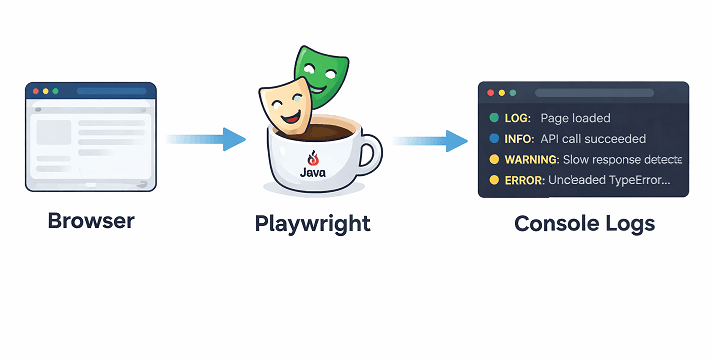
Playwright captures console messages in real time by subscribing to browser console events.
Below is a simple implementation to start capturing console messages in your Playwright test.
page.onConsoleMessage(msg -> {
    System.out.println(msg.text());
});
Before diving deeper, let’s understand the concept behind console logging.
For a deeper understanding of how console events work internally, you can refer to the Playwright official console message documentation.
What is Console Logging in Playwright Java and Why It Matters?
Console logging in Playwright Java refers to capturing messages printed in the browser console during test execution. These messages include logs, warnings, errors, and debug information generated by JavaScript running on the page.
This helps identify issues where tests pass visually but fail in the background, such as silent JavaScript errors or failed API calls.
Console logs act as an additional validation layer beyond UI checks. Instead of only checking UI elements, you can also verify that the application is running without hidden errors.
What types of console messages can you capture?
Playwright allows you to capture different types of console messages emitted by the browser.
| Console Type | Description | Use Case |
|---|---|---|
| log | Standard console output | General debugging and messages |
| error | JavaScript runtime errors | Detect failures and breakpoints |
| warning | Non-critical issues | Identify potential problems early |
| info | Informational messages | Track application flow |
| debug | Detailed debug data | Deep debugging and tracing |
Why is capturing console logs important in automation?
Console logs give you early visibility into issues that do not immediately break your test but can cause failures later in real user scenarios.
- Identify hidden JavaScript errors that break functionality
- Debug failed test cases faster
- Validate that no critical errors occur during page load
- Improve overall test reliability
Quick Tip: Many beginners ignore console logs and only focus on UI validation. This often leads to missed bugs that later appear in production.
With the basics clear, let’s move to implementation
How to Capture Console Logs in Playwright Java Step by Step?
You can capture console logs in Playwright Java by attaching a listener to the page before performing any actions. This ensures that all logs, including those during page load, are captured correctly.
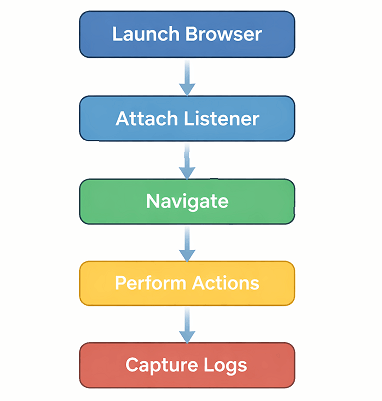
This flow ensures that no console messages are missed, especially those generated during page load and user interactions.
Follow these steps to implement console log capturing in your automation script.
Step 1: Initialize Playwright and Browser
Start by launching the browser and creating a new page instance where you want to capture logs. If you are not familiar with browser setup, refer to how to launch browser in Playwright Java before proceeding.
Playwright playwright = Playwright.create();
Browser browser = playwright.chromium().launch();
Page page = browser.newPage();
Step 2: Add Console Message Listener
Now attach a listener to capture all console messages. This should be done before navigating to the page.
page.onConsoleMessage(msg -> {
    System.out.println("Console Type: " + msg.type());
    System.out.println("Console Text: " + msg.text());
});
Step 3: Navigate to the Application
Once the listener is set, navigate to your application. All console logs during and after navigation will be captured. You can learn more about navigation in how to navigate to URL in Playwright Java.
page.navigate("https://example.com");Step 4: Perform Actions and Observe Logs
Execute your test steps as usual. Any console activity triggered by user actions will also be logged. For element interactions, refer to Playwright locators guide to improve your automation stability.
page.click("#loginButton");Let’s bring everything together with a complete example
Complete Example: Capture Console Logs in Playwright Java
This example demonstrates a full working setup to capture console logs in a real test scenario.
import com.microsoft.playwright.*;

public class ConsoleLogsExample {
    public static void main(String[] args) {
        Playwright playwright = Playwright.create();
        Browser browser = playwright.chromium().launch();
        Page page = browser.newPage();

        page.onConsoleMessage(msg -> {
            System.out.println("Type: " + msg.type());
            System.out.println("Message: " + msg.text());
        });

        page.navigate("https://example.com");

        browser.close();
        playwright.close();
    }
}
Important Note: Always attach the console listener before navigation. Otherwise, you may miss logs generated during initial page load.
Once you are able to capture all console logs, the next step is to filter and focus only on critical issues such as errors and warnings.
How to Capture Only Errors from Console in Playwright Java?
You can capture only error messages in Playwright Java by filtering console messages using the msg.type() method. This allows you to focus only on critical issues instead of printing all logs.
In most real-world scenarios, capturing only error logs is more useful than logging everything.
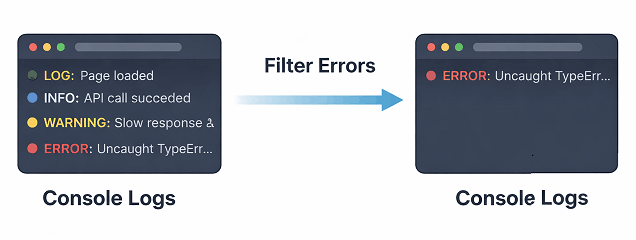
Filtering console messages in Playwright Java helps you focus only on critical errors, making debugging faster and more effective in large automation test suites.
In large test suites, filtering logs helps you focus only on critical failures instead of noise.
Filter Only Error Logs
Here is how you can capture only JavaScript errors from the browser console.
page.onConsoleMessage(msg -> {
    if ("error".equalsIgnoreCase(msg.type())) {
        System.out.println("Error: " + msg.text());
    }
});
Capture Multiple Log Types (Error + Warning)
Sometimes you may want to capture both errors and warnings to detect potential issues early.
page.onConsoleMessage(msg -> {
    if ("error".equalsIgnoreCase(msg.type()) || "warning".equals(msg.type())) {
        System.out.println(msg.type().toUpperCase() + ": " + msg.text());
    }
});
Store Console Errors for Assertion
Instead of printing logs, you can store them in a list and validate later in your test.
import java.util.ArrayList;
import java.util.List;

List<String> errors = new ArrayList<>();

page.onConsoleMessage(msg -> {
    if ("error".equalsIgnoreCase(msg.type())) {
        errors.add(msg.text());
    }
});

// Later in test
if (!errors.isEmpty()) {
    throw new RuntimeException("Console errors found: " + errors);
}
Common Use Case: Fail Test on Console Errors
This is a real-world approach used in robust frameworks where tests automatically fail if any console error is detected.
- Capture errors in a list
- Execute test steps
- Validate list at the end
- Fail test if errors exist
Quick Tip: This approach helps catch silent failures like API errors or frontend crashes that do not immediately break UI tests.
Basic console logging is useful, but in real-world automation projects, you often need deeper insights such as log location, arguments, and structured data.
How to Capture Detailed Console Information in Playwright Java?
You can capture detailed console information in Playwright Java by accessing additional properties of the console message such as arguments, location, and type. This gives you much better visibility compared to plain logs, especially when you are trying to trace where exactly a problem originated.
Detailed logging provides deeper visibility, especially when debugging complex issues.
Access Console Message Type, Text, and Location in Playwright Java
In Playwright Java, msg.location() returns a formatted string in the format URL:line:column, not a structured object.
If you want to extract URL, line number, and column number separately, you can parse the location string:
page.onConsoleMessage(msg -> {
    System.out.println("Type: " + msg.type());
    System.out.println("Text: " + msg.text());

    String location = msg.location();

    if (location != null && location.contains(":")) {
        String[] parts = location.split(":");

        if (parts.length >= 3) {
            String column = parts[parts.length - 1];
            String line = parts[parts.length - 2];

            // URL may contain ":" so join remaining parts
            StringBuilder urlBuilder = new StringBuilder();
            for (int i = 0; i < parts.length - 2; i++) {
                if (i > 0) {
                    urlBuilder.append(":");
                }
                urlBuilder.append(parts[i]);
            }

            String url = urlBuilder.toString();

            System.out.println("URL: " + url);
            System.out.println("Line: " + line);
            System.out.println("Column: " + column);
        }
    }
});
Capture Console Arguments (Advanced Debugging)
Some console logs include objects or multiple arguments. You can capture them using msg.args().
import com.microsoft.playwright.JSHandle;

page.onConsoleMessage(msg -> {
    for (JSHandle arg : msg.args()) {
        System.out.println("Arg: " + arg.toString());
    }
});
This is useful when applications log structured data like JSON objects instead of plain strings.
Convert Console Arguments to JSON
For better readability, you can convert console arguments into JSON values.
page.onConsoleMessage(msg -> {
    for (JSHandle arg : msg.args()) {
        System.out.println(arg.jsonValue());
    }
});
Real-World Use Case: Debugging API Failures
In many modern web apps, API errors are logged in the console instead of UI. By capturing detailed logs, you can:
- Identify failed API responses
- Detect frontend exceptions
- Trace exact file and line number causing the issue
- Debug issues faster without opening browser dev tools
Important Note: Capturing excessive console logs, especially arguments and JSON data, can slightly impact test execution performance. Use detailed logging only when debugging or in selective environments.
Does Playwright Java support console log levels?
Yes. Playwright provides log levels such as log, error, warning, info, and debug through the msg.type() method.
Can you capture console logs after page actions?
Yes. Once the listener is attached, it captures logs triggered at any point during the test, including after clicks, navigation, or API calls.
Playwright vs Selenium for Capturing Console Logs
Playwright provides built-in support to capture console logs directly using page events, while Selenium typically requires additional configuration or DevTools integration to capture console logs.
| Feature | Playwright | Selenium |
|---|---|---|
| Console log capture | Built-in with page.onConsoleMessage() | Requires browser logs or DevTools |
| Ease of implementation | Simple and direct | Complex setup |
| Real-time logging | Yes | Limited |
| Multi-browser support | Consistent across browsers | Depends on browser driver |
| Advanced debugging | Supports arguments, location, events | Limited without DevTools integration |
Quick Insight: Playwright is generally preferred for modern automation frameworks because it provides direct and reliable access to console logs without complex setup.
Now that you understand both basic and advanced console logging techniques, let’s explore how these are used in real-world automation scenarios.
Real-World Debugging Scenarios Using Console Logs
In real automation projects, console logs are not just used for debugging but also for identifying issues that are difficult to detect through UI validation alone.
Common scenarios where console logs are critical include:
Detect Hidden API Failures
Many applications log API failures directly in the browser console instead of showing errors on the UI. By capturing console logs, you can detect failed network calls even when the test appears to pass.
Catch JavaScript Errors That Do Not Break UI
Some JavaScript errors do not immediately break the UI but can cause issues later in the user journey. Console logging helps identify these hidden problems early.
Debug Flaky Tests
If your test fails intermittently, console logs can reveal timing issues, missing elements, or script errors that are not visible through standard assertions.
Validate Application Stability in CI/CD
In CI pipelines, capturing console errors ensures that builds fail if any hidden frontend issue occurs, improving overall application quality.
Expert Tip: Treat console errors as test failures in critical workflows to prevent unstable releases.
Many testers make small mistakes when capturing console logs, which can lead to missing or misleading results.
What Are Common Mistakes When Capturing Console Logs in Playwright Java?
Many beginners implement console logging but still miss important errors due to small mistakes. Fixing these can significantly improve your debugging accuracy and test stability.
Here are the most common mistakes and how to avoid them.
Missing Logs Due to Late Listener Setup
If you attach the console listener after navigation, you will miss logs generated during page load.
- Incorrect approach: Add listener after
page.navigate() - Correct approach: Add listener before navigation
Fix: Always attach page.onConsoleMessage() before any page interaction.
Logging Everything Without Filtering
Capturing all logs without filtering can flood your console and make debugging harder.
- Too many logs reduce readability
- Important errors get buried
Fix: Filter logs using msg.type() and focus on errors or warnings in production runs.
Ignoring Console Errors in Test Validation
Many frameworks print console logs but do not use them for validation.
- Tests pass even when JavaScript errors exist
- Hidden bugs go unnoticed
Fix: Store errors and fail the test if any critical issues are detected.
Not Handling Multiple Tabs or Pages
Console listeners are attached per page. If your test opens a new tab, logs from that tab will not be captured automatically.
- New tabs require separate listeners
- Missed logs lead to incomplete debugging
Fix: Attach listeners to every new page instance.
Overlooking Performance Impact
Capturing detailed logs, especially arguments and JSON data, can slightly impact performance in large test suites.
- Unnecessary logging slows execution
- Large logs consume memory
Fix: Enable detailed logging only in debug mode or selective test runs.
Why are console logs not captured in Playwright Java?
This usually happens because the listener is attached too late or not attached to the correct page instance.
Can console logging cause flaky tests?
No. However, improper handling such as excessive logging or incorrect assertions can indirectly affect test stability.
Quick Insight: Most real-world debugging issues come from missing logs, not incorrect logs. Always verify your listener placement first.
What Are Best Practices for Capturing Console Logs in Playwright Java?
These best practices help you capture useful logs without adding noise or performance overhead.
Attach Listener at the Right Time
Always attach the console listener before navigation or any interaction to capture all logs including initial page load.
- Ensures no logs are missed
- Covers page load errors and warnings
Filter Logs Based on Test Environment
Different environments require different logging strategies.
- Development: Capture all logs for debugging
- QA: Capture warnings and errors
- Production tests: Capture only errors
Fail Tests on Critical Console Errors
One of the most effective strategies is to fail tests when critical console errors appear.
- Prevents silent frontend failures
- Improves application quality
- Acts as an additional validation layer
Use Centralized Logging Utility
Instead of writing logging logic in every test, create a reusable utility method.
public static void attachConsoleListener(Page page, List<String> errors) {
    page.onConsoleMessage(msg -> {
        if ("error".equalsIgnoreCase(msg.type())) {
            System.out.println("Console Error: " + msg.text());
            errors.add(msg.text());
        }
    });
}Tip: Use a thread-safe list like Collections.synchronizedList() when running tests in parallel.
Handle Multiple Pages and Contexts
If your tests involve multiple tabs or popups, ensure each page has its own listener.
- Listen to new pages using browser context events
- Attach listeners dynamically
How to Capture Console Logs for Multiple Tabs in Playwright Java?
When your test opens multiple tabs or pages, console logs are not captured automatically for new pages. You must attach a listener to each new page instance.
The best way to handle this is by listening to new page events from the browser context and attaching the console listener dynamically.
BrowserContext context = browser.newContext();

context.onPage(newPage -> {
    newPage.onConsoleMessage(msg -> {
        System.out.println("New Page Log: " + msg.text());
    });
});
This ensures that every new tab or popup opened during the test automatically starts capturing console logs.
Real Insight: This is commonly missed in automation frameworks, which leads to incomplete logging and harder debugging in multi-tab scenarios.
Log with Context for Better Debugging
Instead of printing plain logs, include additional context such as test name or timestamp.
System.out.println("[Test: LoginTest] Error: " + msg.text());Real-World Framework Tip
In large frameworks, console errors are often integrated with reporting tools like Allure or Extent Reports. This allows teams to see console failures directly in test reports without checking logs manually.
Should you always log everything?
No. Logging everything can reduce performance and make debugging harder. Use targeted logging based on your needs.
Is console logging enough for debugging?
No. Console logs should be combined with network logs, screenshots, and traces for complete debugging coverage.
Related Playwright Tutorials
If you are learning Playwright Java, these related tutorials will help you build a strong automation foundation and improve your overall test framework.
- Playwright Java Waits Tutorial with Examples
- Handle Multiple Tabs in Playwright Java Guide
- Capture Screenshots in Playwright Java Guide
- Handle Browser Contexts and Sessions in Playwright Java
- How to Use Playwright Java Assertions (TestNG + JUnit)
Let’s quickly summarize what you have learned in this guide.
Conclusion
Capturing console logs and errors in Playwright Java gives you a deeper level of visibility into how your application behaves during test execution. It helps you catch issues that are not obvious from UI validation alone.
By using page.onConsoleMessage(), filtering logs, and validating errors, you can build a more robust and production-ready automation framework. Small improvements like failing tests on console errors can significantly increase the quality of your test suite.
If you are building a scalable Playwright framework, combining console logging with network tracking and reporting tools will give you much stronger debugging capabilities.
FAQs
How do you capture console logs in Playwright Java?
You can capture console logs in Playwright Java using the page.onConsoleMessage() method, which listens to all browser console events during test execution.
Can Playwright capture JavaScript errors from the browser?
Yes. Playwright can capture JavaScript errors by filtering console messages where msg.type() is equal to error.
How to fail a test if console errors are found?
You can store console errors in a list and throw an exception at the end of the test if the list is not empty.
Do you need to enable console logging manually in Playwright Java?
No. You must explicitly attach a listener using page.onConsoleMessage() to capture console logs.
Can you capture console logs for multiple tabs in Playwright?
Yes. However, you need to attach a separate console listener for each page or tab instance.
What types of console messages can Playwright capture?
Playwright can capture log, error, warning, info, and debug messages using the msg.type() method.
Is capturing console logs useful in automation testing?
Yes. It helps detect hidden issues like JavaScript errors and failed API calls, improving test reliability and debugging efficiency.
When should you capture console logs in Playwright Java?
You should capture console logs when debugging failed tests, validating frontend stability, or ensuring no JavaScript errors occur during execution. It is especially useful in CI pipelines and production-level test frameworks.
What is the best way to capture console errors in Playwright Java?
The best way is to filter console messages using msg.type() and store only error logs. You can then fail the test if any error is detected to ensure application stability.
Why are console errors important in automation testing?
Console errors reveal hidden issues such as failed API calls, JavaScript exceptions, or broken scripts that may not be visible in UI tests but can impact real user experience.