When working with browser automation, one of the first tasks is to launch a browser instance in Playwright Java. Playwright makes it easy to start browsers such as Chromium, Firefox, and WebKit using a simple API. In Playwright, this process is simple and consistent across different browsers. However, many beginners want to understand how to start and control a browser for automation testing.
Launch a browser instance in Playwright Java by creating a Playwright object and starting a browser using the chromium(), firefox(), or webkit() launch methods. This browser instance allows automation scripts to open pages and interact with web applications.
Playwright supports multiple browser engines including Chromium, Firefox, and WebKit. In addition, it also allows you to run tests in branded browsers such as Google Chrome and Microsoft Edge. This makes it easier to validate applications across different browser engines.
In this guide, you will learn how to launch a browser instance in Playwright Java with simple and practical examples. We will cover launching Chromium, Firefox, and WebKit along with branded browsers like Chrome and Edge.
- How to Launch a Browser Instance in Playwright Java?
- What Is a Browser Instance in Playwright?
- How to Launch Different Browsers in Playwright Java?
- How to Run Playwright Tests in Google Chrome and Microsoft Edge?
- Google Chrome Example: Running Tests in Chrome
- Microsoft Edge Implementation: Running Tests in Edge
- Does Playwright support running tests in Google Chrome?
- Can Playwright run tests in Microsoft Edge?
- Do Chrome and Edge need to be installed locally?
- How to run Playwright browser in headless mode?
- Can Playwright launch multiple browser instances?
- Does Playwright support Safari browser?
- Which Browsers Are Supported by Playwright?
- What Are Best Practices for Launching a Browser in Playwright Java?
- Use Headless Mode for Faster Test Execution
- Create Separate Browser Contexts for Test Isolation
- Always Close the Browser After Tests Finish
- Use Try With Resources for Automatic Cleanup
- Should Playwright tests run in headless mode?
- Can one browser instance handle multiple tests?
- Is it necessary to close the browser in Playwright?
- Related Playwright Tutorials
- Key Takeaways
- Conclusion
- What's Next
- FAQs
- What is the easiest way to launch a browser instance in Playwright Java?
- Can Playwright run multiple browsers at the same time?
- Does Playwright support Chrome and Edge browsers?
- Do I need to install browsers separately for Playwright?
- Is headless mode recommended in Playwright?
- What is the default browser in Playwright?
How to Launch a Browser Instance in Playwright Java?
You can launch a browser instance in Playwright Java by creating a Playwright object and using a browser type launcher such as chromium().launch(). This method launches a browser instance in Playwright which can then be used to create contexts and pages for automation.
To launch a browser instance in Playwright Java:
- Create a Playwright object using Playwright.create()
- Choose a browser type such as chromium(), firefox(), or webkit()
- Start the browser using launch()
- Create a page using browser.newPage()
- Navigate to a URL and perform actions
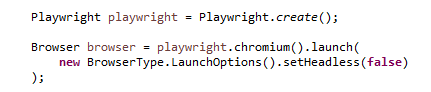
The following snippet shows the minimal code required to start a browser instance.
Playwright playwright = Playwright.create();

Browser browser = playwright.chromium().launch(
    new BrowserType.LaunchOptions().setHeadless(false)
);
Once the browser is started, you can create pages, navigate to URLs, and perform automation actions.
If you are getting started with Playwright, learn how to set up Playwright with Java using this step-by-step guide.
What Is a Browser Instance in Playwright?
A browser instance in Playwright is a running browser process that allows automation scripts to interact with web pages. It acts as the main container where browser contexts and pages are created for testing.
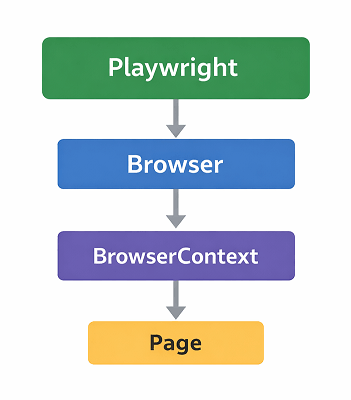
When you initialize a browser instance in Playwright, the framework starts a real browser engine such as Chromium, Firefox, or WebKit. Your automation code can then open pages, navigate to URLs, and perform actions like clicking elements or filling forms.
Understanding this hierarchy is important when working with Playwright Browser vs Context vs Page.
- Playwright object initializes the Playwright environment
- Browser instance launches the browser engine
- BrowserContext creates isolated test environments
- Page represents an individual browser tab
Does Playwright open a real browser instance?
Yes. Playwright launches real browser engines such as Chromium, Firefox, and WebKit. This ensures tests run in environments similar to real user browsers.
Can multiple pages run inside one browser instance?
Yes. A single browser instance can create multiple browser contexts and pages. This allows parallel testing while keeping tests isolated.
Is a browser instance the same as a browser context?
No. A browser instance is the full browser process, while a browser context is an isolated environment within that browser. Each context behaves like a separate user session.
How to Launch Different Browsers in Playwright Java?
You can initialize different browsers in Playwright Java by using the corresponding browser type methods such as chromium(), firefox(), and webkit(). Each method starts the respective browser engine for automation testing.
Playwright supports three main browser engines. These include Chromium, Firefox, and WebKit. You can learn more about the browser engines supported by Playwright in the official documentation. You can easily switch between them by changing the browser launcher method.
When to Use Each Browser in Playwright
Before running tests in different browsers, it is helpful to understand when each browser is typically used during automation testing.
| Browser | When to Use |
|---|---|
| Chromium | General browser automation and Chrome based testing |
| Firefox | Cross browser compatibility testing |
| WebKit | Testing Safari like browser environments |
| Google Chrome | Testing in the real Chrome browser used by end users |
| Microsoft Edge | Testing applications in the Edge browser |
The following examples show how to open these browsers using Playwright Java.
Chromium Example: Launching the Chromium Browser
The Chromium browser is the default browser engine used by Playwright. It is commonly used for automation because it powers many modern browsers.
import com.microsoft.playwright.*;

public class LaunchChromiumBrowser {
    public static void main(String[] args) {
        try (Playwright playwright = Playwright.create()) {

            Browser browser = playwright.chromium().launch(
                new BrowserType.LaunchOptions().setHeadless(false)
            );

            Page page = browser.newPage();
            page.navigate("https://example.com");

            browser.close();
        }
    }
}
Firefox Example: Starting the Firefox Browser
This example demonstrates how to execute tests in Firefox browser using Playwright Java. The Playwright API remains the same. Only the browser launcher method changes.
import com.microsoft.playwright.*;

public class LaunchFirefoxBrowser {
    public static void main(String[] args) {
        try (Playwright playwright = Playwright.create()) {

            Browser browser = playwright.firefox().launch(
                new BrowserType.LaunchOptions().setHeadless(false)
            );

            Page page = browser.newPage();
            page.navigate("https://example.com");

            browser.close();
        }
    }
}
WebKit Implementation: Running Tests in WebKit
WebKit is the browser engine used by Safari. Running tests in WebKit helps verify application behavior on Safari-like environments.
import com.microsoft.playwright.*;

public class LaunchWebkitBrowser {
    public static void main(String[] args) {
        try (Playwright playwright = Playwright.create()) {

            Browser browser = playwright.webkit().launch(
                new BrowserType.LaunchOptions().setHeadless(false)
            );

            Page page = browser.newPage();
            page.navigate("https://example.com");

            browser.close();
        }
    }
}
Do these browsers require separate installation?
No. Playwright automatically installs supported browsers when you install the Playwright package or run the browser installation command.
How to Run Playwright Tests in Google Chrome and Microsoft Edge?
You can run Playwright tests in branded browsers such as Google Chrome and Microsoft Edge by starting the Chromium browser with a specific channel option. This allows Playwright to use the installed Chrome or Edge browser instead of the bundled Chromium engine.
This approach is useful when you want to validate application behavior in real user browsers like Chrome and Edge. Playwright supports this through the channel configuration in browser launch options.
Google Chrome Example: Running Tests in Chrome
The following example demonstrates how to start the Google Chrome browser using Playwright Java. This uses the Chrome channel while still relying on the Chromium browser engine.
import com.microsoft.playwright.*;

public class RunTestsInChrome {
    public static void main(String[] args) {
        try (Playwright playwright = Playwright.create()) {

            Browser browser = playwright.chromium().launch(
                new BrowserType.LaunchOptions()
                    .setChannel("chrome")
                    .setHeadless(false)
            );

            Page page = browser.newPage();
            page.navigate("https://example.com");

            browser.close();
        }
    }
}
Microsoft Edge Implementation: Running Tests in Edge
This example shows how to start the Microsoft Edge browser using the Edge channel configuration. The test execution remains identical to other Playwright browsers.
import com.microsoft.playwright.*;

public class RunTestsInEdge {
    public static void main(String[] args) {
        try (Playwright playwright = Playwright.create()) {

            Browser browser = playwright.chromium().launch(
                new BrowserType.LaunchOptions()
                    .setChannel("msedge")
                    .setHeadless(false)
            );

            Page page = browser.newPage();
            page.navigate("https://example.com");

            browser.close();
        }
    }
}
Does Playwright support running tests in Google Chrome?
Yes. Playwright can run tests in Google Chrome by specifying the Chrome channel in the browser launch options.
Can Playwright run tests in Microsoft Edge?
Yes. Playwright supports Microsoft Edge by using the Edge channel configuration while starting the Chromium browser.
Do Chrome and Edge need to be installed locally?
Yes. To run Playwright tests in branded browsers, Google Chrome or Microsoft Edge must already be installed on the system.
How to run Playwright browser in headless mode?
You can run Playwright browsers in headless mode by setting the headless option to true in the launch configuration.
Browser browser = playwright.chromium().launch(
    new BrowserType.LaunchOptions().setHeadless(true)
);
Pro Tip:
When debugging automation scripts, run the browser in headed mode using:
setHeadless(false)This allows you to visually observe how Playwright interacts with the web page during execution.
Can Playwright launch multiple browser instances?
Yes. Playwright allows you to launch multiple browser instances in the same test or across different tests. Each instance runs independently and can simulate separate users.
Does Playwright support Safari browser?
Playwright does not directly run the Safari browser. Instead it uses the WebKit engine which closely matches Safari behavior.
Which Browsers Are Supported by Playwright?
Playwright supports multiple browser engines that allow you to test applications across different environments. These include Chromium, Firefox, and WebKit along with branded browsers such as Google Chrome and Microsoft Edge.
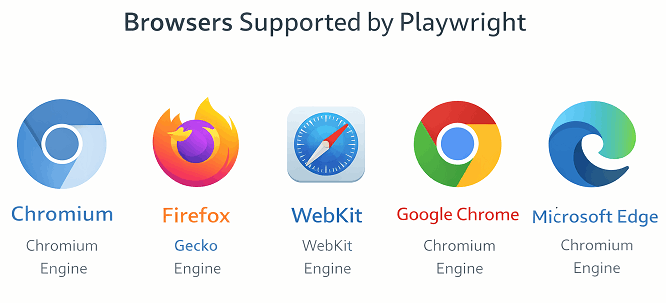
The following table shows the browsers supported by Playwright and the engine they use.
| Browser | Browser Engine | Typical Use Case |
|---|---|---|
| Chromium | Chromium Engine | Default browser used for automation testing |
| Firefox | Gecko Engine | Cross browser compatibility testing |
| WebKit | WebKit Engine | Testing Safari like browser environments |
| Google Chrome | Chromium Engine | Testing in the real Chrome browser used by end users |
| Microsoft Edge | Chromium Engine | Testing applications in the Edge browser |
This flexibility allows teams to run automation tests across different browser engines using the same Playwright API.
Why does Playwright support multiple browser engines?
Playwright supports multiple browser engines so developers and testers can validate application behavior across different environments. This ensures the application works consistently for all users.
Is Chromium the same as Google Chrome in Playwright?
No. Chromium is the open source browser engine used by Playwright. Google Chrome is the branded browser built on top of the Chromium engine.
Does WebKit represent Safari testing in Playwright?
Yes. WebKit is the browser engine used by Safari. Running tests in WebKit helps simulate Safari like browser behavior.
What Are Best Practices for Launching a Browser in Playwright Java?
Following best practices when creating a browser instance in Playwright helps improve test stability, performance, and maintainability. These practices ensure that automation tests run efficiently across different environments.
The following best practices help create stable and maintainable Playwright automation tests.
Use Headless Mode for Faster Test Execution

Headless mode runs the browser without a visible UI. This improves execution speed and is commonly used in CI pipelines.
Browser browser = playwright.chromium().launch(
    new BrowserType.LaunchOptions().setHeadless(true)
);
Create Separate Browser Contexts for Test Isolation
Browser contexts allow multiple independent sessions inside a single browser process. Each context behaves like a new user session.
BrowserContext context = browser.newContext();
Page page = context.newPage();
Always Close the Browser After Tests Finish
Closing the browser after test execution prevents resource leaks and ensures clean test runs.
browser.close();Use Try With Resources for Automatic Cleanup
The try with resources pattern automatically closes the Playwright instance after execution. This helps manage browser lifecycle properly.
try (Playwright playwright = Playwright.create()) {
    Browser browser = playwright.chromium().launch();
}
Should Playwright tests run in headless mode?
Yes. Headless mode is recommended for CI pipelines and automated environments because it runs faster and consumes fewer system resources.
Can one browser instance handle multiple tests?
Yes. A single browser instance can create multiple contexts and pages. This allows multiple tests to run efficiently within the same browser process.
Is it necessary to close the browser in Playwright?
Yes. Closing the browser ensures resources are released and prevents memory issues during long test runs.
Related Playwright Tutorials
If you are learning Playwright automation, the following tutorials will help you understand the next important concepts in the workflow. These guides build on the browser setup and cover common automation tasks used in real projects.
- How to Multiple Tabs and Windows in Playwright Java
- How to Get Page Title in Playwright Java
- Build Playwright Java Enterprise Automation Framework From Scratch
- Playwright Java Locators Tutorial with Practical Examples
- Playwright Java Tutorial for Beginners
What should you learn after starting a browser in Playwright?
After creating a browser instance, the next step is usually navigating to a URL, locating elements, and performing actions such as clicking buttons or filling forms.
Why are Playwright tutorials useful for beginners?
Structured Playwright tutorials help beginners learn automation step by step, starting from browser setup and gradually moving to advanced testing concepts.
Key Takeaways
- Playwright Java can launch browsers using chromium(), firefox(), or webkit() methods.
- A browser instance represents the running browser process used for automation.
- Playwright supports Chromium, Firefox, WebKit, Google Chrome, and Microsoft Edge.
- Branded browsers like Chrome and Edge can run using the channel option.
- Headless mode improves test execution speed and is commonly used in CI pipelines.
Conclusion
Understanding how to launch a browser instance in Playwright Java is one of the first steps in browser automation. Playwright makes this process simple by providing built in support for Chromium, Firefox, and WebKit using a consistent API.
In addition, Playwright allows tests to run in real user browsers such as Google Chrome and Microsoft Edge. This flexibility helps teams validate applications across multiple browser engines using the same automation code.
Once you know how to create and manage a browser instance, you can move forward to the next steps such as navigating to pages, locating elements, and performing user actions in your automation tests.
What’s Next
After learning how to launch a browser in Playwright Java, the next important step is to understand how to record tests using Codegen. This helps you quickly generate test scripts by interacting with the application.
Next, check out this guide on how to record tests in Playwright Java using Codegen to speed up your test creation process.
FAQs
What is the easiest way to launch a browser instance in Playwright Java?
The easiest way is to create a Playwright object and start a browser using the chromium().launch() method. This initializes the browser and allows you to create pages for automation.
Can Playwright run multiple browsers at the same time?
Yes. Playwright can create multiple browser instances or multiple browser contexts inside one instance. This allows tests to run in parallel.
Does Playwright support Chrome and Edge browsers?
Yes. Playwright can run tests in Google Chrome and Microsoft Edge by using the channel option when starting the Chromium browser.
Do I need to install browsers separately for Playwright?
No. Playwright automatically downloads supported browsers during installation. However Chrome or Edge must be installed locally if you want to run tests in those specific browsers.
Is headless mode recommended in Playwright?
Yes. Headless mode runs the browser without a visible UI and is commonly used in CI pipelines because it improves execution speed and reduces resource usage.
What is the default browser in Playwright?
The default browser used by Playwright is Chromium. When you run Playwright tests without specifying a browser, the framework typically uses the Chromium engine for automation.