
Last updated on March 17th, 2026 at 02:40 am
Playwright Locators in Java are the core mechanism used to identify and interact with web elements so your automation tests run accurately and consistently.
If your Playwright Java tests fail because elements are not detected correctly, this guide is meant for you. Many testers encounter issues such as flaky tests, unstable selectors, or confusion about which locator to use. This article is written for beginners, testers transitioning from manual to automation, and Java developers seeking stable Playwright tests.
In this guide on Playwright Locators in Java, you will learn how different locator types work and when to use each one. You will see clear and practical examples that show how to locate buttons, input fields, text, and dynamic elements. You will also understand how to choose reliable locators that reduce test failures.
By the end of this article, you will know how to use Playwright Locators in Java to build clean, readable, and dependable automation scripts.
- What are Locators in Playwright Java?
- Locator Strategies in Playwright Java
- Different Playwright Locators in Java with Examples
- Full Code Example: Playwright Locators in Java
- Best Practices for Locators in Playwright Java
- Common Mistakes to Avoid with Locators
- Conclusion: Mastering Playwright Locators in Java
What are Locators in Playwright Java?
In Playwright Java, locators are powerful handles used for web element identification. They act as queries that let you interact with buttons, input fields, links, and other components on a web page. Instead of writing complex scripts to find elements, Playwright simplifies the process through its locator API.
Under the hood, locators in Playwright Java are smart. They wait for elements to be ready before performing actions, reducing the chances of flaky tests. Locators can automatically retry until the desired element appears, ensuring stability in your automation.
Using resilient locators is critical for test reliability. Web applications evolve frequently, and by choosing the right Playwright Java locator types (such as CSS selectors, text-based locators, or role-based locators), you create robust tests that are less likely to break when UI changes occur.
Locator Strategies in Playwright Java
When building automated tests, it’s important to choose the right Playwright Java locator strategies. Playwright offers multiple locator types, each designed for different use cases. Common strategies include CSS selectors, XPath locators, text-based locators, role-based locators, and test ID locators.
Each type has its benefits and drawbacks. CSS selectors are fast and widely used, but can be brittle if the page structure changes. XPath locators are powerful for navigating complex DOM trees, but often lead to less readable code. Text-based locators improve readability but may fail if text labels change. Role-based locators support accessibility and create resilient locators, but they depend on correct ARIA roles. Test IDs are considered the most stable option, yet they require developer support to add unique identifiers.
Different Playwright Locators in Java with Examples
Using CSS Selectors in Playwright Java
One of the most common ways to identify elements in automation is through CSS selectors. They allow you to locate elements based on their tag names, classes, IDs, or attribute values. CSS selectors are fast and efficient, making them a preferred choice in many test scenarios.
For example, to find a button with the class btn, you can use:
Locator loginButton = page.locator("button.btnLogin");
loginButton.click();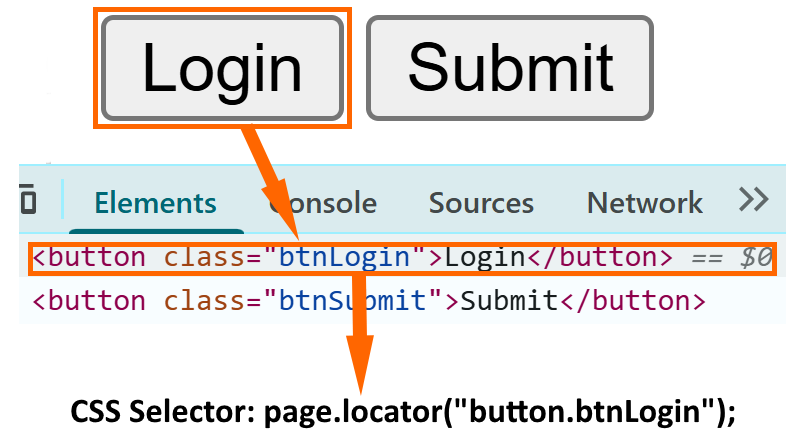
This demonstrates how Playwright Java CSS selectors help you easily find elements and perform actions like clicking or typing.
XPath Locators in Playwright Java
Another powerful locator strategy is XPath, which allows you to query elements based on their XML-like hierarchy. XPath is handy when elements don’t have unique IDs or classes, or when you need to locate elements relative to others in the DOM.
For example, to click the Submit button using XPath, you can write:
Locator submitButton = page.locator("//button[text()='Submit']");
submitButton.click();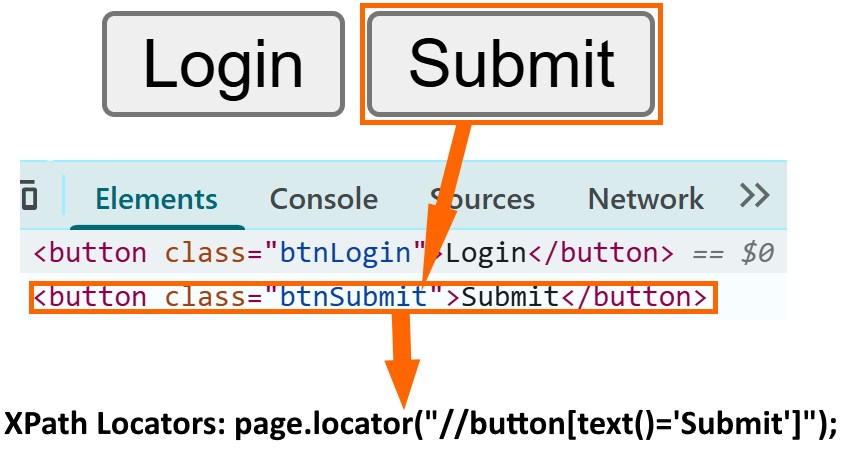
While Playwright Java XPath locators are flexible, they can be less readable and prone to breaking if the DOM structure changes. Therefore, they should be used primarily for dynamic locators when CSS or role-based locators are insufficient.
Using getByRole Locator in Playwright Java
The getByRole locator is one of the most powerful strategies in Playwright Java because it relies on accessibility roles defined in the DOM. Instead of targeting CSS classes or XPath, you locate elements based on their semantic role, such as button, textbox, or link. This makes your tests more reliable and easier to read.
For example, to identify the Sign In button, you can write:
Locator signInButton = page.getByRole(
    AriaRole.BUTTON,
    new Page.GetByRoleOptions().setName("Sign In")
);
signInButton.click();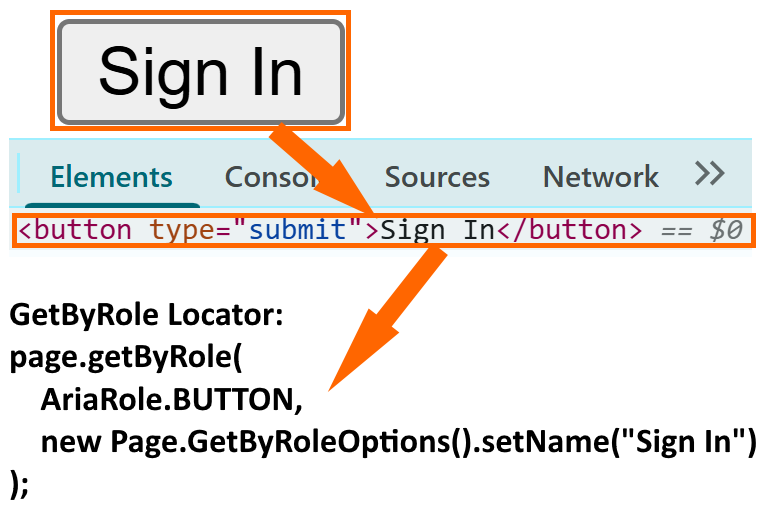
This approach is especially useful in Playwright Java test automation locators when validating accessibility compliance. By using Playwright Java getByRole, your tests align with real user interactions, including those using assistive technologies, ensuring both functional accuracy and inclusivity.
Using getByText Locator in Playwright Java
Another intuitive way to identify elements is by using the getByText locator. This strategy allows you to locate elements based on their visible text, making tests easier to understand and closer to how a real user interacts with the page.
For example, to click the Login button using exact text matching:
Locator loginButton = page.getByText("Login Button");
loginButton.click();
You can also use partial text matching when the exact text may vary. For example:
Locator loginBtn = page.getByText("Login Button", new Page.GetByTextOptions().setExact(false));
loginBtn.click();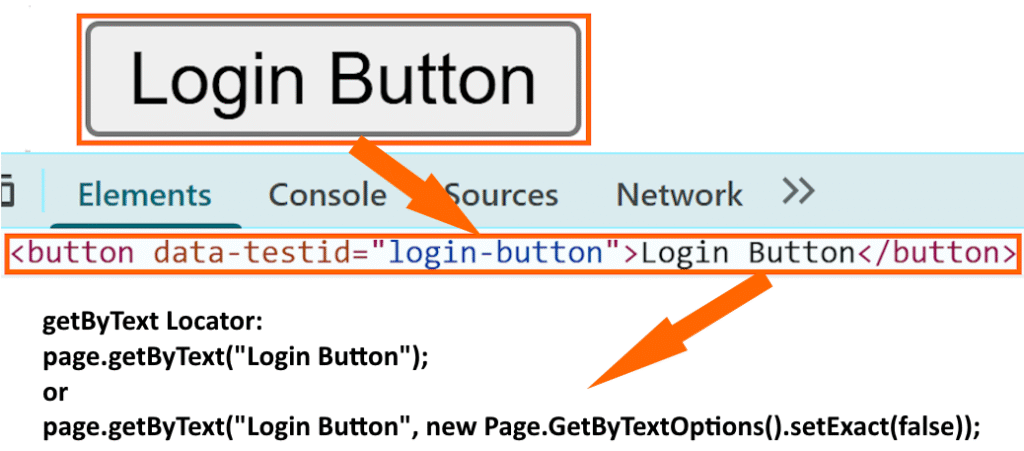
This makes Playwright Java getByText a handy option for quick tests and clean, readable code. However, for dynamic applications, you should combine it with other Playwright Java locator examples for better resilience.
If you want a deeper understanding of text based selectors, refer to this detailed guide on Playwright Java getByText locator. This tutorial explains how getByText() works internally, best practices for matching visible text, and common mistakes to avoid while automating real world Playwright Java applications.
Advanced Locator Types in Playwright Java
Beyond CSS and XPath, Playwright provides several advanced locators that make tests more resilient and user-friendly. These are especially helpful when dealing with forms, input fields, or applications with dynamic elements.
getByLabel Locator
This locator is used to target elements associated with a label. It’s ideal for form fields where labels are directly tied to inputs.
Locator emailIDField = getByLabel("Email Address:");
emailIDField.fill("testuser");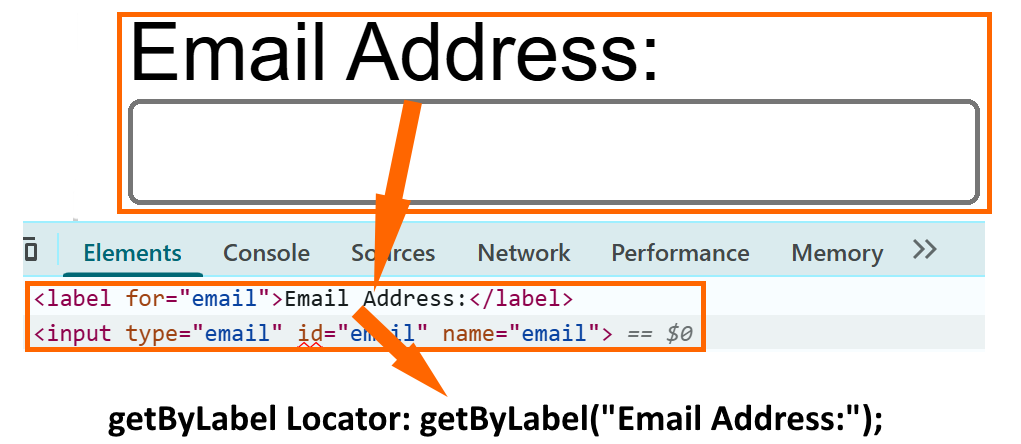
To understand this locator in depth, you can read this detailed guide on the Playwright Java getByLabel locator.
This tutorial explains how getByLabel() works with form elements, why it improves accessibility based testing, and when to use it instead of XPath or CSS selectors in real-world Playwright Java projects.
getByPlaceholder Locator
Many modern web apps use placeholders instead of labels. With this locator, you can directly target the input field using its placeholder text.
Locator userNameField = page.getByPlaceholder("Enter your name");
userNameField.fill("secret123");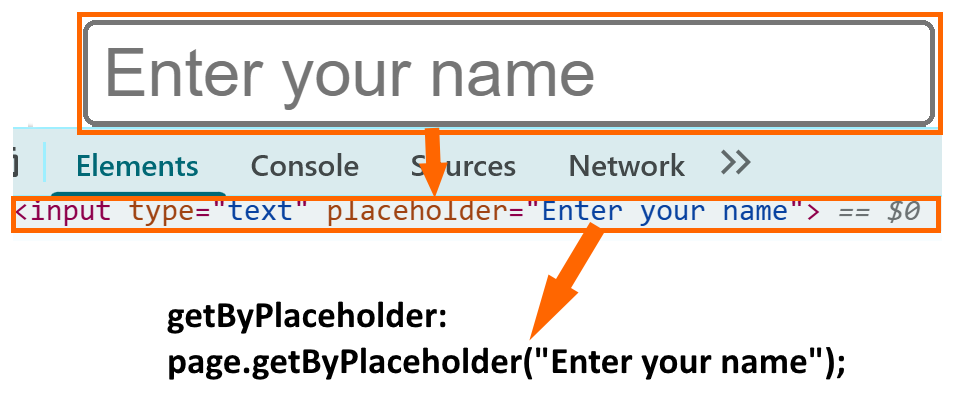
getByTestId Locator
For stable and maintainable automation, adding data-testid attributes in your app is highly recommended. This locator is reliable even when UI changes occur.
Locator loginBtn = page.getByTestId("login-button");
loginBtn.click();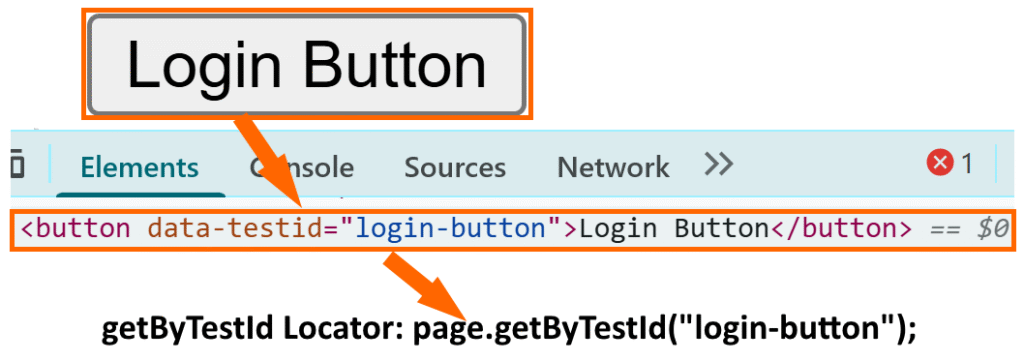
getByAltText Locator
This locator identifies elements (mostly images) based on their alt attribute value. It’s very useful for validating that images or icons are correctly rendered and accessible.
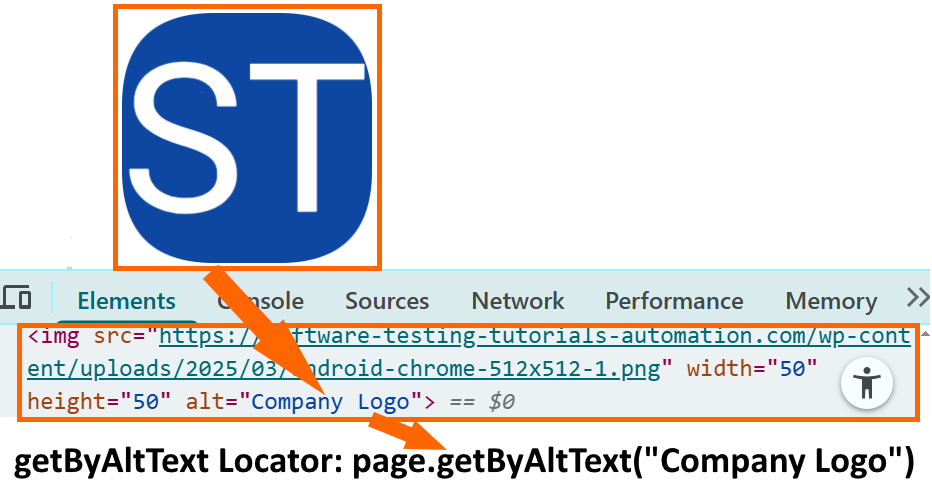
Locator logoImage = page.getByAltText("Company Logo");
logoImage.isVisible();
These advanced locators are excellent examples of Playwright Java dynamic locators that adapt well to real-world applications.
Full Code Example: Playwright Locators in Java
To bring everything together, let’s look at a complete test class that demonstrates how to use different types of locators in Playwright Java. This example runs against a simple HTML demo file containing various UI elements such as buttons, input fields, and images.
Using multiple locator strategies in one place helps you understand how Playwright Java finds elements with CSS Selector, XPath, getByRole, getByText, getByLabel, getByPlaceholder, getByTestId, and getByAltText.
To make it easier for you to try this example and practice Playwright locators, I’ve prepared a sample HTML demo file with common elements such as buttons, input fields, and an image.
Download the Playwright Demo HTML File
You can save it locally (for example, C:/demo/playwright-locators-demo.html) and use it with the following Java test code.
package com.example.tests;

import com.microsoft.playwright.*;
import com.microsoft.playwright.options.AriaRole;

import org.junit.jupiter.api.*;

public class LocatorDemoTest {
    static Playwright playwright;
    static Browser browser;
    BrowserContext context;
    Page page;

    @BeforeAll
    static void setUpAll() {
        playwright = Playwright.create();
        browser = playwright.chromium().launch(new BrowserType.LaunchOptions().setHeadless(false));
    }

    @BeforeEach
    void setUp() {
        context = browser.newContext();
        page = context.newPage();

        page.navigate("file:///C:/demo/playwright-locators-demo.html"); //Replace with your actual file path.
    }

    @AfterEach
    void tearDown() {
        context.close();
    }

    @AfterAll
    static void tearDownAll() {
        browser.close();
        playwright.close();
    }

    @Test
    void testLocators() {
        // CSS / ID / Class
        page.locator("#css-button").click();

        // Text locator
        page.getByText("Login", new Page.GetByTextOptions().setExact(true)).click();

        // Role locator
        page.getByRole(AriaRole.BUTTON, new Page.GetByRoleOptions().setName("Sign In")).click();

        // Label locator
        page.getByLabel("Email Address:").fill("test@example.com");

        // Placeholder locator
        page.getByPlaceholder("Enter your name").fill("Aravind");

        // Alt text locator
        page.getByAltText("Company Logo").click();

        // Title locator
        page.getByTitle("Tooltip text").hover();

        // Test ID locator
        page.getByTestId("login-button").click();

        // XPath locator
        page.locator("//button[text()='XPath Button']").click();

        // Nth locator
        page.locator(".item").nth(1).click(); // selects "Selenium"

        // Filtering locator
        page.locator("li.item").filter(new Locator.FilterOptions().setHasText("Playwright")).click();
    }
}
Key Takeaways:
- This single test demonstrates different Playwright Java locator examples.
- Use semantic locators like getByRole and getByLabel for accessibility-friendly tests.
- Combine multiple locator strategies for robust and flexible automation.
Best Practices for Locators in Playwright Java
When working with Playwright Java locators, following best practices ensures your tests are stable, readable, and maintainable. Always prefer semantic locators such as getByRole or getByLabel instead of brittle CSS or XPath queries. These semantic locators adapt better when the UI changes.
Another proven approach is using data-testid attributes for critical elements. This makes Playwright Java resilient locators less prone to breaking when the design or structure changes.
Finally, organize and maintain your locators in dedicated files using the Page Object Model (POM) pattern. This helps you scale your test automation and keeps locator updates centralized.
Common Mistakes to Avoid with Locators
Even experienced testers make mistakes when working with Playwright Java locators. One common issue is the over-reliance on XPath. While powerful, XPath expressions are fragile and can easily break with minor DOM changes.
Another pitfall is not handling dynamic elements properly. Elements with changing IDs, classes, or text require more thoughtful locator strategies, such as regular expressions or test IDs.
Finally, many teams ignore accessibility roles. Leveraging locators like getByRole ensures tests align with accessibility standards and provide long-term reliability.
Conclusion: Mastering Playwright Locators in Java
Mastering Playwright Locators Java is essential for building reliable and maintainable test automation frameworks. Throughout this guide, we explored multiple locator strategies, including CSS selectors, XPath, and semantic locators like getByRole, getByText, getByLabel, and more. Each approach serves different purposes, but choosing the right one ensures long-term stability.
To achieve truly resilient tests, prioritize semantic and accessibility-driven locators over brittle selectors. Combine these with data-testid attributes and the Page Object Model for improved maintainability.
For faster and more accurate Playwright Java test automation locators, consider using the built-in locator picker. It helps reduce trial-and-error and speeds up development. By following these strategies, you can ensure your Playwright Java tests remain robust, scalable, and future-proof.
In large automation projects, locators are usually managed in a centralized structure instead of being written directly inside test scripts. To learn how this is implemented in a scalable setup, see how to organize Playwright locators using an object repository.
Very clear code examples! It’s great to see strong emphasis on semantic locators rather than brittle XPath expressions in Playwright Java. Combining clean locators with a centralized management platform like Testomat.io makes scaling automated regression suites across teams much smoother.