Last updated on August 5th, 2026 at 12:35 pm
This guide will show you how to download EdgeDriver (Latest version) and set up for Selenium WebDriver. You’ll learn how to match EdgeDriver with your Microsoft Edge browser version and configure it to run automated tests successfully.
You need EdgeDriver to run Selenium tests in the Microsoft Edge browser. It lets Selenium WebDriver interact with MS Edge browser just like a real user.
Many teams use EdgeDriver as part of enterprise test automation setups and cloud based cross browser testing tools to validate applications across different environments.
Here is a step-by-step guide to download, install, and set up the right version of EdgeDriver.
- Quick Answer: How to Download EdgeDriver (2026)
- Direct EdgeDriver Download Links (2026)
- Step 1: Check Your Microsoft Edge Version
- Step 2: Download EdgeDriver For Selenium WebDriver
- Step 3: Extract and Set Up EdgeDriver
- Step 4: Run EdgeDriver with Selenium
- Troubleshooting Common EdgeDriver Issues (2026)
- EdgeDriver vs Playwright (Quick Comparison)
- EdgeDriver vs WebDriverManager vs Playwright (2026)
Quick Answer: How to Download EdgeDriver (2026)
To download EdgeDriver for Selenium:
- Check your Microsoft Edge browser version (edge://settings/help)
- Go to the official Microsoft Edge WebDriver page
- Download the matching EdgeDriver version for your operating system
- Extract the ZIP file
- Set the path in environment variables or code
Now let’s see each step in detail.
Direct EdgeDriver Download Links (2026)
Get the latest EdgeDriver for your operating system:
- Download EdgeDriver for Windows (32-bit)
- Download EdgeDriver for Windows (64-bit)
- Download EdgeDriver for Mac (Intel)
- Download EdgeDriver for Mac (Apple Silicon)
- Download EdgeDriver for Linux (64-bit)
For the latest version: Visit the official Microsoft Edge WebDriver page to find the most current release for 2026.
Step 1: Check Your Microsoft Edge Version
Before downloading EdgeDriver, you must check your Edge browser version.
Here’s how to check:
- Open Microsoft Edge.
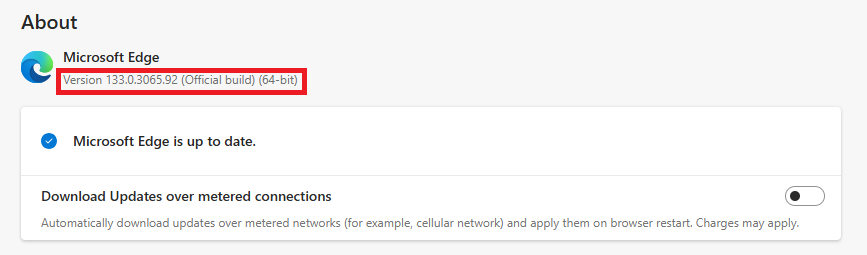
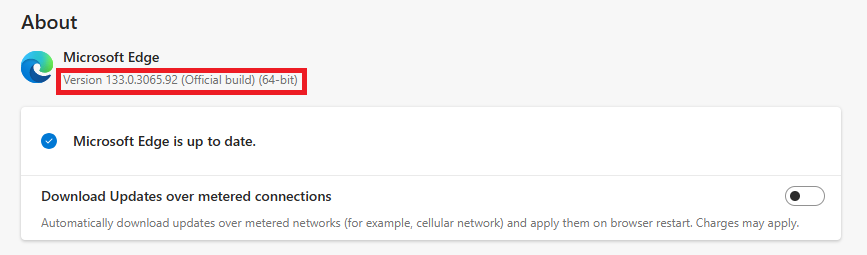
- Click the three dots (⋮) at the top right corner, select Help and Feedback, and select About Microsoft Edge. My version is 151.0.4129.59.
- Update if you are using an older version. Note the version number (e.g., 151.x.x.x).
Why does this matter?
Many people keep complaining that the edge driver is not working in Selenium. The reason is that EdgeDriver version updates with a version of the Edge browser, and a mismatch in versions can generate errors when you run Selenium tests.
Version compatibility becomes even more critical when running tests in CI CD pipelines, Selenium cloud testing platforms, or automated software testing services used by large QA teams.
Now let’s see how to download the correct version of EdgeDriver.
Are you looking to run Selenium tests in the Firefox browser? Here is a step-by-step guide on how to download and set up GeckoDriver for Selenium.
How to Fix EdgeDriver Version Mismatch (2026)
The EdgeDriver version mismatch error occurs when the version of EdgeDriver and your Microsoft Edge browser do not match. To resolve this compatibility error, follow these steps:
- Check Your Edge Browser Version: Go to edge://settings/help and note the version number.
- Download the Matching EdgeDriver: Visit the official download page and get the matching version for 2026.
- Update EdgeDriver in Your Project: Replace the msedgedriver.exe with the updated one.
Step 2: Download EdgeDriver For Selenium WebDriver
To download EdgeDriver, follow these simple steps:
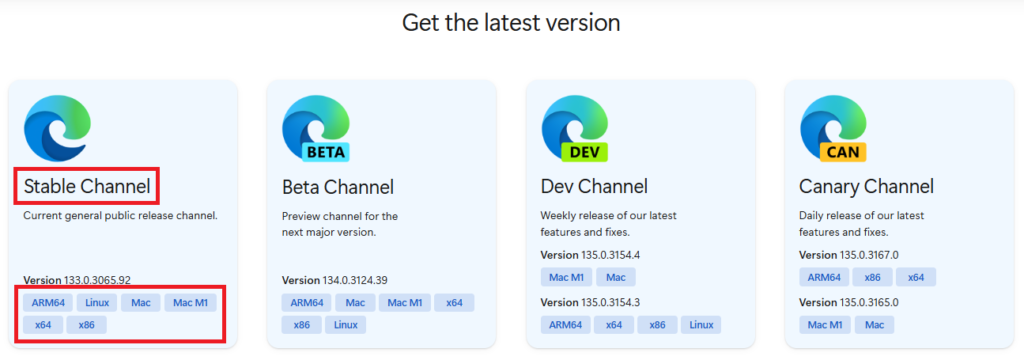
- Go to the official Microsoft Edge WebDriver page.
- As per your Edge browser version and OS, download the corresponding EdgeDriver from the stable channel.
- The latest stable version of the Edge driver is 151.0.4129.59. Always download the latest stable version of EdgeDriver that matches your Edge browser version.
Related Selenium Downloads
- Download the Latest Chromedriver for Selenium
- Download Latest GeckoDriver For Selenium
- Download Selenium JARs and Set Up
Note: If you want to avoid manual driver setup, modern automation tools like Playwright provide built in browser support and do not require downloading drivers. You can follow this Playwright installation guide to get started quickly.
Now let’s see how to set up the edge driver.
Step 3: Extract and Set Up EdgeDriver
Once downloaded, you need to extract the ZIP file.
- Extract the EdgeDriver ZIP file to a location like D:WebDriver
- Inside the folder, you’ll find msedgedriver.exe.
But to run EdgeDriver in your Selenium tests, you must add it to the PATH system.
Here’s how:
- Search for Environment Variables in Windows.
- Under System Variables, find Path and click Edit.
- Click New, then paste your folder path (e.g., D:WebDriver).
- Click OK and restart your computer.
Now, EdgeDriver is ready to run.
Proper driver setup helps avoid failures when Edge tests are executed on enterprise QA automation tools or remote cross-browser testing services.
If you’re new to Selenium, you may want to read our beginner-friendly Selenium tutorial to learn how to set up Java, Eclipse, and WebDriver from scratch.
How to Check Installed EdgeDriver Version (2026)
To verify your EdgeDriver version after installation, open Command Prompt (Windows) or Terminal (Mac/Linux) and run:
msedgedriver --versionThis will display the installed EdgeDriver version, helping you confirm it matches your Edge browser.
Step 4: Run EdgeDriver with Selenium
To make sure EdgeDriver is working, let’s write a quick Selenium test script. Use the given edge driver setup code in your Selenium test and run it.
Example of Microsoft Edge Driver in Selenium
// Set the path to EdgeDriver (only needed if it's not in system PATH)
System.setProperty("webdriver.edge.driver", "D:\WebDriver\msedgedriver.exe");

// Initialize EdgeDriver
WebDriver driver = new EdgeDriver();
This example script will help you run the Selenium test on the Microsoft Edge browser. Now, you can:
Open Edge automatically when running the Selenium test.
Navigate to websites.
Extract page titles & interact with web elements.
The same EdgeDriver configuration is commonly used in cloud based Selenium testing, enterprise automation frameworks, and CI CD driven test execution.
Tip: Always use the latest Selenium version and update EdgeDriver whenever the Edge browser’s version updates.
Python Example: Run EdgeDriver with Selenium (2026)
If you are using Python with Selenium, here’s how to specify the EdgeDriver path:
from selenium import webdriver

driver = webdriver.Edge(executable_path=r'D:\WebDriver\msedgedriver.exe')
driver.get('https://example.com')
Replace D:\WebDriver\msedgedriver.exe with the actual path where you extracted EdgeDriver.
Alternative: Use webdriver-manager for Python
Install webdriver-manager:
pip install webdriver-managerThen use it in your code:
from selenium import webdriver
from webdriver_manager.microsoft import EdgeChromiumDriverManager

driver = webdriver.Edge(EdgeChromiumDriverManager().install())
driver.get('https://example.com')
Troubleshooting Common EdgeDriver Issues (2026)
Issue 1: EdgeDriver Version Mismatch
Fix: Download the EdgeDriver version that matches your Edge browser version from the official page.
Issue 2: EdgeDriver Executable Not Found in PATH
Error: “msedgedriver is not recognized as an internal or external command”
Fix: Either add the folder containing msedgedriver.exe to your system’s PATH environment variable or specify the full path in your script.
Issue 3: EdgeDriver Not Launching Edge Browser
Error: Browser does not open or crashes immediately
Fix: Update your Edge browser to the latest 2026 version. Also ensure you have the correct EdgeDriver version installed.
EdgeDriver vs Playwright (Quick Comparison)
While EdgeDriver is essential for running Selenium tests on Microsoft Edge, modern automation tools like Playwright simplify this process by removing the need for driver setup.
| Feature | EdgeDriver (Selenium) | Playwright |
|---|---|---|
| Setup | Requires manual driver download | No driver required |
| Maintenance | Needs frequent updates | Handled automatically |
| Execution Speed | Moderate | Faster execution |
| Browser Support | Requires separate setup | Built in multi browser support |
Because of easier setup and better performance, many teams are now moving from Selenium to Playwright for modern test automation.
If you want to get started with Playwright and avoid driver setup completely, check this Playwright Java tutorial for step-by-step examples.
In modern QA workflows, Selenium tests with EdgeDriver are often executed using cloud test automation tools to reduce infrastructure cost and improve test coverage across multiple browser versions.
EdgeDriver vs WebDriverManager vs Playwright (2026)
When working with Microsoft Edge automation, you have different options:
| Method | Best For | Pros | Cons |
|---|---|---|---|
| Manual Download | Beginners, one-time setup | Full control | Manual updates required |
| WebDriverManager (Java) | Java projects, CI/CD | Automatic updates | Requires Maven dependency |
| webdriver-manager (Python) | Python projects, CI/CD | Automatic updates | Requires pip install |
| Playwright | New automation projects | No driver setup needed | Different API from Selenium |