
Last updated on September 1st, 2026 at 02:53 am
I added axe-core to a test suite for the first time back when it was still a fairly niche recommendation from a client’s dev lead, and the thing that struck me wasn’t how many issues it found. It was how confidently wrong my assumptions were about what “automated accessibility testing” could actually cover. This axe-core tutorial is the setup guide I wish someone had handed me that week, minus the trial and error.
Axe-core is an open-source JavaScript accessibility testing engine, built by Deque Systems, that runs a set of rules against the rendered DOM and reports WCAG violations with almost zero false positives. You can run it directly in a browser context, drop it into a framework wrapper (Playwright, Selenium, Cypress), or scan pages from the command line with no test framework at all. Every path returns the same structured results object. It does not replace manual testing, but it catches a real, useful slice of issues automatically.
If you’re newer to the space and want the bigger picture of what accessibility testing actually covers before landing on a specific tool, start there. This piece assumes you already know why accessibility testing matters and want the axe-core specifics.
- What axe-core actually does
- Try It Yourself: A Practice Page With Real Violations
- Setting up axe-core: getting started
- Running axe-core from the command line
- How you'd actually run axe-core: three integration paths
- Where axe-core falls short
- Recommendation based on use case
- Getting Started Checklist
- Conclusion
- Frequently Asked Questions (FAQs)
What axe-core actually does
Axe-core isn’t a scanner that crawls your whole site and hands you a report. It’s a library that runs inside a browser context and checks whatever DOM is currently rendered, at the moment you call it. That distinction matters more than it sounds like it should.
Because it runs against live, rendered DOM, axe-core catches issues that a static HTML crawler would miss entirely, things like a modal that only gets its aria-hidden attribute wrong after a JavaScript state change, or a dynamically injected form label that never actually associates with its input. Tools that scan raw HTML source can’t see that. Axe-core can, because it runs after the page has finished doing whatever it does.
One gotcha worth knowing before you pick a framework wrapper: not every axe-core package tracks every framework version. @axe-core/react, for example, doesn’t support React 18 and above, Deque’s own recommended path forward for modern React apps is its separate axe Developer Hub product. It’s an easy detail to miss until a wrapper install just silently doesn’t work the way the docs imply.
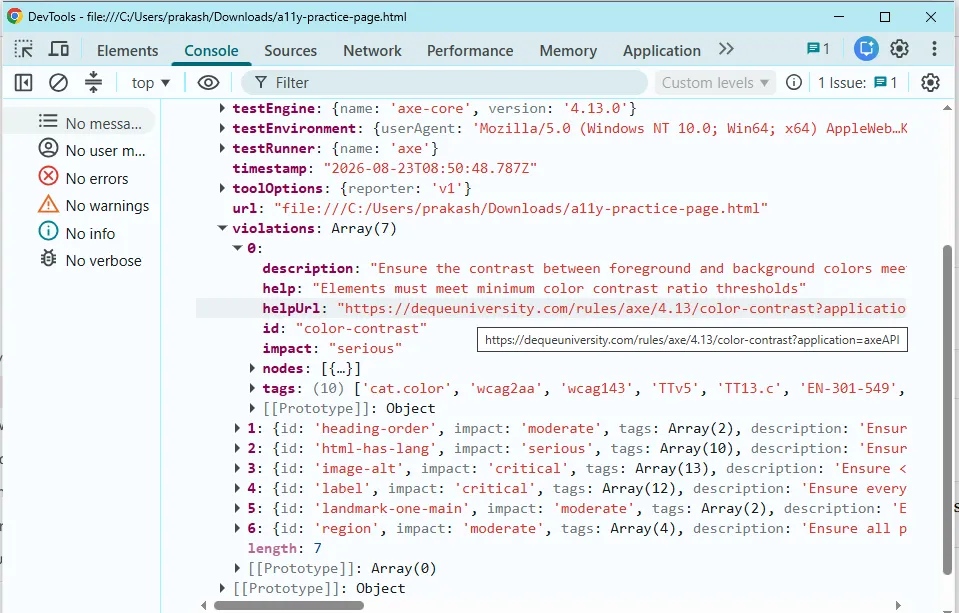
Here’s what that structured results object actually looks like once you run it for real, against a small page seeded with genuine accessibility issues.
Try It Yourself: A Practice Page With Real Violations
Every screenshot and violation count in this article comes from the small HTML page below. It’s fully self-contained, no external images, no CDN dependencies, no network calls, so it works offline and won’t break six months from now when some placeholder image service shuts down. Save it as a11y-practice-page.html and open it directly in Chrome to follow along with every example in this guide.
<!DOCTYPE html>
<html>
<head>
<meta charset="UTF-8">
<title>Axe-core Practice Page</title>
<style>
body { font-family: Arial, sans-serif; max-width: 700px; margin: 40px auto; padding: 0 20px; }
.low-contrast { color: #b3b3b3; background-color: #ffffff; }
.card { border: 1px solid #ddd; padding: 16px; margin: 16px 0; }
button { padding: 8px 16px; }
</style>
</head>
<body>
<h1>Practice Page</h1>
<p>This page has real, intentional accessibility violations for testing axe-core, the axe DevTools extension, and the axe-core CLI. Nothing here loads from a network, so it works fully offline.</p>
<h3>Skipped Heading Level</h3>
<p>This heading jumps from H1 straight to H3, skipping H2. That triggers axe-core's heading-order rule.</p>
<div class="card">
<p class="low-contrast">This gray text on a white background fails the 4.5:1 contrast ratio required by WCAG 2.1 AA. That triggers the color-contrast rule.</p>
</div>
<div class="card">
<img src="data:image/svg+xml,%3Csvg xmlns='http://www.w3.org/2000/svg' width='150' height='100'%3E%3Crect width='150' height='100' fill='%23cccccc'/%3E%3Ctext x='50%25' y='50%25' dominant-baseline='middle' text-anchor='middle' font-family='sans-serif' font-size='14'%3EImage%3C/text%3E%3C/svg%3E" width="150" height="100">
<p>The image above has no alt attribute at all. That triggers the image-alt rule.</p>
</div>
<div class="card">
<p>Email signup, with no associated label:</p>
<input type="email">
<button type="submit">Sign Up</button>
<p>The input has no label, no aria-label, and no placeholder text, so it triggers the label rule.</p>
</div>
<div class="card">
<p>Everything on this page sits outside a <main> landmark, and this paragraph itself sits outside any landmark region at all. Together that triggers the landmark-one-main and region rules, both best-practice checks rather than strict WCAG success criteria.</p>
</div>
</body>
</html>Run any of the console, extension, or CLI examples against this exact file and you should see 7 violations from a full scan, 16 flagged elements in the axe DevTools extension, and 1 result once you filter to AA-tagged rules only. If your numbers ever come out different, it’s a genuine signal worth chasing, not something to shrug off, since it usually means either a different axe-core version or a page state that isn’t quite what you think it is.
Setting up axe-core: getting started
Here’s the actual setup, the way I’d walk a new hire through it, starting with the core library before touching any framework. Every option shown below, runOnly, rules, include, and exclude, comes straight from axe-core’s own API documentation, worth bookmarking for the full option list beyond what fits here.
- Install axe-core from npm. For general use in a browser-like test environment, install the core library directly.
npm install axe-core- Run a basic scan with the core API. At its simplest, axe-core exposes one method:
axe.run(). Inside a browser context (a Playwrightpage.evaluate()call, a Jest/jsdom test, or literally the browser console with axe-core loaded), this is the whole scan:
const results = await axe.run();
console.log(results.violations);- Scope the scan with a context. Pass a CSS selector, DOM node, or an
{ include, exclude }object as the first argument to skip regions you don’t control, like a third-party ad iframe or chat widget.
const results = await axe.run({
  exclude: '.third-party-chat-widget'
});- Filter by WCAG level using tags. This is the option most getting-started guides skip, and it’s the one that actually matters for compliance work. Pass
runOnlyto restrict the scan to specific rule tags instead of axe-core’s full rule set, which includes best-practice checks that go beyond WCAG entirely:
const results = await axe.run({
  runOnly: {
    type: 'tag',
    values: ['wcag2a', 'wcag2aa', 'wcag21aa']
  }
});- Disable a specific rule if you know it’s a false positive for your case, and leave a comment explaining why, so the suppression doesn’t quietly become permanent.
const results = await axe.run({
  rules: {
    'color-contrast': { enabled: false } // TODO: legacy banner, JIRA-4521
  }
});- Read the results object honestly. You’ll get four arrays back:
violations,passes,incomplete, andinapplicable. New teams almost always look only atviolationsand call it done. Don’t. Theincompletearray is axe-core telling you it couldn’t determine pass or fail automatically, and that array needs a human to close out. Run this in a real browser and rules likecolor-contrastresolve definitively, one way or the other, since a real layout engine can actually compute rendered styles. It’s only outside a real browser, a headless test runner without full layout support, for instance, that you’ll see those same rules stuck inincompleteinstead of a clean pass or fail.
If you’re driving a real browser through Playwright specifically, install the maintained wrapper instead of wiring up axe.run() by hand:
npm install --save-dev @axe-core/playwrightThe wrapper’s AxeBuilder class exposes the same .include(), .exclude(), and tag filtering shown above through a chainable API, plus handles injecting axe-core into the page for you. If Playwright is your framework, the 8-step practical Playwright accessibility testing guide covers the fixture pattern, CI gating decisions, and a downloadable practice page with real violations to test your setup against.
For a quick manual check outside any test framework at all, the axe DevTools Chrome extension runs the same rule engine directly against whatever page you’re viewing, no code required.
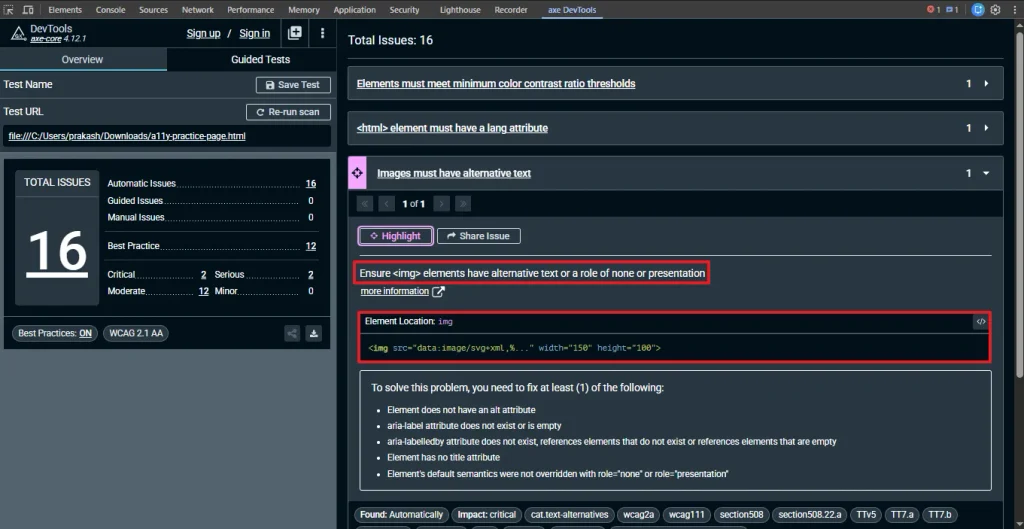
One thing worth knowing if you run both the extension and a script-based scan against the same page: the extension counts by flagged element, not by rule. A script-based axe.run() might report seven failing rules, but if one of those rules, region, for instance, matches ten separate elements sitting outside any landmark, the extension’s total climbs well past seven, since it’s counting instances, not rules. Neither number is wrong, they’re just answering different questions: how many rules failed, versus how many individual elements need fixing.
Running axe-core from the command line
Not every scan needs a test framework at all. The @axe-core/cli package runs axe-core against any URL directly from your terminal, which is useful for a quick audit before you’ve built out any automation.
Prerequisites:
- Node.js v6 or above
- Google Chrome v59 or above
Install the CLI globally, then install a Chromedriver:
npm install -g @axe-core/cli
npm install -g browser-driver-manager
npx browser-driver-manager install chrome
Run it against a single page:
axe https://your-staging-site.example.comThe CLI supports most of the same options as the JavaScript API, as command flags instead of an options object:
# scan multiple pages in one command
axe https://example.com/page1,https://example.com/page2

# restrict to a WCAG level
axe https://your-staging-site.example.com --tags wcag2aa

# disable a rule
axe https://your-staging-site.example.com --disable color-contrast

# save the full results to a file instead of printing to the terminal
axe https://your-staging-site.example.com --save results.json

# scope to a section, useful on a page with a lot of third-party noise
axe https://your-staging-site.example.com --include "#main-content"
For a slow-loading single-page app, --load-delay=2000 waits before scanning, and --timer prints how long the page load and the scan each took, which is genuinely useful for spotting a hung request before you assume the tool is broken.
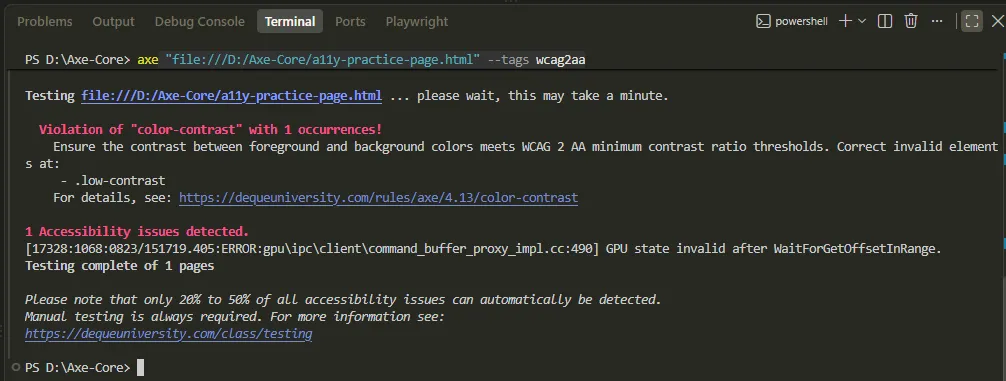
One thing worth knowing before you rely on --tags alone: a single tag scopes tighter than you might expect. --tags wcag2aa only returns AA-level rules, so on a page with several A-level issues too, missing alt text or an unlabeled form field, both A-level, alongside one AA-level contrast issue, that flag alone will only surface the contrast violation. If you want both levels in one pass, combine tags with a comma: axe <url> --tags wcag2a,wcag2aa.
If you need to check more than a handful of pages, the CLI’s comma-separated URL list gets tedious fast. Teams doing this at scale typically generate a sitemap during their build step, parse it into a URL list, and loop the CLI or a wrapper’s analyze() call over every entry inside CI, so no page silently goes untested.
How you’d actually run axe-core: three integration paths
Getting started with axe-core doesn’t mean picking one path forever. Most teams end up using more than one of these, for different purposes.
| Integration | Best for | Real limitation | Pricing |
|---|---|---|---|
| axe-core npm library / framework wrapper (Playwright, Selenium, Cypress) | Automated regression testing in CI | Requires someone to write and maintain the test code | Free, open source |
| axe DevTools browser extension | Manual spot-checks during development | Doesn’t scale to a full regression suite, one page at a time | Free tier, paid Pro tier for advanced features |
axe-core CLI (@axe-core/cli) | Quick one-off scans of a URL list, no test framework needed | Not a crawler, you supply every URL yourself | Free, open source |
The npm library is where the real long-term value sits, because it’s the only one of the three that lives inside your regression suite and fails a build. The browser extension is what I still reach for first when I’m debugging a single component, because the visual highlighting on the page is faster to parse than a JSON results object. The CLI is the one I use least, mostly for a quick gut check on a site with no existing test infrastructure. A static analysis tool like eslint-plugin-jsx-a11y sits earlier in the pipeline than any of these three, catching some JSX accessibility issues in the editor before a browser ever runs, worth adding alongside axe-core rather than instead of it.
Where axe-core falls short
Deque’s own 2021 coverage study, run across more than 13,000 pages and nearly 300,000 real audit findings, put axe-core’s automated detection rate at 57 percent of issues by volume, notably higher than the 20 to 30 percent figure that’s often quoted for automated tools generally. It’s worth being clear-eyed about that number: it comes from Deque, the company that builds and sells axe-core, so treat it as a credible upper bound rather than an independently audited figure.
What that 57 percent can’t tell you is which issues make up the other 43. In practice that’s reading order, whether alt text actually describes an image usefully, whether a screen reader announces a modal’s purpose when it opens, and custom keyboard interaction on a widget. None of that shows up as a DOM attribute axe-core can check.
Unpopular opinion, but I’ll say it plainly: teams that treat a clean axe-core run as “we’re accessible now” are making the same mistake as teams that buy an accessibility overlay widget and consider the box checked. On the last non-trivial page I scanned by hand after a green axe-core run, keyboard-only navigation and actual screen reader testing found real, user-blocking issues that no automated rule covers, and those were the ones a real visitor would hit first.
Axe-core is one tool inside a bigger discipline. For the fuller picture of what that discipline covers beyond any single tool, manual checks, screen reader passes, and how QA teams typically structure the work, see the complete accessibility testing guide for QA engineers.
Recommendation based on use case
- Solo QA engineer or small team retrofitting an existing suite: start with the core npm library or your framework’s wrapper package. It’s the lowest-friction path and it fails builds, which is what actually changes behavior on a team.
- Developer doing exploratory work on a single component or page: install the axe DevTools browser extension instead. You’ll get faster, more visual feedback than parsing a results object in a terminal.
- Auditing a site with no existing test framework at all: the CLI gets you a real scan today without writing a single test.
- Under compliance pressure (a client contract clause, an internal audit request, or similar): axe-core is necessary but not sufficient. Automated tooling alone won’t close the gap.
If that last one is you, here’s the current US benchmark worth knowing, per the DOJ’s official guidance on the Title II web accessibility rule: the Department of Justice’s April 2024 rule adopted WCAG 2.1 Level AA as the technical standard for state and local government sites, with compliance deadlines the DOJ has since pushed to April 2027 and April 2028 depending on entity size. That standard doesn’t apply directly to most private businesses, but it’s become the reference point courts and plaintiffs commonly point to in ADA Title III cases too. None of this is legal advice, and a clean automated scan against that standard doesn’t guarantee compliance on its own; involve legal counsel for anything that actually rides on the answer.
Getting Started Checklist
If you’re deciding whether this is worth setting up this sprint, do these three things in order:
- Run the axe DevTools browser extension manually against your three highest-traffic pages. Fifteen minutes, no setup, and it tells you whether the problem is small or large before you write a single test.
- Install the core library or your framework’s wrapper, then run one tag-filtered scan against your homepage. Use the code above, and actually read the
incompletearray, not just violations. - Spend 20 minutes on manual keyboard navigation on that same high-traffic page. Compare what you find by hand to what the scan caught. That gap, not the violation count alone, is the number that should drive your next decision.
Conclusion
Axe-core is worth setting up almost regardless of team size, because the cost is close to zero and it catches a real category of regressions before they ship. Just don’t let a clean run become the finish line. It’s the floor for accessibility testing, not the ceiling, and treating it as the ceiling is how teams end up surprised later, usually by a support ticket or a demand letter instead of their own test suite. If Playwright is your framework, the 8-step practical guide to Playwright accessibility testing picks up exactly where this leaves off, covering CI wiring and a downloadable practice page in full.
Frequently Asked Questions (FAQs)
Does axe-core work with Selenium, not just Playwright?
Yes. Deque maintains framework wrappers for Selenium’s WebDriverJS, Puppeteer, WebdriverIO, and Cypress in addition to Playwright, all built on the same axe-core engine, so the rule set and results format stay consistent across whichever framework your team already uses.
Is axe-core free to use commercially?
Yes, axe-core itself is open source under the Mozilla Public License and free for commercial use, including in CI pipelines and production test suites. Deque sells a separate paid platform, axe DevTools Pro and axe Developer Hub, for teams that want dashboards, guided manual testing, and enterprise reporting on top of the free engine.
How is axe-core different from Lighthouse’s accessibility audit?
Lighthouse’s accessibility category runs a smaller subset of axe-core’s own rules under the hood, so the two overlap, but running axe-core directly gives you the full rule set, scoping and tag-filtering controls, and a results object built for CI assertions rather than a single audit score.
Can axe-core alone make my US business ADA compliant?
No automated tool, axe-core included, can guarantee legal compliance or immunity from a lawsuit on its own. It catches a meaningful share of WCAG 2.1 AA issues automatically, and pairing it with manual and screen reader testing gets you much closer, but compliance decisions for your specific business should involve legal counsel, not a test suite’s pass rate.
Do I need to scan every page on my site, or is a sample enough?
A handful of high-traffic pages is a reasonable starting point, but a real regression suite should aim to cover every unique template and page state, since axe-core only sees what’s actually rendered in front of it. Generating a scan list from your sitemap and looping the CLI or a framework wrapper over it in CI is the common way teams get there without listing URLs by hand.
Do I need to know accessibility standards to start using axe-core?
Not to get a scan running, no. The setup steps above work without prior WCAG knowledge. You’ll want at least a working understanding of common success criteria once you start triaging violations, since the results object tells you what failed but not always why it matters to a real user.