Last updated on March 7th, 2026 at 03:27 pm
Mouse right click actions are commonly used in automation testing to open context menus and trigger additional UI options on a web element. Many modern web applications include features that only appear after a user performs a right click.
When automating such scenarios, Playwright provides simple methods to simulate mouse right click actions just like a real user interaction. This helps testers validate context menus, special options, and advanced UI behaviors.
In this guide, you will learn how to perform Mouse Right Click Actions in Playwright Java with simple examples. The tutorial also explains common use cases, best practices, and practical automation scenarios for beginners.
- How to Perform Mouse Right Click Actions in Playwright Java?
- What Are Mouse Right Click Actions in Playwright?
- How to Perform Mouse Right Click Actions in Playwright Java Step by Step?
- How to Handle Context Menu After Mouse Right Click Actions in Playwright?
- Can You Perform Mouse Right Click Actions Using Playwright Mouse API?
- What Are Common Mistakes When Performing Mouse Right Click Actions in Playwright?
- What Are Best Practices for Mouse Right Click Actions in Playwright?
- Examples in Other Languages
- Related Playwright Tutorials
- Conclusion
- What’s Next
- Frequently Asked Questions
How to Perform Mouse Right Click Actions in Playwright Java?
According to the Playwright official documentation,, You can perform Mouse Right Click Actions in Playwright Java by using the click() method with the button option set to right. This simulates a right click on the target element and opens the context menu if the application supports it.
This approach allows automation scripts to trigger context menus and interact with UI options that appear after a right click.
page.locator("#element").click( new Locator.ClickOptions().setButton(MouseButton.RIGHT) );The above example performs a right click on the specified element using Playwright Java.
What Are Mouse Right Click Actions in Playwright?
Mouse Right Click Actions in Playwright simulate the right mouse button click on a web element. This action usually opens a context menu that contains additional options related to that element.
Automation testers use right click actions to validate features that appear only after the context menu is opened. These options may include edit actions, copy commands, custom UI operations, or application specific tools.
Playwright provides built in support to perform right click actions through locator based interactions. As a result, testers can easily automate scenarios that require context menu validation.
Why Are Right Click Actions Important in Automation Testing?
Right click actions are important because many web applications provide advanced options inside context menus. These options are not accessible through a normal left click.
Testing these interactions ensures that the application behaves correctly when users open context menus and select additional actions.
- Validate context menu options
- Test advanced UI interactions
- Verify custom application features
- Automate real user behavior scenarios
Do Right Click Actions Work on All Web Elements?
Yes. Playwright can perform right click actions on most interactive elements such as buttons, links, images, and custom UI components.
However the application must support context menu behavior. If the element does not trigger any right click functionality, the action will still execute but no visible menu may appear.
How to Perform Mouse Right Click Actions in Playwright Java Step by Step?
You can perform Mouse Right Click Actions in Playwright Java by locating the target element and triggering a click event with the right mouse button. This approach simulates the same behavior as a real user right clicking on the element.
Follow these steps to perform a right click action in Playwright Java.
- Launch the browser.
- Create a browser context.
- Open a new page.
- Navigate to the target web page.
- Locate the element where the right click action is required.
- Use the click() method with the MouseButton.RIGHT option.
The following example demonstrates how to implement Mouse Right Click Actions using Playwright Java.
Playwright Java Example: Perform Right Click on an Element
This example shows how to open a browser, navigate to a web page, and perform a right click action on a specific element.
You can also download the ready HTML file to practice this example locally.
Download practice file: playwright_right_click_practice.html
import com.microsoft.playwright.*;
import com.microsoft.playwright.options.*;

public class RightClickExample {
	public static void main(String[] args) {
		try (Playwright playwright = Playwright.create()) {
			Browser browser = playwright.chromium().launch(new BrowserType.LaunchOptions().setHeadless(false));
			BrowserContext context = browser.newContext();
			Page page = context.newPage();
			page.navigate("file:///D:/playwright_right_click_practice.html");
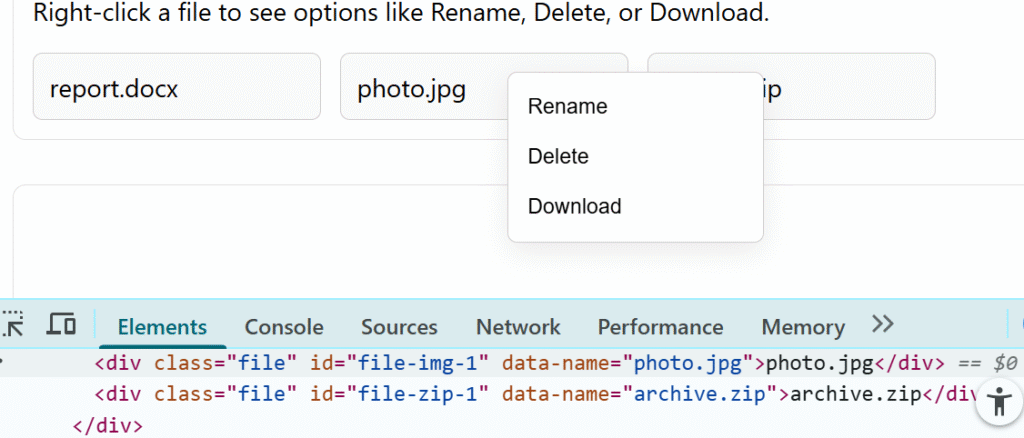
			page.click("#file-img-1", new Page.ClickOptions().setButton(MouseButton.RIGHT));
			browser.close();
		}
	}
}
This code performs a right click on the specified element and opens the context menu. The result of this Mouse Right Click Action can be seen in the image below.
How to Handle Context Menu After Mouse Right Click Actions in Playwright?
After performing Mouse Right Click Actions in Playwright, a context menu may appear with additional options. You can interact with these options by locating the menu item and performing a normal click action.
This approach allows automation tests to verify whether the correct context menu options appear and whether they trigger the expected functionality.
The process usually involves two steps. First perform the right click on the element. Then locate the context menu option and click it.
- Perform the right click on the target element.
- Wait for the context menu to appear.
- Locate the menu option.
- Click the required context menu item.
Playwright Java Example: Click a Context Menu Option
The following example demonstrates how to open a context menu using a right click and then click an option from the menu.
page.click("#file-img-1", new Page.ClickOptions().setButton(MouseButton.RIGHT));
page.locator("button:has-text('Delete')").click();
In this example, the script first performs a right click on the element and then selects the Delete option from the context menu.
Validate Right-Click Actions in Tests
After performing a right-click, your test should confirm that the expected action happened. This could be a visible context menu, a new option on the screen, or a script triggered by the right-click. Validating the result helps you ensure that the UI behaves correctly.

Here is an example of checking if a context menu appears:
import org.testng.Assert;

// Perform right-click
page.click("#cms-2", new Page.ClickOptions().setButton(MouseButton.RIGHT));

// Validate context menu is visible
Locator menu = page.locator("#contextMenu");
Assert.assertTrue(menu.isVisible());
You can also check if a menu item becomes enabled or if a specific message appears on the screen. The goal is to confirm that the right-click produced the correct output. This keeps your tests reliable and helps you catch UI issues early.
What Happens if the Context Menu Does Not Appear?
If the context menu does not appear, the right click action may still be executed but the application may not support context menu behavior for that element.
In such cases verify that the element actually triggers a context menu and ensure the locator correctly identifies the target element.
Can You Perform Mouse Right Click Actions Using Playwright Mouse API?
Yes. Mouse Right Click Actions in Playwright can also be performed using the Playwright Mouse API. This approach simulates the actual mouse movement and click behavior at specific screen coordinates.
While locator based right click actions are usually recommended, the Mouse API can be useful when interacting with canvas elements, complex UI components, or applications that rely heavily on coordinate based interactions.
The process typically involves moving the mouse to a specific location and then triggering a right mouse button click.
- Move the mouse pointer to the required element position.
- Trigger a mouse click using the right mouse button.
Playwright Java Example: Right Click Using Mouse API
This example demonstrates how to move the mouse to a specific position and perform a right click using the Playwright Mouse API.
page.mouse().move(300, 200);
page.mouse().click(300, 200, new Mouse.ClickOptions().setButton(MouseButton.RIGHT));
This method performs a right click at the specified screen coordinates. It is useful when elements cannot be easily located using selectors.
When Should You Use the Mouse API Instead of Locator Click?
The locator click method should be used in most automation scenarios because it is stable and easier to maintain. However the Mouse API becomes useful in certain situations.
- Interacting with canvas based elements
- Handling complex UI components
- Simulating advanced mouse movements
- Testing coordinate specific interactions
What Are Common Mistakes When Performing Mouse Right Click Actions in Playwright?
While implementing Mouse Right Click Actions in Playwright, beginners sometimes face issues due to incorrect locators or improper element handling. These mistakes can prevent the context menu from opening or cause the test to fail.
Understanding these common issues helps create more stable and reliable automation scripts.
Using an Incorrect Locator
If the locator does not correctly identify the target element, the right click action may execute on the wrong element or fail completely.
Always verify the locator using browser developer tools before implementing the automation script.
Attempting Right Click Before Element Is Visible
If the element is not visible or fully loaded, the right click action may not work as expected.
Use Playwright’s built in waiting mechanism or ensure the element is visible before performing the action.
page.locator("#element").waitFor();
page.locator("#element").click(new Locator.ClickOptions().setButton(MouseButton.RIGHT));
Assuming Every Element Supports Context Menu
Not every web element triggers a context menu after a right click. Some elements may not have any associated right click functionality.
In such cases the right click action will execute successfully, but no visible menu may appear.
Using Coordinate Based Click When Locator Is Available
Using the Mouse API with coordinates can make tests fragile because UI layout changes may break the script.
Whenever possible use locator based right click actions because they are more stable and easier to maintain.
What Are Best Practices for Mouse Right Click Actions in Playwright?
Following best practices when implementing Mouse Right Click Actions in Playwright helps improve test stability and maintainability. These practices ensure that automation scripts behave consistently across different browsers and environments.
The following recommendations can help you create reliable right click automation tests.
Use Locator Based Right Click Actions
Locator based interactions are more reliable than coordinate based mouse clicks. They automatically handle element visibility and interaction checks.
page.locator("#element").click(new Locator.ClickOptions().setButton(MouseButton.RIGHT));Verify Context Menu Elements
After performing the right click, always verify that the expected context menu items appear. This ensures that the UI interaction worked correctly.
page.locator("text=Edit").isVisible();Use Stable Locators for Context Menu Items
Context menu items may change dynamically depending on the application state. Therefore it is important to use stable locators such as text selectors, data attributes, or accessible roles.
Avoid Hardcoded Mouse Coordinates
Hardcoded mouse coordinates can break easily when the UI layout changes. Locator based actions are easier to maintain and more stable for long term automation projects.
Examples in Other Languages
The concept of Mouse Right Click Actions in Playwright is language independent. While the syntax changes slightly between programming languages, the overall approach remains the same.
The following examples demonstrate how to perform a right click action in different Playwright supported languages.
JavaScript Example: Perform Right Click on an Element
This example demonstrates how to perform a right click action using Playwright in JavaScript.
await page.locator('#element').click({ button: 'right' });TypeScript Implementation: Right Click Action
This TypeScript example performs the same right click interaction using the Playwright locator API.
await page.locator('#element').click({ button: 'right' });Python Example: Using Right Click in Playwright
The following Python example shows how to perform a right click action on an element.
page.locator("#element").click(button="right")All Playwright supported languages follow the same concept. The only difference is the syntax used to specify the right mouse button.
Related Playwright Tutorials
If you are learning Playwright automation, the following tutorials will help you understand other important concepts used in real world automation testing.
- How to perform mouse click action in Playwright Java
- Perform mouse double click action in Playwright Java
- How to get page title in Playwright Java
- How to handle Alerts In Playwright Java
- Playwright Java Calendar Automation
- How to record video in Playwright Java
These tutorials are part of the Playwright automation tutorial series that explains browser automation step by step for beginners.
Conclusion
Mouse Right Click Actions are useful when automating scenarios that involve context menus and advanced UI interactions. Playwright makes it easy to simulate this behavior using the locator click() method with the right mouse button option.
In most cases, locator based interactions are the best approach because they provide stable and maintainable automation scripts. The Playwright Mouse API can also be used when coordinate based interactions are required.
By using these techniques, you can reliably automate Mouse Right Click Actions in Playwright Java and validate context menu behavior in modern web applications.
What’s Next
If you want to continue building your Playwright Java skills, your next step is to learn how to work with text boxes in real test scenarios.
Check this detailed guide on handling Playwright Java text boxes for easy to follow examples and best practices:
Frequently Asked Questions
How do you perform Mouse Right Click Actions in Playwright Java?
You can perform Mouse Right Click Actions in Playwright Java by using the click() method with the button option set to MouseButton.RIGHT. This simulates a right mouse click on the target element and opens the context menu if the application supports it.
Does Playwright support right click actions on all elements?
Playwright can perform right click actions on most web elements. However, the context menu will appear only if the web application supports right click functionality for that element.
Is it better to use locator based right click or Mouse API?
Locator based right click actions are recommended because they are more stable and easier to maintain. The Mouse API is mainly useful for canvas elements or coordinate based interactions.
Can Playwright perform right click actions in multiple languages?
Yes. Playwright supports right click actions in JavaScript, TypeScript, Python, and Java. The concept is the same, but the syntax differs slightly depending on the programming language.