Last updated on March 7th, 2026 at 04:17 am
Clicking elements is one of the most common actions in web automation testing. Test scripts often click buttons, links, menu items, and other interactive elements to simulate real user behavior. Therefore learning how to click on element in Playwright Java is an essential skill for building reliable automation tests.
Playwright provides a simple and stable way to perform click actions. It automatically waits for elements to become visible, stable, and ready before executing the click. This built in waiting mechanism helps reduce flaky tests and improves test reliability.
In this tutorial you will learn how to click on element in Playwright Java using different locator strategies. You will also see practical examples, best practices, and common scenarios used in real world automation testing.
- How to Click on Element in Playwright Java?
- What is the click() Method in Playwright Java?
- How to Click on Element in Playwright Java Step by Step
- How to Click on Element Using Different Locators in Playwright Java?
- Examples in Other Languages
- Common Mistakes When Clicking Elements in Playwright Java
- What Are the Best Practices to Click on Element in Playwright Java?
- Related Playwright Tutorials
- Conclusion
- What’s Next
- FAQs
How to Click on Element in Playwright Java?
As per the Playwright official documentation, You can click on element in Playwright Java by using the click() method on a locator. Playwright automatically waits for the element to become visible and actionable before performing the click.
The most common approach is to locate the element using a selector and then call the click() method.
page.locator("#loginButton").click();This command finds the element using the provided locator and performs a click action just like a real user interaction.
What is the click() Method in Playwright Java?
The click() method in Playwright Java is used to simulate a user clicking an element on a web page. It performs the same action as a real mouse click on buttons, links, checkboxes, or other clickable elements.
Playwright automatically waits for the element to be visible, enabled, and stable before performing the click. This automatic waiting helps prevent timing issues that are common in web automation testing.
Does Playwright wait before clicking an element?
Yes. Playwright automatically waits for the element to become visible, stable, and actionable before executing the click() method.
Can Playwright click hidden elements?
No. Playwright normally clicks only visible and actionable elements. If an element is hidden or not interactable, the click action will fail.
How to Click on Element in Playwright Java Step by Step
You can click on element in Playwright Java by locating the element and then calling the click() method. The following steps show the basic workflow used in most automation scripts.
- Launch the browser.
- Create a new browser page.
- Navigate to the target website.
- Locate the element using a selector.
- Call the
click()method on the locator.
Once the element is located, Playwright automatically waits until the element is ready for interaction before performing the click action.
Example: Click a Button in Playwright Java
The following example shows how to click a button using a CSS selector.
You can also download the sample HTML file from the link below, save it in the D: drive, and run and experiment with this example locally.
Download Sample File (Google Drive)
import com.microsoft.playwright.*;

public class ClickExample {
  public static void main(String[] args) {
    Playwright playwright = Playwright.create();
    Browser browser = playwright.chromium().launch();
    Page page = browser.newPage();

    page.navigate("file:///D:/click-example.html");

    page.locator("#loginButton").click();

    browser.close();
    playwright.close();
  }
}
In this example Playwright finds the button using the locator #loginButton and performs the click action automatically.
Can Playwright click links?
Yes. Playwright can click links, buttons, checkboxes, and other clickable elements using the click() method.
Do you need to wait before clicking an element?
No. Playwright automatically waits for the element to be ready before performing the click action.
How to Click on Element Using Different Locators in Playwright Java?
You can click on element in Playwright Java using different locator strategies such as id, CSS selector, text, role, or XPath. Choosing a stable locator helps make automation tests more reliable and easier to maintain.
The following examples show common locator approaches used to perform click actions in Playwright Java.
Clicking Elements by ID Locator
If the element has a unique id attribute, it is usually the simplest and most reliable locator.
page.locator("#loginButton").click();Using Text Locator to Click Elements

Playwright allows you to locate elements directly by visible text. This is useful when clicking buttons or links.
page.getByText("Login").click();Perform Click Using Role Locator
The role locator helps identify elements based on their accessibility role. This method improves test stability and readability.
page.getByRole(AriaRole.BUTTON, new Page.GetByRoleOptions().setName("Login")).click();Click Elements with CSS Selector
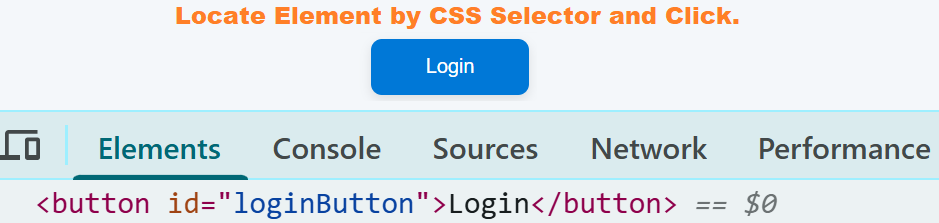
CSS selectors can be used to locate elements based on class names, attributes, or element hierarchy.
page.locator(".submit-btn").click();Clicking Elements via XPath
XPath can also be used to locate elements when other locator strategies are not suitable.
page.locator("//button[text()='Login']").click();Which locator is best for clicking elements in Playwright?
Role locators and text based locators are usually recommended because they are more stable and reflect real user interactions.
Can multiple locators be used for the same element?
Yes. Playwright supports multiple locator strategies. However using clear and stable locators helps reduce test maintenance.
Examples in Other Languages
The concept of clicking elements is the same across all Playwright supported languages. The only difference is the syntax used in each language.
The following examples show how to click an element using Playwright in JavaScript, TypeScript, and Python.
JavaScript Example: Clicking a Login Button
Here’s how you can click a login button using Playwright in JavaScript. This example demonstrates the basic click() method with a CSS selector.
await page.locator('#loginButton').click();TypeScript Implementation: Click Action
This TypeScript example shows the same click action using TypeScript syntax. The approach is identical to JavaScript.
await page.locator('#loginButton').click();Python Example: Using click() Method
page.locator("#loginButton").click()All Playwright languages use the same click() method. This makes it easy to understand automation scripts even when switching between programming languages.
Is the click() method the same in all Playwright languages?
Yes. The click() method is available in all Playwright languages including Java, JavaScript, TypeScript, and Python.
Do Playwright locators work the same across languages?
Yes. Locator strategies such as text, role, CSS, and XPath work consistently across all Playwright language bindings.
Common Mistakes When Clicking Elements in Playwright Java
Clicking elements in Playwright Java is usually simple. However beginners sometimes face errors because of unstable locators or incorrect element handling. Avoiding these common mistakes can make your automation tests more reliable.
Using Unstable Locators
Many beginners use dynamic CSS classes or complex XPath expressions. These locators often change when the UI is updated. It is better to use stable locators such as role, text, or unique id attributes.
Trying to Click Elements Before Navigation Completes
If the page is still loading, the element may not be available yet. Always ensure the page navigation is completed before performing actions.
page.navigate("https://example.com");
page.locator("#loginButton").click();
Using XPath When Simpler Locators Are Available
XPath works, but it often creates fragile tests. Playwright locators such as getByRole() and getByText() are usually more stable and readable.
Ignoring Accessibility Based Locators
Playwright provides role based locators that align with accessibility standards. Using these locators often improves the stability of automation tests.
Why does Playwright fail to click an element?
Playwright may fail to click an element if it is hidden, disabled, covered by another element, or not yet available on the page.
Should you use force click in Playwright?
Force clicking should be used carefully. It bypasses Playwright actionability checks and may hide real UI issues in the application.
What Are the Best Practices to Click on Element in Playwright Java?
Following best practices when clicking elements helps create stable and maintainable automation tests. Playwright already handles many waiting and synchronization tasks automatically, but choosing the right approach still improves reliability.
Use Role Based or Text Locators When Possible
Role and text based locators usually reflect how real users interact with the application. These locators are easier to read and less likely to break when the UI structure changes.
page.getByRole(AriaRole.BUTTON, new Page.GetByRoleOptions().setName("Login")).click();Prefer Unique and Stable Locators
Always use locators that are stable and unlikely to change. Unique id attributes, accessible roles, or visible text often work better than complex CSS or XPath selectors.
Avoid Unnecessary Wait Statements
Playwright automatically waits for elements to become actionable before performing actions. Adding manual waits in most cases is not required and may slow down test execution.
Keep Click Actions Clear and Readable
Automation scripts should be easy to understand. Clear locator names and simple click actions make test scripts easier to maintain.
Does Playwright automatically wait before clicking?
Yes. Playwright performs automatic waiting to ensure the element is visible, stable, and ready for interaction before executing the click action.
Can Playwright click elements inside iframes?
Yes. You can locate elements inside frames using the frame locator and then perform the click action.
Related Playwright Tutorials
- How to record tests using Codegen in Playwright Java
- How to locate elements in Playwright Java
- Capturing screenshot in Playwright java
- How to Handle Text Box in Playwright Java
- How to run Playwright tests using TestNG
Conclusion
Clicking elements is a fundamental action in web automation testing. In this guide you learned how to click on element in Playwright Java using the click() method along with different locator strategies such as ID, text, role, CSS selectors, and XPath.
Playwright makes element interactions reliable by automatically waiting for elements to become visible and actionable before performing the click. This built in behavior helps reduce flaky tests and simplifies test automation scripts.
By using stable locators and following best practices, you can easily click on element in Playwright Java and build more reliable and maintainable automation tests.
What’s Next
Now that you have learned how to click on elements in Playwright Java, the next step is to explore how to perform a double-click action.
Read this detailed guide:
How to Double-Click in Playwright Java
This article explains how to perform double-click operations using Playwright Java, along with practical examples to help you handle advanced user interactions with ease.
FAQs
How to click on element in Playwright Java?
You can click on element in Playwright Java by locating the element and calling the click() method. For example: page.locator(“#loginButton”).click();
Does Playwright automatically wait before clicking?
Yes. Playwright automatically waits for the element to be visible, stable, and actionable before performing the click action.
Which locator is best for clicking elements in Playwright?
Role locators and text based locators are usually recommended because they are stable and represent real user interactions.
Can Playwright click elements inside iframes?
Yes. You can use a frame locator to access elements inside an iframe and then call the click() method.
Is the click() method available in all Playwright languages?
Yes. The click() method is supported in Playwright Java, JavaScript, TypeScript, and Python.