Last updated on March 18th, 2026 at 03:41 am
This article explains how to capture screenshots in Playwright enterprise framework and attach them to Extent Reports automatically. Screenshots are captured for both passed and failed tests, which makes debugging faster by showing the exact UI state.
This feature is especially useful in an enterprise Playwright automation framework where multiple tests run in parallel. Instead of relying only on logs, you get visual proof of what happened during execution. Therefore, debugging becomes faster and more reliable.
The Capture Screenshots in Playwright feature is built using TestNG listeners, Playwright screenshot support, and Extent Reports integration. When a test passes or fails, a screenshot is captured automatically based on framework configuration. Then the screenshot path is shared with the reporting layer.
Next, the Extent Report listener reads this screenshot path and attaches the image to the test result. This design keeps screenshot handling and reporting responsibilities separate. As a result, the framework stays clean, scalable, and easy to maintain.
To keep the Playwright Enterprise Automation Framework series connected, you can refer to the related steps below.
Previous article: How to Configure Browser in Playwright Framework (Step 15)
Next article: How to Record Video in Playwright Enterprise Framework
If you want a full picture of how all framework pieces fit together, start with the main guide How to Build an Enterprise Playwright Automation Framework.
- Why Screenshots Are Important in Test Reports
- Overall Design Used in This Framework
- ScreenshotUtility Listener Implementation
- Passing Screenshot Path Between Listeners
- ExtentReportListener Enhancements
- testng.xml Configuration Changes
- Benefits in Playwright Enterprise Framework
- Download Updated Files
- Conclusion
- FAQs
Why Screenshots Are Important in Test Reports
Screenshots play a key role in understanding what really happened during test execution. Logs and status messages are useful; however, they often fail to show the actual UI state. Because of this, test reports without screenshots can slow down analysis and increase rework.
Problems with text-only test reports
Text-only test reports depend heavily on logs and error messages. While they explain what failed, they do not show how the application looked at that moment. As a result, testers must re-run the test or reproduce the issue manually.
In addition, logs can be noisy and difficult to read in large enterprise frameworks. Important UI related issues, such as layout breaks or missing elements, are hard to visualize. Therefore, debugging becomes time-consuming and less reliable.
How screenshots improve debugging
Screenshots provide instant visual context for every test result. With a screenshot attached, you can immediately see the page state at the time of execution. This helps identify UI issues, timing problems, or incorrect data faster.
Moreover, screenshots reduce the need for re-runs and manual verification. Developers and testers can review failures directly from the report. As a result, collaboration improves, and overall test analysis becomes more efficient.
For a deeper understanding of how Playwright handles reporting and diagnostics, you can also refer to the Playwright test reporting documentation, which explains built-in reporting capabilities and best practices.
Overall Design Used in This Framework
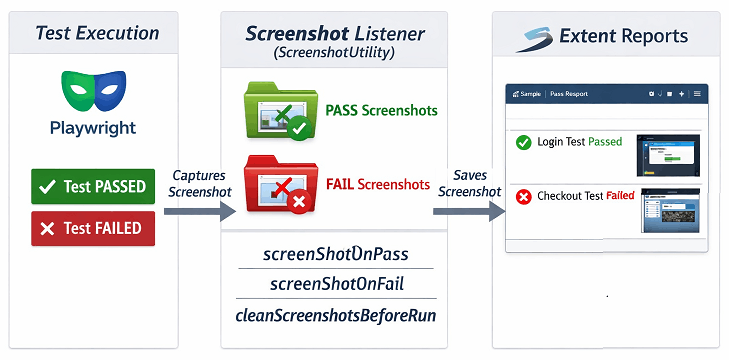
The framework uses a clean and scalable design to handle screenshots and reporting. Instead of placing screenshot code inside test classes, it relies on TestNG listeners. This approach keeps test cases simple, focusing solely on test logic.
In an enterprise setup, this design helps manage multiple cross-cutting concerns without code duplication. As a result, the framework remains easy to extend and maintain.
Listener-driven architecture
The framework uses TestNG listeners to react to test lifecycle events such as pass and failure. When a test finishes, the listener automatically decides whether a screenshot should be captured based on configuration flags. Therefore, no manual screenshot calls are required inside tests.
This listener-driven approach also works well with parallel execution. Each test runs independently and handles its own artifacts. As a result, test stability and reliability are preserved.
Separation of screenshot and reporting logic
Screenshot capturing and report generation are handled by separate listeners. One listener focuses only on taking screenshots, while another listener handles Extent Report updates. This clear separation avoids tight coupling between features.
Because of this design, changes in reporting do not affect screenshot behavior and vice versa. It also makes debugging and future enhancements easier. Overall, this separation follows enterprise automation best practices.
ScreenshotUtility Listener Implementation
The ScreenshotUtility listener is responsible for capturing screenshots during test execution. It listens to TestNG test events and reacts only when a test passes or fails. This keeps screenshot handling fully automated and consistent across the framework.
The listener also works safely with parallel execution. Each screenshot is stored with a unique name, which avoids overwriting files.
Screenshot capture on test pass
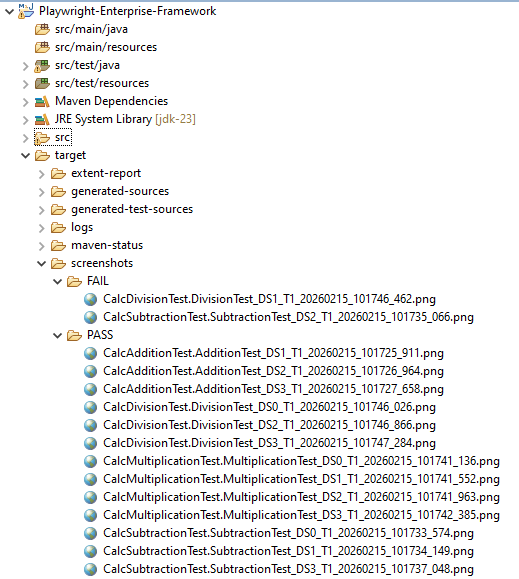
When a test passes, the listener checks a configuration flag before taking a screenshot. If enabled, it captures the current page state using Playwright. This helps preserve visual evidence even for successful test runs.
Pass screenshots are useful during demos, audits, and result reviews. They also help confirm that critical flows are working as expected.
Screenshot capture on test failure
On test failure, the listener automatically captures a screenshot at the point of failure. This happens before the browser session ends, which ensures accurate visual data. As a result, the exact failure state is preserved.
Failure screenshots make root cause analysis faster. Instead of relying only on stack traces, you can directly see what went wrong on the screen.
Config-based control using a properties file
Screenshot behavior is fully controlled using the framework properties file. Separate flags allow enabling or disabling screenshots for pass and failure. This provides flexibility without code changes.
Because of this setup, teams can adjust screenshot settings for local runs, CI pipelines, or production-like executions. It helps balance visibility and performance based on execution needs.
Passing Screenshot Path Between Listeners
In this framework, screenshots and reporting are handled by different listeners. To connect them cleanly, the screenshot path must be shared safely and reliably. This is achieved without creating direct dependencies between listeners.
This design keeps the framework modular and avoids tight coupling. As a result, each listener focuses only on its own responsibility.
Using ITestResult attributes
The ScreenshotUtility listener stores the screenshot file path inside the ITestResult object. This is done after the screenshot is successfully captured. The path is saved as a test attribute, which is available throughout the test lifecycle.
Later, the reporting listener reads this attribute and attaches the screenshot to the report. This approach avoids global variables and keeps data flow clear and controlled.
Handling parallel execution safely
Parallel execution requires careful handling of shared data. Each test has its own ITestResult instance, which makes attribute-based sharing thread safe. Because of this, screenshots from different tests do not interfere with each other.
Additionally, unique file names are generated using test names and thread identifiers. This prevents overwriting screenshots when tests run in parallel. As a result, the framework remains stable even under high concurrency.
ExtentReportListener Enhancements
The ExtentReportListener has been enhanced to support automatic screenshot attachments. It now reads the screenshot information provided by the screenshot listener. As a result, reports become more visual and easier to analyze.
This enhancement does not change how tests are written. All improvements happen at the listener level, which keeps the framework clean.
Attaching pass screenshots to the Extent Report
When a test passes, the listener checks if a screenshot path is available in the test result. If present, the screenshot is attached to the Extent Report. This provides visual confirmation of successful test execution.
Pass screenshots are helpful during reviews and demos. They also add extra confidence in critical business flows.
Attaching failure screenshots to the Extent Report
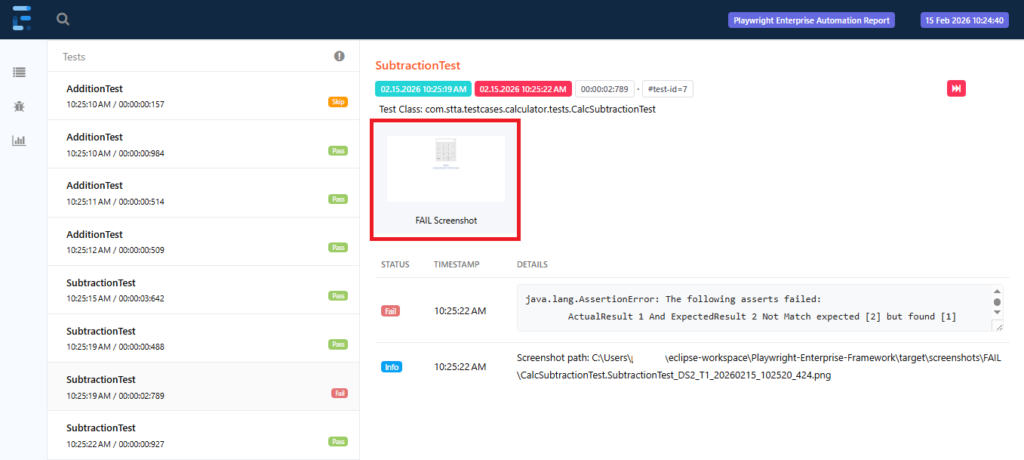
For failed tests, the listener attaches the screenshot captured at the failure point. This screenshot is added along with the failure details and exception information. As a result, the report clearly shows both what failed and how it looked.
This setup speeds up failure analysis. Developers and testers can understand issues directly from the report without re-running tests.
testng.xml Configuration Changes
The screenshot feature is enabled by updating the TestNG configuration file. No changes are required in test classes or framework core code. This makes the integration simple and non-intrusive.
By configuring listeners at the suite level, the behavior is applied consistently across all test suites.
Registering ScreenshotUtility listener
The ScreenshotUtility listener is added to the listeners section of the testng.xml file. Once registered, it automatically listens to test pass and failure events. This activates screenshot capturing across the entire framework.
Because the listener is suite-scoped, all tests inherit this behavior. There is no need to annotate individual test classes.
Listener execution flow
During test execution, TestNG triggers listeners based on test lifecycle events. The screenshot listener captures the screenshot first and stores the path in the test result. After that, the reporting listener reads this path and attaches the screenshot to the report.
This execution flow ensures screenshots are always available before report generation. As a result, Extent Reports remain accurate and complete.
Benefits in Playwright Enterprise Framework
Implementing the screenshot feature brings noticeable improvements in test execution and reporting. It complements the existing Playwright Enterprise Framework by making test results more actionable and readable.
Faster debugging
Screenshots provide a visual context for each test step, reducing the time needed to identify failures. Instead of scanning logs line by line, testers can quickly see the application state when a test passes or fails. This accelerates bug identification and resolution.
Cleaner and scalable reporting
By separating screenshot capture from report generation, reports stay organized and consistent. Each test includes relevant visual evidence without cluttering logs or test code. This approach scales easily across multiple suites and parallel executions, keeping reports professional and maintainable.
Download Updated Files
⚠️ Important Note: This article is part of the Playwright Enterprise Automation Framework and covers Step 16 in a step-by-step build. The downloadable code is not standalone and depends on all previous steps in the series. If you landed here directly, please complete the earlier steps first to avoid setup or runtime issues.
Access the updated code files for Step 16: Capture Screenshots in Playwright Feature by clicking link given below.
Download Step 16 Updated Source Code Files
Included in the downloadable ZIP package:
SuiteBase.javaupdated to support automated screenshot capture, parallel-safe execution, and integration with Extent reports for pass and fail tests. Update with existing SuiteBase.java.ScreenshotUtility.javafor automatic test pass/fail screenshots.Add under com.stta.utility package.ExtentReportListener.javaupdated to attach screenshots to reports. Update with existingExtentReportListener.java.Param.propertiesfile is updated to control screenshot behavior and cleanup using three flags: screenShotOnFail, screenShotOnPass, and cleanScreenshotsBeforeRun. Update with existing.- Test case files(CalcAdditionTest, etc) updated for minor bug fixes and enhancements. Update with existing
- testng.xml updated with ScreenshotUtility listener. Update with existing.
This package ensures you can immediately implement and test the screenshot feature in your Playwright Enterprise Framework.
Conclusion
This step completes screenshot support in the Playwright Enterprise Automation Framework by integrating it cleanly with TestNG listeners and Extent reports. Screenshots are now captured automatically on pass or failure based on simple configuration flags. As a result, debugging becomes faster, and reports become more useful without adding test code complexity. Overall, this approach maintains a scalable, clean, and enterprise-ready framework.
FAQs
Can I control screenshot capture without changing code?
Yes. Screenshot capture is fully controlled using flags in the Params.properties file. You can enable or disable screenshots for test pass and test failure without touching any Java code.
Does screenshot capture affect parallel execution in Playwright TestNG?
No. Screenshots are captured using TestNG ITestResult attributes, which are thread-safe. This ensures correct screenshot mapping even when tests run in parallel.
Why is screenshot logic separated from Extent Report logic?
Separating screenshot capture and reporting keeps the framework clean and scalable. It also allows future changes, such as adding new reports, without modifying screenshot handling.
Where are screenshots stored after test execution?
Screenshots are stored in a structured folder inside the project directory. Old screenshots can be automatically cleared before execution using the cleanScreenshotsBeforeRun flag.