Last updated on March 18th, 2026 at 03:54 am
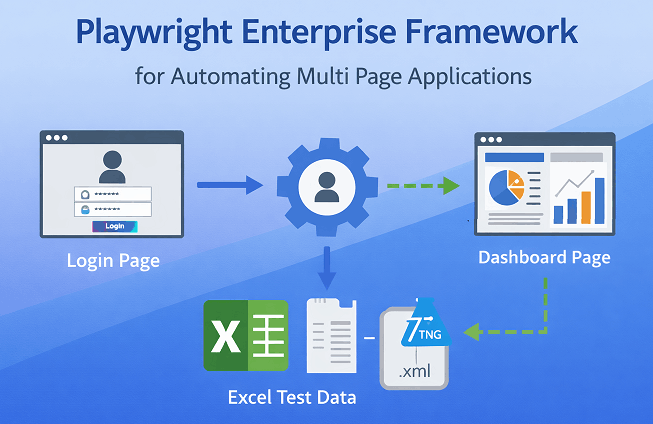
Learning how to automate login page is important in test automation because it verifies user authentication and application access. Since most test scenarios begin after a user signs in, implementing a reliable way to automate the login page helps ensure consistent and reusable test execution across the framework.
In earlier steps of the Playwright Enterprise Automation Framework series, we built a scalable framework using Playwright, TestNG, and Java with features like Page Object Model, Excel driven testing, centralized locators, reporting, retry logic, and screenshots.
Previously, the Excel driven Page Object Model was demonstrated using a single page calculator application. Now the same framework is extended to automate a multi page application with Login, Registration, Dashboard, and Home pages:
- Login Page
- Registration Page
- Dashboard Page
- Home Page
In this step, we start with Login Page Automation in the Playwright Enterprise Framework by implementing the Login Page Object, Excel driven login tests, and TestNG suite integration.
To keep the Playwright Enterprise Automation Framework series easy to follow, use the references below to navigate through the step by step implementation of the framework. Each article focuses on building a practical enterprise automation structure using Playwright and Java.
Previous step: Playwright Page Object Model for Enterprise Framework
Next step: Automate Registration Page in Playwright Framework
New to the series? Start with the Playwright Enterprise Automation Framework guide to understand the full framework architecture and design approach.
- What We Will Implement in This Step
- Overview of the Application Pages
- Login Test Scenarios
- Login Test Data (Excel File)
- Adding Login Page Locators
- Creating the Login Page Object
- Implementing the Login Test
- Creating Login Test Suite
- Updating the Master Test Suite
- Download the Complete Implementation
- Test Execution Flow
- Conclusion
What We Will Implement in This Step
In this step, we begin automating the Login page of a multi page web application using the Playwright Enterprise Framework. This extends the framework beyond the earlier single page calculator example and starts real application workflow automation.
To support login testing, the following components are added.
1. Login Page Object
A Login Page Object handles interactions with the username field, password field, login button, and validation messages using the Page Object Model.
2. Login Test Implementation
A new test class executes login scenarios by reading test data from Excel and validating the expected result.
3. Excel Driven Login Test Data
A new Excel file stores multiple login scenarios so tests can run with different data without changing code.
4. Login Page Locators
Login page locators are added to the centralized Objects.properties file.
5. Login Test Suite
A dedicated TestNG suite is created to execute login tests.
6. Master Suite Integration
The master TestNG suite is updated to include the login test suite.
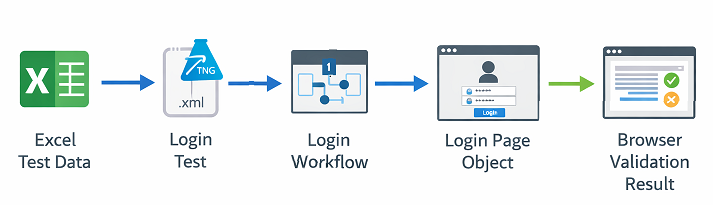
These changes allow the framework to automate login functionality and prepare the foundation for automating Registration, Dashboard, and Home pages in upcoming steps.
Overview of the Application Pages
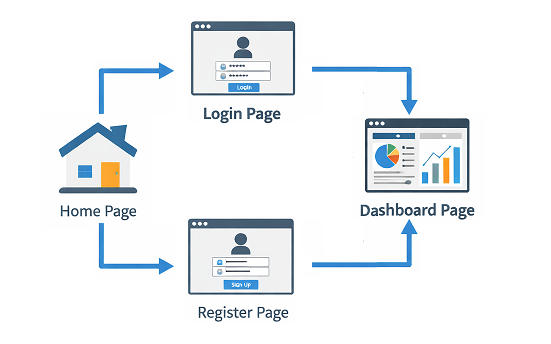
The application used in this tutorial is a multi page web application. To help readers run the framework locally, local HTML files are created for each page. These files simulate a real application and allow the automation framework to navigate and interact with different pages.
Each page will be automated using the Page Object Model, where a dedicated page object handles the page interactions.
The application contains the following pages.
Login Page
The Login page allows users to enter their username and password to access the application. Login automation will validate scenarios such as successful login, invalid credentials, and required field validation.
Registration Page
The Registration page allows new users to create an account. Automation for this page will be implemented in upcoming steps.
Dashboard Page
The Dashboard page appears after a successful login and will be used to verify successful authentication.
Home Page
The Home page acts as the landing page and provides navigation to other pages such as login or registration.
Why Automating the Login Page Is Important
The login page is usually the first workflow automated in most test automation frameworks. It verifies that users can authenticate and access the application correctly.
In real projects, the login workflow is reused across many test cases, which makes it an ideal starting point when implementing login automation in the Playwright Enterprise Framework.
Scope of This Step 20
Although the application has multiple pages, this step 20 focuses only on login page automation. Automation for the Registration, Dashboard, and Home pages will be implemented in upcoming steps.
Login Test Scenarios
To validate the login functionality, we implemented data driven login scenarios using Excel test data. Each row in the Excel file represents one test case, allowing scenarios to be added or updated without changing the test code.
The following scenarios are covered in this step.
Successful Login
Verifies that a user can log in with valid credentials and is redirected to the Dashboard page.
Invalid Password
Verifies that login fails when a valid username is used with an incorrect password.
Invalid Username
Verifies that login fails when a username does not exist in the system.
Missing Username
Validates that a message appears when the username field is left empty.
Missing Password
Validates that a message appears when the password field is left empty.
Data Driven Execution
All scenarios run using Excel driven test data. The Excel file includes a DataToRun flag that controls whether a scenario should run or be skipped during execution.
Login Test Data (Excel File)
Login scenarios are executed using Excel driven test data. Instead of storing inputs in the test class, the framework reads the data from an Excel file during execution.
In this step, a new Excel file LoginRegister.xls is added. Each row represents one login test case with input values and the expected result.
The Excel file contains these columns.
UserName
Username entered on the login page.
Password
Password used for the login attempt.
Expected Result
Defines the expected outcome of the login attempt.
DataToRun
Controls execution of the scenario.y runs the test and n skips it.
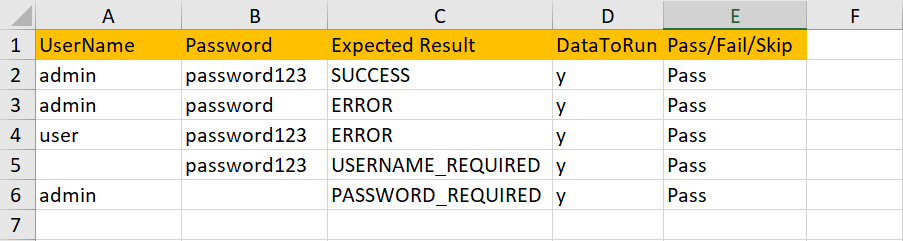
Using Excel driven data allows multiple login scenarios to run without modifying the automation code.
Adding Login Page Locators
The framework uses a centralized locator repository to manage UI element locators. Instead of storing locators in test classes or page objects, they are defined in the Objects.properties file.
In this step, new locators are added for elements used during login execution and login validation.
These locators represent:
- Username input field
- Password input field
- Login button
- Login error message
- Dashboard heading for successful login validation
- Logout link in the header
During execution, the framework reads these locator keys from Objects.properties and uses them to locate the elements on the page.
Centralized locator management keeps test code clean and allows UI changes to be handled by updating locators in one place.
Creating the Login Page Object
To automate login functionality, we created a Login Page Object using the Page Object Model. This approach separates UI interactions from test logic and keeps the framework organized.
A dedicated Login Page class is added to handle actions on the login page using locator keys from Objects.properties.
The Login Page Object performs these actions:
- Opens the login page
- Enters username and password
- Clicks the login button
- Verifies successful login
- Validates error or field validation messages
Keeping these actions in the page object allows test classes to call simple methods instead of interacting with UI elements directly. This improves readability, reuse, and maintainability as the framework grows.
Implementing the Login Test
After creating the Login Page Object, the next step is implementing the Login test that executes the login scenarios.
The test reads data from the LoginRegister.xls file, where each row represents one login scenario with username, password, expected result, and the DataToRun flag.
During execution, the framework:
- Reads a row from the Excel file.
- Checks the DataToRun flag to decide whether to run the scenario.
- Performs the login using the Login Page Object.
- Validates the result based on the Expected Result value.
The test verifies:
- Successful login by checking the Dashboard page
- Error message for invalid credentials
- Validation messages for missing fields
Playwright also provides built in assertions that simplify validation of UI elements and application states during test execution.
This design keeps the test class focused on scenario execution and validation, while page interactions are handled by the Login Page Object.
Creating Login Test Suite
To run login tests, a dedicated TestNG suite is created. This suite includes the Login test class that executes the Excel driven login scenarios.
Using a separate suite helps maintain a modular test structure, where tests are organized by application functionality.
This approach allows:
- Running login tests independently
- Keeping tests organized by module
- Easily adding new login related tests
During execution, the suite also uses the configured listeners to generate reports, capture screenshots, and apply retry logic.
Updating the Master Test Suite
The framework uses a master TestNG suite to control execution of all module test suites. Instead of running suites individually, the master suite loads and executes them in a single run.
In this step, the Login Test Suite is added to the master suite.
The master suite now runs:
- Calculator suite for addition and subtraction
- Calculator suite for multiplication and division
- Login test suite for the web application
This setup allows all modules to run from a single entry point and makes it easy to add new suites as the framework expands.
Download the Complete Implementation
To keep this article focused on the implementation approach, the complete source code for this step is provided as a downloadable package.
Download Step 20 Updated Files
After downloading the ZIP file, extract it and place the files in the correct locations within your existing Playwright Enterprise Framework project.
1. Create New Packages
Under the existing package:
com.stta.testcases
Create a new package:
webapp
Inside the webapp package, create the following subpackages:
componentspagestestsworkflows
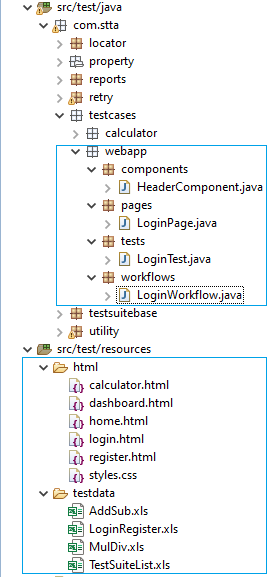
2. Add New Java Classes
Place the following files in their respective packages.
| Package | File |
|---|---|
webapp.components | HeaderComponent.java |
webapp.pages | LoginPage.java |
webapp.tests | LoginTest.java |
webapp.workflows | LoginWorkflow.java |
3. Add Local HTML Files
Copy the following files to:
src/test/resources/html
- dashboard.html
- home.html
- login.html
- register.html
- styles.css
Note: The html folder already exists, so only add these new files.
4. Add Excel Test Data
Add the file:
LoginRegister.xls
to the folder:
src/test/resources/testdata
5. Update Existing Framework Files
Replace the following existing files with the updated versions from the download package.
Location:src/test/java/com/stta/com.testsuitebase
• SuiteBase.java
Location:src/test/resources/testdata
• TestSuiteList.xls
Location:src/test/java/com/stta/property
• Objects.properties
6. Add Login Test Suite
Add the new suite file:
login-register-home.xml
to the project root, at the same level as the existing testng.xml.
7. Update the Master Test Suite
Replace the existing:
testng.xml
file with the updated version included in the download package.
Note: Do not forget to clean and rebuild project after adding/updating all these files.
After placing the files in the correct locations, the framework will be ready to execute the login automation scenarios as part of the TestNG suite execution.
Test Execution Flow
After adding the required files, login automation can be executed using the existing TestNG configuration.
Note: After adding new and updating existing files in framework, Please clean and rebuild the project before running test.
Execution follows this flow:
- The master TestNG suite (
testng.xml) starts execution and loads all configured module suites, including the login suite. - The login suite triggers the Login test class.
- The test reads scenarios from LoginRegister.xls and checks the DataToRun flag.
- For each executable scenario, the framework performs login using the Login Page Object.
- The result is validated using the Expected Result column.
During execution, the framework also generates reports, captures screenshots when required, and applies retry logic for failed tests.
Conclusion
In this step, we started automating a multi page web application in the Playwright Enterprise Framework.
We implemented Login page automation using the Page Object Model by adding a Login Page Object, login workflow, and login test class.
New login locators were added to Objects.properties, and an Excel file LoginRegister.xls was introduced to execute data driven login scenarios.
The login test suite was also integrated into the master TestNG suite so it runs as part of the overall framework execution.
In the next step, we will implement automation for the Registration page.