Last updated on March 23rd, 2026 at 05:04 am
Learning how to Automate Registration Page is an important step when testing a web application. Registration forms typically include multiple input validations such as required fields, password confirmation, duplicate usernames, and email format checks. Automating these validations ensures that new user creation works correctly under different input conditions.
In this tutorial, we implement registration page automation in the Playwright framework using the Page Object Model, workflow layer, and Excel driven test data. The automation executes multiple registration scenarios and validates expected outcomes using a scalable enterprise framework design.
This tutorial continues the Login Automation implementation and expands the framework to support a multi page web application with reusable components and structured test workflows.
For better continuity in the Playwright Enterprise Automation Framework series, use the references below to follow the structured implementation of the framework. Each step builds on the previous one to create a scalable enterprise automation solution using Playwright and Java.
Previous step: Login Page Automation in the Enterprise Framework
Next step: Automate Home Page in Playwright Framework
If you want to understand the overall framework design, begin with the Playwright Enterprise Automation Framework guide (Main article), which explains the architecture and core automation practices used throughout the series.
- How to Automate Registration Page in Playwright
- What You Will Learn
- Registration Flow Used in This Tutorial
- Test Scenarios Covered
- Registration Validation Types Covered
- Test Data Used for Registration Automation
- New Files Added in the Framework
- Updated Files in the Framework
- Registration Page Object Implementation
- Registration Workflow Implementation
- Registration Test Implementation
- Locator Implementation
- TestNG Suite Configuration
- Execute Registration Automation Tests
- Test Execution Result
- Download the Complete Implementation
- Conclusion
- Frequently Asked Questions
How to Automate Registration Page in Playwright
Automating a registration page in Playwright usually involves a structured automation framework. The common implementation steps are:
- Create a Page Object for the registration page to manage UI elements.
- Implement methods to enter username, password, confirm password, and email.
- Create a workflow layer that executes the full registration process.
- Use external test data such as Excel to execute multiple scenarios.
- Validate expected results such as successful registration or validation errors.
This structured approach allows the automation framework to test both valid registration flows and validation scenarios efficiently.
What You Will Learn
In this tutorial, you will learn the following concepts while implementing registration page automation in the Playwright framework.
- Registration automation structure in the Playwright Enterprise Framework
- Role of the Page Object Model in managing elements and actions for the register page
- Workflow layer design that separates business logic from the test class and simplifies test implementation
- Excel driven testing approach used to execute multiple registration scenarios with external test data
- Validation scenarios covered in automation such as required fields, password mismatch, and invalid email
Registration Flow Used in This Tutorial
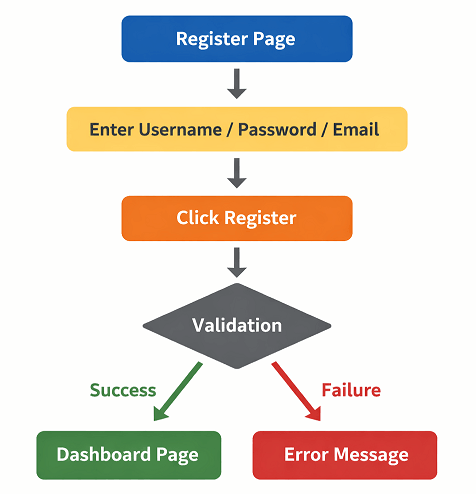
The registration feature in this tutorial follows a simple user flow that is commonly used in many web applications. Automating this flow helps verify both successful registration and different validation conditions.
The registration process works as follows:
- The user opens the registration page.
- The user enters the required details such as username, password, confirm password, and email.
- The application validates the submitted inputs.
- If all inputs are valid, the user account is created and the application redirects to the dashboard page.
- If any validation fails, the application displays the appropriate error or validation message.
This flow allows the automation framework to test both successful registration scenarios and input validation cases using data driven execution.
Test Scenarios Covered
The registration automation verifies several common validation scenarios that occur during user registration. Each scenario is executed using Excel driven test data to ensure the application handles both valid and invalid inputs correctly.
The following registration scenarios are covered in this implementation:
- Successful registration
Verifies that a new user can register successfully with valid input data and is redirected to the dashboard. - Duplicate username
Ensures the application prevents registration when the username already exists. - Username required
Validates that the system shows a required field message when the username is missing. - Password required
Confirms that the registration form does not allow submission without a password. - Confirm password required
Checks that the confirm password field must be filled before submitting the form. - Email required
Verifies that the application requires an email address during registration. - Password mismatch
Ensures the system displays an error when the password and confirm password values do not match. - HTML5 invalid email validation
Validates the browser level email format check when an incorrect email pattern is entered. - Application level invalid email validation
Confirms that the application displays an error message when the email address is not valid according to the application rules.
These scenarios help ensure that the registration form correctly handles user input validation, error handling, and successful account creation.
Registration Validation Types Covered
The registration automation verifies several common validation types that appear in user registration forms. These validations ensure the application properly handles both valid and invalid input conditions.
The automation checks required fields, email format validation, password confirmation, duplicate usernames, and successful account creation.
Test Data Used for Registration Automation
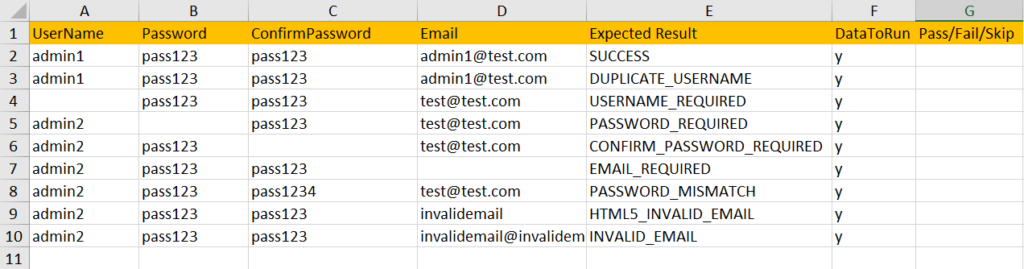
The registration scenarios are executed using Excel driven test data. Instead of hardcoding input values inside the test class, the framework reads test data from an external Excel file during execution. This approach keeps test data separate from the automation code and makes it easy to add new scenarios without modifying the test implementation.
For registration automation, the framework uses the RegisterTest sheet available in the LoginRegister.xls file. Each row in this sheet represents one registration test scenario with the required input values and the expected validation result.
The sheet contains the following columns:
UserName
Specifies the username entered in the registration form.
Password
Defines the password used during the registration attempt.
ConfirmPassword
Represents the confirmation password entered in the confirm password field.
Email
Contains the email address used for the registration attempt.
Expected Result
Defines the expected outcome of the registration attempt. The framework uses this value to determine which validation condition should be verified after submitting the form.
DataToRun
Controls whether a particular dataset should be executed.
If the value is y, the scenario is executed. If the value is n, the scenario is skipped.
The Expected Result column plays an important role in this design. It drives the validation logic inside the workflow, allowing the same automation code to verify different registration scenarios based on the test data.
New Files Added in the Framework
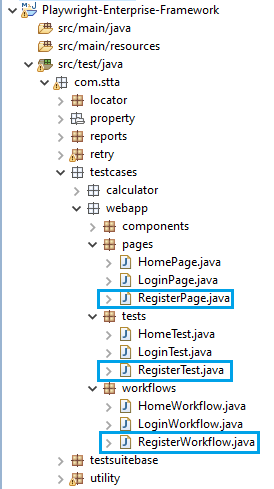
To implement the registration automation, a few new files are introduced in the framework. Each file follows the existing framework structure and keeps responsibilities clearly separated.
RegisterTest.java
This is the TestNG test class that executes the registration scenarios. It reads test data from the RegisterTest sheet in the Excel file and runs multiple registration scenarios based on the provided dataset.
RegisterPage.java
This file represents the Page Object Model for the registration page. It contains all actions related to the registration screen such as entering username, password, confirm password, email, and clicking the register button. It also includes methods used for validating registration results.
RegisterWorkflow.java
This file implements the workflow layer for registration. It combines page actions and validation logic to perform the complete registration process and verify the expected result based on the test data.
Updated Files in the Framework
Along with adding new files, a few existing framework files are updated to support the registration automation.
Objects.properties
New locator entries are added for the registration page elements such as username input, password input, confirm password field, email field, register button, and validation message container. These locators are used by the Page Object class to interact with the registration form.
login-register-home.xml
The TestNG suite file is updated to include the RegisterTest class. This ensures that registration scenarios run as part of the overall test suite execution along with the login tests.
LoginRegister.xls
A new sheet named RegisterTest is added to this Excel file. This sheet contains the test data used to execute different registration scenarios through Excel driven testing.
Registration Page Object Implementation
The RegisterPage.java class implements the Page Object Model for the registration page. It contains all interactions related to the registration screen and keeps UI level logic separated from test execution.
The RegisterPage class handles the following responsibilities.
Opening the registration page
The page object contains a method that navigates directly to the registration page used in this tutorial.
Entering registration form fields
Methods are implemented to fill the form fields such as username, password, confirm password, and email.
Submitting the registration form
A dedicated method clicks the Register button to submit the form.
Validating registration messages
The page object includes validation methods to verify different registration outcomes such as required field validation, invalid email format, password mismatch, and duplicate username.
Verifying successful registration
When registration is successful, the application redirects the user to the dashboard page. The page object contains a method to verify that the dashboard page is visible after successful registration.
Playwright provides simple APIs for interacting with input fields, dropdowns, and form elements during automation.
This design keeps all registration actions and validations inside one Page Object, which simplifies maintenance.
Registration Workflow Implementation
The RegisterWorkflow.java class implements the workflow layer for the registration process. This layer sits between the test class and the page object and is responsible for executing the complete registration flow.
The RegisterWorkflow class performs the following responsibilities.
Execute registration steps
The workflow calls methods from the RegisterPage object to open the registration page, enter form values, and submit the registration form.
Apply conditional field entry
The workflow checks whether a value is provided in the test data before entering it into the form. This allows the same workflow to support different validation scenarios such as missing username, missing password, or missing email.
Validate expected results
After submitting the registration form, the workflow verifies the outcome based on the scenario defined in the test data. It calls the appropriate validation method from the page object.
Keep test logic reusable
The workflow centralizes the registration execution logic so the test class only passes input data and expected results.
How ExpectedResult Drives Validation
The ExpectedResult column in the Excel sheet controls which validation should be verified during execution.
For example:
- SUCCESS verifies that the dashboard page is visible after successful registration.
- USERNAME_REQUIRED verifies the browser validation message for a missing username.
- PASSWORD_MISMATCH checks whether the application shows the correct mismatch error.
- DUPLICATE_USERNAME verifies that the application prevents duplicate account creation.
Because validation is controlled through the ExpectedResult value, the same workflow method can handle multiple registration scenarios without creating separate test methods. This approach keeps the automation data driven, scalable, and easy to extend.
Registration Test Implementation
The RegisterTest.java class is the TestNG test class responsible for executing the registration scenarios defined in the Excel test data.
The test class calls RegisterWorkflow to execute the registration steps and validations.
The RegisterTest class performs the following responsibilities.
Read Excel test data
The test class reads input values from the RegisterTest sheet in the LoginRegister.xls file. Each row in the sheet represents a separate registration scenario with its corresponding input data and expected result.
Execute the registration workflow
For every dataset marked for execution, the test class calls the workflow method and passes the values such as username, password, confirm password, email, and expected result.
Validate registration results
The workflow returns the validation outcome based on the expected result defined in the Excel file. The test class verifies this result to determine whether the scenario passed or failed.
Control execution using DataToRun
The DataToRun column in the Excel sheet determines whether a specific test scenario should run. If the value is y, the scenario is executed. If the value is n, the scenario is skipped.
This design allows multiple registration scenarios to run from a single test class using Excel driven test data.
Locator Implementation
The framework uses a centralized locator design to manage all UI element locators in a single location. Instead of defining locators inside page classes, they are stored in a dedicated properties file.
The locators for the registration page are added to the Objects.properties file.
This approach allows the Page Object classes to retrieve locators dynamically using the getElement() method. As a result, the framework keeps UI locator definitions separate from the automation logic.
Benefits of Centralized Locators
Maintainability
All locators are stored in one file. If the UI changes, the locator can be updated in the properties file without modifying the Page Object or test classes.
Easy updates
Updating a locator becomes quick and safe because the change only needs to be made in a single place.
Reusable locators
The same locator can be reused across multiple Page Objects, workflows, or tests if needed.
Example Locator Entries
Below are examples of locator keys added for the registration page.
register.username.input = id=register-username
register.password.input = id=register-password
register.confirm.password.input = id=register-confirm-password
register.email.input = id=register-email
register.submit.button = css=button[type='submit']
register.error.message = id=register-error
These locator keys are referenced inside the RegisterPage class when interacting with the registration form elements. This design keeps the automation code clean while making locator management simple and scalable.
TestNG Suite Configuration
The framework uses a centralized TestNG suite file to control the execution of automation tests. To include the registration scenarios, the suite configuration is updated in the login-register-home.xml file.
This suite file now includes both login tests and registration tests, allowing them to run together as part of the same execution flow.
Login Tests Execution
The suite first executes the LoginTest class, which runs all login related scenarios using the login test data defined in the Excel file.
Register Tests Execution
A new test block is added in the suite to execute the RegisterTest class. This class reads the RegisterTest sheet from the Excel file and runs all registration scenarios defined in the test data.
Extent Report Integration
The suite also includes the ExtentReportListener, which automatically generates the Extent HTML report during execution. This report captures detailed results for both login and registration tests, including pass and fail status for each scenario.
By including both test classes in the same suite, the framework ensures that authentication related scenarios are executed together as part of a single test run.
Execute Registration Automation Tests
You can execute the registration automation using the TestNG suite file configured in the framework.
Follow the steps below to run the tests.
Step 1: Open the TestNG suite file
Locate the suite configuration file login-register-home.xml inside the framework project.
Step 2: Run the suite file
Right click on the login-register-home.xml file and run it as a TestNG Suite from your IDE.
Step 3: Test execution begins
The framework will start executing the tests defined in the suite.
First, the login scenarios run, followed by the registration scenarios.
During execution, the framework reads test data from the LoginRegister.xls file and runs each scenario based on the values defined in the Excel sheet.
Step 4: View execution results
After execution completes, the framework generates detailed results in the configured test reports. These reports show the pass or fail status of each login and registration scenario.
Test Execution Result
After the test execution completes, the framework processes all datasets defined in the RegisterTest sheet of the Excel file.
Each row marked with DataToRun = y is executed as a separate registration scenario. The framework performs the registration steps, applies the expected validation, and records the outcome for that dataset.
Datasets marked with DataToRun = n are automatically skipped. This allows you to temporarily disable specific scenarios without removing them from the Excel sheet.
During execution, the framework logs the result of every scenario, including successful registrations and validation failures such as required fields, password mismatch, or invalid email.
All results are captured in the configured test report as well as written back to excel sheet, where you can see the pass or fail status of each registration scenario along with execution details.
Download the Complete Implementation
You can download the complete implementation used in this tutorial to practice the registration automation inside the Playwright Enterprise Framework.
Download Step 21 Updated Source Code Files
The download package includes the following resources:
- Add the following files to the framework structure:
- RegisterTest.java inside the tests package
- RegisterPage.java inside the pages package
- RegisterWorkflow.java inside the workflows package
- Update the following framework source files by replacing the existing files:
- Objects.properties
- login-register-home.xml
- LoginRegister.xls
These files allow you to quickly set up the project and run the same automation scenarios demonstrated in this guide.
Conclusion
In this tutorial, we implemented automation for the registration page in the Playwright Enterprise Framework.
We designed the registration automation using the Page Object Model, where the RegisterPage class manages page interactions and validations. This keeps UI related logic separated from the test implementation.
To simplify execution, we introduced a workflow layer through the RegisterWorkflow class. The workflow handles the complete registration process and validation logic, which keeps the test class clean and reusable.
We also used Excel driven testing to execute multiple registration scenarios from a single test class. Different cases such as successful registration, duplicate username, missing fields, and invalid email validations are handled through test data.
By combining Page Objects, workflows, centralized locators, and data driven testing, the framework provides a structured and scalable approach for automating web application flows.
In the upcoming tutorials, we will continue extending the framework with additional automation features and improvements.
Frequently Asked Questions
How do you automate a registration form in Playwright?
Automate a registration form by creating a Page Object for form fields, filling the inputs using Playwright methods, submitting the form, and verifying success or validation messages.
Why use a workflow layer in test automation frameworks?
A workflow layer combines multiple page actions into reusable flows. This keeps test classes simple and improves maintainability.
How does Excel driven testing work in Playwright frameworks?
Excel driven testing stores test data in an Excel file. The framework reads each dataset and executes the test with different inputs and expected results.
What validations should be tested in registration forms?
Key validations include required fields, invalid email format, password mismatch, duplicate username, and successful registration with valid data.