Last updated on August 12th, 2026 at 10:13 am
If you are trying to download ChromeDriver for Selenium but keep running into frustrating version mismatches, session creation errors, or path configuration bugs, you are not alone.
Many developers and QA engineers waste valuable hours troubleshooting automation scripts because their Chrome browser version does not align with their driver executable.
This comprehensive, step-by-step tutorial will show you exactly how to download the correct ChromeDriver binary, properly match it to your browser version, and set it up smoothly across Windows, macOS, and Linux systems. You will also learn the modern automation techniques used in 2026 to bypass manual downloads completely.
- Quick Answer: How to Download ChromeDriver in 2026
- Step 1: Check Your Google Chrome Browser Version
- Step 2: Access the Official ChromeDriver Download Dashboard
- Step 3: Configure ChromeDriver in Your Selenium Scripts
- Step 4: Automate Setup Using Third-Party Package Managers (Optional)
- ChromeDriver vs. WebDriverManager vs. Playwright: Which Is Best?
- Troubleshooting Common ChromeDriver Errors in Selenium
- Download ChromeDriver: Frequently Asked Questions
- Conclusion
Quick Answer: How to Download ChromeDriver in 2026
If your local automated test suites are throwing environment initialization errors, follow these fast recovery steps to acquire the correct automated chrome webdriver download:
- Verify Chrome Version: Navigate to
chrome://settings/helpin your browser. - Access the Modern Dashboard: For Chrome versions 115 and above, visit the official Chrome for Testing (CfT) Availability Dashboard.
- Grab the Binary: Pull the stable release link matching your system (e.g.,
chromedriver-win64.zip). - Extract and Initialize: Unzip the package and place the standalone executable application driver inside your project directory.
Step 1: Check Your Google Chrome Browser Version
ChromeDriver acts as the bridge between your Selenium scripts and the Chrome browser. To ensure reliable automation, ChromeDriver should match the version of your installed Google Chrome browser. For Chrome 115 and later, Google releases Chrome and ChromeDriver together through Chrome for Testing (CfT), making version matching much simpler than before. Skipping this step is one of the most common causes of the SessionNotCreatedException error.
To find your exact browser version, use one of the two methods below:
Method 1: The Quick Address Bar Shortcut
- Open a new tab in your Google Chrome browser.
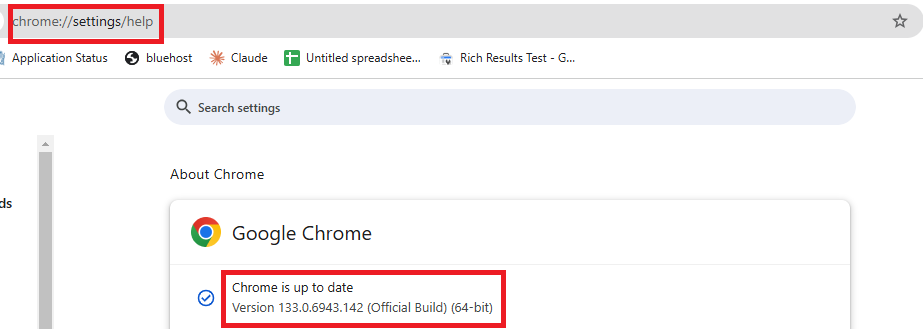
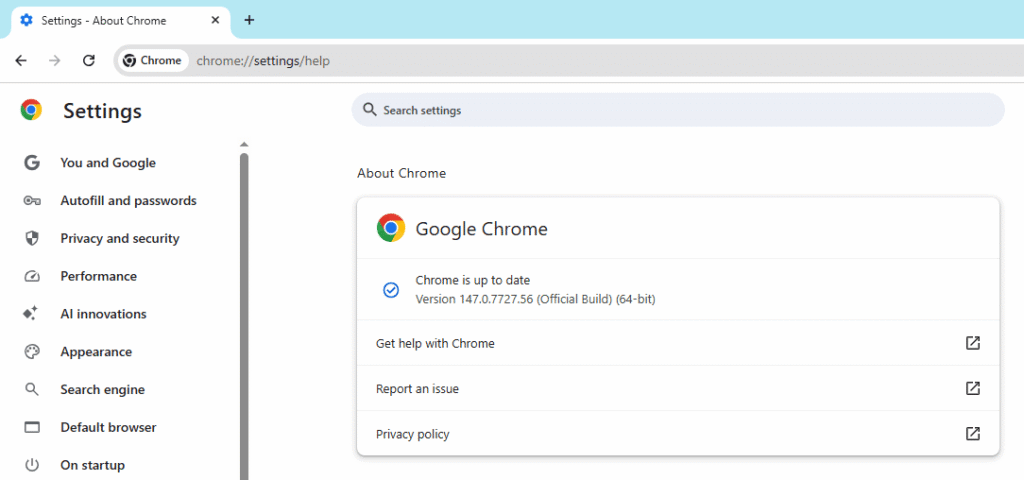
- Type or paste
chrome://settings/helpinto the URL address bar and hit Enter. - Your exact version number will display under the “About Chrome” header (Example: Version 151.0.x.x (your version will be different)).
Method 2: The Chrome Browser Menu
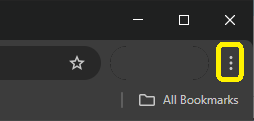
- Click on the three vertical dots in the top-right corner of your Chrome window.
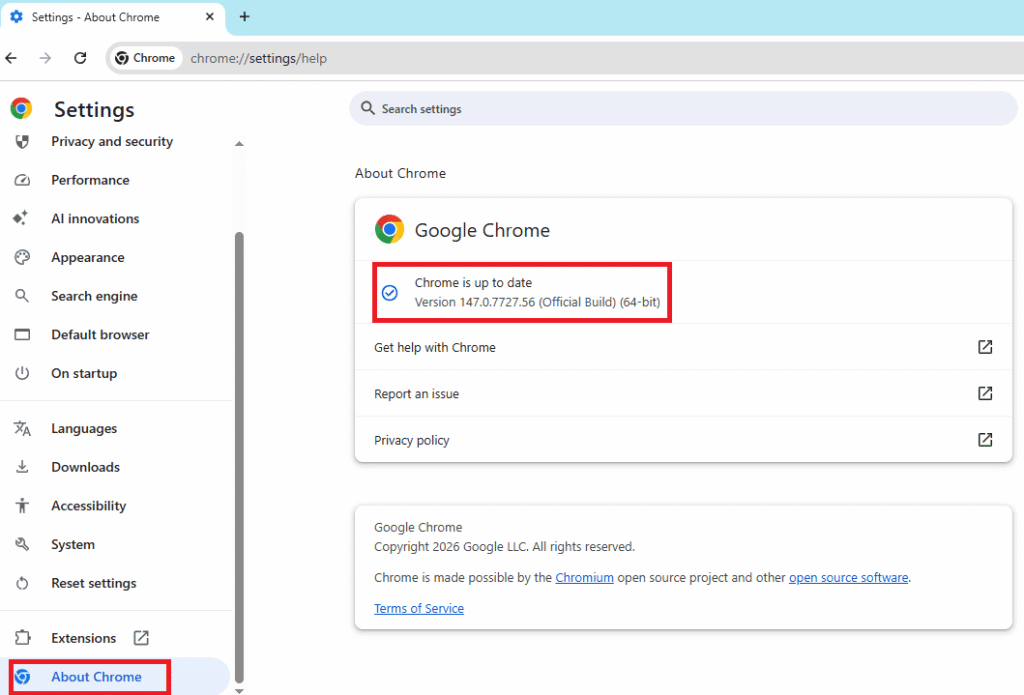
- Hover your mouse over Help near the bottom of the dropdown menu.
- Click on About Google Chrome to view your version details.
Step 2: Access the Official ChromeDriver Download Dashboard
Google distributes ChromeDriver through the Chrome for Testing (CfT) project. The old ChromeDriver download page is no longer updated with the latest releases.
To execute a secure chrome webdriver download, you must fetch your assets straight from the official Google Chrome Labs dashboard at https://googlechromelabs.github.io/chrome-for-testing/.
Direct Stable Binaries for Quick Access
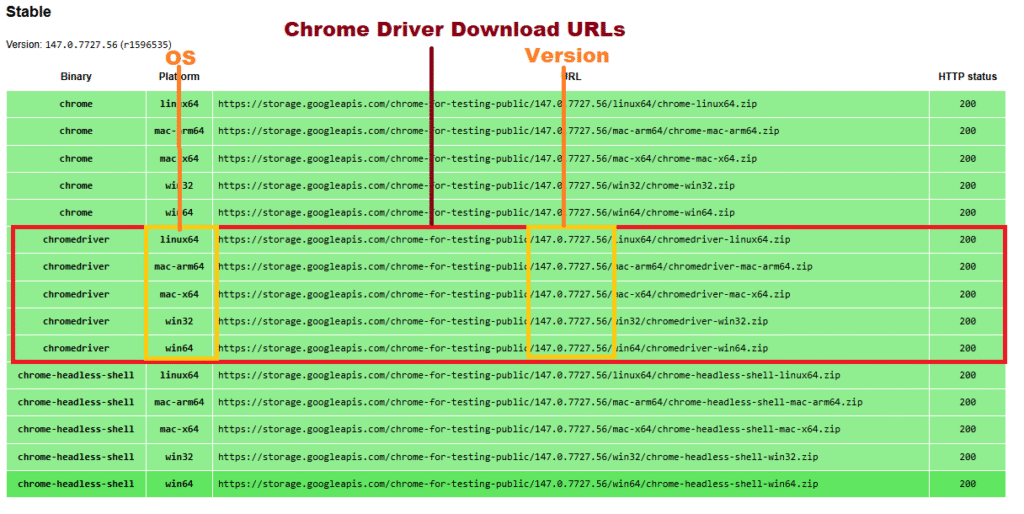
Locate the Stable channel section on the dashboard and choose the correct binary URL based on your operating system:
⚠️ Version Maintenance Note: The download links below are examples for the current stable release at the time this guide was updated. If your installed Google Chrome version is newer, visit the official Chrome for Testing Dashboard and download the ChromeDriver package that matches your browser version.
| Operating System | Target Platform Architecture | Binary Package Name |
| Windows | 64-bit Systems | chromedriver-win64.zip |
| Windows | 32-bit Systems | chromedriver-win32.zip |
| macOS | Apple Silicon (M1/M2/M3/M4 Chips) | chromedriver-mac-arm64.zip |
| macOS | Intel Core Processors | chromedriver-mac-x64.zip |
| Linux | 64-bit Distributions | chromedriver-linux64.zip |
💡 Running tests on Firefox instead? If your automation pipeline requires cross-browser testing on Mozilla Firefox, you will need a different driver executable. Head over to our complete guide on How to Download and Configure the Latest GeckoDriver for Selenium to get your Firefox environment up and running instantly.
Note: The direct zip links above point to the current stable stable release. If you need a previous version or an upcoming beta/dev channel release, please check the live Chrome for Testing Availability Dashboard.
How to Extract and Store the Binary
- Copy the appropriate URL from the dashboard table and paste it into your browser tab to download the ZIP archive.

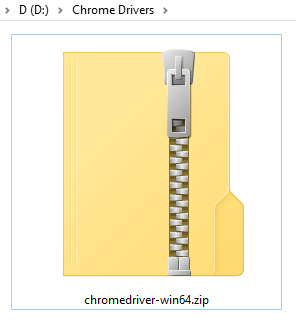
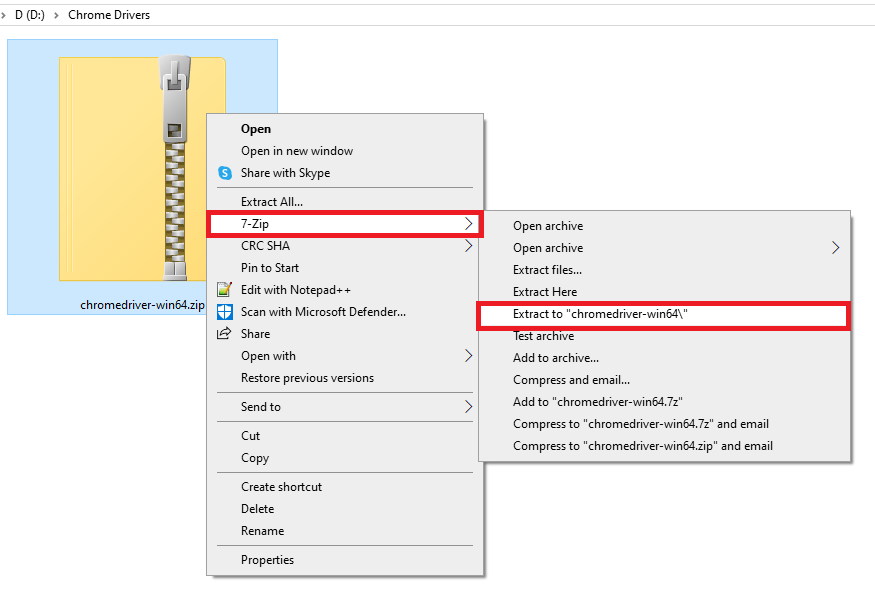
- Right-click the downloaded folder and select Extract All (Windows) or double-click to unzip it (macOS/Linux).
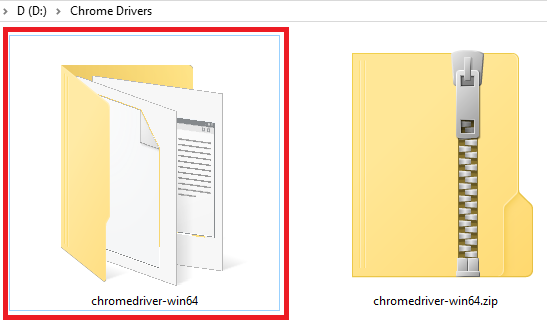
- Open the extracted directory to find your driver file (named
chromedriver.exeon Windows orchromedriveron Mac/Linux).
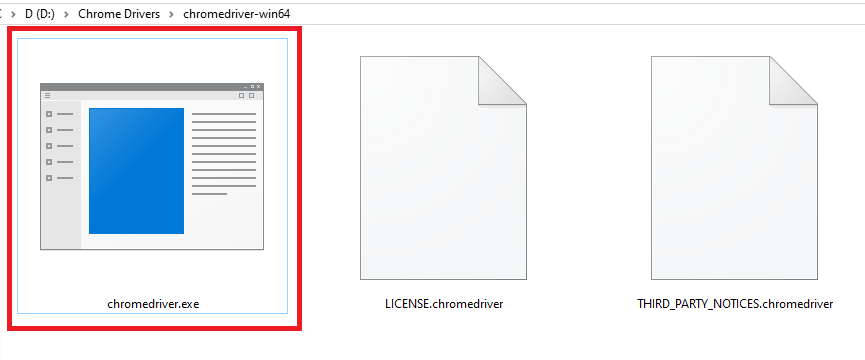
- Pro-Tip: Move this file to a clean, permanent directory that is easy to map later, such as
C:\SeleniumDrivers\or/usr/local/bin/.
Did you know? The Chrome for Testing (CfT) project provides both ChromeDriver and dedicated Chrome browser binaries for testing. This makes it easier to run automated tests against consistent browser versions without depending on your locally installed Chrome.
Step 3: Configure ChromeDriver in Your Selenium Scripts
Once you have downloaded the driver executable, you need to tell Selenium exactly where to find it. You can achieve this using manual setup paths, or you can leverage Selenium’s modern built-in automation.
Option 1: Let Selenium 4+ Handle It Automatically (Recommended)
If you are running Selenium 4.6.0 or higher, you do not actually need to download ChromeDriver manually or configure paths. Selenium 4.6 and later include Selenium Manager, which automatically downloads and configures compatible browser drivers when needed.
Note: Selenium Manager automatically downloads the required browser driver the first time it runs. An internet connection is required for the initial download. After that, the driver is cached locally and reused for future test executions unless an update is needed.
If your dependencies are up to date, you can initialize the browser with just two lines of code, and the framework will silently download and match the correct driver version for you in the background:
Modern Java Initialization:
import org.openqa.selenium.WebDriver;
import org.openqa.selenium.chrome.ChromeDriver;

public class LaunchBrowser {
    public static void main(String[] args) {
        // No System.setProperty needed in modern Selenium 4.x!
        WebDriver driver = new ChromeDriver();
        driver.get("https://example.com");
        System.out.println("Browser Title: " + driver.getTitle());
        driver.quit();
    }
}
Modern Python Initialization:
from selenium import webdriver

# No executable_path argument needed! Selenium Manager handles it.
driver = webdriver.Chrome()
driver.get("https://example.com")
print("Browser Title:", driver.title)
driver.quit()Tip: If you work in a corporate environment with restricted internet access or behind a firewall, Selenium Manager may not be able to download drivers automatically. In such cases, manually downloading ChromeDriver or using an internally managed driver repository may still be required.
Option 2: Specify the Driver Path Explicitly in Code
If you are working on a legacy framework or need to point to a specific, custom-downloaded ChromeDriver binary directory, you must use the updated Selenium 4 syntaxes below.
Updated Java Syntax:
import org.openqa.selenium.WebDriver;
import org.openqa.selenium.chrome.ChromeDriver;
import org.openqa.selenium.chrome.ChromeOptions;

public class ManualDriverSetup {
    public static void main(String[] args) {
        // Set the property pointing directly to your extracted file
        ChromeDriverService service =
        new ChromeDriverService.Builder()
        .usingDriverExecutable(new File("C:\\SeleniumDrivers\\chromedriver.exe"))
        .build();

        WebDriver driver = new ChromeDriver();
        driver.get("https://example.com");
        driver.quit();
    }
}
Updated Python Syntax (Fixing the Deprecated executable_path Error):
In older tutorials, you might see paths passed directly into webdriver.Chrome(). Doing this in modern Selenium will throw an error. You must pass the path inside a Service object:
from selenium import webdriver
from selenium.webdriver.chrome.service import Service

# Correct way to declare paths in Selenium 4
driver_service = Service(executable_path=r"C:\SeleniumDrivers\chromedriver.exe")
driver = webdriver.Chrome(service=driver_service)

driver.get("https://example.com")
driver.quit()
Option 3: Add ChromeDriver to System Environment Variables (PATH)
If you prefer not to hardcode paths into your test scripts, you can save the file location directly to your operating system’s environment variables.
On Windows:
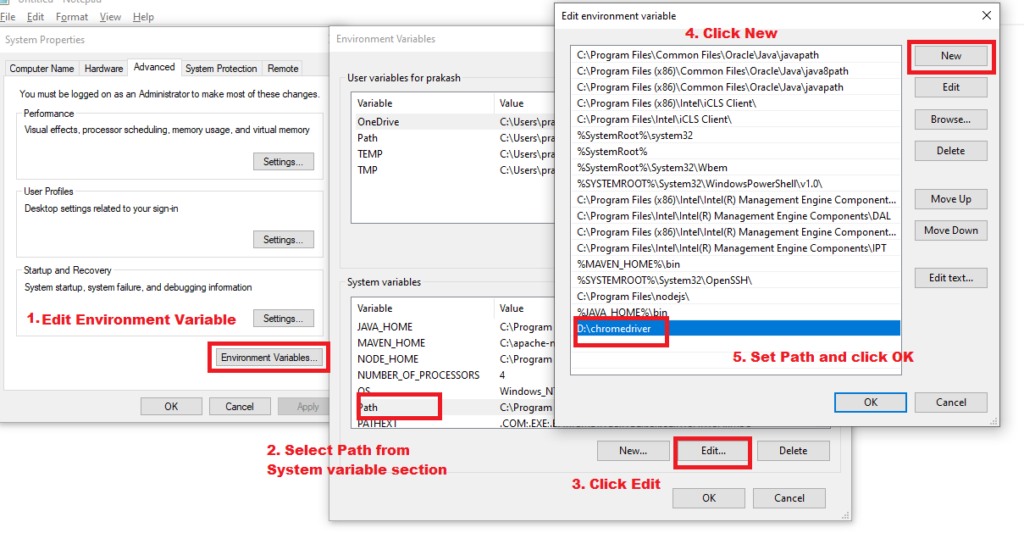
- Press the Windows Key, type
environment variables, and select Edit the system environment variables. - Click the Environment Variables… button at the bottom of the System Properties window.
- Under System variables, locate the row named Path and click Edit….
- Click New and paste the absolute path to the folder containing your driver (e.g.,
C:\SeleniumDrivers\). Do not includechromedriver.exein the path string. - Click OK to save and close all windows. Restart your IDE or terminal for changes to take effect.
On macOS and Linux:
Open your terminal and move the executable binary to your system’s universal execution folder using the following command:
sudo mv chromedriver /usr/local/bin/
sudo chmod +x /usr/local/bin/chromedriver
Step 4: Automate Setup Using Third-Party Package Managers (Optional)
While modern Selenium includes built-in driver management, many legacy test automation suites still rely on popular open-source packages to handle automated binary downloads. If your enterprise pipeline or project constraints require a third-party manager, use these updated configurations.
1. WebDriverManager for Java
If you are using Java with a build tool like Maven, you can eliminate manual driver updates by adding Bonnie Garcia’s webdrivermanager dependency to your pom.xml file.
Maven Dependency Configuration:
<dependency>
    <groupId>io.github.bonigarcia</groupId>
    <artifactId>webdrivermanager</artifactId>
    <version>5.9.2</version>
    <scope>test</scope>
</dependency>
Use the latest stable version available on Maven Central
Code Application:
import io.github.bonigarcia.wdm.WebDriverManager;
import org.openqa.selenium.WebDriver;
import org.openqa.selenium.chrome.ChromeDriver;

public class AutomatedSetup {
    public static void main(String[] args) {
        // Automatically fetches and matches the driver binary
        WebDriverManager.chromedriver().setup();

        WebDriver driver = new ChromeDriver();
        driver.get("https://example.com");
        driver.quit();
    }
}
2. webdriver-manager for Python
For Python test scripts using frameworks like pytest or unittest, you can use the webdriver-manager library via your virtual environment to handle matching ChromeDriver files automatically.
Terminal Installation:
pip install webdriver-managerCode Application (Updated for Modern Selenium):
from selenium import webdriver
from selenium.webdriver.chrome.service import Service
from webdriver_manager.chrome import ChromeDriverManager

# Downloads matching binary and safe-wraps it in a Service object
driver_service = Service(ChromeDriverManager().install())
driver = webdriver.Chrome(service=driver_service)

driver.get("https://example.com")
driver.quit()
ChromeDriver vs. WebDriverManager vs. Playwright: Which Is Best?
As browser automation ecosystems evolve, deciding how to handle your browser testing footprint comes down to how much maintenance work you want to manage.
- Manual ChromeDriver Download: Best for absolute beginners learning how local paths operate or for strict, locked-down systems. However, it requires constant manual attention whenever your browser auto-updates.
- WebDriverManager / Selenium Manager: Best for established Selenium infrastructure and active CI/CD regression suites. It completely removes the version mismatch burden while maintaining your existing codebase.
- Playwright: Best for greenfield (brand new) test frameworks. Playwright bypasses separate third-party drivers completely by shipping with native, customized browser binaries built-in. It handles execution speed, flakiness, and browser updates directly out of the box with zero external driver maintenance required.
Troubleshooting Common ChromeDriver Errors in Selenium
Even with careful setup, local system environments can throw configuration flags. Here is how to fix the most common ChromeDriver errors instantly.
Issue 1: SessionNotCreatedException: This version of ChromeDriver only supports Chrome version...
- The Cause: Your Google Chrome browser updated itself in the background, but your local
chromedriverexecutable is an older version. - The Fix: Check your current browser version via
chrome://settings/help. Go to the Chrome for Testing Dashboard and download the exact matching stable driver binary. Alternatively, update to Selenium 4.6+ to let Selenium Manager automate this completely.
Issue 2: WebDriverException: 'chromedriver' executable needs to be in PATH
- The Cause: Selenium cannot find your driver file because its location isn’t registered with your operating system or explicitly declared in your script.
- The Fix:
- If using Selenium 4, make sure you aren’t using the deleted executable_path argument directly in the driver configuration.
- Switch to the
Serviceclass to pass your path explicitly. - Or, add the folder path containing your file (e.g.,
C:\SeleniumDrivers\) into your Windows System Environment Variables.
Issue 3: Where to Find ChromeDriver for Chrome 115, 116, and Higher?
- The Cause: Older Google storage buckets and legacy download pages do not host binaries past version 114.
- The Fix: Google now serves all drivers via its Chrome for Testing (CfT) hub. Do not use old links; access the official Chrome for Testing JSON endpoints or the CfT UI dashboard to locate stable builds.
Download ChromeDriver: Frequently Asked Questions
How do I check what version of ChromeDriver I have installed?
Open your terminal (macOS/Linux) or Command Prompt (Windows) and type the following command:
chromedriver --version
This will print your active driver version back to you so you can verify it matches your local browser deployment.
Is there a way to run ChromeDriver with a custom user profile?
Yes. You can use browser launch arguments via ChromeOptions to point the driver toward an existing profile folder on your hard drive:
from selenium import webdriver
options = webdriver.ChromeOptions()
options.add_argument(r”–user-data-dir=C:\Users\YourUsername\AppData\Local\Google\Chrome\User Data”)
options.add_argument(“–profile-directory=Profile 1”)
driver = webdriver.Chrome(options=options)
Why does ChromeDriver immediately crash or fail to launch Chrome?
This usually indicates an access permissions issue or a background process conflict. Try closing hanging instances of Chrome in your Task Manager. If you are on macOS or Linux, ensure you have given the file execution rights by running chmod +x chromedriver in your terminal.
Where should I place chromedriver.exe after downloading it for Selenium?
For a seamless installation, extract the chromedriver.exe file from your downloaded ZIP folder and move it to a centralized directory on your machine (such as C:\SeleniumDrivers\). You must then pass this folder route to your script using a Selenium 4 Service object or save the folder location directly to your system’s environment PATH variable.
Conclusion
Setting up ChromeDriver for Selenium is simple once you know how to match your local browser environment with Google’s modern Chrome for Testing distribution framework.
By applying the updated Selenium 4 configurations we covered in this guide, you can eliminate structural errors and build resilient automated regression setups. For modern, long-term testing pipelines, upgrading your project framework dependencies to leverage native automated solutions like Selenium Manager or Playwright will eliminate manual driver maintenance altogether.