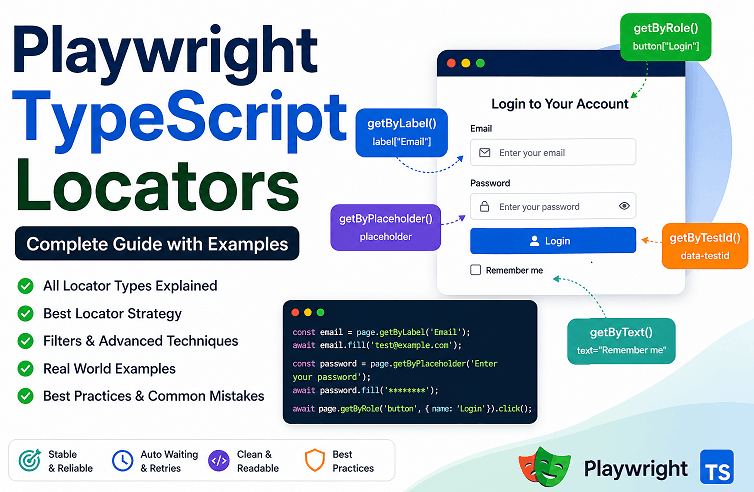
Playwright TypeScript locators are methods used to find and interact with web elements. In Playwright, these locator strategies help you write stable tests using user focused approaches. Whether you are learning playwright locators typescript or exploring advanced locator strategy in Playwright, these methods provide built in auto waiting and retry logic.
Instead of relying on fragile CSS or XPath selectors, Playwright locators automatically handle waiting, retries, and element stability. This makes your tests more readable, maintainable, and less likely to fail when the UI changes.
In this complete guide, you will learn how to use Playwright TypeScript locators step by step, explore all locator types, understand advanced techniques, and avoid common mistakes used in real world automation projects.
Unlike many basic tutorials, this guide covers both beginner and advanced locator techniques used in real world automation projects.
If you are new to Playwright, you can also follow this complete Playwright TypeScript guide to build a strong foundation before diving deeper into locators.
- How to Use Playwright TypeScript Locators?
- What are Playwright TypeScript Locators?
- Types of Playwright Locators in TypeScript Explained
- Playwright Locator Strategy in TypeScript (What to Use First)
- How to Use Playwright TypeScript Locators Step by Step?
- What are Locator Filters and Advanced Techniques in Playwright?
- What are Common Mistakes in Playwright TypeScript Locators?
- What are Best Practices for Playwright TypeScript Locators?
- Real World Use Cases of Playwright TypeScript Locators
- Examples in Other Languages
- Debugging and Performance Tips for Playwright TypeScript Locators
- Conclusion
- FAQs
How to Use Playwright TypeScript Locators?
You can use Playwright locators in TypeScript in 5 simple steps:
- Identify element using getByRole, getByText, or getByLabel
- Create locator for reuse
- Perform actions like click or fill
- Add assertions for validation
- Handle dynamic elements using filters
You can use Playwright TypeScript locators by identifying an element using methods like getByRole, getByText, or getByLabel, and then performing actions such as click, fill, or assertions on it. These locators automatically handle waiting and retries, which makes them ideal for writing stable end to end tests in Playwright TypeScript.
This is the latest and recommended approach in Playwright because locators automatically handle waiting, retries, and element stability, which makes your tests more reliable.
Before interacting with elements, make sure you understand how to launch a browser in Playwright TypeScript, since all locator actions run inside a browser context.
const button = page.getByRole('button', { name: 'Login' });
await button.click();
This example finds a button with the name “Login” and clicks on it using a user focused locator strategy.
If you are just getting started, you can first install Playwright with TypeScript and run your first test to understand the basic setup before working with locators.
What are Playwright TypeScript Locators?
Playwright TypeScript locators are a built in mechanism used to find and interact with elements on a web page using reliable and user focused strategies. Instead of relying only on CSS or XPath selectors, locators allow you to identify elements based on roles, text, labels, placeholders, and other meaningful attributes.
According to the official Playwright locator documentation, locators are designed to automatically wait for elements to be ready before performing actions. This reduces flakiness and removes the need for manual waits in most cases.
The following diagram shows the most commonly used Playwright locators in TypeScript and how they identify elements based on user facing attributes.
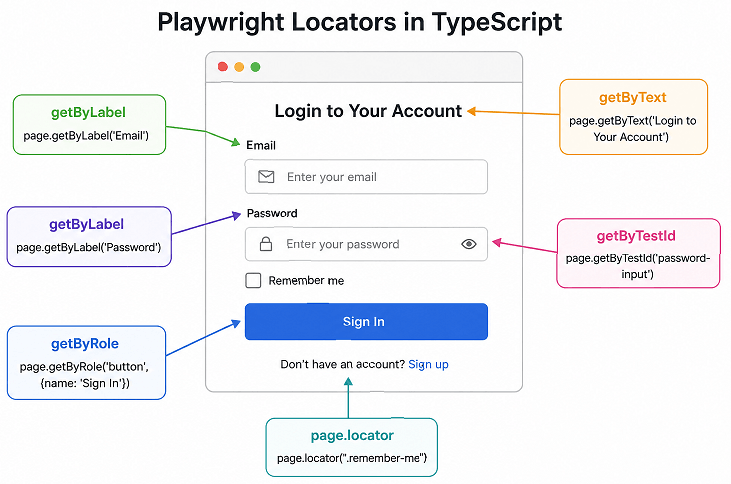
In real world automation projects, locators help you write stable tests that continue to work even when the UI structure changes slightly. For example, instead of selecting a button using a complex CSS path, you can directly target it by its visible name, which is closer to how real users interact with the application.
Why are Locators Important in Playwright?
Playwright locators are important because they help create stable locators in Playwright, making your tests more reliable and easier to maintain. They automatically wait for elements, retry actions when needed, and reduce failures caused by UI changes. This helps you write reliable automation scripts without adding manual waits or complex selectors.
- Automatic waiting for elements to be visible and ready
- Retry mechanism to handle dynamic UI changes
- Cleaner and more readable test code
- Reduced dependency on fragile selectors
- Closer to real user interaction patterns
Simply put, locators form the base of stable and maintainable Playwright automation.
Types of Playwright Locators in TypeScript Explained
Playwright TypeScript provides several types of locators including role based, text based, label based, placeholder based, test ID, and CSS or XPath locators. Each type is designed for a specific use case, but the recommended approach is to use user facing locators like role and text for better stability and readability.
The current best practice is to prefer user facing locators like role and text instead of relying only on CSS or XPath selectors, especially when building scalable and maintainable automation frameworks.
Role Based Locators using getByRole()
You can locate elements by their ARIA role using the getByRole() method. This is the most recommended approach because it reflects how users and assistive technologies interact with the page.
const loginButton = page.getByRole('button', { name: 'Login' });
await loginButton.click();
This locator finds a button based on its accessible role and visible name.
Text Based Locators using getByText()
You can find elements based on visible text using the getByText() method. This works well for buttons, links, and labels.
await page.getByText('Sign in').click();This approach is simple and readable but should be used carefully if text changes frequently.
Label Based Locators using getByLabel()
This method is useful for form fields associated with labels. It improves accessibility aligned automation.
await page.getByLabel('Email').fill('test@example.com');It targets the input field connected to the label “Email”.
Placeholder Based Locators using getByPlaceholder()
You can locate input fields using placeholder text.
await page.getByPlaceholder('Enter your password').fill('password123');This is useful when labels are not present.
Locator using page.locator()
The page.locator() method allows you to use CSS or XPath selectors when needed.
await page.locator('#username').fill('admin');This approach gives flexibility but should be used as a fallback when user facing locators are not available.
Test ID Locators using getByTestId()
You can use test specific attributes like data-testid for stable element selection.
await page.getByTestId('submit-btn').click();This is widely used in real projects to avoid dependency on UI changes.
Quick Comparison of Locator Types
| Locator Type | Method | Best Use Case |
|---|---|---|
| Role Based | getByRole() | Accessible elements like buttons and links |
| Text Based | getByText() | Visible text elements |
| Label Based | getByLabel() | Form inputs with labels |
| Placeholder | getByPlaceholder() | Inputs with placeholder text |
| Test ID | getByTestId() | Stable test specific selectors |
| CSS or XPath | page.locator() | Fallback for complex cases |
In short, start with role based locators whenever possible, then move to text, label, or test ID strategies before using CSS or XPath.
Playwright Locator Strategy in TypeScript (What to Use First)
Choosing the right locator strategy in Playwright is the most important step in writing stable tests. Instead of randomly selecting a locator, you should follow a clear priority order based on reliability, maintainability, and how closely it matches real user behavior in end to end testing.
Choosing the right locator strategy is important. The following visual shows the recommended priority order used in Playwright TypeScript.
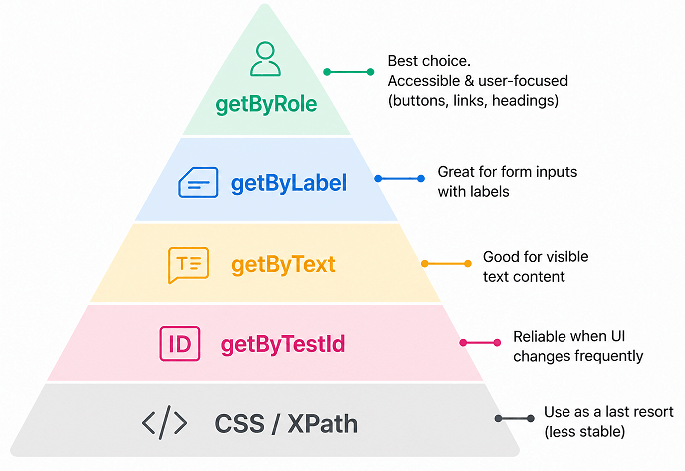
Here is the recommended locator priority used in real world automation projects:
- 1. getByRole(): Best choice for buttons, links, headings, and interactive elements
- 2. getByLabel(): Ideal for form fields with labels
- 3. getByText(): Useful for visible text elements
- 4. getByPlaceholder(): Good fallback for input fields
- 5. getByTestId(): Stable option when UI changes frequently
- 6. page.locator() with CSS or XPath: Use only as a last resort
This locator strategy in Playwright helps you avoid fragile selectors and ensures your tests remain stable even when the UI changes.
Why This Priority Works
This strategy is based on how users interact with applications. Role and label based locators reflect accessibility and user behavior, while CSS and XPath depend on the internal structure of the UI, which changes more often.
- User facing locators are more stable and readable
- They reduce test flakiness caused by UI changes
- They improve collaboration between testers and developers
If you follow this priority consistently, your Playwright TypeScript tests will be easier to maintain and less likely to break over time.
How to Use Playwright TypeScript Locators Step by Step?
You can use Playwright TypeScript locators by identifying an element using a reliable strategy and then performing actions like click, fill, or assertion on it. The process is simple once you understand the correct order and best practices.
This is the fastest way to write reliable test automation scripts without adding unnecessary waits or complex selectors.
Step 1: Choose the Right Locator Strategy
Start by selecting a user focused locator such as role, text, or label. This improves readability and stability.
const loginButton = page.getByRole('button', { name: 'Login' });Avoid jumping directly to CSS or XPath unless no better option exists.
In real test scenarios, you often need to navigate between pages before locating elements. You can learn how to use Playwright navigation methods in TypeScript to handle page transitions effectively.
Step 2: Create the Locator
Store the locator in a variable for reuse. This makes your code cleaner and easier to maintain.
const emailInput = page.getByLabel('Email');Reusable locators are especially useful in large test suites.
Step 3: Perform Action on the Element
Use built in methods like click, fill, check, or hover on the locator.
await emailInput.fill('test@example.com');Playwright automatically waits for the element to be ready before performing the action.
Step 4: Add Assertions if Needed
Validate the expected behavior using assertions. This ensures your test verifies the correct outcome.
await expect(page.getByText('Welcome')).toBeVisible();This step is important in real world testing to confirm that actions produce the expected result.
Step 5: Handle Dynamic Elements Carefully
Handling dynamic elements in Playwright is important because content can change frequently. Use stable locators like role or test ID instead of relying on changing attributes.
- Avoid using index based selectors when possible
- Prefer visible text or accessible roles
- Use filters for more precise targeting
A good rule is to think like a user when choosing locators. This naturally leads to more stable tests.
Once you understand the basics of locators, the next step is learning how to handle complex and dynamic elements more efficiently.
What are Locator Filters and Advanced Techniques in Playwright?
Advanced locator techniques in Playwright help you target specific elements when multiple matches are found. These techniques are part of a strong locator strategy in Playwright TypeScript and are widely used in real world automation projects.
Advanced locator techniques like filtering and chaining help you target specific elements when multiple matches exist.
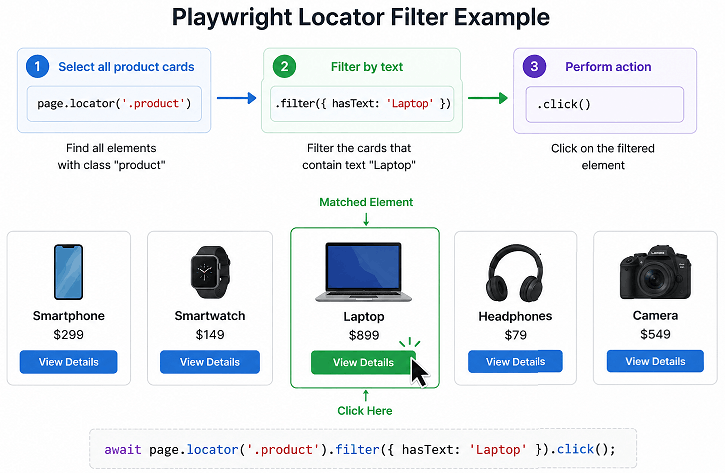
In real world applications, you often deal with repeated elements like lists, tables, or cards, especially in dynamic web applications where content changes frequently.
How to Filter Locators using hasText?
You can filter elements based on inner text using the hasText option. This helps target a specific element among many similar ones.
const item = page.locator('.product').filter({ hasText: 'Laptop' });
await item.click();
This finds a product element that contains the text “Laptop”.
Using has Locator for Nested Elements
You can filter elements that contain another locator using the has option.
const card = page.locator('.card').filter({
  has: page.getByRole('button', { name: 'Buy' })
});
await card.click();
This targets a card element that contains a “Buy” button.
Chaining Locators for Better Precision
You can use locator chaining in Playwright to refine your selection step by step.
await page.locator('.menu').locator('li').getByText('Settings').click();This approach improves readability and avoids complex selectors.
Using nth() to Select Specific Elements
You can select elements by index using the nth() method.
await page.locator('.list-item').nth(2).click();Index based selection should be used carefully because it can break if UI changes.
Using first() and last() for Quick Selection
You can quickly select the first or last matching element.
await page.locator('.notification').first().click();
await page.locator('.notification').last().click();
This is helpful when order matters and you want quick access.
Common Pitfalls When Using Advanced Locators
Here is where most beginners make mistakes. They overuse CSS selectors even when better locator options exist.
- Prefer role or text based locators first
- Use filters only when necessary
- Avoid deeply nested selectors
- Keep locators readable and simple
These techniques help you handle complex UI scenarios without making your tests fragile.
What are Common Mistakes in Playwright TypeScript Locators?
Common mistakes in Playwright TypeScript locators include using CSS or XPath as the first choice, relying on dynamic attributes, overusing index based selection, and adding unnecessary waits. These mistakes often lead to flaky tests in Playwright and hard to maintain automation scripts.
Here is where most beginners struggle. The code works at first, but it starts failing as soon as the UI changes slightly.
Using CSS or XPath as the First Choice
Many beginners directly use CSS or XPath selectors instead of user facing locators.
// Not recommended as first choice
await page.locator('#login-button').click();
This approach can break when the UI structure changes. Always try role or text based locators first.
Relying on Dynamic Attributes
Using attributes like auto generated IDs or class names that change frequently makes tests unstable.
// Risky if ID is dynamic
await page.locator('#user_12345').click();
Instead, use stable attributes or test IDs.
Overusing nth() and Index Based Selection
Index based locators are fragile because they depend on element order.
// Can break if order changes
await page.locator('.item').nth(3).click();
Use filtering or text based strategies instead whenever possible.
Not Using Built in Locator Methods
Ignoring methods like getByRole() or getByLabel() leads to less readable and less reliable tests.
// Less readable
await page.locator('button:has-text("Submit")').click();
Prefer the clearer approach:
await page.getByRole('button', { name: 'Submit' }).click();Adding Unnecessary Waits
Playwright locators automatically handle waiting. Adding manual waits often slows down tests and creates confusion.
// Not needed in most cases
await page.waitForTimeout(2000);
await page.getByText('Dashboard').click();
Let Playwright manage synchronization instead of adding delays.
Quick Summary of Mistakes and Fixes
| Mistake | Better Approach |
|---|---|
| Using CSS first | Use getByRole or getByText |
| Dynamic IDs | Use stable attributes or test IDs |
| Index selection | Use filters or text matching |
| Manual waits | Use Playwright auto waiting |
Avoiding these mistakes will make your Playwright tests more stable and easier to maintain.
When working with playwright locators in TypeScript, understanding different locator strategies is important. A good locator strategy in Playwright helps you build stable tests, whether you are using role based locators, text based locators, or test IDs. These typescript playwright locators are designed to improve test reliability and reduce flakiness in modern automation frameworks.
What are Best Practices for Playwright TypeScript Locators?
Best practices for Playwright locators TypeScript include using user facing locators like getByRole, keeping selectors simple, avoiding dynamic attributes, and relying on built in auto waiting. These practices help create stable, readable, and maintainable automation tests in modern web applications.
These are not just guidelines. They come directly from real project experience and align with Playwright official recommendations.
Prefer User Facing Locators First
Always start with locators that reflect how users interact with the application.
- Use
getByRole()for buttons, links, and UI elements - Use
getByText()for visible content - Use
getByLabel()for form inputs
This approach improves readability and long term stability.
Keep Locators Simple and Readable
Write locators that are easy to understand at a glance.
// Good example
await page.getByRole('button', { name: 'Checkout' }).click();
Avoid complex nested selectors unless absolutely required.
Use Test IDs for Stability
When UI text or structure changes frequently, test IDs provide a stable fallback.
await page.getByTestId('checkout-btn').click();In many teams, developers intentionally add test IDs to support automation.
Avoid Over Specific Selectors
Overly specific locators break easily when the UI changes.
// Too specific and fragile
await page.locator('div.container > ul > li:nth-child(3) > button').click();
Instead, use meaningful and flexible locators.
Leverage Auto Waiting and Retries
Playwright automatically waits for elements to be ready. Avoid adding manual waits unless absolutely necessary.
- No need for sleep or timeout based waits
- Locators retry until conditions are met
- Improves test speed and reliability
Use Chaining and Filters Wisely
Chaining and filtering help handle complex UI structures, but overusing them can make code harder to read.
await page.locator('.product').filter({ hasText: 'Phone' }).click();Keep a balance between precision and readability.
Quick Best Practices Summary
| Best Practice | Why It Matters |
|---|---|
| User focused locators | More stable and readable |
| Simple selectors | Easier maintenance |
| Test IDs | Stable across UI changes |
| No manual waits | Faster and cleaner tests |
| Minimal chaining | Better readability |
Following these best practices will help you write production ready Playwright tests with confidence.
Real World Use Cases of Playwright TypeScript Locators
These locators are used in real projects to automate user workflows such as login, form submission, product selection, and UI validation. These locators are essential for building reliable end to end test automation in real world applications.
Now let’s look at how locators are actually used in day to day automation scenarios.
Login Form Automation Example
This example shows how to interact with a login form using user focused locators.
await page.getByLabel('Email').fill('user@example.com');
await page.getByLabel('Password').fill('password123');
await page.getByRole('button', { name: 'Login' }).click();
This approach is clean, readable, and closely matches real user behavior.
Validating UI Elements on Dashboard
You can verify important UI elements after login using text or role based locators.
await expect(page.getByText('Welcome')).toBeVisible();
await expect(page.getByRole('heading', { name: 'Dashboard' })).toBeVisible();
This ensures the correct page is displayed after login.
Handling Lists and Dynamic Content
When working with lists or dynamic content, filters help you target specific items.
await page.locator('.product').filter({ hasText: 'Laptop' }).click();This selects a product from a list based on visible text.
Working with Tables
You can locate table rows and interact with specific data using chaining and filters.
const row = page.locator('tr').filter({ hasText: 'Order123' });
await row.getByRole('button', { name: 'View' }).click();
This targets a specific row in a table and clicks the associated action button.
Quick Tip from Real Projects
In large applications, UI changes happen frequently. Teams often add test IDs to critical elements to keep automation stable.
- Use test IDs for important actions like submit or checkout
- Combine role and filters for complex components
- Avoid depending on UI structure
Locators are used in almost every real automation scenario to build stable and maintainable tests.
Examples in Other Languages
Playwright supports multiple languages. The locator concept remains the same across all of them.
JavaScript Example: Using getByRole
This example shows how to click a button using JavaScript syntax.
await page.getByRole('button', { name: 'Login' }).click();Java Example: Locator Usage
This example demonstrates locator usage in Java.
page.getByRole(AriaRole.BUTTON, new Page.GetByRoleOptions().setName("Login")).click();Python Example: Interacting with Elements
This example shows how to use locators in Python.
page.get_by_role("button", name="Login").click()All languages follow the same concept, which makes Playwright easy to learn across different tech stacks.
Debugging and Performance Tips for Playwright TypeScript Locators
Debugging issues in TypeScript Playwright locators involves identifying why an element is not found or not interactable, while performance optimization focuses on using efficient and simple locators. Tools like Playwright Inspector and codegen help you quickly find and fix locator issues.
This is a section many tutorials skip, but it plays a critical role when debugging failing tests and optimizing test execution in large scale automation projects.
How to Debug Locators in Playwright?
You can debug locators using Playwright Inspector, console logs, and step by step execution.
- Run tests with
--debugto open Playwright Inspector - Hover over locators to see matched elements
- Pause execution using
await page.pause()
await page.pause();This allows you to inspect elements and test locators interactively.
Use Playwright Codegen to Generate Locators
Playwright provides a code generation tool that suggests locators automatically.
npx playwright codegen https://example.comThis helps beginners quickly understand which locator strategy works best.
Check Locator Strictness Issues
Playwright locators are strict by default. This means they expect a single matching element.
- If multiple elements match, Playwright throws an error
- Use filters or refine your locator to target one element
This behavior prevents accidental interactions with wrong elements.
Avoid Slow Selectors for Better Performance
Some locator strategies are slower than others, especially complex CSS or XPath queries.
- Prefer role based locators for speed and clarity
- Avoid deeply nested selectors
- Minimize unnecessary chaining
Simple locators are not only readable but also faster to execute.
Use Locator Highlighting for Better Visibility
Playwright Inspector highlights elements matched by locators. This helps verify correctness visually.
- Check if the correct element is selected
- Adjust locator if multiple elements are highlighted
Quick Debugging and Performance Summary
| Technique | Benefit |
|---|---|
| Playwright Inspector | Visual debugging |
| Codegen | Auto generate locators |
| Strict locators | Avoid wrong element interaction |
| Simple selectors | Better performance |
Strong debugging skills and smart locator choices can save hours of troubleshooting in real projects.
Conclusion
Playwright TypeScript locators are essential for building stable, reliable, and scalable automation tests. By using the right locator strategies like getByRole, getByText, and test IDs, you can significantly reduce test flakiness and improve maintainability. Start applying these Playwright TypeScript locator best practices in your projects to build production-ready automation frameworks.
By using role based, text based, and test ID locators, you can create stable tests that continue to work even when the UI changes. At the same time, avoiding common mistakes and following best practices ensures your automation scripts remain clean and efficient.
By mastering different playwright locators typescript approaches and following a proper locator strategy in Playwright, you can build highly reliable and scalable automation frameworks.
FAQs
What are Playwright TypeScript locators?
Playwright TypeScript locators are methods used to find elements in Playwright and interact with them using user-focused strategies like role, text, label, and test ID. They automatically handle waiting and retries, making tests more reliable than CSS or XPath selectors.
Which locator is best in Playwright TypeScript?
getByRole is the best locator in most cases because it targets elements based on accessibility roles and visible names. It is stable, readable, and recommended for buttons, links, and other UI elements.
Can I use XPath in Playwright TypeScript?
Yes, you can use XPath with page.locator(), but it should be used only as a fallback. User-facing locators like getByRole or getByText are more stable and easier to maintain.
Do Playwright locators wait for elements automatically?
Yes, Playwright locators include built-in auto waiting. They wait for elements to be visible and ready before performing actions, so manual waits are usually not required.
What is the difference between locator and selector in Playwright?
A locator includes auto waiting and retry logic, while a selector is just a way to identify elements using CSS or XPath. Locators are more reliable and recommended for modern automation.
How do I handle multiple matching elements in Playwright?
You can refine locators using filters like hasText, chaining, or methods like first(), last(), or nth(). This helps target a single element and avoid strict mode errors.
Are Playwright locators better than Selenium locators?
Playwright locators are more reliable because they include built-in waiting and modern locator strategies. This reduces test flakiness compared to traditional Selenium selectors.