
Last updated on March 17th, 2026 at 03:13 am
If you want to know how to scroll to element in Playwright Java, the quickest way is to use the built-in scrollIntoViewIfNeeded method. It scrolls the page automatically until the target element becomes visible. Here is the simplest working example:
page.locator("#targetElement").scrollIntoViewIfNeeded();Scrolling is an essential part of browser automation because many applications load elements only when they appear inside the viewport. In Playwright Java, scrolling enables you to interact with buttons, forms, tables, or dynamic sections that are not initially visible. It ensures your tests stay stable, especially on long pages, lazy-loaded content areas, and modern UI layouts where elements load progressively as the user scrolls.
- What is Scrolling in Playwright Java
- Quick Answer: How to Scroll to an Element in Playwright Java
- Methods to Scroll in Playwright Java
- Scroll to Bottom and Scroll Down Examples
- How to Handle Dynamic Content and Infinite Scroll
- How to Scroll to an Element Inside Frames or Shadow DOM
- Scrolling to Hidden or Lazy-Loaded Elements
- Complete Working Script
- Conclusion
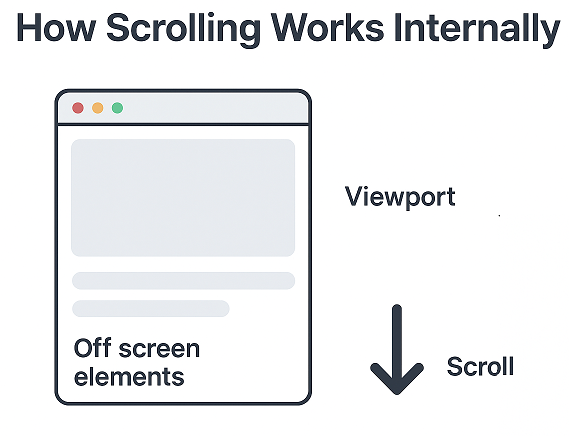
What is Scrolling in Playwright Java
Scrolling in Playwright Java means moving the browser viewport so that hidden elements become visible on the screen. At the browser level, scrolling shifts the visible window of the webpage without reloading the content. Playwright triggers the same native scrolling behavior that a user would perform during a page scroll or scroll down action, which makes interactions more reliable and realistic.
Testers often need scrolling when elements are positioned outside the initial viewport. Many modern web applications load data dynamically, hide content below the fold, or display long lists that require users to move through the page. In such cases, you must scroll before clicking a button, reading text, selecting options, or capturing visual states. Using the right scroll options ensures the test interacts with the correct element and avoids flaky behavior caused by hidden or partially visible components.
Quick Answer: How to Scroll to an Element in Playwright Java
The fastest way to scroll to any element in Playwright Java is by using the built-in scrollIntoViewIfNeeded method. It automatically scrolls the page until the element is fully visible and ready for interaction.
Example 1: Using scrollIntoViewIfNeeded
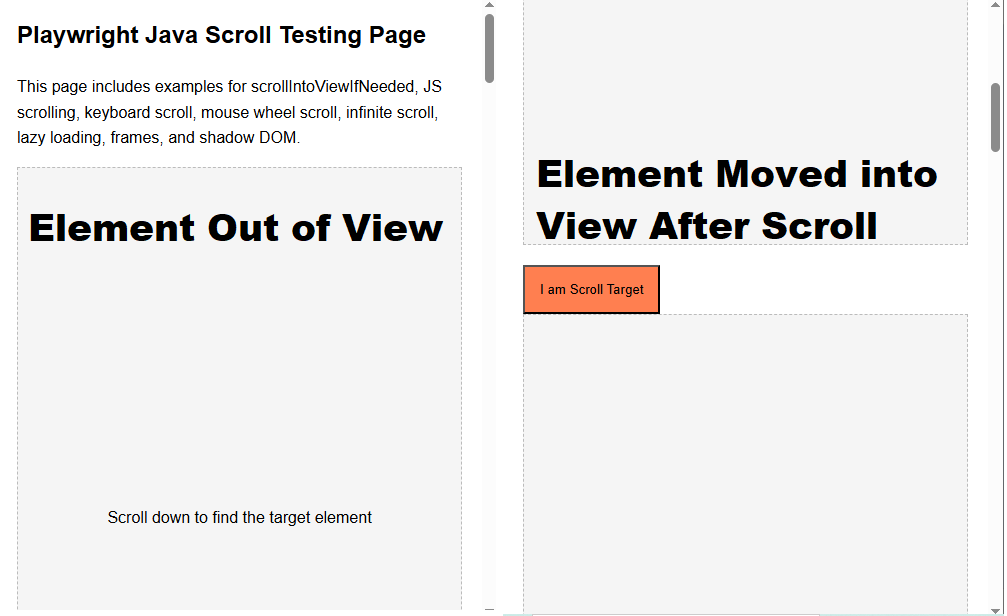
page.locator("#loginButton").scrollIntoViewIfNeeded();This is the simplest and most stable approach for scrolling because Playwright waits until the element is visible before continuing the test.
Example 2: Using JavaScript to evaluate for custom scrolling
If you need more control, such as adjusting position or working with dynamic layouts, you can scroll using JavaScript:
page.evaluate("element => element.scrollIntoView()",
              page.locator("#loginButton").elementHandle());
This approach allows custom scrolling behavior and is useful when working with complex UIs or elements nested deep within scrollable containers.
Methods to Scroll in Playwright Java
scrollIntoViewIfNeeded Method
The scrollIntoViewIfNeeded method is the most direct and reliable way to bring any element into the visible area of the page. Playwright automatically scrolls the viewport until the element is fully visible, which helps avoid interaction errors caused by hidden elements.
Usage Example
Locator element = page.locator("#submitButton");
element.scrollIntoViewIfNeeded();
element.click();
This method is ideal for most user actions like clicking buttons, selecting items, or filling input fields because it ensures the element is scrolled to a stable position before the test proceeds.
When to Use It
Use scrollIntoViewIfNeeded when:
- The element is off the screen and not initially visible
- You want Playwright to handle the scrolling automatically
- You need a simple, clean approach without custom JavaScript
- You are dealing with long pages or sections that load more content as you scroll
It provides a dependable way to scroll without additional configuration, making it the preferred choice for most basic and intermediate scrolling scenarios.
Page.evaluate Based Scrolling
Using Page.evaluate gives you full control over how the page scrolls. Instead of targeting a single element, you can scroll to specific positions, scroll to the bottom, or create custom infinite scrolling behavior. This approach is useful when working with pages that load content dynamically or when you need precise scroll positioning.
Scroll to Specific Coordinates
You can scroll to any x and y position on the page:
page.evaluate("window.scrollTo(0, 500)");This scrolls the viewport vertically by 500 pixels. Adjust the value based on how far you want to move down the page.
Scroll to the Bottom of the Page
When you want to reach the end of a long page, use:
page.evaluate("window.scrollTo(0, document.body.scrollHeight)");This scrolls directly to the bottom, which helps load lazy content or verify footer elements.
Infinite Scroll Example
Some websites load more data as the user keeps scrolling. You can simulate this behavior with a loop:
for (int i = 0; i < 10; i++) {
    page.evaluate("window.scrollTo(0, document.body.scrollHeight)");
    page.waitForTimeout(1500);  // wait for new content to load
}
This repeatedly scrolls to the bottom, giving the page time to fetch and render new items. It is often used for testing product listings, activity feeds, or social media-style layouts that rely on continuous loading.
Keyboard-Based Scroll
Keyboard actions offer another simple way to move through a page, and they work well when testing natural user interactions. A Playwright Java keyboard scroll mimics real user behavior by sending key presses like Page Down, Arrow Down, or End to navigate the page.
Keyboard Scroll Example
// Scroll down using Page Down key
page.keyboard().press("PageDown");

// Scroll further using Arrow Down
page.keyboard().press("ArrowDown");

// Scroll to bottom using End key
page.keyboard().press("End");
Keyboard-based scrolling is useful when you want to test how the application behaves with real user actions, especially on pages where scrolling triggers animations, lazy loading, or dynamic UI updates.
Mouse Wheel Scroll
A Playwright Java mouse wheel scroll simulates the same scrolling action a user performs with a physical mouse. This method is helpful when you want realistic scrolling behavior that triggers animations, hover effects, or dynamic loading tied to mouse wheel events.
Mouse Wheel Scroll Example
// Scroll down using mouse wheel movement
page.mouse().wheel(0, 600);

// Scroll up using mouse wheel movement
page.mouse().wheel(0, -400);
Mouse wheel scrolling is ideal for testing pages with custom scroll animations, canvas-based UIs, or components that only respond to wheel events instead of standard page scroll methods.
Scroll to Bottom and Scroll Down Examples
Scrolling is a common part of page scroll interactions, especially on long web pages or applications that load new sections while the user moves downward. Playwright Java makes scroll automation simple with clear methods to scroll down step by step or move directly to the bottom of the page.
Scroll Down Example
To scroll down gradually, you can scroll by a specific number of pixels:
page.evaluate("window.scrollBy(0, 400)");This moves the viewport down by 400 pixels, which is useful when testing sections that become visible slowly or when verifying content that loads in smaller chunks.
Scroll to Bottom Example
If you want to jump directly to the end of the page, use:
page.evaluate("window.scrollTo(0, document.body.scrollHeight)");This scrolls to the bottom instantly and works well for verifying footers, infinite loading components, or large lists that continue to extend as the user scrolls.
How to Handle Dynamic Content and Infinite Scroll
Many modern applications load new items only when the user scrolls, which creates an infinite scroll pattern. In such cases, the page keeps adding content as you move down. Playwright Java handles this smoothly by allowing repeated scrolling and waiting for new elements to appear. This approach is helpful for testing product feeds, activity timelines, and any interface that relies on dynamic content scroll behavior.
Example: Loading New Items During Infinite Scroll
Here is a simple loop that scrolls repeatedly and waits for fresh content to load:
for (int i = 0; i < 8; i++) {
    page.evaluate("window.scrollTo(0, document.body.scrollHeight)");
    page.waitForTimeout(1500);   // wait for dynamic items to load
}
This logic scrolls to the bottom multiple times and pauses after each scroll, giving the application time to fetch and render new items. It is one of the most effective techniques for testing infinite scroll layouts or any scenario where additional elements appear only when the user reaches the lower part of the page.
How to Scroll to an Element Inside Frames or Shadow DOM
When elements are nested inside iframes or shadow roots, scrolling requires targeting the correct context before interacting with the element. Playwright Java provides dedicated methods for both scenarios, making it straightforward to scroll within these isolated DOM structures.
Scroll to Element Inside a Frame
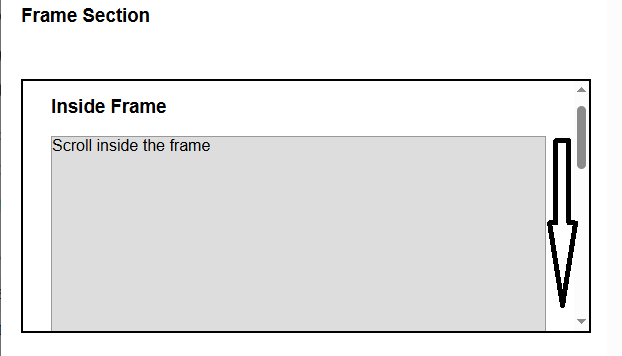
To scroll inside a frame, you must first switch to the frame locator and then use the scrolling method on the element inside it:
FrameLocator frame = page.frameLocator("#myFrame");

frame.locator("#frameButton")
     .scrollIntoViewIfNeeded();
This ensures the scroll happens inside the frame rather than on the main page, which is essential for embedded widgets, payment forms, maps, and third-party components.
Scroll Inside a Shadow DOM
For shadow DOM elements, you need to pierce the shadow root using locator and then scroll to the target element:
Locator shadowElement = page.locator("#card").locator("shadow=#buyButton");
shadowElement.scrollIntoViewIfNeeded();
This approach works well for modern UI libraries and web components that wrap their content inside shadow roots, ensuring you can reach and interact with elements that are not part of the main DOM tree.
Scrolling to Hidden or Lazy-Loaded Elements
Some elements do not scroll automatically because they are hidden, lazy-loaded, or rendered only when certain conditions are met. Modern websites often load components only when the user reaches a specific scroll position, which means the element may not exist in the DOM or may not be visible at the time of interaction. In such cases, you need a combination of custom JavaScript scroll logic or explicit waits to ensure the element becomes visible before interacting with it.
Scroll Using JavaScript for Hidden or Partially Loaded Elements
If the element exists but is positioned outside the viewport or inside a lazy-loaded region, you can force a scroll using JavaScript:
page.evaluate("window.scrollBy(0, 600)");This moves the page down and helps reveal elements that load progressively as the viewport changes.
Wait for Visibility Before Scrolling
When elements appear only after specific data loads or after reaching a certain scroll depth, use an explicit wait:
Locator lazyContainer = page.locator("#lazyContainer");
lazyContainer.scrollIntoViewIfNeeded();

Locator lazyItem = page.locator("#lazyItem");
lazyItem.waitFor(new Locator.WaitForOptions().setState(WaitForSelectorState.VISIBLE));
This ensures the element becomes visible first, then performs the scroll action.
JavaScript Scroll to Target Element
If scrolling through the viewport is not enough, you can directly scroll the element into view using JavaScript:
page.evaluate("element => element.scrollIntoView()",
    page.locator("#lazyItem").elementHandle());
This works well for elements loaded within scrollable containers, long lists, or sections that appear only after partial rendering.
You can also learn about handling multiple tabs in Playwright Java to improve your browser automation skills.
Check out this complete guide on handling multiple tabs in Playwright Java for practical examples.
Complete Working Script
Below is a complete Playwright Java test script that demonstrates multiple scroll techniques in one flow. It includes scrolling to an element, scrolling by coordinates, scrolling to the bottom, using keyboard scroll, and infinite scroll handling. You can use this as a template for real-world scroll automation scenarios.
Use this sample HTML page to practice all scrolling examples from this guide.
You can download the scroll-demo.html file and run it locally to test scrolling, infinite scroll, frames, and lazy-loaded elements.
Playwright Java Scroll Complete Example
package com.examples.test;

import com.microsoft.playwright.*;
import com.microsoft.playwright.options.WaitForSelectorState;

public class ScrollExamples {
  public static void main(String[] args) {

    try (Playwright playwright = Playwright.create()) {

      Browser browser = playwright.chromium()
        .launch(new BrowserType.LaunchOptions().setHeadless(false));

      BrowserContext context = browser.newContext();
      Page page = context.newPage();

      // Load the local scroll demo page
      page.navigate("file:///D:/scroll-demo.html");
      page.waitForTimeout(12000);

      // 1. Scroll to an element using scrollIntoViewIfNeeded
      Locator target = page.locator("#scrollTarget");
      target.scrollIntoViewIfNeeded();

      page.waitForTimeout(1200);
      page.evaluate("window.scrollTo(0, 0)");
      page.waitForTimeout(1200);

      // 2. Scroll down using JavaScript coordinates
      page.evaluate("window.scrollBy(0, 500)");

      page.waitForTimeout(1200);
      page.evaluate("window.scrollTo(0, 0)");
      page.waitForTimeout(1200);

      // 3. Scroll to the bottom of the page
      page.evaluate("window.scrollTo(0, document.body.scrollHeight)");

      page.waitForTimeout(1200);
      page.evaluate("window.scrollTo(0, 0)");
      page.waitForTimeout(1200);

      // 4. Keyboard based scrolling
      page.keyboard().press("PageDown");
      page.keyboard().press("ArrowDown");
      page.keyboard().press("End");

      page.waitForTimeout(1200);
      page.evaluate("window.scrollTo(0, 0)");
      page.waitForTimeout(1200);

      // 5. Mouse wheel scrolling
      page.mouse().wheel(0, 700);
      page.mouse().wheel(0, -300);

      page.waitForTimeout(1200);
      page.evaluate("window.scrollTo(0, 0)");
      page.waitForTimeout(1200);

      // 6. Infinite scroll simulation
      for (int i = 0; i < 6; i++) {
        page.evaluate("window.scrollTo(0, document.body.scrollHeight)");
        page.waitForTimeout(1200);  // wait for new items to load
      }

      page.waitForTimeout(1200);
      page.evaluate("window.scrollTo(0, 0)");
      page.waitForTimeout(1200);

      // 7. Scroll inside a frame
      FrameLocator frame = page.frameLocator("#promoFrame");
      Locator frameButton = frame.locator("#frameButton");

      frameButton.waitFor(
        new Locator.WaitForOptions().setState(WaitForSelectorState.VISIBLE)
      );

      frameButton.scrollIntoViewIfNeeded();
      frameButton.click();

      page.waitForTimeout(1200);
      page.evaluate("window.scrollTo(0, 0)");
      page.waitForTimeout(1200);

      // 8. Scroll until lazy loaded item appears
      Locator lazyContainer = page.locator("#lazyContainer");
      lazyContainer.scrollIntoViewIfNeeded();

      Locator lazyItem = page.locator("#lazyItem");
      lazyItem.waitFor(
        new Locator.WaitForOptions().setState(WaitForSelectorState.VISIBLE)
      );

      System.out.println("Lazy item is now visible!");
    }
  }
}
This script demonstrates how to automate scrolling in multiple ways, ensuring you can handle simple page movement, dynamic content loading, and scrolling inside nested structures like frames or lazy loading containers.
Conclusion
Scrolling in Playwright Java is an essential skill that helps you interact with elements that are outside the visible viewport. In this guide, you learned how to scroll to an element, perform page scroll actions, scroll inside frames, simulate infinite scroll, and work with lazy-loaded elements. Each method is simple, beginner-friendly, and practical for real test scenarios.
Now that you understand these scrolling techniques, try running the examples on your own system to build confidence and see how each action behaves in real time.
Scrolling is often required when automating real web applications where elements are not immediately visible in the viewport. To see how such UI interactions are used in real test scenarios, you can learn how to run real Playwright tests in an automation framework.