
Last updated on March 17th, 2026 at 02:55 am
Handling a checkbox is one of the most common tasks in UI automation, and learning how to work with a Playwright Java checkbox is essential for building reliable test scripts. Checkboxes allow users to select one or more options, and your automation framework must correctly select, deselect, and validate their state. In this guide, you will learn how to handle checkboxes with simple examples, best practices, and different methods that help you create stable Playwright Java tests.
What is a Checkbox in Playwright Java
A checkbox is an input element that allows users to turn an option on or off. In web applications, checkboxes are often used for accepting terms, choosing preferences, filtering products, or selecting multiple items. When you automate such actions, you need to control this element accurately to avoid incorrect selections or flaky tests.
In Playwright Java, a checkbox works like any other input element, but it has special methods that make it easier to check, uncheck, or verify its current state. This is why understanding basic checkbox behavior is important before writing your first script. When you use proper locator strategies and the right methods, Playwright Java checkbox automation becomes smooth, predictable, and beginner-friendly.
Learn how dropdowns work in Playwright Java in our detailed guide on Select Dropdown handling.
How to Select a Checkbox in Playwright Java
Selecting a checkbox is a basic action in UI automation, but doing it correctly ensures your tests behave as expected across different browsers and page states. Playwright Java offers built-in methods that make checkbox selection simple, stable, and less error-prone. You can use the dedicated check method or rely on click as an alternative when needed.
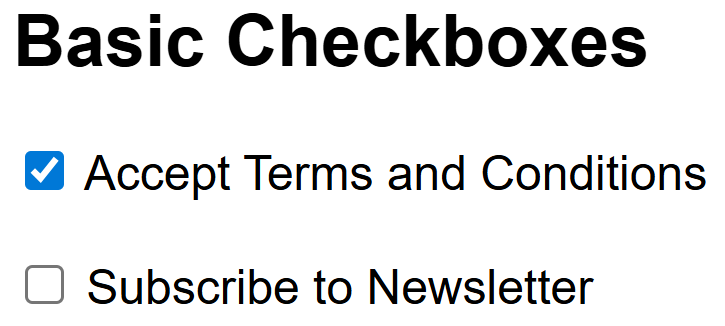
Using the check method
The check method is the recommended way to select a checkbox. It ensures the checkbox is checked only if it is not already selected, which helps avoid unexpected toggles.
Example:
page.locator("#acceptTerms").check();This method is reliable for selecting the checkbox in Playwright Java. It also waits for the element to be actionable, which helps reduce flakiness.
Using a click as an alternative method
Sometimes you may work with custom styling or elements that do not behave like standard HTML checkboxes. In such cases, click can be used as an alternative.
Example:
page.locator("#acceptTerms").click();Click simply toggles the checkbox state. It does not guarantee that the checkbox ends up in a checked state, so use it only when necessary. This approach fits situations where you work with custom UI components that do not respond to the check method.
How to Uncheck a Checkbox in Playwright Java
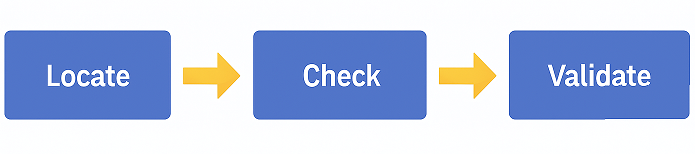
Unchecking a checkbox is just as important as selecting one, especially when you are testing scenarios like disabling preferences, removing filters, or resetting form inputs. Playwright Java provides a dedicated unchecked method to make this action simple and stable. You can also use click in special cases, but you should understand its behavior before relying on it.
Using the uncheck method
The uncheck method ensures a checkbox is deselected only if it is currently selected. This helps avoid accidental toggles and keeps your test predictable.
Example:
page.locator("#subscribeNews").uncheck();This method is the best choice when you want clear and reliable Playwright Java uncheck checkbox behavior. It confirms that the checkbox ends up unchecked and waits for it to be ready before acting.
Using a click to toggle the state
Click can also be used to uncheck a checkbox, but it simply toggles the current state. If the checkbox is already unchecked, it will become checked again.
Example:
page.locator("#subscribeNews").click();Use this approach only when working with custom or stylized checkbox components that do not respond to the uncheck method. Always verify the final state to ensure your test remains accurate.
How to Verify Checkbox State
Verifying the state of a checkbox is a key part of UI automation. You must confirm whether a checkbox is selected, not selected, or needs to be set to a specific state before performing further actions. Playwright Java provides simple methods to check the current status and even set the desired state directly. These methods help you create tests that are reliable and easy to maintain.
Using isChecked method
The isChecked method returns true if the checkbox is selected and false if it is not. This makes it ideal for validations or conditional logic.
Example:
boolean status = page.locator("#terms").isChecked();
System.out.println("Checkbox status: " + status);
You can also add assertions using this method, especially when verifying expected outcomes.
TestNG example:
Assert.assertTrue(page.locator("#terms").isChecked(), "Checkbox should be selected");This verifies the checkbox is checked using Playwright Java isChecked.
Using setChecked for direct state control
The setChecked method allows you to directly set the state of a checkbox without worrying about its current value. This is useful when you want to guarantee that the checkbox ends up in a specific state.
Example:
page.locator("#offers").setChecked(true);   // Select checkbox
page.locator("#offers").setChecked(false);  // Unselect checkbox
This method is more explicit and helps avoid accidental toggles. It is helpful when working with complex forms or when your test must ensure a fixed checkbox state.
Verifying the checkbox checked state
Sometimes you only want to confirm that a checkbox is checked or unchecked. This can be done with a simple assertion.
Example:
Assert.assertTrue(page.locator("#newsletter").isChecked(), "Checkbox should be checked");This validation ensures the checkbox is in the expected state before your test moves forward.
Handle Multiple Checkboxes in Playwright Java
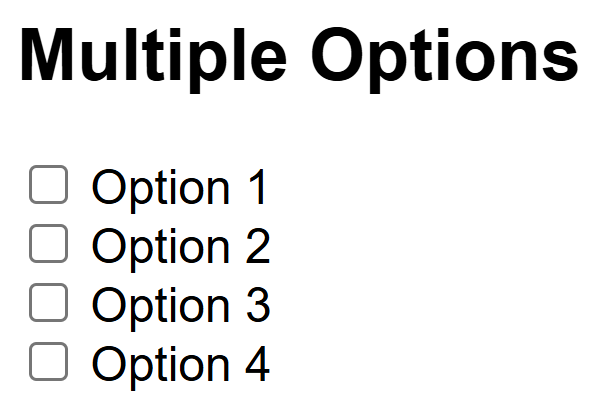
Many web pages contain groups of checkboxes, such as filters, preference settings, or multi-select forms. When you need to interact with several checkboxes at once, Playwright Java provides flexible ways to loop through elements, apply conditions, and select or deselect them based on your test requirements.
Working with multiple checkboxes usually involves locating them using a shared selector, then performing actions one by one. This approach helps you write clean and reusable test code.
Example: Select all checkboxes
List<Locator> boxes = page.locator("input[type='checkbox']").all();

for (Locator box : boxes) {
    if (!box.isChecked()) {
        box.check();
    }
}
This script loops through each checkbox, checks its current state, and selects it only if needed. This ensures predictable behavior.
Example: Select specific checkboxes by value
Locator options = page.locator("input[type='checkbox']");

for (Locator option : options.all()) {
    String value = option.getAttribute("value");

    if (value != null && value.equals("red")) {
        option.check();
    }
}
This approach is useful when you want to handle only selected items, such as choosing specific filter options.
Example: Uncheck all checkboxes
for (Locator box : page.locator("input[type='checkbox']").all()) {
    if (box.isChecked()) {
        box.uncheck();
    }
}
Working with multiple checkboxes becomes easy when you rely on simple loops, clear locators, and proper state checks. This helps make your Playwright Java tests cleaner, more stable, and easier to maintain.
Practical Checkbox Example in Playwright Java
A real-world example helps you understand how all checkbox actions work together inside a test case. In most applications, a checkbox appears as part of a form where the user must select preferences, accept policies, or choose options before submitting. The example below demonstrates how to check, uncheck, and validate checkbox states in one complete flow.
To help you practice, you can download a ready-to-use local HTML file that contains all checkbox types covered in this guide.
Download Sample Checkbox Demo Page: Download checkbox-demo.html
This file includes basic checkboxes, value-based checkboxes, grouped checkboxes, and form-based checkboxes so you can try every example directly in Playwright Java.
Example Scenario:
A form contains three checkboxes for selecting interests. Your test needs to select one option, unselect another, and verify the state of each checkbox before submitting the form.
Complete Example:
	public static void main(String[] args) {
		try (Playwright playwright = Playwright.create()) {
			Browser browser = playwright.chromium().launch(new BrowserType.LaunchOptions().setHeadless(false));
			Page page = browser.newPage();

			//Navigate to the page
			page.navigate("file:///D:/checkbox-demo.html");

			// Select a checkbox
			Locator emailUpdates = page.locator("#emailUpdates");
			emailUpdates.check();

			// Unselect a checkbox
			Locator smsAlerts = page.locator("#smsAlerts");
			smsAlerts.uncheck();

			// Toggle a third checkbox using click (only if needed)
			Locator weeklySummary = page.locator("#weeklySummary");
			weeklySummary.click();

			// Verify final checkbox states
			Assert.assertTrue(emailUpdates.isChecked(), "Email Updates should be checked");
			Assert.assertFalse(smsAlerts.isChecked(), "SMS Alerts should be unchecked");

			// Verify the third checkbox is selected after click
			Assert.assertTrue(weeklySummary.isChecked(), "Weekly Summary should be checked");

			// Submit the form
			page.locator("#saveSettings").click();
		}
	}
This example shows how to combine check, uncheck, click, and state verification in a simple and readable way. It also ensures the test validates each action before moving to the next step. When you follow a clear flow like this, your Playwright Java checkbox tests become more reliable and easier to maintain.
In real automation frameworks, interactions with UI elements such as checkboxes are usually implemented inside Page Object Model classes so that test scripts remain clean and reusable. To see how this structure is implemented in a scalable setup, learn how to implement Page Object Model in a Playwright framework.
What’s Next
After learning how to automate checkboxes in Playwright Java, the next important concept is working with dynamic web tables.
To understand how to read values, loop through rows, and interact with complex table structures, check this detailed guide:
Handle Dynamic Tables in Playwright Java.
Conclusion
Handling checkboxes in Playwright Java is simple when you understand how to check, uncheck, toggle, and verify their states. Most web applications rely on checkboxes for preferences, settings, filters, or multi-select forms, so mastering these interactions helps you build stronger and more reliable automation scripts. When you use clear locators and the right Playwright methods, your tests remain clean, predictable, and easy to maintain.
By practicing with real examples and the sample HTML file, you can quickly become comfortable with different checkbox scenarios. As you continue exploring Playwright Java, these foundational skills will support more advanced automation tasks and help you write tests that accurately reflect user behavior.