When you work with Playwright Java mouse hover actions, you simulate the movement of a real user placing the mouse pointer over an element. This action is common in modern web applications, especially where menus, tooltips, product cards, and hidden buttons appear only when the user hovers over them. Because these elements do not show up until the hover event happens, learning how to control this behavior is important for building reliable UI test scripts.
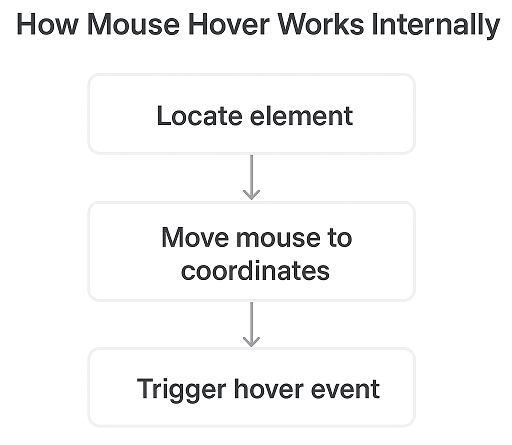
A mouse hover is simply an interaction where the browser triggers events such as mouseover or mouseenter. Many sites use these events to reveal dropdown menus, display tooltips, animate product details, or activate interactive components. In automated testing, performing a hover tells the browser to behave exactly like a user, making your tests more realistic.
In Playwright Java, the mouse hover method is useful when you need to handle advanced UI patterns, such as mega menus, delayed animations, hover reveal buttons, and dynamic panels. By simulating a true mouse pointer movement, Playwright ensures that all front-end behaviors respond correctly, which helps you verify how the application reacts in real user scenarios.
Set Up and Requirements for Hover Actions
Before running any hover actions, you need a working Playwright Java setup with Maven and your preferred IDE. If you are setting up Playwright for the first time, you can follow this Playwright Java installation tutorial to complete the configuration steps.
After the setup is ready, every Playwright script follows a simple structure. You create a Playwright instance, launch a browser, open a context, and load a page. This prepares your environment for any mouse hover action.
Playwright Java Mouse Hover Working Example
The simplest way to perform a mouse hover in Playwright Java is to call the hover function on a locator. This tells Playwright to move the virtual mouse pointer over the selected element, which then triggers any hover-based UI changes such as dropdown menus, tooltips, or animations. Here is the most basic example you can use right away:
page.locator("button.menu").hover();This single line is enough to trigger the hover event on the target element. You can use it with any locator that identifies the element you want to interact with.
Using Hover Options in Playwright Java
Playwright Java allows you to customize hover behavior using Locator.HoverOptions. These options help when you are dealing with dynamic elements, slow-loading menus, or interactions that require more control. While Playwright Java does not include a delay option inside hover settings, it provides other useful controls that make mouse hover actions more flexible.
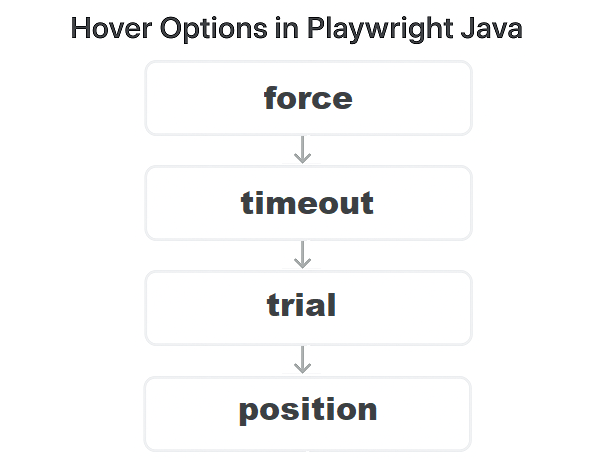
Here are the key options available:
force
Forces the hover even if the element is not ready for interaction. This is helpful when an element is overlapped or partially hidden.
timeout
Defines how long Playwright should wait for the element to become actionable before performing the hover.
trial
Runs all actionability checks but does not actually perform the hover. This is useful when you want to validate that the hover would succeed.
position
Lets you target a specific point inside the element, which can be helpful when hovering over elements with special hover zones or animations.
Below is the correct example using Locator.HoverOptions:
page.locator("#menu-item-4327").hover(
	new Locator.HoverOptions()
		.setForce(false)        // do not bypass checks
		.setTimeout(5000)       // wait up to 5000 ms
		.setTrial(false)        // actually perform the hover
		.setPosition(10, 10)    // optional: offset inside the element
);
How to Add a Hover Delay in Playwright Java
Since hover options do not support a delay parameter, the simplest way to apply a small wait after hovering is by using page.waitForTimeout():
page.locator("button.menu").hover();
page.waitForTimeout(300);   // wait 300 ms for animation or tooltip
This short pause helps when the UI needs time to display dropdown menus, animations, or tooltips after a hover event.
These options and techniques give you smoother control over hover interactions, especially when dealing with dynamic or animated elements in your Playwright Java tests.
Advanced Hover Examples
In real-world web applications, hover actions often involve more than just moving the mouse. You may need to hover to reveal menus, trigger animations, interact with SVG elements, or perform multi-step hover sequences.
You can experiment with all the examples below using this ready-to-use local HTML file:
This file contains menus, animated boxes, SVG elements, hover-reveal buttons, and multi-step hover elements with live messages showing your interactions.
Hover and Click
Hover actions are often needed to make hidden elements visible. In this HTML file, hovering over the menu automatically reveals the dropdown.
Locator menu = page.locator("#hoverMenu");
Locator dropdown = page.locator("#dropdownButton");

// Hover to reveal the dropdown
menu.hover();

// Wait for the dropdown button to appear
dropdown.waitFor();
dropdown.click();
Hover on Animated Elements
Some UI elements animate on hover. The example below uses the animated box (animateBox). A small pause ensures the animation completes before the next action.
Locator animatedBox = page.locator("#animateBox");

// Hover over animated box
animatedBox.hover();

// Optional: wait for animation to complete
page.waitForTimeout(300);
Hover on SVG Elements
SVG elements often require hover actions in dashboards or charts. This example hovers over the circle (svgCircle) and updates the message span.
Locator svgCircle = page.locator("#svgCircle");

// Hover over SVG circle
svgCircle.hover();
Hover to Reveal Hidden Buttons
Some cards or elements reveal buttons only when hovered. The hover card example uses hiddenButton inside hover-card.
// Locate the hover card container
Locator hoverCard = page.locator(".hover-card");

// Hover over the card to reveal the hidden button
hoverCard.hover();

// Locate the hidden button inside the card
Locator hoverCardButton = page.locator("#hiddenButton");

// Hover over the now-visible button
hoverCardButton.hover();
Multi-Step Chained Hover
Mega menus or multi-level dropdowns often require multiple sequential hover actions. In this example, hover over multiLevelMenu reveals step2 which you then hover or click.
Locator step1 = page.locator("#multiLevelMenu");
Locator step2 = page.locator("#step2");

// First hover
step1.hover();

// Hover next level
step2.hover();

// Optional click
step2.click();
Real Use Cases of Hover in UI Tests
Hover actions are common in modern web applications, especially where UI elements appear only when the mouse moves over them. Here are some practical scenarios where Playwright hover actions are essential in UI automation:
Mega Menu Navigation
Many e-commerce and enterprise websites use large multi-level menus that open only when hovered. You can hover over a parent menu item to reveal child categories, then click the required option.
Tooltip Validation
Tooltips often appear on hover and contain helpful text or warnings. With Playwright Java, you can hover over the target icon, wait for the tooltip to appear, and verify its content easily.
Product Card Hover Events
Product cards usually show hidden elements like “Add to Cart”, “Quick View”, or pricing details only when hovered. Hover tests help ensure these elements load correctly and respond to user interaction.
Hover-triggered Buttons
Some UI components reveal action buttons only when the mouse pointer moves over them. By using hover actions, you can test dynamic buttons inside cards, lists, dashboards, or galleries.
These real use cases show how hover interactions help validate dynamic UI behaviors that standard click-only automation cannot cover.
Conclusion
Mouse hover in Playwright Java is a simple but powerful interaction that helps you test dynamic elements, dropdowns, animations, tooltips, and hidden UI components. With the hover method and the examples you explored, you can now handle real-world scenarios confidently. Try running the sample HTML file and practice each example to get comfortable with hover actions in your automation scripts.