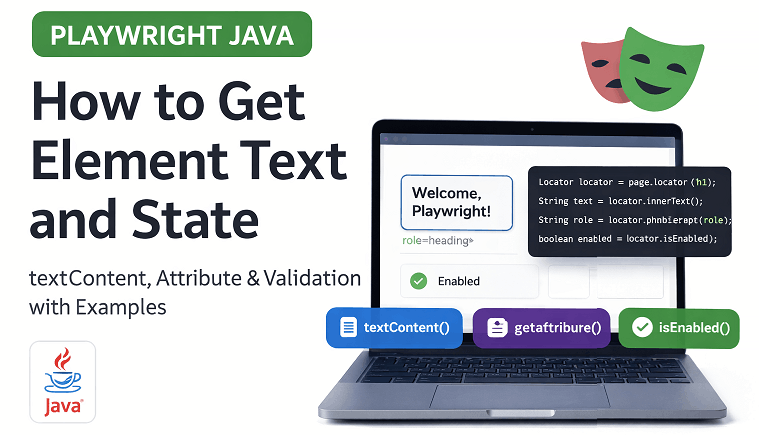
Many beginners start using Playwright by interacting with elements such as clicking buttons or typing text. However, learning how to get element text is just as important for real test validation. This is where getting element text, attributes, and state becomes essential in automation.
If you are learning playwright get element text java, you will often need to verify UI content, check attributes like href or value, and confirm element states such as visible or enabled. This is also useful when you need to verify element text in Playwright Java or confirm UI behavior during automation testing. These are common tasks in real-world testing scenarios.
In this guide, you will learn how to get element text, attributes, and state in Playwright Java with simple examples and current best practices. By the end, you will be able to validate UI elements effectively in your automation framework.
- How to Get Element Text in Playwright Java?
- What is Element Text in Playwright Java?
- How to Get Element Text in Playwright Java Step by Step?
- textContent() vs innerText() in Playwright Java
- How to Get Element Attribute Value in Playwright Java?
- How to Check Element State in Playwright Java with Example?
- What Is the Difference Between Text, Attribute, and State in Playwright Java?
- How to Validate Element Text and State in Playwright Java?
- What Are Common Mistakes When Getting Element Text, Attribute, and State?
- What Are Best Practices for Getting Element Text, Attribute, and State?
- What Are Real-World Use Cases for Getting Element Text and Attribute?
- How to Get Element Text and Attribute in Other Playwright Languages?
- Related Playwright Tutorials
- Conclusion
- FAQs
How to Get Element Text in Playwright Java?
You can get element text in Playwright Java using the textContent() method for full text or innerText() for visible text. These methods return the visible or full text of the element.
This is the fastest way to read text from any element for validation in your automation tests.
String text = page.locator("#elementId").textContent();Understanding the difference between textContent and innerText is important for accurate UI validation. The visual below highlights how both methods behave in different scenarios.
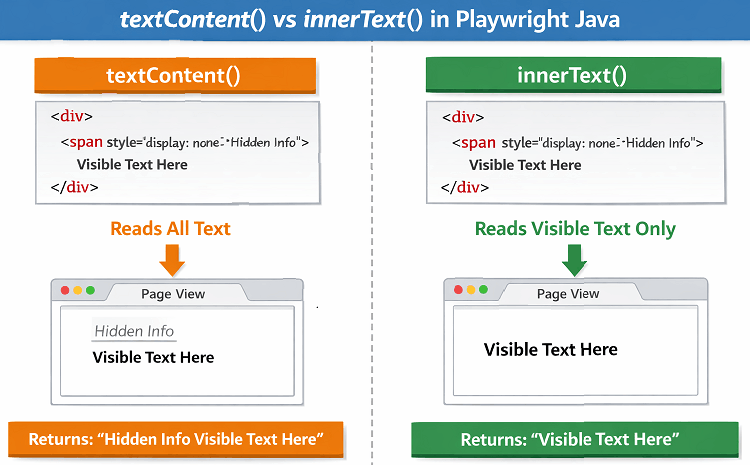
As shown above, textContent returns all DOM text while innerText returns only visible text. Choosing the correct method helps avoid incorrect validations in your tests.
What is Element Text in Playwright Java?
Element text in Playwright Java refers to the visible or hidden textual content inside a web element. It is used to validate UI content such as headings, labels, messages, and button text during automation testing.
For example, you can verify a success message after login or check if a button label is correct. This makes element text validation one of the most important steps in real-world UI testing.
In Playwright, you can retrieve element text using methods like textContent() for full DOM text and innerText() for visible UI text.
How to Get Element Text in Playwright Java Step by Step?
Follow these steps to get element text in Playwright Java using the latest recommended approach.
- Launch the browser and create a page instance
- Locate the element using a reliable selector
- Use textContent() or innerText() method
- Store the returned value in a variable
- Use the value for validation in your test
The following diagram helps you quickly understand how Playwright retrieves element text, attributes, and state during test execution. This flow is commonly used in real automation scenarios.
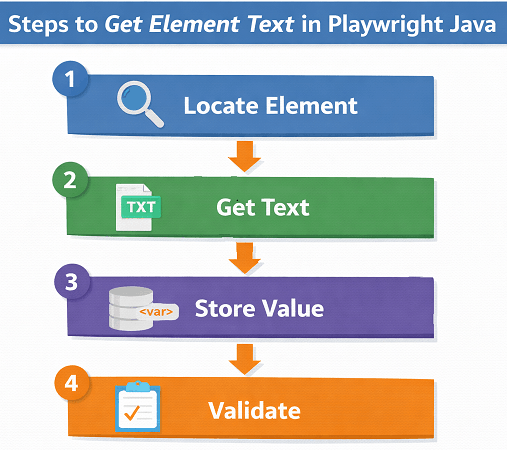
This flow explains how Playwright finds an element, retrieves its value, and uses it for validation. Following this approach ensures your tests remain stable and reliable.
To understand how to locate elements effectively, refer to this guide on Playwright locators in Java which covers best practices for stable and reliable selectors.
Here is a complete example that demonstrates how to get element text in a real test scenario.
import com.microsoft.playwright.*;

public class GetTextExample {
    public static void main(String[] args) {
        try (Playwright playwright = Playwright.create()) {
            Browser browser = playwright.chromium().launch(new BrowserType.LaunchOptions().setHeadless(true));
            Page page = browser.newPage();

            page.navigate("Domain");

            String text = page.locator("h1").textContent();

            System.out.println("Element Text: " + text);

            browser.close();
        }
    }
}
In this example, we read the heading text and print it to the console for verification.
To choose the right method, you need to understand how text retrieval works in Playwright.
textContent() vs innerText() in Playwright Java
Both methods are used to get text, but they behave slightly differently based on visibility and rendering.
| Method | Description | Use Case |
|---|---|---|
| textContent() | Returns all text including hidden content | When you need full DOM text |
| innerText() | Returns only visible text | When validating UI text visible to users |
Quick Tip: Use innerText() for UI validations and textContent() when you need complete text including hidden elements.
Performance can also be a factor when choosing between these methods.
Which method is faster: textContent() or innerText()?
textContent() is generally faster because it retrieves text directly from the DOM without considering CSS styles or layout. In contrast, innerText() calculates visible text, which may take slightly more time.
For most test cases, the difference is negligible, but for large pages or frequent validations, using textContent() can improve performance.
Can Playwright get element text without waiting?
Yes. Playwright automatically waits for elements to be ready before performing actions, but for accurate results you should ensure the element is visible and stable before reading its text.
For example, if the element loads dynamically after an API call, reading text too early may return empty or incorrect values.
Does Playwright support text validation directly?
Playwright itself does not provide built in assertion methods in Java, but you can easily validate text using testing frameworks like TestNG or JUnit.
For example, you can compare the actual text with expected values using assertions to ensure the UI displays correct content.
What happens if the element has no text?
If the element has no text, textContent() returns an empty string, while innerText() may return an empty or trimmed value depending on visibility.
Always handle empty text cases in your tests to avoid false validation failures.
How to Get Element Attribute Value in Playwright Java?
You can get an element attribute in Playwright Java by using the getAttribute() method on a locator. This method returns the value of a specific attribute such as href, value, id, or class.
This is commonly used when validating links, input fields, or dynamic UI behavior in automation tests.
String attributeValue = page.locator("#elementId").getAttribute("href");Quick example: You can use this method to verify if a link points to the correct URL or if an input field contains the expected value.
The above example retrieves the href attribute from the selected element.
Follow these steps to get an attribute value in Playwright Java.
- Locate the element using a stable selector
- Call the getAttribute() method
- Pass the attribute name as a parameter
- Store the returned value
- Use it for validation in your test
Here is a complete example showing how to get an attribute value.
import com.microsoft.playwright.*;

public class GetAttributeExample {
    public static void main(String[] args) {
        try (Playwright playwright = Playwright.create()) {
            Browser browser = playwright.chromium().launch();
            Page page = browser.newPage();

            page.navigate("Domain");

            String link = page.locator("a").getAttribute("href");

            System.out.println("Attribute Value: " + link);

            browser.close();
        }
    }
}
Here, we retrieve the href attribute from a link and print it for validation.
If you are not familiar with browser setup, you can learn how to launch a browser in Playwright Java before running this example.
Which Element Attributes Can You Get in Playwright Java?
You can read most standard HTML attributes in Playwright depending on the element type. These attributes help validate element behavior and data in UI testing.
- href used for validating links and navigation
- value used for input fields and form validation
- id and class used for element identification and verification
- src used for images and media validation
- placeholder used for input hints and UI validation
These attributes are commonly used in real-world automation scenarios such as verifying links, checking form inputs, and validating dynamic UI behavior.
Important note: If the attribute is not present, Playwright returns null. Always handle this case in your test to avoid failures.
Can you get dynamic attribute values in Playwright?
Yes. Playwright can retrieve dynamic attribute values using getAttribute(), even if the value changes after page load.
For example, attributes like value, class, or data attributes often update dynamically based on user actions or API responses, and Playwright can capture the latest value at runtime.
How to Check Element State in Playwright Java with Example?
You can check element state in Playwright Java using built-in locator methods like isVisible(), isEnabled(), isDisabled(), isChecked(), and isEditable(). These methods return boolean values based on the current state of the element.
Checking element state is important for validating UI behavior such as whether a button is clickable, a checkbox is selected, or an input field is editable.
boolean isVisible = page.locator("#elementId").isVisible();The above example checks if the element is visible on the page.
Follow these steps to check element state in Playwright Java.
- Locate the element using a reliable selector
- Choose the appropriate state method
- Call the method on the locator
- Store the boolean result
- Use it in your validation logic
Here is a complete example demonstrating multiple element state checks.
import com.microsoft.playwright.*;

public class ElementStateExample {
    public static void main(String[] args) {
        try (Playwright playwright = Playwright.create()) {
            Browser browser = playwright.chromium().launch();
            Page page = browser.newPage();

            page.navigate("Domain");

            boolean visible = page.locator("#button").isVisible();
            boolean enabled = page.locator("#button").isEnabled();

            System.out.println("Is Visible: " + visible);
            System.out.println("Is Enabled: " + enabled);

            browser.close();
        }
    }
}
In this example, we verify that a button is both visible and enabled before interacting with it.
Playwright provides multiple built in methods to verify different element states.
What Are Common Element State Methods in Playwright Java?
Playwright provides multiple methods to validate different UI states.
| Method | Description | Use Case |
|---|---|---|
| isVisible() | Checks if element is visible | UI validation |
| isHidden() | Checks if element is hidden | Negative validation |
| isEnabled() | Checks if element is enabled | Clickable validation |
| isDisabled() | Checks if element is disabled | Disabled state validation |
| isChecked() | Checks checkbox or radio selection | Form validation |
| isEditable() | Checks if input is editable | Input validation |
Quick Tip: Always check element state before performing actions to avoid flaky tests and improve reliability.
Can Playwright check if element is clickable?
Yes. You can determine if an element is clickable by checking if it is both visible and enabled using isVisible() and isEnabled() methods.
For example, a button may be visible but disabled, so combining both checks ensures the element is actually ready for user interaction.
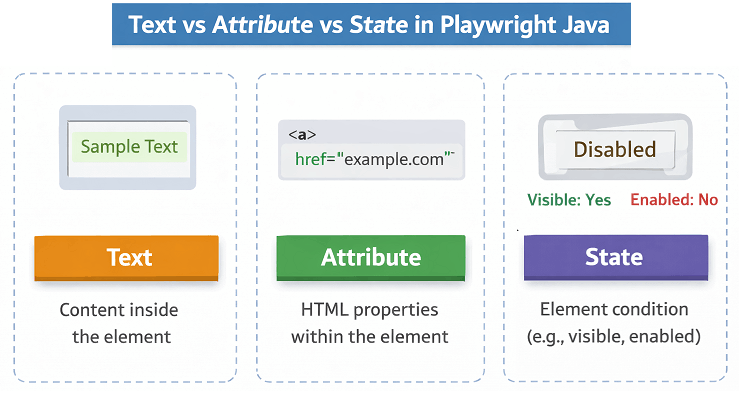
Let’s quickly compare text, attribute, and state so you can choose the right method.
What Is the Difference Between Text, Attribute, and State in Playwright Java?
Understanding the difference between text, attribute, and state helps you choose the correct validation method in your test.
| Type | Method | Returns | Use Case |
|---|---|---|---|
| Text | innerText() or textContent() | String | Validate UI content |
| Attribute | getAttribute() | String or null | Validate element properties |
| State | isVisible(), isEnabled() | Boolean | Validate element condition |
This comparison helps you quickly decide which method to use based on your validation needs.
In real applications, elements often load dynamically, so timing becomes important before retrieving values.
How to Handle Dynamic Elements Before Getting Text or State?
You should ensure that elements are properly loaded and visible before reading their text, attribute, or state in Playwright.
Playwright provides auto waiting, but in some cases you may still need to explicitly wait for elements.
- Use locator.waitFor() when elements load dynamically
- Ensure element is ready for interaction before reading values
- Avoid interacting with detached elements
- Use proper locators to avoid stale element issues
For a deeper understanding of how waiting and locators work internally, refer to the official Playwright locator and auto-waiting documentation.
This is one of the most common reasons tests fail in real automation projects.
This prevents flaky tests and gives more reliable validation results.
How to Validate Element Text and State in Playwright Java?
You can validate element text and state in Playwright Java by combining locator methods with assertion frameworks like TestNG or JUnit. This ensures your test verifies actual UI behavior instead of just fetching values.
For writing strong validations, you can use Playwright Java assertions using TestNG and JUnit to compare expected and actual values in your tests.
This approach is commonly used when you need to assert element text in Playwright Java or validate UI behavior in test automation.
This is a common real-world scenario where you verify both content and element readiness before performing actions.
import static org.testng.Assert.*;
import com.microsoft.playwright.*;

public class ValidationExample {
    public static void main(String[] args) {
        try (Playwright playwright = Playwright.create()) {
            Browser browser = playwright.chromium().launch();
            Page page = browser.newPage();

            page.navigate("Domain");

            String text = page.locator("h1").innerText();
            boolean visible = page.locator("h1").isVisible();

            assertTrue(visible, "Element is not visible");
            assertEquals(text, "Example Domain");

            browser.close();
        }
    }
}
This example validates both the visibility and text of an element, which is a best practice in automation testing.
In real projects, combining these checks can save hours of debugging later.
What Are Common Mistakes When Getting Element Text, Attribute, and State?
Many beginners face issues while working with element text, attributes, and state in Playwright Java. Avoiding these common mistakes can save debugging time and make your tests more stable.
Here is where most beginners make mistakes.
- Using textContent() instead of innerText() for UI validation
- Not waiting for element to be visible before reading text
- Ignoring null values returned by getAttribute()
- Checking state on incorrect or unstable locators
- Assuming element is ready without proper synchronization
Most beginners run into these issues at least once, so do not worry if this looks familiar.
These mistakes often lead to flaky tests and incorrect validations.
How to Debug Issues When Getting Element Values?
If you are not getting correct text, attribute, or state values in Playwright, you can use simple debugging techniques to identify the issue.
- Print values using System.out.println to verify output
- Check locator accuracy using Playwright inspector
- Ensure element is visible before reading values
- Verify page is fully loaded before execution
Debugging helps quickly identify issues related to locators, timing, or incorrect assumptions in your test.
Why Element State Checks Fail Sometimes?
Element state methods can fail if the element is not fully loaded or attached to the DOM. Always ensure proper waiting before checking state.
Quick Tip: Combine proper locators with Playwright auto waiting features to avoid most of these issues.
What Are Best Practices for Getting Element Text, Attribute, and State?
Using best practices helps you write stable, reliable, and maintainable Playwright tests. These practices follow current Playwright recommendations and real-world usage patterns.
This is the fastest way to improve your test quality and avoid flaky behavior.
- Use innerText() for UI validation instead of textContent()
- Always use stable locators like id, data-testid, or role based selectors
- Ensure elements are stable and ready before reading values
- Handle null values when using getAttribute()
- Leverage Playwright auto waiting instead of adding manual waits
Following these steps ensures your tests behave consistently across environments.
How to Write More Reliable Validations?
You can write more reliable validations in Playwright by combining element text, attribute values, and state checks together in your test logic.
For example, instead of only checking text, you can also verify that the element is visible and enabled before validating its content. This ensures your test reflects real user behavior.
- Check element visibility before reading text
- Validate attribute values along with UI content
- Ensure elements are enabled before interaction
- Combine multiple validations for stronger assertions
This approach helps reduce flaky tests and improves overall test reliability in real-world scenarios.
Is It Safe to Directly Use getAttribute?
Yes, but always check for null values before using the result in assertions to prevent runtime errors.
Do You Need Waits Before Reading Values?
In most cases, Playwright auto waiting handles this. However, ensure the element is attached and visible for accurate results.
Important note before you proceed: Strong validations improve test reliability more than complex actions. Focus on verifying correct behavior instead of just performing actions.
What Are Real-World Use Cases for Getting Element Text and Attribute?
Getting element text, attribute, and state is widely used in real automation scenarios to validate application behavior and user experience.
These scenarios often involve verifying element text, validating attributes, and checking element state in Playwright Java.
- Verify login success message after user authentication
- Check if a button is disabled before performing an action
- Validate link URLs using href attribute
- Confirm input field values in forms
- Ensure error messages are displayed correctly
These use cases help ensure your application behaves correctly from an end user perspective.
How to Get Element Text and Attribute in Other Playwright Languages?
The concept of getting element text, attribute, and state is the same across all Playwright supported languages. Here are simple examples in JavaScript, TypeScript, and Python.
JavaScript Example: Get Text, Attribute, and State
This example demonstrates how to retrieve text, attribute, and state using Playwright in JavaScript.
const { chromium } = require('playwright');

(async () => {
  const browser = await chromium.launch();
  const page = await browser.newPage();

  await page.goto('Domain');

  const text = await page.locator('h1').innerText();
  const attr = await page.locator('a').getAttribute('href');
  const visible = await page.locator('h1').isVisible();

  console.log(text, attr, visible);

  await browser.close();
})();
TypeScript Implementation: Read Element Values
This TypeScript example demonstrates the same approach with type safety support.
import { chromium } from 'playwright';

(async () => {
  const browser = await chromium.launch();
  const page = await browser.newPage();

  await page.goto('Domain');

  const text = await page.locator('h1').innerText();
  const attr = await page.locator('a').getAttribute('href');
  const visible = await page.locator('h1').isVisible();

  console.log(text, attr, visible);

  await browser.close();
})();
Python Example: Fetch Text and State
In Python, the syntax is slightly different but the concept remains the same.
from playwright.sync_api import sync_playwright

with sync_playwright() as p:
    browser = p.chromium.launch()
    page = browser.new_page()

    page.goto("Domain")

    text = page.locator("h1").inner_text()
    attr = page.locator("a").get_attribute("href")
    visible = page.locator("h1").is_visible()

    print(text, attr, visible)

    browser.close()
These examples show that Playwright provides a consistent API across languages, making it easy to switch between them.
Related Playwright Tutorials
If you want to improve your Playwright skills further, explore these related tutorials on locators, actions, and real-world automation scenarios.
- Playwright Java getByRole locator with examples
- How to use XPath locators in Playwright Java
- Handle Calendar in Playwright Java
- How to record video in Playwright Java
- Perform Right-Click in Playwright Java
Conclusion
Getting element text, attribute, and state is one of the most important parts of UI validation in Playwright. These operations help ensure that your application behaves correctly and displays accurate information to users.
In this guide, you learned how to use methods like innerText(), textContent(), getAttribute(), and various state checks such as isVisible() and isEnabled(). These are essential for writing reliable and stable automation tests.
As you continue working with playwright get element text java, focus on using proper locators, handling edge cases like null values, and validating elements effectively before performing actions. This approach will help you build a robust automation framework.
FAQs
How to Get Element Text in Playwright Java with Example?
You can get element text using textContent() or innerText() methods on a locator. innerText() is preferred for visible UI validation.
How to get attribute value in Playwright Java?
You can use getAttribute(“attributeName”) on a locator to retrieve the attribute value. It returns null if the attribute is not present.
Do I need to wait before getting element text in Playwright?
Playwright auto waiting usually handles this, but ensure the element is visible or attached to get accurate results.
What is the best method to get visible text in Playwright Java?
innerText() is the best method to get visible text because it reflects what users actually see on the UI.