Last updated on June 7th, 2026 at 10:04 am
Playwright cannot find element errors happen because the locator is unstable, the page is not fully ready, or the element lives inside a different rendering context like an iframe or Shadow DOM. In most real projects the element is technically in the DOM, but Playwright still cannot interact with it because the UI is mid-update.
If you are still getting comfortable with the framework, the full Playwright tutorial covers how all these pieces fit together.
- How to Fix Playwright Cannot Find Element Issues
- What Does "Playwright Cannot Find Element" Actually Mean?
- Why Is Playwright Unable to Find an Element Even When It Exists?
- How to Debug Playwright Element Not Found Issues
- What Are the Best Ways to Fix Playwright Locator Problems?
- How to Handle Dynamic Elements in Playwright
- Why Playwright Cannot Find Element in React, Angular, or Vue Applications
- Common Mistakes That Cause Playwright Element Not Found Errors
- Real-World Scenarios Where Playwright Cannot Find Elements
- Best Practices to Prevent Playwright Element Not Found Errors
- Examples in Other Languages
- FAQs
How to Fix Playwright Cannot Find Element Issues
Fix most Playwright element not found errors by switching to stable locators, waiting for the correct UI state, and using Playwright Inspector before adding any waits. Nine times out of ten the element exists. The application just is not ready for interaction yet.
await page.getByRole('button', { name: 'Login' }).click();Role-based locators are the fastest fix in most cases because they survive layout changes and reflect real user behavior. Start here before touching anything else.
- Prefer
getByRole(),getByLabel(), andgetByTestId()over CSS or XPath - Check whether the element is inside an iframe before assuming your locator is wrong
- Verify actual visibility with
isVisible()before debugging timing - Use Playwright Inspector to inspect element state live, not guesswork and random waits
- Wait for API responses or framework rendering in React, Angular, and Vue apps
What Does “Playwright Cannot Find Element” Actually Mean?
Playwright cannot find an element when the locator fails to match a usable element within the configured timeout. The element might exist somewhere in the DOM but still be hidden, detached, inside a frame, or blocked by an overlay.
Playwright locators auto-wait for actionability. That handles most simple cases. But it cannot compensate for unstable selectors, incorrect frame context, or frontends that continuously replace DOM nodes during React re-renders, Angular change detection, or Vue conditional rendering.
Why Does Playwright Fail Even When the Element Exists?
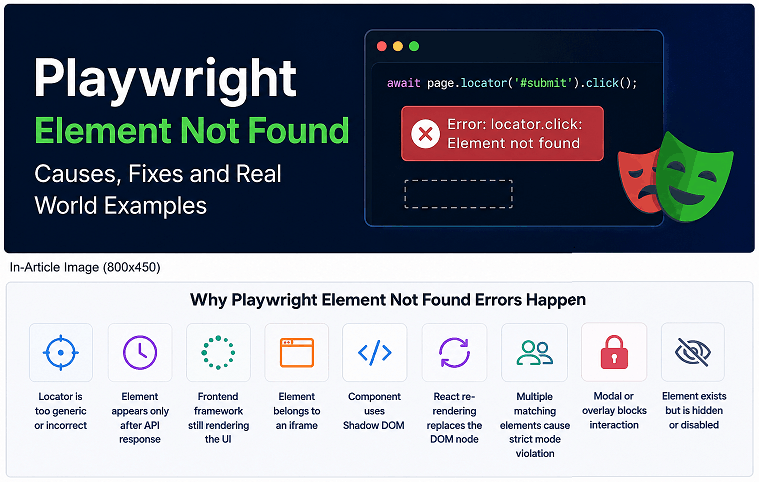
An element in the DOM is not the same as an actionable element. It may be hidden, disabled, covered by a modal, detached mid-render, or isolated inside an iframe that Playwright is not scoped to.
- The locator is too generic or incorrectly formed
- The element renders only after an API response
- React destroyed and recreated the DOM node mid-interaction
- The element belongs to an iframe or Shadow DOM
- A modal or overlay is intercepting the interaction
- Multiple elements match the locator, triggering a strict mode violation
What Is the Difference Between Attached and Visible Elements?
An attached element exists in the DOM tree. A visible element is rendered on screen and ready for interaction. Most Playwright actions require visibility, not just attachment. Many frontend frameworks inject hidden elements into the DOM well before they are displayed.
| Element State | Meaning | Can Playwright Interact? |
|---|---|---|
| Attached | Exists in DOM, may be hidden | Not always |
| Visible | Rendered on screen | Usually yes |
| Hidden | In DOM, not visible | No |
| Detached | Removed from DOM | No |
Can Strict Mode Violations Prevent Element Interaction?
Yes. Strict mode fires when your locator matches more than one element. Playwright throws deliberately rather than interact with the wrong target.
// Too broad — fails if multiple Submit buttons exist
await page.getByText('Submit').click();

// Scoped — unambiguous
await page
  .locator('#checkout-form')
  .getByRole('button', { name: 'Submit' })
  .click();
Strict mode violations are actually useful. They surface locator ambiguity early rather than letting tests interact with the wrong element silently.
Why Is Playwright Unable to Find an Element Even When It Exists?
Playwright cannot match a usable element when the locator is wrong, the element has not rendered yet, or the interaction is blocked. Timing issues and unstable selectors account for most of these failures in real projects.
Is the Locator Incorrect or Unstable?
Long CSS chains and DevTools-generated XPath are the most common root cause. They look fine at first and break silently after the next UI push.
// Fragile — breaks after any layout change
await page.locator('div.container > div:nth-child(2) > button').click();

// Stable
await page.getByRole('button', { name: 'Submit' }).click();
Prefer these locators in priority order: getByRole(), getByLabel(), getByPlaceholder(), getByText(), getByTestId().
For a complete overview of recommended locator strategies, refer to the official Playwright locator documentation.
Could the Element Be Rendering Late?
Yes. React, Vue, and Angular apps regularly update the DOM after page load completes. The element simply does not exist yet when Playwright runs the locator.
// Risky — no guarantee the button exists yet
await page.goto('https://example.com');
await page.click('#loginButton');

// Reliable — wait for actual UI state
await page.goto('https://example.com');
await page.getByRole('button', { name: 'Login' }).waitFor();
await page.getByRole('button', { name: 'Login' }).click();
Is the Element Inside an iframe?
Playwright cannot access iframe elements from the main page context. You must switch using frameLocator(). This is the most overlooked cause of element not found errors in payment pages, embedded widgets, and third-party auth flows.
// Wrong — main page context cannot reach into the iframe
await page.locator('#cardNumber').fill('4111111111111111');

// Correct
const paymentFrame = page.frameLocator('#payment-frame');
await paymentFrame.locator('#cardNumber').fill('4111111111111111');
Can Hidden Elements Cause Locator Failures?
Yes. Elements styled with display: none, opacity: 0, or visibility: hidden exist in the DOM but are not actionable. Off-screen elements and anything behind a loading overlay have the same problem.
const isVisible = await page.locator('#submitButton').isVisible();
console.log(isVisible);
If this returns false, stop guessing about timing. The visibility problem is the actual issue.
Does React Re-rendering Break Playwright Locators?
Yes. React destroys and recreates DOM nodes during state updates. Stored ElementHandle references point to the old node, which is now detached.
// Stale reference pattern — avoid this
const element = await page.$('#login');
await element?.click();

// Locators re-query the DOM on every action — use this
await page.locator('#login').click();
How to Debug Playwright Element Not Found Issues
Debug by verifying what Playwright actually sees at the moment of failure. Random waits and XPath tweaks waste hours. Playwright Inspector reveals the real issue in minutes.
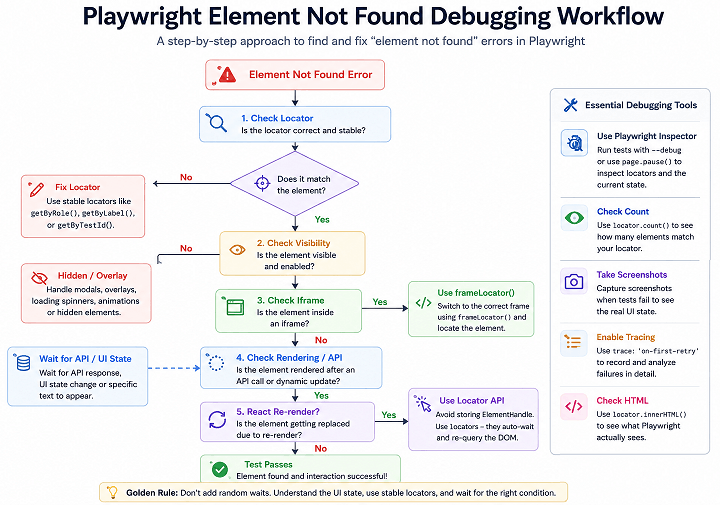
Use Playwright Inspector to Debug Locators
Playwright Inspector lets you pause execution and inspect the live page state, test locators interactively, and see exactly which elements match.
npx playwright test --debugOr pause from inside the test:
await page.pause();Inside Inspector you can verify visibility state, check iframe hierarchy, confirm matched elements, and catch strict mode conflicts without touching a single line of test code.
Check Element State Before Interacting
Before diving deeper, check what Playwright actually sees for the target element:
const locator = page.getByRole('button', { name: 'Checkout' });

console.log(await locator.isVisible());
console.log(await locator.isEnabled());
console.log(await locator.count());
A count above 1 means your locator is too broad. isVisible() returning false means the element exists but is blocked or hidden. This three-line check eliminates most guesswork immediately.
Verify How Many Elements Match the Locator
A locator silently matching multiple elements causes strict mode violations or inconsistent behavior. Check the count first.
const count = await page.locator('.product-card').count();
console.log(count);

// Narrow it when count is too high
await page
  .locator('.product-card')
  .filter({ hasText: 'iPhone 16' })
  .getByRole('button', { name: 'Add to Cart' })
  .click();
Capture Screenshots During Failures
Screenshots are invaluable for headless CI failures you cannot reproduce locally.
await page.screenshot({ path: 'debug.png', fullPage: true });

// Or target a specific element
await page.locator('#login-form').screenshot({ path: 'login-form.png' });
Inspect iframe Hierarchy
When an element search keeps failing despite a correct-looking locator, check whether it lives in a frame you have not accounted for:
for (const frame of page.frames()) {
  console.log(frame.url());
}
Enable Tracing for Deeper Debugging
Playwright tracing records DOM snapshots, network logs, screenshots, and action timelines. It is the single best tool for diagnosing intermittent failures.
// In playwright.config.ts
use: {
  trace: 'on-first-retry'
}
npx playwright show-trace trace.zipWhat Are the Best Ways to Fix Playwright Locator Problems?
Fix Playwright locator problems by using stable user-facing locators, waiting for real UI states, and synchronizing with API responses. Reliable locators are the difference between a test suite that runs clean for months and one that needs constant babysitting.
Why Do Locators Become Flaky Over Time?
Locators tied to DOM structure erode quietly as the application evolves. They work perfectly at creation, then start failing after UI redesigns, framework migrations, component library updates, localization changes, or A/B testing experiments.
// Breaks after almost any layout change
await page.locator('#root > div > main > div > button').click();

// Survives redesigns
await page.getByRole('button', { name: 'Continue' }).click();
Should You Use XPath in Playwright?
Use XPath only when accessibility locators are genuinely not practical. Long, DevTools-generated XPath is one of the biggest contributors to flaky automation I see in real projects.
| Locator Type | Recommended? | Stability |
|---|---|---|
getByRole() | Yes | High |
getByLabel() | Yes | High |
getByTestId() | Yes | Very High |
| CSS Selector | Sometimes | Medium |
| XPath | Last resort | Low |
Why Is getByTestId() Useful in Large Projects?
getByTestId() survives localization, A/B tests, and UI text changes because the selector is decoupled from anything the user sees. Teams that standardize data-testid attributes across frontend applications consistently spend less time fixing broken locators.
await page.getByTestId('checkout-button').click();Avoid Hard Waits Whenever Possible
waitForTimeout() is a band-aid that makes tests slower and still fails unpredictably. Application speed varies across environments. A five-second wait that passes locally will eventually time out in a loaded CI runner.
// Avoid
await page.waitForTimeout(5000);

// Correct — wait for actual UI readiness
await page.getByRole('button', { name: 'Checkout' }).waitFor();
Wait for Network and UI State Together
Many apps render UI only after multiple API responses complete. Page load events alone are not sufficient.
await Promise.all([
  page.waitForResponse(response =>
    response.url().includes('/products') &&
    response.status() === 200
  ),
  page.goto('https://example.com/products')
]);
This pattern is particularly reliable in React dashboards, Angular enterprise apps, and GraphQL-driven frontends.
Can Animations Break Playwright Locators?
Yes. CSS transitions and animations can keep elements non-actionable even after they appear visually on screen. Sliding menus, fade-in modals, and animated dropdowns all trigger this.
await page.locator('#menu').waitFor({ state: 'visible' });Use Locator Chaining for Better Precision
Chaining narrows the search scope and eliminates ambiguous matches on pages with repeated components like product cards, table rows, or user lists.
await page
  .locator('.product-card')
  .filter({ hasText: 'MacBook Pro' })
  .getByRole('button', { name: 'Buy Now' })
  .click();
Can Overlays Block Playwright Clicks?
Yes. Invisible overlays, cookie banners, sticky headers, loading spinners, and modals frequently intercept clicks even when the target element looks fully visible. Use page.pause() to inspect whether something is covering the target in the layer stack.
How to Handle Dynamic Elements in Playwright
Dynamic elements change their attributes, visibility, or existence at runtime. Modern frameworks update the DOM constantly during rendering and state changes, which breaks locators tied to DOM structure or timing assumptions.
Why Do Dynamic IDs Break Playwright Locators?
Some applications generate a new random ID every page load. Any locator depending on that ID fails on the next run.
// Breaks on next load
await page.locator('#user_847291').click();

// Stable alternatives
await page.getByRole('button', { name: 'Profile' }).click();
await page.getByTestId('profile-button').click();
How Do You Wait for Dynamically Loaded Elements?
Wait for the actual element state rather than a fixed duration. Playwright retries continuously until the expected condition is met.
await page.locator('.search-results').waitFor({ state: 'visible' });

// Or wait for specific text
await expect(page.locator('.status')).toHaveText('Completed');
Can Infinite Scrolling Cause Element Not Found Errors?
Yes. Infinite scrolling applications only render what is in the viewport. An element below the fold may not exist in the DOM at all when Playwright searches for it.
await page.mouse.wheel(0, 3000);

// Or scroll a specific element into view
await page.locator('#load-more').scrollIntoViewIfNeeded();
Always wait for the newly loaded content before interacting with it.
How Does React Re-rendering Affect Playwright?
React destroys and recreates DOM elements during state updates. Old ElementHandle references become stale immediately after a re-render. Locators avoid this because they re-query the DOM on every action.
// Stale after reload or re-render
const button = await page.$('#save');
await page.reload();
await button?.click();

// Always resolves current DOM
await page.locator('#save').click();
Can Shadow DOM Prevent Playwright from Finding Elements?
Shadow DOM creates encapsulated trees that block traditional selectors in older tools. Playwright handles most Shadow DOM scenarios automatically without special handling.
await page.locator('custom-login-component button').click();Why Do Dropdown Elements Sometimes Fail?
Custom dropdown components in Material UI, React Select, and similar libraries render options only after the dropdown is opened. Trying to click an option before triggering the dropdown guarantees a not found error.
// Open dropdown first, then interact with options
await page.locator('#country-dropdown').click();
await page.getByRole('option', { name: 'India' }).click();
How Do Virtualized Lists Cause Element Not Found Issues?
Virtualized lists render only visible rows for performance. Elements outside the viewport are not in the DOM at all. This is common in large data tables, chat apps, and analytics dashboards.
await page.mouse.wheel(0, 5000);
await expect(page.getByText('Invoice 1024')).toBeVisible();
Can Route Transitions Break Locators in Single Page Applications?
Yes. In React Router, Next.js, Angular Router, and Vue Router, navigation happens without a full page reload. Elements may disappear, move, or re-render during the transition. Wait for URL or element state to confirm navigation completed.
await Promise.all([
  page.waitForURL('**/dashboard'),
  page.getByRole('button', { name: 'Login' }).click()
]);
Why Playwright Cannot Find Element in React, Angular, or Vue Applications
React, Angular, and Vue continuously update the DOM after rendering, API responses, and state changes. An element may briefly exist, disappear, and re-render before Playwright finishes the interaction. The locator can be perfectly correct and still fail because the UI state is wrong at the moment of execution.
Skeleton loaders are a classic trap here. The component exists in the DOM as a placeholder, Playwright finds it, tries to interact, and fails because it is not the real content yet. Wait for meaningful state, not just element presence.
await expect(
  page.getByRole('button', { name: 'Save Changes' })
).toBeVisible();
Common Mistakes That Cause Playwright Element Not Found Errors
Most element not found failures come from a small set of repeatable mistakes. These are not Playwright bugs. They are automation design problems that compound over time.
Using waitForTimeout() Everywhere
Hard waits are the most common crutch in flaky test suites. They appear to fix the problem, then start failing again whenever application speed changes across environments or CI runners.
// Do not do this
await page.waitForTimeout(5000);

// Wait for the actual UI state
await page.getByRole('button', { name: 'Continue' }).waitFor();
Copying XPath Directly from Browser DevTools
DevTools-generated XPath is the most fragile selector you can write. It encodes the full DOM hierarchy, which changes with every layout update.
// Breaks after almost any frontend change
await page.locator('//*[@id="root"]/div/div[2]/div/button').click();

// Survives them
await page.getByRole('button', { name: 'Checkout' }).click();
Ignoring iframe Boundaries
Browser DevTools displays iframe content inline, making it easy to forget the element is in a separate document context. Payment forms, embedded analytics, and chat widgets are the usual offenders.
// Fails silently — main context cannot reach iframe content
await page.locator('#card-number').fill('4111111111111111');

// Correct
await page
  .frameLocator('#payment-frame')
  .locator('#card-number')
  .fill('4111111111111111');
Storing Stale ElementHandle References
Storing ElementHandle references was a common pattern in older automation frameworks. In React and Vue apps that continuously re-render, those references expire quickly.
// Reference is stale after reload or state change
const loginButton = await page.$('#login');
await page.reload();
await loginButton?.click();

// Locators re-evaluate automatically
await page.locator('#login').click();
Using Overly Generic Text Locators
Generic text locators match every element containing that text, which triggers strict mode violations in any page with repeated components.
// Too broad — multiple Save buttons cause failure
await page.getByText('Save').click();

// Scoped correctly
await page
  .locator('#profile-form')
  .getByRole('button', { name: 'Save' })
  .click();
Using Dynamically Generated CSS Classes
Frameworks like Material UI generate class names that change between builds. Any locator targeting .MuiButton-root-184 will break on the next deployment.
// Class changes on every build
await page.locator('.MuiButton-root-184').click();

// Use role or testId instead
await page.getByRole('button', { name: 'Submit' }).click();
Skipping Playwright Inspector During Debugging
Spending hours on blind trial-and-error when Inspector takes two minutes is the single biggest time waste in Playwright debugging. Start there every time.
npx playwright test --debug
// or
await page.pause();
Assuming Headless and Headed Modes Behave Identically
Headless mode renders differently. Animations, lazy loading, hover menus, and responsive layouts can all behave differently between modes. Test critical flows in both. CI failures that cannot be reproduced locally usually trace back to this.
Real-World Scenarios Where Playwright Cannot Find Elements
Demo projects rarely expose the locator failures that appear in production. Real enterprise apps have loaders, nested frames, virtual scrolling, live data refreshes, and constantly shifting UI state. Here is how the most common real-world scenarios play out.
Why Does Playwright Fail on Loading Spinners?
Loading overlays block interaction with everything underneath. The target button exists and is visible, but the overlay intercepts the click. Playwright sees the element as not actionable.
// Wait for the spinner to disappear first
await page.locator('.loading-spinner').waitFor({ state: 'hidden' });
await page.getByRole('button', { name: 'Place Order' }).click();
Can Modal Dialogs Cause Locator Failures?
Yes. Cookie consent banners, newsletter popups, and login modals intercept any click that hits the underlying page. Close the modal before attempting any page interaction.
await page.getByRole('button', { name: 'Close' }).click();How Do Lazy Loaded Elements Affect Playwright?
Lazy loaded elements do not exist in the DOM until the scroll position triggers their render. Playwright cannot find what has not been created yet.
await page.locator('#load-more').scrollIntoViewIfNeeded();
await page.locator('.product-card').last().waitFor();
Can API Delays Affect Playwright Locators?
Yes. Slow backend responses keep the UI in a loading state while the page looks visually complete. Synchronize with the API response directly rather than waiting on visible elements that may not reflect real readiness.
await Promise.all([
  page.waitForResponse(response =>
    response.url().includes('/api/orders') &&
    response.status() === 200
  ),
  page.reload()
]);
Why Do Tests Fail Only in CI/CD Pipelines?
CI environments run slower. CPU limits, headless rendering, and network latency expose timing issues that local machines absorb silently. Any test passing locally through luck of timing will eventually fail in CI.
Capture everything on CI to debug these failures without re-running:
use: {
  trace: 'retain-on-failure',
  screenshot: 'only-on-failure',
  video: 'retain-on-failure'
}
Does Responsive Design Affect Playwright Locators?
Yes. Responsive layouts can render completely different DOM structures at mobile viewports. Navigation collapses, buttons move, entire sections conditionally render. Always run tests at the intended viewport.
await page.setViewportSize({ width: 390, height: 844 });Best Practices to Prevent Playwright Element Not Found Errors
Prevention comes from stable locator design and proper synchronization from the start, not retries and force clicks bolted on later.
Prefer User-Facing Locators Over Technical Selectors
User-facing locators reflect real user interaction patterns and survive frontend changes because they are not tied to DOM structure.
getByRole()getByLabel()getByPlaceholder()getByText()getByTestId()
Should You Create Dedicated Test IDs?
Yes, especially in enterprise projects. Test IDs decouple your locators from text content, CSS structure, and visual design. They do not change between deployments unless someone explicitly changes them.
<button data-testid="checkout-button">Checkout</button>await page.getByTestId('checkout-button').click();Wait for Meaningful Application States
Page load is not the same as UI readiness. Wait for the state that indicates the application is actually ready for the interaction you are about to perform.
// Do not wait blindly
await page.waitForTimeout(3000);

// Wait for what matters
await expect(page.getByText('Order Completed')).toBeVisible();
Use Locator Chaining for Repeated Components
Pages with card grids, user tables, and data lists always have repeated components. Chaining scopes the locator precisely and eliminates accidental matches.
await page
  .locator('.user-card')
  .filter({ hasText: 'John Doe' })
  .getByRole('button', { name: 'Edit' })
  .click();
Why Should You Avoid Force Clicks?
force: true bypasses all actionability checks. It hides real problems like overlays, disabled states, and visibility failures rather than fixing them. Use it only when you fully understand the UI behavior and have no better option.
Should You Validate Locators During Code Review?
Yes. Locator quality determines long-term automation stability. Review locator readability, test ID usage, timing logic, iframe handling, and API synchronization during code review. Small locator mistakes are cheap to fix in review and expensive to track down six months later.
Can Accessibility Improvements Help Playwright Stability?
Yes. Applications with proper ARIA roles, semantic HTML, accessible labels, and meaningful button names are significantly easier to automate. Accessibility improvements and test stability improvements are largely the same work.
Examples in Other Languages
Playwright’s core behavior is consistent across all supported languages. The same locator strategies and debugging approaches apply whether you are writing TypeScript, JavaScript, Python, or Java.
JavaScript: Waiting for a Visible Element
await page.getByRole('button', { name: 'Login' }).waitFor();
await page.getByRole('button', { name: 'Login' }).click();
TypeScript: Stable Locator with Visibility Assertion
const loginButton = page.getByRole('button', { name: 'Login' });
await expect(loginButton).toBeVisible();
await loginButton.click();
Python: Handling Dynamic Elements
login_button = page.get_by_role("button", name="Login")
login_button.wait_for()
login_button.click()
Java: Working with Frame Locators
FrameLocator paymentFrame = page.frameLocator("#payment-frame");
paymentFrame.locator("#card-number").fill("4111111111111111");
FAQs
Why does Playwright say element not found even when the element exists?
The element may be hidden, inside an iframe, blocked by an overlay, dynamically rendered after an API response, or detached during a React re-render. Presence in the DOM does not equal actionability.
How do I fix Playwright cannot find element issues?
Switch to stable locators like getByRole() or getByTestId(), wait for actual UI states instead of using hard waits, verify iframe context, and debug using Playwright Inspector before changing anything else.
Can Playwright handle dynamically loaded elements?
Yes. Playwright auto-waits for elements to become actionable. Failures on dynamic elements usually mean the locator is unstable or the synchronization logic does not match the actual rendering sequence.
Why is my Playwright locator working in DevTools but failing in automation?
DevTools inspects a static snapshot. Automation runs against a live, changing DOM. The UI may re-render, hide, or become blocked between when you inspected it and when the test runs.
Should I use waitForTimeout() to fix locator issues?
No. Hard waits slow tests down and still fail when the application runs slower than expected. Use state-based waiting instead: waitFor(), toBeVisible(), waitForResponse().
Can iframes cause Playwright element not found errors?
Yes. Elements inside iframes require frameLocator() because Playwright cannot access iframe content from the main page context. This is the most common cause of not found errors on payment pages and embedded widgets.
Why do Playwright tests fail only in CI/CD pipelines?
CI environments are slower and expose timing issues that local machines absorb. Enable tracing, screenshots, and video on failure to diagnose these without re-running the pipeline.
Can React re-rendering break Playwright locators?
Yes. React replaces DOM nodes during state updates, making stored ElementHandle references stale. Always use locators directly because they re-query the DOM on every action.
Is XPath bad in Playwright?
XPath is supported but long, DevTools-generated XPath selectors are fragile. They encode the entire DOM hierarchy and break after minor layout changes. Use accessibility locators unless XPath is the only practical option.
How do I debug Playwright locator problems quickly?
Run npx playwright test --debug or add await page.pause() to open Playwright Inspector. Check locator count, visibility, enabled state, and iframe context before changing any selectors.
What is the best locator strategy in Playwright?
Prefer getByRole() first, then getByLabel(), getByText(), and getByTestId(). For enterprise projects with frequent text changes or localization, getByTestId() with standardized data-testid attributes is the most maintainable long-term strategy.
Does Playwright support Shadow DOM elements?
Yes. Playwright handles Shadow DOM automatically in most cases without any special configuration or piercing syntax.
Why do dynamic IDs break Playwright locators?
Dynamically generated IDs change between page loads, making any locator that targets them unreliable. Replace them with getByRole() or getByTestId() using stable data-testid attributes.
How can I reduce flaky locator failures in Playwright?
Replace unstable XPath and deep CSS selectors with accessibility-first locators, remove hard waits, synchronize with API responses, and enable tracing on CI failures. That combination eliminates the majority of flaky failures without touching the application.