Modern web applications often use frames and iframes to embed content from different sources inside a single page. When you automate such applications, learning how to Handle iFrames in Playwright Java becomes an important part of building reliable test automation scripts.
Beginners frequently encounter issues when Playwright scripts cannot locate elements that are placed inside an iframe. This happens because elements inside frames belong to a different document context, and Playwright must first access the correct frame before interacting with those elements.
In this guide, you will learn how to handle frames and iframes in Playwright Java using different approaches such as frame(), frameLocator(), and page.frames(). By the end of this tutorial, you will be able to confidently interact with elements located inside single, multiple, and nested iframes.
- How to Handle Frames in Playwright Java?
- What Are Frames and Iframes in Playwright?
- How to Switch to a Frame in Playwright Java?
- How to Handle Multiple Frames in Playwright Java?
- How to Use frameLocator in Playwright Java?
- How to Handle Nested Iframes in Playwright Java?
- What Are the Best Practices for Handling Frames in Playwright Java?
- Examples in Other Languages
- Related Playwright Tutorials
- Conclusion
- FAQs
How to Handle Frames in Playwright Java?
According to the official Playwright documentation, you can handle frames in Playwright Java by switching to the target iframe using the page.frame() method or by interacting with elements directly using frameLocator(). These APIs allow your automation script to access elements that exist inside an iframe.
In most cases, the frame can be identified using its name, URL, or index. Once the frame is located, you can perform actions such as clicking buttons, filling forms, or validating elements inside that frame.
The following example shows how to switch to a frame and click an element inside it.
Frame frame = page.frame("frameName"); frame.locator("#submitButton").click();This approach allows Playwright to interact directly with the iframe before performing actions on elements located inside it.
What Are Frames and Iframes in Playwright?
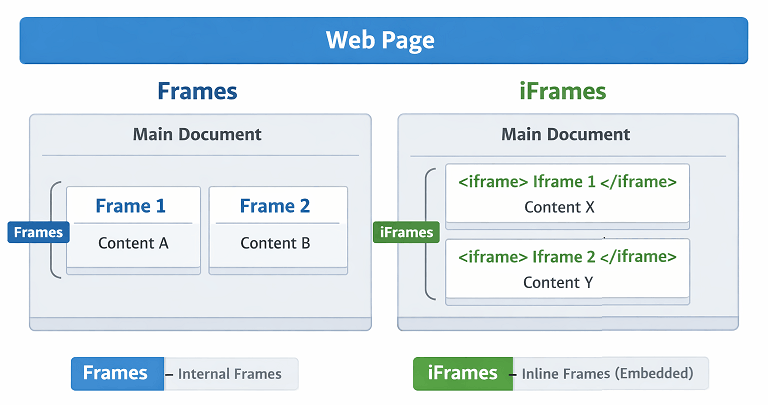
Frames and iframes are HTML elements that allow one web page to embed another web page inside it. When a page contains an iframe, the content inside that frame is treated as a separate document. Because of this separation, automation tools cannot directly access elements inside the frame without switching the context.
When you handle frames in Playwright Java, your script must first identify the correct frame and then interact with elements inside it. Playwright provides built in APIs that allow you to locate frames and perform actions inside them safely.
The most commonly used methods for handling frames in Playwright include:
page.frame()to access a specific framepage.frames()to retrieve all frames available on the pageframeLocator()to interact with elements inside an iframe directly
These APIs make it easy to switch between the main page and embedded frames while performing automation tasks.
Understanding iframe handling becomes easier once you are familiar with element locating strategies in Playwright. You can also explore how locators work in detail in this guide on Playwright java getByRole locator examples.
Are frames and iframes the same in Playwright?
Yes. Playwright treats frames and iframes similarly because both represent embedded documents within a web page.
Why can’t Playwright locate elements inside an iframe directly?
Elements inside an iframe belong to a different document context, so the automation script must first access the frame before interacting with those elements.
How to Switch to a Frame in Playwright Java?
You can switch to a frame in Playwright Java by using the page.frame() method. This method returns a Frame object that represents the target iframe. After retrieving the frame, you can locate and interact with elements inside it.
Frames can be identified using their name, URL, or index. Once the correct frame is found, Playwright allows you to perform actions such as clicking buttons, entering text, or validating elements within that frame.
The following example demonstrates how to switch to an iframe and interact with an element inside it.
Java Example: Switching to an Iframe Using Frame Name
To help you practice the examples in this tutorial, you can download the sample HTML file used in the demonstrations. This file contains multiple frames and iframes that you can use to experiment with Playwright automation locally.
Download the sample file: iFrame.html
This example shows how to locate a frame using its name and click a button inside that iframe.
import com.microsoft.playwright.*;

public class HandleFramesExample {
	public static void main(String[] args) {
		try (Playwright playwright = Playwright.create()) {
			Browser browser = playwright.chromium().launch(new BrowserType.LaunchOptions().setHeadless(false));
			Page page = browser.newPage();
			page.navigate("file:///D:/iFrame.html");
			Frame frame = page.frame("frameName");
			frame.locator("#submitButton").click();
		}
	}
}
Steps to Switch to a Frame in Playwright Java
- Navigate to the web page that contains the iframe.
- Identify the frame using its name, URL, or index.
- Use
page.frame()to retrieve the frame object. - Use the frame object to locate and interact with elements inside the iframe.
After switching to the frame, all element actions are performed within that frame context.
Can Playwright switch to a frame using URL?
Yes. You can identify a frame using its URL by calling:
page.frame(frame -> frame.url().contains("value"))Does Playwright automatically wait for frames to load?
Yes. Playwright automatically waits for frames to be attached and ready before performing actions on elements inside them.
How to Handle Multiple Frames in Playwright Java?
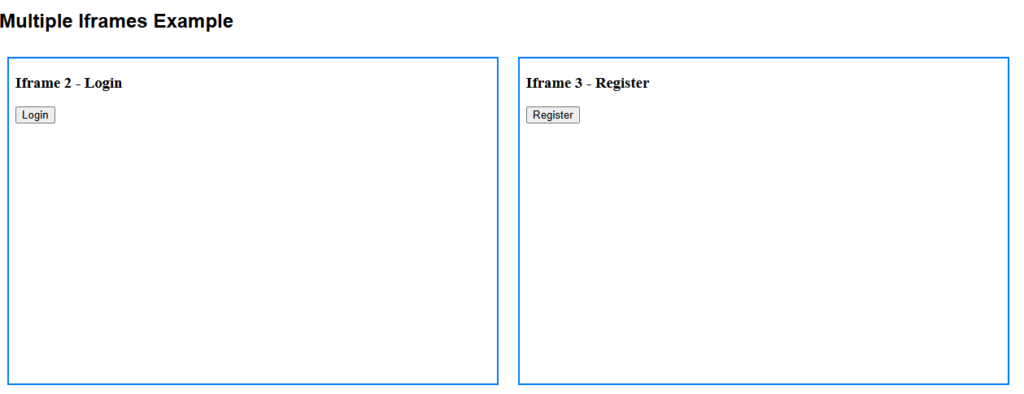
Some web pages contain multiple iframes, and your automation script must identify the correct frame before interacting with its elements. In Playwright Java, you can retrieve all frames on a page using the page.frames() method and then locate the target frame based on its name or URL.
This approach is useful when the frame name is dynamic or when the page contains several embedded frames. By iterating through the available frames, you can locate the correct frame and perform actions inside it.
Java Example: Handling Multiple Frames
The following example demonstrates how to loop through all frames on the page and click a button inside a specific frame.
import com.microsoft.playwright.*;

public class MultipleFramesExample {
	public static void main(String[] args) {
		try (Playwright playwright = Playwright.create()) {
			Browser browser = playwright.chromium().launch(new BrowserType.LaunchOptions().setHeadless(false));
			Page page = browser.newPage();
			page.navigate("file:///D:/iFrame.html");

			// Loop through all frames
			for (Frame frame : page.frames()) {
				if ("frame1".equals(frame.name())) {
					frame.locator("#loginButton").click();
					break;
				}
			}
			browser.close();
		}
	}
}
Steps to Handle Multiple Frames
- Navigate to the web page that contains multiple iframes.
- Use
page.frames()to retrieve all frames present on the page. - Loop through the frames collection.
- Identify the required frame using its name or URL.
- Interact with elements inside that frame.
This method helps when working with complex pages that contain several embedded frames.
How can I print all frames on a page in Playwright?
You can print all frames by iterating through page.frames() and logging the frame name or URL.
Does Playwright automatically detect frames?
Yes. Playwright automatically tracks all frames on the page, and they can be accessed using the page.frames() API.
How to Use frameLocator in Playwright Java?
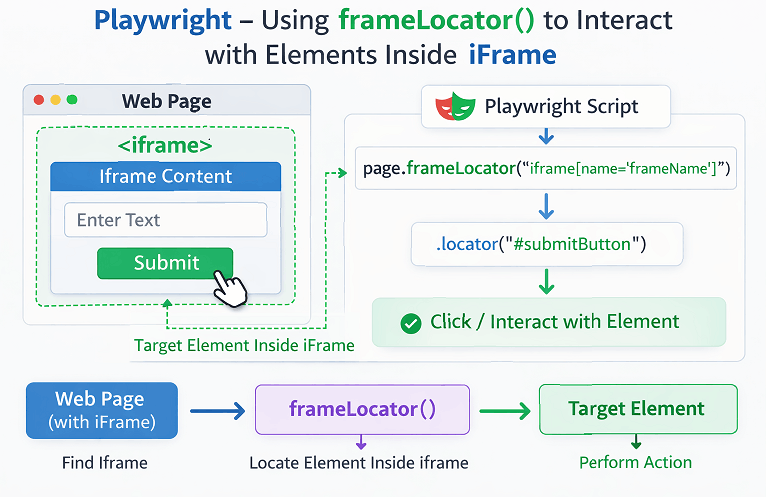
You can interact with elements inside an iframe more easily by using the frameLocator() method in Playwright Java. This API allows you to directly locate elements inside a frame without manually switching the context using the frame() method.
The frameLocator() approach is often preferred because it keeps the code shorter and easier to maintain. It also works well when dealing with nested frames or when chaining locators.
The following example demonstrates how to click a button inside an iframe using frameLocator().
Java Example: Using frameLocator to Interact with an Iframe
This example shows how to locate an iframe and click an element inside it using a single chained locator.
import com.microsoft.playwright.*;

public class FrameLocatorExample {

	public static void main(String[] args) {
		try (Playwright playwright = Playwright.create()) {
			Browser browser = playwright.chromium().launch(new BrowserType.LaunchOptions().setHeadless(false));
			Page page = browser.newPage();
			page.navigate("file:///D:/iFrame.html");

			// Use frameLocator to interact with element inside iframe
			page.frameLocator("iframe[name='frameName']").locator("#submitButton").click();
			browser.close();
		}
	}
}
Steps to Use frameLocator in Playwright Java
- Navigate to the web page containing the iframe.
- Use
page.frameLocator()and provide the iframe selector. - Chain the locator for the element inside the iframe.
- Perform the required action such as click, fill, or assertion.
This approach avoids manual frame switching and keeps the automation script more readable.
When should you use frameLocator instead of frame?
You should use frameLocator() when you want to interact with elements inside an iframe directly without storing the frame object.
Does frameLocator work with nested iframes?
Yes. Playwright allows chaining multiple frameLocator() calls to interact with elements inside nested frames.
How to Handle Nested Iframes in Playwright Java?
Nested iframes occur when one iframe contains another iframe inside it. In such cases, your automation script must first access the outer frame and then locate the inner frame before interacting with elements inside it.
Playwright Java allows you to handle nested frames by chaining frameLocator() calls or by accessing frames step by step using the frame() method. This makes it possible to navigate through multiple levels of embedded frames.
Java Example: Handling Nested Iframes Using frameLocator
The following example demonstrates how to interact with a button located inside a nested iframe.
import com.microsoft.playwright.*;

public class NestedFrameExample {
	public static void main(String[] args) {
		try (Playwright playwright = Playwright.create()) {
			Browser browser = playwright.chromium().launch(new BrowserType.LaunchOptions().setHeadless(false));
			Page page = browser.newPage();
			page.navigate("file:///D:/iFrame.html");
			// Access nested iframe and click element
			page.frameLocator("iframe[name='outerFrame']").frameLocator("iframe[name='innerFrame']")
					.locator("#innerButton").click();
			browser.close();
		}
	}
}
Steps to Handle Nested Iframes
- Identify the outer iframe on the page.
- Use
frameLocator()to access the outer frame. - Chain another
frameLocator()to access the inner iframe. - Locate the element inside the nested iframe and perform the action.
This chaining technique makes nested frame handling simple and readable in Playwright automation scripts.
Can Playwright handle multiple levels of nested frames?
Yes. Playwright supports chaining multiple frameLocator() calls to navigate through several nested iframes.
Is frameLocator recommended for nested frames?
Yes. The frameLocator() method is usually preferred for nested frames because it keeps the code concise and easier to maintain.
What Are the Best Practices for Handling Frames in Playwright Java?
Working with frames becomes easier when your automation script follows a few best practices. These practices help make Playwright tests more stable and easier to maintain, especially when dealing with complex pages that contain multiple iframes.
Playwright already provides reliable APIs for frame handling, but using the right approach helps prevent element lookup issues and improves script readability.
Best Practices for Handling Frames
- Prefer using
frameLocator()when interacting directly with elements inside iframes. - Use
page.frame()when you need to store and reuse the frame object. - Always verify the frame name or URL before interacting with elements inside it.
- Use clear iframe selectors such as name or CSS selector to identify the correct frame.
- For nested frames, chain
frameLocator()calls instead of switching frames multiple times.
Following these practices helps keep your Playwright automation scripts clean and reliable when handling frames.
Should I use CSS selectors for locating iframes?
Yes. Using a CSS selector such as iframe[name='frameName'] or iframe#frameId is a common and reliable way to identify iframes.
Can Playwright automatically wait for iframe elements?
Yes. Playwright automatically waits for elements inside frames to become available before performing actions on them.
Examples in Other Languages
The concept of handling frames in Playwright is the same across all supported languages. While this guide focuses on Playwright Java, you can use similar APIs in JavaScript, TypeScript, and Python to interact with elements inside iframes.
The following examples demonstrate how to access an iframe and click a button inside it using different Playwright language bindings.
JavaScript Example: Handling an Iframe
This JavaScript example shows how to locate an iframe and click a button inside it using frameLocator().
const { chromium } = require('playwright');

(async () => {
  const browser = await chromium.launch({ headless: false });

  const page = await browser.newPage();

  await page.goto('file:///D:/iFrame.html');

  await page
    .frameLocator("iframe[name='frameName']")
    .locator("#submitButton")
    .click();

  await browser.close();
})();
TypeScript Implementation: Accessing an Iframe
This TypeScript example performs the same action while using TypeScript syntax.
import { chromium } from 'playwright';

(async () => {
  const browser = await chromium.launch({ headless: false });

  const page = await browser.newPage();

  await page.goto('file:///D:/iFrame.html');

  await page
    .frameLocator("iframe[name='frameName']")
    .locator("#submitButton")
    .click();

  await browser.close();
})();
Python Example: Interacting with an Iframe
This Python example demonstrates how to click a button located inside an iframe.
from playwright.sync_api import sync_playwright

with sync_playwright() as p:
    browser = p.chromium.launch(headless=False)

    page = browser.new_page()

    page.goto("file:///D:/iFrame.html")

    page.frame_locator("iframe[name='frameName']") \
        .locator("#submitButton") \
        .click()

    browser.close()
These examples show that the approach to handling frames in Playwright remains consistent across different programming languages.
Related Playwright Tutorials
If you are learning Playwright automation, understanding frames is one important step. The following tutorials cover other essential Playwright concepts that help you build complete automation workflows.
- How to handle dynamic tables in Playwright Java
- Playwright Java Calendar Automation
- How to handle Alerts In Playwright Java
- Run Playwright Test Using JUnit
- How to run Playwright Test Using TestNG
These tutorials help you understand how Playwright interacts with browsers, pages, and elements before performing advanced actions such as frame handling.
Does Playwright support interacting with iframe elements?
Yes. Playwright provides APIs such as frame() and frameLocator() that allow automation scripts to interact with elements inside iframes.
Can Playwright locate iframe elements without switching frames?
Yes. Using frameLocator(), Playwright can directly interact with elements inside an iframe without manually switching the frame context.
How can I check if a page contains frames in Playwright?
You can retrieve all frames on a page using page.frames() and inspect their names or URLs.
Conclusion
Handling frames and iframes is an important skill when automating modern web applications. Many websites embed content inside frames, and your automation script must access the correct frame before interacting with its elements.
In Playwright Java, you can handle frames using methods such as page.frame(), page.frames(), and frameLocator(). These APIs make it easy to switch between frames, work with multiple iframes, and interact with nested frames.
By understanding how to handle frames in Playwright, you can create more reliable automation scripts and confidently interact with elements located inside embedded frames.
If you want to extend this concept further, you can also learn about advanced automation concepts in our Playwright Enterprise Automation Framework series.
FAQs
What are frames and iframes in Playwright?
Frames and iframes are embedded documents inside a web page. In Playwright, you must access the frame context before interacting with elements inside it.
How do you handle frames in Playwright Java?
You can handle frames in Playwright Java using APIs such as page.frame(), page.frames(), or frameLocator() to access and interact with elements inside an iframe.
What is the difference between frame() and frameLocator() in Playwright?
The frame() method returns a Frame object that you can store and reuse, while frameLocator() allows direct interaction with elements inside an iframe without switching context manually.
How do I handle multiple iframes in Playwright?
You can retrieve all frames using page.frames() and loop through them to identify the correct frame using its name or URL before interacting with elements inside it.
Can Playwright handle nested iframes?
Yes. Playwright supports nested iframe handling by chaining multiple frameLocator() calls or by accessing frames step by step using the frame() method.
Does Playwright automatically wait for iframe elements?
Yes. Playwright automatically waits for frames and elements to become available before performing actions inside the iframe.