Last updated on August 2nd, 2026 at 10:02 am
Modern web applications require fast and reliable automated testing. Many teams are now adopting Playwright testing because it provides powerful browser automation with excellent stability and speed.
In this guide you will learn what Playwright testing is, how the framework works, and how beginners can start writing automated tests with Playwright. If you are new to browser automation, you can also explore our detailed Playwright automation tutorial for practical examples.
The article also includes practical examples and best practices to help you build reliable automation tests using Playwright.
- Quick Answer: What is Playwright and Why Learn It?
- What You'll Learn in This Playwright Tutorial
- Getting Started with Playwright
- What is Playwright Testing?
- What is Playwright and Why is it Used for Testing?
- How Does Playwright Work?
- How to Install Playwright for Testing
- How to Perform Playwright Browser Testing Step by Step Example
- What Are the Core Components of Playwright Framework?
- Common Use Cases of Playwright Testing
- Advantages of Playwright Browser Automation
- What Are the Limitations of Playwright?
- Playwright vs Selenium: Which Tool is Better for Testing?
- Playwright Testing Examples in Other Languages
- What Are the Best Practices for Playwright Testing?
- Common Playwright Interview Questions (2026)
- Related Playwright Tutorials
- How Playwright Skills Help in Real Automation Testing Jobs
- Conclusion
- FAQs
- Is Playwright better than Selenium?
- Which browsers are supported in Playwright tool?
- Does Playwright require WebDriver?
- Which programming languages support Playwright?
- Can Playwright tests run in CI pipelines?
- Is Playwright good for beginners in automation testing?
- Does Playwright support mobile testing?
- Can Playwright capture screenshots during tests?
Quick Answer: What is Playwright and Why Learn It?
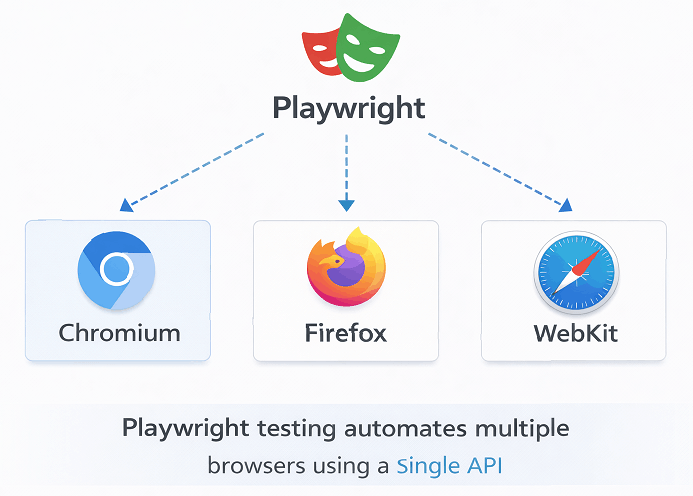
Playwright is an open-source browser automation framework developed by Microsoft. It allows you to write automated tests that run across Chromium, Firefox, and WebKit using a single API.
Why learn Playwright in 2026?
- No driver setup required (unlike Selenium)
- Built-in auto-waiting for elements
- Fast execution and parallel testing
- Supports JavaScript, TypeScript, Java, and Python
- Used by companies for modern web automation
What You’ll Learn in This Playwright Tutorial
- What Playwright is and why it’s used for testing
- How Playwright works and its core components
- How to install Playwright and write your first test
- Code examples in JavaScript, Java, and Python
- Best practices for reliable test automation
- How Playwright compares to Selenium
Getting Started with Playwright
To start with Playwright, you need:
- Node.js (for JavaScript/TypeScript) or Java/Python installed
- A code editor (VS Code recommended for JavaScript, Eclipse for Java)
- Basic programming knowledge
Minimum Requirements:
- Node.js 16+ (for JavaScript/TypeScript)
- Java 11+ (for Java)
- Python 3.7+ (for Python)
- 4GB RAM minimum
What is Playwright Testing?
Playwright testing is the process of automating web application tests using the Playwright browser automation framework. It allows testers and developers to simulate real user interactions across modern browser engines including Chromium, Firefox, and WebKit.
It allows developers and testers to automate tasks such as clicking elements, filling forms, navigating pages, and validating UI behavior across different browsers.
Playwright supports multiple browsers with a single API. Because of this cross browser support, it is widely used for modern web automation and end to end testing.
Using this browser automation engine, you can create automated UI workflows that mimic real user behavior on websites and web applications.
What is Playwright and Why is it Used for Testing?
Playwright is an open source browser automation framework developed by Microsoft that allows developers and testers to automate all three supported browser engines using a single API. You can explore the official documentation on the Playwright website to learn more about its capabilities.
This testing solution is widely used for modern automation because it provides:
- Cross browser automation with a single API
- Reliable browser automation
- Built in waiting mechanisms
- Support for multiple programming languages
The framework is designed to handle dynamic web elements, asynchronous page behavior, and complex user interactions, which makes automated tests more stable and reliable.
Playwright also supports multiple programming languages including TypeScript, JavaScript, Java, and Python. This flexibility allows developers and testers to use the language they are most comfortable with.
Key Features of Playwright Testing
This browser automation solution provides several powerful features that make automated testing easier, faster, and more reliable.
- Cross browser testing using modern browsers powered by Chromium, Firefox, and WebKit
- Built in file download handling for validating downloaded files during automated tests.
- Automatic waiting for elements before performing actions
- Powerful locator strategies for stable element selection
- Network interception and request mocking capabilities
- Parallel test execution for faster test runs
- Built in support for modern web frameworks
Because of these features, automated testing using this tool is widely used for end to end testing, UI automation, regression testing, and continuous integration pipelines.
Does Playwright support multiple browsers?
Yes, Playwright supports multiple leading browser engines used in modern web testing. Using a single API, testers can run automated tests across these browser engines to verify that web applications behave consistently in different environments.
Can Playwright test modern JavaScript applications?
Yes. Playwright is designed for modern web applications and works well with frameworks such as React, Angular, and Vue.
Is Playwright suitable for automation testing?
Yes. Playwright provides powerful browser automation, Element locators, and automatic waiting mechanisms which make it ideal for automation testing.
How Does Playwright Work?
This browser automation framework works by controlling web browsers through a programmable API. Test scripts interact with the browser in the same way a real user would, such as opening pages, clicking elements, entering text, and verifying results.
The following diagram illustrates the architecture of the Playwright framework and how test scripts interact with different browsers.
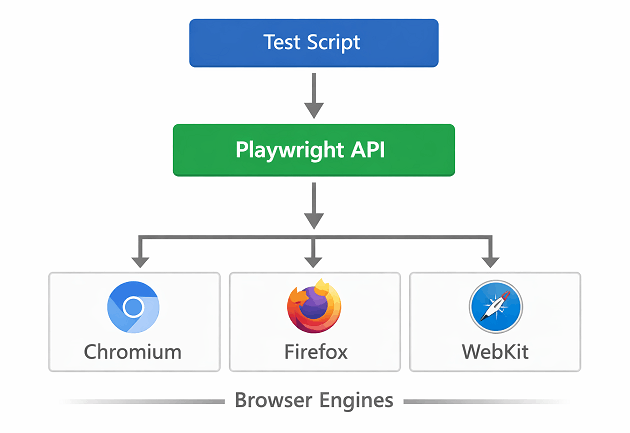
The web automation tool launches a browser instance, performs the test actions, and then validates whether the application behaves as expected. Because the tool includes built in waiting and smart element handling, automated tests become more stable and easier to maintain.
The typical workflow of this testing tool follows a simple sequence of steps.
- The test script launches a browser instance.
- A new browser context is created to isolate the test environment.
- A page object is opened inside the browser context.
- Locate elements on the page.
- The script performs actions such as navigation, clicks, or form submissions.
- Validate results using assertions.
- Finally, the browser session is closed.
This workflow allows Playwright to simulate real user interactions and validate web application behavior across different browsers.
The diagram below shows the typical workflow followed during Playwright automated testing.
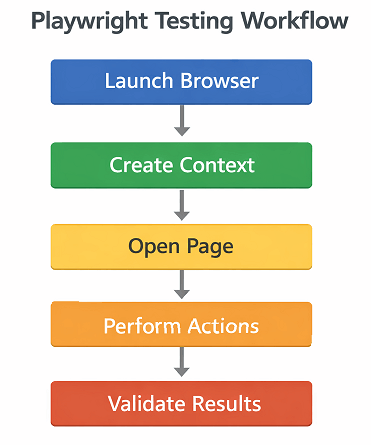
In real automation projects, additional steps such as element interaction, form submission, and validation are added to verify application functionality.
Deterministic Test Execution
Playwright follows a deterministic execution model where actions are executed in a predictable order. The framework automatically synchronizes browser events and test commands to ensure consistent results.
Does Playwright test framework require WebDriver?
No, Playwright does not require WebDriver. Unlike traditional automation testing tools such as Selenium, Playwright communicates directly with browser engines using its own automation protocol. This direct communication helps improve execution speed and test reliability.
Can Playwright run tests in headless mode?
Yes. Playwright test tool can run in both headless and headed browser modes depending on the configuration used in the test script.
How to Install Playwright for Testing
Before writing automated tests, you first need to install the Playwright framework and its browser binaries. If you want a detailed step by step setup guide, you can also read our complete Playwright installation tutorial.
This guide explains how to install Playwright, download browser binaries, and run your first Playwright script.
You can also check the official Playwright installation guide for additional setup options.
Quick Playwright Setup Commands (2026)
For JavaScript/TypeScript (npm):
npm init -y
npm install @playwright/test
npx playwright install
For Python (pip):
pip install pytest-playwright
playwright install
For Java (Maven):
<dependency>
    <groupId>com.microsoft.playwright</groupId>
    <artifactId>playwright</artifactId>
    <version>1.55.0</version>
</dependency>
How to Perform Playwright Browser Testing Step by Step Example
You can perform Playwright browser testing by installing the framework, launching a browser, and writing automated test scripts that simulate real user actions. These tests help validate application behavior across different browsers.
The following steps show a beginner friendly workflow to start writing automated tests using typescript.
- Install Playwright and project dependencies.
- Launch a supported browser such as Chromium.
- Create a new browser context and page.
- Navigate to the application under test.
- Locate page elements.
- Perform user actions like click or type.
- Validate results using assertions.
- Close the browser after test execution.
Below is a simple Playwright example that demonstrates basic browser automation.
import { chromium, Browser, BrowserContext, Page } from 'playwright';

async function simpleExample() {
    // Launch Chromium browser in headed mode
    const browser: Browser = await chromium.launch({ headless: false });

    // Create a new browser context
    const context: BrowserContext = await browser.newContext();

    // Open a new page
    const page: Page = await context.newPage();

    // Navigate to the target URL
    await page.goto('https://example.com');

    // Retrieve and print the page title
    const title: string = await page.title();
    console.log('Page Title:', title);

    // Close the browser
    await browser.close();
}

// Run the example
simpleExample();
This example demonstrates end to end browser automation by opening a web page and retrieving its title. It shows how web automation using this tool can perform basic automated web interactions such as navigating to a URL and extracting page information.
As automation projects grow, tests usually include additional steps such as login flows, form submissions, UI validations, and API request handling.
As you move beyond basic and intermediate concepts, structuring your tests into a scalable architecture becomes important. If you want to build a scalable solution, check this complete Playwright automation framework guide.
The next section explains the main components that make Playwright powerful and reliable.
What Are the Core Components of Playwright Framework?
This automation framework is built on several core components that allow automation scripts to interact with browsers and web applications. These components help manage browser sessions, perform actions, and verify application behavior.
Understanding these components makes it easier to write stable and maintainable automated tests.
The following diagram highlights the core components used in the Playwright framework.
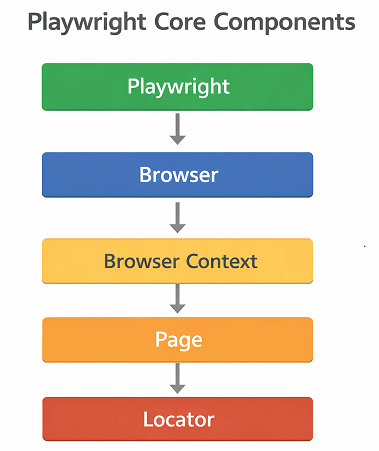
Playwright Engine
The Playwright engine is the main entry point that initializes the Playwright. It creates the connection between your automation script and the browser.
Once initialized, it allows the script to launch browsers and control them programmatically.
Browser
The Browser object represents the browser instance controlled by Playwright. It can launch all three supported browser engines and branded Chromium based browsers such as Google Chrome and Microsoft Edge.
Automation tests usually start by launching a browser instance before performing any user actions.
Browser Context
A BrowserContext is an isolated environment within the browser. It allows multiple test sessions to run independently without sharing cookies, storage, or login sessions.
This isolation helps run parallel tests and prevents interference between test cases.
Browser contexts are lightweight and faster than launching a completely new browser instance. Playwright can create multiple isolated contexts within the same browser process, which allows tests to execute efficiently while maintaining session isolation.
Page
The Page object represents a single browser tab. Most Playwright actions are performed on the Page object.
For example, navigation, clicking elements, filling forms, and reading page content all happen through the Page object.
Locator
A Locator is used to find elements on a web page. Playwright provides powerful locator strategies that make element selection more reliable.
Locators automatically wait for elements to be ready before performing actions. This reduces common automation issues related to timing and synchronization.
Does Playwright support multiple tabs?
Yes. Playwright allows tests to work with multiple pages or browser tabs using separate Page objects.
Playwright also allows multiple browser contexts to run within a single test. This capability is useful for testing scenarios such as multiple users interacting with the same application.
Is a browser context the same as a browser?
No. A browser instance can contain multiple browser contexts. Each context acts like a separate browser profile with isolated sessions.
Because of this isolation, Playwright can simulate multiple user sessions within the same test, which is useful for testing scenarios such as chat applications, collaboration tools, or multi user workflows.
Understanding these components helps build a strong foundation for writing advanced Playwright automation tests.
Why Browser Context Isolation Matters?
Playwright uses browser contexts to isolate test sessions. Each browser context works like a separate browser profile with its own cookies, storage, and session data.
This allows multiple tests to run independently without interfering with each other. Because of this isolation, Playwright can execute parallel tests efficiently while maintaining test reliability.
This concept is one of the key reasons Playwright provides faster and more stable browser automation compared to traditional WebDriver based tools.
Common Use Cases of Playwright Testing
This testing approach is widely used for automating different types of web testing scenarios. Its cross browser capabilities and reliable automation features make it suitable for modern web applications.
Some common use cases of this automation testing tool include:
- End to end testing of web applications
- Cross browser testing across the three major browser engines supported by Playwright
- UI regression testing for modern web interfaces
- Automating user workflows such as login, checkout, and form submissions
- Running automated tests in CI/CD pipelines
Because of these capabilities, this automation framework is commonly used by QA engineers and developers to validate web applications across different browsers and environments.
Advantages of Playwright Browser Automation
Browser automation using this tool provides several advantages that make it a popular choice for modern web automation. It offers stable end-to-end testing, powerful element handling, and built in support for modern web technologies.
Because of these capabilities, many teams are replacing older test automation tools with this browser automation solution for full workflow testing and UI validation. Its consistent test execution ensures tests are stable and reproducible.
Many teams also compare Playwright with Selenium because both tools are widely used for browser automation. However Playwright offers faster execution, automatic waiting mechanisms, and built in cross browser support.
Cross Browser Testing Support
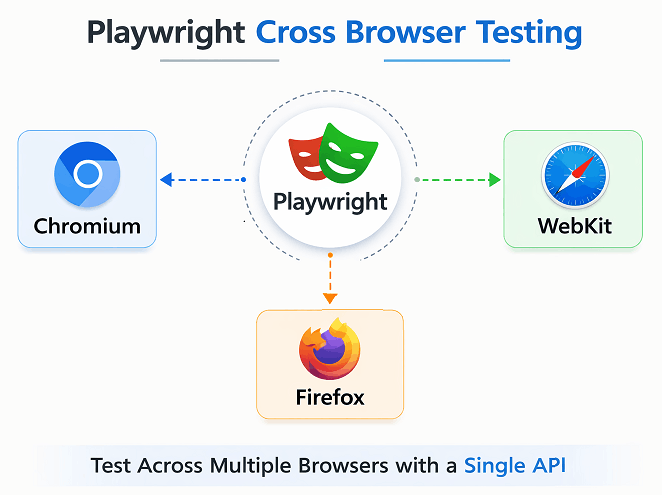
One major benefit of this end to end testing tool is cross browser automation, allowing you to run tests on leading browser engines used in modern web testing
This allows teams to validate application behavior across multiple browser engines without maintaining different test frameworks.
Auto Waiting Mechanism
The tool automatically waits for elements to become ready before performing actions. This reduces common automation issues related to timing and synchronization.
As a result, tests become more stable and require fewer manual waits or delays. Developers can write Playwright test scripts to cover complex workflows efficiently.
Fast Test Execution
Playwright communicates directly with the browser using a modern automation protocol. Because of this, tests run faster compared to many traditional browser automation tools.
This speed improvement is especially useful in continuous integration pipelines where fast feedback is important.
Powerful Locator Strategies
It provides multiple locator options such as role based selectors, text selectors, and CSS selectors.
These flexible locator strategies make element selection more reliable and easier to maintain in large automation projects.
Parallel Test Execution
The testing tool allows tests to run in parallel across multiple browser contexts. This reduces total execution time for large test suites.
Parallel execution is especially helpful in enterprise level automation frameworks. Organizations implement enterprise automation using Playwright to streamline testing across large projects, improve QA efficiency, and maintain consistent application quality.
Playwright Trace Viewer
Playwright provides a powerful trace viewer that allows testers to inspect test execution, network requests, screenshots, and DOM snapshots for debugging failed tests.
This visual debugging tool helps identify exactly what happened during test execution, making it easier to analyze failures and improve test reliability.
What Are the Limitations of Playwright?
It provides powerful browser automation capabilities. However like any automation tool, it also has a few limitations that teams should consider before adopting it for large scale testing.
Understanding these limitations helps teams plan better automation strategies and avoid common challenges during implementation.
Limited Native Mobile Testing
Playwright supports mobile device emulation inside desktop browsers. However it does not support native mobile app testing.
Teams that need to automate Android or iOS applications usually use tools such as Appium for native mobile testing.
Learning Curve for Beginners
Although the tool is developer friendly, beginners may need time to understand concepts such as browser contexts, locators, and asynchronous execution.
However once the basic concepts are understood, writing automated tests becomes much easier.
Requires Programming Knowledge
Playwright test automation requires basic programming knowledge because tests are written using code. Teams without coding experience may find it harder to start compared to no code automation testing tools.
Most automation engineers use languages such as TypeScript, JavaScript, Java, or Python when working with this automation framework.
Smaller Community Compared to Selenium
Playwright is newer compared to Selenium, so its community and ecosystem are still growing.
However its adoption is increasing quickly and many organizations are already using Playwright for modern web testing.
Does Playwright support legacy browsers?
No. Playwright does not support legacy browsers such as Internet Explorer. The framework focuses on modern browser engines including Firefox, Chromium, and WebKit, which are widely used by modern web applications.
Because it communicates directly with these browser engines, it is designed for testing modern websites rather than outdated legacy browsers.
Can beginners learn Playwright easily?
Yes. Beginners can learn Playwright with basic programming knowledge and step by step tutorials that explain automation concepts clearly.
Next, it is useful to compare Playwright with other popular testing frameworks used in the industry.
Playwright vs Selenium: Which Tool is Better for Testing?
Playwright and Selenium are both widely used tools for web automation. However they differ in architecture, performance, and modern web application support.
Selenium is one of the most widely used automation solution for web testing and has been a standard framework for browser automation for many years. On the other hand, Playwright is a newer framework designed to solve several limitations found in traditional testing tools.
The table below highlights the key differences between Playwright and Selenium browser automation tools.
| Feature | Playwright | Selenium |
|---|---|---|
| Architecture | Direct browser communication without WebDriver | Uses WebDriver protocol |
| Browser Support | Chromium, Firefox, WebKit | Chrome, Firefox, Edge, Safari, and others |
| Auto Waiting | Built in automatic waiting | Requires explicit or implicit waits |
| Test Speed | Generally faster execution | Slower due to WebDriver communication |
| Parallel Execution | Built in support with browser contexts | Requires additional setup |
| Mobile Support | Device emulation | Can integrate with mobile tools like Appium |
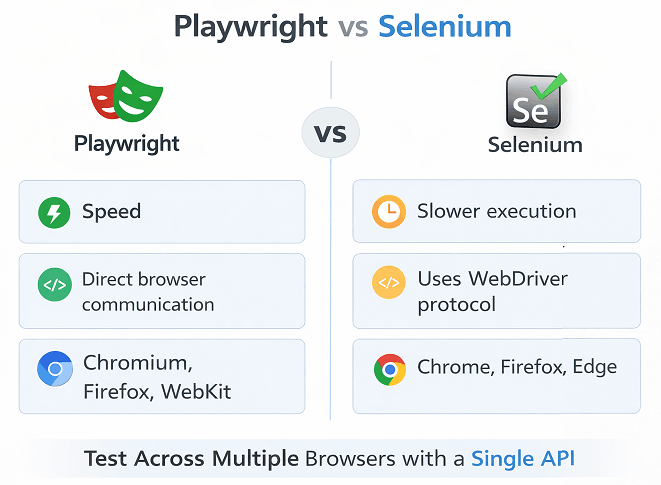
Both tools are powerful and widely used in automation testing. The best choice usually depends on project requirements, team experience, and browser compatibility needs.
If you’re exploring Playwright for long-term use, it’s also worth understanding how it compares with other popular tools used in the industry. A detailed comparison like Playwright vs Selenium can help you decide which tool fits better for modern automation projects and career growth.
Is Playwright faster than Selenium?
Yes. Playwright automated tests are generally faster because it communicates directly with the browser without using the WebDriver protocol.
Can Playwright replace Selenium?
In many modern automation projects, Playwright can replace Selenium. However teams working with legacy browsers or existing Selenium frameworks may continue using Selenium.
Which tool is easier for modern web applications?
Playwright is often easier for testing modern JavaScript applications because it includes smart element synchronization and strong support for dynamic web elements.
The next section shows how Playwright works across different programming languages.
Playwright Testing Examples in Other Languages
Playwright supports multiple programming languages. Although many teams use JavaScript or TypeScript, Playwright also works with Java and Python.
Note: JavaScript/TypeScript is the most commonly used language for Playwright, but the examples below show how the same test works in all three languages.
The examples below demonstrate how the same workflow can be implemented using different languages.
JavaScript Example: Basic Playwright Test
The following example demonstrates a simple Playwright test that opens a website and verifies the page title.
import { test, expect } from '@playwright/test';

test('verify page title', async ({ page }) => {
  await page.goto('https://example.com');
  await expect(page).toHaveTitle('Example Domain');
});
This test launches a browser, navigates to a webpage, and verifies that the page title matches the expected value.
Java Implementation: Playwright Browser Test
The following Java example shows how to launch a browser using Playwright, navigate to a website, and verify the page title during automated testing.
import com.microsoft.playwright.*;

public class FirstTest {
    public static void main(String[] args) {
        try (Playwright playwright = Playwright.create()) {
            Browser browser = playwright.chromium().launch();
            Page page = browser.newPage();
            page.navigate("https://example.com");
            System.out.println(page.title());
        }
    }
}
This example launches a Chromium browser, opens a webpage, and retrieves the page title using the Playwright Java API.
Python Example: Using Playwright for Automation
The following Python example demonstrates how to use Playwright to launch a browser and open a webpage for automated testing.
from playwright.sync_api import sync_playwright

with sync_playwright() as p:
    browser = p.chromium.launch()
    page = browser.new_page()
    page.goto("https://example.com")
    print(page.title())
    browser.close()
This script launches a Chromium browser, navigates to a webpage, and prints the page title using the Playwright Python library.
Next, it is useful to understand some best practices that help create reliable and maintainable automated tests.
What Are the Best Practices for Playwright Testing?
Following best practices helps create reliable, maintainable, and scalable Playwright automation frameworks. These practices reduce flaky tests and make automation easier to maintain as the application grows.
Teams that follow structured automation practices usually achieve faster execution, better stability, and easier debugging.
Use Stable and Reliable Locators
Stable locators help ensure that tests do not break when the UI changes slightly. Playwright provides powerful locator strategies such as role selectors, text selectors, and test IDs.
Whenever possible, prefer semantic selectors such as getByRole() or dedicated test attributes like data-testid.
Avoid Hardcoded Waits
Hardcoded waits such as fixed sleep statements can make tests slow and unreliable.
Playwright includes built in auto waiting, so tests should rely on locators and assertions instead of manual delays.
Run Tests in Parallel
Parallel execution helps reduce total test execution time, especially for large test suites.
Playwright allows parallel execution using isolated browser contexts, which improves performance in Continuous Integration pipelines.
Use Page Object Model
The Page Object Model improves test maintainability by separating page elements and actions from test logic.
This approach makes automation frameworks easier to scale and reduces code duplication.
Capture Screenshots for Debugging
Screenshots and videos help diagnose failures during test execution.
Playwright provides built in APIs to capture screenshots, record videos, and generate debugging traces.
Web First Assertions
Playwright encourages the use of web first assertions that automatically wait for expected conditions before validating results. This approach improves test stability and reduces flaky test failures.
This concept is part of Playwright’s web first automation approach, where tests interact with the application in a way that closely resembles real user behavior. By automatically waiting for elements to become ready before performing actions, Playwright helps create more reliable and maintainable automated tests.
Does Playwright automatically wait for elements?
Yes. The tool automatically waits for elements before performing actions, which reduces synchronization issues.
Should Playwright tests use the Page Object Model?
Yes. Using the Page Object Model improves test organization, reduces code duplication, and makes large automation projects easier to maintain.
The next section connects this guide with other important Playwright tutorials that help build a complete automation learning path.
Common Playwright Interview Questions (2026)
If you’re preparing for automation testing interviews, here are common Playwright questions:
1. What is Playwright and how does it differ from Selenium?
Playwright is a browser automation framework by Microsoft. Unlike Selenium, Playwright communicates directly with browsers without WebDriver, has built-in auto-waiting, and supports cross-browser testing with a single API.
2. What is a Browser Context in Playwright?
A Browser Context is an isolated browser session with its own cookies, storage, and permissions. It allows multiple test sessions to run independently without interference.
3. What locators does Playwright support?
Playwright supports getByRole, getByText, getByLabel, getByPlaceholder, getByTestId, CSS selectors, and XPath.
4. How does Playwright handle waiting for elements?
Playwright automatically waits for elements to be ready before performing actions, reducing the need for explicit waits.
5. Can Playwright run tests in parallel?
Yes, Playwright supports parallel test execution using multiple browser contexts, which speeds up test execution.
For more interview preparation, check Playwright Interview Questions and Answers.
Related Playwright Tutorials
If you want to learn Playwright in depth, it helps to follow a structured learning path. The tutorials below cover the core concepts required to build reliable Playwright test framework
These guides walk through essential topics such as browser automation, element locators, assertions, and framework design.
- Java Playwright tutorial for beginners
- Python Playwright tutorial with practical examples
- Playwright enterprise automation framework guide
- Complete guide to Playwright locators with examples
- Understanding Playwright browser vs context vs page
- How to create parameterized tests in Playwright JavaScript
- Playwright Page Object Model implementation guide
- How to generate Playwright Allure reports
- Top Playwright interview questions and answers
Following these tutorials step by step helps beginners understand browser automation from the basics to advanced automation techniques.
How Playwright Skills Help in Real Automation Testing Jobs
If you’ve followed this Playwright tutorial, you’re not just learning syntax, you’re building a skill that is actively used in real automation testing jobs.
In most companies, Playwright is used for:
- Testing modern web applications like React and Angular apps
- Running automated tests across multiple browsers
- Integrating test execution into CI/CD pipelines
Because of these real-world use cases, professionals with Playwright skills are in demand, especially for roles focused on modern test automation.
If you’re interested in understanding how this skill translates into salary and career growth, you can explore a detailed breakdown of automation tester earnings in the US market.
Conclusion
Playwright testing has quickly become one of the most reliable approaches for modern browser automation. The framework allows teams to automate applications across popular browser engines used by modern web applications. Because of its speed, built in waiting mechanisms, and powerful locator strategies, many organizations now prefer Playwright for end to end web testing.
In this guide you learned what Playwright testing is, how the framework works, and how automated tests can be created using Playwright. You also explored its core components, advantages, limitations, and how it compares with Selenium for browser automation.
If you are starting with automation testing, Playwright provides a strong foundation for building stable and scalable automation frameworks. By practicing the examples and following the recommended best practices, you can gradually create reliable automated tests for modern web applications.
FAQs
Is Playwright better than Selenium?
Playwright is often faster and more reliable for modern web applications because it communicates directly with the browser and includes built in auto waiting. However Selenium still has wider browser support and a larger ecosystem.
Which browsers are supported in Playwright tool?
Playwright supports cross browser testing using the Chromium, Firefox, and WebKit browser engines. These engines allow automated tests to run across modern browsers such as Google Chrome, Microsoft Edge, and Safari. Using a single API, Playwright enables testers to execute the same tests across multiple browsers.
Does Playwright require WebDriver?
No. Playwright does not use WebDriver. It communicates directly with the browser through a modern automation protocol which improves speed and reliability.
Which programming languages support Playwright?
Playwright supports multiple programming languages including Java, JavaScript, TypeScript, and Python.
Can Playwright tests run in CI pipelines?
Yes. these tests can run in CI environments such as Jenkins, GitHub Actions, GitLab CI, and other continuous integration tools.
Is Playwright good for beginners in automation testing?
Yes. Playwright is beginner friendly because it provides clear APIs, automatic waiting mechanisms, and strong documentation for learning browser automation.
Does Playwright support mobile testing?
Yes, Playwright supports mobile testing through device emulation. Testers can simulate mobile devices, screen sizes, user agents, and network conditions to validate how web applications behave on mobile browsers.
Can Playwright capture screenshots during tests?
Yes, Playwright can capture screenshots during test execution. Testers can take screenshots of full pages or specific elements to help debug failures and verify visual results during automated tests.