Last updated on March 18th, 2026 at 03:45 am
In this article, you will learn how to record video in Playwright using a real-world enterprise automation framework. This is implemented as Step 17 in the Playwright Enterprise Automation Framework, where video recording is fully controlled using configuration flags. Instead of recording videos blindly for every test, this approach gives you precise control based on test results.
Modern automation frameworks require more than just screenshots. Videos help teams understand failures faster and reduce debugging time. However, recording videos for every test can slow execution and consume unnecessary storage. To solve this, the framework introduces a flag-based design that records videos only when required.
In this step, you will see how BrowserContext level control is introduced, how temporary videos are handled safely, and how videos are saved or deleted based on test pass or fail status. The implementation focuses on performance, clarity, and enterprise-scale usage.
To keep the Playwright Enterprise Framework series connected, you can follow the learning path using the references below.
Previous step: How to Capture Screenshots in Playwright Extent Reports
Next step: Playwright Retry Mechanism in Enterprise Framework
For a complete understanding of the overall framework design and foundation, start with the core guide on building a Playwright Enterprise Automation Framework.
Why Video Recording Was Missing in the Framework
Before Step 17, the Playwright Enterprise Automation Framework focused on stability, scalability, and clear reporting. Screenshots were already available, and they solved many common debugging needs. However, video recording was intentionally not part of the initial design because of architectural limitations in how the browser lifecycle was handled.
These limitations become clear when you look at how tests were executed and how artifacts were managed.
Page-Based Architecture Limitation
The framework used a page-based setup where the browser was launched and a page was created directly for test execution. This approach is simple and effective for functional testing, but it introduces a hard limitation for video recording.
Playwright allows video capture only at the BrowserContext level. Since no BrowserContext was created in this setup, there was no way to enable video recording. Because of this, recording video in Playwright was not possible in the earlier framework design.
Another limitation was lifecycle control. A page-based setup does not allow decisions after test completion. The framework could not determine whether to keep or discard artifacts based on test results, which is critical for enterprise-level automation.
Why Screenshots Alone Were Not Enough
Screenshots were already integrated and worked well for capturing UI state at failure points. However, a screenshot represents only a single moment. It does not show what happened before or after the failure.
Many real-world issues depend on timing, navigation flow, or user interactions. In these cases, screenshots are not sufficient. Testers often need to re-run tests to understand the problem.
To solve this limitation, video recording became a requirement. Videos provide full execution visibility and reduce debugging effort. This need directly led to the introduction of BrowserContext-based video recording as Step 17 in the Playwright Enterprise Automation Framework.
Introducing Flag-Based Video Recording
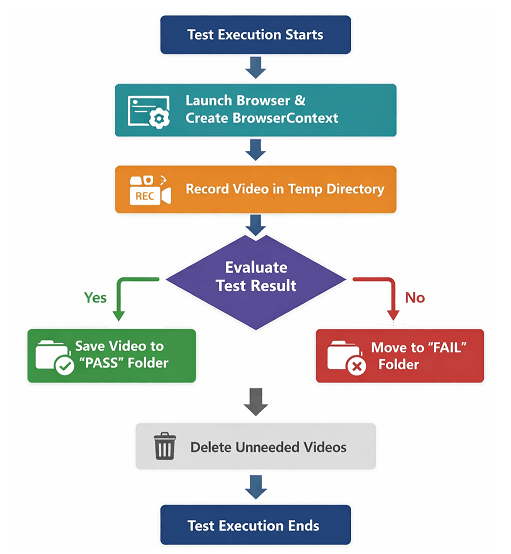
As the framework evolved, it became clear that video recording could not be enabled blindly for every test. Enterprise test suites run hundreds or even thousands of tests, and recording videos for all of them impacts execution time and storage. To address this, Step 17 introduces a flag-based approach that gives full control over when and how videos are recorded.
This design ensures that teams record videos only when they add real value, while keeping the framework fast and maintainable.
Why Flag-Driven Design Is Important in Enterprise Frameworks
Enterprise automation frameworks must be flexible. Different teams have different needs, and those needs can vary across different environments. A flag-driven design allows behavior to be controlled without touching the code.
With flags, video recording can be enabled or disabled from a single configuration file. Teams can decide whether videos are required during debugging, regression runs, or production validation. This avoids hardcoded logic and keeps the framework adaptable.
More importantly, flag-driven control prevents unnecessary resource usage. Videos are recorded only when needed, which improves execution speed and reduces storage overhead. This makes recording video in Playwright practical at an enterprise scale.
Overview of Video Recording Flags
Step 17 introduces a clear and minimal set of configuration flags to manage video recording behavior. Each flag has a specific purpose and works together to provide controlled execution.
A master video recording flag acts as the main switch. When it is disabled, no video logic is executed at all. Additional flags control whether videos should be saved for failed tests or passed tests.
There is also a cleanup flag that removes old videos before execution. This keeps the artifacts folder clean and prevents confusion caused by outdated recordings. Together, these flags provide a safe and predictable way to manage video artifacts in the Playwright Enterprise Automation Framework.
Configuration Flags Explained
Step 17 introduces a small but powerful set of configuration flags that control how video recording behaves in the Playwright Enterprise Automation Framework. These flags are defined centrally and applied consistently across the framework. This ensures that recording video in Playwright remains predictable, configurable, and easy to manage.
Each flag has a clear responsibility and avoids overlapping behavior.
Master Video Recording Flag
The master video recording flag is the primary control switch. When this flag is set to false, the framework completely skips all video-related logic. No BrowserContext is created with video support, and no video folders are touched.
This design is important for performance-sensitive runs. Teams can disable video recording entirely without modifying any framework code. When the flag is enabled, the framework prepares itself to capture videos based on additional conditions.
Record Video on Failure
The record video on failure flag controls whether videos are saved when a test fails. This is the most common and recommended use case for enterprise automation.
When a test fails, the framework checks this flag after execution. If it is enabled, the recorded video is moved from temporary storage to the final video directory. This allows teams to review failures without re-running tests.
If the flag is disabled, failure videos are deleted automatically, keeping storage usage under control.
Record Video on Pass
The record video on the pass flag provides additional flexibility. In some scenarios, teams may want to capture videos for successful tests, such as during feature validation or debugging flaky behavior.
When this flag is enabled, the framework preserves videos even when tests pass. When disabled, videos from successful executions are removed after the test completes. This ensures that only meaningful artifacts are stored.
Clean Videos Before Execution
The clean videos before execution flag controls pre-run cleanup. When enabled, the framework deletes existing videos before starting a new test run.
This prevents confusion caused by older artifacts and ensures that each execution produces a clean and reliable set of videos. The cleanup logic runs safely and only targets the configured video directory, protecting other test artifacts.
Browser and Context Setup Changes
To support Step 17, the framework required a fundamental change in how the browser lifecycle was handled. Video recording in Playwright cannot be achieved using a page-only setup. Because of this, the framework moved to a BrowserContext-based design while keeping the existing structure stable and reusable.
This change was carefully implemented to avoid breaking existing tests.
Moving from Page to BrowserContext
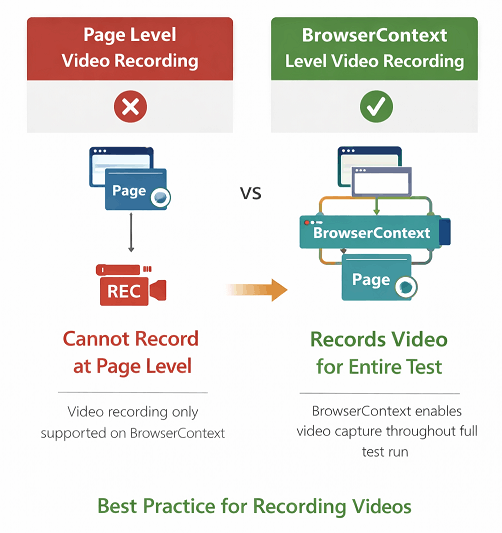
Earlier, tests were executed by creating a page directly from the browser instance. While this approach is simple, it limits control over advanced features such as video recording.
In Step 17, the framework creates a BrowserContext first and then creates a page from that context. This allows Playwright to attach video recording capabilities at the correct level. It also provides better isolation between tests and improves artifact management.
By introducing BrowserContext, the framework gains full control over the test execution lifecycle and artifact handling.
For readers who want to understand the underlying Playwright capability behind this implementation, the Playwright video recording documentation explains how video capture works at the BrowserContext level.
Enabling recordVideoDir Safely
The recordVideoDir option is enabled only when the master video recording flag is turned on. This ensures that video recording logic is not executed unnecessarily.
When enabled, the framework sets a temporary video directory for the BrowserContext. Videos are recorded automatically during test execution without any test-level changes. If video recording is disabled, the BrowserContext is created without video options, keeping execution lightweight.
This conditional setup protects performance and avoids accidental video creation.
Isolating Each Test with Its Own Context
Each test runs in its own BrowserContext. This isolation is critical for enterprise automation.
Separate contexts ensure that:
- Videos belong to a single test
- Artifacts do not overlap
- Cleanup decisions are accurate
After test execution, the framework can safely decide whether to keep or delete the video based on test results and configuration flags. This design makes recording video in Playwright reliable and scalable within large test suites.
Integrating Video Recording with Test Lifecycle
Once BrowserContext-based recording is enabled in Step 17, the next challenge is aligning video capture with the test lifecycle. Video recording must start automatically, stop at the correct time, and remain accessible for result-based decisions. This integration ensures that recording video in Playwright works reliably without adding complexity to test classes.
The framework handles this flow internally, keeping test code clean and unchanged.
When Video Recording Starts
Video recording starts as soon as the BrowserContext is created with the video option enabled. There is no need for explicit start commands in the test.
Because the context is initialized before any page actions occur, the entire test flow is captured from the first interaction. This guarantees that important steps leading to a failure are not missed.
The behavior is fully controlled by configuration flags, so recording begins only when video recording is enabled.
When Video Recording Stops
Video recording stops automatically when the BrowserContext is closed. The framework ensures that the context remains open until the test execution is complete.
This timing is important. Closing the context too early can result in incomplete or corrupted videos. By closing the context only after the test finishes, the framework ensures that the full execution is captured correctly.
The context closure is handled centrally, making the process consistent across all tests.
Accessing Video After Test Execution
After the test completes and the BrowserContext is closed, Playwright finalizes the video file in the temporary directory. At this stage, the framework has access to the recorded video.
The test result is then evaluated. Based on pass or fail status and configuration flags, the framework decides whether the video should be saved or deleted. This result-aware handling keeps video storage clean while preserving useful artifacts.
This tight integration between the test lifecycle and video handling makes Step 17 both efficient and enterprise-ready.
Video Saving and Deletion Logic
Recording video in Playwright is only useful when videos are managed correctly after execution. Step 17 introduces a clear and predictable saving and deletion strategy that depends entirely on test results and configuration flags. This ensures that only meaningful videos are preserved while unnecessary files are removed automatically.
All decisions are made after the test finishes, keeping execution flow simple and safe.
Saving Videos for Failed Tests
When a test fails, the framework first checks whether video recording is enabled and whether the record video on failure flag is turned on.
If both conditions are met, the video is moved from the temporary directory to the final video storage location. The file is renamed in a consistent and readable format, making it easy to identify the related test.
This approach allows teams to review failures without re-running tests and speeds up root cause analysis.
Saving Videos for Passed Tests
Saving videos for past tests is optional and fully controlled by configuration. When the record video on pass flag is enabled, the framework preserves videos even when tests succeed.
This is useful during feature validation, exploratory runs, or when analyzing flaky behavior. When the flag is disabled, videos for passed tests are treated as temporary artifacts and are not retained.
This selective saving keeps storage usage under control while still offering flexibility.
Deleting Videos When Not Required
If a test completes and the configuration does not require saving the video, the framework deletes it automatically. This applies to both passed and failed tests, depending on flag settings.
Deletion happens only after the BrowserContext is closed and the video file is fully written. This prevents file corruption and ensures safe cleanup.
By removing unnecessary videos automatically, Step 17 keeps the Playwright Enterprise Automation Framework clean, efficient, and easy to maintain.
Cleanup and Safety Guards
Video recording can quickly generate large files. Without proper cleanup, this can slow down execution and clutter the framework. Step 17 adds strict cleanup and safety guards to keep the framework stable and predictable.
These guards ensure that cleanup is intentional, controlled, and never risky.
Cleaning Old Videos Before Running
Before execution starts, the framework checks the clean videos before the execution flag.
When this flag is enabled, the video directory is cleared at the suite level. This guarantees that every run starts with a fresh state and only current execution videos are stored.
If the flag is disabled, existing videos are preserved. This gives teams full control based on their workflow needs.
Preventing Accidental Deletion
Cleanup logic includes strong safety checks before deleting any files.
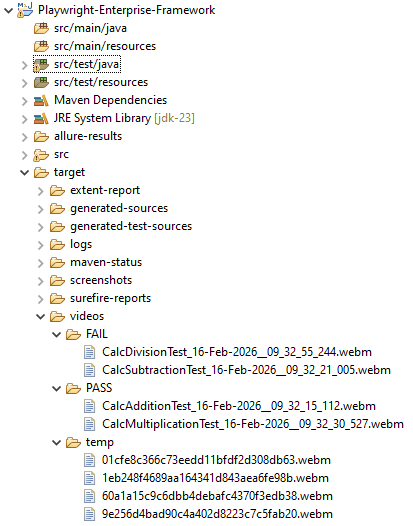
Deletion is allowed only inside the dedicated video directory under the target folder. Any path outside this scope is rejected immediately.
This protection prevents accidental removal of unrelated files and ensures that cleanup never impacts source code or other artifacts.
Keeping the Framework Fast and Clean
Automatic cleanup reduces disk usage and improves execution performance over time.
By removing unused videos early, the framework avoids slow file operations and keeps reporting as lightweight.
These safety guards make Step 17 reliable for long-running enterprise pipelines while keeping the Playwright Enterprise Automation Framework clean and efficient.
Download Updated Code for Step 17
⚠️ Important Note: This article is part of the Playwright Enterprise Automation Framework and covers Step 17 in a step-by-step build. The downloadable code is not standalone and depends on all previous steps in the series. If you landed here directly, please complete the earlier steps first to avoid setup or runtime issues.
Download the updated source code files at below.
Download Step 17 Updated Files
What Is Included in the Download Package
The downloadable ZIP file contains all required updates for Step 17.
- Updated SuiteBase.java with BrowserContext-based video recording, isolated test level context management, and result-driven video save or delete logic
- New configuration flags added to Param.properties for full video control
- Test classes(CalcAdditionTest, CalcSubtractionTest, etc) demonstrating video recording during execution
This package allows you to quickly enable and validate the Record Video in Playwright feature inside your enterprise framework before moving to the next implementation step.
Conclusion
Step 17 adds a practical and production-ready way to Record Video in Playwright inside the enterprise framework. Instead of relying on generic Playwright defaults, video recording is fully controlled through flags and integrated with the test lifecycle.
By moving video handling to the BrowserContext level, the framework records complete test flows without affecting performance. At the same time, result-based saving ensures that only useful videos are retained.
Automatic cleanup and safety guards keep execution fast and storage clean. As a result, teams get reliable debugging artifacts without manual effort or unnecessary disk usage.
This design makes video recording a first-class feature in the Playwright Enterprise Automation Framework and fits naturally into real-world CI and large-scale test execution.
FAQs
Why is video recording implemented at the BrowserContext level instead of the Page level in Playwright?
Playwright records videos only at the BrowserContext level. Page-level setup cannot capture complete test execution reliably. Using BrowserContext ensures the entire test flow is recorded from start to finish.
Does recording video in Playwright slow down test execution?
Video recording has a small overhead, but this framework minimizes impact by enabling it only through flags. Videos are saved only for passed or failed tests based on the configuration, which keeps execution fast.
Where are Playwright test videos stored in this enterprise framework?
Videos are first stored in a temporary directory during execution. After the test finishes, the framework moves the required videos to result based folders and deletes the rest automatically.
Can I disable video recording completely without changing code?
Yes. The master video recording flag allows you to turn video capture on or off directly from the configuration file. No code changes are required.