Last updated on May 27th, 2026 at 04:38 am
Playwright Java browser permissions and geolocation testing allow you to simulate real user behavior by controlling access to features like location, notifications, camera, and microphone. You can handle permissions using browser context settings and simulate location using latitude and longitude values.
This ensures your tests run without permission popups and behave like real user sessions. In real scenarios, combining permissions with proper waits is important, so you can also check this Playwright Java waits tutorial with examples to handle timing issues effectively.
Many modern web applications rely heavily on location access and user permissions. However, this is where many automation tests fail because permission handling is often ignored or configured incorrectly.
In this guide, you will learn how to manage browser permissions and perform geolocation testing in Playwright Java with practical examples, real-world use cases, and common mistakes to avoid.
- How to Handle Browser Permissions in Playwright Java?
- What Are Browser Permissions in Playwright?
- Why Should You Handle Permissions in Automation Tests?
- What is Geolocation in Playwright Java?
- How to Set Geolocation in Playwright Java?
- How to Handle Multiple Permissions in Playwright Java?
- How to Manage Dynamic Permissions in Playwright Java?
- How to Deny Permissions in Playwright Java?
- Real World Use Cases of Geolocation and Permissions Testing
- How Do Permissions Behave in Headless vs Headed Mode?
- Why Do Some Permissions Require HTTPS in Playwright?
- Common Issues and Fixes in Playwright Java Permissions
- Advanced Tips for Playwright Java Browser Permissions
- Playwright Permissions vs Real Browser Behavior
- Related Playwright Tutorials
- How Permissions Are Handled in Real Playwright Frameworks
- Best Practices for Playwright Java Browser Permissions
- Conclusion
- FAQs
- What are browser permissions in Playwright Java?
- How do you allow geolocation in Playwright Java?
- Can Playwright handle permission popups automatically?
- Why is geolocation not working in Playwright?
- Can you test deny permission scenarios in Playwright?
- Does Playwright use real device location?
- Is it better to set permissions at context creation or dynamically?
- Can You Test Location Changes During Execution?
- Is Geolocation Based on IP in Playwright?
- What is the easiest way to handle permissions in Playwright Java?
- Why do permissions fail in Playwright tests?
- Can Playwright change location dynamically during test execution?
- Which permissions are most important in Playwright testing?
- Does Playwright require HTTPS for geolocation testing?
How to Handle Browser Permissions in Playwright Java?
You can handle browser permissions in Playwright Java by creating a browser context with specific permissions and optional geolocation settings. According to the official Playwright BrowserContext documentation, permissions can be configured directly at the context level to control features like geolocation and notifications.
This lets you simulate real user behavior such as allowing location access or blocking notifications during your tests.
To understand how Playwright manages permissions internally, the following diagram shows how browser context controls access to features like geolocation and notifications.
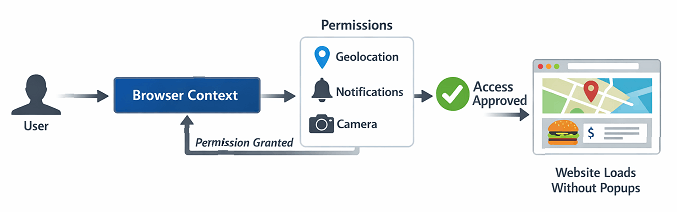
As shown above, permissions are applied at the browser context level before the page loads. This ensures that your test behaves like a real user session without triggering permission popups.
Here is a quick example:
import com.microsoft.playwright.options.Geolocation;

BrowserContext context = browser.newContext(new Browser.NewContextOptions()
    .setPermissions(Arrays.asList("geolocation"))
    .setGeolocation(new Geolocation(12.9716, 77.5946))
);

Page page = context.newPage();
page.navigate("https://example.com");
This way, your tests won’t get stuck on permission popups and will run in a controlled environment.
To understand how browser context works in detail, you can explore this guide on handling browser contexts and sessions in Playwright Java.
What Are Browser Permissions in Playwright?
Browser permissions in Playwright are settings that allow or block access to features like geolocation, notifications, camera, and microphone during automated tests. You can control these permissions programmatically using the browser context.
Instead of manually clicking allow or block in a popup, Playwright lets you configure permissions before the page loads. This makes your tests more stable and removes dependency on UI dialogs.
Here are the most commonly used permissions in Playwright:
- geolocation
- notifications
- camera
- microphone
- clipboard-read
- clipboard-write
In real projects, geolocation and notifications are used most often because many applications depend on location access and user alerts.
Why Should You Handle Permissions in Automation Tests?
You should handle browser permissions in automation tests to prevent failures caused by permission popups and to ensure consistent test execution across environments.
If permissions are not handled properly, your tests may get stuck waiting for user interaction or behave differently in CI pipelines.
In real automation projects, permission-related issues are one of the most common causes of flaky tests. For example, a test may work perfectly on a local machine but fail in CI simply because geolocation or notification permissions were not explicitly configured in the browser context.
- Prevents test failures due to permission popups
- Ensures consistent behavior across environments
- Enables testing of location-based features
- Improves execution speed by removing manual steps
This becomes critical when running tests in headless or CI environments where no manual interaction is possible.
What is Geolocation in Playwright Java?
Geolocation in Playwright Java allows you to simulate a user’s physical location using latitude and longitude values. This helps you test location-based features such as region-specific content, pricing, and access restrictions without changing your actual device location.
Instead of relying on your real network or IP, Playwright uses the coordinates you provide in the browser context. This makes your tests more flexible, predictable, and suitable for automation environments like CI pipelines.
In real projects, geolocation is commonly used to validate how applications behave for users in different cities or countries without using VPNs or proxies.
How to Set Geolocation in Playwright Java?
You can set geolocation in Playwright Java by configuring latitude and longitude values in the browser context. This allows you to simulate a user from any location without changing your actual device location.
Here is the basic way to set geolocation:
Quick syntax for setting geolocation:
import java.io.IOException;
import java.util.Arrays;

import com.microsoft.playwright.Browser;
import com.microsoft.playwright.BrowserContext;
import com.microsoft.playwright.Page;
import com.microsoft.playwright.Playwright;
import com.microsoft.playwright.options.Geolocation;

BrowserContext context = browser.newContext(new Browser.NewContextOptions()
    .setPermissions(Arrays.asList("geolocation"))
    .setGeolocation(new Geolocation(28.6139, 77.2090))
);
Page page = context.newPage();
page.navigate("https://example.com");
This example simulates a user located in Delhi. You can replace the latitude and longitude values with any location based on your testing needs.
If you want to understand different navigation strategies, refer to this detailed guide on Playwright Java navigation methods with examples.
Steps to Configure Geolocation in Playwright Java
Follow these steps to correctly set up geolocation in your test:
- Create a new browser context
- Grant geolocation permission
- Set latitude and longitude values
- Open a new page using the configured context
- Navigate to the target application
Missing any of these steps may result in location not being applied correctly.
How to Verify Geolocation and Permissions in Playwright Java?
Setting geolocation and permissions is not enough. You should always verify that the location is actually applied in your test. This helps you catch issues early and ensures your test is working as expected.
Directly reading geolocation via browser APIs may not always be reliable across all sites due to permission handling and browser restrictions. Therefore, validating application behavior is recommended.
A practical approach is to verify location-dependent behavior in your application:
- Check if location-specific content is displayed
- Verify region-based UI changes
- Validate API responses based on location
For example:
- A delivery app should show nearby restaurants
- A pricing page should change currency based on region
- A streaming app should restrict content by location
Important tip:
Directly reading latitude and longitude from the browser is not always reliable due to browser security restrictions. Therefore, validating application behavior is the most effective way to confirm geolocation is working correctly.
Why Is Geolocation Not Working in Playwright Java?
Here is where most beginners make mistakes. Setting geolocation alone is not enough. You must also grant the geolocation permission. Otherwise the browser will ignore your location settings.
Always combine both permission and geolocation configuration to get accurate results.
What Is the Difference Between Geolocation and IP Location?
The main difference between geolocation and IP location is how the user’s location is determined.
Geolocation in Playwright is based on the latitude and longitude values you provide in the browser context. This allows you to simulate a user’s physical location with precision.
IP location, on the other hand, is determined by the user’s network or internet provider and cannot be controlled directly by Playwright.
In automation testing, Playwright uses simulated geolocation, not actual IP based location.
- Geolocation uses coordinates like latitude and longitude
- IP location depends on network provider or proxy
- Playwright does not automatically change IP location
This means you can simulate any location without using a VPN or proxy.
This is why Playwright geolocation testing is more reliable for automation compared to IP-based location testing.
How to Handle Multiple Permissions in Playwright Java?
You can handle multiple browser permissions in Playwright Java by passing a list of permissions while creating the browser context. This allows you to simulate real scenarios where applications request more than one permission at the same time.
Here is a simple example:
BrowserContext context = browser.newContext(new Browser.NewContextOptions()
    .setPermissions(Arrays.asList("geolocation", "notifications", "camera"))
    .setGeolocation(new Geolocation(19.0760, 72.8777))
);

Page page = context.newPage();
page.navigate("https://example.com");
This example allows location access, notifications, and camera permission together. This is useful when testing applications like maps, video calls, or delivery apps.
When Should You Use Multiple Permissions?
In real world applications, a single permission is rarely enough. Many features depend on a combination of permissions.
- Maps applications require geolocation and sometimes notifications
- Video apps need camera and microphone access
- Chat applications may use notifications and clipboard permissions
Handling multiple permissions together ensures your test behaves exactly like a real user session.
What Are Common Mistakes When Setting Multiple Permissions?
A common issue is passing incorrect permission names or forgetting to include all required permissions. Even one missing permission can break your test scenario.
Always verify the exact permission names supported by Playwright and include them properly in the list.
How to Manage Dynamic Permissions in Playwright Java?
You can manage dynamic permissions in Playwright Java using browser context methods like grantPermissions() and clearPermissions(). These methods allow you to modify permissions during test execution without recreating the browser context. These changes are most reliable when applied before the page requests permissions.
This approach is useful when your test scenario requires simulating user decisions such as allowing or denying permissions within the same session.
How to Grant and Clear Permissions Dynamically in Playwright Java?
You can grant or clear browser permissions in Playwright Java using the browser context methods grantPermissions() and clearPermissions(). This helps simulate different permission scenarios during test execution.
Grant Permissions Dynamically
You can grant permissions for the current browser context without recreating it:
context.grantPermissions(
    Arrays.asList("geolocation", "notifications"),
    new BrowserContext.GrantPermissionsOptions().setOrigin("https://example.com")
);
This allows the specified permissions for the given origin.
Best practice: Call this method before navigating to the page, so the browser does not show permission popups.
Clear Permissions
To reset permissions back to default behavior:
context.clearPermissions();This removes all previously granted permissions from the current context.
What Are Origin-Specific Permissions in Playwright?
In Playwright, you can grant browser permissions either globally for the entire browser context or for a specific origin (website).
Origin-specific permissions allow you to grant permissions only to a particular domain instead of all pages in the context. This helps you control permission behavior more precisely in multi-domain test scenarios.
Example: Grant Permissions for a Specific Origin
context.grantPermissions(
    Arrays.asList("geolocation", "notifications"),
    new BrowserContext.GrantPermissionsOptions()
        .setOrigin("https://example.com")
);
How it works
- Permissions are applied only to https://example.com
- Other domains in the same test do not receive these permissions
- Helps isolate permission behavior per site
When should you use origin-specific permissions?
- When your test interacts with multiple domains
- When validating third-party integrations
- When you want strict control over permission scope
- When avoiding permission leakage across domains
Important Notes
- Origin must match exactly (protocol + domain)
https://example.com≠http://example.comhttps://example.com≠https://www.example.com
- If origin is not specified, permissions apply to all pages in the context
- Playwright does not explicitly deny permissions
- To simulate denial, do not grant permission or use:
context.clearPermissions();- Always call
grantPermissions()before the page requests permission for consistent results
Why this matters
Origin-based permissions prevent unintended side effects and make your tests more reliable, especially in complex real-world applications.
When Should You Use Dynamic Permission Handling?
Dynamic permission handling should be used when your test scenario requires changing permissions during execution instead of defining them only at the beginning.
- Testing allow and deny flows in the same test
- Simulating users changing browser settings
- Validating fallback behavior when permissions are revoked
However, overusing dynamic changes can make tests harder to maintain. In most cases, setting permissions during context creation is more stable and predictable.
Does Clearing Permissions Affect Existing Pages?
Yes. Clearing permissions impacts all pages within the same browser context. Any further actions will follow default browser permission behavior.
How to Deny Permissions in Playwright Java?
You can deny browser permissions in Playwright Java by not granting them or by explicitly clearing permissions in the browser context. This helps you test how your application behaves when users reject permission requests.
Here is a simple approach to simulate denied permissions:
BrowserContext context = browser.newContext();

Page page = context.newPage();
page.navigate("https://example.com");
In this setup, no permissions are granted, so the browser behaves as if the user has denied all requests.
How to Test Deny Permission Scenarios Effectively
To properly test negative scenarios, you should validate how your application responds when access is not allowed.
- Check fallback UI when location is unavailable
- Verify error messages for blocked permissions
- Ensure the app does not crash or freeze
Testing deny scenarios improves reliability and ensures your application handles real user behavior correctly.
Real World Use Cases of Geolocation and Permissions Testing
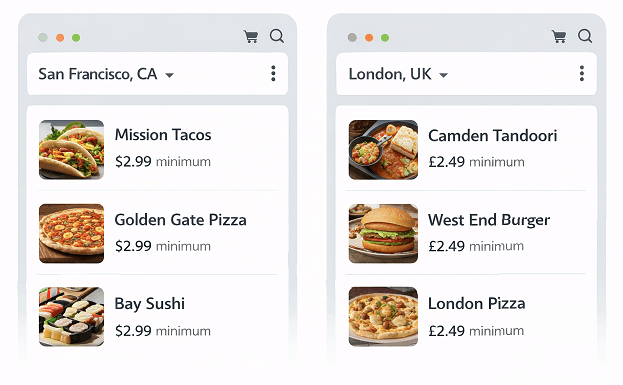
Geolocation and browser permissions in Playwright are used to test location-based content, permission-driven features, and real user scenarios without manual interaction.
Handling browser permissions and geolocation is not just a technical setup.
It directly impacts how real users experience your application. Ignoring this can lead to incomplete or inaccurate test coverage.
Here are some practical scenarios where Playwright java browser permissions becomes essential:
Testing Location Based Content
Many applications show different content based on user location. This includes pricing, language, or available services.
- E commerce sites showing region specific products
- Food delivery apps displaying nearby restaurants
- Streaming platforms restricting content by country
By setting geolocation, you can verify all these variations without changing your physical location.
Validating Permission Based Features
Some features work only when permissions are granted. Testing both allow and deny scenarios is critical.
- Push notifications in web applications
- Camera access in video conferencing tools
- Microphone usage in voice enabled apps
This ensures your application handles user choices correctly.
Testing Edge Cases Most Tutorials Miss
This is where most beginners stop, but real projects go further.
- What happens if user denies permission?
- How does the app behave when location is unavailable?
- Does the app retry permission requests correctly?
These edge cases often reveal bugs that are missed in basic testing.
Performance and Stability Considerations
Improper handling of permissions can slow down tests or cause flaky behavior.
- Repeated permission prompts can delay execution
- Missing permissions can cause unexpected failures
- Incorrect setup may lead to inconsistent results across environments
Setting permissions correctly at the start improves both performance and reliability.
How Do Permissions Behave in Headless vs Headed Mode?
Browser permissions in Playwright can behave differently depending on whether tests run in headless or headed mode. Understanding this difference is important for avoiding unexpected failures, especially in CI environments.
Headed mode behaves more like a real user browser:
- Permissions work as expected when configured
- UI behavior closely matches real user interactions
Headless mode can introduce differences:
- Some browser features like notifications may have limited or inconsistent behavior in headless mode depending on the browser engine.
- Certain APIs may be restricted or behave differently
- Debugging permission-related issues becomes harder
For example:
A test that works perfectly in headed mode may fail in headless mode if permissions are not configured correctly.
Best practice:
Always validate permission-based scenarios in both headless and headed modes to ensure consistent behavior across environments.
Why Do Some Permissions Require HTTPS in Playwright?
Some browser permissions such as geolocation and notifications require a secure context (HTTPS) to work correctly. This is a browser-level restriction, not a Playwright limitation.
If your application is running on HTTP:
- Geolocation may not work
- Notifications may be blocked
- Browser may silently ignore permission settings
For example:
If you try to test geolocation on a non-secure site, the browser may deny access even if permissions are granted in Playwright.
Best practice:
- Always use HTTPS-enabled environments for testing permissions
- Use localhost with secure context if possible
- Avoid relying on HTTP environments for permission-based testing
This is one of the most common hidden reasons why geolocation or notifications fail in automation tests.
Common Issues and Fixes in Playwright Java Permissions
Even after understanding the basics, many testers still run into issues with browser permissions and geolocation. In real projects, these problems often lead to flaky tests or unexpected failures.
Here are the most common mistakes you should avoid:
Understanding these issues will help you quickly debug failures and build more stable automation tests.
Forgetting to Grant Permission
Many test failures happen because permissions are not configured correctly at the context level. Even if your code looks correct, missing permissions can silently break the test flow.
- Always include setPermissions when using features like geolocation or notifications
- Verify permission names are correct and supported by Playwright
- Ensure permissions are set before navigating to the page
This issue is often harder to debug because there is no visible error, only incorrect behavior.
Using Incorrect Permission Names
Playwright only accepts specific permission strings. A small typo can break your setup silently.
- Use exact values like geolocation, notifications, camera
- Avoid custom or incorrect naming
Mixing Context and Page Level Logic
Permissions are applied at the browser context level, not directly on the page. Trying to control permissions at page level will not work.
Always configure permissions before creating the page instance.
Ignoring CI Environment Behavior
Tests that pass locally often fail in CI due to missing or inconsistent permission setup. CI environments do not allow manual interaction.
- Always define permissions explicitly
- Avoid relying on default browser behavior
A quick checklist to debug permission-related issues:
- Ensure permissions are explicitly granted in the browser context
- Verify latitude and longitude values are correct
- Always create the browser context before opening the page
- Confirm the application is running on HTTPS when required
Following this checklist can quickly help identify and fix most permission and geolocation issues in both local and CI environments.
Not Testing Deny Scenarios
Most tutorials only show how to allow permissions. However, real applications must handle both allow and deny cases.
Always include negative testing to improve coverage and reliability.
Advanced Tips for Playwright Java Browser Permissions
Once you understand the basics, this is where things start getting interesting. Advanced techniques in Playwright Java browser permissions can significantly improve test reliability and help you simulate real user behavior more accurately.
They also allow you to simulate real user behavior and handle complex scenarios like multiple contexts and dynamic permission changes.
Use Context Isolation for Different Permission Scenarios
Instead of changing permissions in the same context, create separate contexts for different scenarios.
- One context with permissions allowed
- Another context with permissions denied
This keeps tests clean and avoids unexpected side effects.
Combine Permissions with Network Conditions
In real world scenarios, location based apps often depend on network conditions as well.
- Test slow network with location enabled
- Validate fallback behavior when location API fails
This adds an extra layer of reliability to your tests.
Log Permission Related Issues Early
Permission issues are sometimes silent. Adding logs can help you debug faster.
- Log context configuration
- Print geolocation values before navigation
This small step saves a lot of debugging time later.
Playwright Permissions vs Real Browser Behavior
Playwright handles browser permissions programmatically, while real browsers rely on user interaction through permission popups. This difference allows automated tests to run faster and more consistently.
| Aspect | Playwright Behavior | Real Browser Behavior |
|---|---|---|
| Permission Handling | Programmatically controlled | User interaction required |
| Geolocation | Simulated using coordinates | Based on actual device GPS or IP |
| Popup Interaction | No popup when pre-configured | Popup appears for user action |
| Test Stability | Highly stable if configured | Depends on user actions |
This comparison helps you understand why Playwright tests behave differently from manual testing and why proper configuration is critical.
Do Browser Permissions Work the Same in Chromium, Firefox, and WebKit?
Playwright supports browser permissions across Chromium, Firefox, and WebKit, but behavior may slightly vary depending on the browser engine.
- Chromium provides the most consistent support for permissions and geolocation
- Firefox supports most permissions but may have limitations in some cases
- WebKit support can vary, especially for advanced permission scenarios
For best results, always validate your tests across multiple browsers when working with permissions.
Related Playwright Tutorials
If you are learning Playwright Java, it is important to understand related concepts like locators, actions, and browser handling to build a complete automation framework. The following guides will help you strengthen your knowledge and improve your automation skills step by step:
- Playwright Java locators complete guide with examples
- Click on elements in Playwright Java with examples
- Handle alerts in Playwright Java step by step
- Upload files in Playwright Java step by step guide
- Handle multiple tabs in Playwright Java guide
These guides are part of a structured learning path that helps you move from beginner to advanced level in Playwright automation.
How Permissions Are Handled in Real Playwright Frameworks
In real automation frameworks, browser permissions are not handled inside individual test cases. Instead, they are configured centrally to ensure consistency and maintainability across all tests.
This is the approach used in most production level Playwright frameworks.
Centralized Context Configuration
Permissions are usually defined in a reusable method or base setup class that creates the browser context.
- All tests inherit the same permission configuration
- Reduces duplication across test cases
- Ensures consistent behavior in all environments
Environment Based Permission Control
In advanced Playwright frameworks, permissions and geolocation values are often controlled using environment configurations. This makes tests flexible and reusable across different environments.
Common Use Cases
- Use different locations for staging and production
- Enable or disable permissions via config files
- Support region-based testing scenarios
- Run the same tests across multiple countries
Reusable Utility Methods
Frameworks often include utility methods to create contexts with predefined permission sets.
public BrowserContext createContextWithPermissions(Browser browser) {
    return browser.newContext(new Browser.NewContextOptions()
        .setPermissions(Arrays.asList("geolocation", "notifications"))
        .setGeolocation(new Geolocation(28.6139, 77.2090)) // Delhi
        .setLocale("en-IN")
        .setTimezoneId("Asia/Kolkata")
);
This approach keeps test code clean and makes permission handling scalable.
Why This Approach Matters
Managing permissions at framework level avoids repeated setup, reduces maintenance effort, and ensures your tests behave consistently across local and CI environments.
Where This Fits in Real Framework Design
In real world projects, browser permissions and geolocation handling are usually configured at the framework level, not inside individual tests.
For example:
- Centralized browser setup class handles permissions
- Environment based configuration controls location
- Reusable context creation methods improve consistency
If you are building a scalable solution, you can follow this detailed guide on Playwright enterprise automation framework design to structure your project properly.
This approach keeps your tests clean and avoids repeating setup code across multiple test cases.
Best Practices for Playwright Java Browser Permissions
Following best practices helps you avoid flaky tests and ensures consistent behavior across environments.
- Always set permissions at browser context creation
- Combine permissions with geolocation when required
- Use separate contexts for different permission scenarios
- Test both allow and deny cases
- Validate behavior in CI environments
These practices improve reliability and make your automation framework more scalable.
Conclusion
Handling browser permissions and geolocation is a critical part of building reliable automation tests. With the right setup in playwright java browser permissions, you can simulate real user scenarios without depending on manual interaction.
By using browser context configuration, you can control permissions like location, notifications, camera, and more. This not only improves test stability but also ensures your application behaves correctly across different user conditions.
Now that you understand how to handle browser permissions and geolocation in Playwright Java, try implementing these concepts in your own test scenarios. You can also explore related topics like network interception and device emulation to build more advanced and production-ready automation frameworks.
FAQs
What are browser permissions in Playwright Java?
Browser permissions in Playwright Java allow you to control access to features like geolocation, notifications, camera, and microphone during automated tests.
How do you allow geolocation in Playwright Java?
You can allow geolocation in Playwright Java by setting the “geolocation” permission and providing latitude and longitude values in the browser context using setPermissions() and setGeolocation(). This prevents permission popups and ensures consistent test execution.
Can Playwright handle permission popups automatically?
Yes. Playwright bypasses permission popups by configuring permissions at the browser context level before opening the page.
Why is geolocation not working in Playwright?
Geolocation may not work if permission is not granted, coordinates are incorrect, or the browser context is not configured properly.
Can you test deny permission scenarios in Playwright?
Yes. You can simulate deny scenarios by not granting permissions or by clearing permissions during test execution.
Does Playwright use real device location?
No. Playwright uses the latitude and longitude values you provide. It does not depend on your actual device or IP location.
Is it better to set permissions at context creation or dynamically?
Setting permissions at context creation is more stable. Dynamic changes should be used only when required by the test scenario.
Can You Test Location Changes During Execution?
Yes. You can update geolocation dynamically in Playwright using browser context methods, which helps simulate users moving between locations during a session.
Is Geolocation Based on IP in Playwright?
No. Playwright geolocation is based on the latitude and longitude values you provide, not on your actual IP or device location.
What is the easiest way to handle permissions in Playwright Java?
You can handle permissions in Playwright Java by creating a browser context and passing required permissions using setPermissions(). This avoids permission popups and keeps your tests stable.
Why do permissions fail in Playwright tests?
Permissions usually fail when they are not explicitly configured in the browser context, when incorrect permission names are used, or when the application requires HTTPS for certain features like geolocation.
Can Playwright change location dynamically during test execution?
Playwright allows you to update geolocation dynamically using browser context methods. This helps simulate user movement or test location changes within the same session.
Which permissions are most important in Playwright testing?
The most important permissions in Playwright testing are geolocation, notifications, camera, and microphone, as they are commonly used in real-world applications.
Does Playwright require HTTPS for geolocation testing?
Yes. Geolocation and some other permissions require a secure HTTPS context due to browser restrictions. If your application runs on HTTP, these features may not work correctly even if permissions are granted.