File upload in Playwright Java is one of the most common actions in web automation testing. Whether you are testing a registration form, profile update, or document submission, handling file upload correctly is very important. Many beginners struggle with this step, especially when working with modern web applications.
If you are learning Playwright, understanding file upload will help you build more reliable and real world test cases. It becomes simple once you follow the correct approach, and Playwright provides built in methods to handle it efficiently.
In this tutorial, you will learn file upload in Playwright Java step by step with real examples, best practices, and common issues. We will also cover multiple file uploads, hidden input fields, drag and drop scenarios, and validation techniques to avoid common mistakes.
- How to Upload File in Playwright Java?
- What is File Upload in Playwright Java?
- How to Upload Single File in Playwright Java Step by Step?
- How to Upload Multiple Files in Playwright Java?
- How to Upload File Using File Chooser in Playwright Java?
- setInputFiles vs File Chooser in Playwright Java: Which One Should You Use?
- How to Upload File to Hidden Input Field in Playwright Java?
- How to Handle Drag and Drop File Upload in Playwright Java?
- How to Validate File Type in Playwright Java During Upload?
- Common Issues in File Upload in Playwright Java and How to Fix Them?
- What Are Best Practices for File Upload in Playwright Java?
- How to Verify File Upload in Playwright Java?
- How to Wait for File Upload to Complete in Playwright Java?
- How to Remove Uploaded File in Playwright Java?
- How to Upload File in Playwright JavaScript, Python, and TypeScript?
- How to Upload and Verify File in Playwright Java Real Example?
- Related Playwright Tutorials
- Conclusion
- FAQs
- How to upload a file in Playwright Java?
- Can Playwright handle multiple file uploads?
- How to handle file chooser in Playwright Java?
- Does Playwright support hidden file input upload?
- What is the best way to store files for upload in Playwright?
- Why is file upload not working in Playwright?
- Can Playwright upload files in headless mode?
- How to verify file upload in Playwright?
How to Upload File in Playwright Java?
You can upload a file in Playwright Java by using the setInputFiles() method on an input element of type file. This method directly sets the file path and uploads it without opening the system file dialog.
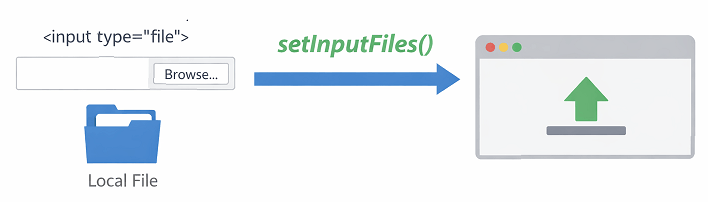
This approach works for most modern web applications and is the recommended way to handle file uploads in Playwright.
// Upload a single file
page.setInputFiles("input[type='file']", Paths.get("src/test/resources/file.txt"));
For more details, you can refer to the official Playwright documentation on file upload handling.
What is File Upload in Playwright Java?
File upload in Playwright Java is the process of sending a file from your local system to a web application using automation scripts. It is commonly used to test features like profile image upload, document submission, and form attachments.
Playwright simplifies this process by allowing direct interaction with file input elements using built in methods. You do not need to handle OS level file chooser popups manually.
Why is File Upload Important in Automation Testing?
File upload is important because many real world applications depend on user submitted files. Without testing this functionality, critical workflows may fail in production.
- Validates document upload features
- Ensures file size and format handling works correctly
- Tests user flows like registration and profile updates
- Prevents failures in file dependent APIs
Which File Types Can You Upload Using Playwright?
You can upload any file type supported by the application such as images, PDFs, text files, or spreadsheets. Playwright does not restrict file types but relies on application level validation.
How to Upload Single File in Playwright Java Step by Step?
You can upload a single file in Playwright Java by locating the file input element and using the setInputFiles() method with the file path.
Follow the steps below to implement file upload in a real test scenario.
- Launch the browser
- Navigate to the application URL
- Locate the file input element
- Use setInputFiles() to upload the file
- Submit the form if required
To locate the file input element reliably, you should understand how to use different locator strategies in Playwright Java.
The following example demonstrates how to upload a single file using Playwright Java.
import com.microsoft.playwright.*;
import java.nio.file.Paths;

public class FileUploadExample {
    public static void main(String[] args) {
        try (Playwright playwright = Playwright.create()) {

            Browser browser = playwright.chromium().launch(new BrowserType.LaunchOptions().setHeadless(false));
            Page page = browser.newPage();

            // Navigate to URL
            page.navigate("https://example.com/upload");

            // Upload file
            page.setInputFiles("input[type='file']", Paths.get("src/test/resources/file.txt"));

            // Optional: Click submit button
            page.click("button[type='submit']");
        }
    }
}
This example shows a basic file upload flow where a single file is selected and submitted. You can reuse this approach for most upload scenarios.
Where Should You Store Test Files for Upload?
You should store test files inside your project directory such as src/test/resources. This ensures portability and avoids dependency on system specific file paths.
Can You Use Absolute File Path in Playwright?
Yes. You can use an absolute file path, but it is not recommended for team projects because paths may differ across environments.
Once you understand single file upload, the next step is handling multiple file uploads in Playwright Java.
How to Upload Multiple Files in Playwright Java?
You can upload multiple files in Playwright Java by passing an array of file paths to the setInputFiles() method. This allows you to upload more than one file in a single action.
This approach works when the file input element supports multiple file selection using the multiple attribute.
// Upload multiple files
page.setInputFiles("input[type='file']", new java.nio.file.Path[] {
    java.nio.file.Paths.get("src/test/resources/file1.txt"),
    java.nio.file.Paths.get("src/test/resources/file2.txt")
});
This example demonstrates how to upload multiple files at once. Make sure the application supports multiple uploads, otherwise only one file may be accepted.
How to Check if Input Supports Multiple File Upload?
You can check the HTML attribute of the input element. If the input field contains the multiple attribute, it supports uploading more than one file.
What Happens if Multiple Files Are Not Supported?
If the input element does not support multiple files, only the last file in the array may be considered or the upload may fail depending on the application behavior.
In some applications, file upload is triggered through a button instead of a direct input field. In such cases, you need to handle file chooser events.
How to Upload File Using File Chooser in Playwright Java?
You can upload a file using the file chooser in Playwright Java by listening for the file chooser event and then setting the file using setFiles(). This is useful when the upload button triggers a system file dialog.
This approach is required when the file input element is not directly accessible or is triggered dynamically.
// Handle file chooser
FileChooser fileChooser = page.waitForFileChooser(() -> {
    page.click("#uploadButton");
});

// Set file to upload
fileChooser.setFiles(Paths.get("src/test/resources/file.txt"));
This example listens for the file chooser event when the upload button is clicked and then uploads the file programmatically.
When Should You Use File Chooser Instead of setInputFiles?
You should use the file chooser approach when the file input element is hidden or triggered by a button click instead of being directly visible.
Does File Chooser Work with All Browsers?
Yes. Playwright handles file chooser events consistently across Chromium, Firefox, and WebKit.
setInputFiles vs File Chooser in Playwright Java: Which One Should You Use?
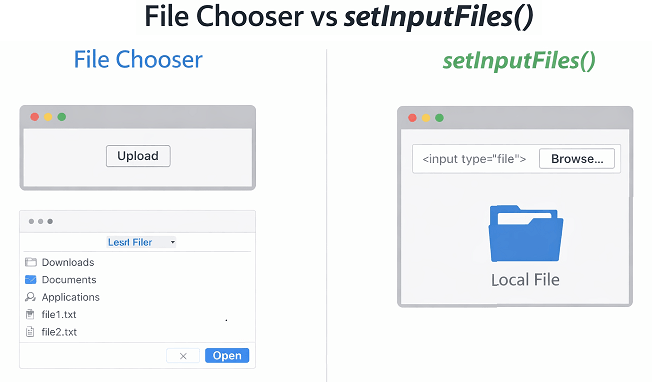
The main difference between setInputFiles() and file chooser in Playwright Java is how the file upload is triggered and handled.
Use setInputFiles() for direct interaction with file input elements, and use file chooser when the upload is triggered through UI actions like button clicks.
| Feature | setInputFiles() | File Chooser |
|---|---|---|
| Usage | Directly upload file using locator | Handles system file dialog events |
| Best For | Visible or hidden file input elements | Button triggered file uploads |
| Complexity | Simple and straightforward | Slightly more setup required |
| Performance | Faster execution | Slightly slower due to event handling |
| Recommended | Preferred in most cases | Use only when required |
Which Method Should You Use for File Upload?
You should use setInputFiles() in most cases because it is simple, faster, and works for both visible and hidden inputs. Use file chooser only when the upload is triggered through UI interactions.
How to Upload File to Hidden Input Field in Playwright Java?
You can upload a file to a hidden input field in Playwright Java by targeting the hidden file input element directly, even if it is not visible on the UI. Playwright allows interaction with hidden file inputs without needing to make them visible.
This is useful because many modern applications hide the file input element and trigger it using custom UI components.
// Upload file to hidden input
// Upload file using setInputFiles() on hidden input element
This method works even if the input element is not visible on the UI. Playwright bypasses visibility checks for file uploads.
Do You Need to Remove Hidden Attribute Before Upload?
No. You do not need to remove the hidden attribute. Playwright can directly upload files without modifying the DOM.
Is JavaScript Execution Required for Hidden Upload?
No. You do not need to execute JavaScript to interact with hidden file inputs when using Playwright.
Some modern applications use drag and drop interfaces for file uploads instead of traditional input fields. Playwright provides ways to handle these scenarios as well.
How to Handle Drag and Drop File Upload in Playwright Java?
You can handle drag and drop file upload in Playwright Java by interacting with the underlying file input element or by simulating drop events when required. In most cases, drag and drop UI components are built on top of hidden file input elements.
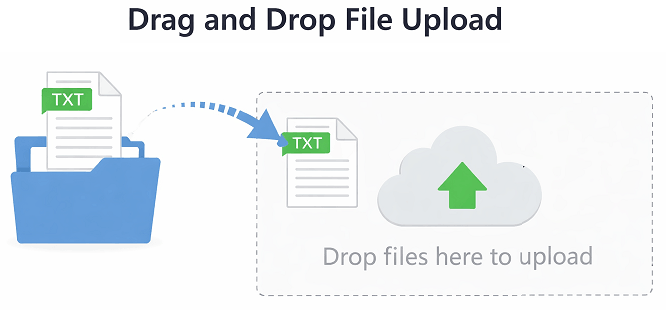
This means you can directly upload files using Playwright without performing an actual drag and drop action.
// Upload file for drag and drop area (using hidden input)
// Reuse the same file upload approach using setInputFiles()
This approach works for most applications because the drag and drop area internally uses a file input element.
However, if the application strictly depends on drag and drop events and does not expose a file input element, you may need to simulate the drop action.
The following example shows how to trigger a drop event using JavaScript.
// Simulate drag and drop using JavaScript
page.dispatchEvent("#dropZone", "drop");
This method can be used when the application relies completely on JavaScript based drag and drop handling.
Does Drag and Drop Always Require Special Handling?
No. In most cases, drag and drop components use hidden file inputs, so you can use setInputFiles() directly.
When Should You Simulate Drop Events?
You should simulate drop events only when the application does not provide a file input element and relies fully on drag and drop behavior.
Is Drag and Drop Testing Reliable in Automation?
Drag and drop testing can be less reliable compared to direct file upload. It is recommended to use input based upload whenever possible.
How to Validate File Type in Playwright Java During Upload?
You can restrict file type upload in Playwright Java by validating the accept attribute of the file input element or by testing application level validation for unsupported file types.
The accept attribute defines which file types are allowed, such as images or PDF files.
// Upload allowed file
page.setInputFiles("input[type='file']", Paths.get("image.png"));
To test restrictions, you can try uploading unsupported file types and verify that the application shows an error message or rejects the file.
- Upload valid file types such as .png or .jpg
- Try uploading invalid file types such as .exe or .zip
- Verify validation message or error behavior
What is Accept Attribute in File Upload?
The accept attribute is an HTML property that specifies the allowed file types for upload, such as image or document formats.
Does Playwright Block Invalid File Types Automatically?
No. Playwright uploads the file regardless of type. Validation must be handled and verified at the application level.
While file type upload restriction is simple in most cases, you may encounter issues depending on application behavior. Understanding these problems helps you build stable tests.
Common Issues in File Upload in Playwright Java and How to Fix Them?
File upload in Playwright Java is usually straightforward, but some common issues can cause failures in tests. Identifying and fixing these issues helps create stable and reliable automation scripts.
Below are the most common problems and their solutions.
Why is File Not Uploading in Playwright?
File upload may fail if the locator is incorrect or the input element is not matched properly. Always verify the selector before uploading the file.
- Check if the locator targets input[type=’file’]
- Ensure the element exists in the DOM
- Use Playwright inspector to validate selectors
What Happens if File Path is Incorrect?
If the file path is incorrect, Playwright will throw an error because it cannot find the file. Always verify the file location before running the test.
- Use relative paths like src/test/resources
- Avoid hardcoded system specific paths
- Ensure file exists in the project directory
Why is File Upload Not Working for Hidden Elements?
File upload should work for hidden inputs, but it may fail if the locator does not correctly identify the element. Make sure the correct input element is targeted.
Why is Multiple File Upload Failing?
Multiple file upload fails when the input element does not support the multiple attribute. Always confirm the HTML supports multiple file selection.
Does File Upload Fail in Headless Mode?
No. File upload works in both headless and headed modes. If it fails, the issue is usually related to selectors or file paths, not the browser mode.
What Are Best Practices for File Upload in Playwright Java?
Following best practices for file upload in Playwright Java helps improve test reliability, maintainability, and execution stability. These practices are useful for both beginners and advanced automation frameworks.
Use the following recommendations to avoid common mistakes and improve your test quality.
- Always use relative file paths instead of absolute paths
- Store test files inside src/test/resources directory
- Ensure proper validation strategy is implemented based on UI or backend behavior
- Use stable and reliable locators for file input elements
- Avoid unnecessary waits since Playwright handles synchronization automatically
- Keep test data separate from test logic for better maintenance
These best practices ensure that your file upload tests remain stable across different environments and CI pipelines.
Should You Validate File Upload After Action?
Yes. Always validate the upload by checking UI changes, success messages, or file name display after upload.
Is It Safe to Use Hardcoded File Paths?
No. Hardcoded paths can break tests on different machines. Use project relative paths instead.
How to Verify File Upload in Playwright Java?
You can verify file upload in Playwright Java by checking UI elements such as uploaded file name, success messages, or file preview after the upload action.
Verification ensures that the file is not only selected but also successfully processed by the application.
Below are common ways to validate file upload in automation tests.
- Check if uploaded file name is displayed on UI
- Validate success or confirmation message
- Verify file preview such as image or document icon
- Check backend response using network validation if required
You can also capture screenshots after upload to visually verify the result during test execution.
The following example shows how to verify file name after upload.
// Upload file
page.setInputFiles("input[type='file']", Paths.get("src/test/resources/file.txt"));

// Verify uploaded file name is visible
String uploadedFileName = page.locator("#uploadedFileName").textContent();

if (uploadedFileName.contains("file.txt")) {
    System.out.println("File uploaded successfully");
}
This approach helps confirm that the file upload process is completed successfully from the user perspective.
Can You Validate File Upload Without UI Check?
Yes. You can validate file upload using network responses or API calls if the application provides upload endpoints.
Is File Name Validation Enough for Testing?
No. For complete validation, you should also check success messages or backend response depending on the application.
After uploading a file, handling synchronization is important to ensure the upload process is completed before validation.
How to Wait for File Upload to Complete in Playwright Java?
You can wait for file upload to complete in Playwright Java by waiting for UI changes, network responses, or success messages after the upload action.
This ensures that the file is fully processed before performing further validations or actions.
Below are common ways to handle wait after file upload.
- Wait for success message to appear
- Wait for uploaded file name or preview to be visible
- Wait for network response related to file upload
- Wait for loading indicator to disappear
The following example shows how to wait for a success message after file upload.
// Assume file is already uploaded

// Wait for success message
page.waitForSelector("#uploadSuccessMessage");
Understanding waits and synchronization in Playwright Java is important for stable automation tests.
This approach ensures that the upload process is completed before moving to the next step.
Can Playwright Automatically Wait for File Upload?
Playwright automatically waits for actions, but it does not always wait for backend upload completion. Explicit waits may be required.
What is the Best Way to Wait After File Upload?
The best approach is to wait for a UI change or network response that confirms the upload is completed.
How to Remove Uploaded File in Playwright Java?
You can remove an uploaded file in Playwright Java by resetting the file input element using the setInputFiles() method with an empty value.
This clears the selected file and resets the input field to its initial state.
// Remove uploaded file
page.setInputFiles("input[type='file']", new java.nio.file.Path[] {});
This approach is useful when you need to test file re-upload scenarios or validate reset functionality.
Can You Replace an Uploaded File in Playwright?
Yes. You can replace an uploaded file by calling setInputFiles() again with a new file path.
Does Resetting File Input Affect UI State?
Yes. Resetting the file input usually removes the file name or preview from the UI, depending on application behavior.
How to Upload File in Playwright JavaScript, Python, and TypeScript?
File upload in Playwright works similarly across all supported languages. The core concept remains the same, only syntax changes.
Below are simple examples in JavaScript, TypeScript, and Python for better understanding.
JavaScript Example: Upload File Using setInputFiles
This example shows how to upload a file using Playwright in JavaScript. It uses the same approach as Java.
await page.setInputFiles("input[type='file']", "file.txt");TypeScript Implementation: File Upload
This TypeScript example demonstrates file upload with similar syntax and behavior.
await page.setInputFiles("input[type='file']", "file.txt");Python Example: Upload File
In Python, file upload is also handled using set_input_files method.
page.set_input_files("input[type='file']", "file.txt")How to Upload and Verify File in Playwright Java Real Example?
This example demonstrates a complete file upload flow including upload, wait, and verification steps. It represents a real world automation scenario.
In this example, we upload a file, wait for the upload to complete, and verify that the file name is displayed.
import com.microsoft.playwright.*;
import java.nio.file.Paths;

public class FileUploadRealExample {
    public static void main(String[] args) {
        try (Playwright playwright = Playwright.create()) {

            Browser browser = playwright.chromium().launch(new BrowserType.LaunchOptions().setHeadless(false));
            Page page = browser.newPage();

            // Navigate to application
            page.navigate("https://example.com/upload");

            // Upload file
            page.setInputFiles("input[type='file']", Paths.get("src/test/resources/file.txt"));

            // Wait for upload success message
            page.waitForSelector("#uploadSuccessMessage");

            // Verify uploaded file name
            String uploadedFileName = page.locator("#uploadedFileName").textContent();

            if (uploadedFileName.contains("file.txt")) {
                System.out.println("File uploaded and verified successfully");
            }
        }
    }
}
This approach ensures that the file upload process is fully validated from upload to confirmation.
Why Should You Use End to End File Upload Test?
End to end testing ensures that file upload works correctly across UI, backend, and user flow.
Related Playwright Tutorials
If you are learning Playwright automation, these related tutorials will help you understand the complete workflow from browser launch to advanced interactions.
- Handle alerts in Playwright Java automation
- Handle multiple tabs in Playwright Java
- Run Playwright tests using TestNG framework
- Understand browser, context, and page in Playwright
- Record videos in Playwright Java
Conclusion
File upload in Playwright Java is simple and powerful when you use the correct approach. Methods like setInputFiles() and file chooser handling allow you to automate both basic and advanced upload scenarios with ease.
In this guide, you learned how to upload single and multiple files, handle hidden inputs, work with file chooser, and manage drag and drop uploads. You also explored common issues and best practices to build stable automation tests.
As you continue building your Playwright framework, make sure to include proper validation after file upload and use reliable file paths. This will help you create robust and maintainable test cases for real world applications.
FAQs
How to upload a file in Playwright Java?
You can upload a file in Playwright Java using the setInputFiles() method by passing the file path to an input element of type file.
Can Playwright handle multiple file uploads?
Yes. Playwright allows multiple file uploads by passing an array of file paths to the setInputFiles() method.
How to handle file chooser in Playwright Java?
You can handle file chooser by using waitForFileChooser() and then calling setFiles() to upload the file.
What is the best way to store files for upload in Playwright?
The best practice is to store files inside the src/test/resources directory and use relative paths.
Why is file upload not working in Playwright?
File upload may fail due to incorrect locator, wrong file path, or unsupported input element configuration.
Can Playwright upload files in headless mode?
Yes. File upload works in both headless and headed modes in Playwright.
How to verify file upload in Playwright?
You can verify file upload by validating UI changes or backend response after the upload action.