Last updated on April 18th, 2026 at 01:29 pm
Playwright vs Puppeteer: Playwright is better for most modern automation and testing because it supports multiple browsers (Chromium, Firefox, WebKit) and includes built-in features like auto-waiting and parallel execution. Puppeteer is best for simple Chrome-based automation, scraping, and quick scripts.
Quick answer:
- Choose Playwright for testing, scalability, and cross-browser support
- Choose Puppeteer for simple scripts and Chrome automation
Both tools automate browsers, things like clicking buttons, filling forms, and navigating pages. The real difference shows up when you use them in real projects, especially in reliability, browser support, and how much manual work is required.
In this guide, you’ll learn the key differences between Playwright and Puppeteer, real-world use cases, performance comparisons, and how to choose the right tool based on your needs.
Let’s start with a quick comparison so you can get a clear direction immediately before diving deeper.
Before diving deeper, here’s a quick visual comparison to help you understand the core differences between Playwright and Puppeteer.
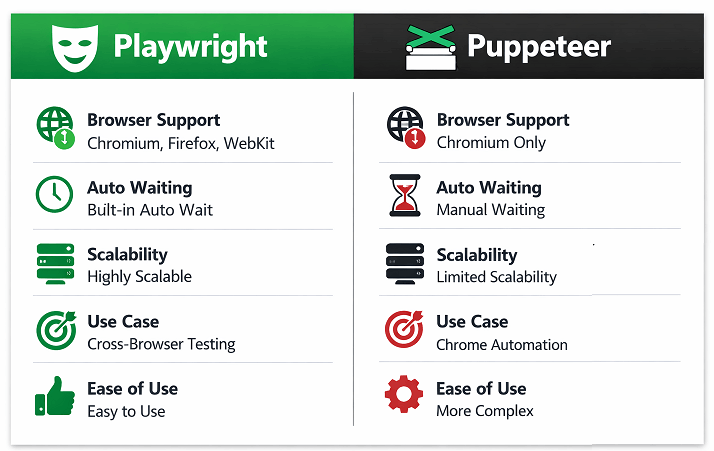
As you can see, Playwright focuses on scalability and cross-browser testing, while Puppeteer is optimized for simpler Chrome-based automation tasks.
- Playwright vs Puppeteer: Which Should You Choose?
- What is Playwright and Puppeteer?
- What Are the Key Differences Between Playwright and Puppeteer?
- How Do Playwright and Puppeteer Differ Internally?
- When Should You Use Each Tool?
- Which Tool Is Right for You?
- Final Decision Table: Playwright vs Puppeteer
- Code Comparison: How Both Tools Work in Practice
- Common Mistakes and Debugging Tips for Automation
- Performance, Stability, and Scalability Comparison
- How Does Performance Compare in Real Projects?
- Why is Playwright More Stable?
- Scalability in Large Automation Projects
- Comparison Table: Performance and Stability
- Does Playwright Consume More Resources?
- Is Puppeteer Still Good for Performance-Critical Tasks?
- Which is better for automation testing: Playwright or Puppeteer?
- Best Practices for Reliable Browser Automation
- Playwright vs Puppeteer vs Selenium: Which Tool Is Better?
- Pros and Cons of Each Tool
- Real Industry Trend: Why Teams Are Moving from Puppeteer to Playwright
- Conclusion
- Frequently Asked Questions (FAQs)
- What is the main difference between Playwright and Puppeteer?
- Which is better for web scraping, Playwright or Puppeteer?
- Is Puppeteer easier to learn than Playwright?
- Can Playwright replace Puppeteer?
- Does Puppeteer support Firefox or Safari?
- Can I use Playwright for web scraping?
- Do Playwright and Puppeteer support multiple programming languages?
- Is Playwright harder than Puppeteer?
Playwright vs Puppeteer: Which Should You Choose?
So which is better: Playwright or Puppeteer? The answer depends on your use case, but for most modern applications, Playwright is the better long-term choice.
Playwright is ideal for testing modern web applications where reliability, cross-browser support, and scalability matter. It reduces manual effort with built-in features like auto-waiting and parallel execution.
Puppeteer, on the other hand, is better suited for simple automation tasks such as web scraping, generating PDFs, or running quick scripts in a Chrome environment.
Quick decision guide:
- Choose Playwright for cross-browser testing, end-to-end automation, and scalable frameworks
- Choose Puppeteer for lightweight scripts, scraping, and Chrome-only automation
Playwright vs Puppeteer: Key Differences at a Glance
Here’s a quick side-by-side comparison to understand how Playwright and Puppeteer differ across key features:
| Feature | Playwright | Puppeteer |
|---|---|---|
| Best For | Testing & automation | Scraping & scripts |
| Browser Support | Multi-browser | Chrome-focused |
| Difficulty | Moderate | Easy |
| Scalability | High | Low–Medium |
Summary: Playwright offers better browser support and scalability, while Puppeteer remains a solid choice for simple Chrome-based automation.
Before going deeper into differences, it’s important to clearly understand what each tool actually does.
What is Playwright and Puppeteer?
Before comparing them in detail, let’s quickly define what Playwright and Puppeteer are and how they are used in real-world automation.
Both Playwright and Puppeteer are browser automation libraries that allow you to control web browsers using code. They are commonly used for testing, web scraping, and automating repetitive browser tasks.
While both tools solve similar problems, Playwright is designed for modern web applications with advanced features and cross-browser support. Puppeteer focuses on simplicity and direct control over Chromium-based browsers.
What is Playwright?
Playwright is an open-source browser automation framework developed by Microsoft, designed for reliable end-to-end testing of modern web applications.
According to the official Playwright documentation, it is designed to enable reliable end-to-end testing across modern browsers.
Key features of Playwright include:
- Supports Chromium, Firefox, and WebKit
- Built-in auto waiting for stable tests
- Supports multiple languages like JavaScript, TypeScript, Java, and Python
- Provides powerful features like multi-tab and multi-context handling
Playwright is widely used by QA teams and developers for cross-browser testing, CI/CD pipelines, and large-scale automation frameworks.
Understanding Puppeteer
Puppeteer is an open-source browser automation library developed by Google, primarily used to control Chrome and Chromium browsers.
According to the official Puppeteer documentation, it provides a high-level API to control Chrome or Chromium for automation and scripting tasks.
Key features of Puppeteer include:
- Primarily supports Chromium and Chrome
- Lightweight and easy to set up
- Strong for scraping and simple automation
- Limited native support for cross-browser testing
Puppeteer is commonly used for web scraping, generating PDFs, taking screenshots, and automating browser-based workflows in Chrome.
For example, tools like ChromeDriver are commonly used in Selenium-based browser automation setups, while Puppeteer simplifies direct Chrome automation without requiring a separate driver.
If you’re new to browser automation, this beginner-friendly Playwright automation tutorial will help you understand how it works step by step.
Now that you understand both tools individually, let’s compare them side by side to see how they differ in real-world usage.
What Are the Key Differences Between Playwright and Puppeteer?
The main difference between Playwright and Puppeteer is: Playwright supports multiple browsers (Chromium, Firefox, WebKit) with advanced automation features, while Puppeteer primarily focuses on Chromium with a simpler and more lightweight approach.
When comparing these browser automation tools, the differences become clear in areas like browser support, performance, scalability, and built-in capabilities.
- Playwright: Best for cross-browser testing, scalability, and modern web applications
- Puppeteer: Best for Chrome automation, web scraping, and lightweight scripts
Here’s a detailed comparison of Playwright vs Puppeteer across key features used in automation testing and browser automation:
| Feature | Playwright | Puppeteer |
|---|---|---|
| Browser Support | Chromium, Firefox, WebKit | Chromium, Chrome (experimental Firefox support) |
| Auto Waiting | Built-in auto wait for elements and actions | Manual waits often required |
| Multi-Tab Handling | Native support with browser contexts | Supported but less flexible |
| Network Interception | Advanced and flexible | Basic support |
| Parallel Execution | Built-in support | Requires custom setup |
| Language Support | JavaScript, TypeScript, Python, Java, .NET | JavaScript (official), limited others |
| Mobile Emulation | Strong built-in support | Supported mainly via Chromium |
| Test Runner | Built-in Playwright Test | No built-in test runner |
| Performance | Fast and optimized for modern apps | Fast for Chrome-based tasks |
| Best Use Case | End-to-end testing and cross-browser automation | Web scraping and simple automation |
Key takeaway: Playwright provides more advanced features and better cross-browser support, while Puppeteer remains a simpler option for Chrome-focused automation.
Is Playwright Faster Than Puppeteer?
Playwright is not necessarily faster in raw execution speed, but it often performs better in real-world automation. This is because it automatically handles waiting and timing issues, reducing delays and retries.
In Puppeteer, developers often need to add manual waits and retry logic to ensure elements are ready, which can increase code complexity and slow down development.
The performance difference becomes more visible in complex applications:
- Playwright reduces delays with built-in auto-waiting and smart retries
- Puppeteer requires explicit waits (waitForSelector) and manual handling
- Performance difference is more noticeable in complex and dynamic web applications
Conclusion: For simple scripts, both tools perform similarly. For complex automation and testing, In real-world testing, Playwright often feels faster because it avoids unnecessary retries and timing issues.
Does Puppeteer Support Multiple Browsers?
No, Puppeteer does not fully support multiple browsers. It is primarily designed for Chrome and Chromium, with limited experimental support for Firefox and no support for WebKit (Safari).
In contrast, Playwright supports all major browser engines, making it suitable for full cross-browser testing:
- Chromium for Chrome and Edge
- Firefox for Mozilla-based testing
- WebKit for Safari compatibility
This makes Playwright a better choice for cross-browser testing, ensuring your application works consistently across Chrome, Firefox, and Safari.
For cross-browser testing in Selenium, developers often rely on tools like ChromeDriver, GeckoDriver, and EdgeDriver for different browsers.
The differences are not just at the surface level. Their internal architecture plays a big role in performance and reliability.
How Do Playwright and Puppeteer Differ Internally?
Playwright and Puppeteer differ in how they interact with browsers internally, which directly affects test stability, reliability, and scalability. Playwright is designed for multi-browser automation, while Puppeteer is closely tied to Chromium.
The architectural difference becomes easier to understand when you visualize how each tool communicates with browsers.
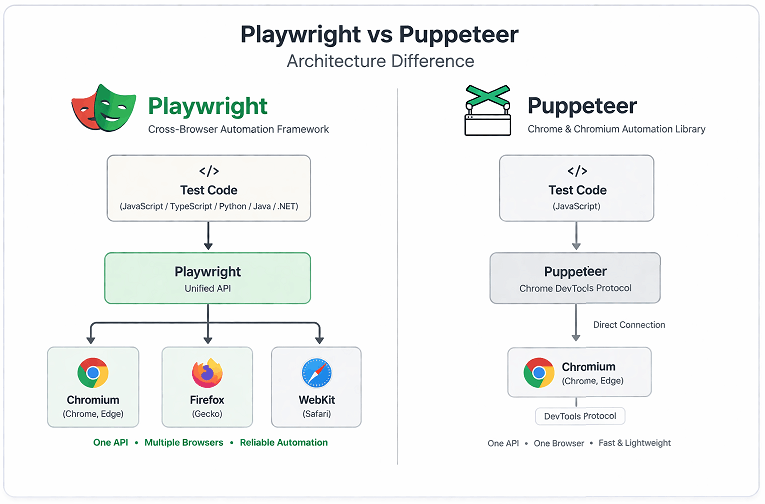
This is the core reason why Playwright supports multiple browsers and scales better, while Puppeteer remains tightly coupled with Chromium.
This difference explains why Playwright tests are generally more stable and less flaky compared to Puppeteer, especially in complex web applications.
Playwright Architecture Overview
Playwright uses a modern architecture that allows it to control multiple browsers through a unified API. It creates isolated browser contexts, which act like separate user sessions without launching multiple browser instances.
- Uses browser contexts for session isolation
- Supports Chromium, Firefox, and WebKit through a unified API
- Handles multiple tabs and sessions efficiently
- Designed for parallel execution and scalable test automation
This design allows Playwright to run tests more reliably and reduce conflicts between test cases.
Puppeteer Architecture Overview
Puppeteer is built around the Chrome DevTools Protocol and works directly with Chromium-based browsers. This makes it simple and efficient, but less flexible for multi-browser automation.
- Direct communication with Chromium using DevTools Protocol
- No native multi-browser architecture
- Limited isolation compared to browser contexts
- Scaling requires additional setup
This approach works well for simple automation but can become harder to manage in complex or large-scale projects.
Why This Difference Matters in Real Projects
In practical terms, this architecture means fewer test failures, better isolation, and more reliable execution when your application becomes complex.
- Playwright handles modern dynamic apps more reliably
- Puppeteer requires more manual handling for stability
- Parallel execution is easier and safer in Playwright
In practice, Playwright handles complexity for you, while Puppeteer gives you more manual control. This is why Playwright is preferred for large-scale automation and Puppeteer for simpler tasks.
Understanding the differences is useful, but the real question is how these differences affect your actual use case.
When Should You Use Each Tool?
Choosing between Playwright and Puppeteer depends on your specific use case. Here’s a practical breakdown to help you decide quickly based on real-world scenarios.
Use Playwright when you need cross-browser testing, end-to-end automation, and reliable execution for modern web applications. Use Puppeteer when your requirements are limited to Chrome automation, simple scripting, or lightweight tasks.
Use Playwright for Modern Testing and Scalable Automation
Playwright is ideal for complex applications where stability, scalability, and cross-browser support are critical.
- Cross-browser testing across Chromium, Firefox, and WebKit
- End-to-end testing of modern web applications
- Handling multiple tabs, sessions, and user contexts
- Testing login flows, authentication, and multi-user scenarios
- CI/CD integration with parallel execution
Best suited for: QA engineers, automation testers, and teams building scalable test frameworks.
In enterprise setups, Playwright significantly reduces flaky tests because of its built-in auto-waiting. This is one of the biggest advantages developers notice after switching from Puppeteer.
If you’re planning a career in automation testing, understanding current trends like automation tester salary and growth opportunities can help you make better decisions.
Choose Puppeteer for Simple and Lightweight Tasks
Puppeteer works best for straightforward automation tasks focused on Chromium-based browsers.
- Web scraping and data extraction
- Generating PDFs and screenshots
- Automating repetitive browser tasks
- Running quick scripts without complex setup
Best suited for: Developers writing quick scripts, scraping data, or automating browser tasks in Chrome.
If your project does not require Firefox or WebKit testing, Puppeteer can still be a fast and efficient solution.
Real-World Scenario: Which One Should You Pick?
If you’re still unsure, use this quick decision checklist:
- If you are building a testing framework for a production app, choose Playwright
- If you are writing a quick scraping script, choose Puppeteer
- If you need reliability and fewer flaky tests, choose Playwright
- If you want minimal setup and quick execution, Puppeteer works fine
Quick takeaway: Choose Playwright for long-term, scalable automation. Choose Puppeteer for short-term, simple tasks.
If you are planning for long-term scalability, Playwright is the stronger choice. Puppeteer still works well for smaller and focused automation tasks.
Can You Switch from Puppeteer to Playwright Easily?
Yes, switching from Puppeteer to Playwright is relatively easy. Both tools share a similar API structure, making migration straightforward for most projects.
However, there are a few important differences to consider:
- Playwright introduces browser contexts for isolation
- Auto-waiting reduces the need for manual waits
- Selectors and locators are more advanced in Playwright
Most developers can migrate within a few hours for small projects, while larger frameworks may require structured refactoring.
Is Playwright Replacing Puppeteer?
Playwright is not officially replacing Puppeteer, but it is becoming the preferred choice for modern automation.
Many teams are adopting Playwright because:
- It supports multiple browsers out of the box
- It reduces flaky tests with auto-waiting
- It includes a built-in test runner and debugging tools
Puppeteer is still maintained and widely used, especially for Chrome-based automation and scripting tasks.
Which Tool Is Right for You?
- Choose Playwright if you are:
- QA engineer working on automation testing
- Building scalable test frameworks
- Testing across multiple browsers
- Choose Puppeteer if you are:
- Developer writing quick automation scripts
- Working only with Chrome or Chromium
- Doing web scraping or PDF generation
Final Decision Table: Playwright vs Puppeteer
| If You Want | Choose |
|---|---|
| Cross-browser testing | Playwright |
| Fast and simple scripts | Puppeteer |
| Scalable automation framework | Playwright |
| Web scraping | Puppeteer |
| Less flaky tests | Playwright |
| Quick setup | Puppeteer |
To make these differences more practical, let’s look at how both tools behave in real code examples.
Code Comparison: How Both Tools Work in Practice
Both Playwright and Puppeteer provide similar APIs, but Playwright includes more built-in capabilities like auto-waiting and better browser handling. The following examples show how similar tasks are performed in both tools.
JavaScript Example: Getting Page Title
This example demonstrates how to launch a browser, navigate to a page, and fetch the page title using both tools.
Playwright Implementation
This Playwright example shows a simple script with built-in waiting and clean structure.
const { chromium } = require('playwright');

(async () => {
  const browser = await chromium.launch();
  const page = await browser.newPage();
  await page.goto('https://example.com');
  console.log(await page.title());
  await browser.close();
})();
Puppeteer Implementation
This Puppeteer example performs the same task but relies more on manual handling in complex cases.
const puppeteer = require('puppeteer');

(async () => {
  const browser = await puppeteer.launch();
  const page = await browser.newPage();
  await page.goto('https://example.com');
  console.log(await page.title());
  await browser.close();
})();
Handling Auto Waiting Behavior
Here is where a key difference appears. Playwright automatically waits for elements to be ready, while Puppeteer often requires explicit waits.
This difference is easier to understand visually when comparing how both tools handle element readiness.
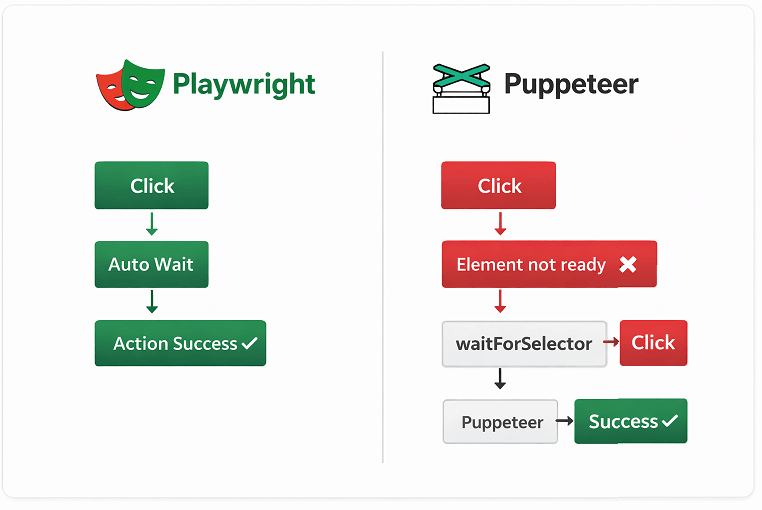
This is why Playwright tests are generally more stable and require less maintenance compared to Puppeteer scripts.
Playwright Auto Waiting Example
This example shows how Playwright waits automatically before performing a click action.
await page.click('#login-button');Puppeteer Manual Waiting Example
In Puppeteer, you often need to manually wait for the element before interacting with it.
await page.waitForSelector('#login-button');
await page.click('#login-button');
Key Observation from Code Comparison
Playwright reduces the need for manual waits and extra code, which improves readability and reduces flaky tests. Puppeteer requires more control from the developer, which can be beneficial in simple scripts but adds complexity in larger projects.
As projects grow in complexity, Playwright offers a cleaner and more reliable developer experience.
Even with the right tool, mistakes can happen. Understanding common issues can save a lot of debugging time.
Common Mistakes and Debugging Tips for Automation
No matter which tool you use, most issues come from the same few mistakes.
Most failures in Playwright and Puppeteer are caused by timing issues, incorrect selectors, or misunderstanding how the browser behaves. Fixing these common mistakes can significantly improve test stability and reduce debugging time.
These are real issues developers run into frequently, along with practical ways to handle them.
Why Do Tests Fail Due to Timing Issues?
Tests fail due to timing issues when actions are performed before elements are fully loaded or interactive. Playwright handles this automatically in most cases, while Puppeteer often requires manual waits.
- Playwright auto waits for elements before actions
- Puppeteer requires waitForSelector or custom delays
- Animations and dynamic content can cause unexpected failures
Quick Tip: Avoid using fixed timeouts like setTimeout. Always rely on element-based waiting strategies.
Selector Mistakes That Break Automation
Using unstable or dynamic selectors is one of the biggest causes of flaky tests. This happens when developers rely on auto-generated class names or changing attributes.
- Avoid dynamic class names
- Prefer data-testid or stable attributes
- Use role-based selectors in Playwright for better reliability
Real Insight: Playwright provides better selector strategies like getByRole and getByText, which are more stable compared to CSS selectors.
Debugging Failures in Playwright
Playwright provides built-in debugging tools that make it easier to identify issues during test execution.
- Use
--headedmode to see browser actions - Enable trace viewer for detailed debugging
- Use screenshots and video recording features
These tools are part of the latest Playwright features and are extremely helpful for diagnosing flaky tests.
Debugging Challenges in Puppeteer
Puppeteer debugging is more manual compared to Playwright. Developers often rely on logs, screenshots, and manual inspection.
- Use headful mode for visual debugging
- Capture screenshots at failure points
- Log network requests for deeper analysis
While Puppeteer can still be debugged effectively, it requires more setup and effort.
Most Common Beginner Mistake
The most common mistake beginners make is assuming both tools behave the same way. While their APIs look similar, Playwright handles many things automatically that Puppeteer does not.
If you look at real usage, understanding these subtle differences helps avoid confusion and saves hours of debugging time.
Beyond features and usability, performance and stability are critical factors when choosing an automation tool.
Performance, Stability, and Scalability Comparison
Playwright generally provides better stability and scalability for modern web applications and end-to-end testing, while Puppeteer performs well for lightweight browser automation and Chrome-focused tasks. The performance difference is not just about speed but also about how reliably your automation runs over time.
In actual development workflows, stability and maintainability matter more than raw execution speed. This is where Playwright stands out.
How Does Performance Compare in Real Projects?
Both Playwright and Puppeteer are fast because they control browsers directly. However, Playwright often feels faster in end-to-end tests due to reduced waiting logic and fewer retries.
- Playwright reduces extra wait logic with auto-waiting
- Puppeteer may require additional code for stability
- Execution time becomes similar in simple scripts
Important Note: For basic scraping or scripts, you may not notice a major speed difference.
Why is Playwright More Stable?
The biggest difference in real projects is not speed, but consistency. Tests that fail randomly in Puppeteer often pass consistently in Playwright due to better execution handling.
- Auto-waiting reduces timing issues
- Better handling of dynamic UI elements
- Consistent behavior across browsers
In production environments, this leads to fewer broken tests and less maintenance effort.
Scalability in Large Automation Projects
Playwright is designed for scalability with built-in support for parallel execution, multiple browser contexts, and test isolation. Puppeteer requires additional setup to achieve similar scalability.
- Playwright supports parallel test execution out of the box
- Browser contexts allow isolated sessions for testing
- Puppeteer needs external tools or custom logic for scaling
Because of this, Playwright fits naturally into large teams and CI/CD pipelines.
Comparison Table: Performance and Stability
This table summarizes the differences in performance-related aspects.
| Aspect | Playwright | Puppeteer |
|---|---|---|
| Execution Speed | Fast with optimized workflows | Fast for simple tasks |
| Stability | High due to auto-waiting | Moderate, depends on manual waits |
| Flaky Tests | Less common | More common without careful handling |
| Parallel Execution | Built-in | Requires setup |
| CI/CD Integration | Smooth and scalable | Possible but needs effort |
In short, Playwright provides a more stable and scalable solution, especially for long-term automation projects.
Does Playwright Consume More Resources?
Playwright may use slightly more resources due to multi-browser support and advanced features. However, this is usually not a concern in modern development environments.
Is Puppeteer Still Good for Performance-Critical Tasks?
Yes. Puppeteer is still a strong choice for performance-critical scripts where you need fast execution with minimal overhead, especially in Chrome-only environments.
Which is better for automation testing: Playwright or Puppeteer?
Playwright is preferred when you need cross-browser testing and advanced automation features, while Puppeteer is more suited for simple Chromium-based tasks.
No matter which tool you choose, following best practices is essential for building reliable and maintainable automation.
Best Practices for Reliable Browser Automation
These best practices focus on improving maintainability and scalability rather than fixing common errors.
If you apply these tips early, you will save significant debugging time and build more stable automation scripts.
Use Stable Selectors for Reliable Automation
Stable selectors are critical for maintaining long-term test reliability. Avoid selectors that change frequently.
- Prefer
data-testidor custom attributes - Avoid dynamic class names generated by frameworks
- Use role-based selectors in Playwright when possible
Pro Tip: In Playwright, methods like getByRole() and getByText() are more resilient than raw CSS selectors.
Organize Tests Using Clear Structure
Well-structured code improves readability and makes debugging easier in both tools.
- Separate test logic from page interactions
- Use Page Object Model for large projects
- Keep reusable functions for repeated actions
Playwright Test runner provides built-in structure, while Puppeteer often requires external frameworks like Jest or Mocha.
Leverage Built-In Features in Playwright
Playwright includes several built-in capabilities that developers often overlook.
- Use browser contexts for test isolation
- Enable tracing for debugging failures
- Use parallel execution to speed up tests
Using these features correctly can significantly improve productivity and test performance.
Optimize Puppeteer Scripts for Better Stability
Puppeteer can be very stable if used correctly with proper handling.
- Always wait for elements before interacting
- Handle navigation and network requests carefully
- Use retries for flaky operations
With these optimizations, Puppeteer can still be a reliable tool for many use cases.
Quick Summary of Best Practices
Here is a quick summary you can follow in any project:
- Use stable selectors
- Avoid hardcoded waits
- Structure your tests properly
- Use built-in features instead of reinventing logic
- Focus on stability over shortcuts
To summarize, writing clean and stable automation code matters more than which tool you choose.
You might also be comparing these tools with Selenium, especially if you’re coming from traditional automation frameworks.
Playwright vs Puppeteer vs Selenium: Which Tool Is Better?
Playwright, Puppeteer, and Selenium are popular browser automation tools, but they differ significantly in features, performance, and use cases. Choosing the right tool depends on your project requirements, browser support, and testing complexity.
If you’re specifically comparing Playwright with Selenium, this detailed Playwright vs Selenium comparison breaks down performance, speed, and real-world use cases.
| Feature | Playwright | Puppeteer | Selenium |
|---|---|---|---|
| Browser Support | Chromium, Firefox, WebKit | Chromium (limited Firefox) | All major browsers |
| Auto Waiting | Built-in | Manual | Manual |
| Language Support | JS, TS, Python, Java, .NET | JS (official) | Multiple languages |
| Performance | Fast and modern | Fast for simple tasks | Slower compared to modern tools |
| Best Use Case | Modern testing and automation | Scraping and scripts | Legacy and enterprise testing |
Playwright is the best choice for modern automation, Puppeteer is ideal for simple scripts, and Selenium remains useful for legacy systems and enterprise environments.
To summarize everything clearly, here are the main advantages and limitations of each tool.
Pros and Cons of Each Tool
Playwright Pros
- Supports multiple browsers including Chromium, Firefox, and WebKit
- Built-in auto-waiting reduces flaky tests
- Parallel execution support
- Advanced features for modern applications
Playwright Cons
- Slightly higher learning curve for beginners
- Consumes more resources compared to Puppeteer
Puppeteer Pros
- Simple and easy to learn
- Lightweight and fast for Chrome automation
- Great for scraping and scripting tasks
Puppeteer Cons
- Limited browser support
- Requires manual waits for stability
- Not ideal for large-scale testing
Beyond features and comparisons, it’s also useful to understand how these tools are evolving in the industry.
Real Industry Trend: Why Teams Are Moving from Puppeteer to Playwright
In recent years, many development teams have started shifting from Puppeteer to Playwright. The main reasons behind this shift include better cross-browser support, reduced flaky tests, and built-in testing capabilities.
From a practical perspective:
- Teams working on modern web apps prefer Playwright for stability
- QA teams choose Playwright for parallel execution and CI/CD integration
- Puppeteer is still widely used in scraping, automation scripts, and lightweight tasks
This trend shows that while Puppeteer is not obsolete, Playwright is becoming the default choice for modern automation projects.
After comparing all aspects, here is the final takeaway to help you make a confident decision.
Conclusion
Final Verdict: Playwright is the best choice for modern, scalable, and cross-browser automation testing. Puppeteer remains a solid option for simple Chrome-based automation and quick scripting tasks.
At the end of the day, both Playwright and Puppeteer are solid tools.
If you’re building something that needs to scale or run across multiple browsers, Playwright is the safer long-term choice.
But if you just need to automate Chrome quickly without much setup, Puppeteer still does the job really well.
👉 Next Step: If you’re planning to use Playwright, start with this step-by-step guide to install Playwright and run your first test.
Frequently Asked Questions (FAQs)
What is the main difference between Playwright and Puppeteer?
The main difference is that Playwright supports multiple browsers like Chromium, Firefox, and WebKit, while Puppeteer mainly supports Chromium-based browsers. Playwright also includes built-in features like auto-waiting and parallel execution.
Which is better for web scraping, Playwright or Puppeteer?
Both Playwright and Puppeteer can be used for web scraping. Puppeteer is suitable for simple scraping tasks in Chromium, while Playwright is better for scraping dynamic websites that require handling JavaScript, multiple browsers, or complex user interactions.
Is Puppeteer easier to learn than Playwright?
Puppeteer is slightly easier for beginners due to its simple API and focus on Chrome. However, Playwright is also beginner-friendly and offers more long-term benefits.
Can Playwright replace Puppeteer?
Playwright is not officially replacing Puppeteer, but many developers are switching to Playwright because of its advanced capabilities and active development.
Does Puppeteer support Firefox or Safari?
Puppeteer has limited experimental support for Firefox and does not support Safari. Playwright fully supports Chromium, Firefox, and WebKit, which covers Safari.
Can I use Playwright for web scraping?
Yes, Playwright can be used for web scraping. It is especially useful when dealing with dynamic websites that require handling JavaScript rendering.
Do Playwright and Puppeteer support multiple programming languages?
Playwright supports multiple languages including JavaScript, TypeScript, Python, Java, and .NET. Puppeteer officially supports JavaScript, with limited support for other languages.
Is Playwright harder than Puppeteer?
No, Playwright is not harder. It may feel slightly advanced at first, but its features actually make automation easier and more stable in the long run.