Last updated on February 27th, 2026 at 03:08 am
In this step, we will learn how to Add Logging in Playwright for the enterprise automation framework. Logging is a crucial part of any test automation project because it helps track test execution, identify failures quickly, and provides detailed insights for debugging. Without proper logging, troubleshooting test failures can become time-consuming and error-prone, especially in large-scale enterprise frameworks.
Step 7 of the Playwright Enterprise Automation Framework utilizes Log4j2, a powerful and flexible logging library for Java. The framework is designed to allow logs to be enabled or disabled dynamically using a simple properties flag. This allows you to control logging behavior during test execution without changing any code, making your automation framework cleaner and more maintainable.
With logging in place, every important action, test data initialization, and test step can be recorded either to the console or to log files, helping you monitor test execution in real time and keep detailed records for reporting purposes.
This article is part of the Playwright Enterprise Automation Framework series. In this step, you will learn how to add logging to your framework for better debugging, monitoring, and reporting. To follow the framework build in sequence, you can read the previous step on adding Playwright data-driven reporting, or continue to the next step to explore extent report generation in the framework.
Previous article: How to Add Playwright Data Driven Reporting (Step 6)
Next article: How to Add Extent Report in Playwright Framework (Step 8)
If you are new to this series, you can start from the beginning and learn how to build the Playwright Enterprise Framework from scratch in the pillar article:
Enterprise Playwright Automation Framework Guide
- Why Logging is Important in Enterprise Frameworks
- Step 1: Add Log4j2 Dependencies in pom.xml
- Step 2: Create log4j2.xml Configuration File
- Step 3: Add Logging Control in Param.properties
- Step 4: Update SuiteBase.java for Logging
- Step 5: Where Logging is Applied in the Framework
- Step 6: Files Download for Step 7
- Step 7: How Logging Works During Test Execution
- Best Practices for Logging in Playwright Enterprise Framework
- Conclusion
- FAQs
Why Logging is Important in Enterprise Frameworks
Logging plays a vital role in enterprise-level test automation. One of the main benefits is debugging. When a test fails, logs provide detailed information about what went wrong and where, making it easier to identify and fix issues quickly. Without proper logging, finding the root cause of failures can become a tedious and error-prone task.
Another key advantage is tracking test execution. Logs create a chronological record of every action performed during the test, including initialization, data handling, and test steps. This helps testers and developers understand the flow of the test and ensures that nothing is missed.
Finally, logging is essential for reporting issues. Enterprise frameworks often involve multiple teams, and well-maintained logs act as documentation for defects, test results, and system behavior. By having accurate and structured logs, teams can improve collaboration, maintain quality, and ensure smooth test execution across complex projects.
In summary, logging not only helps with debugging but also provides visibility into test execution and supports enterprise-level reporting, making it a critical feature in any robust automation framework.
Step 1: Add Log4j2 Dependencies in pom.xml
The first step to implement logging in your Playwright Enterprise Framework is to include the necessary Log4j2 dependencies in your pom.xml file. These dependencies provide all the classes and interfaces needed for logging functionality in Java.
In Step 7, we have added three dependencies:
log4j-api– This provides the main logging interfaces and methods used in the framework. It allows your code to perform logging without depending on the internal implementation.log4j-core– This is the core implementation that handles the actual writing of log messages to the console, files, or other destinations. Without this, the logging API cannot output logs.log4j-slf4j2-impl– This allows Log4j2 to serve as the implementation for SLF4J, which is a widely used logging abstraction. This ensures that logs from any third-party libraries using SLF4J are routed through Log4j2 for consistency.
Adding these dependencies makes your framework ready to handle enterprise-level logging, enabling detailed insights into test execution, debugging, and reporting.
Step 2: Create log4j2.xml Configuration File
The next step in Step 7 is to configure the Log4j2 settings for your Playwright Enterprise Framework using the log4j2.xml file. This file defines how logging works during test execution and where the log messages are stored.
Placement
The log4j2.xml file should be placed under the src/test/resources folder. This ensures that it is automatically loaded by the framework during test execution, making the logging configuration available to all tests.
Console and Rolling File Appenders
In this file, two types of appenders are configured:
- Console Appender – This outputs logs directly to the console, which is useful for real-time monitoring while running tests locally.
- Rolling File Appender – This writes logs to a file on disk. The logs are rolled over daily or when they reach a specified size, keeping the files organized and manageable. This is essential for enterprise frameworks where detailed logging and historical records are needed.
Logger for Framework vs Root Logger
The file also defines two main loggers:
- Framework Logger – This logger is specifically configured for the framework’s packages, allowing you to capture detailed debug and info messages for your own test scripts.
- Root Logger – This logger captures messages from third-party libraries or external dependencies. By default, it is set to a higher log level (like
error) to avoid cluttering the logs with unnecessary information.
By configuring the log4j2.xml file in this way, the framework ensures clean, structured, and configurable logging, which can be monitored both in real time and in stored log files for analysis and reporting.
Step 3: Add Logging Control in Param.properties
To make logging flexible in your Playwright Enterprise Framework, Step 7 introduces a control flag in the Param.properties file. This allows you to enable or disable logging without changing any code in the framework.
Placement
The Param.properties file should be placed under the package:
src/test/java/com/stta/propertyThis ensures that the framework can load it during execution and dynamically control logging.
Logging Flag
The key flag added is:
addLog=true | falseHow it works
addLog=true– Logging is enabled. All messages from test execution, data initialization, and other framework actions are recorded according to thelog4j2.xmlconfiguration. This is ideal for debugging or detailed monitoring.addLog=false– Logging is disabled. Neither console nor file logs are generated. This is useful for production runs or when you want to reduce log output.
By using this flag, you get dynamic control over logging, making the framework cleaner, maintainable, and suitable for enterprise-level automation projects.
Step 4: Update SuiteBase.java for Logging
In Step 7, the SuiteBase.java class is updated to centralize logging and ensure that all framework components can log messages consistently. This is a key part of making logging enterprise-ready.
Centralized Logger Initialization
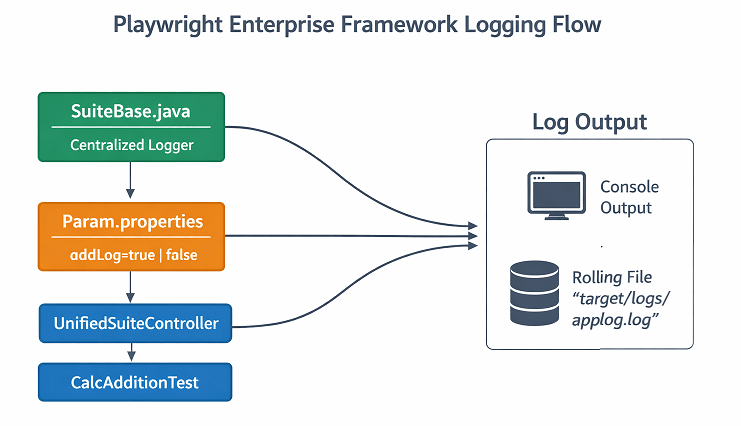
A single logger instance is created in SuiteBase, which is shared across the framework. This ensures that all logs—from test execution, data initialization, or framework actions—are routed through the same logger. Centralizing the logger also simplifies configuration and makes it easier to maintain consistent logging behavior.
@BeforeSuite Property Loading
The framework now uses a @BeforeSuite method to load the Param.properties file at the start of the test suite. This guarantees that the logging flag (addLog=true | false) is read before any tests are executed, so the logging behavior is applied consistently across all tests.
Dynamic Logger Configuration Using addLog
Based on the value of the addLog flag, the logger is dynamically configured:
- If logging is enabled (
addLog=true), the logger writes messages to the console and log files as defined inlog4j2.xml. - If logging is disabled (
addLog=false), the logger is turned off, and no messages are recorded.
This dynamic configuration makes the framework flexible and avoids changing code when enabling or disabling logs.
Step 5: Where Logging is Applied in the Framework
In Step 7, logging has been applied in multiple parts of the Playwright Enterprise Framework to help you monitor test execution and debug issues effectively.
Current Implementations
- SuiteBase.java – Centralized logger initialization and dynamic logging configuration using the
addLogflag. Logs framework setup actions, such as loading Excel files for test data. - UnifiedSuiteController.java – Logging is added to track suite execution flow and key actions during tests.
- CalcAdditionTest.java – Logging has been applied to monitor test steps, inputs, and results for the addition test scenario.
Practice for Other Test Cases
To fully understand how logging works, it is recommended to try adding logging in other test cases, such as:
CalcSubtractionTest.javaCalcMultiplicationTest.javaCalcDivisionTest.java
By doing this, you can learn how to implement logs in different scenarios and make your framework fully traceable. Each test step can generate info, debug, or error messages, helping you track test execution in real time and debug issues efficiently.
Step 6: Files Download for Step 7
⚠️ Important Note: This article is part of the Playwright Enterprise Automation Framework and covers Step 7 in a step-by-step build. The downloadable code is not standalone and depends on all previous steps in the series. If you landed here directly, please complete the earlier steps first to avoid setup or runtime issues.
To help you implement logging quickly and correctly, all the updated files for Step 7 are provided in a zip file. The zip folder contains the following files:
log4j2.xml– Logging configuration file with console and rolling file appenders.Param.properties– Properties file with theaddLogflag to enable or disable logging.SuiteBase.java– Updated base class with centralized logger initialization and dynamic logging configuration.UnifiedSuiteController.java– Controller updated to include logging for suite execution.CalcAdditionTest.java– Example test case with logging implemented for test steps.- Updated
pom.xml– Includes the required Log4j2 dependencies (log4j-api,log4j-core,log4j-slf4j2-impl).
Download Link
Download Step 7 Updated Files (ZIP)
Instructions for Updating Your Framework
- Download the zip file and extract it to a temporary folder.
- Replace the existing files in your framework with the ones from the zip:
SuiteBase.java→src/test/java/com/stta/testsuitebaseUnifiedSuiteController.java→src/test/java/com/stta/testsuitebaseCalcAdditionTest.java→src/test/java/com/stta/testcases/calculator/testsParam.properties→src/test/java/com/stta/propertylog4j2.xml→src/test/resources- Update
pom.xmlwith the new dependencies if not already added.
- Run your tests to verify that logging is working. You should see messages in the console and in the applog.log files under
target/logs/. - Experiment by adding logging to other test cases like
CalcSubtractionTest,CalcMultiplicationTest, andCalcDivisionTestto practice implementing logs in different scenarios.
By following these steps, your framework will have fully functional, enterprise-level logging ready for debugging, monitoring, and reporting.
Step 7: How Logging Works During Test Execution
Once the logging setup is complete, you can see how logs are generated during test execution in the Playwright Enterprise Framework. Logging helps track the flow of tests, monitor test steps, and debug any issues efficiently.
Example Log Messages
The framework uses different log levels to capture various types of information:
DEBUG– Provides detailed information about the execution flow, useful for troubleshooting. Example: loading Excel test data or checking fallback locators.INFO– Captures high-level actions and milestones, such as test start, test end, or successful completion of a test step.ERROR– Records failures or exceptions encountered during test execution, helping identify critical issues quickly.
Log File Location
By default, all logs are written to a rolling file located at:
target/logs/applog.logAdditionally, logs are also printed to the console, so you can monitor test execution in real time. The rolling file ensures that logs are organized, with old logs archived based on date or size, keeping your log folder manageable.
How Disabling Logs Works
If the addLog=false flag is set in Param.properties, the framework dynamically turns off logging. In this mode:
- No messages are recorded in the console.
- No messages are written to the log file.
- The test execution runs as usual, but without generating logs.
This feature allows you to control logging behavior for different environments, such as enabling logs during debugging and disabling them in production runs, keeping log output clean and relevant.
Best Practices for Logging in Playwright Enterprise Framework
Implementing logging in your framework is not just about writing logs; it’s also important to follow best practices to make them useful, maintainable, and efficient.
Keep Logger Centralized
Always use a single, centralized logger in your framework (as implemented in SuiteBase.java). This ensures consistency across all tests and modules, makes configuration easier, and avoids creating multiple logger instances unnecessarily.
Avoid Unnecessary Debug Logs in Production
While debug logs are helpful during development and testing, they can clutter your log files in production environments. Use the addLog=false flag or adjust log levels to limit output, keeping logs clean and focused on important information.
Use Meaningful Messages
Log messages should clearly describe the action, event, or error being recorded. Avoid vague messages like “Step executed” and instead include contextual information such as the test step, input values, or the specific operation being performed. This makes debugging and reporting much easier.
Use Separate Log Files for Different Modules if Needed
For larger frameworks, consider creating separate log files for different modules. This helps isolate logs, makes analysis easier, and keeps log files smaller and more organized. For example, you could have separate logs for data initialization, test execution, and framework utilities.
By following these best practices, your logging system becomes more maintainable, readable, and effective, helping you debug issues quickly and monitor your Playwright Enterprise Framework efficiently.
Conclusion
In Step 7, we learned how to Add Logging in Playwright to make your enterprise automation framework more robust and maintainable. We started by adding the necessary Log4j2 dependencies in pom.xml, configured logging with log4j2.xml, and added a flexible addLog flag in Param.properties to enable or disable logs dynamically. The framework’s SuiteBase.java was updated for centralized logger initialization, and logging was also applied in the suite controller and sample test cases.
Logging plays a critical role in debugging, monitoring test execution, and reporting issues in enterprise frameworks. Properly implemented logs give you clear visibility into test flows, help quickly identify failures, and maintain detailed records for reporting purposes.
We encourage you to implement logging throughout your framework, not just in the provided examples, so that every test case and module becomes traceable, maintainable, and easier to debug. By following the steps in this guide, you can ensure your Playwright Enterprise Framework is equipped with a robust and flexible logging system.
FAQs
Can logging be disabled dynamically during test execution?
Yes. By setting the addLog flag in Param.properties to false, logging can be turned off dynamically. This prevents messages from being written to the console or log files without changing any code.
Where are the log files generated?
Log files are generated under the target/logs/ directory of your framework. The main log file is named applog.log, and older logs are automatically rolled over based on date or file size.
What is the difference between console logs and file logs?
Console logs are printed in real-time during test execution, allowing you to monitor tests as they run.
File logs are written to disk and provide a permanent, structured record of test execution, which is useful for debugging, reporting, and historical reference.