Last updated on February 27th, 2026 at 03:10 am
Reporting plays a critical role in any enterprise-level test automation framework. Clear and reliable reports help teams understand test results, failures, and overall execution health. In this Playwright Enterprise Automation Framework, reporting is treated as a core feature, not an afterthought. Allure Report in Playwright is introduced in this step to give teams more flexibility in how they view and analyze test execution results.
In Step 8, we already implemented the Extent Report as the default reporting solution in the framework. That implementation covers detailed logs, screenshots, and test status handling. Therefore, this step does not replace the Extent Report.
Instead, the Allure Report in Playwright is added as an alternate reporting option. If you prefer clean dashboards, timeline views, and a rich visual test execution history, Allure can be a better choice. This option is useful when teams want a different reporting experience without changing test cases or core framework logic.
This guide is part of the Playwright Enterprise Automation Framework series. To follow the framework implementation step by step, you can read:
Previous article: How to Add Extent Report in Playwright Framework (Step 8)
Next article: How to Run Real Playwright Tests in Enterprise Framework (Step 10)
If you are starting fresh, you can begin with the Build an Enterprise Playwright Automation Framework article.
- When to Use Allure Report in Playwright Framework
- Install Allure Command Line Tool (Global Installation)
- Add Allure Dependencies in Playwright Framework
- Configure Allure Listener in TestNG
- Download Updated Files for Step 9
- Enable or Disable Extent Report Using Config Flag
- Run Tests and Generate Allure Report
- Allure Results Directory Explained
- Common Issues and Troubleshooting
- Conclusion
- FAQs
When to Use Allure Report in Playwright Framework
Allure is provided as an alternate reporting choice in the Playwright Enterprise Automation Framework. It is useful for teams who prefer a clean and visual report with features like timelines, test history, and structured test steps. Some teams also like Allure because its reports are easy to share and understand by both technical and non-technical stakeholders.
This framework uses a configuration-based switching approach. By updating a simple flag in the properties file, users can disable Extent Report and use Allure instead. This makes reporting flexible, plug-and-play, and suitable for enterprise projects where different teams may prefer different reporting tools.
Install Allure Command Line Tool (Global Installation)
To generate a readable and interactive HTML report from your Allure results, you need the Allure Command Line Tool (CLI). During test execution, Playwright with TestNG produces raw result files in the allure-results folder. These files cannot be opened directly in a browser. The Allure CLI reads these result files and generates the final HTML report.
It is important to understand the difference: test execution generates result files, while the CLI generates the HTML report. Both steps are required to view the report.
Install Allure CLI Using npm
This method works on Windows, macOS, and Linux, but requires Node.js to be installed on your system. Node.js provides the npm command, which is used to install the Allure CLI globally.
- Verify Node.js installation:
node --version
npm --version- Install Allure CLI globally using npm:
npm install -g allure-commandline --save-devThis command makes the allure command available system-wide, so you can generate HTML reports regardless of the programming language. Even though our framework uses Playwright with Java, this method works perfectly because the CLI only reads the generated result files.
Verify Installation
After installation on any platform, run:
allure --versionshould display the installed version number. This confirms that the Allure CLI is ready to generate HTML reports from your Playwright framework’s test results.
Add Allure Dependencies in Playwright Framework
To use Allure reporting in the Playwright Enterprise Automation Framework, you need to add specific Java dependencies. These dependencies allow your framework to generate result files during test execution, which can later be converted into HTML reports using the Allure CLI. Without these dependencies, Allure would not be able to capture test status, logs, or attachments from your TestNG tests.
The two essential dependencies are:
- allure-java-commons
This is the core Allure library. It provides the functionality to handle test results, attachments, and annotations. It is responsible for creating the underlying result files that the Allure CLI will later process.
<dependency>
    <groupId>io.qameta.allure</groupId>
    <artifactId>allure-java-commons</artifactId>
    <version>2.25.0</version>
</dependency>- allure-testng
This dependency integrates Allure with TestNG. It listens to test execution events like pass, fail, or skip, and automatically writes the results to theallure-resultsfolder. It eliminates the need to manually handle test reporting in your framework.
<dependency>
    <groupId>io.qameta.allure</groupId>
    <artifactId>allure-testng</artifactId>
    <version>2.25.0</version>
</dependency>
Once these dependencies are added to your pom.xml and your project is updated, Allure reporting is ready to capture test execution data in your Playwright Java framework.
Configure Allure Listener in TestNG
To integrate Allure reporting in an enterprise framework, a listener-based approach is used. Listeners in TestNG automatically monitor test execution events such as start, pass, fail, and skip. This allows Allure to capture results, logs, and attachments without requiring any changes to your test classes or methods. Using a listener keeps the reporting logic centralized and modular, which is ideal for large-scale frameworks.
Add Allure Listener in testng.xml
To enable the listener, add the following inside the <listeners> section of your testng.xml file:
<listeners>
    <listener class-name="io.qameta.allure.testng.AllureTestNg"/>
</listeners>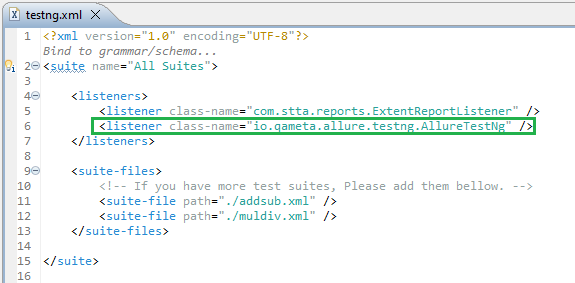
This configuration ensures that Allure listens to all TestNG test events during execution.
How TestNG Triggers Allure Lifecycle Events
When you run your tests, TestNG notifies the Allure listener about each test’s execution status:
- onTestStart – test begins
- onTestSuccess – test passes
- onTestFailure – test fails
- onTestSkipped – test is skipped
The listener then writes the relevant information (status, logs, attachments) into the allure-results folder.
Key Advantage
- No changes are required in test code.
- Allure integrates transparently, making it easy for teams to switch between reporting options.
- The listener-based design keeps reporting decoupled from business logic, following best practices for enterprise frameworks.
Download Updated Files for Step 9
⚠️ Important Note: This article is part of the Playwright Enterprise Automation Framework and covers Step 9 in a step-by-step build. The downloadable code is not standalone and depends on all previous steps in the series. If you landed here directly, please complete the earlier steps first to avoid setup or runtime issues.
For your convenience, we have provided the updated framework files for Step 9, which include Allure Report integration. You can download the ZIP folder and replace your existing files to get started immediately.
Files included in the ZIP:
pom.xml– Added Allure dependencies (allure-java-commonsandallure-testng)testng.xml– Added Allure listener for TestNG integration
Download Link:
Download Step 9 Updated Files (ZIP)
Note: Make sure to update your project with these files before proceeding to run tests with Allure Report.
Enable or Disable Extent Report Using Config Flag
The Playwright Enterprise Automation Framework provides a configuration flag in the Param.properties file to control reporting. This flag is:
addExtentReport=true | false- Set to
false– The Extent Report is disabled, and the Allure Report can be used as the alternate reporting option. - Set to
true– Extent Report remains enabled. In this case, both Extent and Allure reports will be generated during test execution.
This simple flag makes reporting plug-and-play. Teams can choose their preferred report type without changing test code or framework logic. It also ensures that the framework remains flexible, modular, and suitable for enterprise-level projects, where different teams may have different reporting preferences.
Run Tests and Generate Allure Report
Once Allure is integrated, running tests and generating the report is straightforward.
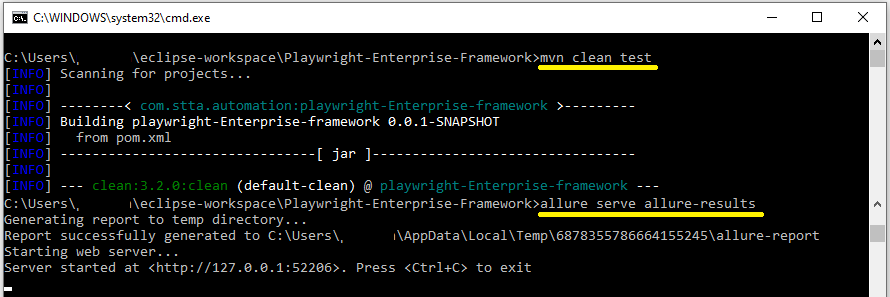
Run Tests Normally
Execute your TestNG tests as usual, either through your IDE or using Maven.
Run the command given below from your project root.
mvn clean testThere is no need to change test code, as the Allure listener automatically captures execution events.
Allure Results Folder Creation
During test execution, Allure generates a folder named allure-results in your project root. This folder contains raw result files such as XML and JSON, which include test status, logs, and attachments. This is the folder the CLI uses to create the HTML report.
Generate HTML Report Using Allure CLI
After the tests finish, run the following command from the project root to generate and view the HTML report:
allure serve allure-resultsThis command reads the files from allure-results, generates an interactive HTML report, and automatically opens it in your default browser.
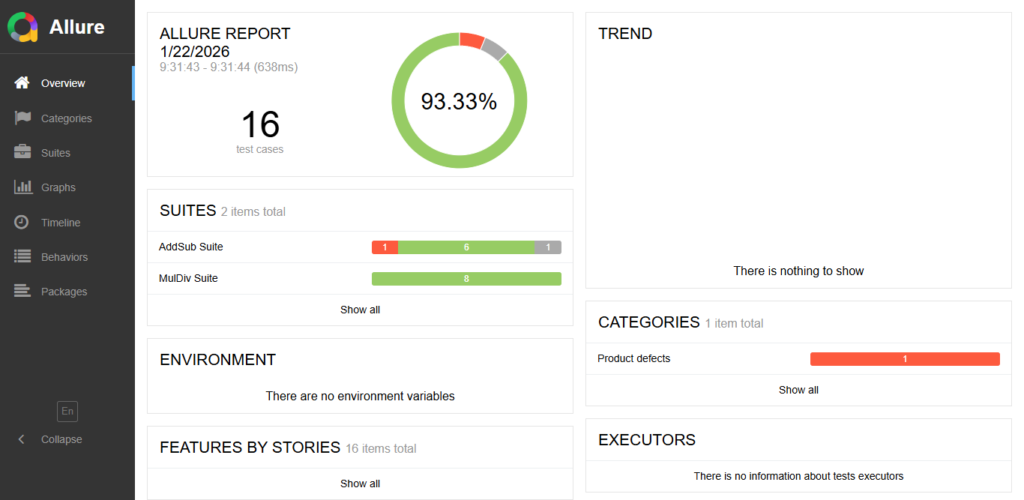
Open Report in Browser
Once the command executes, the report will open in your browser, showing:
Test suite hierarchy
Test status (pass, fail, skip)
Logs and attachments
Timeline of execution
This process ensures that Allure reporting is fully functional and ready to use in your Playwright Enterprise Automation Framework.
Allure Results Directory Explained
The allure-results directory is where Allure stores raw test execution data. This folder is created automatically during test execution when the Allure TestNG listener is enabled.
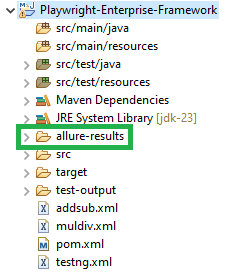
What files are generated
The directory contains multiple result files such as JSON and XML. These files store test status, execution details, logs, and attachments like screenshots. The Allure Command Line Tool reads these files to generate the final HTML report.
When the folder is created
The allure-results folder is created every time tests are executed. If the folder already exists, new result files are added during the current run.
When it gets cleaned or reused
Allure does not clean the allure-results directory automatically. To avoid mixing results from previous test runs, it is recommended to delete the allure-results folder before each fresh execution. Running tests with mvn clean test ensures that a new and clean results directory is created for every run.
Useful for CI pipelines
In CI pipelines, the allure-results folder can be archived as a build artifact. This allows reports to be generated later or published as part of the pipeline, making it easy to track test results across builds.
Common Issues and Troubleshooting
Allure command not found
This usually means the Allure Command Line Tool is not installed or not available in the system PATH. Make sure Allure is installed using npm, and verify it with allure --version. If the command is still not recognized, restart the terminal or system and try again.
Report not generated
If the HTML report is not generated, check that tests were executed successfully and that the Allure TestNG listener is configured correctly in testng.xml. Also, confirm that the allure-results folder exists before running the Allure CLI command.
Empty report
An empty report usually appears when the allure-results folder contains no valid result files. This can happen if the listener is missing, tests were not run, or the folder was cleaned after execution. Always generate the report after test execution completes.
Results folder missing
If the allure-results folder is not created, verify that the Allure dependencies are added in pom.xml and the listener is enabled in testng.xml. Without these, Allure cannot capture test execution data.
Conclusion
In this step, we integrated Allure Report in Playwright as an optional reporting solution in the Playwright Enterprise Automation Framework. The setup allows Allure to capture test execution details and generate clean, interactive reports without changing existing test code.
Allure is introduced as an alternate reporting option, while Extent Report remains available as explained in Step 8. Using a simple configuration flag, teams can choose the reporting approach that best fits their needs or even generate both reports together.
This flexible, configuration-driven design makes the framework truly enterprise-ready. It supports different team preferences, scales well across projects, and keeps reporting decoupled from core test logic.
FAQs
What is the Allure Report in Playwright
Allure Report in Playwright is a reporting solution that generates detailed and visual test execution reports. In a Playwright Java framework, Allure collects test results through TestNG listeners and converts them into an interactive HTML report using the Allure Command Line Tool.
Can I use Allure without Extent Report?
Yes. You can disable the Extent Report by setting the addExtentReport flag to false in the configuration file. In this case, only the Allure Report will be generated during test execution.
Do I need to modify test cases for Allur?e
No. Allure is integrated using a listener-based approach. This means test cases do not require any changes, and reporting remains completely separate from test logic.
Is Allure suitable for enterprise frameworks?
Yes. Allure is well-suited for enterprise frameworks because it supports configuration-based integration, clean report structure, and easy integration with CI pipelines. It works well alongside other reporting tools without impacting framework stability.