
Last updated on February 26th, 2026 at 09:04 am
In Step 1 of the Playwright Enterprise Framework series, we focused on setting up a clean and scalable project structure. That step prepared the foundation required to build enterprise-level automation. In Step 2, we introduce Excel Driven Tests to ensure the framework can read data from Excel files and control test execution reliably.
The purpose of this step is to validate Excel-driven execution and control flow before adding real validations. We confirm that suite execution can be managed using Excel and that test data is correctly passed into test methods. This approach is essential for enterprise frameworks where execution is often controlled without modifying code.
To make this step easy to follow, ready-made files are provided. You can download them, add them to your framework, and execute the test immediately, allowing you to focus on understanding how Excel Driven Tests work in the Playwright Enterprise Framework.
Previous article: How to Set Up a Project for Playwright Enterprise Framework (Step 1)
Next article: How to Scale Tests in Playwright Enterprise Setup (Step 3)
If you are new to this series, start with the complete overview of the Playwright Enterprise Automation Framework, which explains the architecture, goals, and design principles in detail.
- What We Are Building in Step 2
- Download Ready-Made Files for Step 2
- High-Level Execution Flow
- Excel Files Used in This Step
- Understanding the Core Framework Classes
- CalcAdditionTest Explained
- How DataProvider Reads Excel Data
- Test Method Execution Flow
- Common Beginner Mistakes to Avoid
- What Comes Next
- Conclusion
- FAQs
What We Are Building in Step 2
In this step, we are building the foundation for Excel-driven execution in the Playwright Enterprise Framework. Instead of hard-coding values inside test methods, test data and execution decisions are managed using Excel files. This makes the framework easier to control, scale, and maintain in real-world projects.
Step 2 verifies that the framework can load Excel files correctly, read test data row by row, and pass that data into test methods using a DataProvider. It also confirms that suite execution can be controlled using Excel without changing any code. If this flow works correctly, the framework is ready to support complex and data-heavy test scenarios in later steps.
For beginners, the focus in this step should be on understanding how data flows through the framework, not on writing test logic or assertions. Once the execution flow and Excel integration are clear, adding validations becomes much easier and less error-prone. This approach helps build confidence and prevents common mistakes early in the automation journey.
Download Ready-Made Files for Step 2
Important Note
This article is part of the Playwright Enterprise Automation Framework and covers Step 2 in a step-by-step build.
The downloadable code is not standalone and depends on all previous steps in the series.
If you landed here directly, please complete the earlier steps first to avoid setup or runtime issues.
You can download all the ready-made files for Step 2 here:
[Download Step 2 Excel-Driven Test Files]
To make this step easy to follow, ready-made files are provided so you can focus on understanding the framework flow instead of creating everything manually. You can download all required files, place them into your existing framework structure, and execute the test without any additional setup.
What This Download Contains
The downloadable zip includes the complete set of files used in this step:
- CalcAdditionTest test class used to read and print Excel test data
- SuiteBase and UnifiedSuiteController classes for Excel initialization and suite-level execution control
- Read_XLS and SuiteUtility helper classes for reading and writing Excel data
- TestSuiteList.xls for controlling suite execution
- AddSub.xls for addition test data
- MulDiv.xls included for framework consistency and future steps
- pom.xml with required dependencies
- testng.xml to execute the test using TestNG
Once downloaded, you can copy these files into the appropriate folders of your Playwright Enterprise Framework and run the test immediately. This approach reduces setup errors and helps beginners understand how Excel-driven tests are executed end-to-end.
How to Use the Downloaded Zip
After downloading the zip file, extract it to any location on your system. The extracted folder will contain all required test classes, utility classes, Excel files, and configuration files used in this step.
Next, copy the Java classes into their respective packages inside your existing Playwright Enterprise Framework. Make sure the package structure remains unchanged so that TestNG can locate the classes correctly.
Package Placement Guide
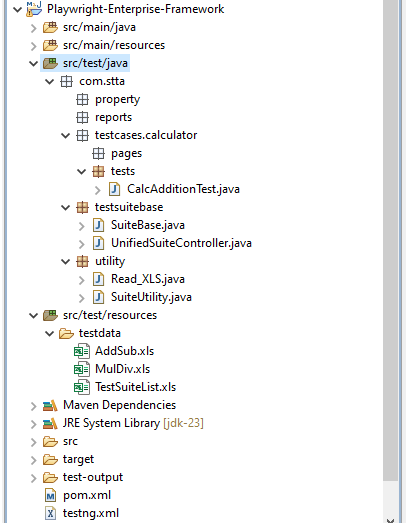
Use the following package structure when copying the files:
- CalcAdditionTest.java
src/test/java/com/stta/testcases/calculator/tests - SuiteBase.java
src/test/java/com/stta/testsuitebase - UnifiedSuiteController.java
src/test/java/com/stta/testsuitebase - Read_XLS.java
src/test/java/com/stta/utility - SuiteUtility.java
src/test/java/com/stta/utility
Data Excel File Placement
Place all Excel files inside the following directory of your project:
src/test/resources/testdataThis location is important because the framework reads test data from this folder during execution.
Configuration File Placement
Place the configuration files in the following locations:
- pom.xml
Project root directory
This file manages Maven dependencies and plugins required to run the framework. - testng.xml
Project root directory
This file is used to trigger test execution and pass suite-level parameters.
Make sure both files are placed at the root level of the project and not inside the src folder.
Correct File and Folder Placement in the Framework
The screenshot below shows the expected project structure after copying all Step 2 files into the Playwright Enterprise Framework. Make sure your folders and package names match exactly to avoid execution issues.
Running Test
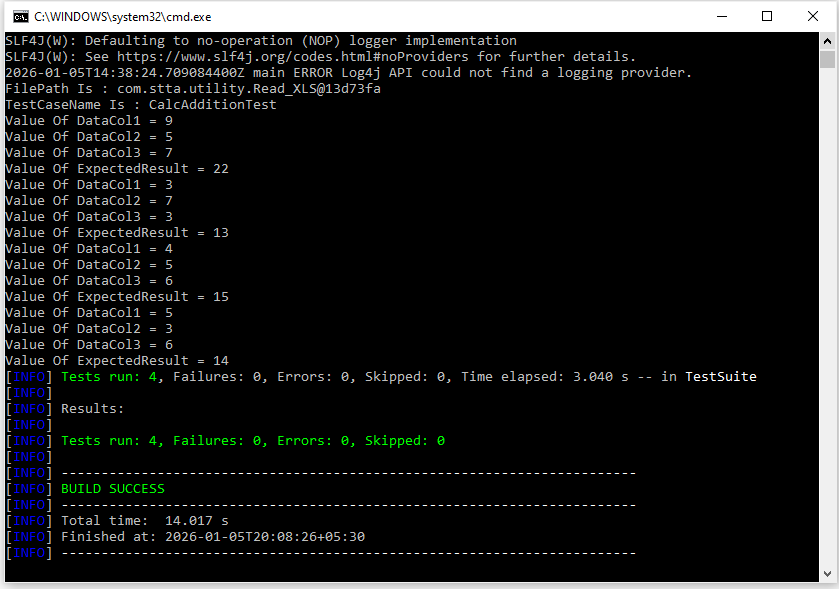
Finally, run the test using testng.xml. You can execute it directly from your Eclipse IDE by right-clicking on the testng.xml file and selecting Run As TestNG Suite, or run it using the Maven command from the project root:
mvn testOnce the execution starts, the test will read data from Excel files and print the values to the console, confirming that Excel-driven execution is working as expected.
The screenshot below confirms that Excel-driven test execution works correctly when the suite is run using Maven.
Why This Download Is Helpful
This download removes the need for manual file creation, which can be time-consuming and confusing for beginners. All required classes, configuration files, and Excel files are already prepared and tested to work together.
Using ready-made files also avoids copy-paste errors that often occur when creating multiple classes and Excel sheets manually. This ensures that package names, file paths, and configurations remain consistent.
For beginners, this approach significantly speeds up learning. Instead of spending time fixing setup issues, readers can directly run the test and observe how Excel-driven execution works in the framework.
Most importantly, the download helps readers focus on understanding the framework execution flow. Once the flow is clear, extending the framework with validations and real test logic becomes much easier in the next steps of the series.
High-Level Execution Flow
The execution starts from the testng.xml file. This file defines which test class should run and passes the required suite-level parameters to the framework.
Before any test is executed, suite execution is validated using TestSuiteList.xls. The framework checks whether the suite is marked to run or not. If the execution flag is disabled, the entire suite is skipped.
Once the suite is allowed to run, all required Excel files are loaded using the SuiteBase class. This ensures that test data files are available in memory before the test execution begins.
Next, test data is fetched from Excel using the SuiteUtility helper methods. These methods internally use the core Excel reader to retrieve data in a structured format.
The fetched data is then passed to the test method through the DataProvider. Each row in the Excel sheet results in one test execution.
Finally, the test method prints the values received from Excel to the console. This console output confirms that Excel-driven execution and data flow are working successfully in the framework.
Excel Files Used in This Step
TestSuiteList.xls
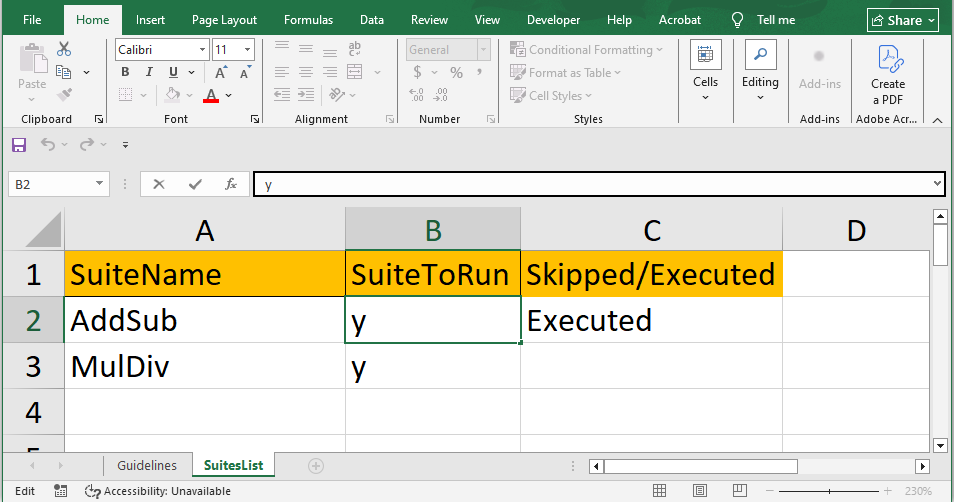
The TestSuiteList.xls file is used to control suite-level execution in the framework. It allows you to decide whether a particular test suite should run or be skipped without changing any code.
SuitesList Sheet Purpose
The SuitesList sheet acts as the master control sheet for all test suites. Each row in this sheet represents one test suite that can be executed using TestNG.
SuiteName Value Expectation
The SuiteName column must contain the exact suite name passed from the testng.xml file. For example, if the suiteName parameter in testng.xml is set to AddSub, the same value must be used in the SuiteName column. This matching is mandatory for correct suite execution control.
SuiteToRun Flag Explanation
The SuiteToRun column determines whether a suite should execute or not.
- If the value is Y, the suite will be executed.
- If the value is N or left blank, the suite will be skipped.
Based on this value, the framework either continues execution or skips the entire suite. The execution status is also written back to the Excel file for easy tracking.
The screenshot given below shows how suite execution is controlled using TestSuiteList.xls.
AddSub.xls
The AddSub.xls file contains the test data used by the addition test in this step. This file demonstrates how test data is separated from test logic in an Excel-driven framework.
Sheet Name Matching Test Class
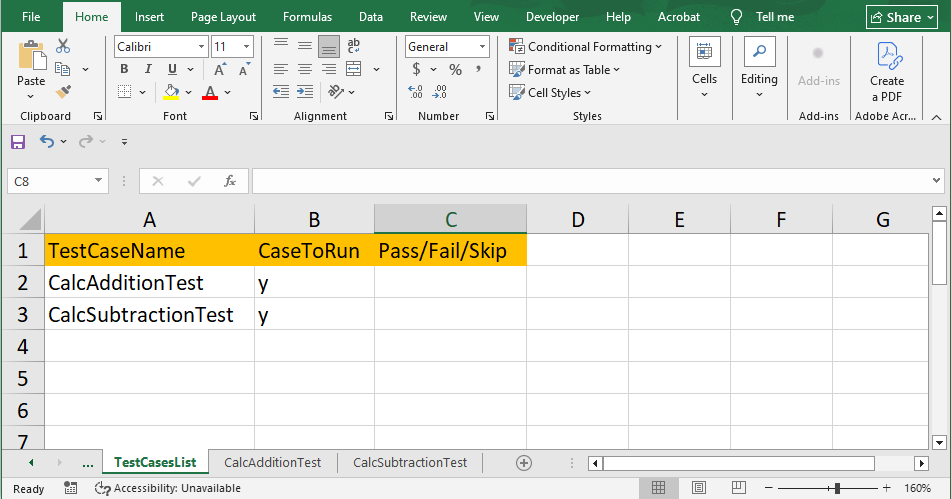
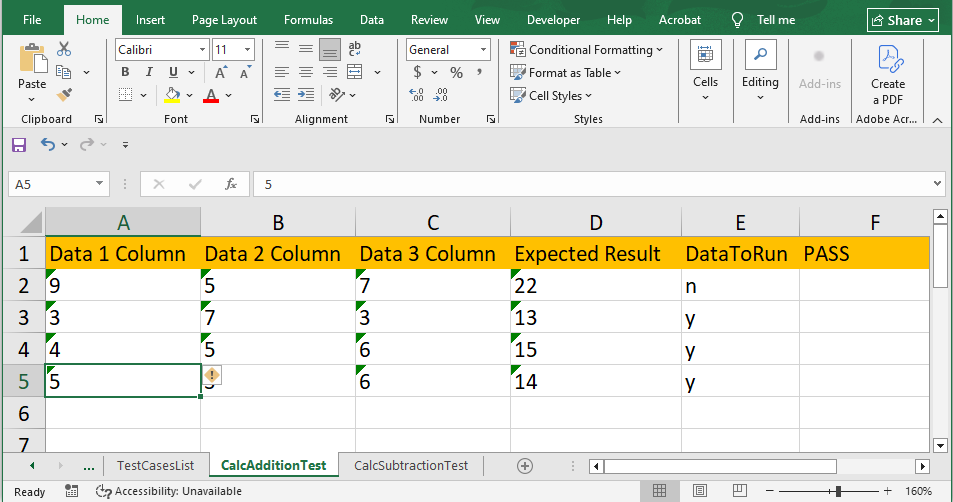
The sheet name inside AddSub.xls must exactly match the test class name. In this case, the sheet name is the same as the CalcAdditionTest class. This naming convention allows the framework to automatically identify which sheet to read data from without hard-coding sheet names.
Column-Based Test Data
Test data is organized in columns, where each column represents one input parameter or expected value for the test method. The column names align with the parameters defined in the test method, making the data easy to understand and maintain.
Multiple Rows Create Multiple Executions
Each row in the Excel sheet represents one test scenario. When multiple rows are present, the DataProvider executes the test method multiple times, once for each row. This approach enables simple and scalable data-driven execution without writing additional test code.
The screenshot below shows how individual test cases are enabled or disabled using the TestCasesList sheet inside AddSub.xls.
The screenshot below shows how test data is defined for CalcAdditionTest, where each Excel row triggers a separate test execution.
MulDiv.xls
The MulDiv.xls file is included to maintain consistency in the framework structure. Even though it is not actively used in this step, it is loaded during framework initialization to keep all related test data files aligned.
This file will be used in upcoming steps when additional test scenarios, such as multiplication and divisio,n are introduced. Including it early helps demonstrate how the framework is designed to scale without structural changes as new test cases are added.
Understanding the Core Framework Classes
SuiteBase Class
The SuiteBase class is responsible for initializing all Excel files used in the framework. It creates and maintains a single reference for each Excel file so they can be reused across multiple tests and suites.
The init() method inside this class loads the required Excel files into memory before any test execution begins. This method is called early in the execution flow to ensure that all test data files are available when the tests and DataProviders start accessing them.
Calling init() before test execution prevents null reference issues and avoids repeated file loading. This approach improves stability and ensures consistent access to Excel data throughout the framework.
UnifiedSuiteController Class
The UnifiedSuiteController class is responsible for controlling execution at the suite level. It decides whether an entire test suite should run or be skipped based on values defined in an Excel file.
This class reads execution control data from TestSuiteList.xls before any test is executed. It checks the SuiteToRun flag for the given suite name. If the value is set to run, the framework allows execution to continue. If the value is disabled or missing, the suite is skipped.
When a suite is skipped, the framework stops execution early and records the status back into the Excel file. This Excel-driven skip logic allows teams to control test execution without modifying code, which is especially useful in enterprise environments.
Read_XLS Class
The Read_XLS class is the core component responsible for reading and writing Excel data in the framework. All Excel-related operations, such as fetching test data, checking execution flags, and writing execution results, are handled through this class.
How Excel Files Are Handled Using Apache POI
Test classes never access Excel files directly. Instead, they rely on higher-level utility methods that internally use Read_XLS. This separation keeps test classes clean, readable, and focused only on test execution logic.
Excel operations in this framework are implemented using Apache POI. Apache POI is a widely used Java library that provides APIs to read, write, and update Excel files programmatically.
The Read_XLS class internally uses the Apache POI library to interact with Excel workbooks, sheets, rows, and cells. Test classes and framework users do not need to understand Apache POI APIs, as all complexity is encapsulated within this class. The required Apache POI dependency is already included in the pom.xml file, allowing Excel-driven tests to work without any additional configuration.
SuiteUtility Class
The SuiteUtility class acts as a helper layer between the test classes and the core Excel reader. It provides reusable methods that simplify common Excel-related operations used across the framework.
A utility layer is needed to avoid duplicating Excel handling logic inside test classes. Instead of calling low-level Excel methods repeatedly, test classes use simple and readable utility methods. This improves code maintainability and reduces the chance of errors.
In this step, the framework uses SuiteUtility methods to fetch test data, check execution flags, and write execution results back to Excel. These methods internally rely on the core Excel reader but expose a clean interface to the rest of the framework.
By using SuiteUtility in the DataProvider, the logic required to read Excel data is reduced to a single method call. This keeps the DataProvider easy to understand and ensures consistent Excel handling across all tests.
CalcAdditionTest Explained
The CalcAdditionTest class is a simple test class created to validate Excel-driven execution in the framework. Its primary purpose is to confirm that test data can be read from Excel and passed correctly into the test method.
The @BeforeTest method plays a critical role in this class. It calls the framework initialization logic to load all required Excel files before any test execution begins. This ensures that the DataProvider has access to the Excel data when it is invoked.
The DataProvider is connected to the test method using a helper method from the utility layer. It fetches test data from Excel and supplies it to the test method in a structured format. Each row in the Excel sheet results in one execution of the test method.
In this step, the test prints the received data to the console instead of performing validations. This is intentional. Printing the data confirms that Excel reading, DataProvider mapping, and execution flow are working correctly before adding assertions in later steps.
How DataProvider Reads Excel Data
The TestNG DataProvider is responsible for supplying test data to the test method at runtime. In this framework, it acts as the bridge between Excel files and test execution.
First, the DataProvider method is invoked by TestNG before the test method runs. It calls SuiteUtility.GetTestDataUtility, passing the Excel reference and the test class name. This allows the framework to identify which Excel sheet should be read.
The GetTestDataUtility method internally uses the core Excel reader to fetch all rows and columns from the matching Excel sheet. The retrieved data is converted into a structured format that TestNG can understand.
Each row from the Excel sheet is mapped to one set of test method parameters. The column values are passed to the test method in the same order as the parameters are defined.
The data is returned as an Object[][] because TestNG expects this format for DataProviders. Each row in the outer array represents one test execution, and each element in the inner array represents a parameter value for that execution. This structure enables clean and scalable data-driven testing.
Test Method Execution Flow
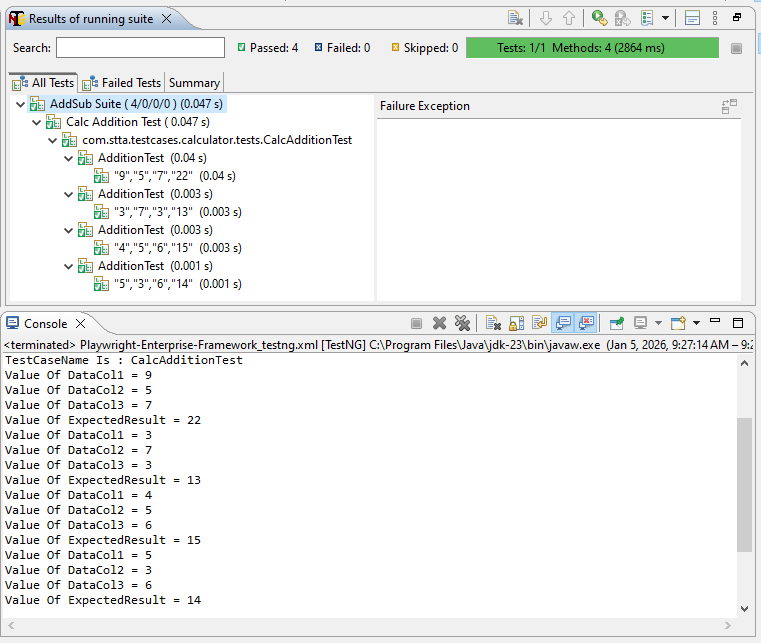
In this framework, each row in the Excel sheet results in one test execution. When the DataProvider supplies data, TestNG automatically invokes the test method once for every row returned from Excel.
During execution, the test method receives the values from Excel as method parameters. These values are printed to the console so that you can clearly see which data set is being used for each execution.
There are no assertions in this step by design. The purpose here is to confirm that Excel-driven execution, data mapping, and execution flow are working correctly. Once this foundation is verified, assertions and validations will be added in the upcoming steps.
The output given below confirms that each row from the Excel file triggered a separate TestNG execution and printed values to the console.
Common Beginner Mistakes to Avoid
One common mistake is a mismatch between the suiteName value passed from testng.xml and the value defined in the SuiteName column of TestSuiteList.xls. These values must match exactly, otherwise the suite will be skipped.
Another frequent issue is using incorrect sheet names in Excel files. The sheet name must match the test class name exactly. Even a small difference in spelling or case can prevent the framework from reading test data.
Empty or null Excel files can also cause execution failures. Always ensure that Excel files contain valid sheets, headers, and at least one row of test data before running the test.
Finally, forgetting to call the init() method before test execution can lead to null reference errors. This method is responsible for loading all Excel files, and it must be executed before any DataProvider attempts to read data.
Why This Step Is Critical for Enterprise Frameworks
Data and logic separation is a core requirement in enterprise-level automation frameworks. By moving test data and execution control to Excel Driven Tests, the framework keeps business data outside the code. As a result, test classes remain clean, readable, and easy to maintain.
Execution control without code changes is another major benefit. Using Excel files like TestSuiteList.xls, teams can decide which suites or tests should run simply by updating flags. This allows testers and managers to control execution without touching Java code or recompiling the project.
Framework scalability becomes much easier with this approach. New test cases, suites, or execution scenarios can be added by creating new Excel rows or files. Therefore, the framework can grow with enterprise needs while keeping the same stable execution flow.
What Comes Next
In Step 3, we will extend the framework to handle multiple test cases using the same Excel driven execution flow you validated in this step.
In the next step, we will introduce three more test classes: CalcSubtractionTest, CalcMultiplicationTest, and CalcDivisionTest. These tests will follow the same structure as CalcAdditionTest, but each one will read its own data from the Excel files. This will help you clearly see how the framework scales when more test cases are added, while keeping execution control and data handling consistent across the framework.
Conclusion
In Step 2, you successfully validated Excel Driven Tests within the Playwright Enterprise Framework. You learned how test execution is controlled using Excel files, how data flows from Excel into TestNG using DataProvider, and how the framework cleanly separates test logic from test data. This step also confirmed that the overall execution flow works as expected without adding complex test logic.
At this stage, you are encouraged to experiment freely. Try adding more rows in the Excel files, toggle suite execution flags, or modify test data to see how the framework responds. These small experiments will strengthen your understanding of the framework flow and build confidence before moving to more advanced scenarios.
If you have questions, face issues, or see opportunities to improve this framework, feel free to share your feedback. Reader input is always valuable and helps make this enterprise framework stronger and more practical for real-world usage.
FAQs
Can I run this test without writing code?
Yes. In this step, all required Java classes, Excel files, and configuration files are provided as ready-made downloads. You only need to place the files in the correct folders and run the test using testng.xml. No new code changes are required to validate Excel Driven Tests execution.
How does Excel control execution?
Excel controls execution through the TestSuiteList.xls file. The SuiteToRun column decides whether a test suite should run or be skipped. If the value is set to Y, the suite is executed. If it is set to N, the suite is skipped during execution.
What happens if SuiteToRun is N?
When SuiteToRun is set to N, the framework skips that suite completely. TestNG does not execute the related test class, and no data is read from the Excel test data files. This allows execution control without changing any test code.
Can I add more Excel sheets?
Yes. You can add more Excel sheets or even new Excel files as the framework grows. As long as the sheet name matches the test class name and follows the same column structure, the framework can read the data without changing the existing DataProvider logic.