Last updated on January 5th, 2026 at 03:03 pm
Setup project for Playwright Enterprise Framework is the first step toward building a powerful, scalable enterprise automation framework. Getting it right from the start saves you hours of frustration later and ensures your tests are clean, reliable, and easy to maintain.
Before you begin, ensure that Java, Maven, and Playwright are installed. If not, check our Playwright Java Installation and Setup Guide to get everything ready in minutes.
By following this guide, you’ll create a solid, enterprise-ready Playwright Java project that’s ready for real-world automation, reusable page objects, and structured test suites, giving you a strong foundation for any future testing challenge.
This article is part of the Playwright Enterprise Automation Framework series.
- Previous article: Introduction and features of Playwright Enterprise Framework
- Next article: Reading Test Data from Excel in Playwright Enterprise Framework
- Prerequisites to Setup Project For Playwright Automation Framework
- Choosing the Right Technology Stack
- Recommended Project Structure
- Step-by-Step Project Setup
- Running Your First Framework Level Test
- Common Mistakes in Project Setup
- How This Setup Fits Into the Enterprise Framework
- Interview Perspective
- Conclusion
- FAQs
Prerequisites to Setup Project For Playwright Automation Framework
Before starting the Playwright Java project setup, make sure the following requirements are in place. These basics help ensure a smooth and frustration-free framework setup.
- Java JDK installed
Required to build and run Playwright tests. Follow our Playwright Java Installation and Setup Guide if needed. - Maven installed
Used for dependency management and test execution. - IDE setup
Eclipse or IntelliJ IDEA for writing and running tests. - Basic knowledge of Playwright
Understanding of simple Playwright concepts is helpful. - Git basics (optional but recommended)
Useful for version control and team collaboration.
Choosing the Right Technology Stack
Selecting the right technology stack is essential when building an enterprise automation framework. The tools you choose must support scalability, team collaboration, and long-term maintenance.
Playwright Java is widely used by enterprise teams because it combines Playwright’s powerful browser automation capabilities with Java’s stability and ecosystem. Java is familiar to most QA teams, integrates easily with existing enterprise systems, and works well for large, long-running automation projects.
Maven is used for dependency management and build automation. It keeps all project dependencies centralized and version-controlled, which makes the framework easier to maintain across teams. Maven also simplifies running tests from the command line and integrating automation into CI pipelines.
TestNG provides strong test suite control for enterprise execution. It supports grouping tests, parallel execution, and suite-level configuration using XML files. This makes it easier to manage smoke, sanity, and regression suites in large automation projects.
Together, Playwright Java, Maven, and TestNG form a CI/CD-friendly stack. This combination allows tests to run reliably in Jenkins, GitHub Actions, or other pipelines, enabling automated feedback on every build and supporting continuous testing in enterprise environments.
Recommended Project Structure
A well-organized project structure is critical for building a scalable Playwright Java enterprise automation framework. A clean folder and package layout make the framework easier to understand, maintain, and extend as the test suite grows.
Below is an enterprise-ready package structure commonly used in large automation projects:
- base
Contains common base classes for tests. This is where browser setup, Playwright initialization, and shared framework logic are managed. - pages
Holds all Page Object Model classes. Each page class represents an application page and contains locators and reusable actions, keeping test scripts clean and readable. - tests
Includes all test scripts. These classes focus only on test scenarios and validations, without containing page-level or framework logic. - utility
Stores utility and helper classes such as Excel readers, configuration readers, wait helpers, and reusable methods used across the framework. - property
Contains framework-level configuration and object repository properties. This package manages execution flags such as application URL, browser selection, headless mode, and other environment settings. It also centralizes Playwright element locator definitions using key value pairs, making updates easier when UI changes occur. - reports
Contains Extent Report-related utility classes. This includes report configuration, initialization, logging, and teardown logic used during test execution. Keeping report logic separate helps maintain clean test code. - testdata
Holds Excel files used for data-driven testing. This keeps test data external and easy to update without modifying test scripts.
This structure scales well for large teams because responsibilities are clearly separated. Multiple automation engineers can work on pages, tests, utilities, and reporting logic in parallel without conflicts. As the framework grows, new components can be added easily, making this structure ideal for long-term enterprise automation.
Step-by-Step Project Setup
This section walks you through the initial setup of a Playwright Java test automation framework using Maven. A clean start ensures your enterprise test automation effort remains stable and easy to scale as the project grows.
Create a Maven Project
Creating a Maven project is the first step in building a structured automation testing framework for Playwright Java. A clean Maven setup helps keep your Playwright automation project easy to maintain as it grows in an enterprise environment.
Maven project creation (recommended approach)
When creating a new Maven project in your IDE, select the option:
- Create a simple project (skip archetype selection)
This option gives you a minimal and flexible project structure, which is ideal for building an enterprise automation framework from scratch. It avoids adding unnecessary sample files that are not required in real-world projects.
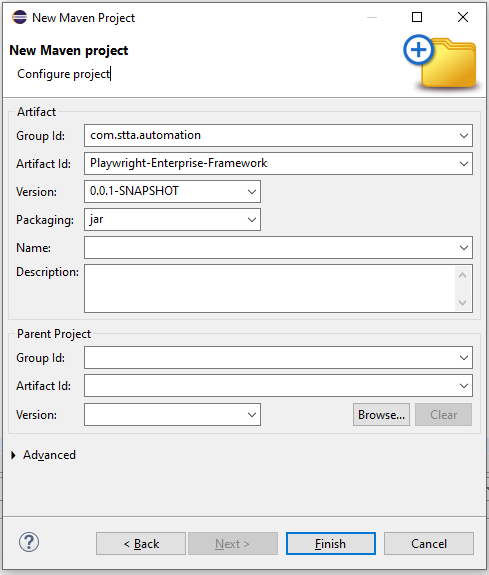
Project configuration details
In the next step, provide the following values carefully:
- Group Id
Use your company or organization’s domain in reverse format.
Example:com.company.automation - Artifact Id
Use a clear and meaningful project name that reflects your framework.
Example:Playwright-Enterprise-Framework - Version
Select the default version. For new projects, keep the default selected value. - Packaging
Select:jar
Once the Maven project is created, the initial project structure will look like this.
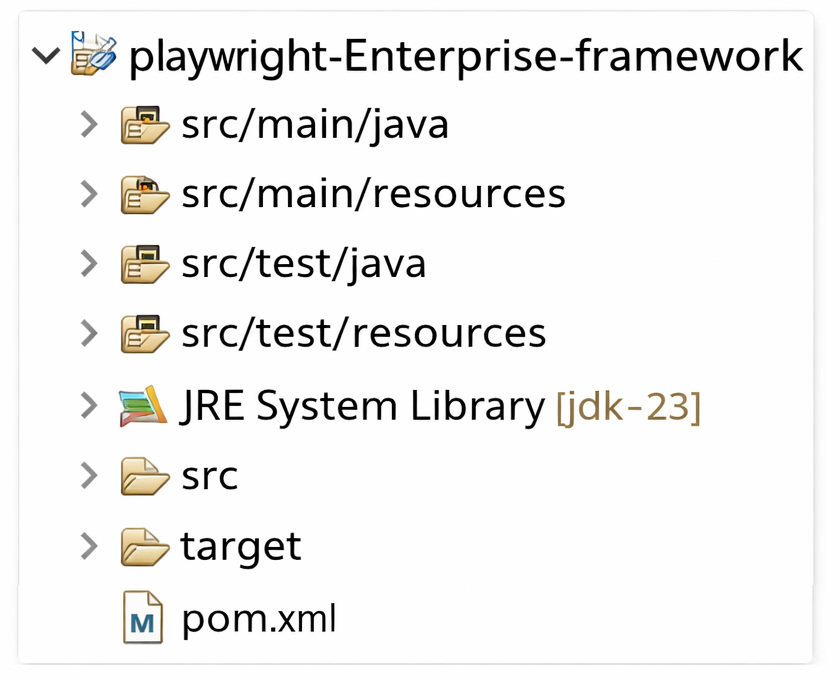
This configuration creates only the essential folders and files. As a result, your Playwright automation setup remains lightweight, clean, and suitable for scaling into a full enterprise test automation solution.
Create initial packages and resources
After creating the Maven project, add the required packages and folders under src/test/java and src/test/resources. These form the base layout for your enterprise Playwright Java automation framework.
Create the following package structure under src/test/java:
com.stta
 ├─ property      -> stores property and configuration files
 ├─ reports       -> report generation utilities
 ├─ testcases     -> test cases
 │   └─ calculator -> groups calculator-related test cases
 │       └─ pages -> page classes
 │       └─ tests -> test classes
 ├─ testsuitebase -> suite-level base classes
 └─ utility       -> common utility and helper classes
Under src/test/resources, create the following folder:
testdata -> Excel data filesThis folder is used to store Excel files for data-driven testing.
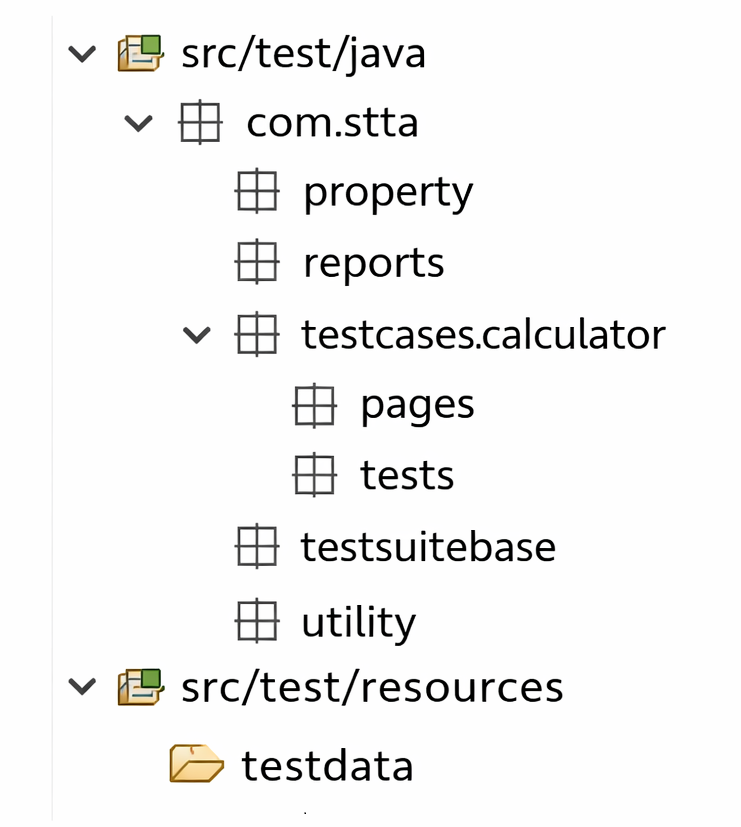
The detailed responsibilities of each package are already explained earlier in the Recommended Project Structure section. At this stage, the focus is only on creating a clean and consistent structure that can scale as the framework grows.
Add Playwright Java Dependencies
Once the Maven project is created, the next step is to add the required dependencies in pom.xml. These dependencies enable browser automation and test execution in your automation testing framework.
Playwright Java dependency in pom.xml
To use Playwright with Java, add the Playwright dependency to your Maven configuration. This dependency provides browser control, locator handling, and end-to-end automation capabilities.
<dependency>
    <groupId>com.microsoft.playwright</groupId>
    <artifactId>playwright</artifactId>
    <version>1.45.0</version>
</dependency>
Before finalizing the version, always check for the latest stable release.
You can find the most recent Playwright Java version on Maven Central.
Keeping this dependency updated helps ensure better browser support and stability in your Playwright automation setup.
TestNG dependency
TestNG is used to control test execution in an enterprise-grade automation testing framework. It helps organize tests into suites, manage execution flow, and support parallel runs.
Add the TestNG dependency as shown below:
<dependency>
    <groupId>org.testng</groupId>
    <artifactId>testng</artifactId>
    <version>7.11.0</version>
    <scope>test</scope>
</dependency>
You can verify the latest TestNG version.
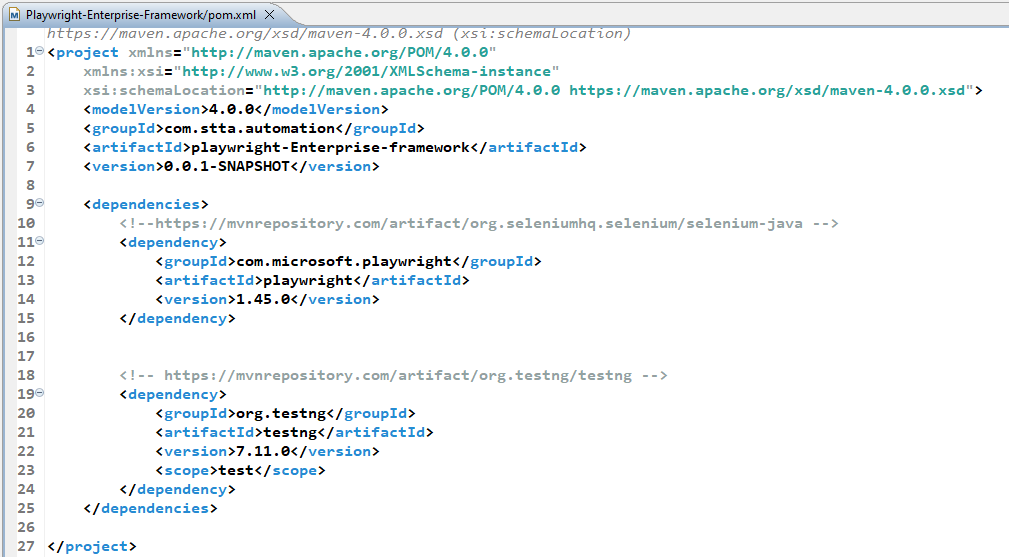
Once you add the dependencies to the pom.xml file and save it, Maven will automatically download all required libraries and transitive dependencies. You do not need to download or manage JAR files manually. Maven handles everything in the background and keeps the project dependencies consistent across environments.
To make this easier for beginners, you can download a ready-to-use pom.xml file with all required Playwright Java and TestNG dependencies already configured.
Download pom.xml file here:
[Download pom.xml for Playwright Enterprise Framework]
Install Playwright Browsers
After adding Playwright Java dependencies, the next step is to install the browser binaries required to run tests. These browsers are not downloaded automatically by Maven and must be installed separately.
Step 1: Open Command Prompt or Terminal
Open Command Prompt (Windows) or Terminal (macOS or Linux).
Step 2: Navigate to the project root directory
Navigate to your Playwright project root folder. This is the directory where your pom.xml file is located.
Example:
cd full-path\Playwright-Enterprise-FrameworkMake sure you are inside the correct folder before running the command.
Step 3: Run the Playwright browser install command
Run the following command to download the required browsers:
mvn exec:java -e -D exec.mainClass=com.microsoft.playwright.CLI -D exec.args="install"This command installs the browsers used by Playwright, such as Chromium, Firefox, and WebKit.
Step 4: Verify browser installation
Once the command completes, you should see messages indicating that the browsers were downloaded successfully.
Typical success output includes:
- Browser download progress
- Confirmation messages for Chromium, Firefox, and WebKit
- No error messages at the end of execution
If the command finishes without errors, the Playwright browsers are installed correctly.
One-time setup per machine
This browser installation is a one-time setup per machine. You do not need to run this command again unless:
- You update the Playwright version
- Browser binaries are removed
- You set up a new machine or CI agent
Completing this step ensures your Playwright automation framework can execute tests reliably in both local and enterprise CI environments.
Running Your First Framework Level Test
At this stage, your Playwright enterprise framework structure is ready.
Now, let us run a simple framework-level test to verify that everything is wired correctly.
Create a Sample Test Class
Under your test directory, create a sample test class at the following location:
src/test/java
 └── com
     └── stta
         └── testcases
             └── calculator
                 └── tests
                     └── SampleTest.java
This class represents a real framework-level test, not a standalone Java program.
Sample Test Code Using Playwright and TestNG
Below is a simple TestNG-based Playwright test.
This confirms that Maven, TestNG, and Playwright are working together correctly.
package com.stta.testcases.calculator.tests;

import com.microsoft.playwright.*;
import org.testng.annotations.Test;

public class SampleTest {

    @Test
    public void verifyPlaywrightSampleTest() {

        try (Playwright playwright = Playwright.create()) {

            Browser browser = playwright.chromium().launch(
                new BrowserType.LaunchOptions().setHeadless(false)
            );

            Page page = browser.newPage();
            page.navigate("https://playwright.dev");

            System.out.println("Page title: " + page.title());

            browser.close();
        }
    }
}
Run the Test from Project Root
Open Command Prompt and navigate to your project root directory:
Playwright-Enterprise-FrameworkRun the following command:
mvn testMaven will automatically:
- Compile test classes
- Load TestNG
- Launch Playwright browsers
- Execute your framework-level tests
Expected Output After Successful Execution
If everything is configured correctly, you will see output similar to:
Running com.stta.testcases.calculator.tests.SampleTest
Page title: Playwright
Tests run: 1, Failures: 0, Errors: 0, Skipped: 0
BUILD SUCCESS
This confirms that:
- Your enterprise Playwright framework is working
- TestNG is correctly detected by Maven
- Playwright browsers are launched successfully
- Tests can be executed from the framework level
Why This Step Is Important
Running a framework-level test validates the complete setup before adding:
- Base test classes
- Page objects
- Data-driven logic
- Reporting and logging
- Parallel execution
Once this test runs successfully, your framework is ready for real-world automation scenarios.
Common Mistakes in Project Setup
Even with a solid framework design, small setup mistakes can create long-term maintenance problems. Below are the most common issues teams face while setting up an enterprise Playwright Java framework.
Wrong Java Version or Missing Maven Configuration
Using an unsupported Java version or an improperly configured Maven setup often leads to build failures and unexpected runtime issues.
Common problems include:
- Java was not added to the system PATH
- Incorrect
JAVA_HOMEconfiguration - Maven is not installed or not detected by the system
- Incompatible Java and Maven versions
Always verify Java and Maven installations before starting framework development.
Flat Folder Structure
Placing everything in a single package or folder may work for small demos, but it does not scale.
A flat structure:
- Makes the framework hard to understand
- Increases coupling between components
- Slows down onboarding for new team members
An enterprise-ready framework must follow a clear, layered package structure.
Mixing Test Logic and Page Logic
Combining test assertions with page locators and actions is a common beginner mistake.
This leads to:
- Duplicate code
- Difficult maintenance
- Poor readability
Tests should focus on validations, while page classes should handle UI interactions and locators.
Hard-Coded Values in Tests
Hard-coding URLs, browsers, credentials, or environment-specific values directly in test classes reduces flexibility.
Problems caused by hard-coded values:
- Tests break when environments change
- Difficult to run tests in different environments
- Increased effort during maintenance
Always externalize configurable values into property or configuration files.
How This Setup Fits Into the Enterprise Framework
The project setup you completed is not just a starting point. It is the foundation of the entire enterprise Playwright automation framework.
This structure allows new framework capabilities to be added in a clean and controlled way. Core components such as base classes, page objects, utilities, reporting, and data-driven testing all depend on this setup. Because responsibilities are clearly separated, the framework can grow without breaking existing tests.
To see how this setup fits into the bigger picture, refer to our Playwright Enterprise Framework Architecture pillar article. It explains the overall design, execution flow, and how different framework layers work together.
In the next article, we will focus on Reading Test Data from Excel Files. This step introduces data-driven testing into the framework, allowing you to run the same tests with multiple data sets without changing test code. It is a critical capability for enterprise automation where test coverage and flexibility are essential.
By building on this solid setup, every new feature added to the framework remains scalable, maintainable, and enterprise-ready.
Interview Perspective
How interviewers evaluate knowledge of project setup
In Playwright Java interviews, interviewers often look beyond basic test writing skills. They evaluate whether you understand how to design and set up an automation project that can scale. Common evaluation areas include project structure, dependency management, build tools, and how easily the framework can support future requirements.
Candidates who can explain why a setup choice was made, not just what was done, are usually rated higher.
How to explain an enterprise-ready Playwright Java setup
When explaining your setup, focus on intent and design. You can describe it like this:
- The project uses Maven for clean dependency and build management
- Playwright Java is chosen for fast, reliable cross-browser automation
- The folder and package structure separates framework logic, test logic, utilities, and configuration
- The setup is designed to support reporting, data-driven testing, and CI execution without restructuring later
This approach shows that you think in terms of long-term maintainability, not short-term test execution.
Key points to highlight for beginners
If you are early in your automation career, highlight these points during interviews:
- You understand the importance of a clean project structure
- You avoid hard-coded values and prepare the framework for configuration-driven execution
- You follow industry-standard tools like Maven and Playwright Java
- You build the framework step by step instead of writing ad hoc test scripts
These points clearly communicate that you are learning automation the right way and that you are ready to work with enterprise-level test automation frameworks.
Conclusion
A clean and well-planned project setup is the foundation of any successful Playwright Java enterprise automation framework. When the structure is clear, dependencies are managed properly, and responsibilities are separated, the framework becomes easier to maintain, scale, and extend over time.
In this article, you learned how a proper setup supports real-world automation needs, avoids common beginner mistakes, and prepares the framework for advanced capabilities like data-driven testing, reporting, and CI execution. These early decisions save significant effort as the test suite grows.
If you are serious about building enterprise-ready automation skills, do not stop here. Continue following this framework series to see how we add Excel-based data reading, reusable base classes, and production-ready test design step by step. Each article builds on the previous one to help you master Playwright Java in a structured and practical way.
FAQs
Why choose Java for Playwright enterprise frameworks?
Java is widely used in enterprise environments, and large QA teams are already familiar with it. Playwright Java combines modern browser automation with strong tooling like Maven and TestNG, making it a reliable choice for building maintainable and scalable enterprise automation frameworks.
Is this setup suitable for large QA teams?
Yes. This setup is designed with clear package separation, configuration-driven execution, and standardized build management. It allows multiple team members to work in parallel without conflicts and keeps the framework easy to understand for new contributors.
Can this framework scale in CI/CD?
Absolutely. The Maven-based structure and clean separation of concerns make this framework CI-friendly. It can be easily integrated with CI/CD tools to run tests on every build, support different environments, and generate consistent execution reports.