Last updated on February 27th, 2026 at 03:07 am
In this step, we continue building our enterprise framework by adding Playwright data driven reporting capabilities. In Step 5, we implemented test case-level execution control using the CaseToRun flag from the TestCasesList sheet. Based on this flag, a complete test case was either executed or skipped, and the status was reported back to Excel.
However, real-world enterprise frameworks rarely stop at the test case level of control. Most test cases are data-driven, and each data row often represents a different business scenario. In such cases, teams need the flexibility to execute or skip individual data rows and clearly see their execution status.
In Step 6, you will learn how to control execution at the test data level, report PASS, FAIL, and SKIP for each data row, and automatically calculate the final test case result. By the end of this step, your Playwright framework will provide clear, Excel-based reporting that is ready for enterprise-scale automation.
This article is part of the Playwright Enterprise Automation Framework series. You can read the previous step to understand test case level skip logic, or move to the next step to continue building advanced enterprise-level execution and reporting capabilities.
Previous article: How to Skip Test in Playwright Enterprise Framework (Step 5)
Next article: Implementing Logging Feature in the Enterprise Framework (Step 7)
If you are new to this series, you can start learning how to build the Playwright Enterprise Framework from scratch.
- What Was Missing Before Step 6
- What We Are Implementing in Step 6
- Excel Sheet Design for Step 6
- How Test Data Level Execution Works
- DataProvider Enhancement for Accurate Reporting
- PASS, FAIL, SKIP Reporting at Test Data Level
- Final Test Case Result Calculation Logic
- Download Step 6 Code (ZIP)
- Execution Flow Summary
- Conclusion
- FAQs
What Was Missing Before Step 6
Before Step 6, the framework execution was controlled only at the test case and test suite levels. While this approach worked for simple scenarios, it was unable to control the execution of individual test data rows. Every data row was executed as long as the test case was allowed to run.
There was also no PASS FAIL SKIP visibility at the test data level. Even if one data row failed and another passed, Excel did not show which input caused the failure. This made debugging slow and reporting unclear for stakeholders.
Another limitation was the absence of an automatic final test case result. The framework could not intelligently decide whether a test case should be marked as PASS or FAIL based on data-level outcomes.
In real-world automation, this becomes a serious problem. Enterprise test suites rely heavily on data-driven tests, large datasets, and clear audit trails. Without data level control and reporting, test results lose clarity, maintenance becomes harder, and decision-making based on automation reports becomes unreliable.
What We Are Implementing in Step 6
In Step 6, we enhance the framework by introducing true data-driven execution and reporting. The first improvement is data-driven execution control using the DataToRun column in the test data sheet. Each data row can now independently decide whether it should be executed or skipped.
The second improvement is PASS, FAIL, SKIP reporting at the test data level. After execution, the framework writes the result back to Excel for every data row. This makes it easy to identify which input passed, which failed, and which was skipped.
Next, we implement automatic final test case result calculation. Once all data rows have completed execution, the framework evaluates their outcomes and decides the final status of the test case.
To keep the logic simple and predictable, clear priority rules are applied. FAIL has the highest priority, meaning even a single failed data row will mark the test case as FAIL. If there are no failures, the test case is marked as PASS, even when some data rows are skipped.
Excel Sheet Design for Step 6
To support data-driven execution and reporting, a small but important change is made to the Excel test data sheets. No changes are required in the framework utilities. Only the test data structure is enhanced.
Test Data Sheet
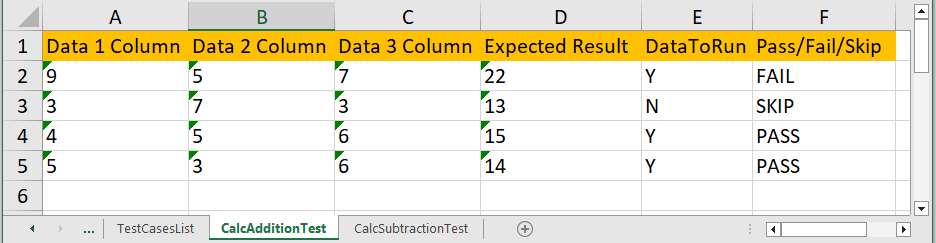
Two columns play a key role in Step 6.
The first column is DataToRun. This column controls execution at the data row level.
- Set the value to Y if the data row should be executed
- Set the value to N if the data row should be skipped
The second column is Pass/Fail/Skip. This column is used by the framework to write back the execution result for each data row. You should not manually update this column.
Only Y or N values are expected in the DataToRun column. Any row marked as N is skipped during execution, while rows marked as Y are executed and reported as PASS or FAIL based on actual and expected results.
TestCasesList Sheet Behavior

The TestCasesList sheet continues to work exactly as implemented in Step 5. Test case level execution is still controlled using the CaseToRun column, and this logic remains unchanged in Step 6.
When CaseToRun is set to N, the entire test case is skipped. No test data rows are executed, and the framework immediately writes SKIP in the Pass/Fail/Skip column for that test case. This happens before any data-driven logic is applied.
When CaseToRun is set to Y, the test case is allowed to execute. In this scenario, Step 6 data level execution and reporting logic takes over, and the final test case result is calculated only after all eligible data rows have completed execution.
How Test Data Level Execution Works
Once a test case is allowed to run, the framework moves to test data level execution. At this stage, the framework reads the DataToRun value for each data row from the Excel test data sheet and decides whether that row should be executed.
When the DataToRun value is set to N, the framework skips execution of that specific data row. A SkipException is thrown, which tells TestNG to mark that data set as skipped. The execution then moves to the next data row without running any test logic for the skipped row.
When the DataToRun value is set to Y, the data row is executed normally. The test logic runs, actual results are calculated, and they are compared with expected results to determine PASS or FAIL.
SkipException is used because it cleanly stops execution of a single data row without failing the test. It also ensures that the skipped status is correctly reported by TestNG and later written back to Excel, which keeps execution flow and reporting consistent.
DataProvider Enhancement for Accurate Reporting
To report results accurately at the test data level, the framework must know which Excel row is currently executing. By default, TestNG does not provide this information, which makes precise reporting difficult.
To solve this, TestNG DataProvider is enhanced to include a dataset index. Each data row is assigned an index value when the data is prepared for execution. This index is passed as the first parameter to the test method.
During execution, this index directly maps the TestNG data set to the corresponding Excel row number. As a result, the framework knows exactly where to write the PASS, FAIL, or SKIP result after execution.
This simple enhancement enables reliable and accurate reporting. Every test data result is written back to the correct row in Excel, even when some data rows are skipped or fail during execution.
PASS, FAIL, SKIP Reporting at Test Data Level
After each data row finishes execution, the framework determines the final status for that specific data set. This decision is made immediately after execution to ensure accurate reporting.
A data row is reported as PASS when it is executed successfully, and the actual result matches the expected result. This indicates that the business scenario covered by that data row worked as expected.
A data row is reported as FAIL when it is executed, but the actual and expected results do not match. In this case, the framework records the failure and also tracks it for final test case result calculation.
A data row is reported as SKIP when the DataToRun value is set to N. The test logic is not executed, and the framework marks the data row as skipped.
Once the status is decided, the framework writes the PASS, FAIL, or SKIP result back to Excel using the dataset index. This ensures that each result is written to the correct row in the test data sheet, providing clear and reliable execution visibility.
To support data-driven execution, SoftAssert is used instead of hard assertions. This ensures that even if one data row fails, the remaining data rows continue execution and are properly reported back to Excel. Without SoftAssert, execution would stop on the first failure, which would break data-level reporting.
Final Test Case Result Calculation Logic
After all eligible data rows have completed execution, the framework calculates the final result of the test case. This calculation is based entirely on the outcomes of individual data rows.
A test case becomes FAIL when any executed data row fails. Even a single failure is enough to mark the entire test case as FAIL, as this indicates a business scenario did not work as expected.
A test case becomes PASS when there are no failed data rows. This includes scenarios where all data rows pass or when some data rows are skipped, and the remaining ones pass.
Skipped data never causes a test case to fail because skipped rows are intentionally excluded from execution. They do not represent a failed validation, only a controlled decision not run that scenario.
Once the final result is determined, the framework writes the PASS or FAIL status back to the TestCasesList sheet in the Pass/Fail/Skip column, completing the execution and reporting cycle.
Download Step 6 Code (ZIP)
⚠️ Important Note: This article is part of the Playwright Enterprise Automation Framework and covers Step 6 in a step-by-step build. The downloadable code is not standalone and depends on all previous steps in the series. If you landed here directly, please complete the earlier steps first to avoid setup or runtime issues.
To improve hands-on learning and reader engagement, Step 6 code is shared in two parts.
Download Link 1: Single Test Class Only
This ZIP contains the Step 6 implementation for one test class, for example CalcAdditionTest.
Use this as a reference and try to implement the same logic in the remaining test classes yourself:
CalcSubtractionTestCalcMultiplicationTestCalcDivisionTest
Download Link 2: All Test Classes
If you are unable to implement the logic or want to cross-check your solution, this ZIP contains all modified test classes with Step 6 logic applied.
Both downloads include only test class changes. No utility or base class files are modified.
Execution Flow Summary
This step completes the execution and reporting flow of the Playwright Enterprise Automation Framework by combining test case-level and test data-level control.
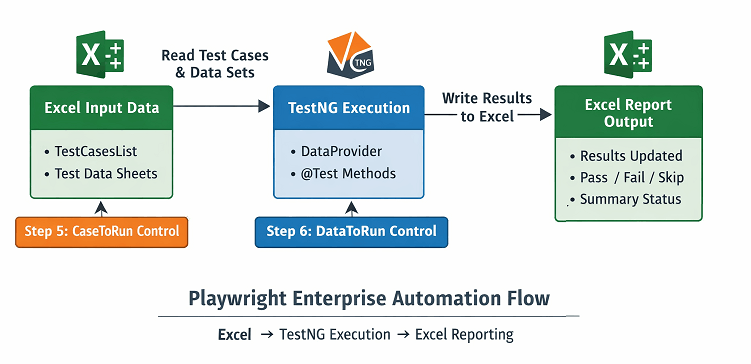
End-to-End Execution Flow
The execution starts from Excel and flows through TestNG before updating the results back into Excel. The framework follows a clear and predictable path:
- Test suite starts execution
- Framework reads the TestCasesList sheet
- CaseToRun value is checked for each test case
- Test case is skipped if CaseToRun is set to N
- If CaseToRun is Y, test execution continues
- The test data sheet is loaded for the test case
- Each data row is evaluated using DataToRun
- Only eligible data rows are executed
- PASS, FAIL, SKIP is recorded per data row
- The final test case result is calculated
- Test case result is written back to TestCasesList
From Excel to TestNG to Excel Reporting
Excel acts as the single source of control and reporting in the framework.
- Excel decides what to execute using CaseToRun and DataToRun
- TestNG handles execution and result lifecycle
- Framework logic maps each execution back to the correct Excel row
- Results are written back in real time after each data set
- Final test case status is updated once all data sets are complete
This ensures full traceability between test execution and business test data.
How Step 5 and Step 6 Work Together
Steps 5 and 6 are designed to work together without conflict.
- Step 5 controls whether a test case executes or is skipped
- Step 6 controls which data rows inside the test case execute
- Step 5 handles high-level execution decisions
- Step 6 handles detailed data-level execution and reporting
- A skipped data row never fails a test case
- A single failed data row fails the entire test case
- All skip or a mix of skip and pass results in a pass at the test case level
Together, these steps provide enterprise-grade execution control, accurate reporting, and complete visibility at both test case and test data levels.
Conclusion
Step 6 adds a critical enterprise-level capability to the Playwright Enterprise Automation Framework by introducing data-driven reporting and execution control. With this step, the framework now supports PASS, FAIL, SKIP reporting at both test data and test case levels, all driven directly from Excel.
This enhancement significantly improves framework maturity. Teams gain clear visibility into which data sets were executed, which were skipped, and why a test case passed or failed. It also reduces false failures, improves debugging, and aligns automation results more closely with real-world business test scenarios.
In the next step of this series, we will move further toward enterprise readiness by enhancing the framework with additional execution level control and reporting improvements that make large-scale test execution easier to manage and analyze.
FAQs
What happens if CaseToRun is N?
When CaseToRun is set to N in the TestCasesList sheet, the framework skips the entire test case. No test data rows are executed for that test, and the final status of the test case is reported as SKIP in the Excel sheet. This behavior is part of the Step 5 implementation and continues to work the same way in Step 6.
What happens if DataToRun is N?
When DataToRun is set to N for a specific data row, only that particular data set is skipped. The framework continues execution for the remaining data rows marked with Y. The skipped row is clearly reported as SKIP in the Excel sheet, while other rows are marked as PASS or FAIL based on their execution result.
Does skipped data affect the test case result?
Skipped data rows never cause a test case to fail. Only data rows that actually execute and fail can change the final test case status to FAIL. If all executed data rows pass, or if the test case contains only skipped and passed data rows, the final test case result is reported as PASS.
Can this work with large datasets?
Yes, this design works very well with large datasets. Each data row is executed and reported independently, which makes the framework scalable for enterprise-level automation. It also allows teams to control execution at a granular level without modifying test code, even when working with hundreds of data rows.