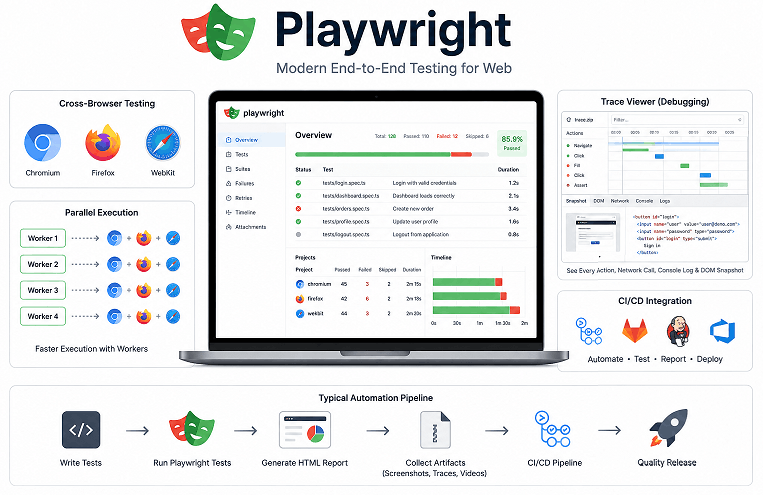
Playwright Test Runner is the official end to end testing framework included with Playwright. It helps developers run automated browser tests with built in support for parallel execution, retries, fixtures, assertions, screenshots, tracing, HTML reports, debugging tools, and cross browser testing across Chromium, Firefox, and WebKit. Playwright Test Runner is widely used for scalable CI/CD automation because it combines execution, reporting, and debugging inside one modern testing framework.
Unlike older automation frameworks that depend heavily on third party libraries for execution, reporting, retries, and parallel testing, Playwright Test Runner provides most modern automation features inside a single framework. This reduces setup complexity, improves maintainability, and helps teams build faster and more stable automation suites.
If you are completely new to Playwright automation, start with this complete Playwright TypeScript tutorial for beginners before learning Playwright Test Runner features in detail.
In this Playwright Test Runner tutorial, you will learn:
- How to install Playwright Test Runner
- How to create and run Playwright tests
- How to configure playwright.config.ts
- How to use assertions, hooks, and fixtures
- How to generate Playwright HTML reports
- How to debug failed Playwright tests
- Best practices for scalable Playwright automation
Why Use Playwright Test Runner?
Many modern automation teams use Playwright Test Runner because it combines browser automation, execution, reporting, debugging, retries, tracing, and parallel testing inside one framework. This reduces maintenance effort and eliminates the need for multiple external testing tools.
Playwright Test Runner is widely used for modern UI automation because it supports fast execution, stable locators, built in debugging tools, cross browser testing, CI/CD integration, and scalable test architecture without requiring complex third party integrations.
- Built in parallel execution
- Automatic waiting for elements
- Cross browser testing support
- Powerful debugging tools
- Built in HTML reports and tracing
- Stable locators and assertions
- Fast execution for CI/CD pipelines
What Is Playwright Test Runner in Playwright Automation?
Playwright Test Runner is the official testing framework developed by Microsoft for Playwright automation testing. It helps developers create, execute, organize, debug, and scale automated tests using features like retries, fixtures, assertions, tracing, screenshots, videos, reporting, and parallel execution.
According to the official Playwright Test documentation, Playwright Test includes built in parallelization, automatic waiting, retries, reporting, and powerful debugging capabilities for modern end to end testing workflows.
| Playwright | Playwright Test Runner |
|---|---|
| Browser automation library | Test execution framework |
| Handles browser actions | Handles execution, retries, reports, fixtures |
| Used for automation APIs | Used for running and organizing tests |
Playwright Test Runner supports:
- Chromium
- Firefox
- WebKit
- TypeScript
- JavaScript
- CI/CD integration
- API testing
- Parallel execution
Key Features of Playwright Test Runner
Playwright Test Runner includes built in features that help teams create stable automation frameworks without relying heavily on external plugins.
| Feature | Purpose |
|---|---|
| Parallel execution | Runs tests faster using workers |
| Auto waiting | Reduces flaky tests |
| Retries | Re runs failed tests |
| HTML reports | Generates execution reports |
| Fixtures | Provides reusable setup |
| Trace Viewer | Helps debug failures |
| Cross browser support | Runs tests across browsers |
| Screenshots and videos | Captures failure artifacts |
How Playwright Test Runner Works Internally
Playwright Test Runner uses a worker based execution architecture where tests run in isolated browser environments. Each worker can launch its own browser instance, browser context, and test session independently.
This isolation helps improve execution stability, parallel testing performance, and test reliability in CI/CD pipelines.
| Component | Responsibility |
|---|---|
| Worker | Executes tests in parallel |
| Browser | Launches automation browser |
| Browser Context | Provides isolated sessions |
| Page | Represents browser tab |
| Reporter | Generates execution reports |
| Fixtures | Manage reusable setup |
How to Install Playwright Test Runner Step by Step
Playwright Test Runner Prerequisites
- Node.js installed
- npm or yarn package manager
- Basic JavaScript or TypeScript knowledge
- VS Code or another code editor
- Internet connection for browser installation
Playwright officially supports Windows, macOS, and Linux environments.
Step 1: Create a Project Folder
mkdir playwright-test-runner-demo
cd playwright-test-runner-demo
Step 2: Install Playwright
Run the official Playwright installation command to install Playwright Test Runner, browser binaries, default configuration files, and sample test cases.
npm init playwright@latestDuring installation, Playwright asks for:
- Language selection
- Test folder name
- Browser installation
- GitHub Actions setup
If you are new to Playwright, you can safely continue with the default installation options.
You can also follow this detailed guide to install Playwright with TypeScript and run your first test if you want a complete beginner friendly setup walkthrough.
Step 3: Understand the Generated Structure
After Playwright installation, the framework automatically generates a structured project layout that helps organize tests, configuration files, reports, and dependencies.
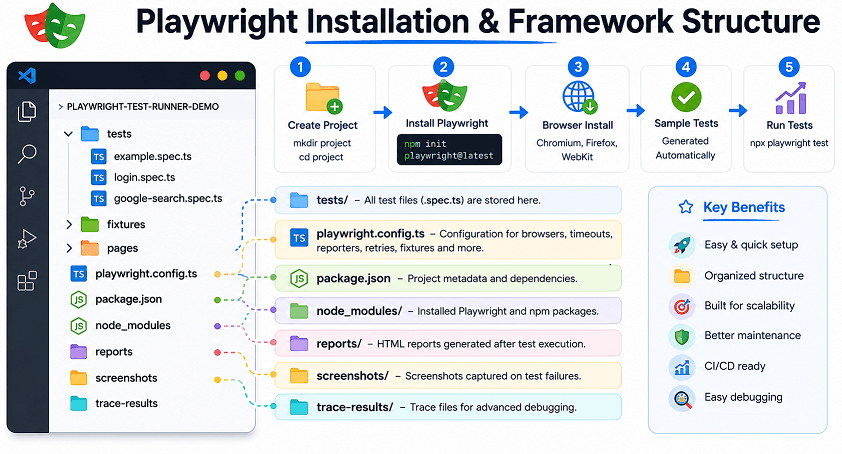
After installation, Playwright creates the following structure.
playwright-test-runner-demo/
├── tests/
├── playwright.config.ts
├── package.json
└── node_modules/
Understanding the Playwright folder structure early helps organize large automation frameworks more efficiently as projects grow.
| File or Folder | Purpose |
|---|---|
| tests/ | Stores test files |
| playwright.config.ts | Stores framework configuration |
| package.json | Manages dependencies |
You can learn more about scalable framework organization in this Playwright project structure guide with examples.
Step 4: Run Sample Tests
npx playwright testAfter execution starts, Playwright launches the selected browsers and runs the sample tests generated during installation.
Step 5: Open HTML Report
npx playwright show-report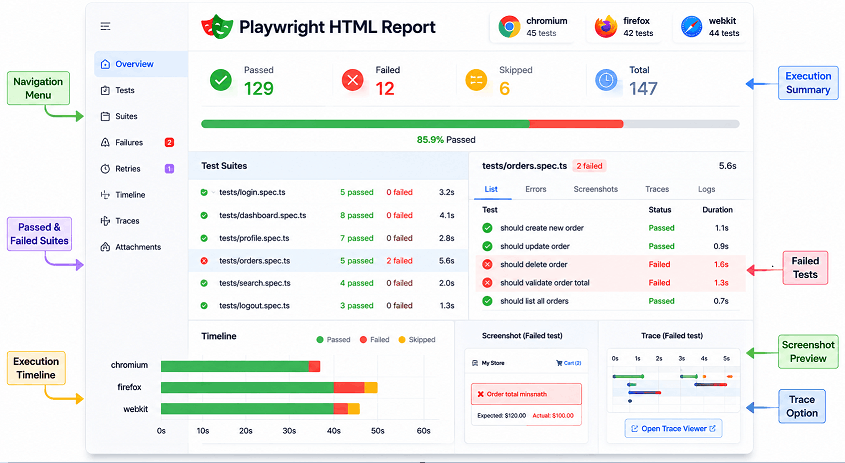
The Playwright HTML report contains:
- Passed and failed tests
- Screenshots
- Trace files
- Error logs
- Execution timing
How to Create Your First Playwright Test
Create a test file inside the tests folder.
tests/google-search.spec.tsAdd the following Playwright test.
import { test, expect } from '@playwright/test';

test('Verify Google page title', async ({ page }) => {
  await page.goto('https://www.google.com');
  await expect(page).toHaveTitle(/Google/);
});
The page.goto() method is one of the most commonly used Playwright navigation commands for opening pages and switching between application flows.
Run the test using:
npx playwright test tests/google-search.spec.tsLearn more about browser navigation methods in this Playwright navigation methods tutorial with examples.
Understanding the Test Structure
| Code | Purpose |
|---|---|
| test() | Creates a test case |
| page | Browser page instance |
| page.goto() | Opens a URL |
| expect() | Performs assertions |
| toHaveTitle() | Verifies the page title |
How to Run Playwright Tests Using Playwright Test Runner
Run All Tests
npx playwright testRun a Specific Test File
npx playwright test tests/login.spec.tsRun a Specific Test
npx playwright test --grep "Verify successful login"Run Tests in Headed Mode
Headed mode launches a visible browser window during execution instead of running tests silently in the background. This helps beginners observe browser actions in real time and troubleshoot UI related issues more easily.
Although headed execution is slower than headless mode, it is extremely useful during debugging, locator validation, and test development.
npx playwright test --headed| Mode | Behavior | Best Use Case |
|---|---|---|
| Headless | Runs without visible browser | CI/CD pipelines |
| Headed | Runs with visible browser window | Debugging and test development |
Run Tests in Different Browsers
Playwright supports cross browser testing using Chromium, Firefox, and WebKit. This helps verify that web applications behave consistently across different browser engines, operating systems, and rendering environments.
Running tests across multiple browsers is important because rendering behavior, JavaScript execution, and browser specific features may differ between engines.
Run tests in Chromium:
npx playwright test --project=chromiumRun tests in Firefox:
npx playwright test --project=firefoxRun tests in WebKit:
npx playwright test --project=webkitRun Tests in Debug Mode
Debug mode launches Playwright Inspector and pauses execution step by step. This helps identify locator issues, timing problems, unexpected navigation behavior, and failed assertions more efficiently.
npx playwright test --debugRun Tests with UI Mode
UI Mode provides an interactive interface for running, debugging, filtering, and inspecting Playwright tests. It is especially useful during test development because developers can rerun individual tests quickly without executing the entire suite.
npx playwright test --uiRun Tests with Retries
Retries automatically re run failed tests before marking them as failed permanently. This feature helps reduce temporary failures caused by network delays, slow environments, or intermittent application behavior.
npx playwright test --retries=2Run Tests Using Multiple Workers
Workers allow Playwright to execute multiple tests in parallel. Increasing worker count can significantly reduce execution time for large automation suites and CI/CD pipelines.
Each worker runs tests in an isolated browser environment. However, shared test data and dependent tests can still create instability during parallel execution.
npx playwright test --workers=4Run Tests from a Folder
npx playwright test tests/smokeCommon Playwright Test Runner Commands
| Command | Purpose |
|---|---|
| npx playwright test | Run all tests |
| npx playwright test –ui | Launch UI Mode |
| npx playwright test –debug | Run in debug mode |
| npx playwright show-report | Open HTML report |
| npx playwright codegen | Generate automation code |
| npx playwright install | Install browsers |
How to Configure Playwright Test Runner Using playwright.config.ts
Playwright configuration is managed using the playwright.config.ts file.
Basic Playwright Configuration
import { defineConfig, devices } from '@playwright/test';

export default defineConfig({
  testDir: './tests',
  timeout: 30000,
  retries: 1,
  workers: 2,
  reporter: 'html',

  use: {
    headless: true,
    screenshot: 'only-on-failure',
    trace: 'on-first-retry',
    baseURL: 'https://example.com'
  },

  projects: [
    {
      name: 'chromium',
      use: { ...devices['Desktop Chrome'] }
    },

    {
      name: 'firefox',
      use: { ...devices['Desktop Firefox'] }
    }
  ]
});
Important Configuration Options
| Configuration | Purpose |
|---|---|
| testDir | Defines test folder |
| timeout | Sets maximum execution time |
| retries | Re runs failed tests |
| workers | Controls parallel execution |
| reporter | Generates reports |
| screenshot | Captures screenshots |
| trace | Enables tracing |
| baseURL | Sets default URL |
| projects | Configures browsers |
How to Run Playwright Tests in Different Environments
Most real world automation projects run tests across multiple environments such as development, staging, and production. Playwright Test Runner supports environment specific configuration using environment variables.
BASE_URL=https://staging.example.com npx playwright testYou can access environment variables inside playwright.config.ts.
use: {
  baseURL: process.env.BASE_URL
}
This approach helps maintain separate configurations without modifying test files.
Using baseURL
The baseURL configuration helps simplify navigation commands by removing repeated domain names from test files. This makes Playwright tests cleaner and easier to maintain.
Instead of writing full URLs repeatedly:
await page.goto('https://example.com/login');You can write shorter relative paths:
await page.goto('/login');This becomes especially useful in large automation projects that run across multiple environments.
Configure Environment Variables
Environment variables help store configuration values separately from the test code. This approach improves security and allows the same Playwright framework to run across multiple environments without hardcoding URLs, usernames, passwords, or API keys.
baseURL: process.env.BASE_URLRun tests using:
BASE_URL=https://staging.example.com npx playwright testHow to Use Assertions in Playwright Tests
Assertions are used to validate application behavior during Playwright test execution. They help verify whether page titles, URLs, element visibility, text values, attributes, and application states match the expected results.
Playwright provides built in auto retrying assertions that automatically wait until conditions become true. This helps reduce flaky tests caused by timing issues and slow UI rendering.
You can explore more assertion examples and validation techniques in this Playwright TypeScript assertions complete guide.
Basic Assertion Example
import { test, expect } from '@playwright/test';

test('Verify page title', async ({ page }) => {
  await page.goto('https://example.com');
  await expect(page).toHaveTitle(/Example/);
});
Common Playwright Assertions
| Assertion | Purpose |
|---|---|
| toHaveTitle() | Validates page title |
| toHaveURL() | Validates URL |
| toBeVisible() | Checks visibility |
| toContainText() | Verifies partial text |
| toHaveText() | Verifies exact text |
| toBeEnabled() | Checks element state |
| toHaveAttribute() | Validates attributes |
Validate Element Visibility
await expect(page.locator('#loginButton')).toBeVisible();Validate Text
await expect(page.locator('.success-message'))
  .toContainText('Login successful');
Validate URL
await expect(page).toHaveURL(/dashboard/);Soft Assertions
Soft assertions are useful when you want to continue test execution even after a validation failure. They help collect multiple failures within a single test instead of stopping execution immediately after the first failed assertion.
await expect.soft(page).toHaveTitle(/Dashboard/);Soft assertions allow test execution to continue even if an assertion fails. This helps capture multiple validation failures inside a single test execution instead of stopping immediately after the first failed assertion.
Soft assertions are useful when validating multiple UI elements, forms, dashboards, or large page layouts.
How to Use Hooks in Playwright Test Runner
Hooks help manage reusable setup and cleanup operations before or after Playwright test execution. They reduce duplicate code and improve framework organization in large automation projects.
Automation teams commonly use hooks for browser setup, login execution, test data preparation, environment cleanup, database resets, and reporting activities.
| Hook | Purpose |
|---|---|
| beforeAll() | Runs once before all tests |
| beforeEach() | Runs before every test |
| afterEach() | Runs after every test |
| afterAll() | Runs once after all tests |
beforeEach Example
import { test, expect } from '@playwright/test';

test.beforeEach(async ({ page }) => {
  await page.goto('https://example.com');
});

test('Verify homepage title', async ({ page }) => {
  await expect(page).toHaveTitle(/Example/);
});
The beforeEach hook runs before every test case. This is useful when multiple tests require the same initial setup, such as opening an application or logging into a user account.
afterEach Example
test.afterEach(async () => {
  console.log('Test execution completed');
});
The afterEach hook is commonly used for cleanup activities such as clearing test data, logging execution details, or capturing additional debugging information after failures.
beforeAll Example
test.beforeAll(async () => {
  console.log('Starting test suite');
});
Hook Execution Order
beforeAll()
beforeEach()
Test execution
afterEach()
afterAll()
How to Use Fixtures in Playwright Test Runner
Fixtures help reuse setup logic and shared resources across multiple Playwright tests.
Built In Fixtures
Playwright provides several built in fixtures that simplify browser automation and reduce manual setup effort inside test files.
| Fixture | Purpose |
|---|---|
| page | Browser tab instance |
| browser | Browser instance |
| context | Browser context |
| request | API testing support |
Basic Fixture Example
import { test, expect } from '@playwright/test';

test('Verify homepage', async ({ page }) => {
  await page.goto('https://example.com');
  await expect(page).toHaveTitle(/Example/);
});
Create a Custom Fixture
import { test as base } from '@playwright/test';

export const test = base.extend({
  appURL: async ({}, use) => {
    await use('https://example.com');
  }
});
Custom fixtures help centralize reusable setup logic and improve framework maintainability. This becomes extremely useful in large Playwright automation projects.
Use a Custom Fixture
import { test, expect } from './fixtures';

test('Verify homepage', async ({ page, appURL }) => {
  await page.goto(appURL);
  await expect(page).toHaveTitle(/Example/);
});
Login Fixture Example
import { test as base } from '@playwright/test';

export const test = base.extend({
  loggedInPage: async ({ page }, use) => {
    await page.goto('https://example.com/login');

    await page.fill('#username', 'admin');
    await page.fill('#password', 'admin123');
    await page.click('#loginButton');

    await use(page);
  }
});
This type of reusable login fixture helps avoid repeated authentication steps across multiple tests and improves execution speed for large regression suites.
Why Fixtures Are Important in Large Playwright Frameworks
Fixtures help reduce duplicate setup code across large automation projects. Instead of repeating browser setup, login steps, API initialization, or test data preparation inside every test, teams can centralize reusable logic using fixtures.
This approach improves framework maintainability, reduces code duplication, and makes large Playwright automation suites easier to scale.
Well designed fixtures also improve execution stability in CI/CD pipelines because test environments remain more consistent across executions.
Worker Fixtures vs Test Fixtures
| Fixture Type | Behavior |
|---|---|
| Test Fixture | Created for each test |
| Worker Fixture | Shared across worker |
How to Generate HTML Reports in Playwright Test Runner
Playwright provides built in reporting features that help analyze failed test executions more efficiently.
Enable HTML Report
reporter: 'html'Open HTML Report
Playwright HTML reports provide a visual summary of test execution. Teams can quickly identify failed tests, inspect screenshots, analyze trace files, and review execution duration without checking raw terminal logs.
npx playwright show-reportMultiple Reporters Example
Playwright supports multiple reporters simultaneously. This is useful when teams want readable local reports along with machine readable reports for CI/CD integrations.
reporter: [
  ['html'],
  ['list']
]
Generate JUnit Reports
JUnit reports are commonly used in Jenkins, GitLab CI, Azure DevOps, and other CI/CD systems because they provide structured XML output for automated reporting dashboards.
reporter: [
  ['junit', { outputFile: 'results.xml' }]
]
Generate JSON Reports
JSON reports help integrate Playwright execution results with custom dashboards, analytics tools, and external reporting systems.
reporter: [
  ['json', { outputFile: 'results.json' }]
]
Capture Screenshots on Failure
use: {
  screenshot: 'only-on-failure'
}
Screenshots captured during failures help teams quickly understand UI issues without rerunning tests locally.
Record Videos on Failure
use: {
  video: 'retain-on-failure'
}
Video recordings help analyze complex failures, timing issues, animations, and unexpected browser behavior that may not be visible from logs alone.
Enable Tracing
Tracing records screenshots, DOM snapshots, console logs, network activity, and browser actions during execution. This makes debugging failed tests much easier.
use: {
  trace: 'on-first-retry'
}
How to Run Playwright Tests in Parallel Using Workers
Playwright can execute multiple tests simultaneously using worker processes. Parallel execution helps reduce overall execution time and improves CI/CD efficiency for large regression suites.
Each worker launches isolated browser instances, which helps improve execution reliability. However, poorly designed shared test data can still create flaky tests during parallel runs.
Run Tests Using Workers
npx playwright test --workers=4Configure Workers
import { defineConfig } from '@playwright/test';

export default defineConfig({
  workers: 4
});
Run Tests Sequentially
npx playwright test --workers=1Serial Execution Example
import { test } from '@playwright/test';

test.describe.configure({ mode: 'serial' });

test('Test 1', async ({ page }) => {

});

test('Test 2', async ({ page }) => {

});
Best Practices for Parallel Execution
Parallel execution works best when tests remain fully independent from each other. Shared accounts, shared test data, and dependent execution flows are common causes of flaky automation behavior.
How to Filter and Run Tagged Tests in Playwright
Tags help organize large Playwright test suites and simplify selective test execution.
Add Tags
import { test, expect } from '@playwright/test';

test('Verify login functionality @smoke', async ({ page }) => {
  await page.goto('https://example.com');
  await expect(page).toHaveTitle(/Example/);
});
Run Tagged Tests
Tags help organize large automation suites and allow teams to run only specific categories of tests such as smoke, sanity, regression, or API tests.
npx playwright test --grep "@smoke"Exclude Tagged Tests
npx playwright test --grep-invert "@flaky"Run Multiple Tags
npx playwright test --grep "@smoke|@sanity"test.only Example
test.only('Verify homepage title', async ({ page }) => {
  await page.goto('https://example.com');
});
test.only is useful during debugging because it executes only the selected test case while skipping all remaining tests.
test.skip Example
test.skip('Skip this test', async ({ page }) => {

});
test.skip helps temporarily disable unstable, blocked, or environment dependent tests without deleting test code.
How to Debug Failed Playwright Tests
Playwright provides multiple debugging tools that help identify and troubleshoot failed test scenarios.
Run Playwright in Debug Mode
npx playwright test --debugPause Test Execution
await page.pause();The page.pause() method opens Playwright Inspector and pauses execution interactively. This helps inspect locators, browser state, and step execution during debugging.
Example Using page.pause()
import { test } from '@playwright/test';

test('Debug login flow', async ({ page }) => {
  await page.goto('https://example.com/login');
  await page.pause();
  await page.click('#loginButton');
});
Run UI Mode
npx playwright test --uiOpen Trace Viewer
npx playwright show-trace trace.zipWhy Trace Viewer Is Useful for Debugging
Trace Viewer helps analyze failed Playwright tests step by step. It records screenshots, DOM snapshots, console logs, network requests, and browser actions during execution.
This makes it easier to identify flaky tests, timing issues, incorrect locators, and unexpected application behavior.
Capture Browser Console Logs
page.on('console', msg => {
  console.log(msg.text());
});
Browser console logs help identify JavaScript errors, frontend warnings, API failures, and client side exceptions during execution.
Monitor Network Requests
page.on('request', request => {
  console.log(request.url());
});
Monitoring network requests helps troubleshoot failed API calls, missing resources, authentication problems, and slow backend responses.
How Playwright Test Runner Supports CI/CD Pipelines
Playwright Test Runner integrates well with modern CI/CD platforms such as GitHub Actions, Jenkins, GitLab CI, Azure DevOps, and CircleCI. Teams commonly run Playwright tests automatically during pull requests, nightly executions, and deployment pipelines.
Features such as parallel execution, retries, headless browser execution, HTML reports, screenshots, videos, and tracing make Playwright highly suitable for continuous testing workflows.
Playwright also supports Docker based execution, which helps create stable and consistent execution environments across local machines and CI servers.
Many teams additionally upload Playwright reports and trace artifacts inside CI pipelines so failed executions can be analyzed more easily without rerunning tests locally.
Playwright is commonly integrated with GitHub Actions, Jenkins, Azure DevOps, GitLab CI, and Docker based execution pipelines for automated regression testing.
Playwright Test Runner Best Practices
Use Stable Locators
Stable locators improve test reliability and reduce maintenance effort after UI changes. Fragile selectors based on deep CSS paths or dynamic attributes often break frequently.
Playwright recommends using user facing locators because they better represent real user interactions and remain more stable after UI changes.
Recommended locators:
- getByRole()
- getByLabel()
- getByText()
- data-testid
Avoid waitForTimeout()
Static waits increase execution time and often create unstable automation tests because applications may load faster or slower across environments.
await page.waitForTimeout(5000);Playwright already includes powerful auto waiting mechanisms that automatically wait for elements to become actionable. In most situations, explicit static waits are unnecessary.
This built in synchronization behavior is one of the biggest reasons why Playwright tests are generally more stable than older automation frameworks.
Read this detailed guide on auto waiting in Playwright TypeScript to understand how Playwright handles synchronization automatically.
Use Fixtures for Reusable Setup
Fixtures help centralize reusable setup logic such as authentication, browser setup, API initialization, and test data preparation.
This reduces duplicate code across test files and improves maintainability in large Playwright automation frameworks.
Store Sensitive Data in Environment Variables
Avoid hardcoding usernames, passwords, API tokens, or secret keys directly inside Playwright test files. Hardcoded credentials create security risks and make environment management difficult.
Instead, store sensitive data using environment variables or secure secret management systems.
process.env.USERNAMEUse Storage State Authentication
Storage state authentication helps reuse authenticated browser sessions across multiple tests. This avoids repeated UI login execution and significantly improves overall execution speed.
It is commonly used in large regression suites and CI/CD pipelines where repeated login steps increase execution time unnecessarily.
Organize the Framework Properly
Recommended structure:
tests/
pages/
fixtures/
utils/
test-data/
playwright.config.ts
A properly organized framework improves scalability, maintainability, team collaboration, and long term automation stability.
Common Playwright Test Runner Mistakes Beginners Should Avoid
Using waitForTimeout() Everywhere
Excessive static waits increase execution time and frequently create flaky automation behavior. Tests may still fail if applications load slower than expected, while fast environments waste unnecessary execution time.
Playwright auto waiting features already handle most synchronization problems more efficiently.
Using Fragile Selectors
Long CSS selectors and absolute XPath locators often break after small UI changes. This increases maintenance effort and creates unstable automation tests.
Prefer stable user facing locators such as getByRole(), getByLabel(), getByText(), and data-testid attributes whenever possible.
Hardcoding URLs and Credentials
Store sensitive data using environment variables or secure configuration management practices.
Ignoring Reports and Trace Files
HTML reports, screenshots, videos, and trace files provide critical debugging information during failed executions. Ignoring these artifacts makes troubleshooting much more difficult.
Trace Viewer especially helps analyze browser actions, network activity, console logs, and UI behavior step by step.
Why Playwright Test Runner Is Faster Than Selenium
Playwright Test Runner is generally faster than traditional Selenium frameworks because it includes built in auto waiting, parallel execution, isolated browser contexts, and direct browser communication architecture.
Unlike Selenium frameworks that often depend on multiple external libraries and WebDriver communication layers, Playwright provides a more modern and optimized automation approach.
Playwright Test Runner vs Jest vs Mocha vs Selenium Comparison
| Feature | Playwright Test Runner | Jest | Mocha | Selenium |
|---|---|---|---|---|
| Built in browser automation | Yes | No | No | Yes |
| Parallel execution | Built in | Supported | Plugin based | Grid based |
| Trace Viewer | Yes | No | No | Limited |
| Screenshots and videos | Built in | No | Plugin based | External setup |
| Auto waiting | Built in | No | No | Mostly manual |
| Configuration complexity | Lower | Lower | Medium | Higher |
Related Playwright Tutorials and Guides
- Complete Playwright TypeScript Tutorial
- Playwright Auto Waiting Explained
- Playwright Locators Tutorial
- Playwright Page Object Model Tutorial
- Playwright Fixtures Tutorial
When Should You Use Playwright Test Runner?
Playwright Test Runner is a strong choice for modern web automation projects that require fast execution, stable locators, cross browser testing, and built in debugging tools.
It works especially well for teams building scalable CI/CD automation pipelines, end to end testing frameworks, and reliable regression test suites.
For most modern browser automation projects, Playwright Test Runner reduces framework complexity compared to older tool combinations that require separate libraries for execution, reporting, and debugging.
Real World Use Cases of Playwright Test Runner
- End to end web application testing
- Cross browser compatibility testing
- Regression testing in CI/CD pipelines
- Smoke and sanity automation suites
- Authentication and user workflow testing
- API and UI combined testing
- Large scale enterprise automation frameworks
Conclusion
Playwright Test Runner is a powerful framework for modern end to end automation testing. It provides built in support for execution, retries, fixtures, assertions, reports, tracing, screenshots, videos, and parallel testing without requiring multiple external tools.
In this Playwright Test Runner tutorial, you learned how to install Playwright, create tests, configure the framework, run tests across browsers, generate reports, debug failures, and organize scalable automation projects.
If you are learning Playwright automation, focus first on stable locators, reusable fixtures, clean test organization, and reliable assertions. These fundamentals make large scale automation maintenance much easier later.
Frequently Asked Questions About Playwright Test Runner
What is Playwright Test Runner?
Playwright Test Runner is the built in testing framework provided by Playwright for running end to end automation tests with features like retries, fixtures, reports, tracing, and parallel execution.
How do I run Playwright tests?
You can run Playwright tests using:
npx playwright test
How do I run a single Playwright test file?
npx playwright test tests/login.spec.ts
Does Playwright support parallel execution?
Yes. Playwright supports built in parallel execution using worker processes.
How do I debug Playwright tests?
You can debug Playwright tests using:
Playwright Inspector
UI Mode
Trace Viewer
Screenshots
Videos
page.pause()
How do I generate Playwright HTML reports?
Enable HTML reporting inside playwright.config.ts.
reporter: ‘html’
Then open the report using:
npx playwright show-report
What is the difference between Playwright and Playwright Test Runner?
Playwright is the browser automation library, while Playwright Test Runner manages test execution, fixtures, retries, reporting, and framework functionality.
Can Playwright capture screenshots on failure?
Yes. Playwright can automatically capture screenshots during failures.
What are fixtures in Playwright?
Fixtures are reusable setup resources that help manage browser setup, login flows, API clients, and shared utilities.
What is Trace Viewer in Playwright?
Trace Viewer is a built in debugging tool that records browser actions, screenshots, network activity, and console logs during test execution.